When membership waivers and intake forms are set up, clients purchasing a membership online will be prompted to complete the intake form and sign the membership waivers before checking out.
Things to know:
- To make a membership intake form visible to clients online, it must be linked to specific memberships. This ensures the form is automatically presented during the checkout process.
- If custom fields within an intake form are set to required, clients must complete them to finalize their purchase.
- When booking appointments online, clients with expired waivers will see a prompt or field asking them to update or re-sign the document. The system will prompt clients to submit a new waiver once the previous one has expired, regardless of the 'Ask only once' setting.
- The waiver prompt remains visible until the waiver is successfully completed
- Once completed, the prompt will no longer appear during booking
- This ensures all client waivers are up to date before appointments are confirmed
- By default when a client signs a new version of an expired waiver online, the new document automatically replaces the old one in your system.
- If the "Allow Viewing Old Waivers on Client Profile" company setting is enabled, staff can view the entire history of a client's signed waivers (both active and expired) on the client profile
To access the membership waiver/intake form online, your clients should:
- Navigate to your booking widget or express checkout page
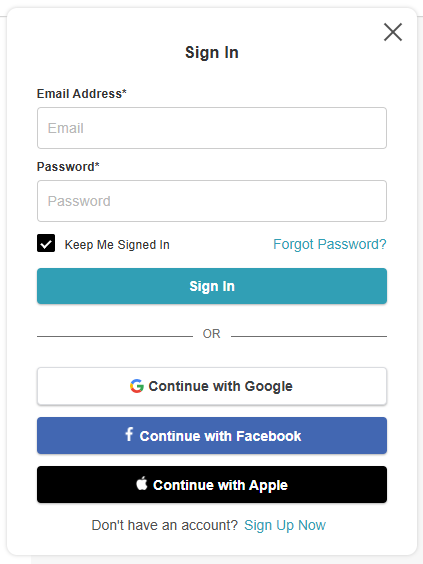
- Sign in using their email and password, log in via a Facebook, Google, or Apple account, or create a new account
- Click the Memberships link in the header
- If applicable, choose who the membership is for (client, family member, or pet)
- If the client has a family member or pet on their account, the "Please Select A {Family Member} or {Pet}" option will be displayed, along with a drop-down list from which the client can choose the family member or pet
- If the client does not have a family member or pet listed on their account, they will be prompted to add one
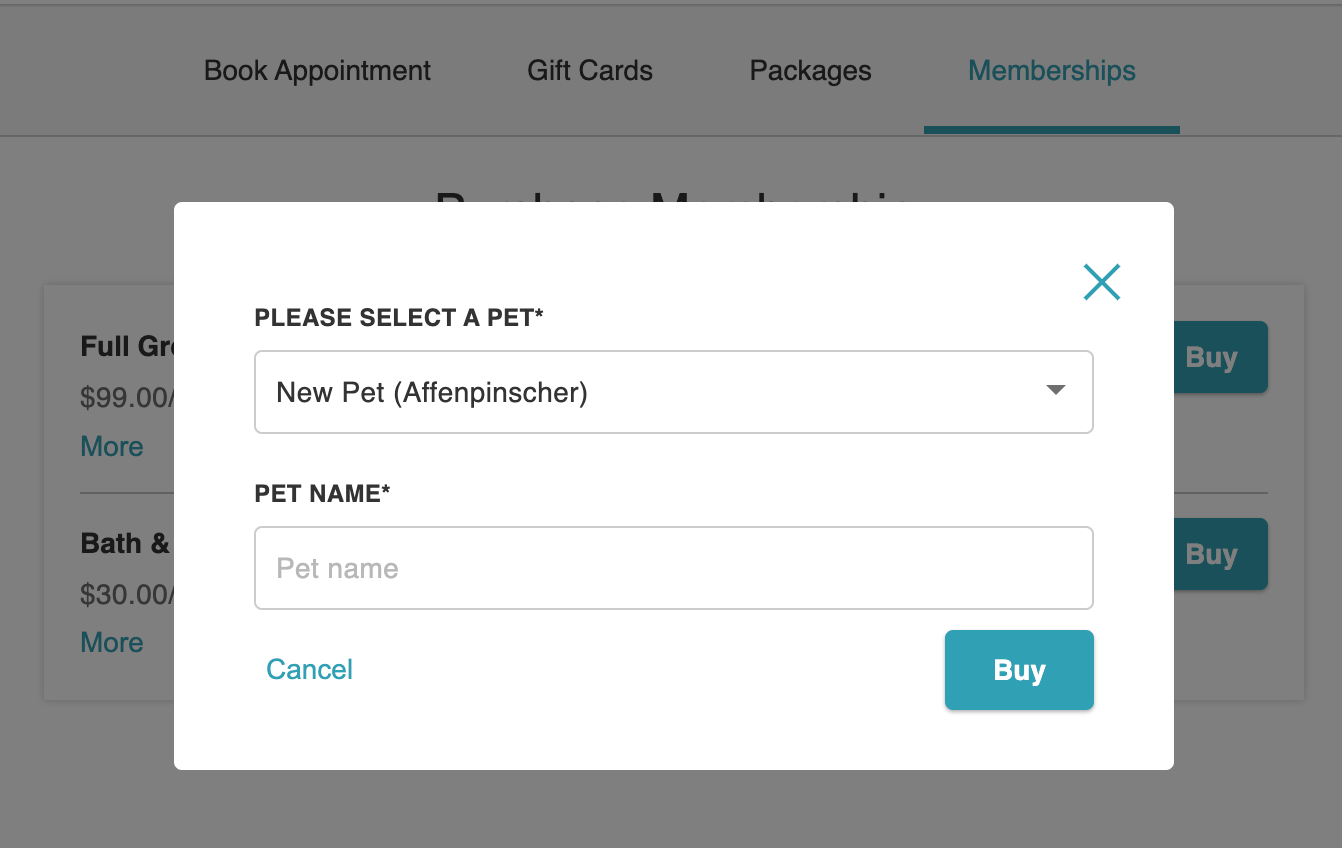
- Click Buy again to add the membership to the cart
- On the checkout page:
- Membership details (name, recipient, billing frequency, start/end date, and price) will display
- The intake form and membership agreement will appear to the left of the payment section
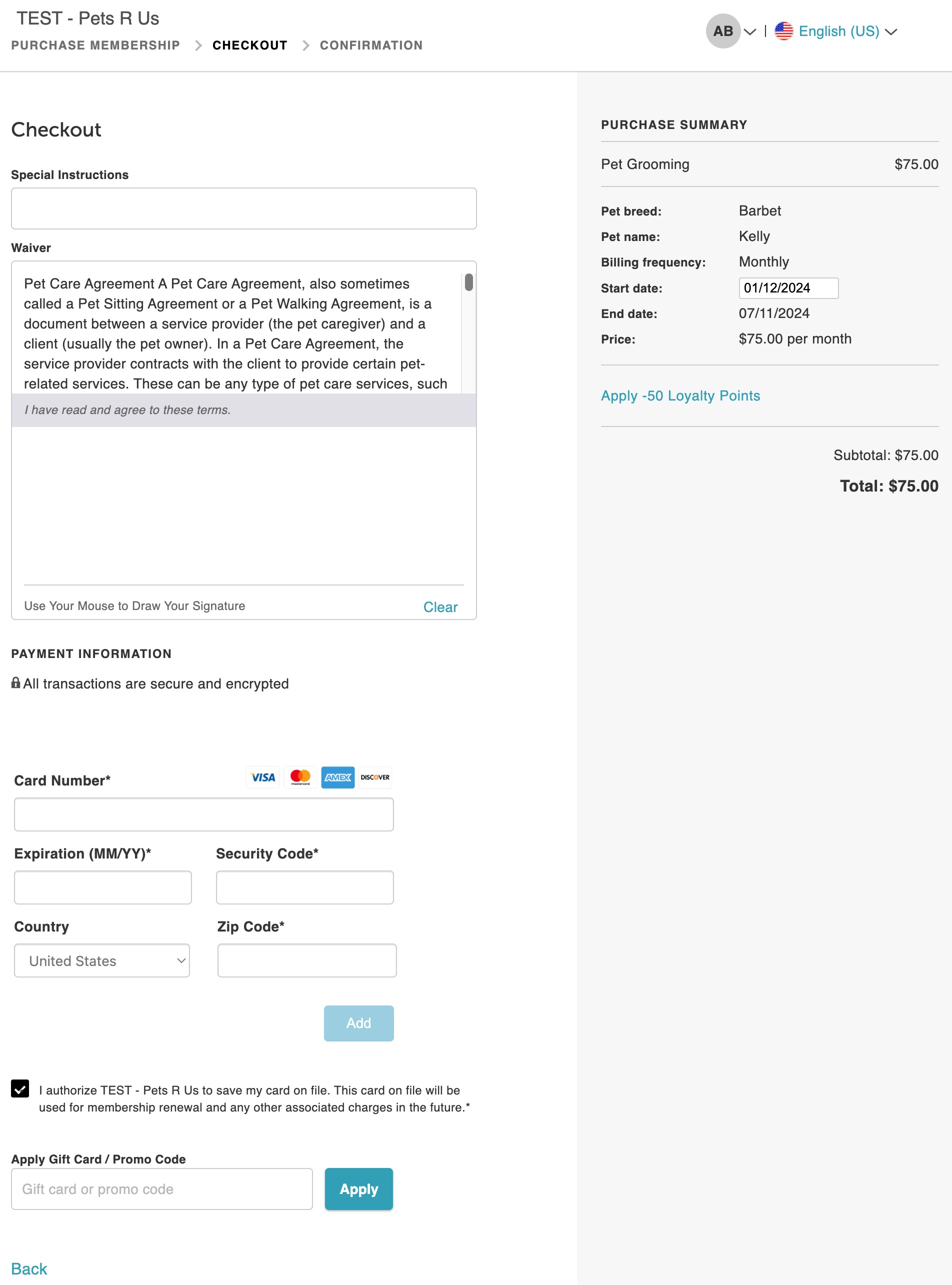
- Enter payment details and click 'Complete Purchase' to complete the intake form and sign the agreement
- Enter the card details and then select the “Complete Purchase” button
- Clients can print their transaction confirmation if desired
For more information, contact us at support@mytime.com or (385) 233-6964.
Related Articles:
Creating Membership Waivers & Intake Form
Generating Membership Waivers In-Store
Sign Waivers via Ingenico Terminal
Was this article helpful?
That’s Great!
Thank you for your feedback
Sorry! We couldn't be helpful
Thank you for your feedback
Feedback sent
We appreciate your effort and will try to fix the article