This article explains the steps your clients go through when booking an appointment online and outlines important behaviors, requirements, and settings that affect the booking experience.
Things to know:
- Online booking must be enabled for the business.
- Each service must have a staff member assigned, and staff work hours must be set.
- Clients must sign in using an existing MyTime account, Facebook, or Apple login—or create a new account during checkout.
- The same service cannot be booked multiple times in a single booking. To book the same service more than once, the client must complete the booking and then start a new one.
- If only one service is available for booking, the filter section on the service selection page will be hidden to provide a cleaner and more streamlined booking experience for clients. The filters will automatically reappear once multiple services become available, ensuring a streamlined interface that scales with your menu.
- If a client selects a specific staff member, only the services that staff member can perform will be shown.
- No Preference Option:
- When a client selects No Preference, the system assigns a staff member using round-robin logic. Learn more here.
- If the “Can customers book a specific staff member?” setting is disabled, the “Who Would You Like to Book?” section is hidden. In this case, all bookings behave as if No Preference was selected.
- If an appointment is booked with the staff option set to “No Preference,” the client-facing view will continue to display “No Preference” on both the appointment confirmation screen (after refresh) and the My Account > Bookings page even if a staff member is assigned later.
- If a specific staff member is selected during booking, any changes to the assigned staff will be reflected in the client-facing view on both the appointment confirmation screen (after refresh) and the My Account > Bookings page.
- Booking Appointments with Add-On Services
- Accounts with Multi-Staff Appointments Feature Enabled:
- If a staff member is selected for the core service and "No Preference" is chosen for the add-on, the same staff member will be assigned to both.
- If "No Preference" is selected for both the core service and add-on, the system will assign the same staff member to both services. However, if the assigned staff member is not eligible to perform the add-on service, a different staff member will be assigned to the add-on.
- When booking a core service with one or more add-ons online, if the “Enforce Same Staff and Resource for Add-Ons and Service” setting is enabled, both the core service and all add-ons must be assigned to the same staff member and resource.
- If there is any mismatch in staff or resource assignments between the core service and the add-ons, the system will block availability and prevent the booking from being scheduled.
- If a core service does not have a resource assigned, it will conflict with add-ons that require a specific resource (e.g., a room), resulting in no available time slots.
- Similarly, if the staff assigned to the core service is not assigned to the add-on, the booking will not be allowed.
- Accounts with Multi-Staff Appointments Feature Disabled:
- If "No Preference" is selected, the system will automatically assign the same staff member to both the core service and the add-on.
- If the selected staff member cannot perform both the core service and the add-on, the option to select an add-on will not be visible.
- Accounts with Multi-Staff Appointments Feature Enabled:
- An error message stating “Time is no longer available” may appear if:
- Another appointment has been booked at the same time.
The staff member’s working hours have changed.
The selected time slot is no longer available for the chosen staff member.
- By default, selecting "Book Again" pre-fills appointment details from the client’s previous booking. This behavior can be disabled using a hidden setting managed by the MyTime team. To enable this setting, contact support@mytime.com.
- If “Can customers book a specific staff member?” is enabled and prefill is not disabled:
- If the previous appointment was booked with a specific staff member, the Book With field shows that staff member.
- If the previous appointment used No Preference, the system applies round-robin logic and displays No Preference.
- Examples:
- Last appointment with Staff B → Book With: Staff B
- Last appointment with No Preference → Book With: No Preference
- Behavior When Prefill Is Disabled: The "Book With" field always displays "No Preference," regardless of the previous booking.
- When the "Align staff online booking times to their interval" setting is enabled, all available start times on the booking widget strictly stick to the staff member's designated booking intervals (e.g., every 15, 30, or 60 minutes).
- How it works: Start times will only appear on standard interval slots. Even if an availability-blocking event—such as an existing appointment, personal blockage, or class session—ends between standard slots, the booking widget will ignore that exact end time and only offer start times that align with the staff member's set interval.
- Example: If a staff member is configured with a 30-minute booking interval (offering slots at 2:00, 2:30, 3:00, etc.). If a personal blockage ends at 2:10 PM, the staff member becomes free at 2:10 PM, but because 2:10 PM is not a standard 30-minute start time, the widget skips 2:10 PM and offers 2:30 PM as the next available slot.
- By default, clients cannot change their assigned staff member after booking an appointment online. When the hidden setting "Enable Marketplace Appointment Edit API" is enabled for your account, clients gain the ability to modify their appointment's date, time, and assigned staff member.
- If a client reaches checkout without being signed in, they are prompted to log in or create an account before completing the booking.
- If the setting "Accept online payments through MyTime?" is configured to either "Yes, require online payment to book online" or "Let clients choose whether to pay online or in person," and the client opts to pay online, the following will occur:
- When an appointment requiring a deposit is booked online, the client's card on file will be charged for the deposit, and a hold will be placed on the card for the remaining balance.
- If the hold amount cannot be charged successfully, the location manager will be notified that the pre-authorization attempt failed and will need to collect the remaining balance from the client at the time of the appointment. Learn more about payment authorization here.
- When booking appointments online, clients with expired waivers will see a prompt or field asking them to update or re-sign the document. The system will prompt clients to submit a new waiver once the previous one has expired, regardless of the 'Ask only once” setting.
- The waiver prompt remains visible until the waiver is successfully completed
- Once completed, the prompt will no longer appear during booking
- This ensures all client waivers are up to date before appointments are confirmed
- When booking a service online that requires a deposit, clients can choose to pay a partial amount using a gift card or pay the full amount using any available method.
- Pay In Person
- If the gift card balance covers the full deposit, the client can enter their gift card code at checkout. The gift card will be applied to the deposit, and any remaining balance on the gift card can be used toward the service total when paying in-store. If needed, another payment method can be used to pay the remaining amount in person.
- If the gift card covers only part of the deposit: The system will apply the gift card for the available amount. The remaining portion of the deposit will be charged to the client’s credit card at checkout. The client can then pay any remaining service balance in person.
- Pay Online
- If the gift card covers the deposit and the remaining service balance: The entire amount will be paid using the gift card once it is applied at checkout.
- If the gift card covers only the deposit: The gift card will be applied to the deposit, and the credit card will be charged for the remaining service balance.
- If the gift card covers only part of the deposit: The system will apply the gift card to the portion it can cover. The client’s credit card will then be charged for the remainder of the deposit and any remaining service fees at checkout.
- This feature is controlled by the 'Enable Paying Deposit via Gift Card' setting, which can only be enabled by MyTime Support.
- The widget is fully accessible to all clients, including those using screen readers, keyboard-only navigation, voice commands, or other assistive technologies.
- Screen Reader Compatibility: Fully compatible with desktop screen readers, including NVDA, JAWS, and VoiceOver. Every button, menu, calendar date, checkout field, and saved payment method includes descriptive labels for clear audio feedback.
- Keyboard Navigation: Navigate and complete the entire booking process using only the Tab, Shift + Tab, Enter, and Space keys.
- Live Announcements: Screen readers automatically announce status updates, such as confirming your selected date or highlighting required fields.
- Platform Availability: Currently optimized for desktop web browsers.
Need Direct Assistance? If you experience any difficulty booking online, please contact the business directly. Their team will be happy to assist you and schedule your appointment over the phone.
- When the "Align staff online booking times to their interval" setting is enabled, all available start times on the booking widget strictly stick to the staff member's designated booking intervals (e.g., every 15, 30, or 60 minutes).
- How it works: Start times will only appear on standard interval slots. Even if an availability-blocking event—such as an existing appointment, personal blockage, or class session—ends between standard slots, the booking widget will ignore that exact end time and only offer start times that align with the staff member's set interval.
- Example: If a staff member is configured with a 30-minute booking interval (offering slots at 2:00, 2:30, 3:00, etc.). If a personal blockage ends at 2:10 PM, the staff member becomes free at 2:10 PM, but because 2:10 PM is not a standard 30-minute start time, the widget skips 2:10 PM and offers 2:30 PM as the next available slot.
- When an appointment is booked online, a ticket is automatically created.
- Clients receive a booking notification listing all scheduled services:
- Booked in-store: Booked by Business notification
- Booked online: Booked by Client notification
- For mobile businesses:
- Services unavailable at the selected location are hidden in the booking widget.
- Selecting In-Store hides services offered only at the client’s location.
- Selecting At Your Location (up to X miles) hides services available only in-store.
- Clients can book both individual and multi-client services in a single transaction. During checkout, all selected services are grouped together for convenience. When a multi-client service is included, the Additional Guest Form must be completed for every participant before the booking can be completed.
- Clients can book services with different guest requirements in a single online session. For example, a couples massage that requires two guests can be booked together with a single-guest service such as a haircut or sauna.
- Clients can book $0 services without a credit card. However, a card will be required if you have a Cancellation Policy or if the "Store Client Credit Cards?" company setting is set to "Yes, and also require them to schedule appointments."
- On the checkout page, if an appointment does not require a prepayment or deposit but still requires a card for cancellation policies, the following message appears: "Card required to hold your appointment. No charge today." This ensures clients understand that their card is being held for policy compliance rather than an immediate payment.
- You can see which marketing efforts are driving new bookings by using UTM parameters in your booking links. MyTime automatically captures this information and saves it directly to the client profile. When a client clicks a link to your Booking Widget that includes tracking tags (such as utm_source, utm_medium or utm_campaign), MyTime records these details. This allows you to identify which specific ads, emails, or social media posts are successfully generating revenue.
- The appointment confirmation email sent to clients will display the total price of their booking. This total includes all applicable taxes, discounts, and any additional fees calculated during the online booking process.
- The booking widget uses a specific logic to structure the location list, prioritizing proximity and regional grouping. Note that "Preferred Location," shop numbers, and business opening dates do not influence this sort order.
- Featured "Closest Location": If a user has GPS/location services enabled, the app displays the shop nearest to their current coordinates in a featured section at the top. Example: If a client is standing in downtown Chicago, the "Chicago - Loop" location will appear in the featured slot at the top of their screen.
- State-Level Grouping: Below the featured section, locations are grouped by state and listed in alphabetical order (A-Z). Example: All locations in Arizona will be listed before all locations in California.
- Chronological Order: Within each state, locations are sorted by their creation date in MyTime. The oldest location (added first) will appear at the top, with newer locations appearing below it. Example: If your Scottsdale shop was added to MyTime in 2020 and your Phoenix shop was added in 2023, Scottsdale will appear above Phoenix in the Arizona section.
- The ability for clients to remove applied gift cards or promo codes (via an 'X' icon) during online checkout, the "Separate promotion and gift card codes" hidden setting must be enabled. If this feature is not currently active on your account, please contact the MyTime Support team to have it enabled.
- If the "Show Location Phone Number and Email When No Slots Are Available" setting is enabled, clients will see your location's phone number and email address when there is no availability for a specific date, allowing them to contact you directly.
- Why is "Book Appointment" redirecting to the Purchase Package page? This happens when your booking widget is configured to default to selling packages rather than booking services.
- How to resolve this: For Widget Administrators:
- Go to your widget settings and change the "Default To" option from Packages to Book Services.
- You can configure your account to automatically attach a PDF receipt to a client's confirmation email whenever they pay a deposit online for an appointment booking. Once enabled, the receipt will be included in the Appointment Booked Online by Client template. This feature is controlled by a hidden setting please contact the MyTime Support team to have it enabled.
Clients can book an appointment by following these steps:
- Navigate to your business website or booking widget
- If your business has multiple sites, select their preferred location to ensure they are viewing the correct booking calendar
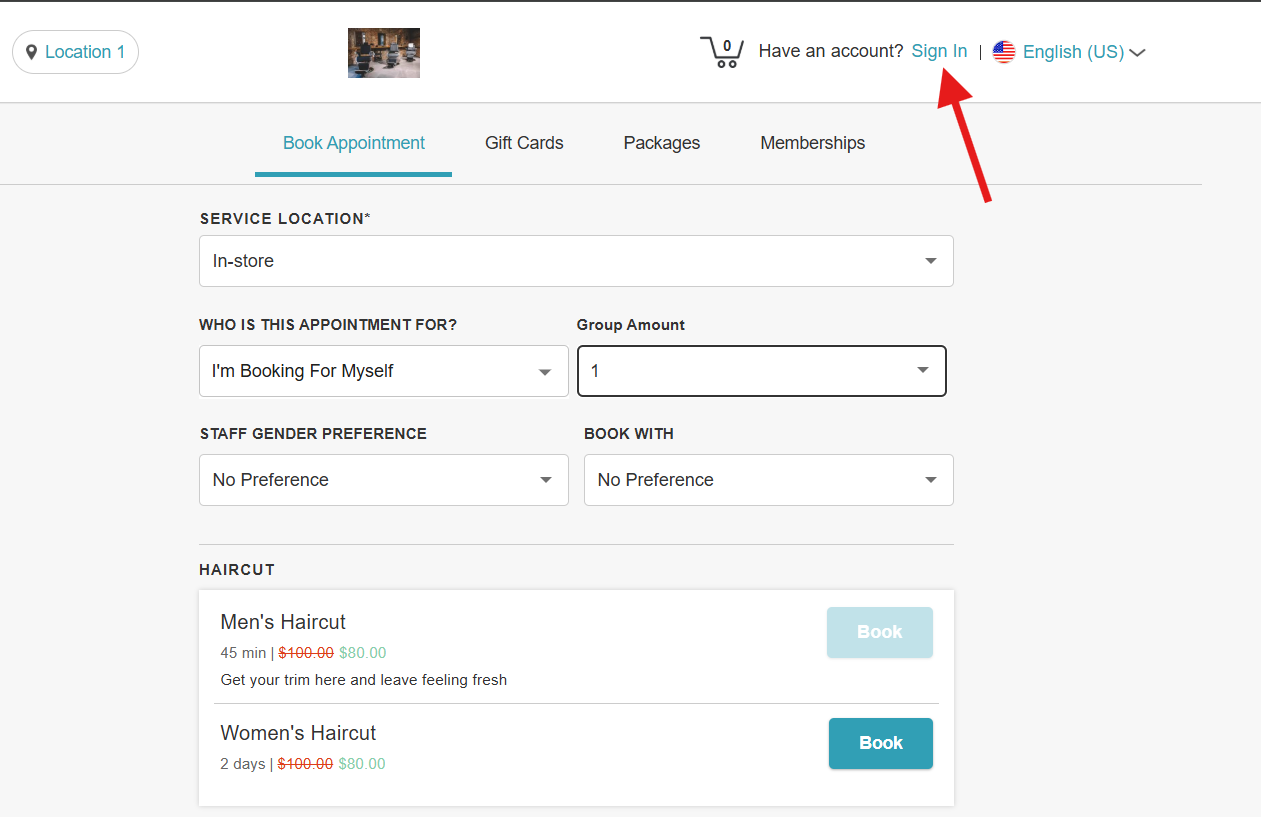
- Click the "Sign In" button at the top of the page
- Choose their login method:
- Standard: Enter their registered email address and password, then click 'Sign In'
- Social Login: Select 'Continue with Google,' 'Continue with Apple,' or 'Continue with Facebook' to use their existing social media credentials
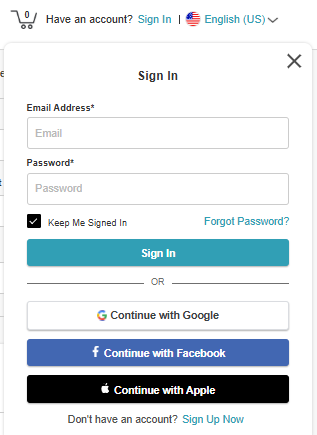
- Once their credentials or social accounts are authenticated, they will be instantly logged into the booking widget and can proceed with scheduling appointments.
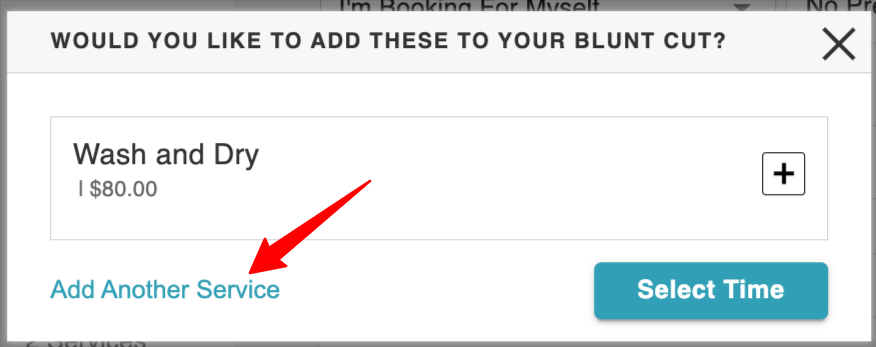
- Choose the desired service. To add additional services, click the "Add Another Service " link
- Select a preferred date and time from the calendar
- If the client wants a specific staff member, they can select one
- Proceed to Checkout. At checkout, they can:
- Add notes and special requests
- Complete any required intake forms
- Provide payment details via card, Google Pay/Apple Pay (if applicable)
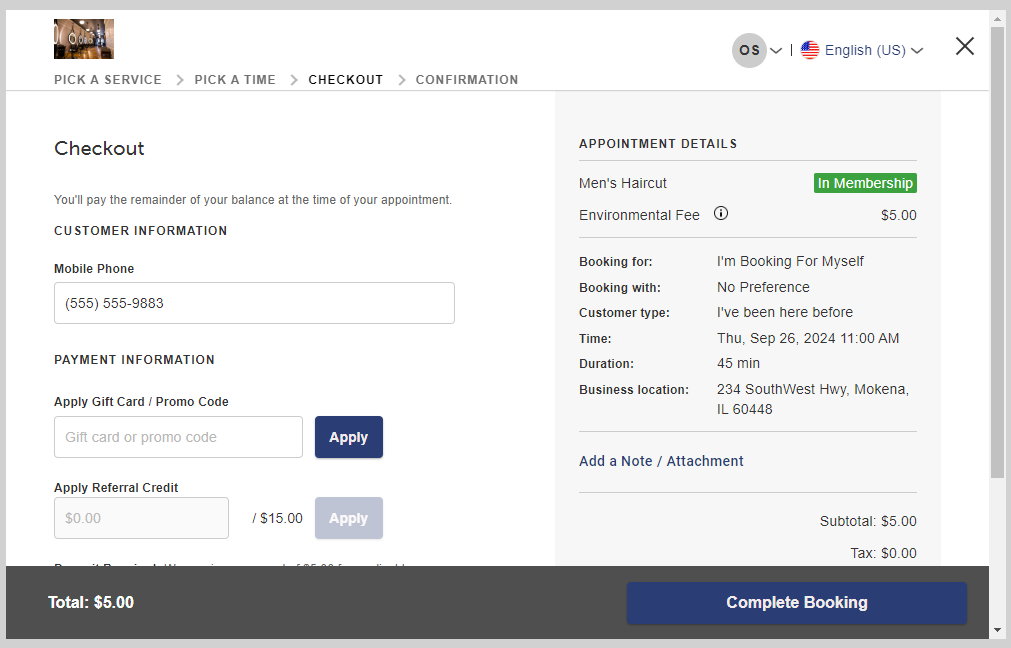
- Click on the "Complete Booking" button
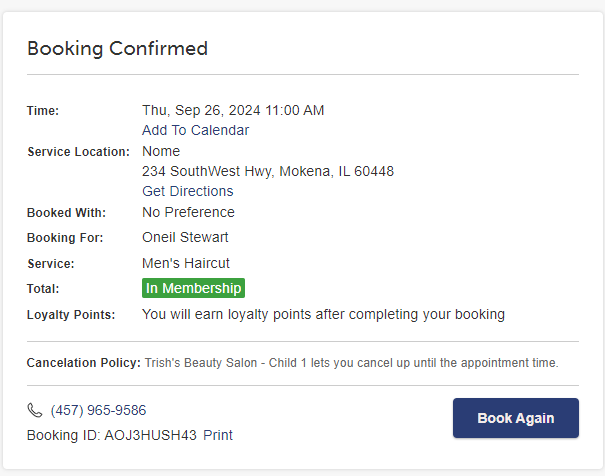
The booking confirmation page will appear

For more information, contact us at support@mytime.com or (385) 233-6964.
Related Article
Was this article helpful?
That’s Great!
Thank you for your feedback
Sorry! We couldn't be helpful
Thank you for your feedback
Feedback sent
We appreciate your effort and will try to fix the article