Add-on services allow you to offer complementary options that clients can easily add when booking online, or that staff can include when scheduling appointments in-store. This is a great way to encourage clients to enhance their experience while helping your business increase revenue. In this article, we’ll walk you through the details of how add-ons work, important things to know, and how to create and manage them.
Things to know:
- The ability to create add-on services is governed by the Accessing Services Menu access control setting.
- Add-ons must be assigned to a core service to be visible for selection both in-store and online. To learn how to create core services, please click here.
- Add-ons do not appear in your main services list online. Instead, they appear as optional add-ons after the client selects a related service.
- For franchise businesses:
- Add-ons can be created at both the parent and child levels
- Global services will not appear in the list when configuring local add-ons.
- You can disable online booking for add-on services by selecting the dropdown menu next to "Online Booking Enabled" and choosing "Disable Online Booking."
- When an add-on is added to an appointment in the Scheduler, it is automatically locked to the base service and scheduled to begin when the base service ends. If unlocked, the add-on can be scheduled independently with any start time.
- You can click the lock icon at any time to re-lock the add-on to the base service. When re-locked, the add-on's start time will automatically adjust to begin at the end of the base service.Example: A haircut (base service) is scheduled from 2:00 PM to 2:30 PM with a blow dry add-on. When locked, the blow dry automatically starts at 2:30 PM. If you unlock it, you can schedule the blow dry to start at any time (e.g., 2:45 PM). If you re-lock it, the blow dry will return to starting at 2:30 PM.
Locked add-ons are displayed in chronological order based on their scheduled start times.
Unlocked add-ons with custom start times are displayed at the top of the add-on list.
When multiple add-on services are added to a single appointment, each add-on is automatically scheduled to start after the previously added one finishes. If a service appears out of sequence, you can manually adjust its start time. For example, if a Boarding appointment includes two Bath add-ons, the second bath should be scheduled to start after the first bath ends. If it appears out of sequence, follow the steps below to correct the service order:
Opening the appointment in the Scheduler
Clicking on the add-on service that needs adjustment
Unlocking the add-on (if locked) by clicking the lock icon
Adjusting the start time to the desired time after the other add-ons
Re-locking the add-on if needed to tie it back to the base service
- Booking Appointments Online with Add-On Services
- Accounts with Multi-Staff Appointments Feature Enabled:
- If a staff member is selected for the core service and "No Preference" is chosen for the add-on, the same staff member will be assigned to both.
- If "No Preference" is selected for both the core service and add-on, the system will assign the same staff member to both services. However, if the assigned staff member is not eligible to perform the add-on service, a different staff member will be assigned to the add-on.
- Accounts with Multi-Staff Appointments Feature Disabled:
- If "No Preference" is selected, the system will automatically assign the same staff member to both the core service and the add-on.
- If the selected staff member cannot perform both the core service and the add-on, the option to select an add-on will not be visible.
- Allow Booking with Zero-Duration Add-Ons Near Closing Time: When a service with processing time is booked online alongside a zero-duration add-on, it may appear as unavailable if the add-on is scheduled near the end of the business hours. You can prevent this by enabling a hidden setting that allows the system to ignore zero-duration add-ons, keeping the service bookable online. To enable the "Remove zero duration add-on" hidden setting, please contact support@mytime.com. Example, if you offer a 45-minute Sauna service with a 15-minute processing time, booking it with a zero-duration add-on, (e.g., Aromatherapy) near closing time will remain available once this setting is enabled.
- The setup option displayed in the top-right user menu depends on how you access the account and your assigned role:
- When navigating from the Parent Account (Location Management tab):
- Admin: Displays Business Setup when viewing the location account.
- Login As: Displays Location Setup when viewing the location account.
- When logged in directly at the Location Level:
- Location Owners & Location Managers: Display Location Setup.
- Service Providers & All Other Roles: Display Profile Setup.
- The ability to create add-on services is not available on the Scheduler App.
To create add-on services:
- Navigate to Business Setup / Location Setup > Services Menu
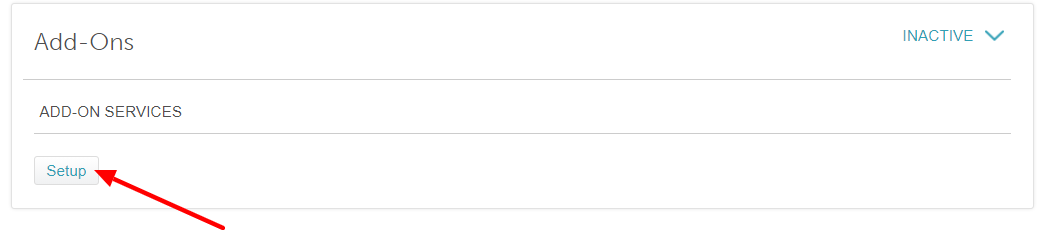
- Scroll to the bottom of the Services Menu and click Setup under the Add-Ons category
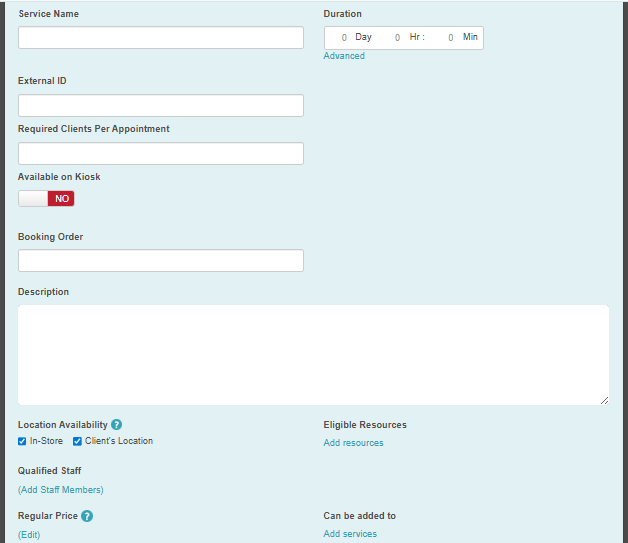
- A modal will appear where you can configure the following:
- Service Name: Create your own custom name for the service.
- Duration: How long the appointment lasts. Service duration can vary by staff member, location, title, or location group. Learn more here. You can decide which option you prefer on your settings page. If you have split-time appointments with service times and processing times, click Advanced.
- Buffer Time: Any time needed in between appointments. It is only allowed at the end of the appointment and is not shown to your clients. Learn more here.
- Processing Time: Any free time during an appointment. This is where the client is waiting, but you are not actively working on them. The scheduler recognizes this time as bookable. Learn more here
- Resources: You can assign resources to be used during the service, as well as resources allocated for processing and buffer times.
- Staff: For services performed by multiple staff members, you can select all eligible staff members here. Learn more here.
- External ID: Service external IDs are unique identifiers from another system or application, often used during data migration or integration. This ID helps quickly identify and link the same service across multiple platforms, especially when integrating through APIs.
- Required Clients Per Appointment: Specify the number of clients needed for the service. Learn more here.
- Available on Kiosk: Choose whether the service should be offered on the Kiosk. The visibility of this option is controlled by a hidden setting; please contact MyTime support to enable it. Learn more here.
- Calendar Color: Customize the color associated with the service for easy identification on the schedule. Selecting "Apply to all variations of the service" will apply the color to all related services within the category.
- Booking Order: Set the order in which services should be performed. Learn more here.
- Description: Add details about the service and its benefits to clients.
- Location Availability: For mobile businesses, specify if the service is available in-store, at the client’s location, or both. Learn more here.
- Eligible Resources: Assign the appropriate resources required for the service. Learn more here.
- Qualified Staff: Select the staff members authorized to perform the service.
- Regular Price: Enter your regular pricing. Service prices can vary by staff member, location, title, or location group. Learn more here. If your prices vary for a service, enter a base price and then select Price Varies. The pricing field cannot be blank; if you do not want to display a price, enter zero and select Price Varies. The service will then display Price Varies (it won't list $0)
- Off-Peak Price: This is an optional sale tool to help you fill slow times. Off-peak pricing is a discounted service price at certain times of the day. This encourages consumers to book appointments during slow times. The discount is only valid for online bookings. Existing appointments are not eligible for the discount. Learn more here
- Can be added to: Select the services the add-on can be attached to.
- Price and Duration by Pet Breed: Pet businesses can set different prices and service durations for different pet breeds. Learn more here.
- Deduct Back Bar Inventory: Specify the products and quantities to be automatically deducted from the back bar inventory when the service is performed. Learn more here.
- Save
This add-on can now be easily added to each connected service during the booking process (both booking online and in-store).
When a client selects one of the connected services while booking online, a pop-up will appear asking if they want to include an add-on with the purchase.

When you book an appointment from your scheduler, select +Add-on to easily include an Add-On service with the appointment.

Related Articles:
Was this article helpful?
That’s Great!
Thank you for your feedback
Sorry! We couldn't be helpful
Thank you for your feedback
Feedback sent
We appreciate your effort and will try to fix the article