Add-on services can be scheduled within multi-day appointments, allowing you to choose the exact dates (and times, if enabled) on which the add-ons should occur. This article explains how scheduled add-ons work on the scheduler app.
Things to Know:
- The ability to schedule appointments is controlled by the 'Accessing Appointments' access control setting
- This is controlled by the Enable Scheduled Add-Ons in Scheduler setting that only the MyTime team can enable, please contact the MyTime Support Team at support@mytime.com.
- By default, when a multi-day service is booked with a non-multi-day add-on, the entire appointment appears in the multi-day bar at the top of the scheduler. The Show hourly services on scheduler main view even if they belong to multi-day appointments hidden setting allows you to display the core service at the top and place the add-on in the appropriate time slot. Please contact the MyTime Support Team at support@mytime.com.
- To schedule add-ons independently, you must first unlock them from their core service in the appointment modal
- When an add-on is locked to a core service, its start time automatically follows the core service’s end time. Once unlocked, the add-on can be scheduled on any date within the multi-day service.
- Changing the appointment end date updates the service multiplier and recalculates pricing
- For Redo, Book Again, and Recurring Appointments, add-ons must be added or updated manually
- A ticket is created only when you click the "Create Ticket" button in the appointment modal or check out the appointment through the POS.
Follow the steps below to add and schedule add-on services for a multi-day appointment in the Scheduler app:
1. Launch the MyTime Scheduler app on your device
2. Choose your login method:
- Standard: Enter your registered email address and password, then tap 'Sign In'
- Social Login: Select 'Continue with Google' or 'Continue with Apple' to use your existing credentials for a faster login experience. For detailed instructions, learn more here
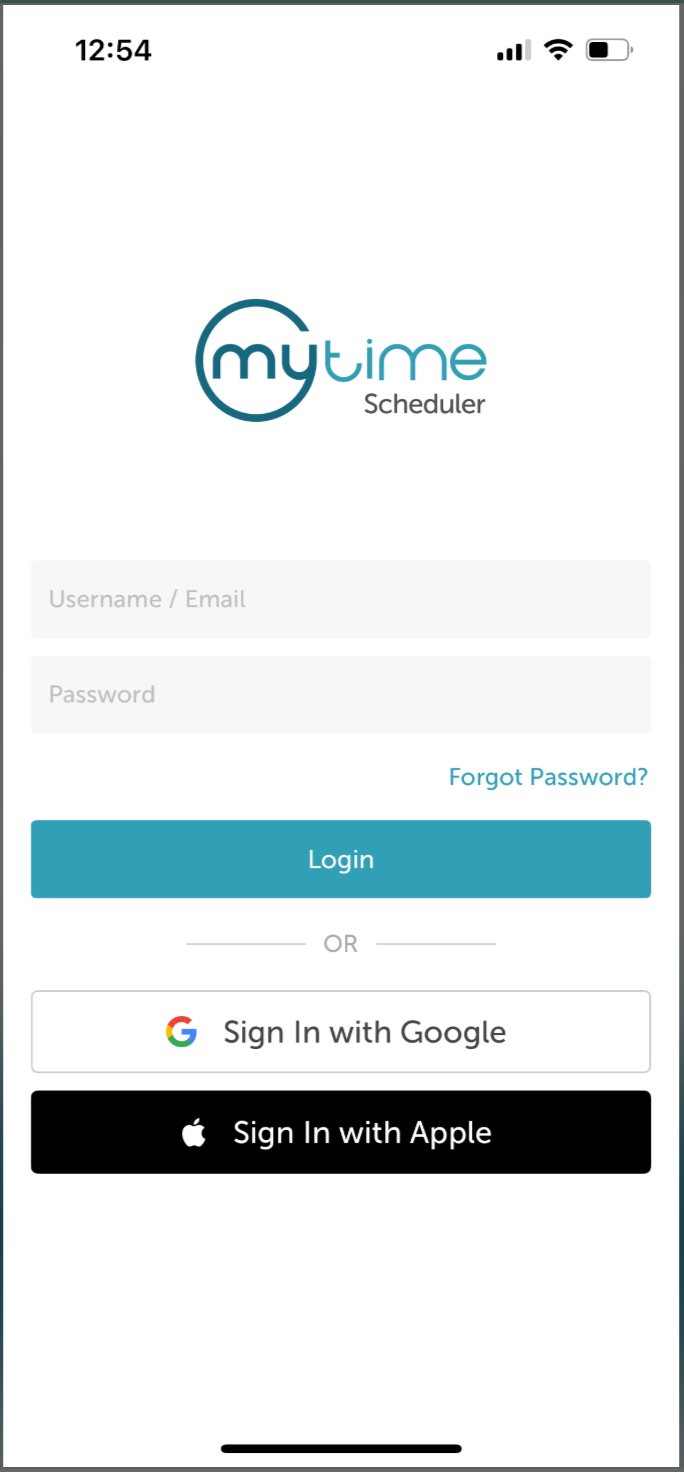
3. After signing in, you will be directed to the schedule by default
4. Tap an open time slot for a service provider or select the + icon at the top right of the screen
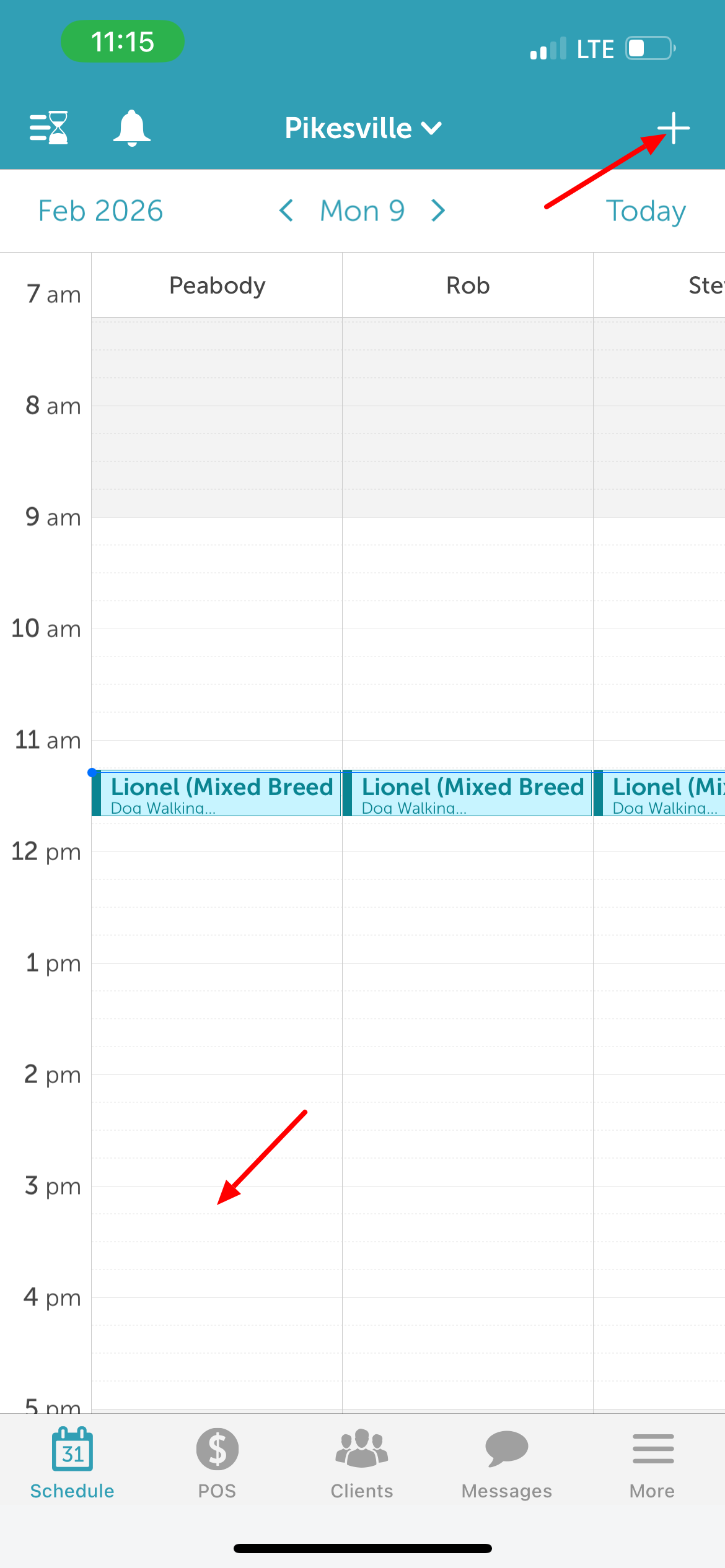
5. On the 'Add Service' screen:
- Add the client
- Add the pet
- Select the multi-day service
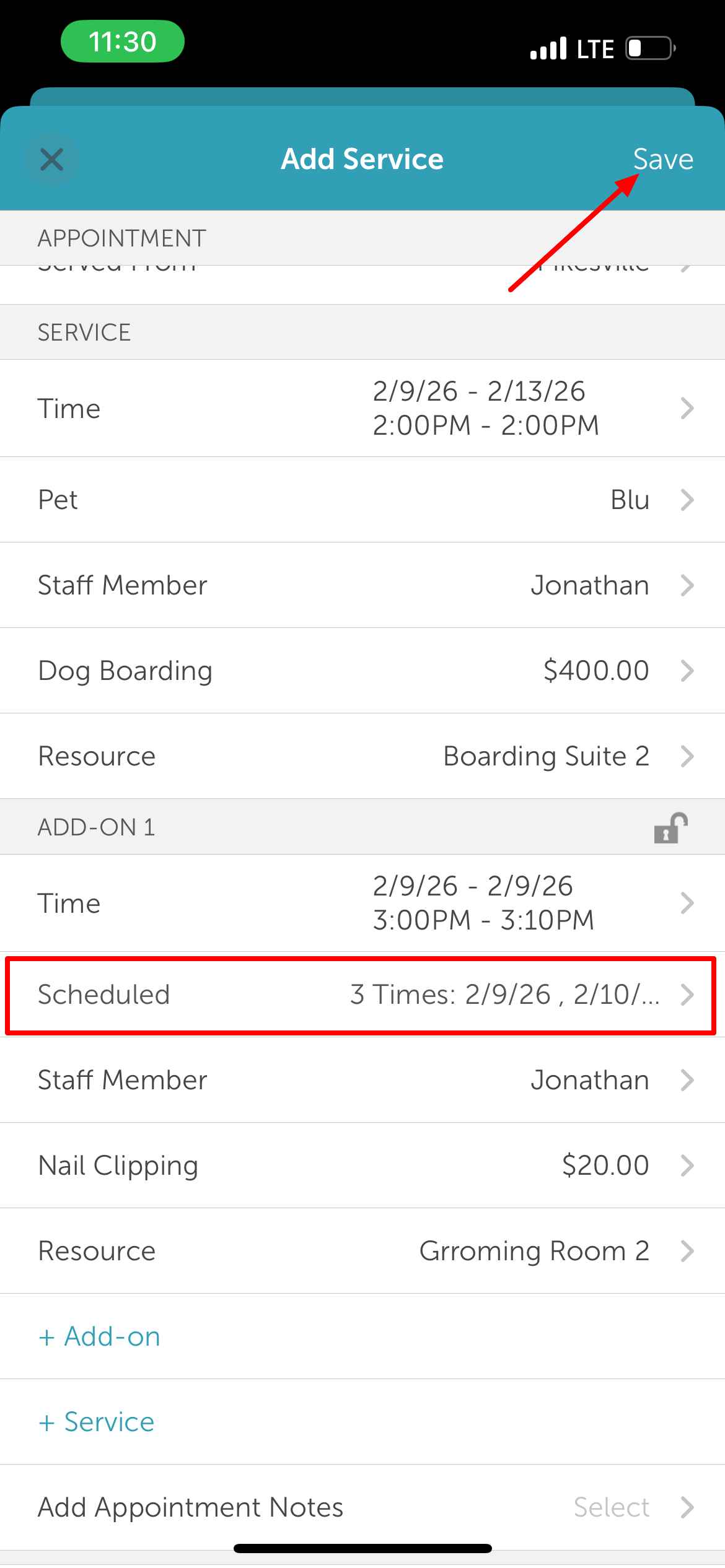
- Adjust the end date to extend the appointment duration. The total price will auto-calculate based on the new duration
- Tap '+ Add-on'
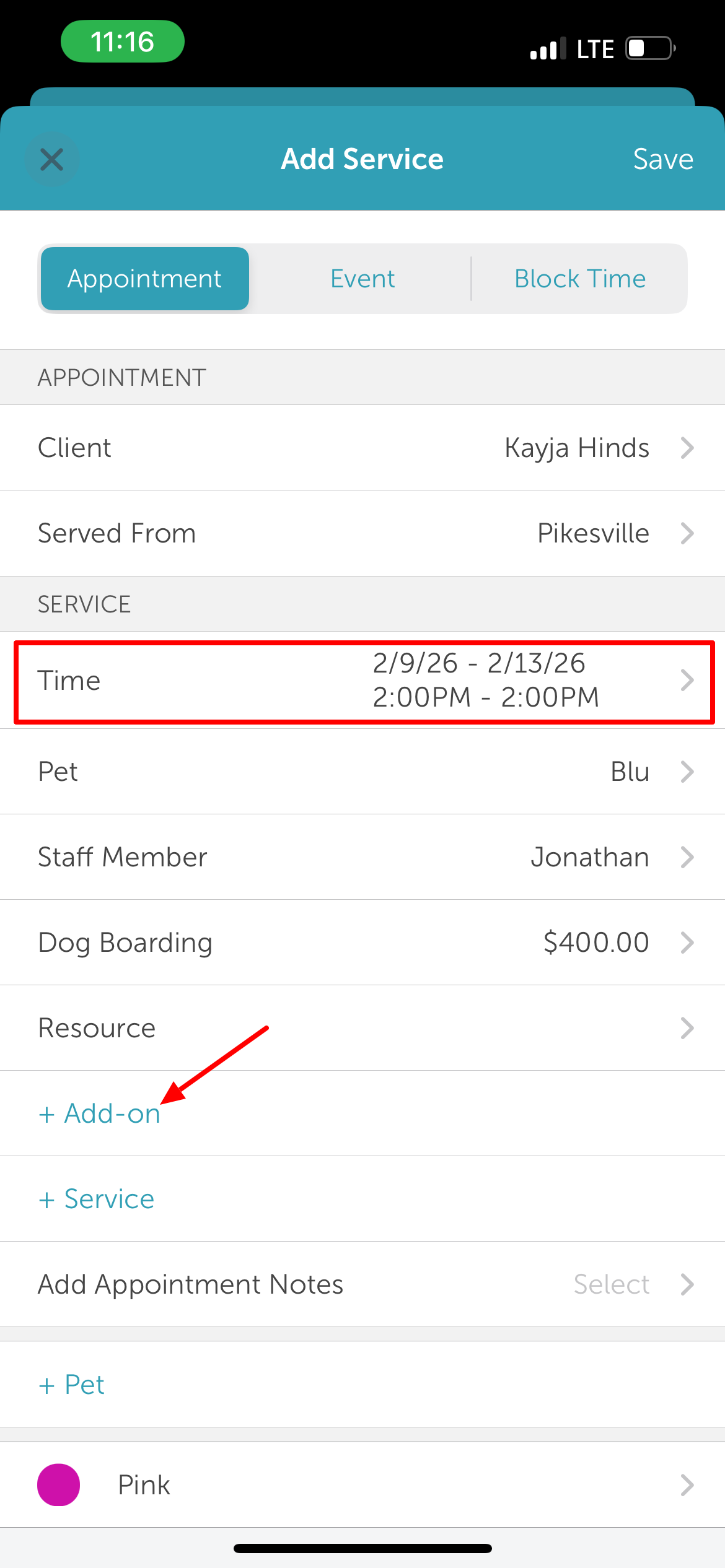
- Select the desired add-on service
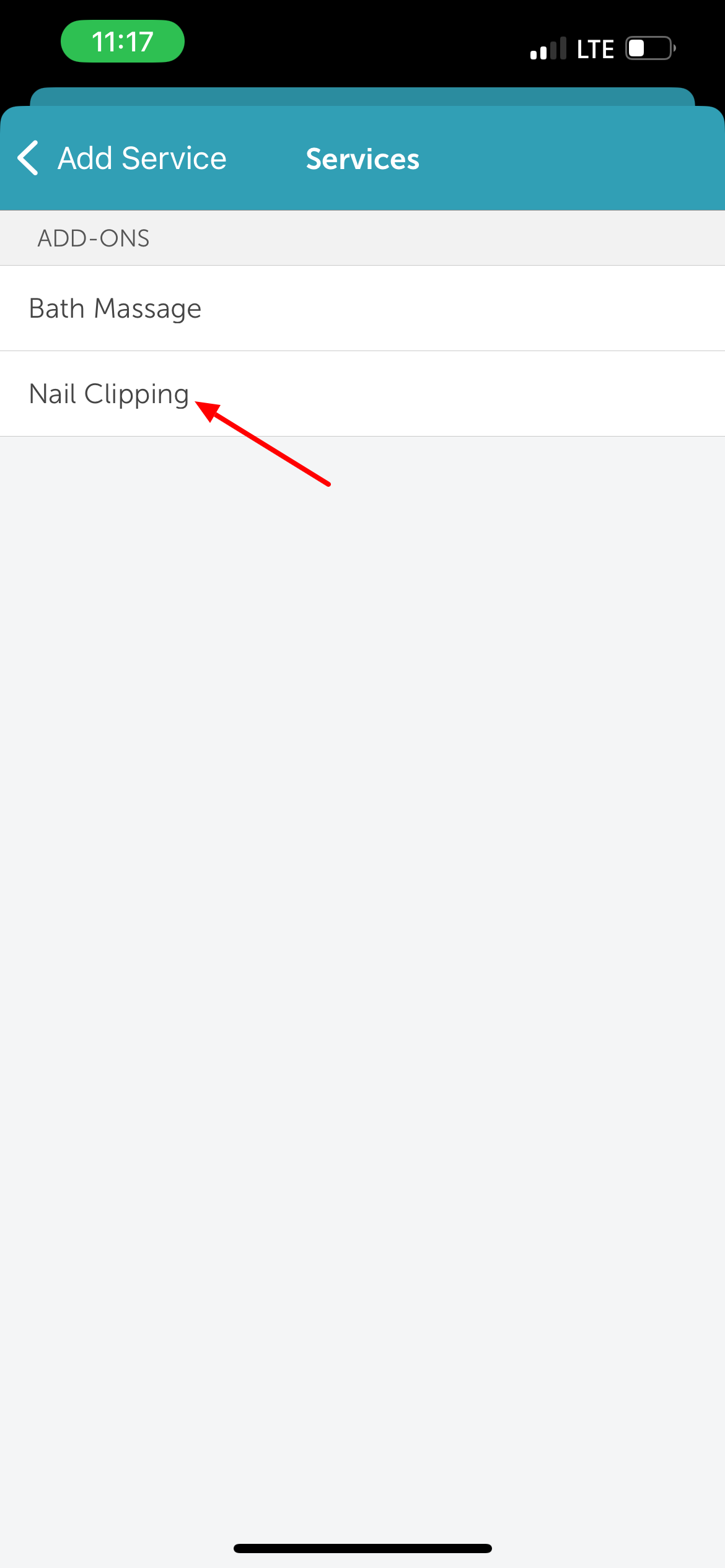
- In the Add-on section, tap 'Time'
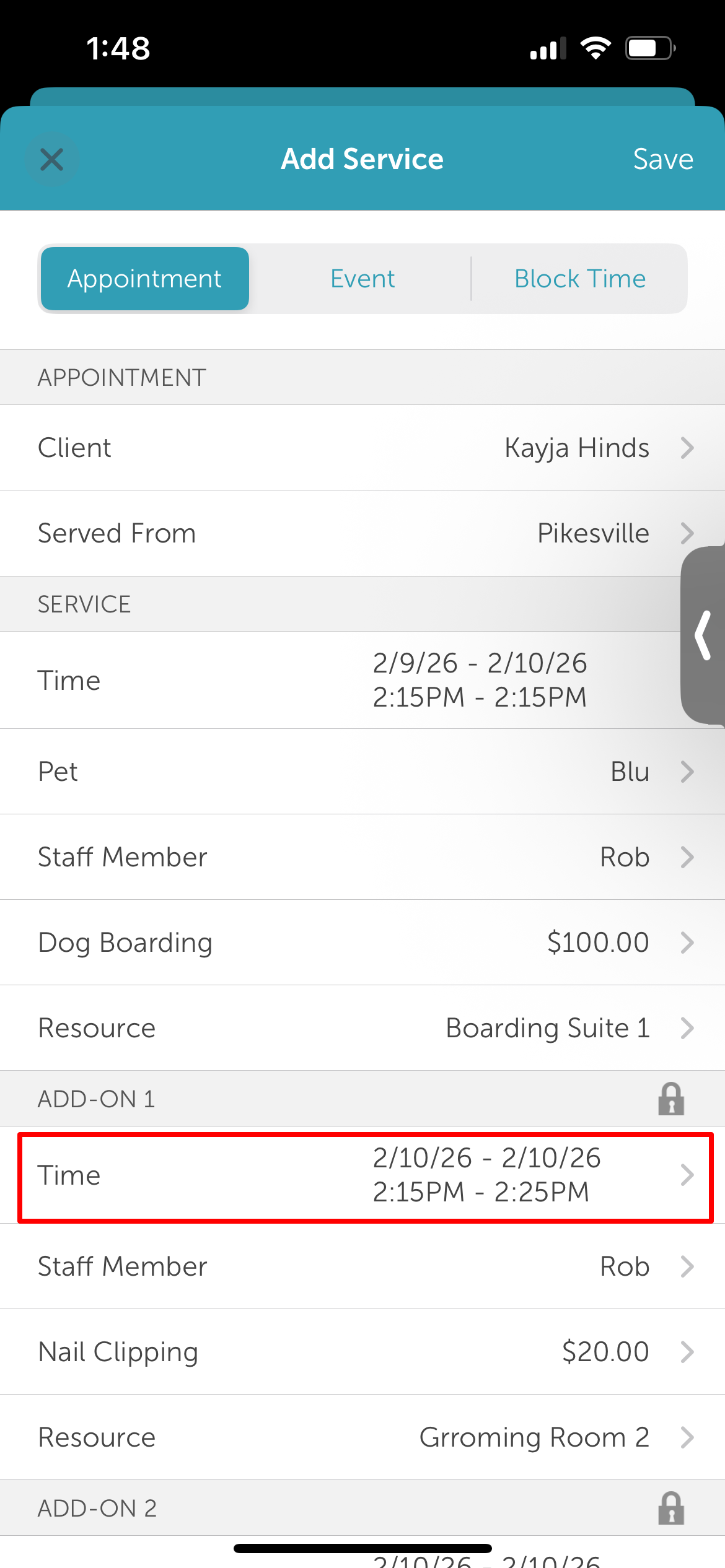
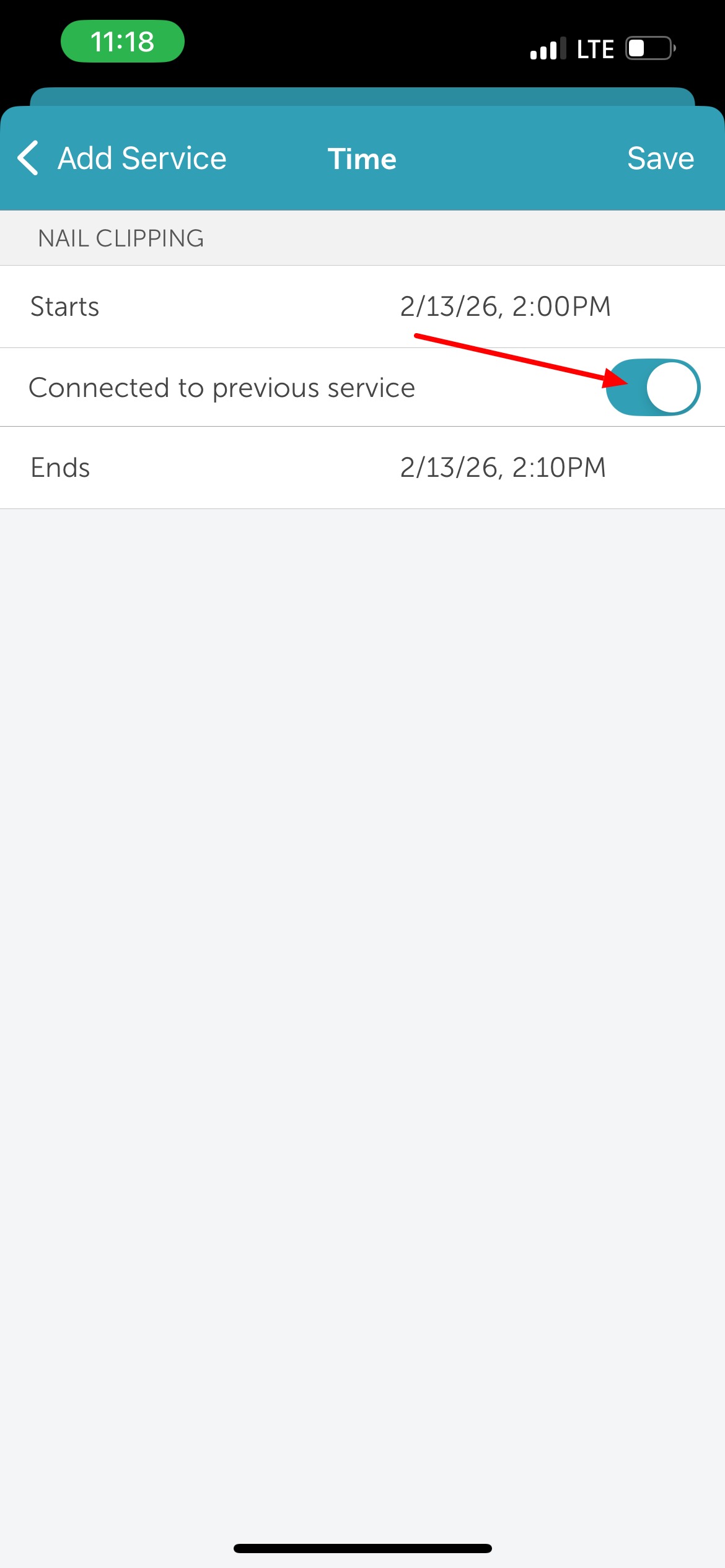
- To adjust the add-on duration: Toggle “Connected to previous service” off (if you want the add-on to have a different duration from the main service).
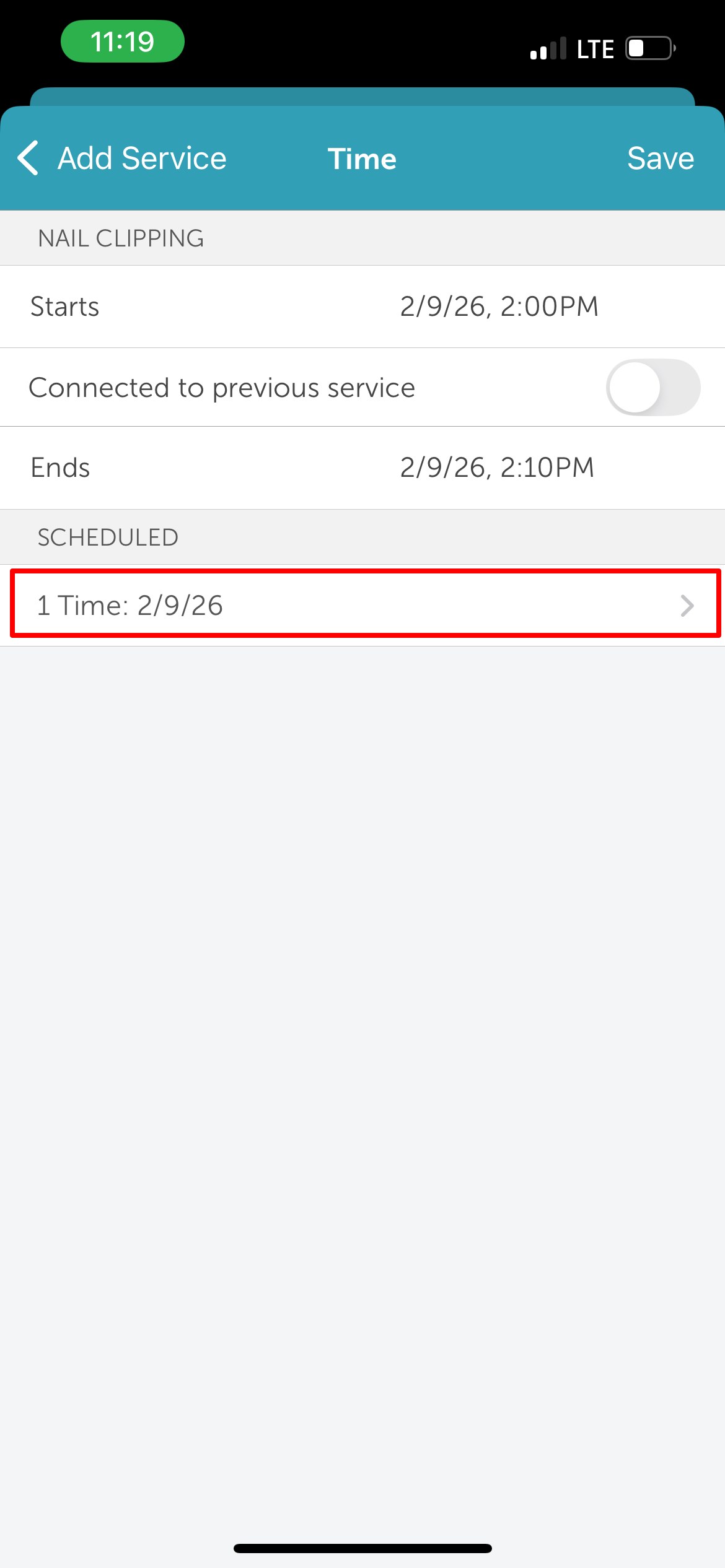
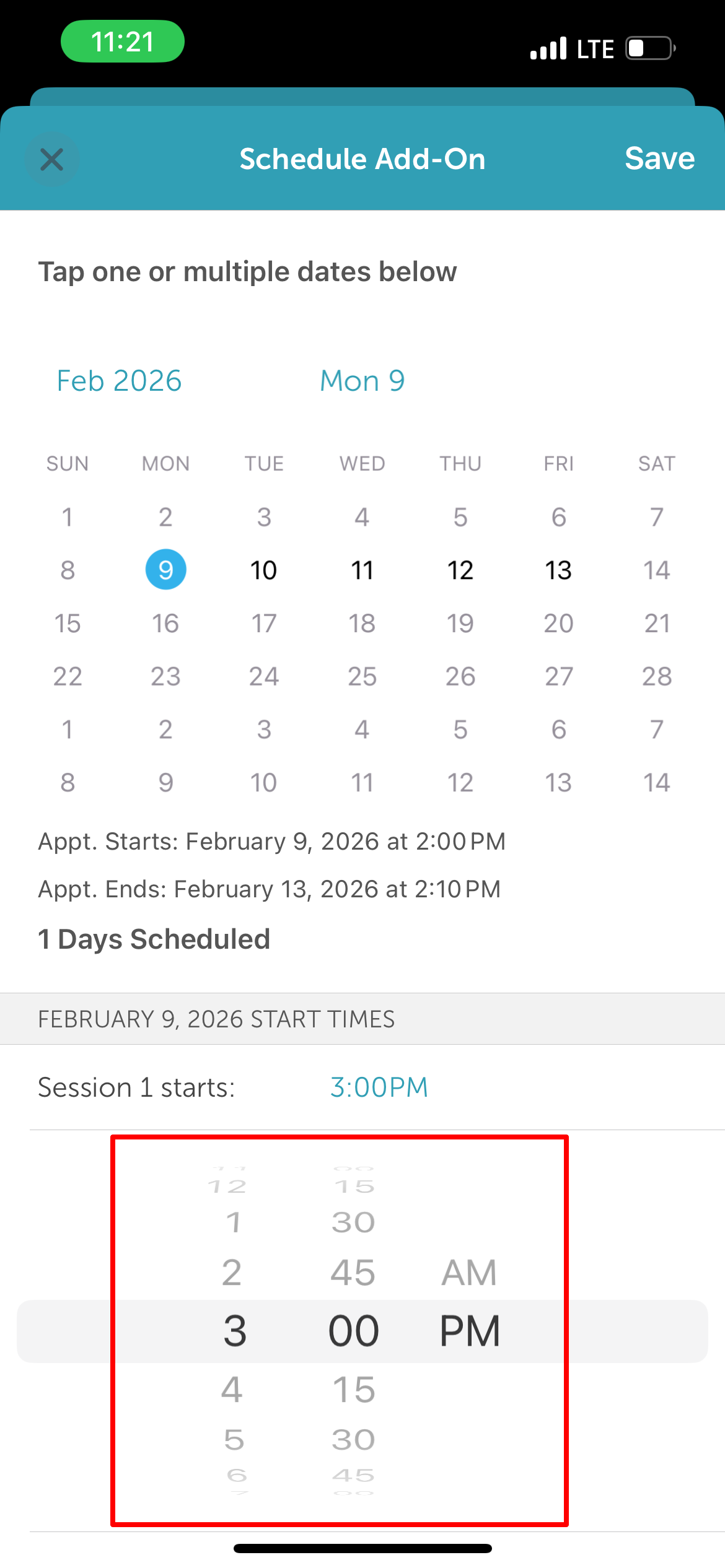
- To adjust the add-on time: In the Scheduled section, tap the scheduled time
- Tap the time
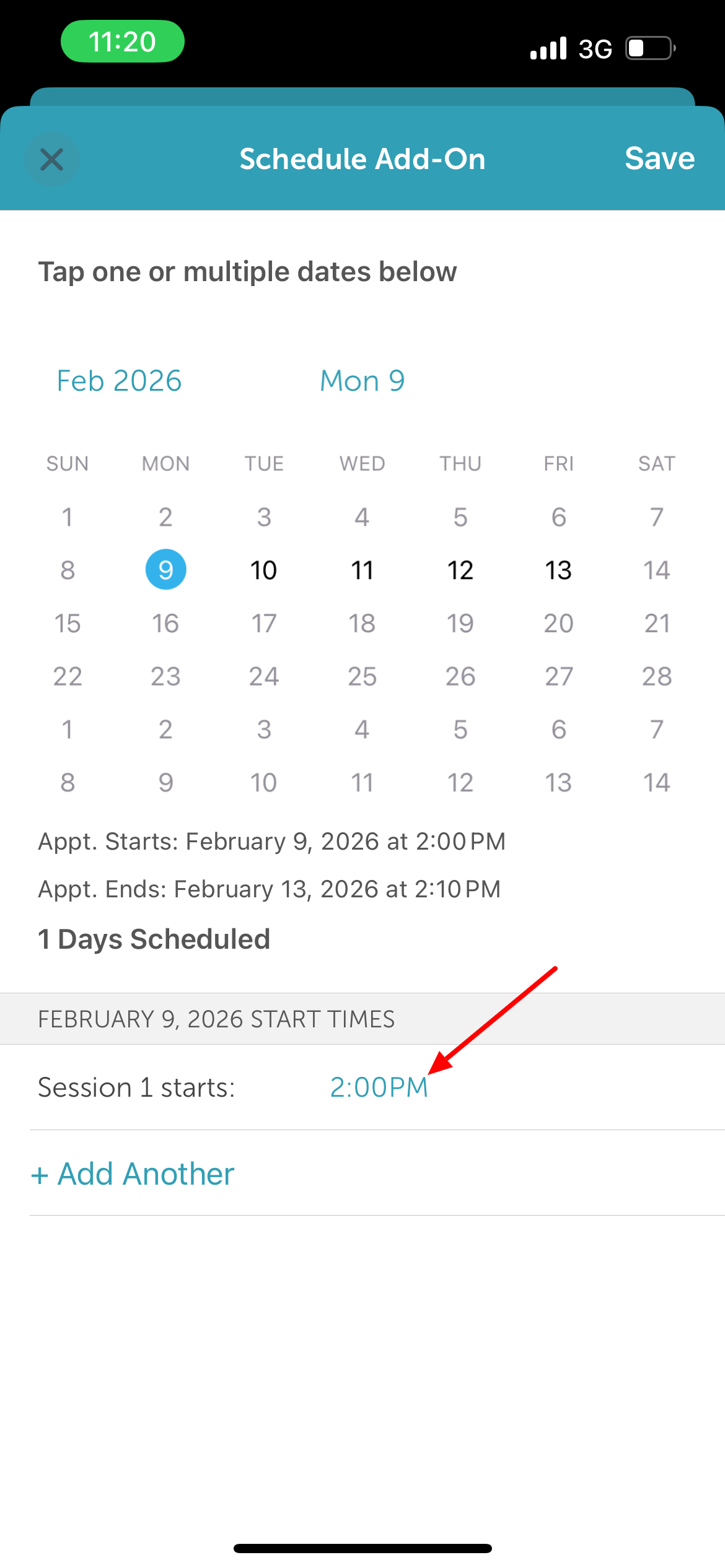
- Select the desired time
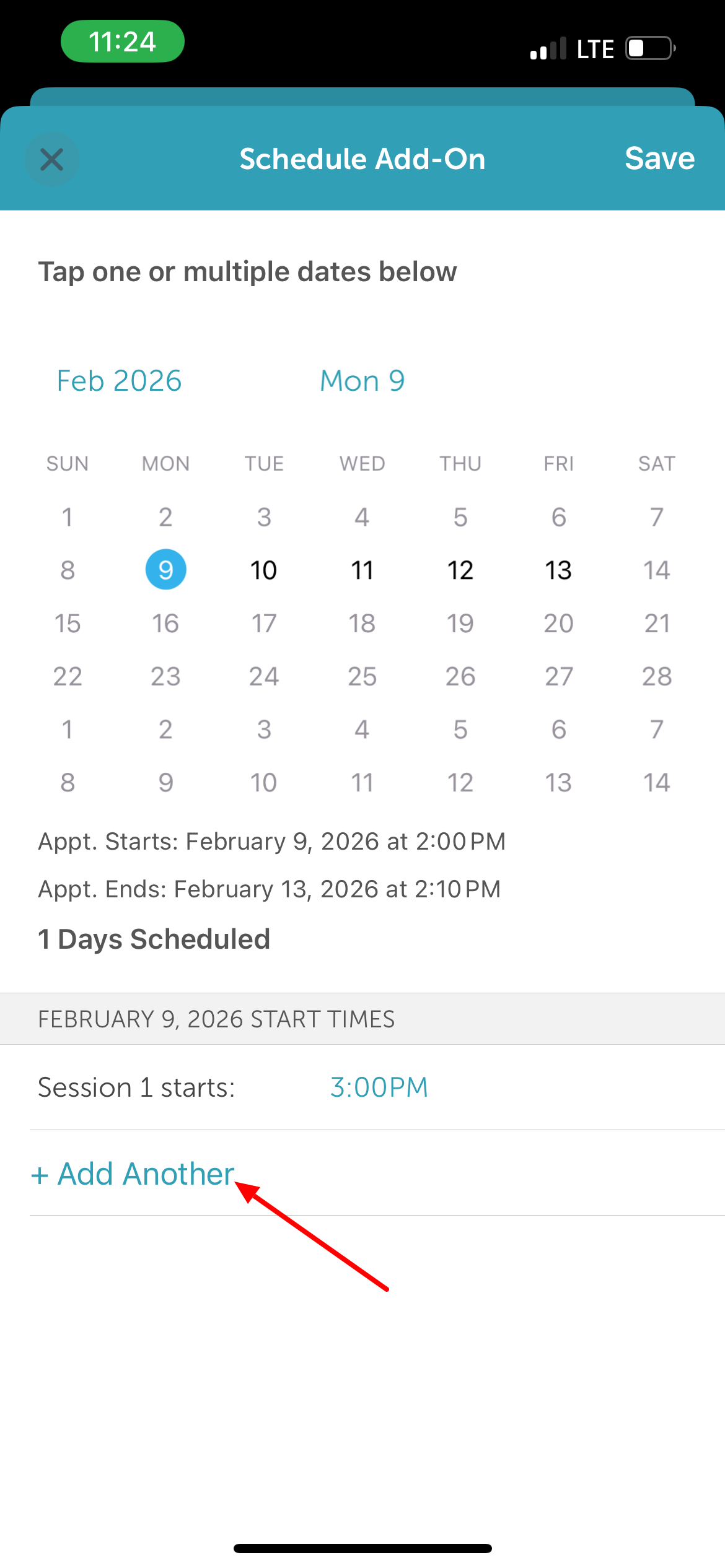
- Tap '+ Add Another to schedule additional times (if needed)
- Select the applicable dates on the calendar. Selected dates will appear highlighted. The number of scheduled days will increase with each added date.
- Once adjustments are complete, tap 'Save' in the top right corner
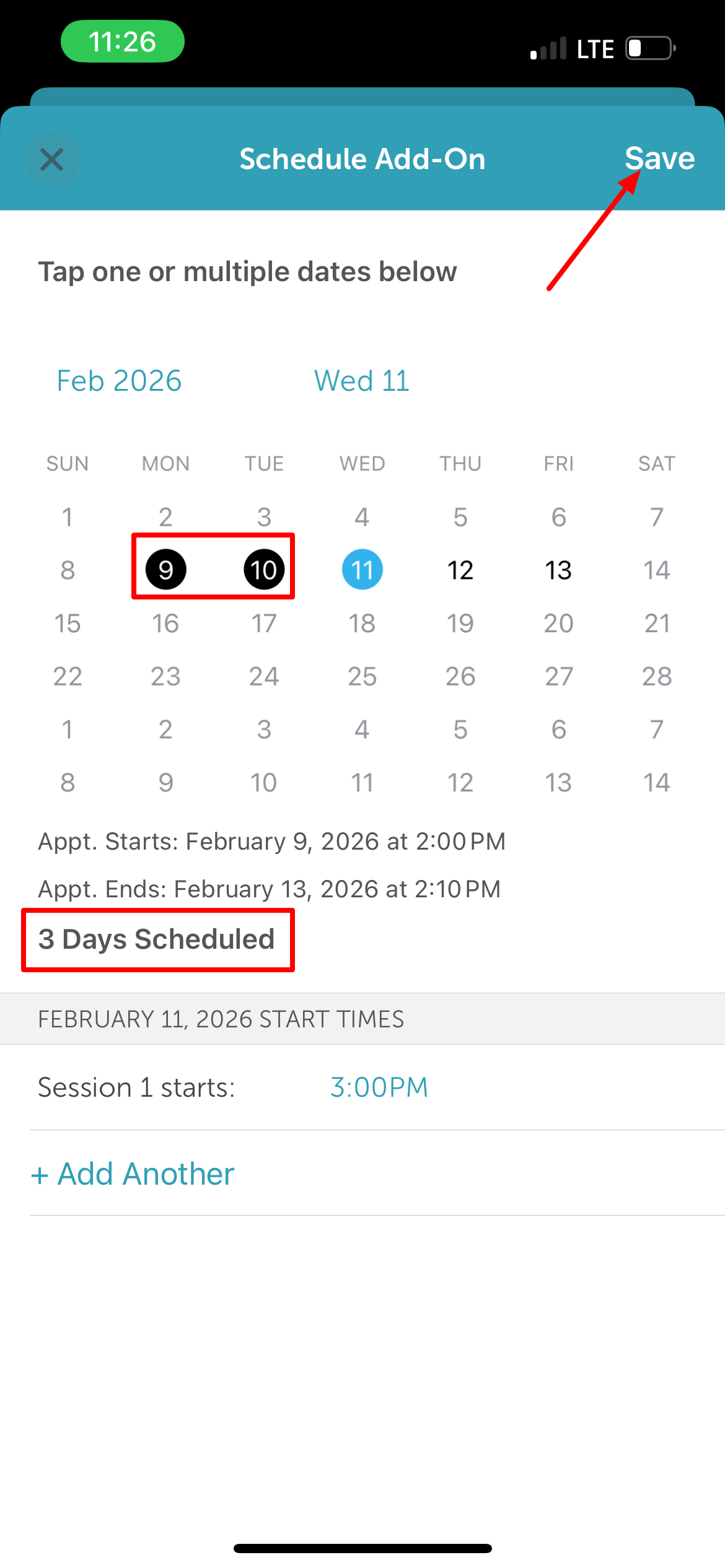
- Tap 'Save' again to confirm
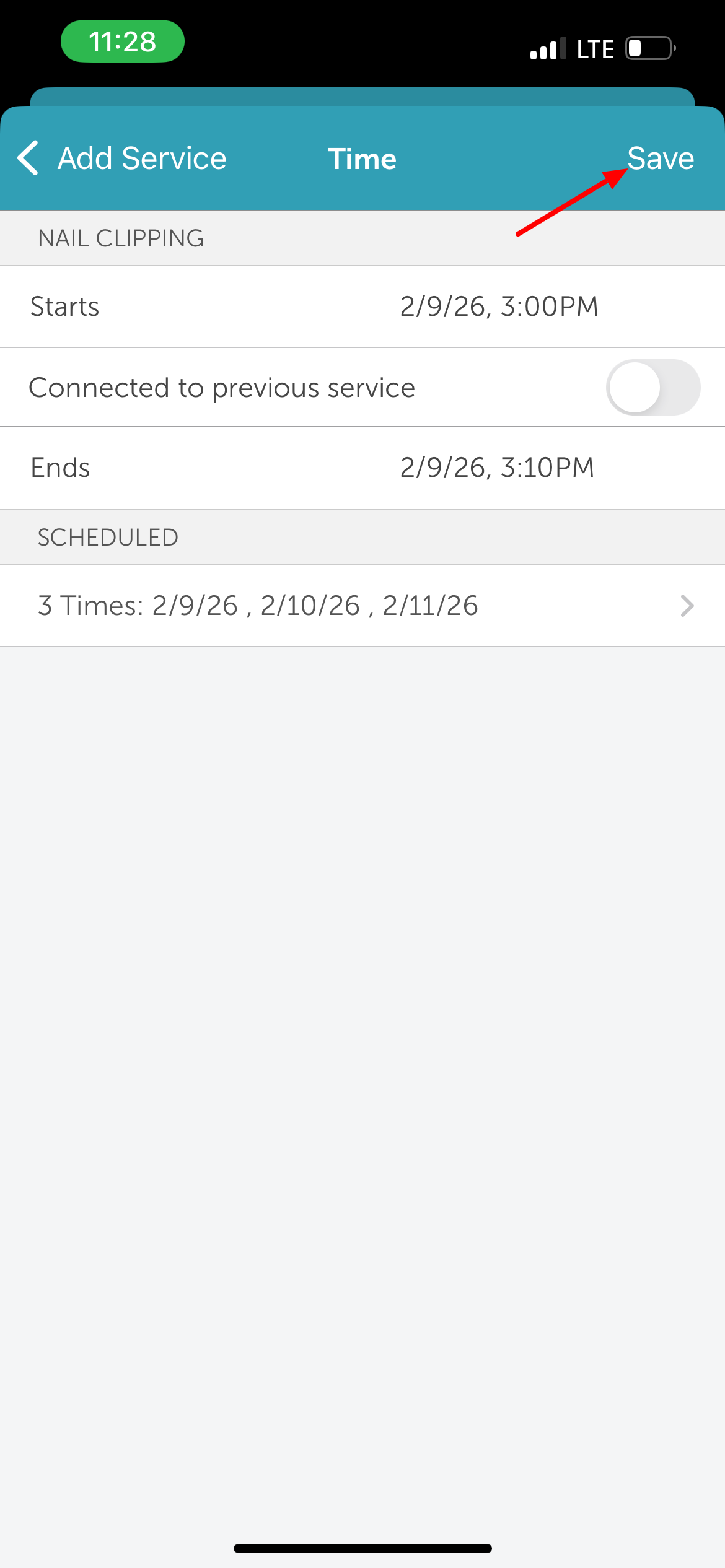
- The scheduled add-on times will appear in the Scheduled field on the Add Service screen
- Tap “Save” in the top-right corner to finalize the appointment
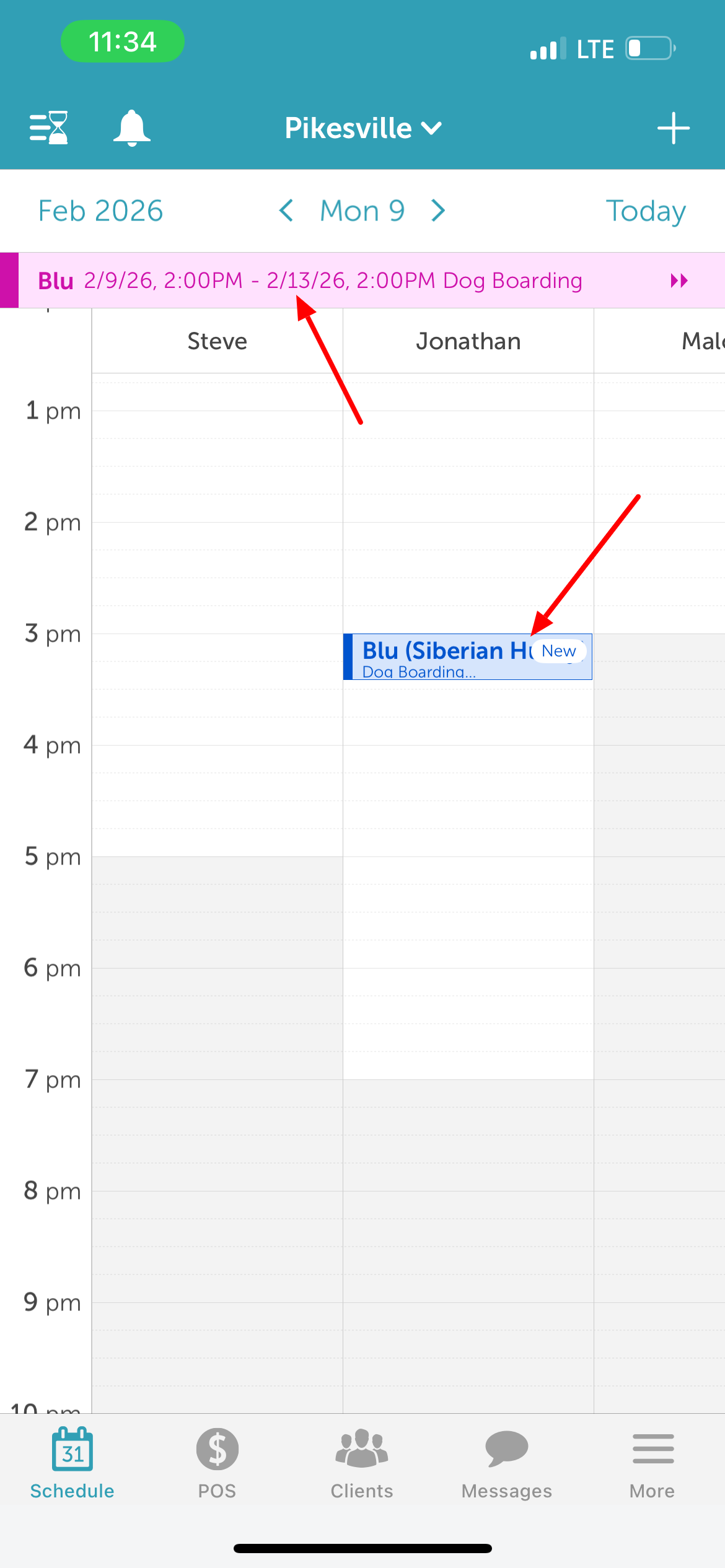
6. Once saved:
- The multi-day appointment will appear at the top of the scheduler.
- The add-on services will appear in their respective time slots on the schedule.
For more information contact us at support@mytime.com or (385) 233-6964.
Related Article:
Installing MyTime on Scheduler App (Android and iOS)
Signing into MyTime on Scheduler App (Android and iOS)
Scheduling Multi-Day Appointments on Scheduler App
Scheduling Appointments on Scheduler App
Scheduling Recurring Appointments on Scheduler App
Scheduling Appointment for Pets on Scheduler App
Was this article helpful?
That’s Great!
Thank you for your feedback
Sorry! We couldn't be helpful
Thank you for your feedback
Feedback sent
We appreciate your effort and will try to fix the article