Multi-day appointments include services that span over multiple days. In this article, we will walk you through the steps to schedule multi-day appointments on the scheduler app.
Things to Know:
- The ability to schedule multi-day appointments is controlled by the "Accessing Appointments" access control permission.
- The "Appointment Duration Multiplier" setting must be enabled. Learn more here
- For accounts with the "Multi-Staff Appointments" setting enabled, you can preserve your selection after you make any adjustments to the staff member, service, pets/family member on a multi-day appointment. This is controlled by a hidden setting that only the MyTime team can enable, please contact the MyTime Support Team at support@mytime.com.
- When a multi-day service is scheduled with a non multi-day service the entire appointment will be reflected at the top of the scheduler. However, you can have the appointment separated where the multi-day service is displayed at the top while the non-multi-day service is displayed on the schedule in the appropriate time slot for the selected staff member. This setting is also controlled by a hidden setting and only works if the "Multi-Staff Appointments" and "Booking Interval Per Employee" settings are disabled. To enable the hidden setting, please contact our Support Team at support@mytime.com.
- Default Start Time for New Appointments: When you click the + New Appointment button, the appointment's start time will automatically default to the next available time slot based on your account’s time picker interval. Example: If you create an appointment at 6:10 PM and your time picker is set to 15-minute intervals, the default start time will be 6:15 PM.
- When scheduling a service for a client with a previous appointment, the appointment details are automatically prefilled with information from their past bookings. However, the "Don't prefill appointment details based on previously booked appointments" hidden setting can disable this automatic prefilling, and it can only be adjusted by the MyTime team. To enable or disable this setting, please contact support at support@mytime.com.
- A ticket is created only when you click the "Create Ticket" button in the appointment modal or check out the appointment through the POS.
- The duration for multi-day appointment is calculated using calendar days/nights rather than 24 hours. For instance, if the appointment starts on 8/28 at 2 p.m. and ends on 8/31 at 3 p.m., we count that as x3.
- For multi-day appointments, membership/package item credits will be deducted based on the total duration of the appointment. For example, if the appointment lasts for seven nights and the client has five active membership/package item credits, those five credits will cover five nights. The remaining two nights will need to be paid for out of pocket by the client.
- Appointments with mismatched duration multipliers and durations cannot be saved in the appointment modal, as the save button will be disabled. This ability to have this functionality is governed by a hidden setting, which can only be enabled by the MyTime team. To activate this setting, please reach out to our Support Team at support@mytime.com
- By default, deposits for multi-day appointments are calculated based on the total cost for the entire duration. When the "Enable Flat Deposit on Multiday Appointment" hidden setting is activated, the system charges a deposit equal to a single day’s cost, regardless of the duration booked. This setting works with both fixed dollar amounts and percentage-based deposits, offering flexible payment options. For example, if one day costs $100 and the appointment lasts three days, the deposit will still be based on $100.
- For franchise businesses with global client sharing enabled, you can only access appointments and tickets associated with the location you are currently logged into. Appointments and tickets belonging to a different location will not be clickable. Example: If you are logged into Franchise A and viewing a client's profile, you can click into appointments and tickets created at Franchise A. Appointments and tickets from Franchise B will appear on the profile but will not be clickable
To schedule multi-day appointments on the scheduler app:
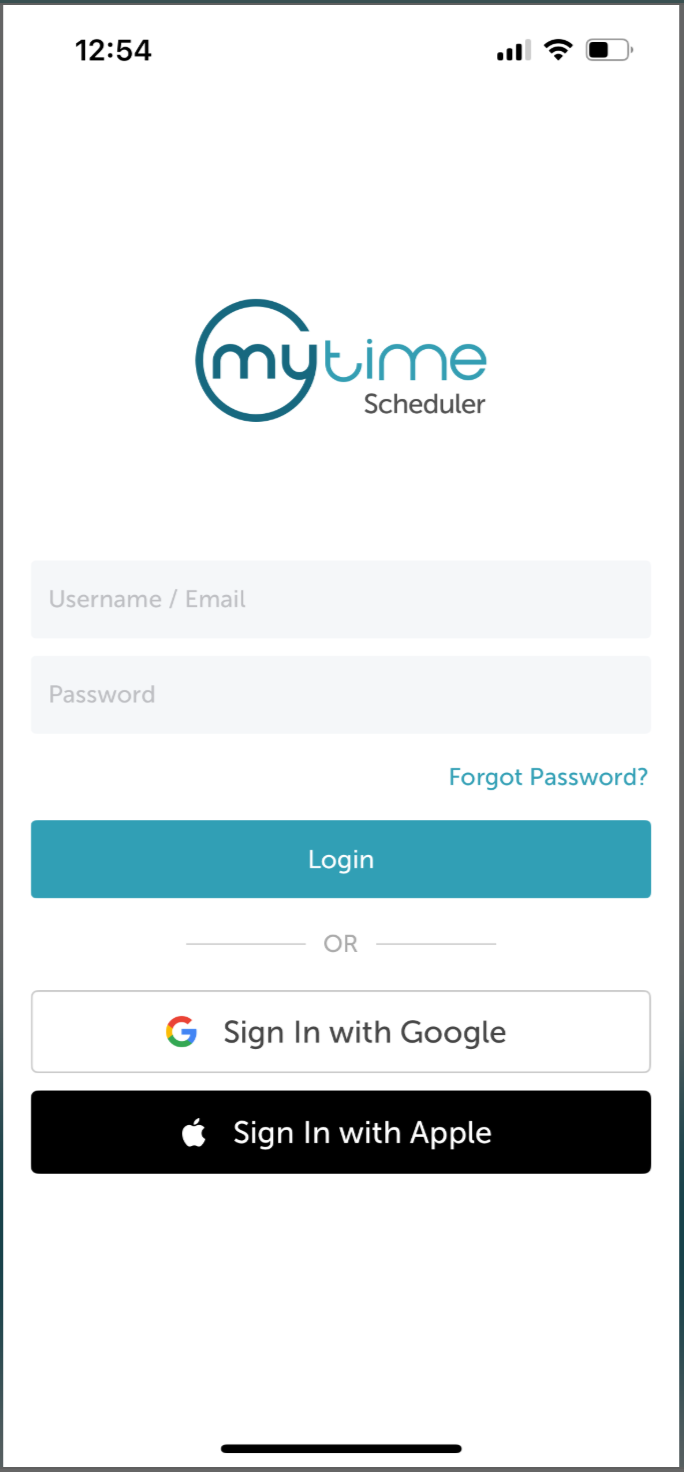
1. Launch the MyTime Scheduler app on your device
2. Choose your login method:
- Standard: Enter your registered email address and password, then tap 'Sign In'
- Social Login: Select 'Continue with Google' or 'Continue with Apple' to use your existing credentials for a faster login experience. For detailed instructions, learn more here
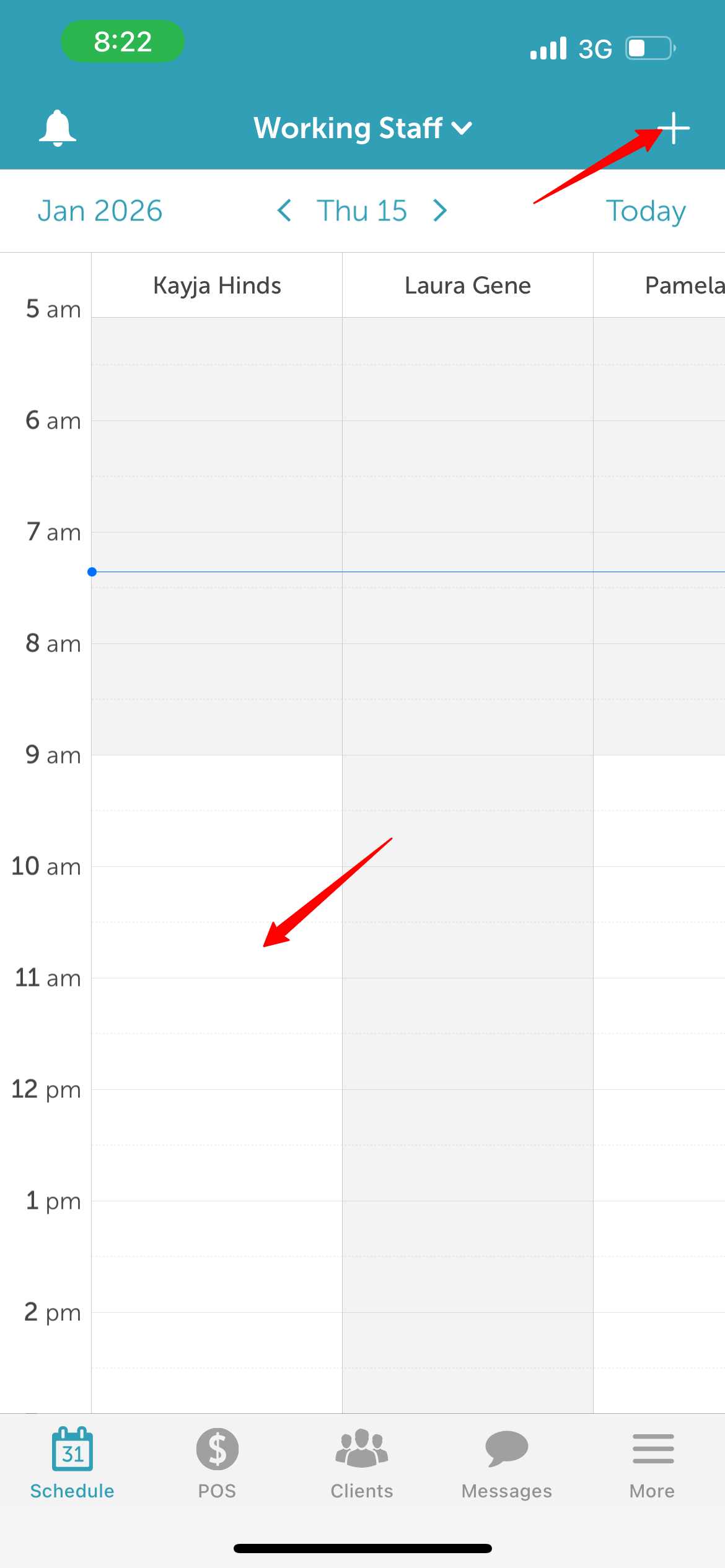
3. Once signed in you will be directed to the schedule by default
4. Tap an open time slot for a service provider or select the + icon at the top right of the screen
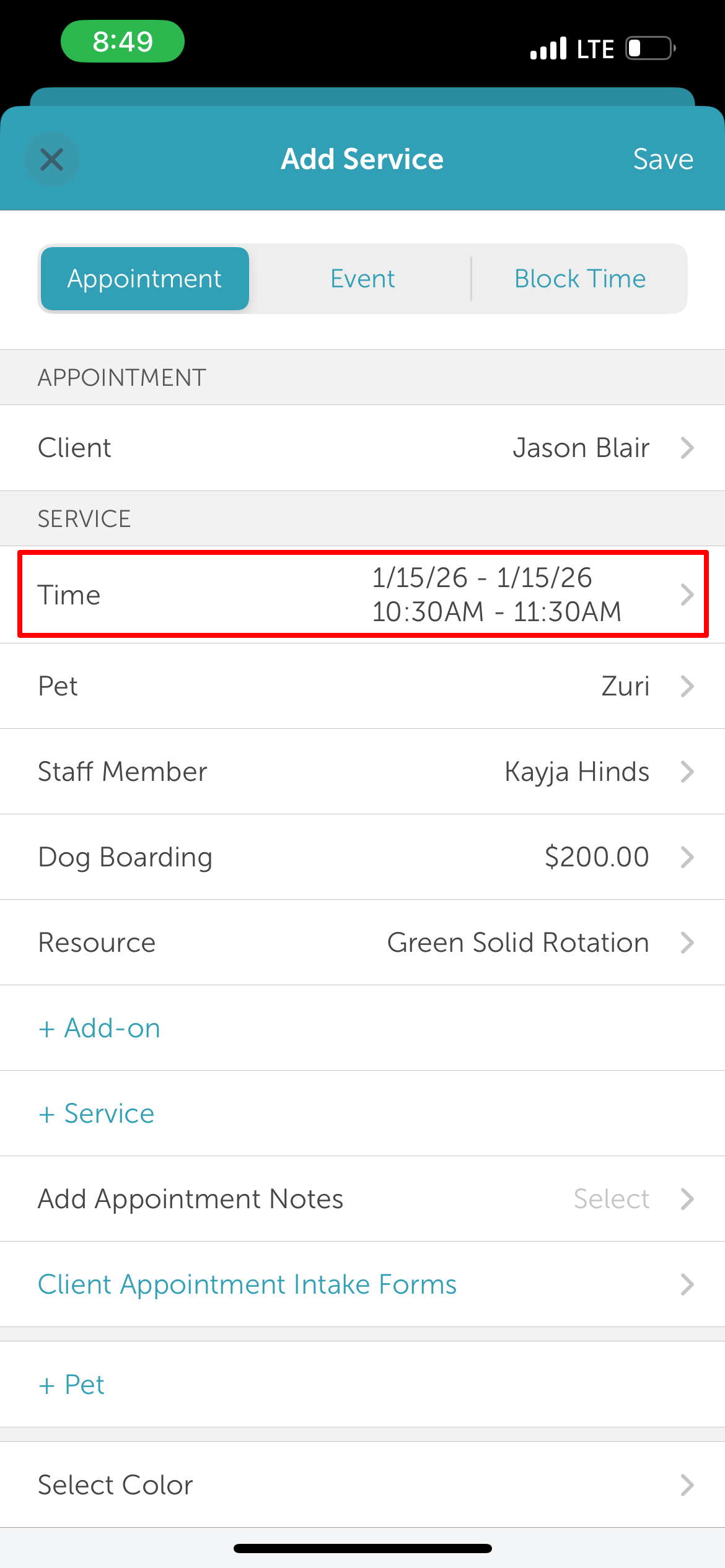
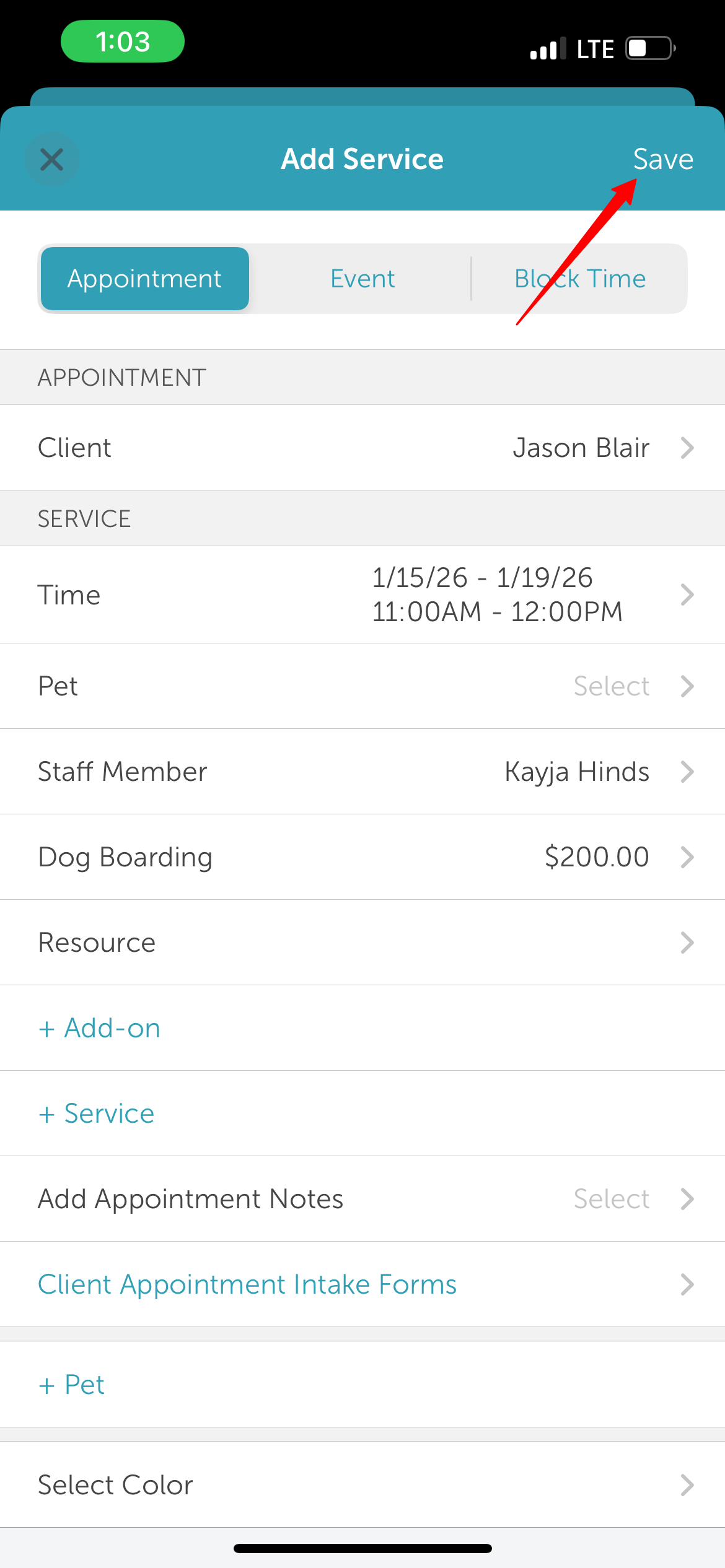
5. From the 'Add Service' modal:
- Add the client
- Add pet
- Select the multi-day service
- Adjust the end date to extend the appointment duration. The total price will auto-calculate based on the new duration
- Tap 'Save' at the top of the screen
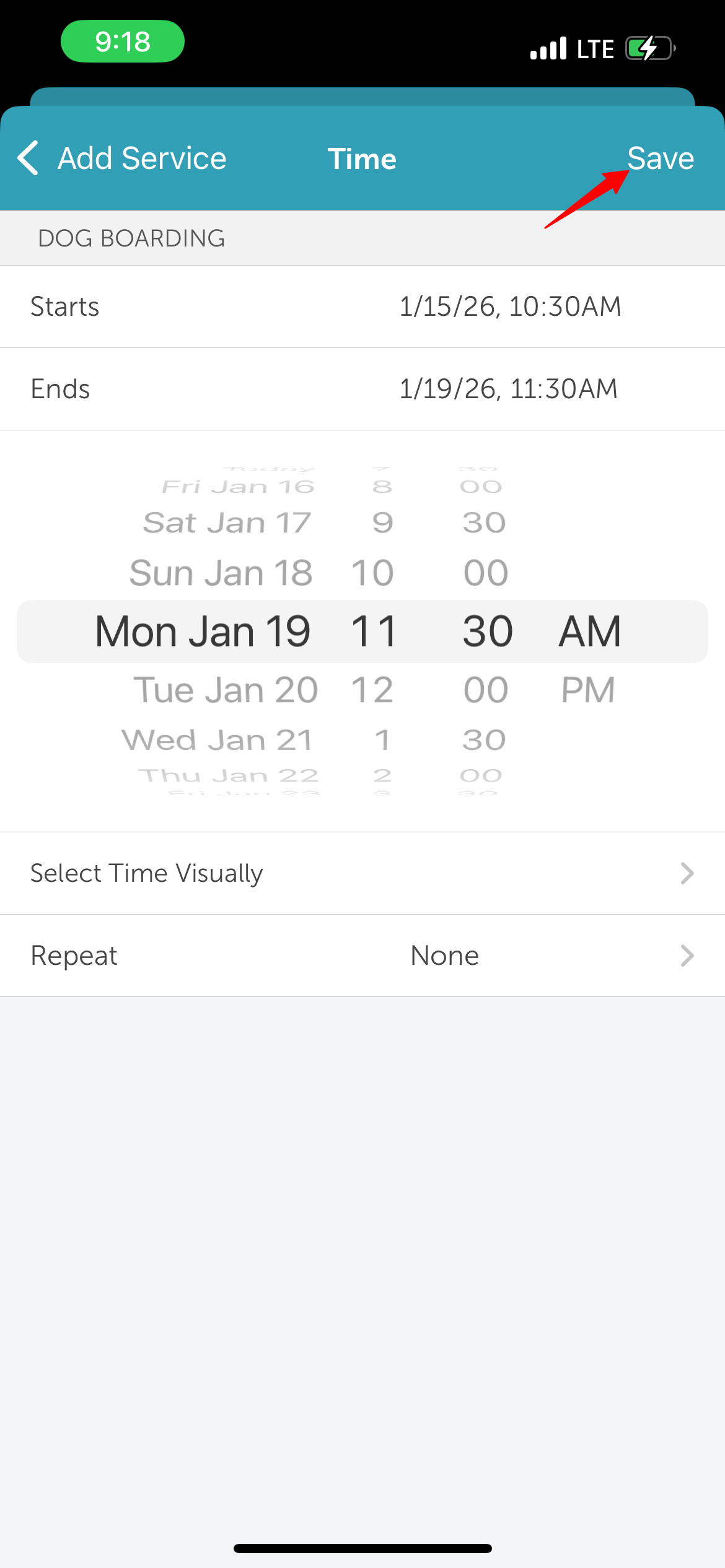
- Click 'Save' at the top of the 'Add Service' screen
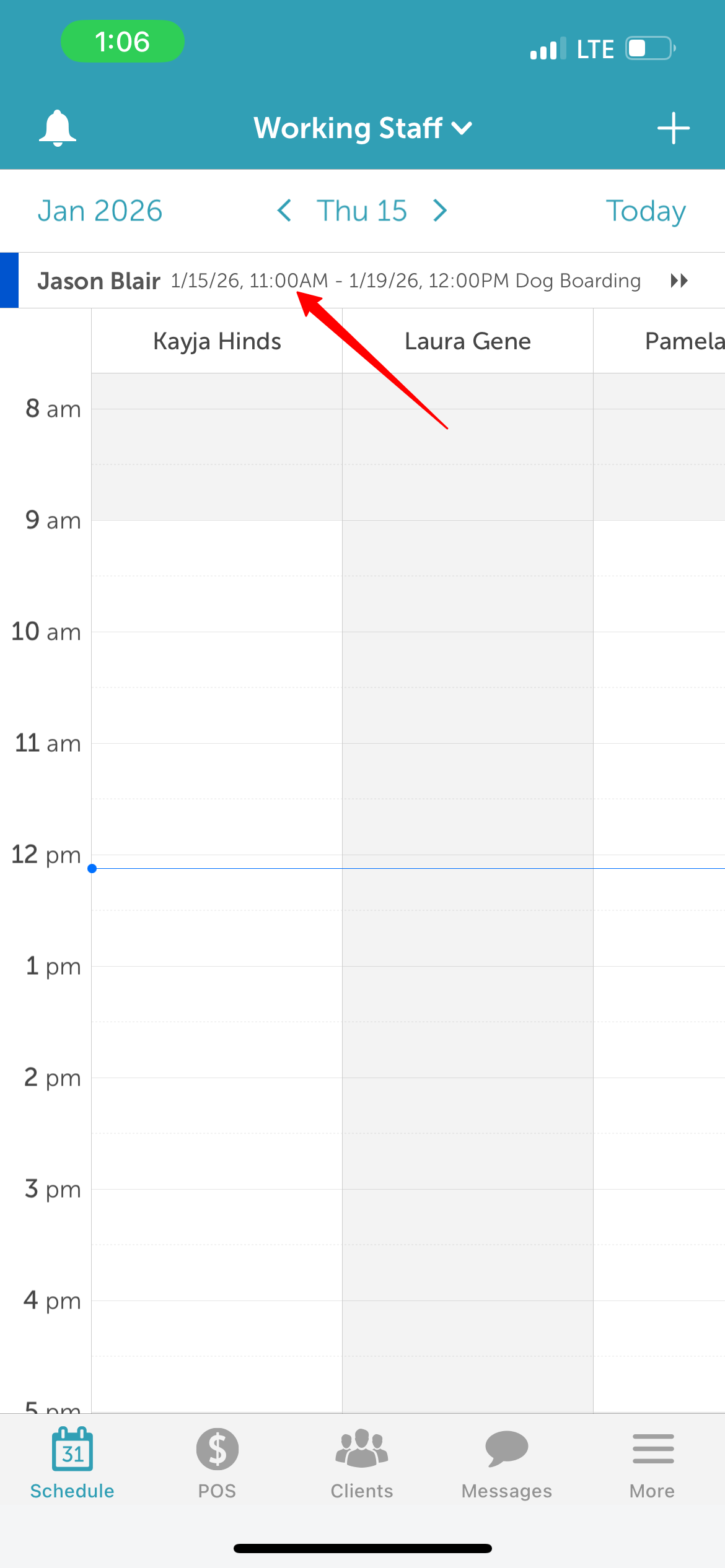
6. Once saved, the multi-day appointment will appear at the top of the schedule
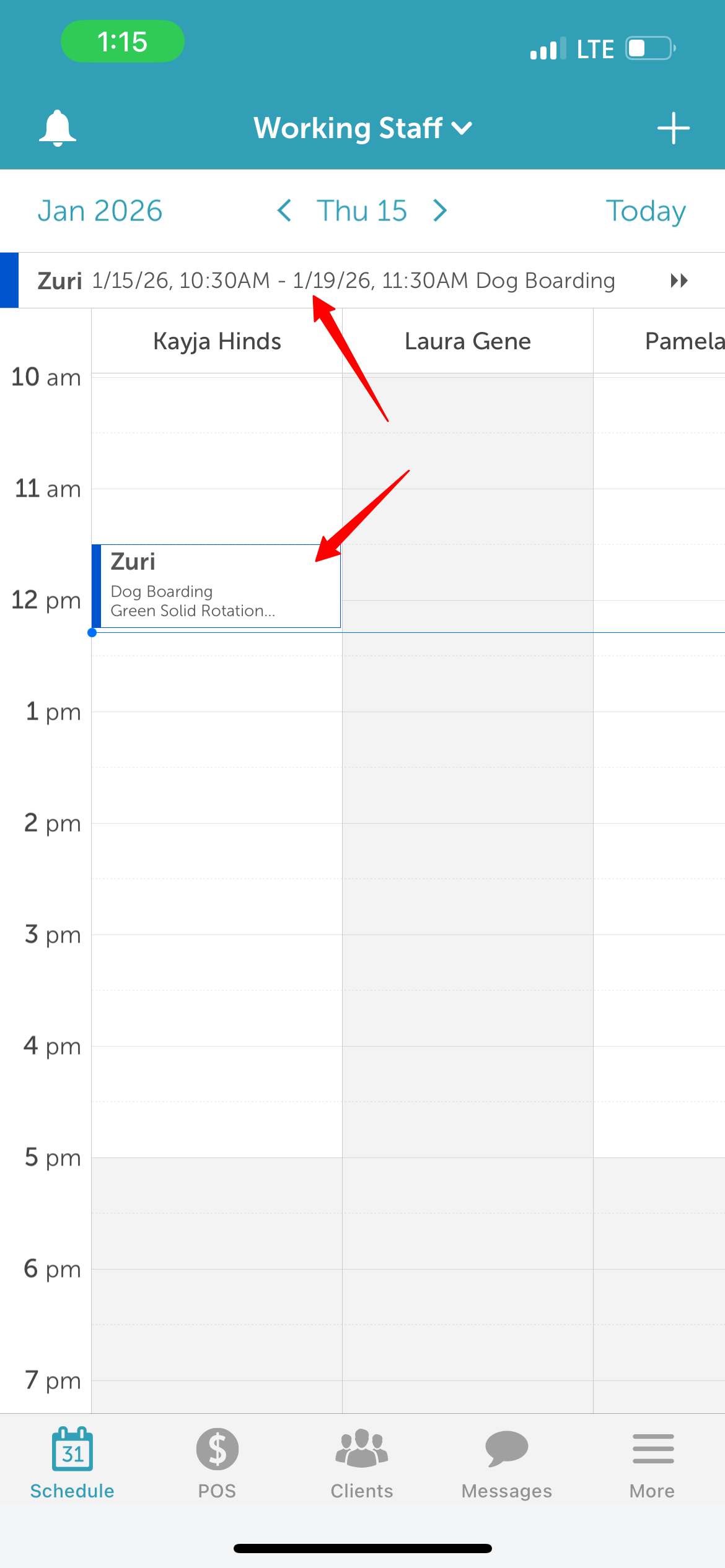
 7. If a multi-day appointment is scheduled alongside a standard appointment, the multi-day appointment will remain pinned at the top of the schedule, while the standard appointment will appear in its normal time slot
For more information contact us at support@mytime.com
Related Articles:
Installing MyTime on Scheduler App (Android and iOS)
Signing into MyTime on Scheduler App (Android and iOS)
Scheduling Recurring Appointments on the Scheduler App
Checking In Appointments on Scheduler App
Scheduling Appointments on Scheduler App
Scheduling Appointment for Family Members on the Scheduler App
Was this article helpful?
That’s Great!
Thank you for your feedback
Sorry! We couldn't be helpful
Thank you for your feedback
Feedback sent
We appreciate your effort and will try to fix the article