The appointment duration multiplier is a dynamic pricing feature that calculates the cost of an appointment based on the factors you input in the appointment modal that alter the appointment's duration. Services can be booked in units based on duration, and the total price will be auto-calculated based on the multiplier specified and the base price of the service instead of adding the same service or add-on many times to an appointment. In this article, we will discuss configuring and using the appointment duration multiplier.
Things to know:
- The ability to enable and configure the appointment duration multiplier feature is governed by the "Accessing Account Settings" and "Accessing Service Menu" access control settings.
- Once enabled, the multiplier option will appear on the service modal only if the service duration is exactly 1 day. Add-ons can have any duration and still display the multiplier option.
- Services and add-ons that do not have the multiplier activated in the service modal will not display the multiplier option on the scheduler or POS.
- The multiplier is calculated using calendar days rather than 24-hour periods. Example: If an appointment starts on 8/28 at 2 PM and ends on 8/31 at 3 PM, the system counts this as 3 days.
- On the appointment modal, the multiplier field, service price, and overall price fields are editable. Any change to the duration, service price, or multiplier value will automatically recalculate the total price.
- When changing the service during appointment creation or editing, if the new service also supports the multiplier, the entered duration and multiplier value will be preserved.
- Certain changes made to an appointment will reset the pricing multiplier to 1 and revert the service price to its original value. These changes include:
- Changing the client
- Changing the pet, family member, or vehicle
- Moving (dragging and dropping) the appointment on the calendar
- Using the Book Again option
- Note: If the 'Preserve Selected Date Range for Multi-Day Services on Appointment Modal' hidden setting is enabled, the multiplier and pricing will be preserved when any of the above changes are made.
- Deposits are calculated based on the total duration of the appointment, not just the first day. Example: If a client books 5 days of Dog Boarding at $100 per day, the total is $500. If the deposit is 50%, the deposit collected will be $250.
- If a membership or package item credit is applied toward the deposit, no additional payment will be required, regardless of the remaining balance. Example: If a client has 1 remaining credit and books 5 nights with a 50% deposit, applying that single credit satisfies the deposit requirement.
- For multi-day appointments, membership or package item credits are deducted based on the total duration of the appointment. Example: If the appointment lasts 7 nights and the client has 5 credits, those credits will cover 5 nights, and the remaining 2 nights must be paid out of pocket.
- POS tickets will display:
- The number of nights covered by the membership/package
- Any services included in the credit
- The number of nights not covered, along with the total amount due.
- Printed receipts will also show the number of nights covered by the membership/package and the amount not covered.
- If both a core service and an add-on are eligible for payment using a membership or package item credit, the credit will automatically apply to the add-on service first.
- When changing the service on the appointment modal, if the deposit for the existing service has already been paid, staff will not be prompted to adjust the deposit when switching to another service with a different deposit amount. The original deposit amount will remain attached to the appointment.
- This feature is not compatible with recurring appointments. If used, the service’s original price will be restored once the appointment is saved.
- The multiplier is disabled in the POS "Add Service" modal.
- Reports will display the final calculated price.
- If an appointment is redone, the price for the redo appointment will be $0.
- Appointments with mismatched durations and multipliers cannot be saved, and the Save button will be disabled. This validation is controlled by a hidden setting that can only be enabled by the MyTime team. To activate it, contact support@mytime.com.
- When viewing past or upcoming appointments on a client profile, bookings created using the Appointment Duration Multiplier (such as dog boarding) display full unit pricing details instead of just a final total.
- For services booked using duration multiplier, the POS ticket displays the per-unit price breakdown under the service name (for example: Dog Boarding followed by a sub-line reading $40.00 × 2 nights). Please note that this display is read-only on the ticket. To adjust the units or pricing, make your edits in the appointment modal.
- The setup option displayed in the top-right user menu depends on how you access the account and your assigned role:
- When navigating from the Parent Account (Location Management tab):
- Admin: Displays Business Setup when viewing the location account.
- Login As: Displays Location Setup when viewing the location account.
- When logged in directly at the Location Level:
- Location Owners & Location Managers: Display Location Setup.
- Service Providers & All Other Roles: Display Profile Setup.
Contents:
Appointment Duration Multiplier Configuration
To enable the company setting as well as activate the feature:
- Navigate to Business Setup / Location Setup > Settings
- Under the Calendar section, locate the Enable Service Multiplier Settings setting
- Toggle to "YES" to display the "Appointment Duration Multiplier" and "Service Price Multiplier" radio button

- Choose the "Appointment Duration Multiplier" radio button
- Save the changes
- You will be redirected to the Dashboard, navigate back to Business Setup > Services
- Click on edit next to the appropriate service
- On the service modal, locate Enable Multiplier below the service price. Check the box to activate the multiplier for the service
- Save


Multiplier on the Scheduler
You will see the multiplier option visible on the appointment modal when adding a new appointment.
- Navigate to the Schedule
- Filter by the desired location
- Click on the "New Appointment" button below the calendar on the left-hand side of the Schedule or on a specific time slot directly in the schedule
- When the appointment modal opens, select the client > service > add-on
- If there are changes to the appointment end date, it will change the multiplier value and auto-calculate the overall price for the service and the add-on
- If there are changes to the service or the add-on price, it will auto-calculate the overall price for the service or add-on
- If there are changes to the multiplier value for the service, it will adjust the multiplier value for the add-on, auto-calculate the overall price for both the service and the add-on, and change the appointment's end date
- Save the appointment
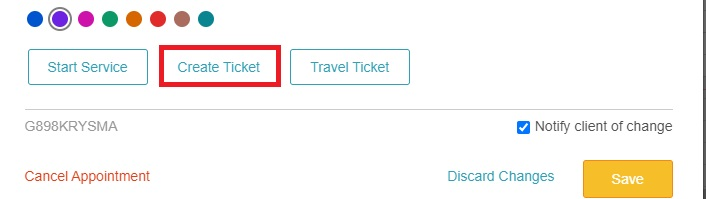
- Once the appointment is saved, you can locate and open it on the schedule. From there, you can create a ticket in POS and print a receipt once the ticket is closed. Both the ticket and the receipt will clearly indicate the number of nights covered by the membership/package, as well as any nights that are not covered. Additionally, they will specify the total amount for the services not covered by the membership/package.

POS Tickets 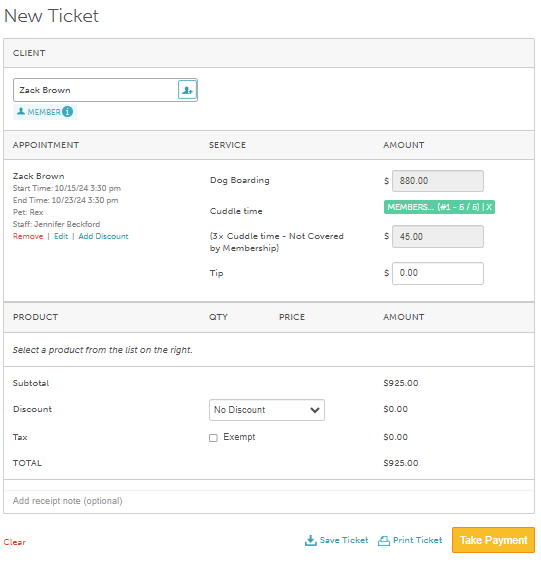
Printed Receipts 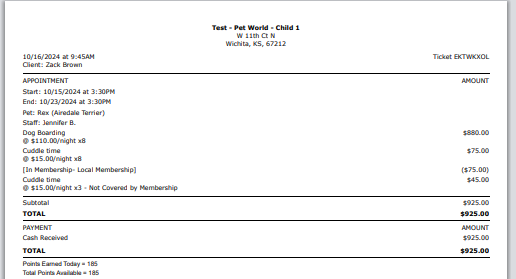
For more information, contact us at support@mytime.com.
Related Articles:
Scheduling Multi-Day Appointments
Scheduling Multi-Staff Appointments
Scheduling Recurring Appointments
Appointments / Bookings Report
Booking Appointments for Multi-Client Services In-store
Booking Multi-Client Appointments Online
Booking Appointments for Multiple Pets Online
Scheduling Appointment for Pets
Scheduling Appointment for Family Members
Was this article helpful?
That’s Great!
Thank you for your feedback
Sorry! We couldn't be helpful
Thank you for your feedback
Feedback sent
We appreciate your effort and will try to fix the article