The Appointments Report gives you comprehensive data for all appointments created in MyTime. It allows you to view key appointment details, including appointment time and location, status, booking source, and client information, all in one place.
Things to know:
- The ability to access this report is governed by the "Accessing Reports" access control settings.
- For accounts that are in holding status, the report will not display any data until the account is set live
- You can filter appointments by different statuses, including booked, completed, no-shows, and canceled.
- This report allows you to delete appointments, a feature controlled by a hidden setting linked to the "Delete Appointments" access control in Business Setup > Staff > Access Control Settings. To enable this setting, please contact our Support Team at support@mytime.com.
- Multi-staff service appointments will display the names of all staff members assigned to the service, while multi-client appointments will show the names of all clients associated with the service.
- Tips and sales tax are not included in the revenue displayed
- This report is not visible to businesses that do not offer appointments.
- The report can only be exported in Summary View, which consolidates data by category such as location, staff member, or service type. This view is ideal for high-level analysis, allowing you to review total revenue and overall performance metrics without displaying individual transactions.
To access this report:
- Navigate to Dashboard
- Select the Appointments tab

When the report opens, you can filter by a specific location, staff, appointment status, the date the appointment was booked, and the date the appointment is scheduled for.
Once you have selected your filters, click on the UPDATE button to generate the data. On the top right of the report, you have the option to export the report as a CSV, PDF, or print version. You can also search for a specific client using the client search bar.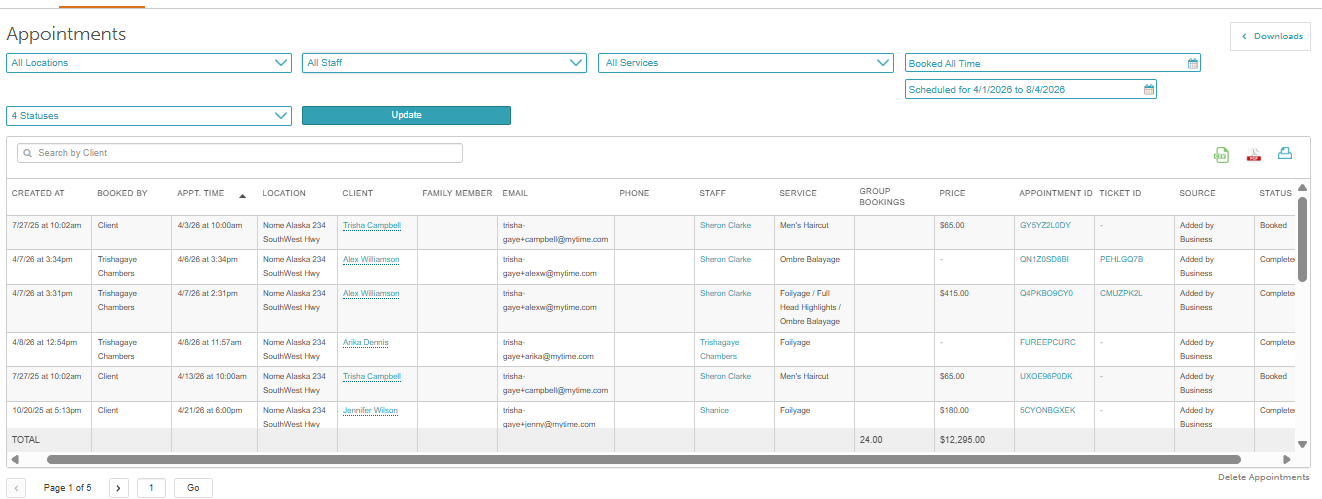
Report Filters
| Filter | Description |
| Location | The location where the appointment took place
|
| Staff | The staff member associated with the appointment. You can filter by a specific staff member or all staff. |
| Service | The name of the booked or scheduled service. |
| Date | The date the appointment was booked or scheduled to take place |
| Appointment status | Status of the appointment |
Report Columns
| Column | Description |
| Created At | The date and time the appointment was booked |
| Time | Date and time of the appointment |
| Location | The location associated with the appointment |
| Client | Client associated with the appointment. Clicking this link opens the client's profile Please Note: The client names will not hyperlinked if the appointment includes multiple client. |
| Email address of the client. If one was added to their profile, it will be reflected. | |
| Phone | Phone number of the client. If one was added to their profile, it will be reflected. |
| Staff | The staff member associated with the appointment. Clicking this link opens the staff member's profile. |
| Booked By | Booked By: Displays who booked the appointment:
|
| Service | The name of the service associated with the appointment. |
| Price | Retail price of the service(s) associated with the appointment. If covered by a package or membership, the service price will not be shown. |
| Appointment ID | A unique alphanumeric code generated for each scheduled appointment. The ID is displayed at the bottom of the appointment modal and included in client confirmation emails. Clicking the Appointment ID link opens the appointment directly on the Schedule. |
| Ticket ID | A unique alphanumeric code generated for each ticket associated with the appointment. The ID is displayed in receipts and finance reports. Clicking this link opens the ticket in MyTime POS. |
| Source | The booking source (Booking Widget, Google, Facebook, ClassPass, etc) ClassPass: The client booked the appointment via ClassPass Online Booking - Google - The client booked the appointment from your Google listing Online Booking - Facebook - The client either booked the appointment using the "Book Now" button on your Facebook page or signed into the booking widget with their Facebook account. Online Booking - Instagram - The client booked the appointment using the "Book Now" button on your Instagram page Online Booking - Guest App - The client booked the appointment from the custom Guest App Online Booking - Express Checkout - The client booked the appointment using the My Favorites or My Purchases options in My Account on mytime.com, or by clicking the Book Now button on your website that redirects them to the MyTime website (express checkout) link. Online Booking - Website - The client booked the appointment from your website using the Book button that opens the modal without actually redirecting to the MyTime website. Added by Business - A staff member booked the appointment for the client in-store Imported into MyTime - MyTime imports your appointments from the previous software. Online Walk-In - Website - A client joined the waitlist online Walk-In - Added by Business - A staff member added the client to the waitlist in-store Walk-in Kiosk - A client was added to the waitlist via the kiosk in-store Kiosk - A client booked an appointment via kiosk in-store. This is possible when the “Real Appointments on Kiosk” hidden setting is enabled. Prebooked - Appointment booked in-store by clicking the 'PreBook' button after a ticket is closed in POS or by clicking the 'Book Again' button in the appointment modal before midnight on the same day as the previous appointment. |
| Status | Appointment status (booked, cancelled, completed, etc). |
For more information, contact us at support@mytime.com.
Related Articles:
- Scheduling Appointments for Clients
- Scheduling Appointment for Pets
- Scheduling Appointment for Family Members
- Booking Appointments Online
- Booking Appointments Online for Pets
- Scheduling Appointment for Family Members
- Appointment History Report
- Service Sales Detail Report
- By Source of Booking Report
- By Day of Week Report
- By Time of Day Report
- Daily Payments Report
- Daily Revenue Report
- By Client Report
- Client Type Report
- By Staff Member Report
- Calendar Utilization Report
Was this article helpful?
That’s Great!
Thank you for your feedback
Sorry! We couldn't be helpful
Thank you for your feedback
Feedback sent
We appreciate your effort and will try to fix the article