The service price multiplier is a dynamic pricing feature that calculates the cost of an appointment based on the factors you input in the appointment modal. Services can be booked in units, and the total price will be auto-calculated based on the multiplier specified and the base price of the service. In this article, we will discuss how you can you the service multiplier feature on the scheduler app.
Things to Know:
- The ability to use the service price multiplier feature is governed by the "Accessing Account Settings" access control setting.
- Services that do not have the multiplier activated in the service modal will not include this feature on the scheduler or POS
- This feature works with any service duration, from a few minutes to a day
- The quanitity field, service price, and total price fields are all editable. Any adjustments to the original price, overall price, or multiplier will prompt a recalculation of the overall price.
- Other changes to the appointment that cause price recalculation will reset the multiplier to 1 and the service price to the initial price. For example, if you change the client or the pet/family member/vehicle, or use the Book Again option, the multiplier returns to 1 and the price is reset.
Membership/package item credits will be deducted based on the number entered in the multiplier. For example, if eight is entered in the multiplier but there are only five active membership/package item credits, the membership/package will only cover five times the service cost. The additional amount not covered by the membership/package will need to be paid out of pocket by the client.
POS tickets will display the amount covered by the membership/package and the included services. If a ticket includes both a core service and an add-on service, and both are eligible for payment through the membership/package item credit, the credit will automatically be applied to the add-on service. Additionally, the ticket will indicate the amount not covered by the membership/package.
Printed receipts will specify both the amount covered by the membership/package and the amount that is not covered.
- During appointment creation/edit, when the service is changed from one multiplier-activated service to another, we will preserve the entered multiplier value
- If an appointment is redone, the price for the redo appointment will be $0
Contents:
- How to Apply a Multiplier When Booking from the Scheduler
- How to Apply a Multiplier When Adding Services in POS
How to Apply a Multiplier When Booking from the Scheduler
- Launch the MyTime Scheduler app on your device
- Choose your login method:
- Standard: Enter your registered email address and password, then tap 'Sign In'
- Social Login: Select 'Continue with Google' or 'Continue with Apple' to use your existing credentials for a faster login experience. For detailed instructions, learn more here
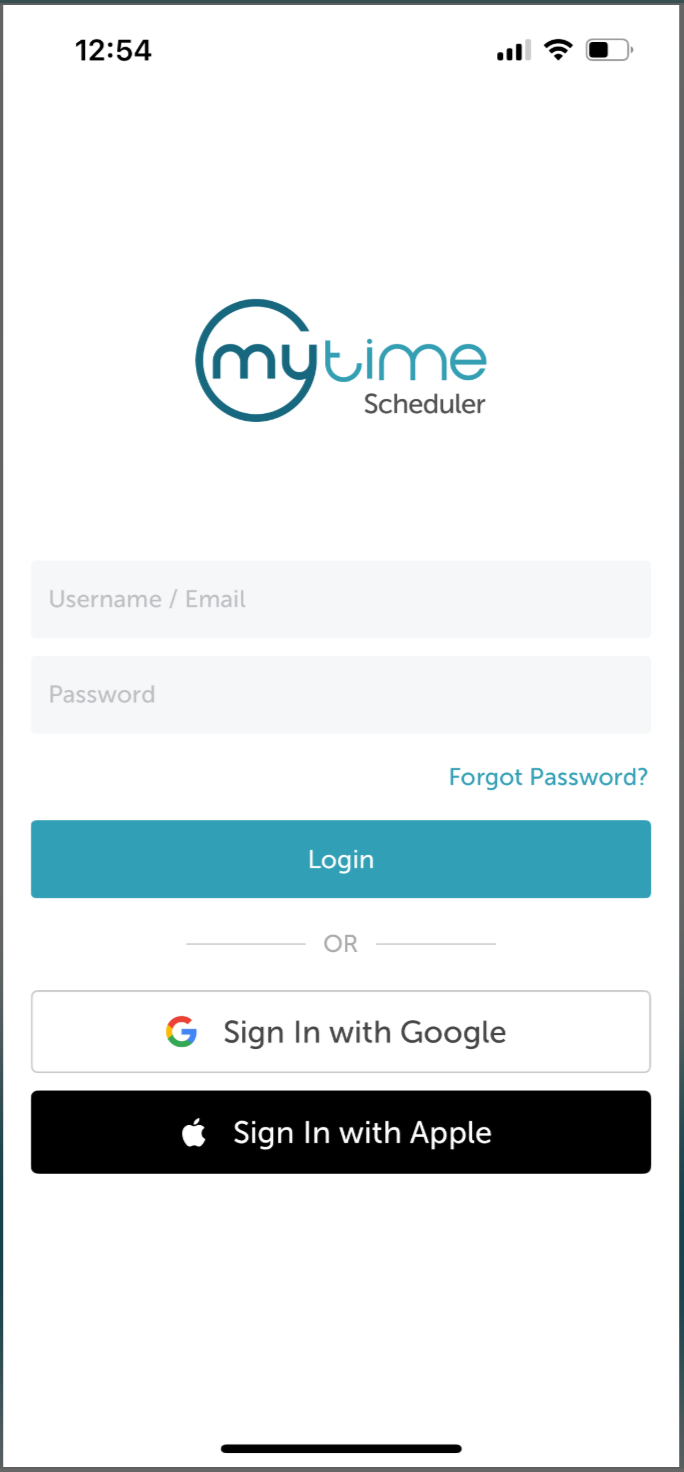
- After signing in, you’ll be directed to the Schedule by default
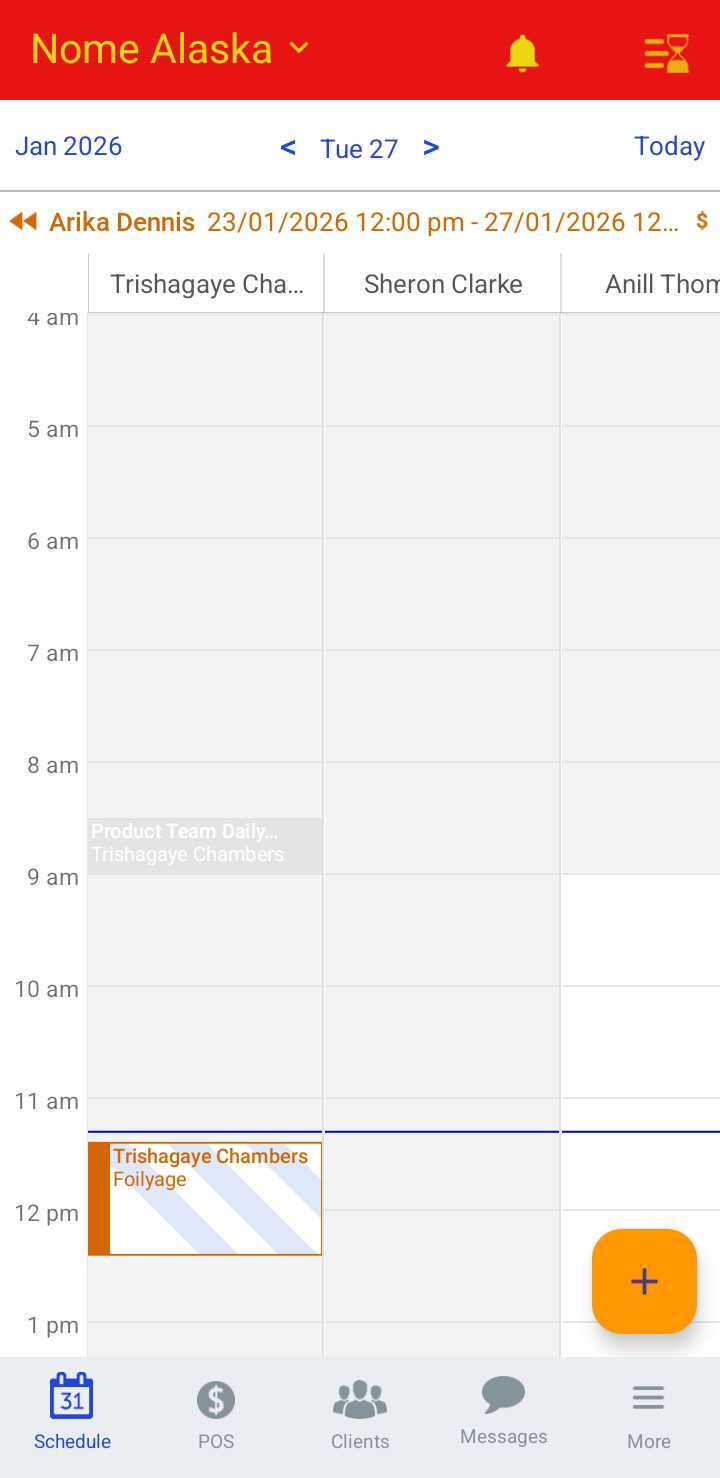
- Filter to the appropriate location and staff member. Learn more here
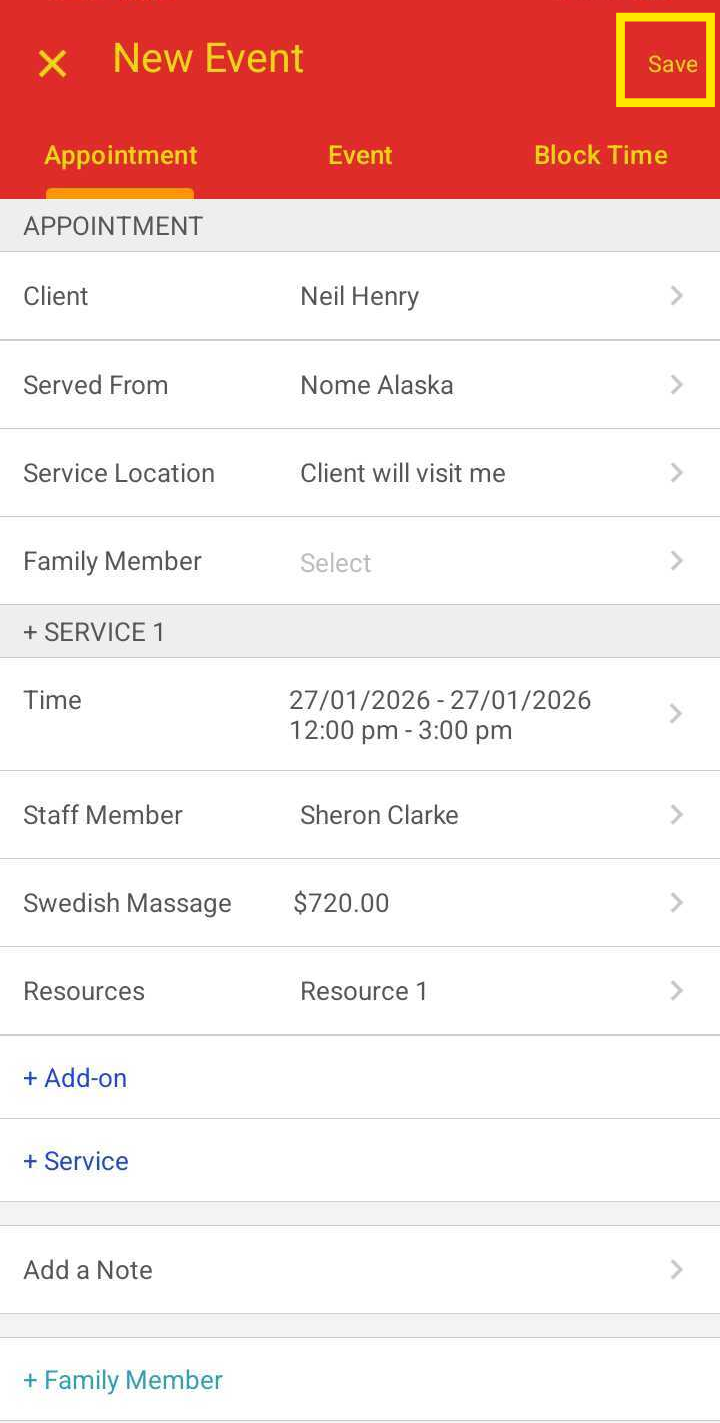
- Tap the desired time slot under the selected staff member or tap the ( + ) icon in the bottom-right corner to open the New Event modal
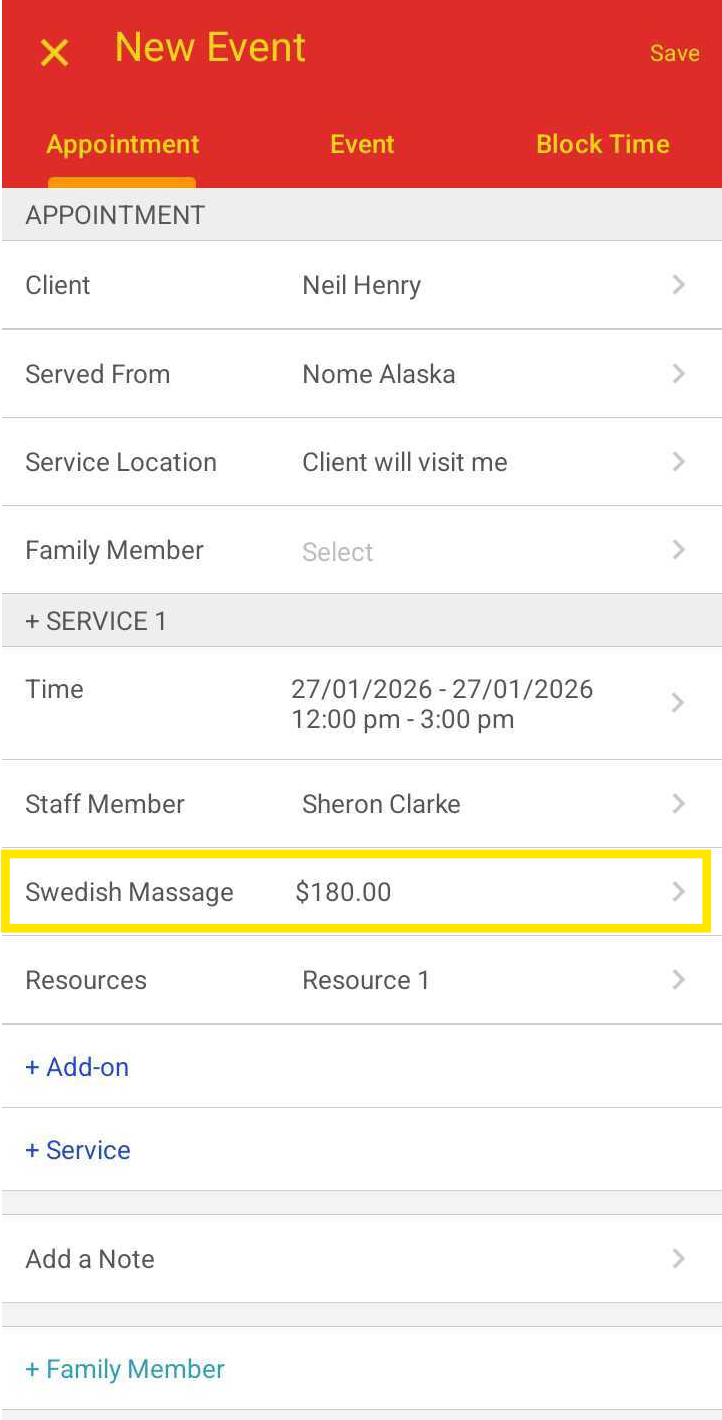
- In the appointment modal, select the client, service, and any add-ons
- Tap the service field
- Use the (–) and (+) controls next to Qty to adjust the appointment duration
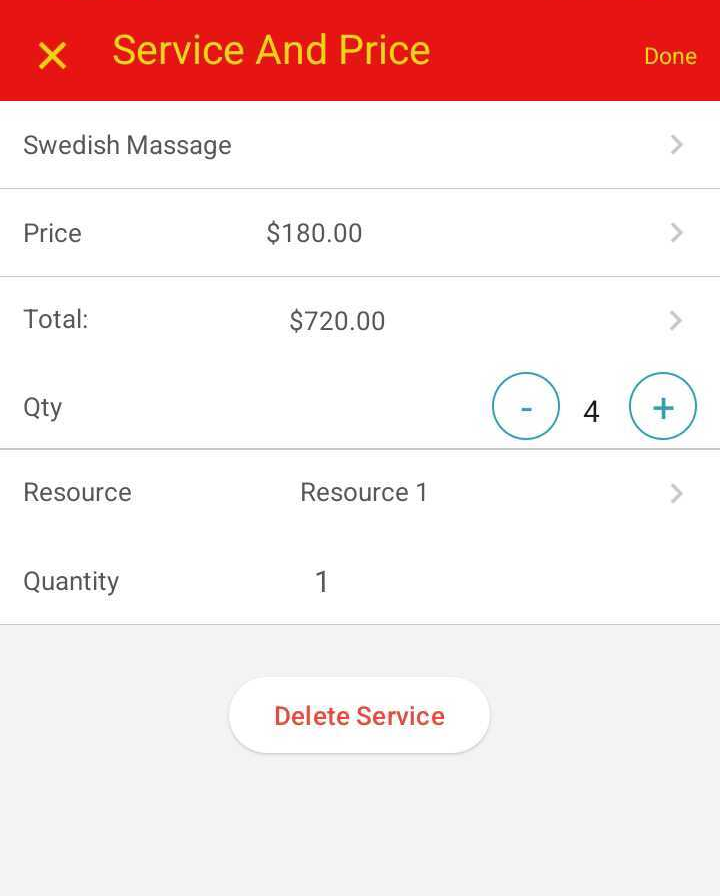
- The Total field will automatically update based on the quantity selected
- Tap Done
- Tap Save to create the appointment
How to Apply a Multiplier When Adding Services in POS
- Launch the MyTime Scheduler app on your device
- Choose your login method:
- Standard: Enter your registered email address and password, then tap 'Sign In'
- Social Login: Select 'Continue with Google' or 'Continue with Apple' to use your existing credentials for a faster login experience. For detailed instructions, learn more here
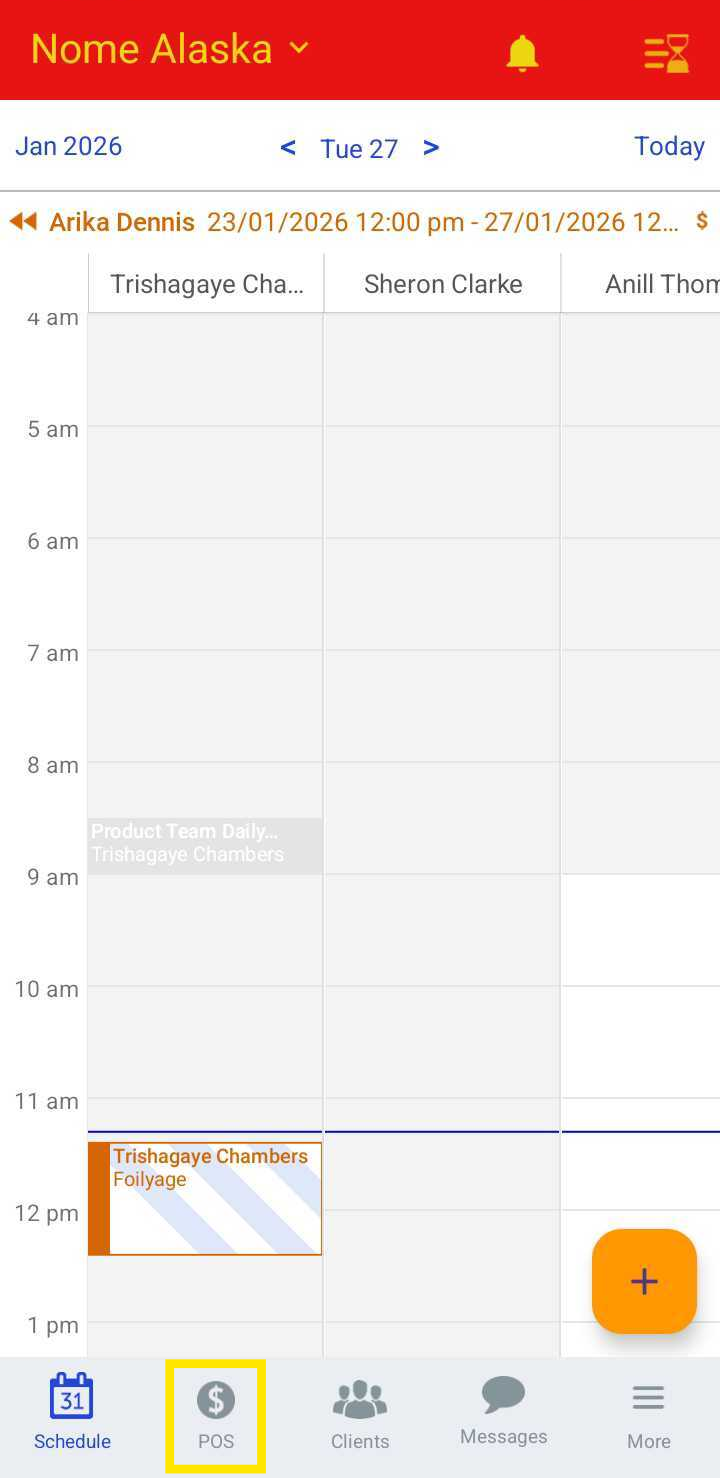
- After signing in, you’ll be directed to the Schedule by default
- Tap the POS icon
- Tap the + Service link
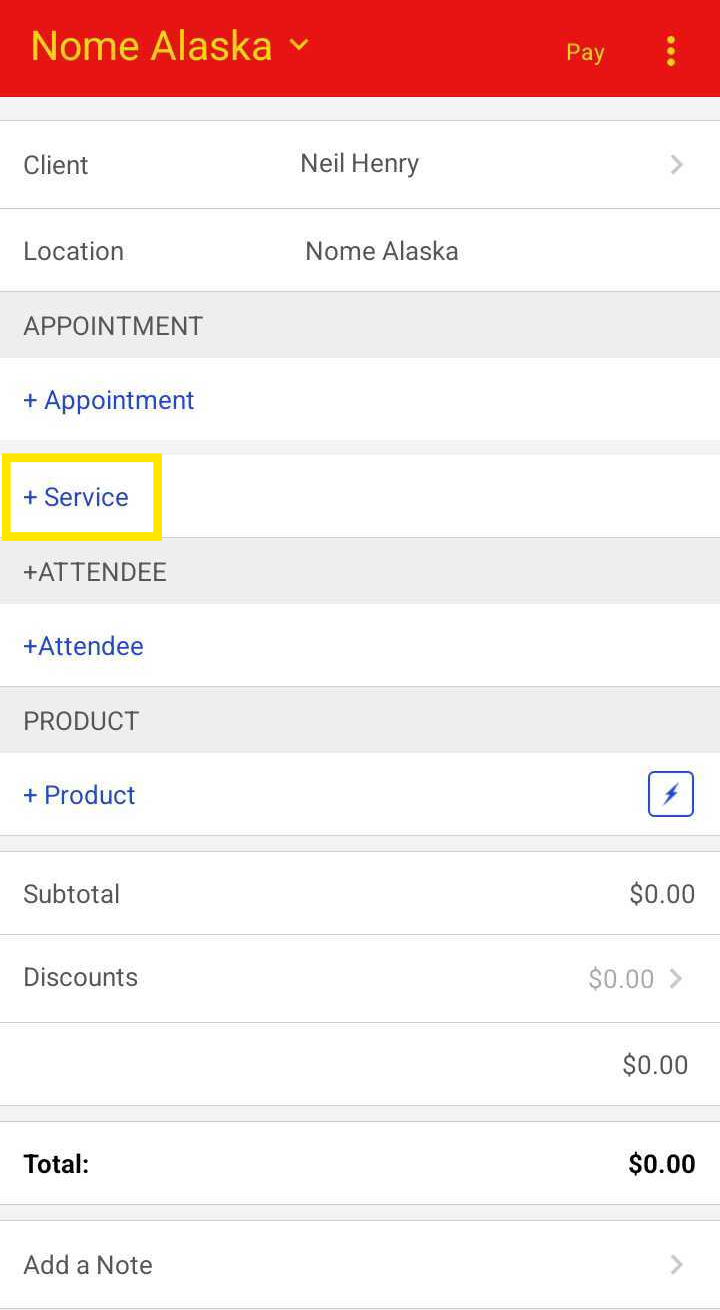
- In the appointment modal, select the client, service, and any add-ons
- Tap the service field
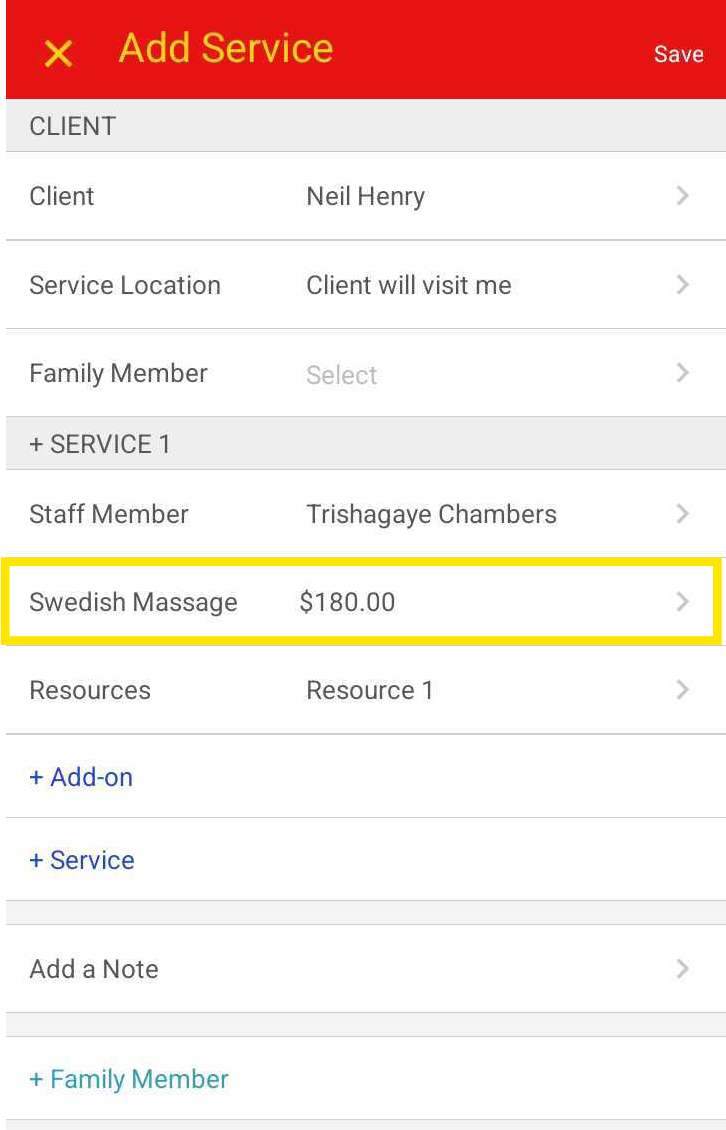
- Use the (–) and (+) controls next to Qty to adjust the appointment duration
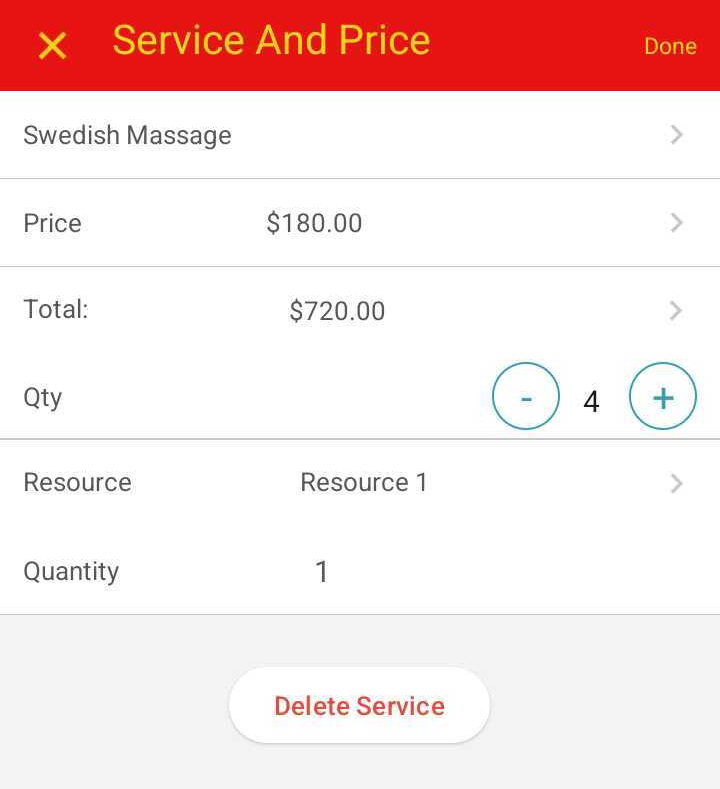
- The Total field will automatically update based on the quantity selected
- Tap Done, then tap Save
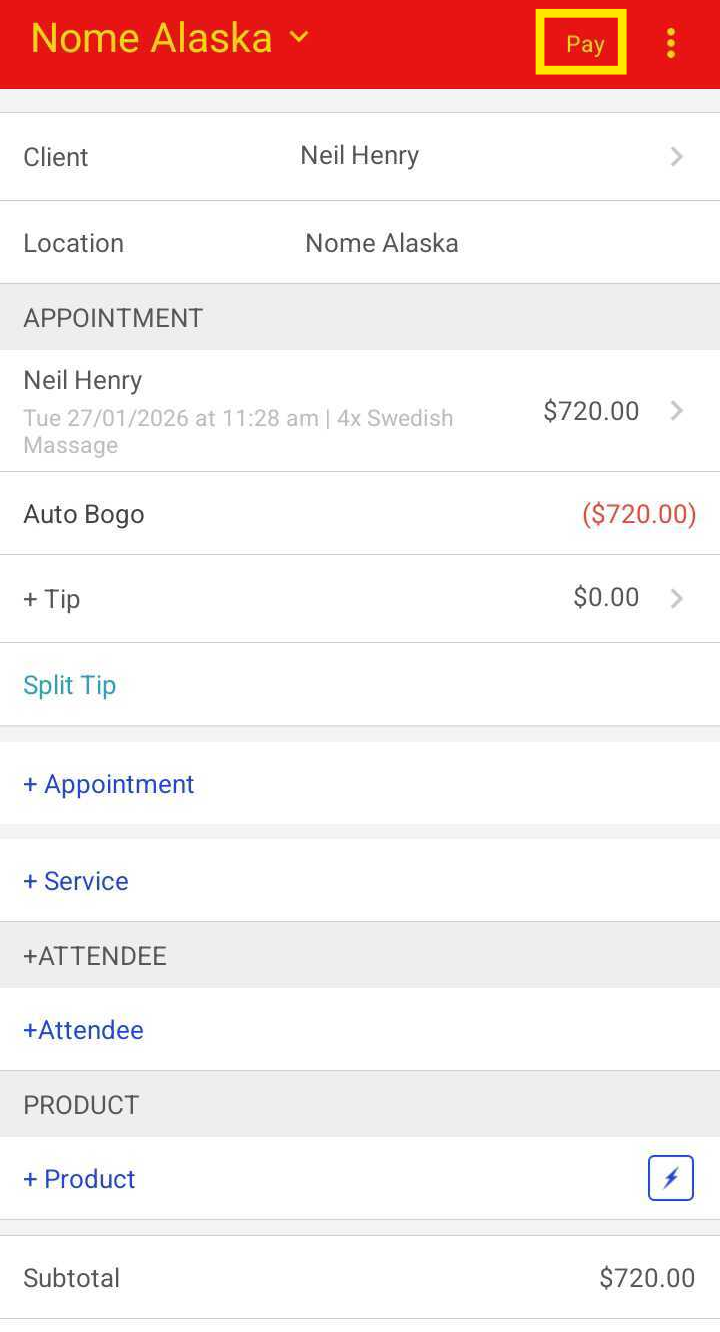
- The new ticket page will display the price based on the selected quantity, including:
- The amount covered by a membership or package (if applicable)
- Any remaining out-of-pocket balance if available credits do not cover the full duration
- Tap Pay
- Close the ticket
For more information contact us at support@mytime.com.
Related Article:
Was this article helpful?
That’s Great!
Thank you for your feedback
Sorry! We couldn't be helpful
Thank you for your feedback
Feedback sent
We appreciate your effort and will try to fix the article