Loyalty points earned from transactions can be viewed in multiple places across the system. This article explains how staff members can quickly check a client's loyalty point balance directly within the Scheduler App.
Things to know:
- The ability to view loyalty point balances is controlled by the "Accessing Loyalty Points" access control setting.
- Loyalty points are calculated strictly based on the total purchase amount before taxes and tips are applied.
- Clients earn points for all purchases made on behalf of family members or pets linked to their primary account.
- Point balances automatically appear on both printed and electronic receipts after each completed purchase.
- Clients can view their point balances independently during checkout or by logging into their account via the booking widget.
- Points are not awarded for scheduled events or for transactions paid using a gift card.
To view and edit loyalty points on the client profile:
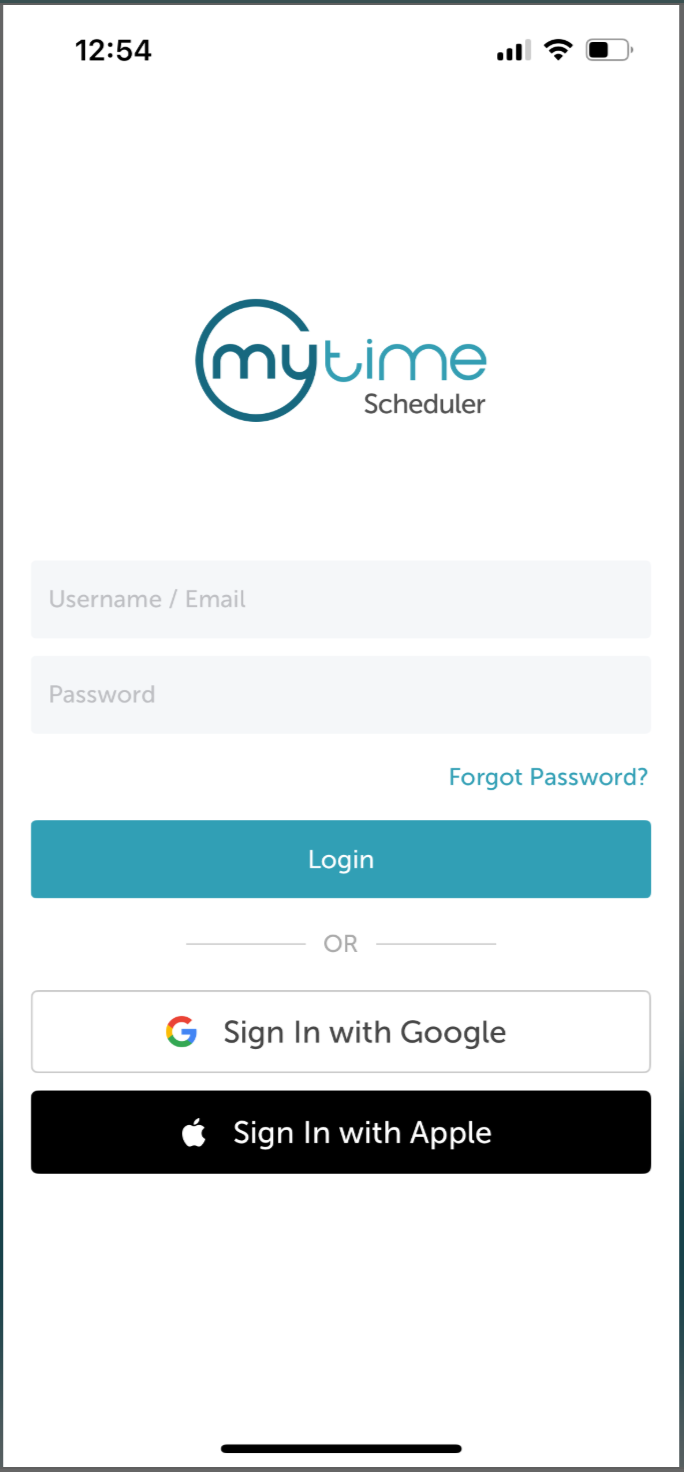
1. Launch the MyTime Scheduler app on your device
2. Choose your login method:
- Standard: Enter your registered email address and password, then tap 'Sign In'
- Social Login: Select 'Continue with Google' or 'Continue with Apple' to use your existing credentials for a faster login experience. For detailed instructions, learn more here
3. After signing in, you will be directed to the Schedule by default
4. Tap the Clients icon at the bottom of the screen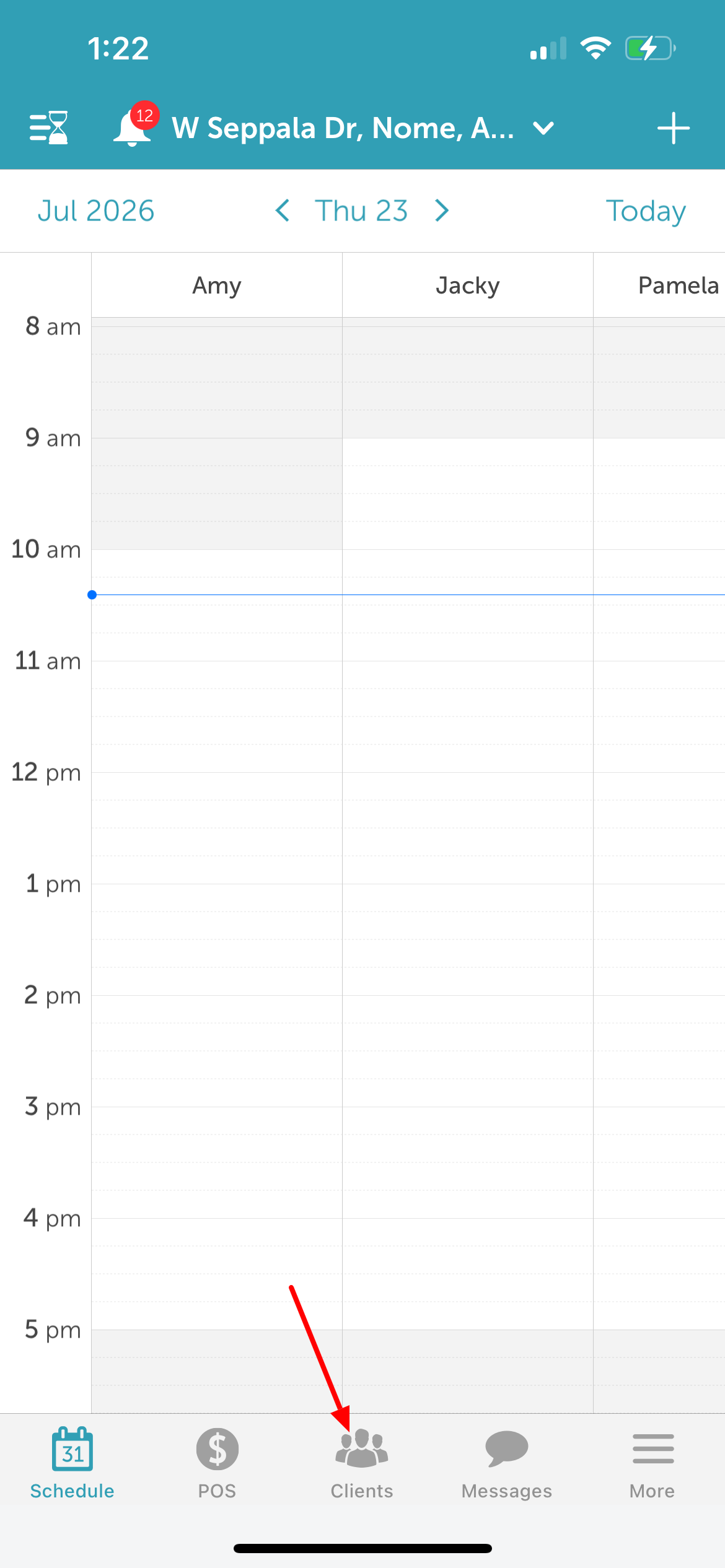
5. Search for the client by name or select them from the list 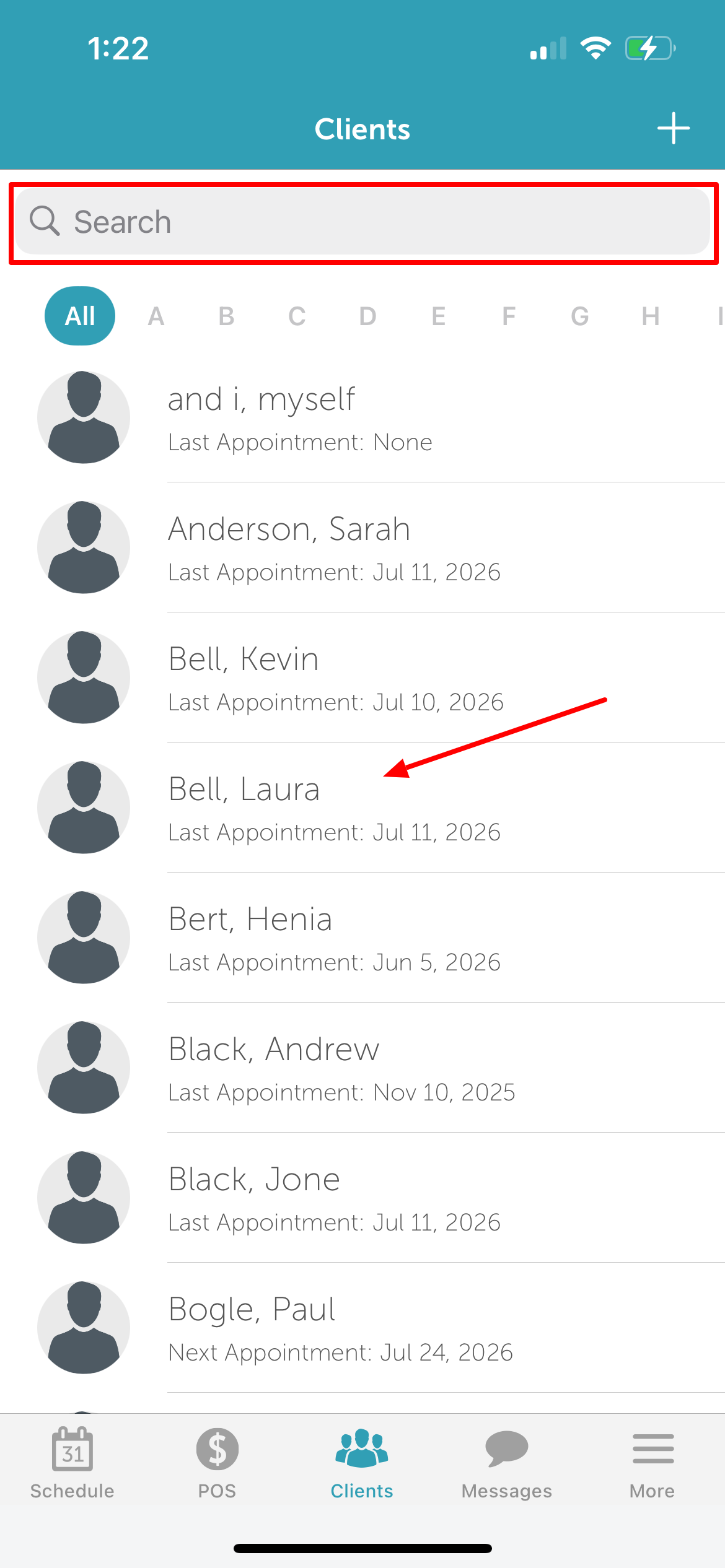
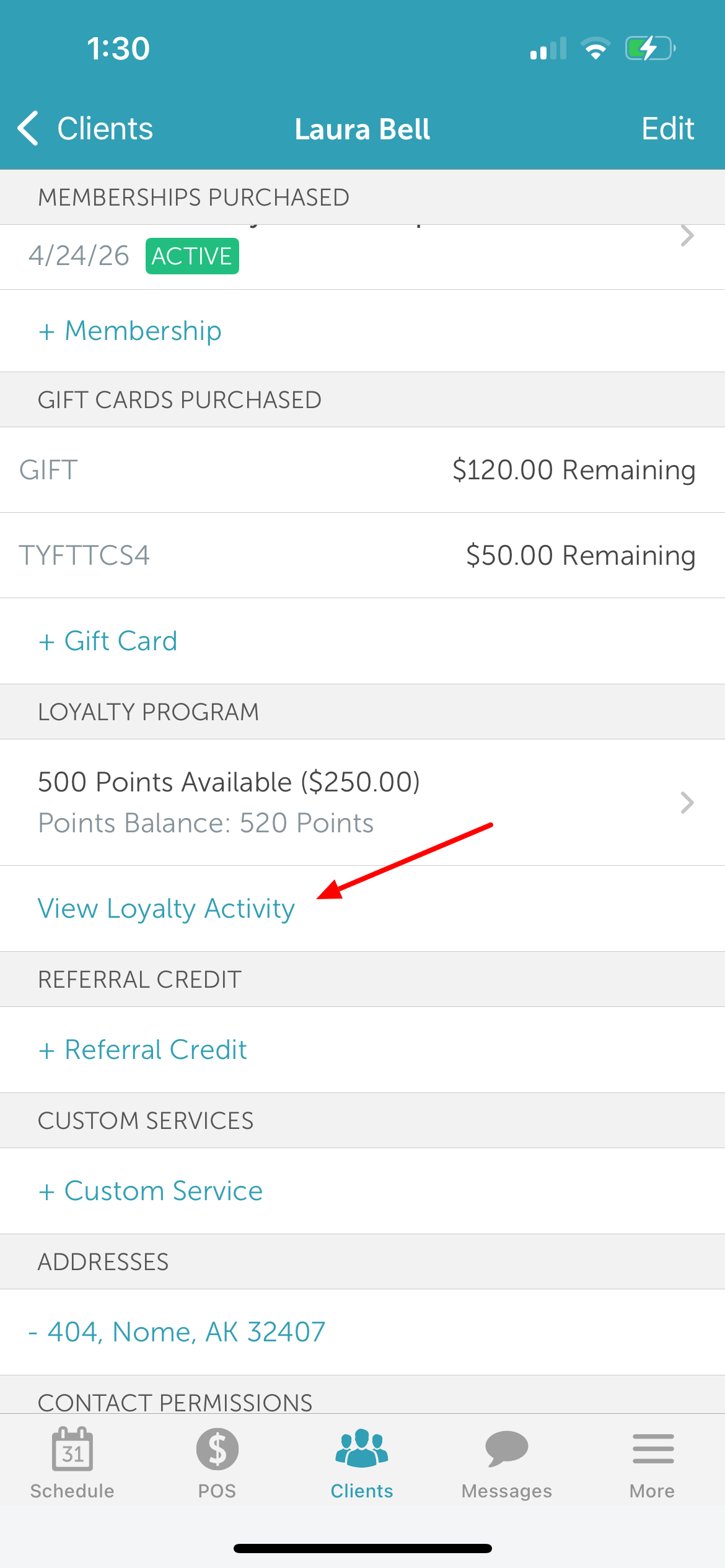
6. Scroll to the ‘Loyalty Program’ section
7. Tap the Points Available field 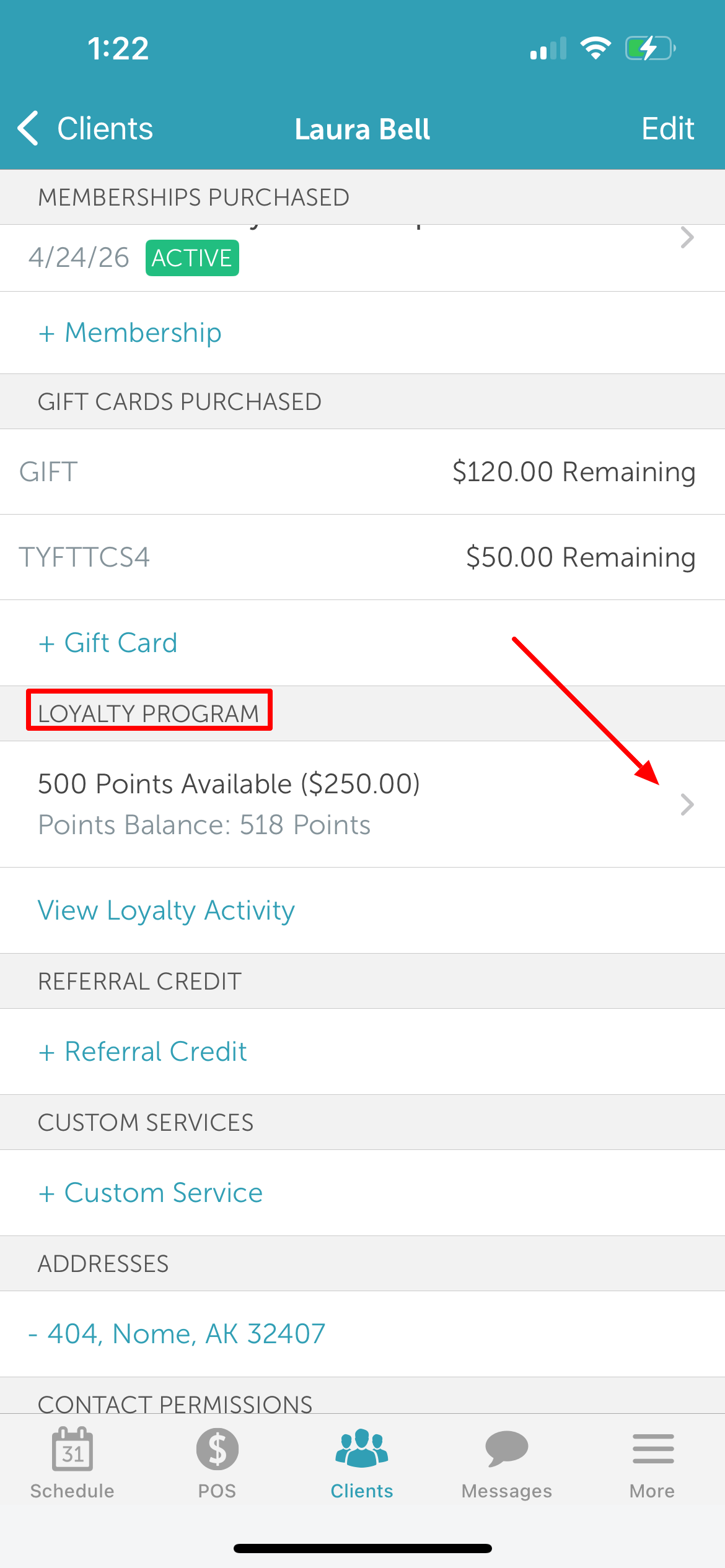
8. Use the (-) and (+) icons to adjust the point balance
9. Tap Save in the top right corner of the screen 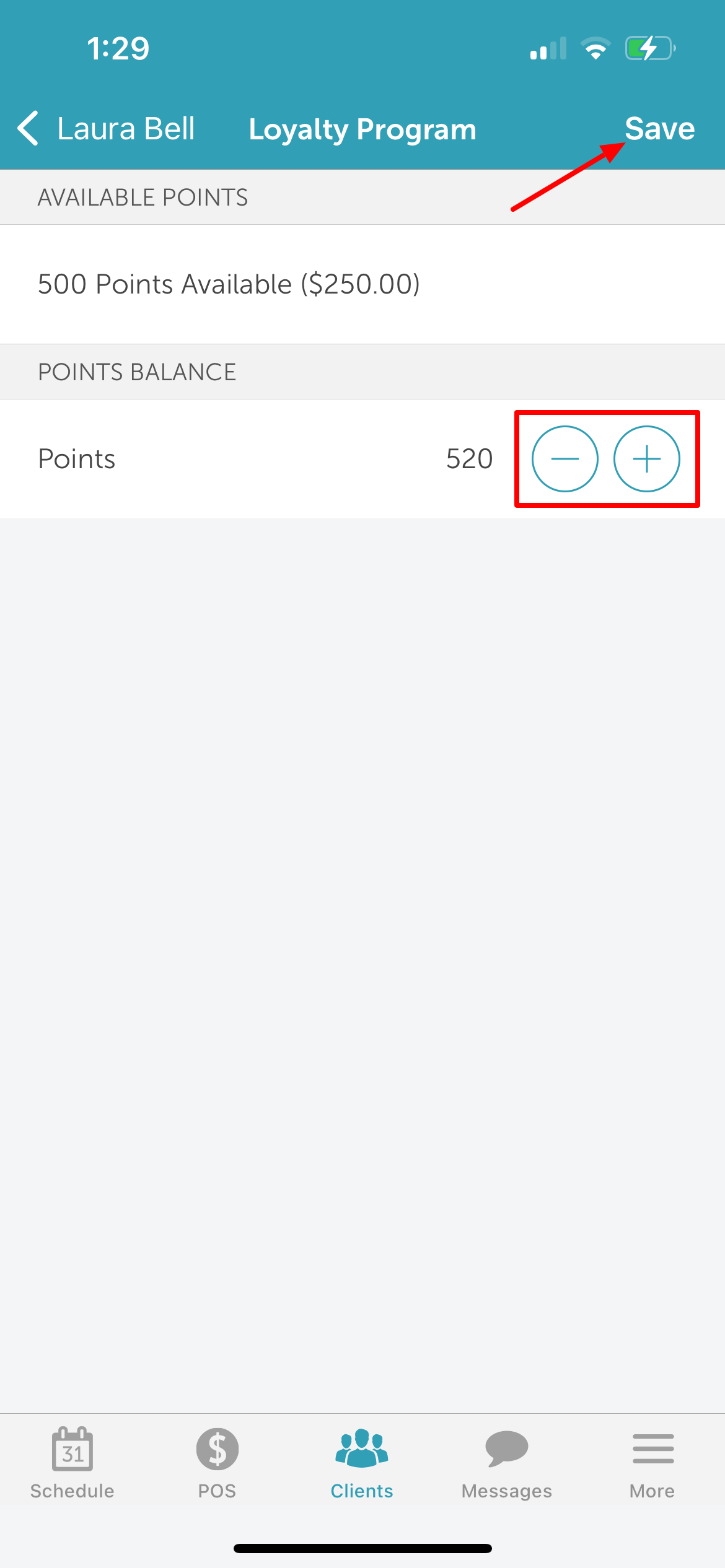
10. Once saved, tap "View Loyalty Activity" to view the detailed history and audit log of all loyalty activities for the client.
For more information, please contact us at support@mytime.com.
Related Articles:
Was this article helpful?
That’s Great!
Thank you for your feedback
Sorry! We couldn't be helpful
Thank you for your feedback
Feedback sent
We appreciate your effort and will try to fix the article