In this article, we will guide you through the steps to redeem loyalty points on the scheduler app.
Things to know:
- The redeemable value specified in the redemption rule configuration serves as the minimum threshold for point redemption. Loyalty points cannot be redeemed unless this threshold is met.
- Loyalty points are only redeemable when the transaction amount meets or exceeds the required threshold for redemption. Let's say the loyalty program redemption rule specifies that 100 points = $50.
Scenario 1: Transaction Below Threshold
- Client A has $30 worth of items in their cart
- Loyalty credits won't be visible or applicable since the transaction amount is below the $50 threshold
- The client cannot redeem their loyalty credits for this transaction
Scenario 2: Transaction Meeting Threshold
- Client B has $60 worth of items in their cart
- Loyalty credits become visible and applicable because the transaction amount meets the $50 threshold
- The client can choose to redeem their loyalty credits for a discount on the $60 transaction
- If the client has met the redemption criteria multiple times, a list will be displayed in the Loyalty Payment section in POS. From this list, they can choose the amount they want to redeem.
- The 'Take Payment' screen in POS displays the client's loyalty point balance, allowing you to verify if they have enough points to pay for the ticket.
- If your loyalty program allows points to be redeemed on specific item types (e.g., services only), points can only be applied to those items. If a ticket includes both eligible and non-eligible items, points will only apply to the eligible ones. Example: A ticket includes a service and a retail product. If points can be redeemed on services only, they will apply to the service, not the retail item.
To redeem loyalty points on the scheduler app:
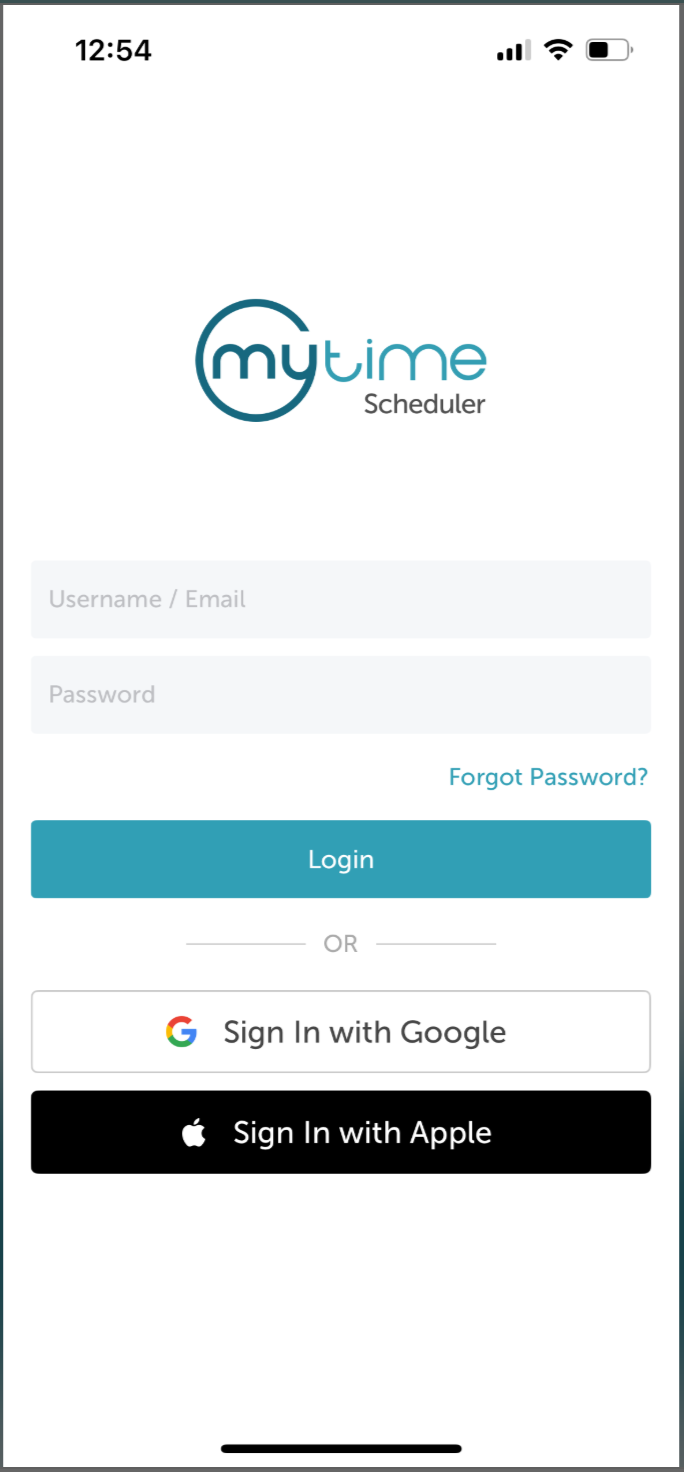
1. Launch the MyTime Scheduler app on your device
2. Choose your login method:
- Standard: Enter your registered email address and password, then tap 'Sign In'
- Social Login: Select 'Continue with Google' or 'Continue with Apple' to use your existing credentials for a faster login experience. For detailed instructions, learn more here
3. After signing in, you will be directed to the Schedule by default
4. Tap POS at the bottom of the screen 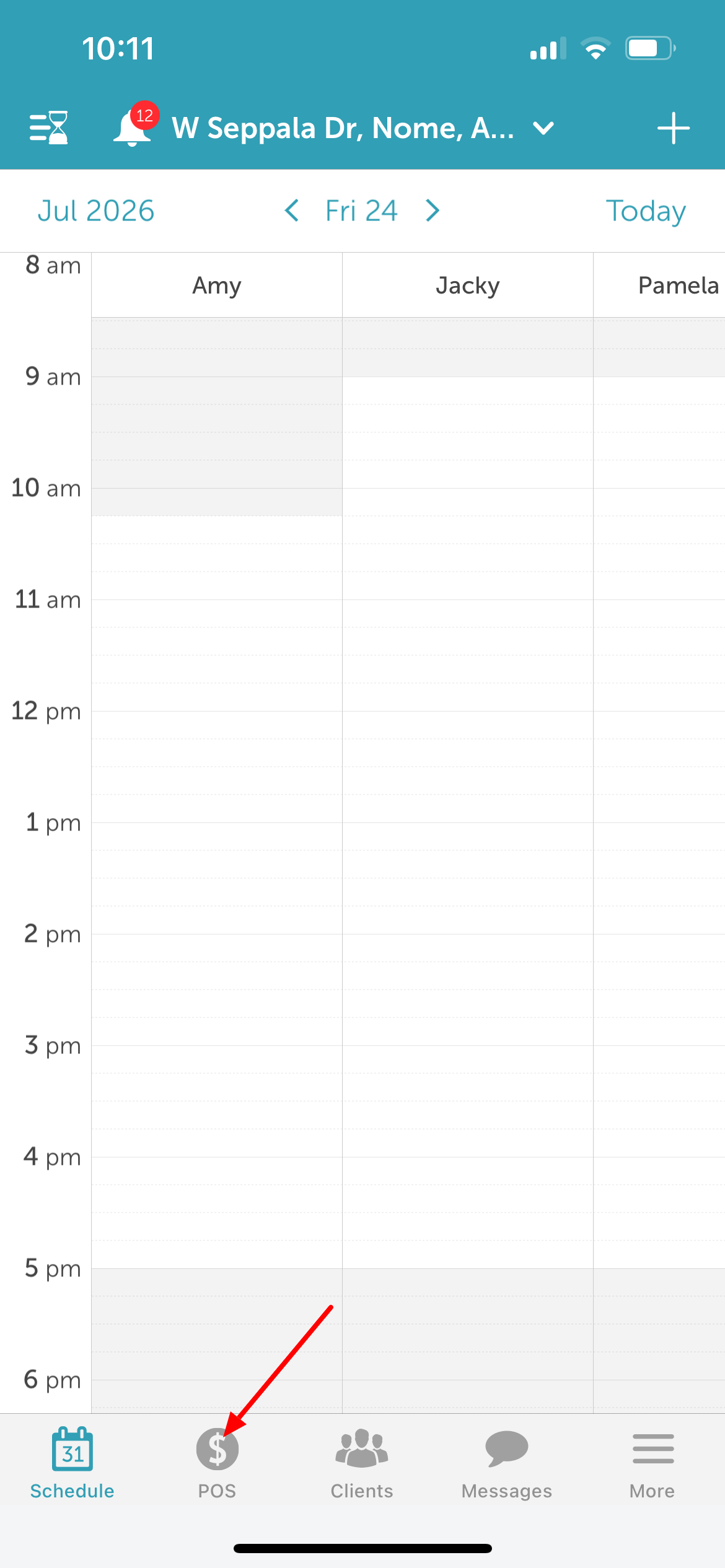
5. From the New Ticket screen, add the client to the ticket
6. Add the desired services, products, or items to the ticket.
7. Tap Pay in the top right corner of the screen 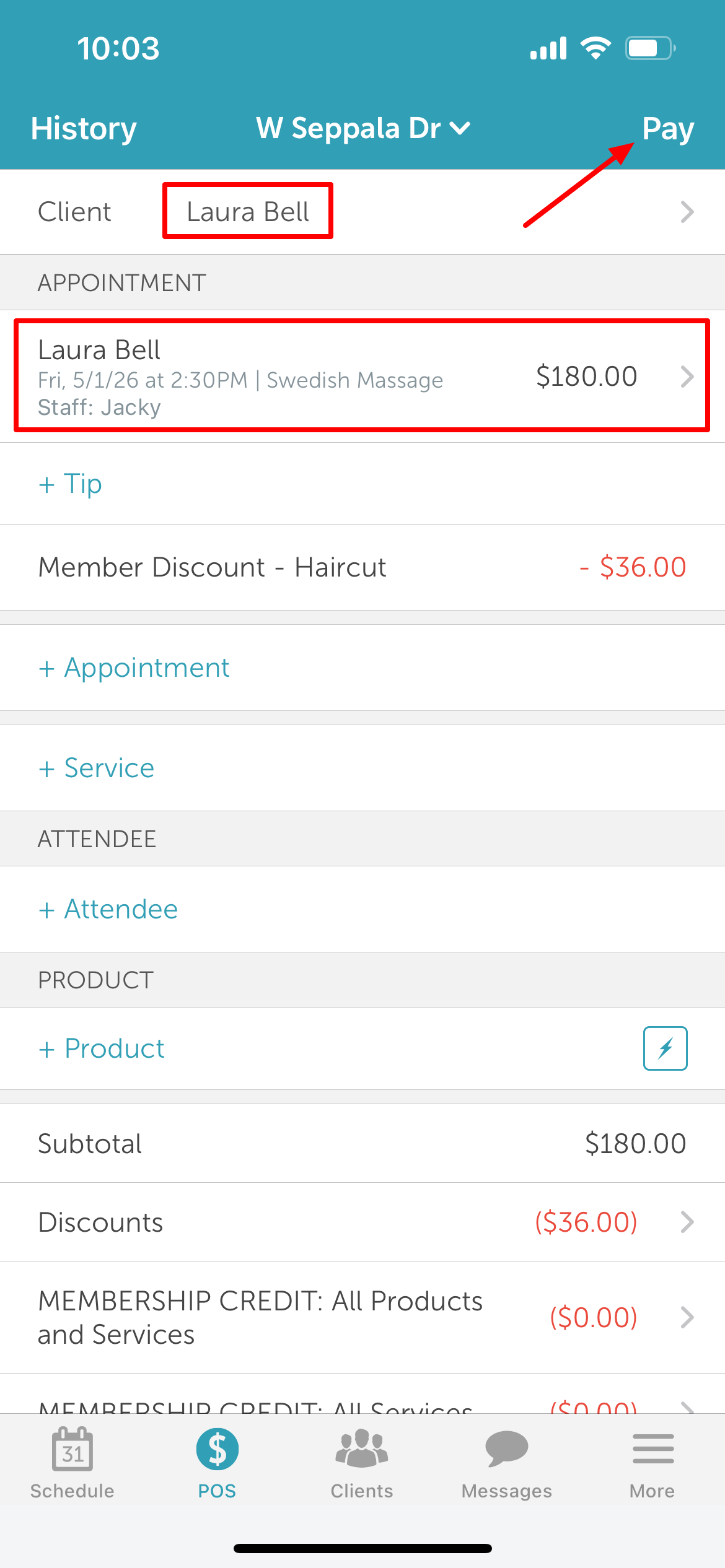
8. The redeemable loyalty points will be displayed as a payment method option. If the client has met the redemption criteria multiple times, tap the points field to view the full list and choose the specific amount to redeem.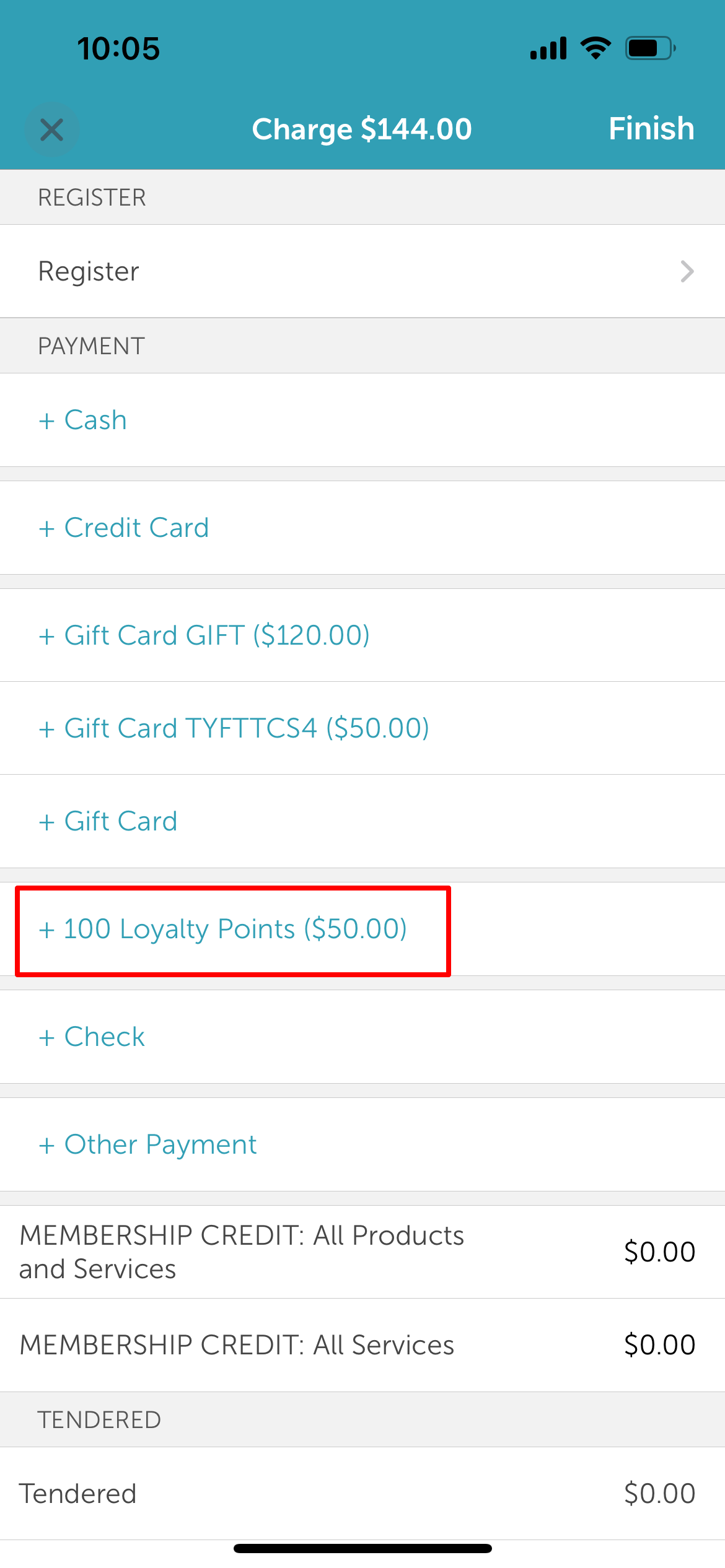
9. Tap Add at the top right corner of the screen to activate and apply the selected loyalty points to the ticket 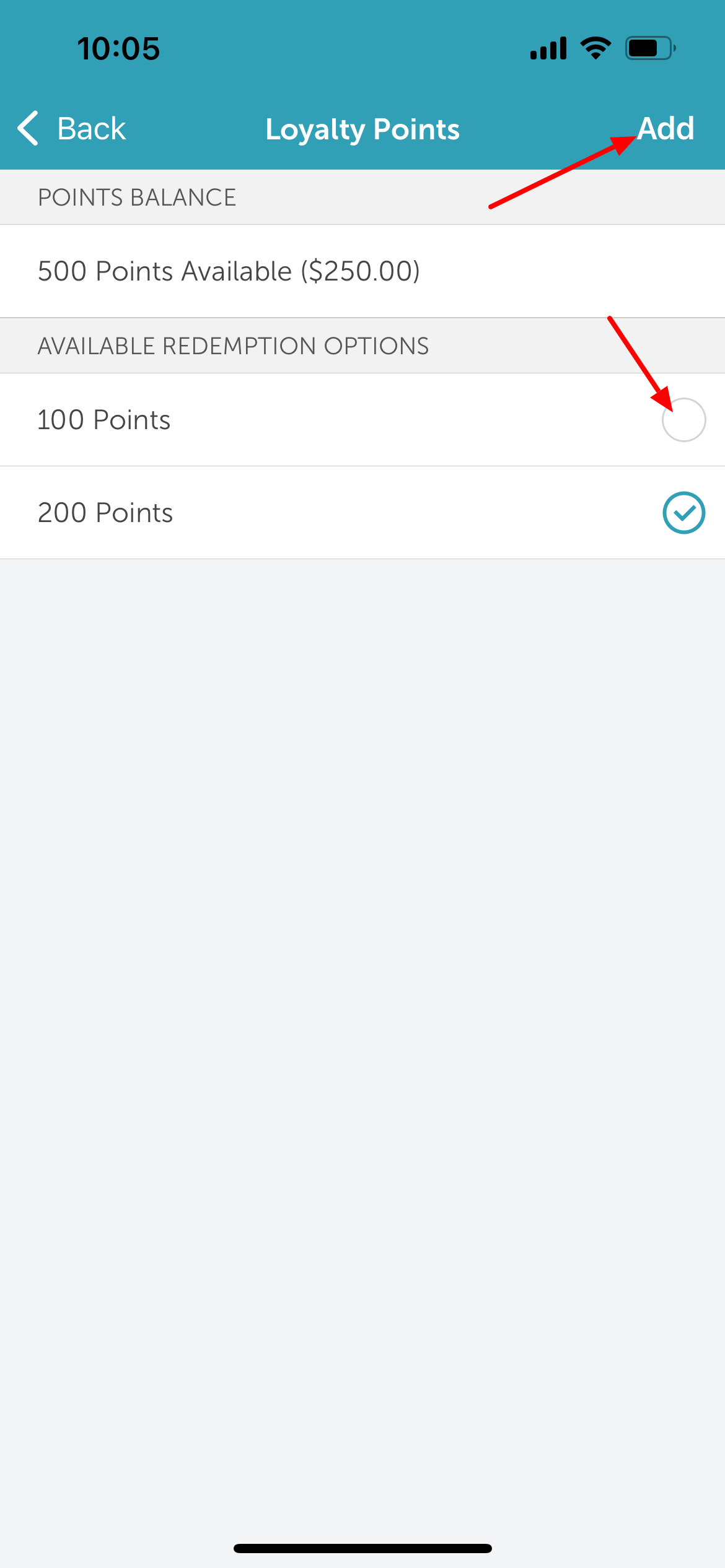
10. If an unpaid balance remains, select a secondary payment method to complete the transaction.
11. Tap Finish in the top right corner of the screen to complete the payment 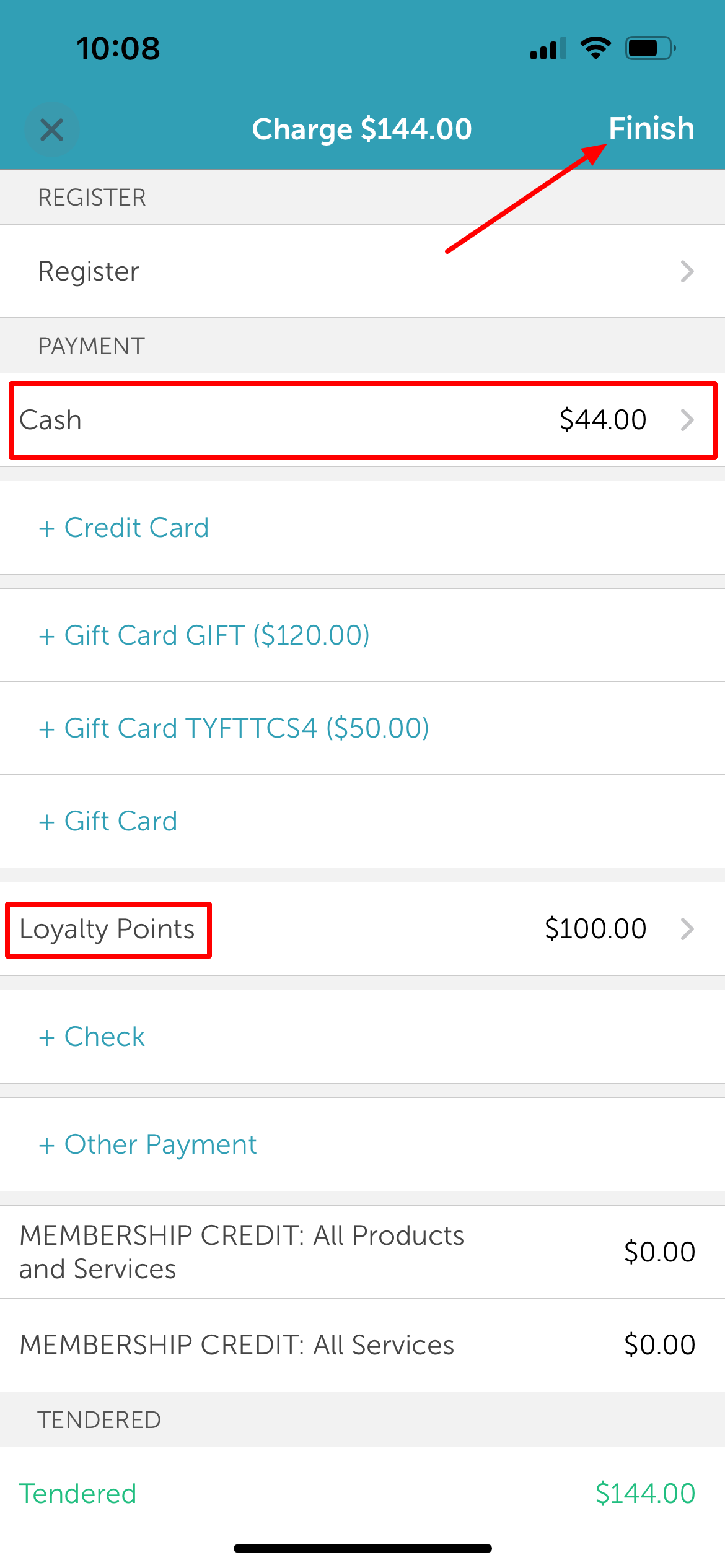
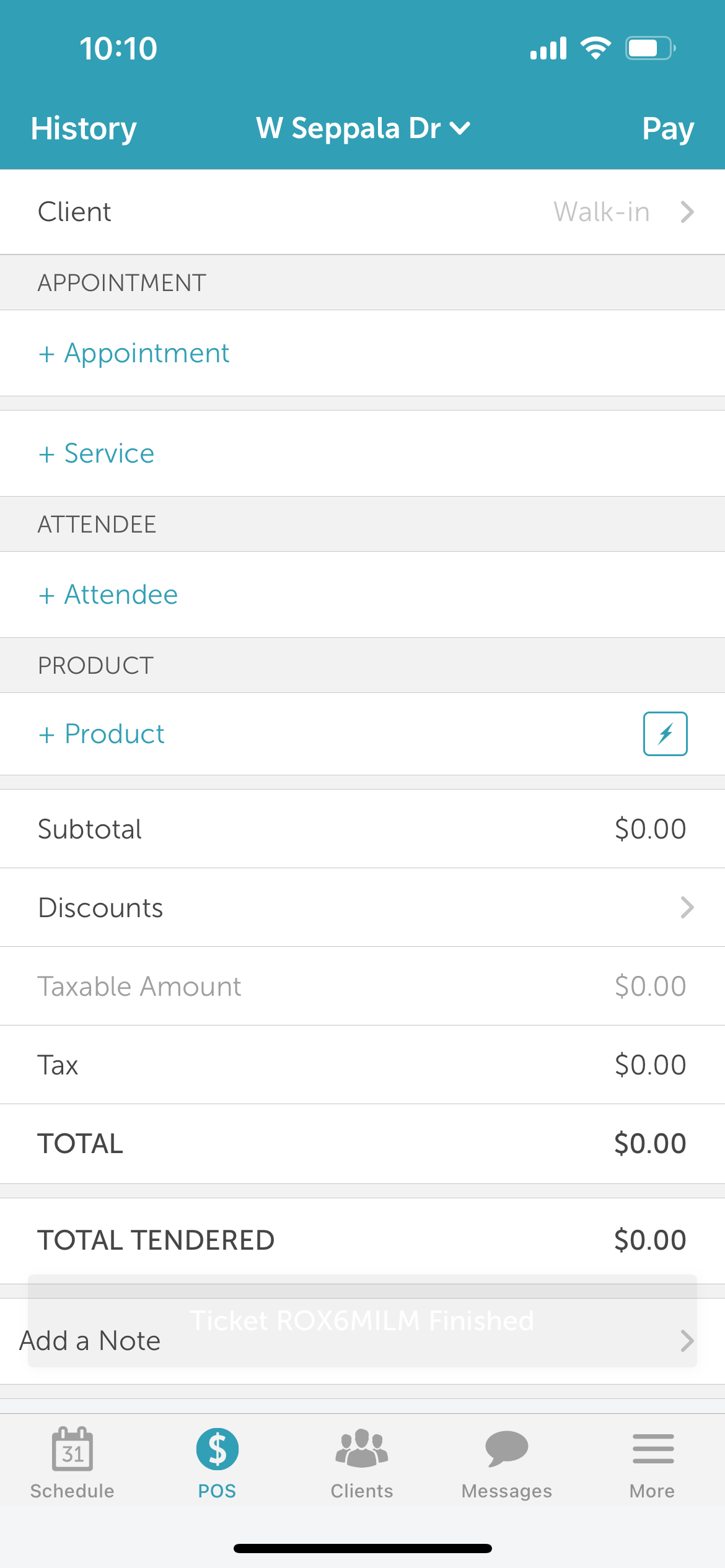
12. On the Payment tab, the closed ticket will display a full breakdown of both the points redeemed and the new points earned from the purchase.
For more information, please contact us at support@mytime.com.
Related Articles:
Loyalty Points on Scheduler App
Redeeming Loyalty Points Online
Was this article helpful?
That’s Great!
Thank you for your feedback
Sorry! We couldn't be helpful
Thank you for your feedback
Feedback sent
We appreciate your effort and will try to fix the article