MyTime allows you to easily add photos to client profiles. This article walks you through the steps to add an image using the Scheduler App.
Things to Know:
- The ability to add images to client profiles is controlled by the “Accessing Client Records” access control setting.
- You can add an image when creating a new client or by editing an existing client’s profile.
- If a client creates an account online using Facebook, the system will automatically create an in-store profile, and the client’s Facebook profile picture will be displayed on that profile.
- Supported image formats include JPEG, JPG, PNG, and GIF.
- For best results, use a landscape image that is at least 800 pixels wide and under 5 MB in size.
To add a photo, you can simply:
1. Launch the MyTime Scheduler app on your device
2. Choose your login method:
- Standard: Enter your registered email address and password, then tap 'Sign In'
- Social Login: Select 'Continue with Google' or 'Continue with Apple' to use your existing credentials for a faster login experience. For detailed instructions, learn here
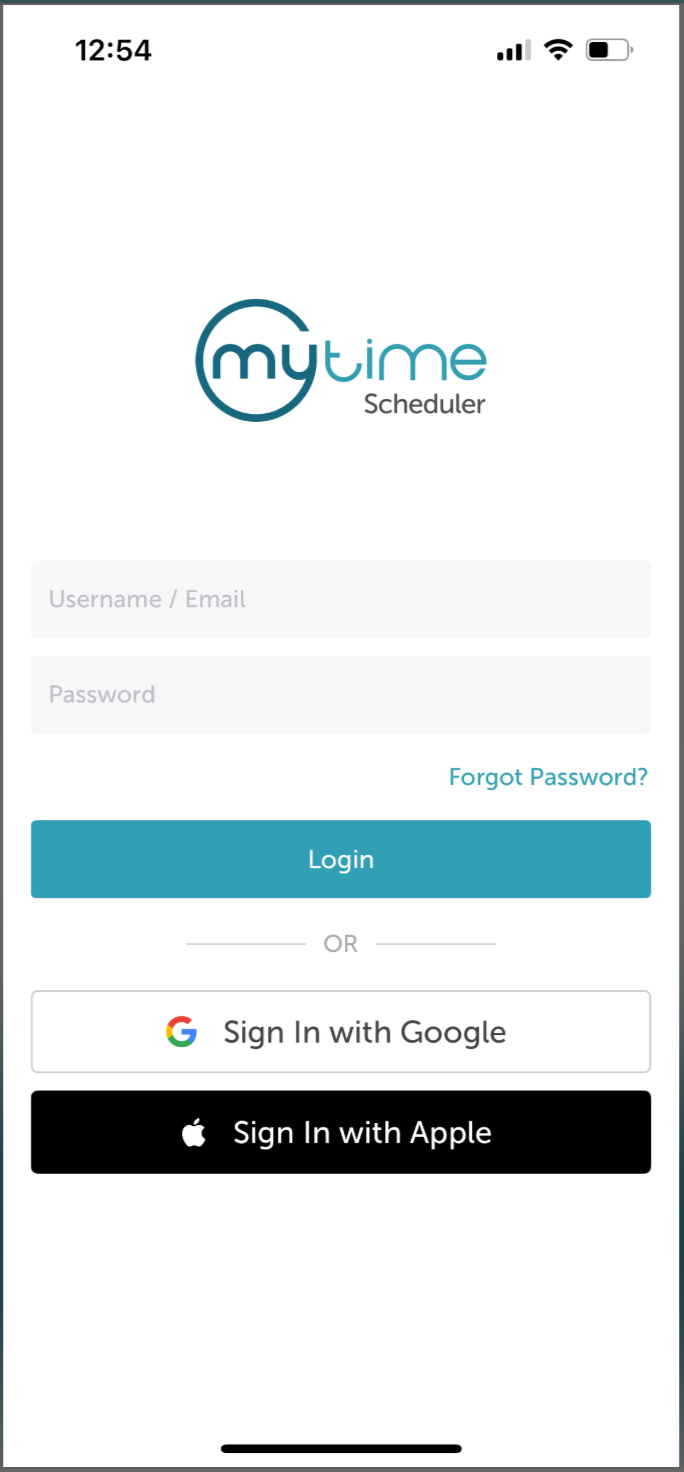
3. After signing in, you will be directed to the Schedule by default
4. Tap the Clients icon at the bottom of the screen 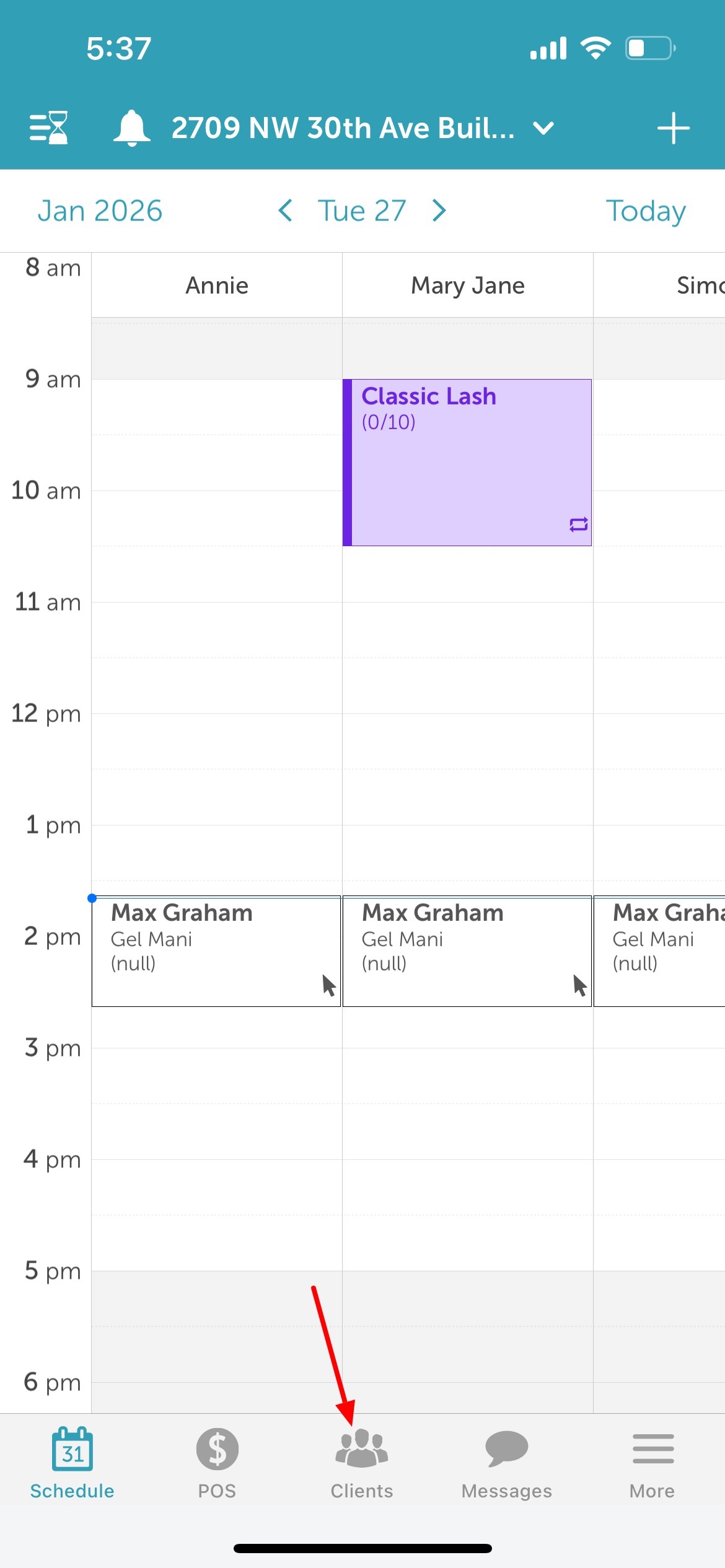
5. In the Search field, enter the client’s name, email address, or phone number 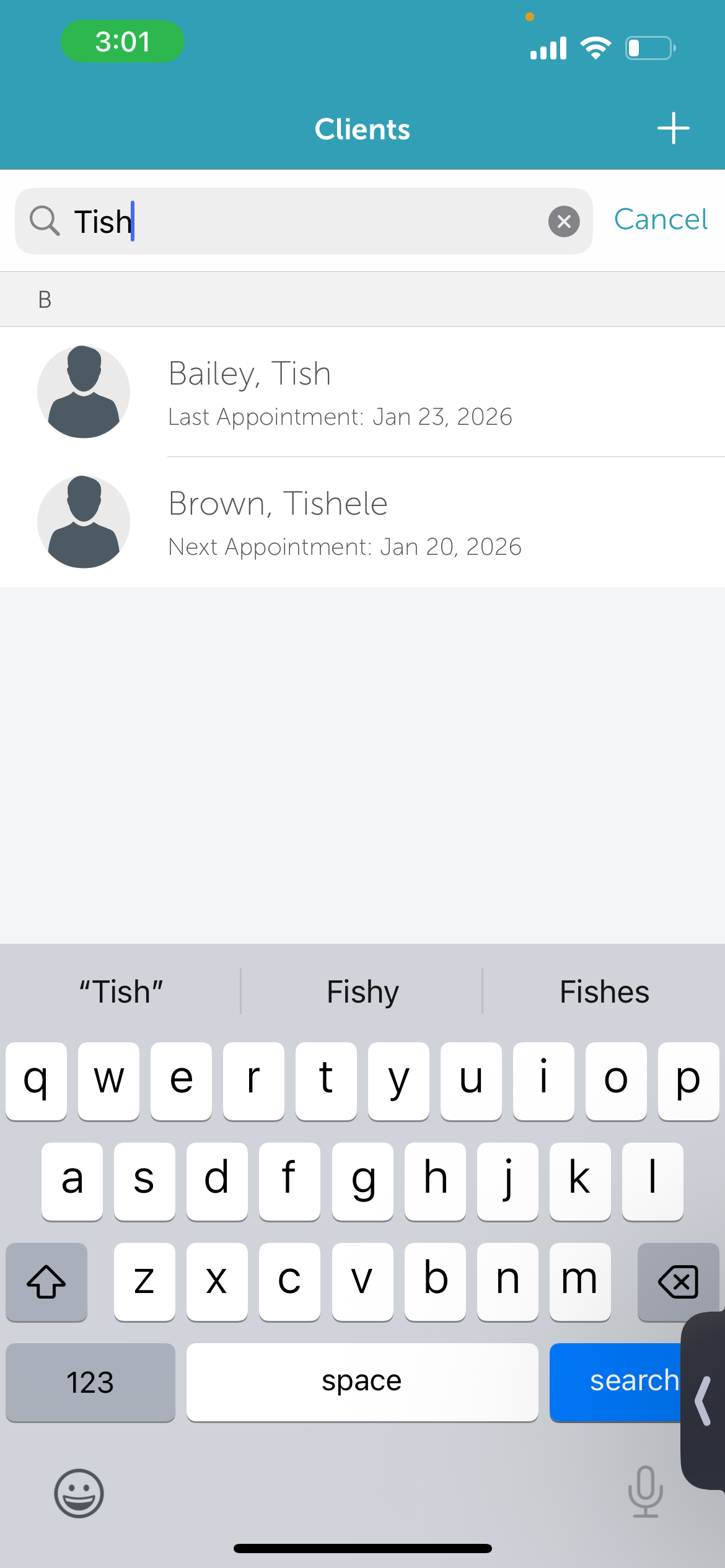
6. Open the profile of the client you want to add a photo for
7. Tap Edit in the top right of the screen 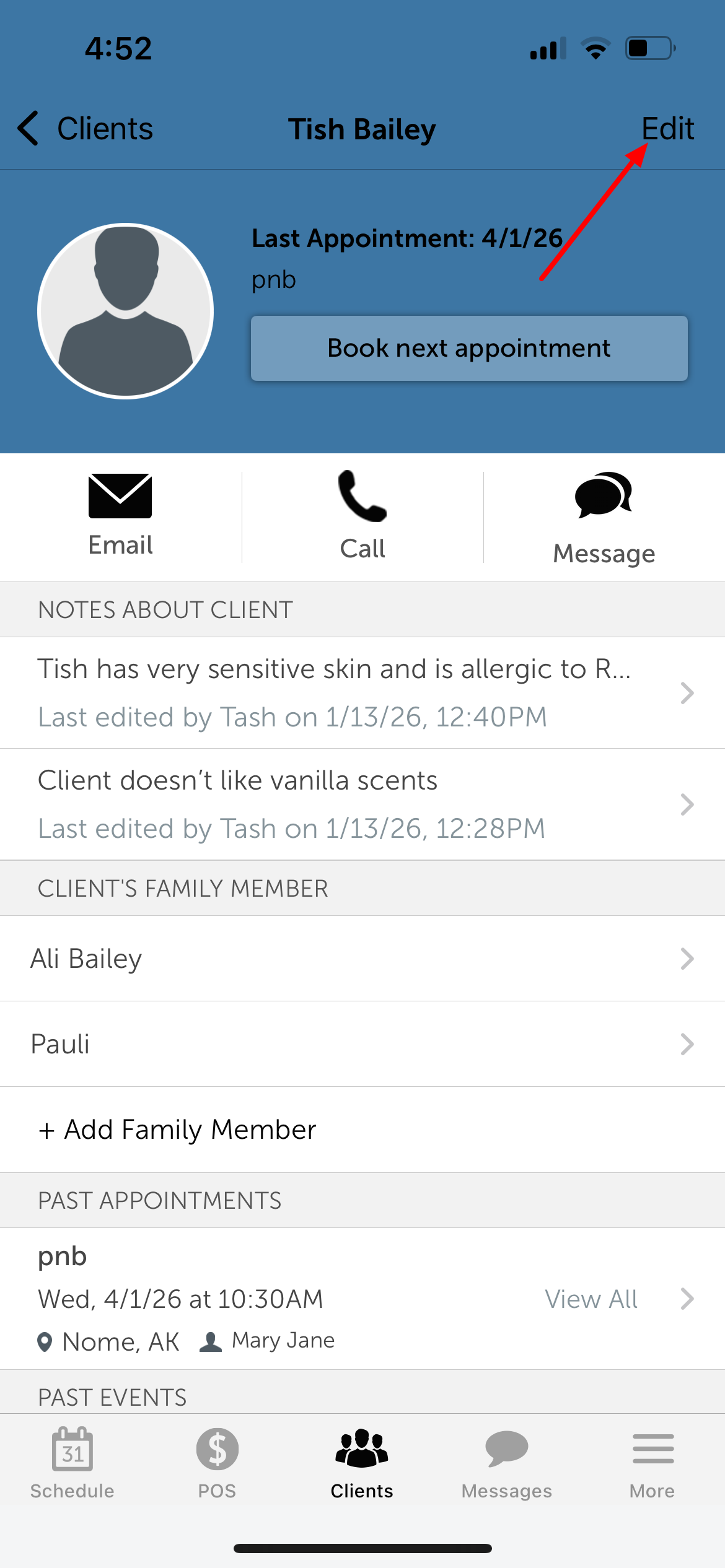
8. Tap the camera icon next to the client's name 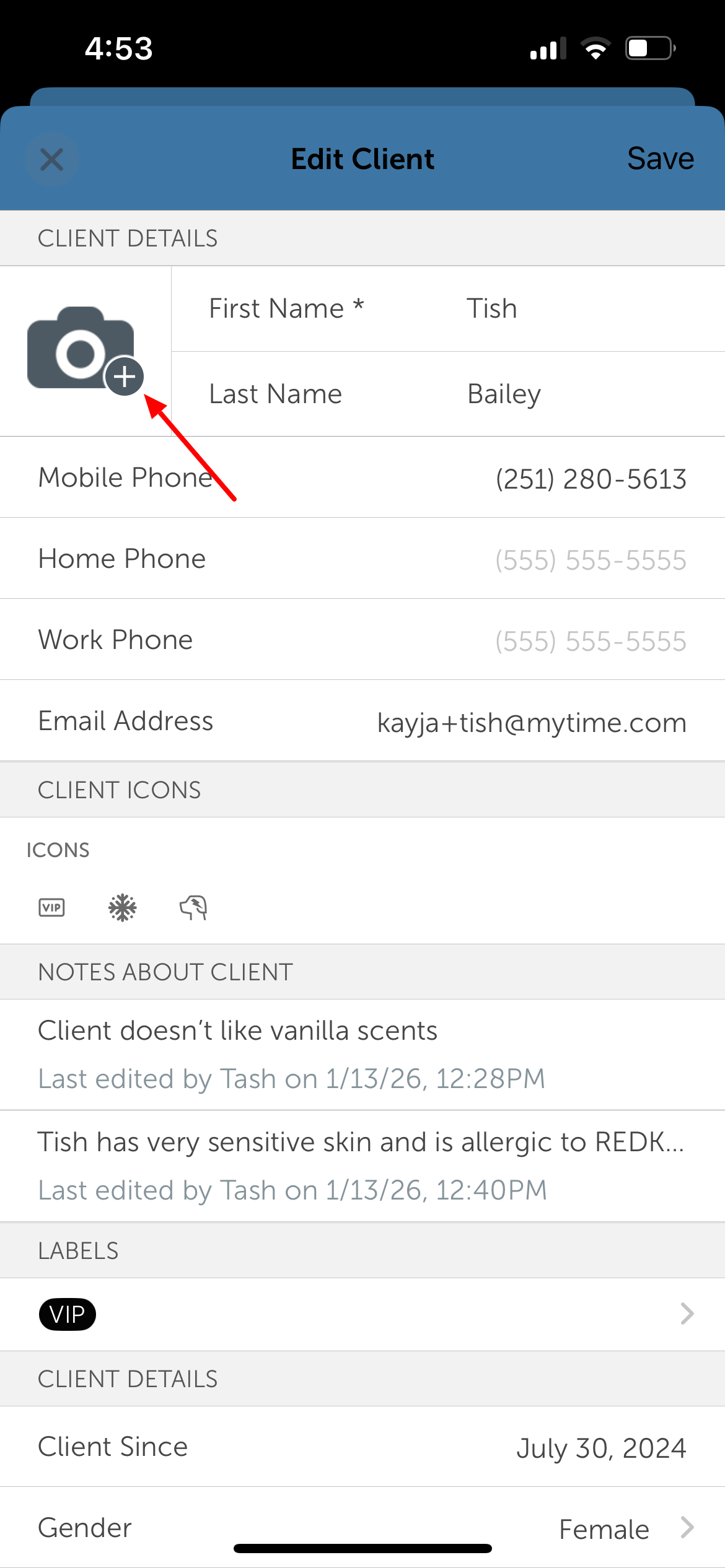
9. Choose whether to select a photo from your gallery or take a new photo
10. Once the photo is selected, tap Save in the top-right corner of the screen 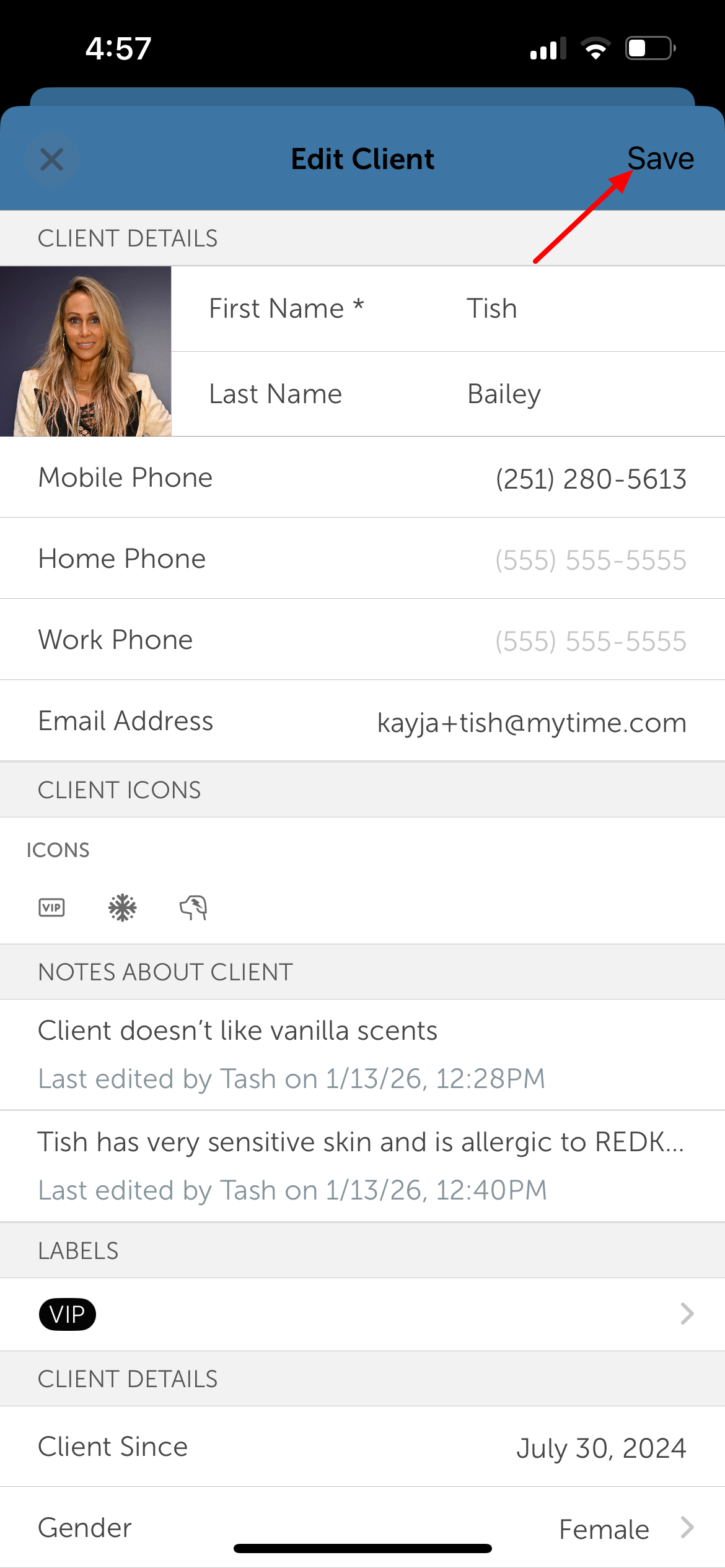
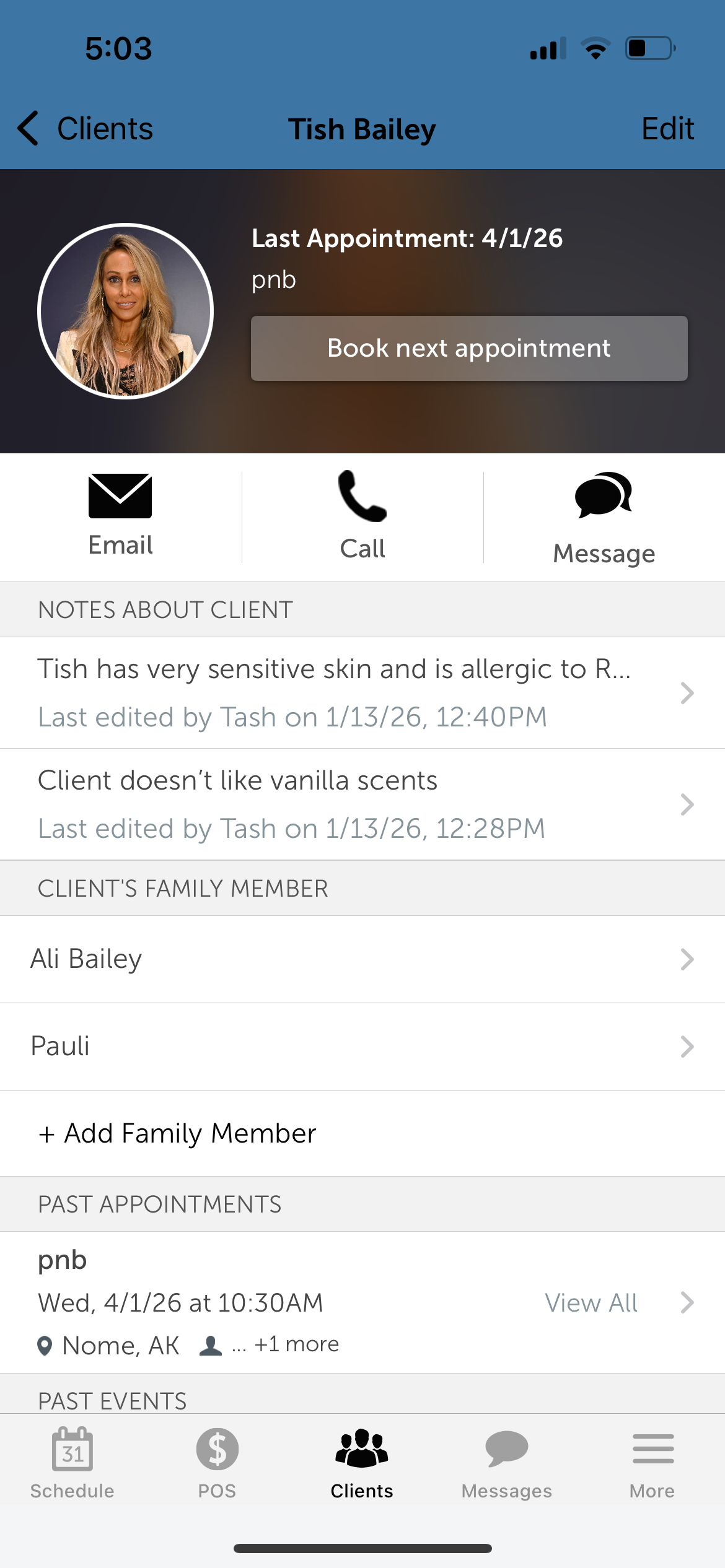
Once saved, the photo will be displayed on the client's profile
Related Articles
Installing MyTime on Scheduler App (Android and iOS)
Signing into MyTime on Scheduler App (Android and iOS)
Was this article helpful?
That’s Great!
Thank you for your feedback
Sorry! We couldn't be helpful
Thank you for your feedback
Feedback sent
We appreciate your effort and will try to fix the article