This article walks you through how to add a photo to a family member profile, along with requirements and where the photo will be displayed.
Things to know:
- The ability to add images to family member profiles is controlled by the “Accessing Client Records” access control setting.
- In-store staff can add photos to family member profiles on both the web and the Scheduler App
Clients cannot upload or update family member photos through the guest app or the online booking widget.
Once uploaded, family member photos are visible on the family member profile, within the Appointment Notes section of the appointment modal, and directly on the appointment tile.
Only one photo can be added to a family member profile at a time. However, the photo can be deleted or replaced as needed.
Supported image formats include JPEG, JPG, PNG, and GIF.
For best results, use a landscape image that is at least 800 pixels wide and under 5 MB in size.
To add a photo to a family member profile:
- Navigate to the Clients tab
- Locate and select the desired client profile
- Once the profile is open, find the family member you want to update
- Click the Edit icon

- Select the photo icon and choose a supported file (JPEG, PNG, or GIF) from your device

- Confirm the upload
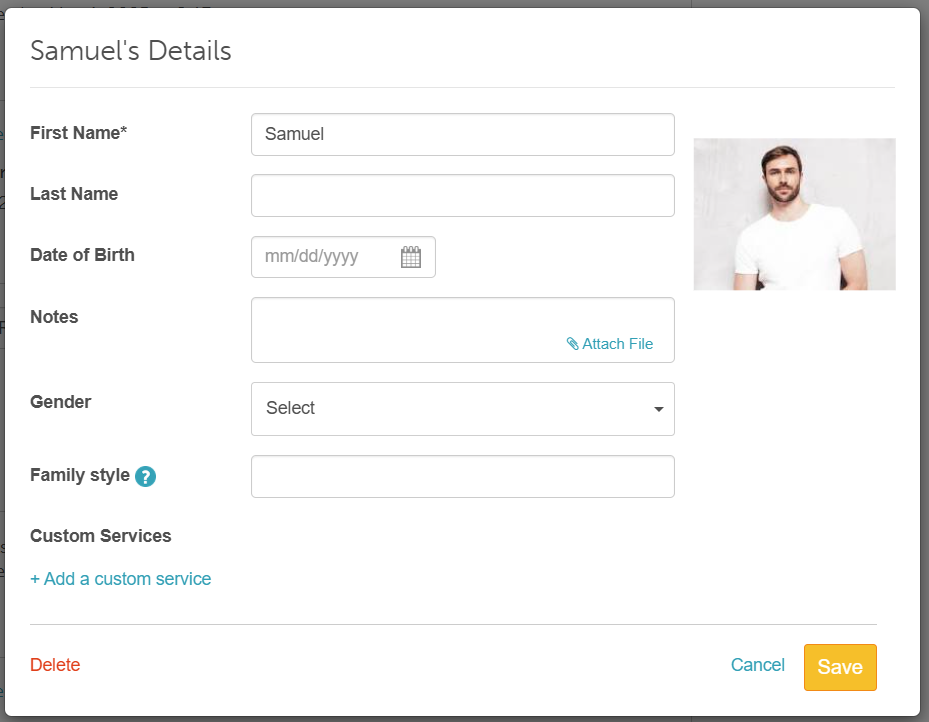
- Click Save
Once saved, the photo will be visible in-store on the family member profile, the appointment tile, and within the Appointment Notes section of the appointment modal.
Family Member Profile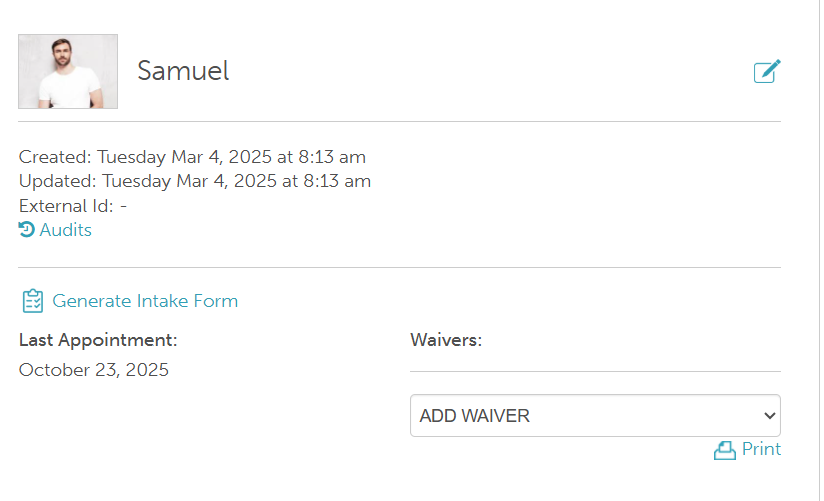
Appointment Notes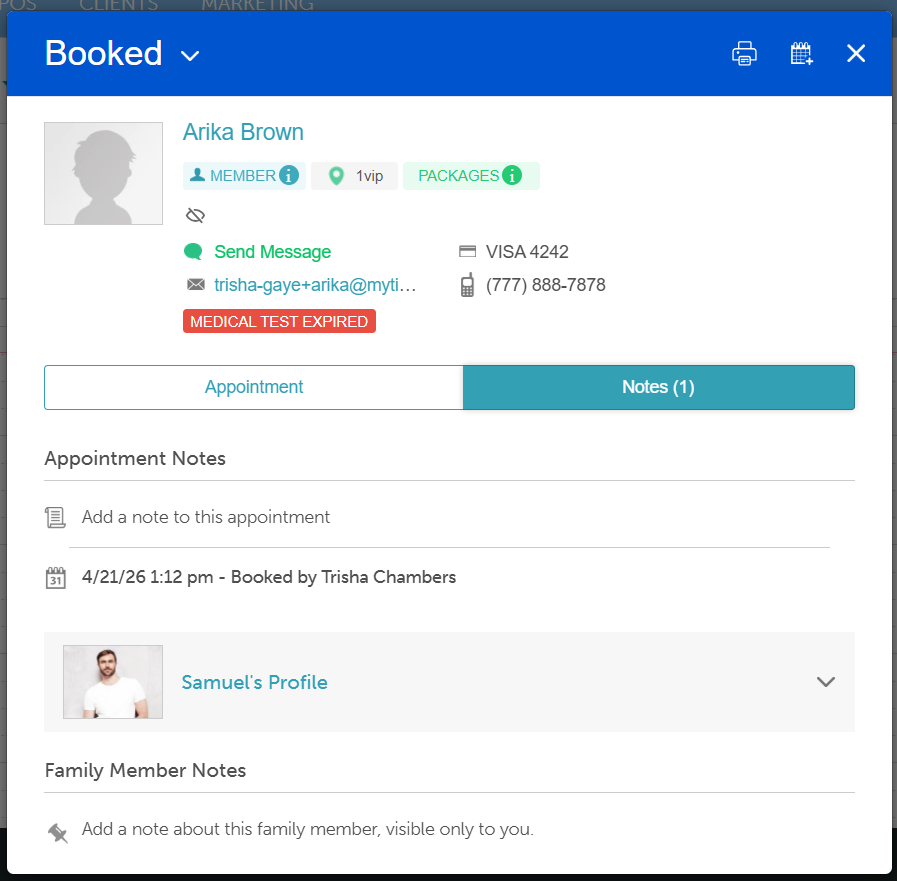
Appointment Tile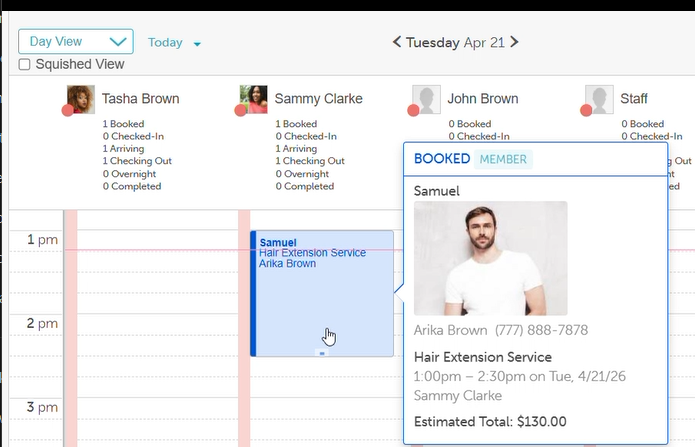
For more information or assistance, feel free to contact our support team at support@mytime.com or call us at (385) 233-6964.
Related Articles:
Adding Family Members Manually
Adding Family Member on Scheduler App
Was this article helpful?
That’s Great!
Thank you for your feedback
Sorry! We couldn't be helpful
Thank you for your feedback
Feedback sent
We appreciate your effort and will try to fix the article