In this article, we'll outline the steps your clients need to follow to view and monitor their loyalty points balance and track points they have received on the guest app.
Things to know:
- The loyalty program button will be displayed on the guest app if the parent account has the loyalty program added to their subscription.
- This section allows clients to:
- View their total points earned and current available points.
- See how many additional points are needed to increase their points amount.
- Review a transaction history showing each purchase date and the corresponding points earned.
- If loyalty point expiration is enabled for your account, clients will be able to view the expiration date for each batch of loyalty points they have earned. This feature applies only to points earned after the "Point Expiration" setting is enabled.
- Loyalty points can only be applied to eligible items specified in the referral program settings.
- Points are issued only when a new client is referred and meets the minimum spend requirement.
Contents:
Viewing Loyalty Points on Guest App
To view their loyalty points on the guest app:
- Download the guest app from either the Google Play Store (for Android users) or the Apple Store (for iOS users)
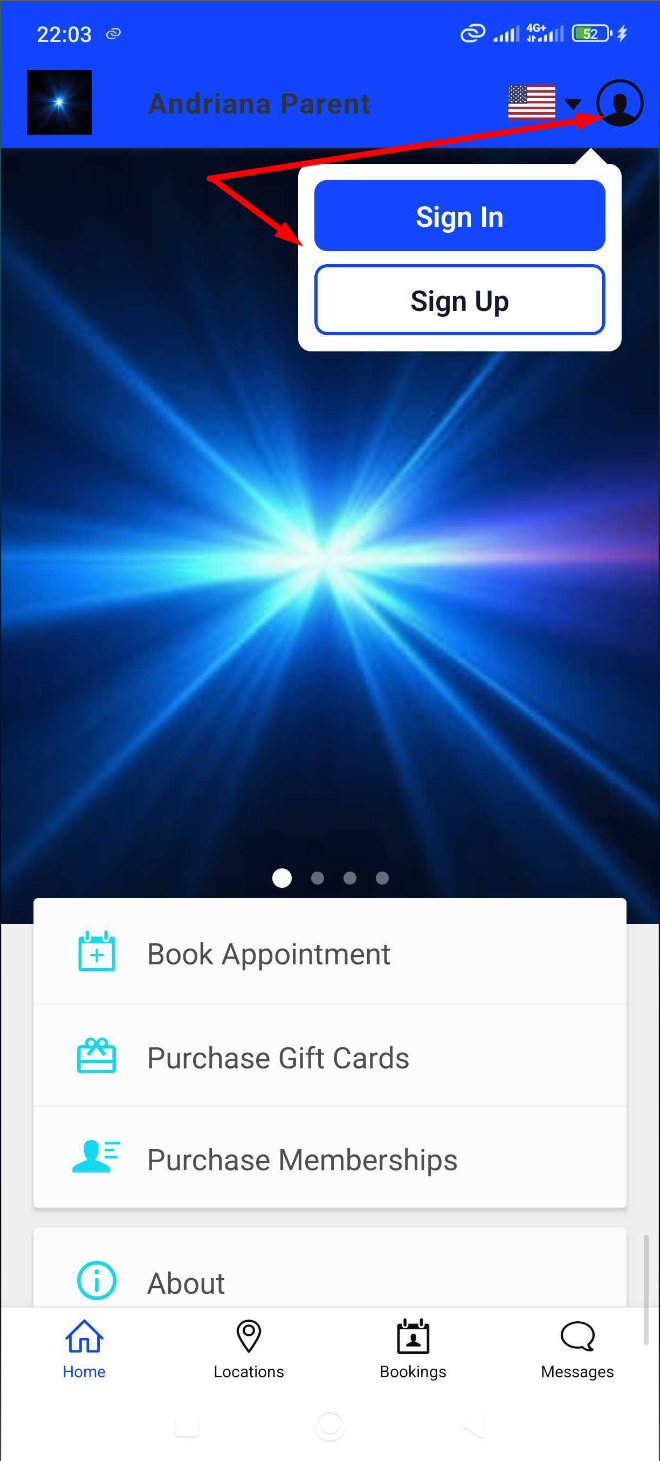
- Upon downloading, navigate to the home screen and tap on the account icon located in the top right corner, tap 'Sign In'
- From the home screen, clients can go to the 'My Account' page by clicking on the icon to the top right of the screen
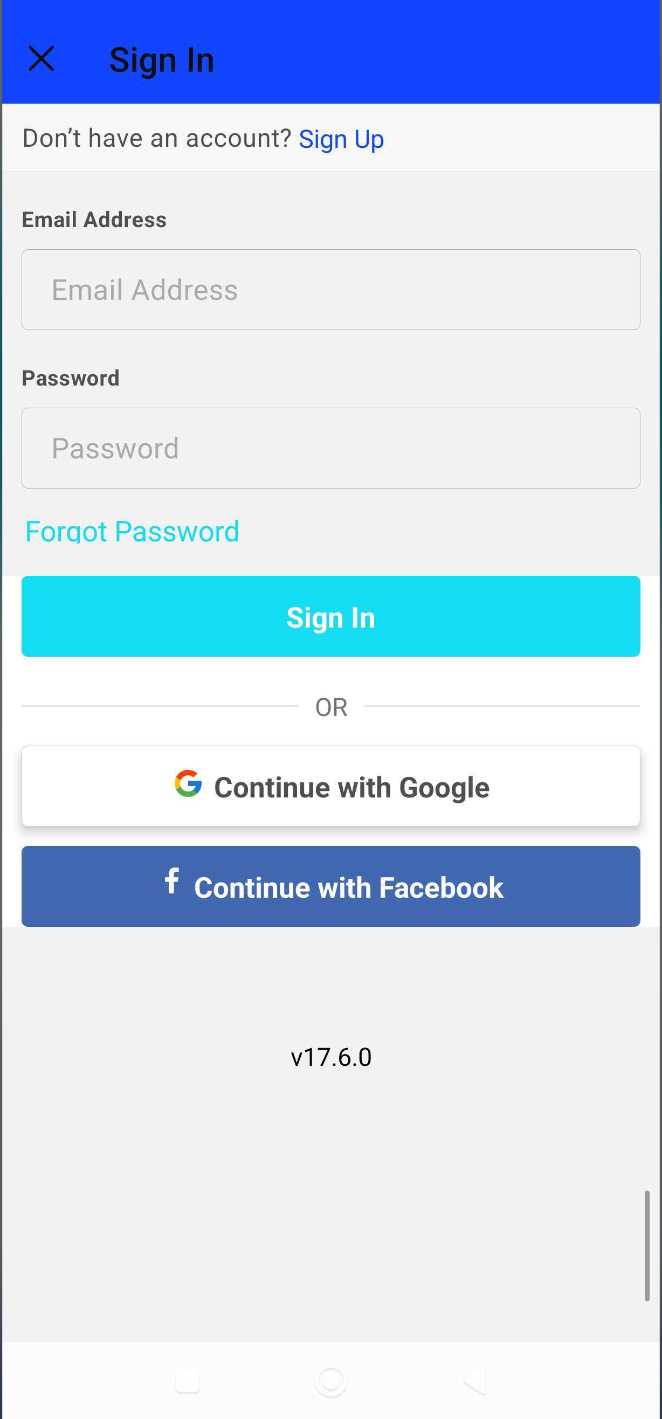
- Choose their login method:
- Standard: Enter their registered email address and password, then click 'Sign In'.
- Social Login: Select 'Continue with Google,' 'Continue with Apple,' or 'Continue with Facebook' to use their existing social media credentials.
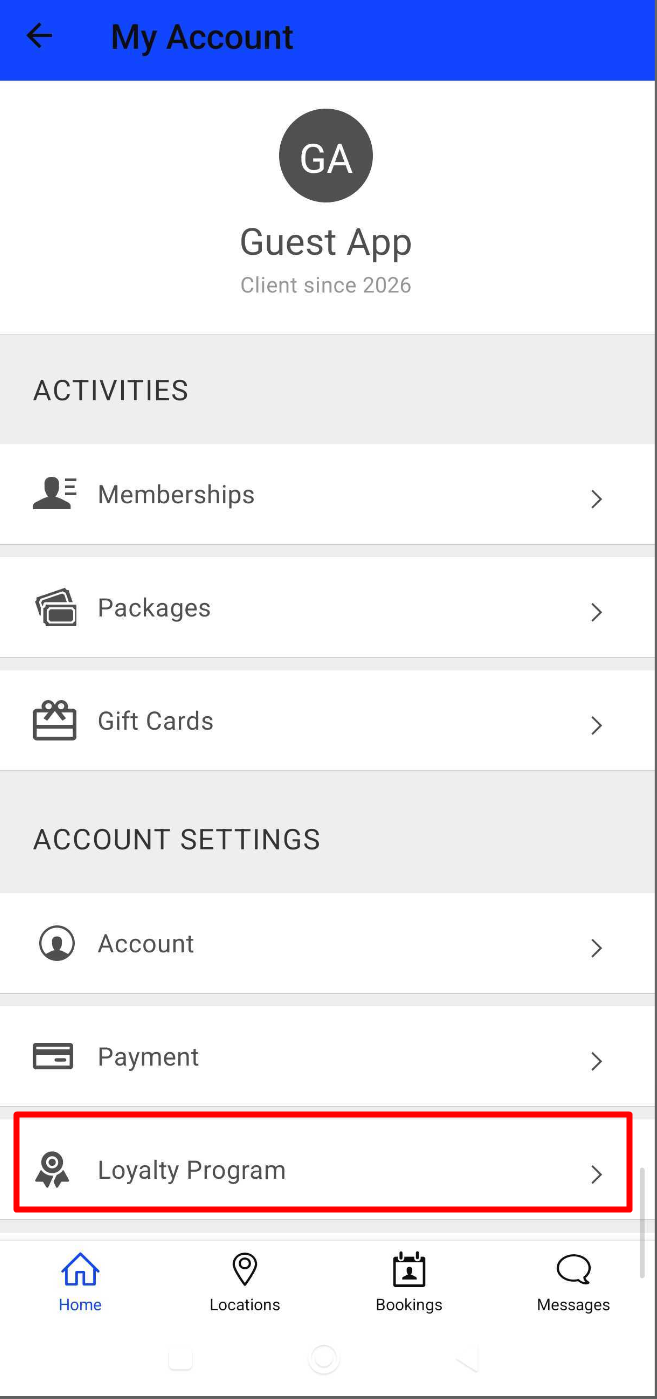
- Upon signing in, clients will be directed to the My Account page, select the 'Loyalty Program' from the list
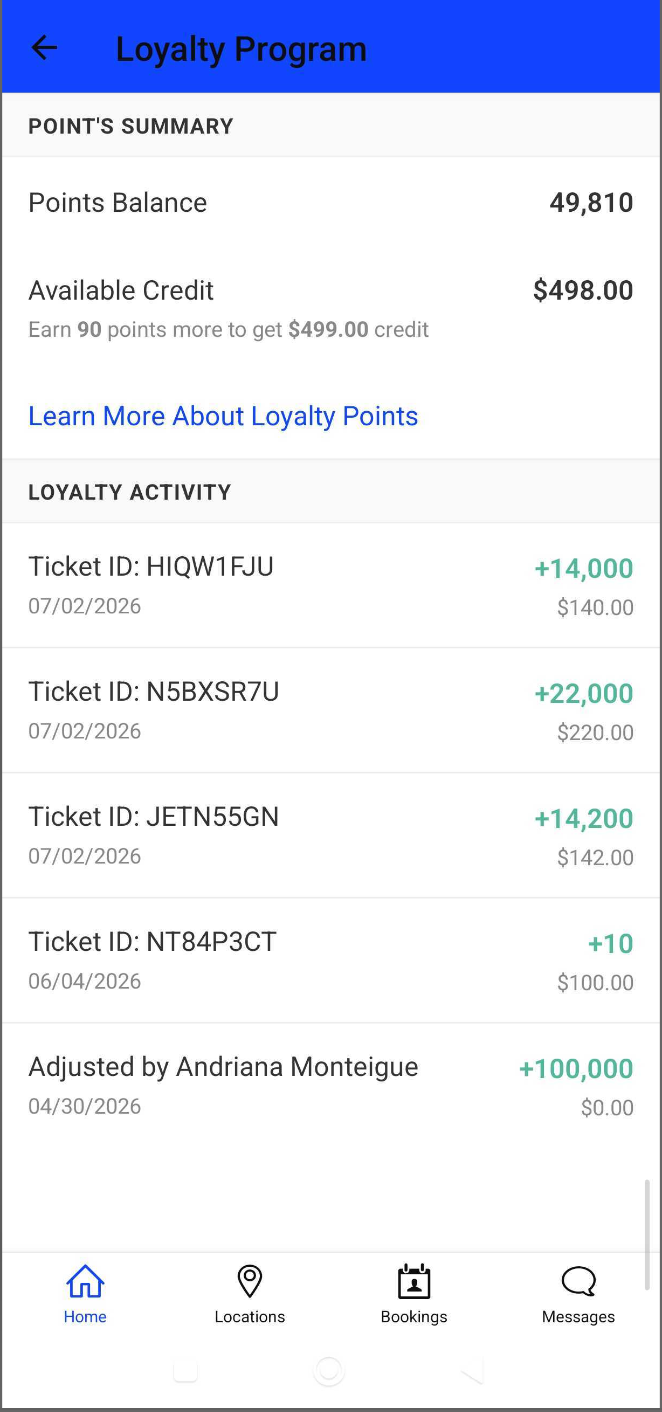
- Once on the Loyalty Program screen, you will find the following sections:
- Points Summary:
Points Balance: The total number of points earned by the client
- Available Credit: The converted dollar amount the client has earned through the loyalty program
- Learn More About Loyalty Points: Clicking this link opens a modal detailing:
- How points are earned (e.g., spending on services, classes, memberships, etc.)
- The exact number of points required to convert into a dollar amount
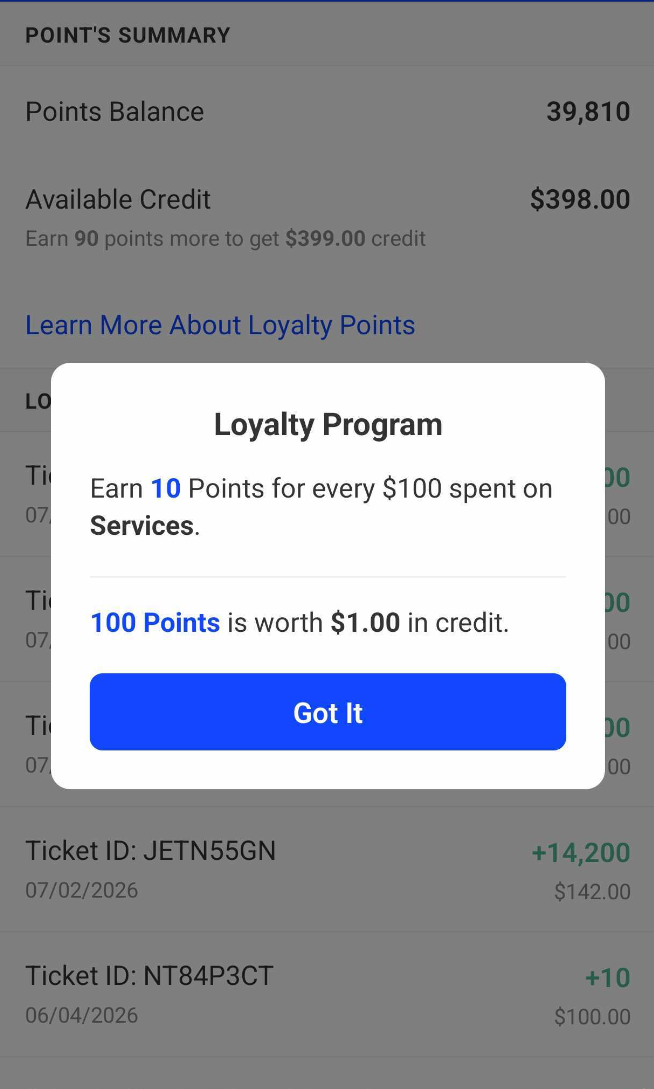
- Loyalty Activity: A historical log of their points. This shows the date, the specific ticket number, the transaction value, and whether points were earned, redeemed, or manually adjusted by staff.
- Points Summary:
Applying Loyalty Points on the Guest App
To apply loyalty points to bookings on the guest app:
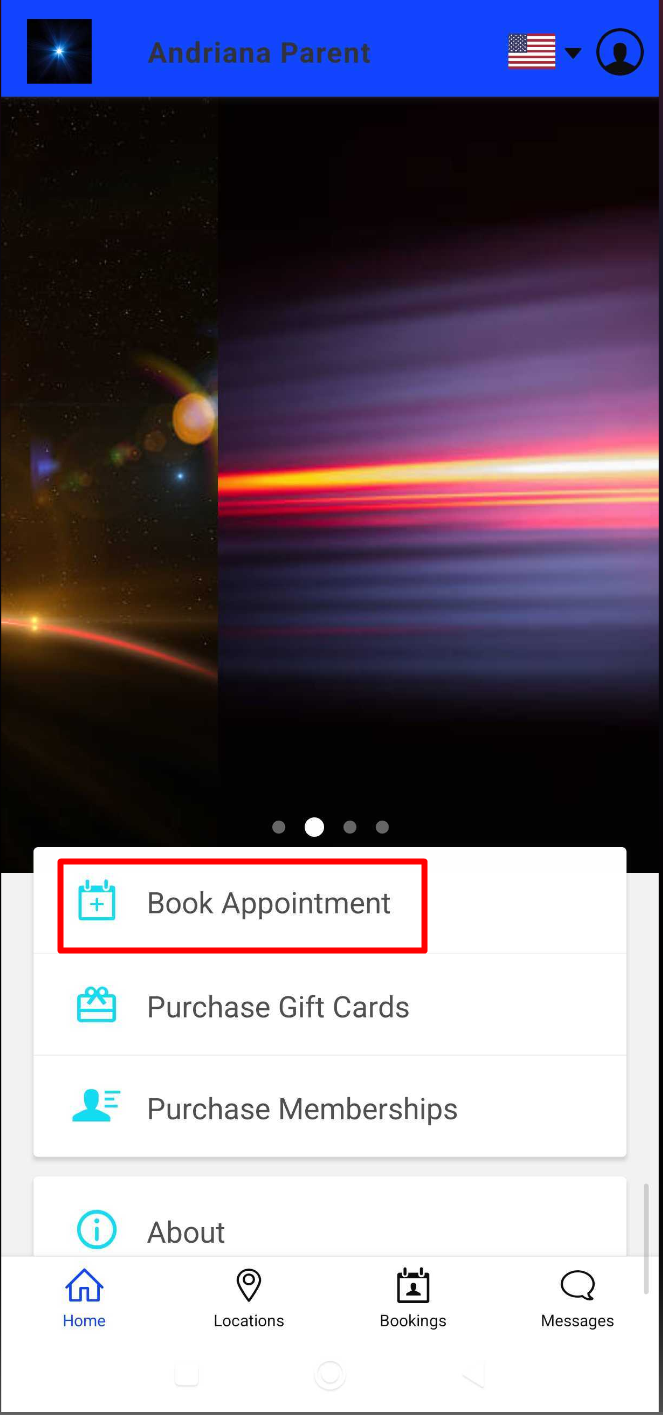
- From the home page of the Guest App, tap 'Book Appointment'
- Select the desired location (if the account has multiple locations)
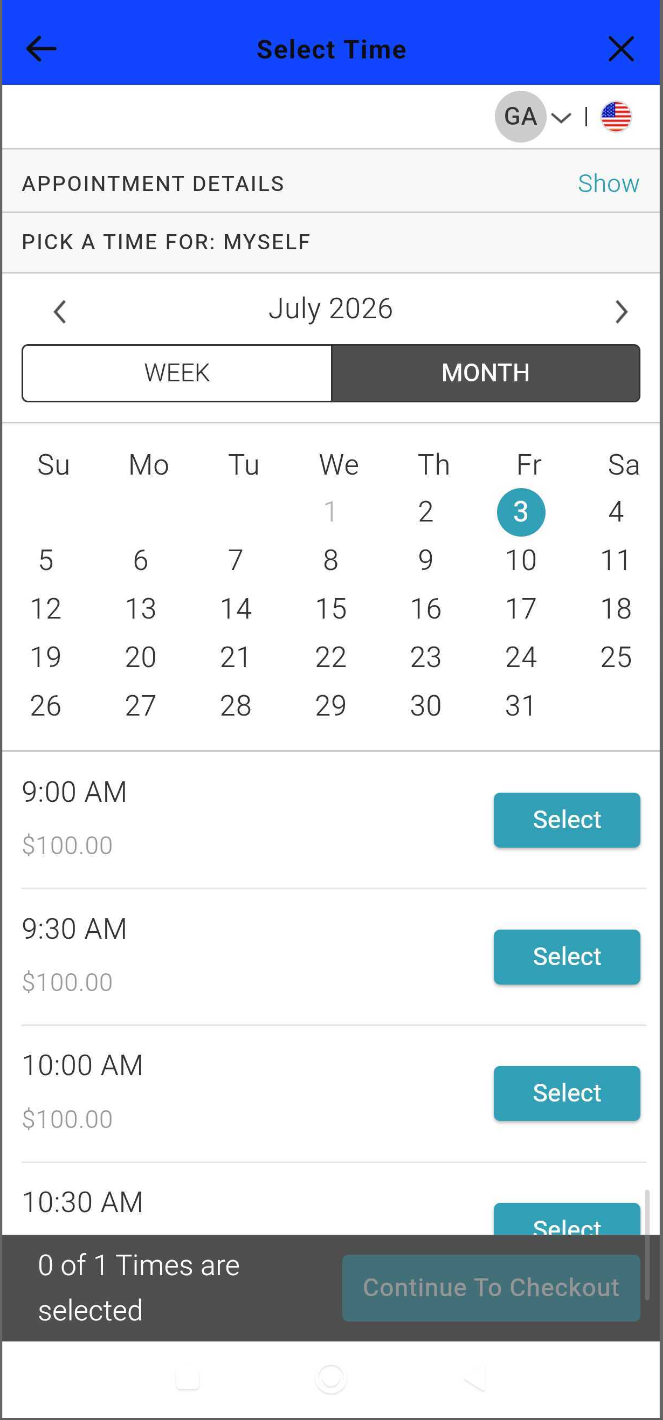
- Select the preferred service, staff member, and time slot, then proceed to the Checkout page
- On the Checkout page, tap 'Show' to expand and review the appointment details
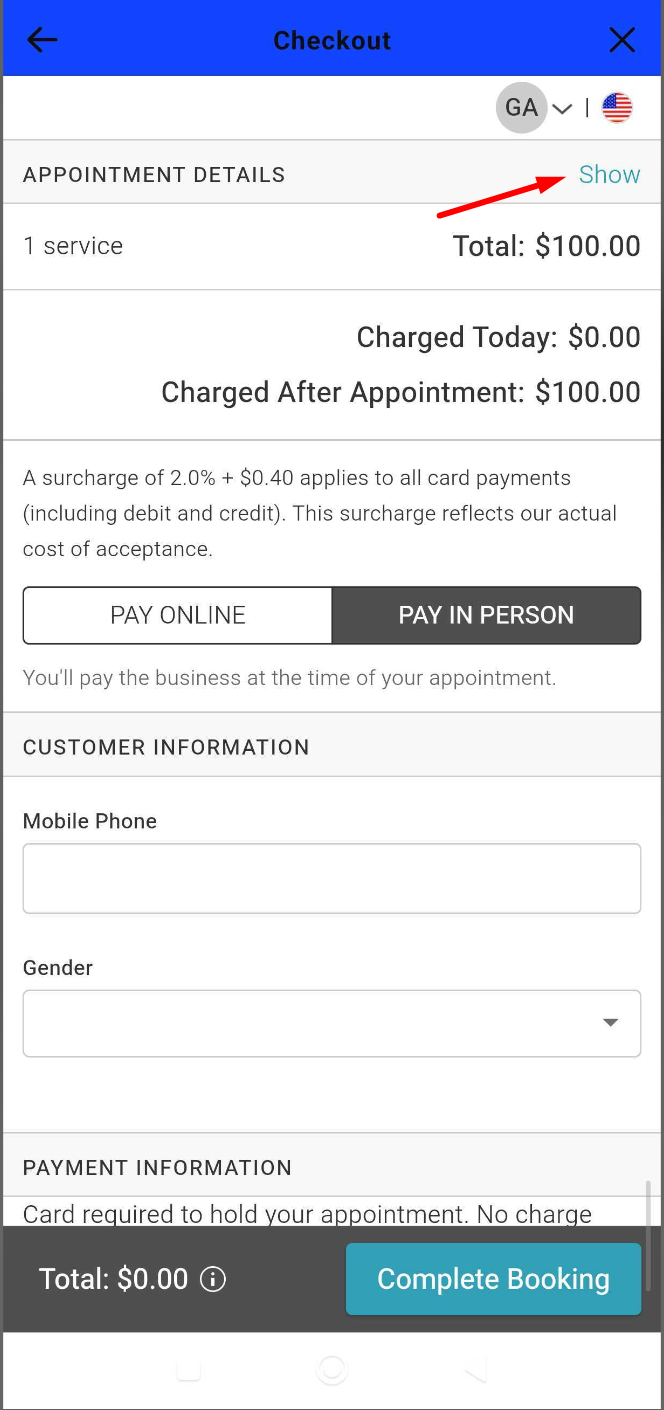
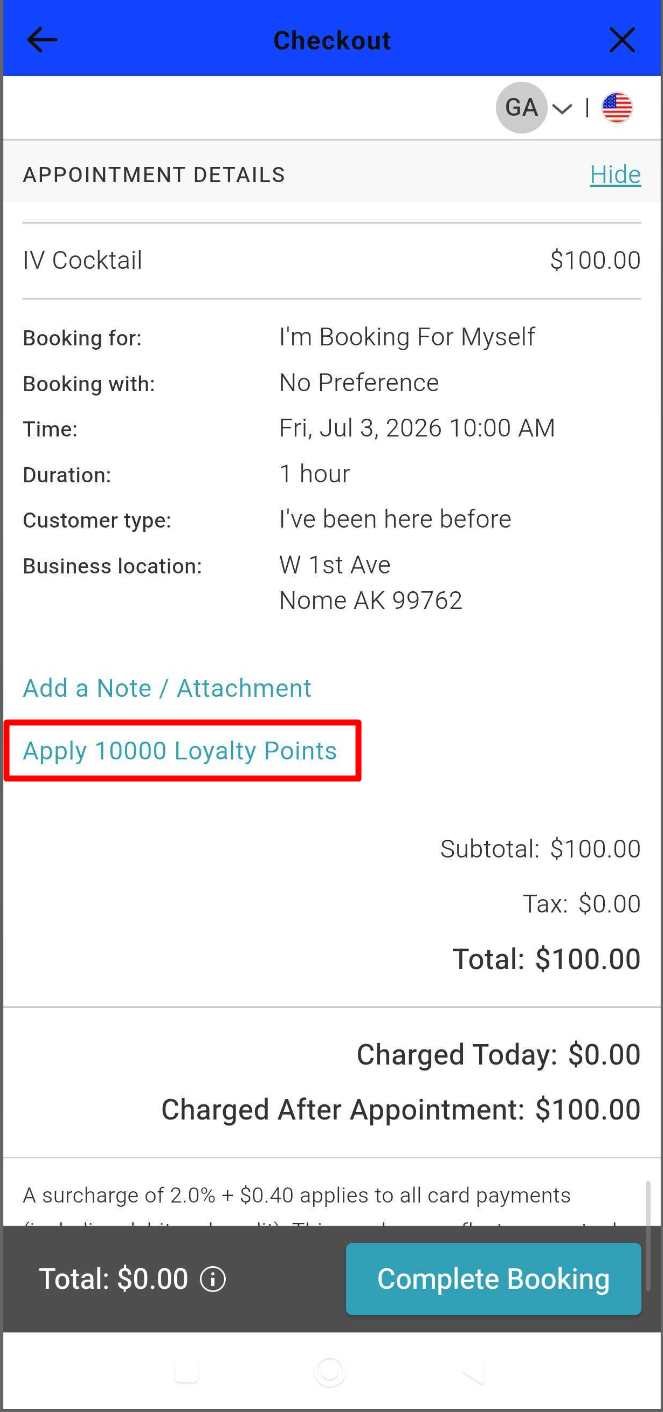
- Look below the appointment details for a link that says "Apply $XXX Loyalty Points". Tap this link to apply the credits.
- The loyalty points will be deducted from their total and displayed as a discount on their order summary
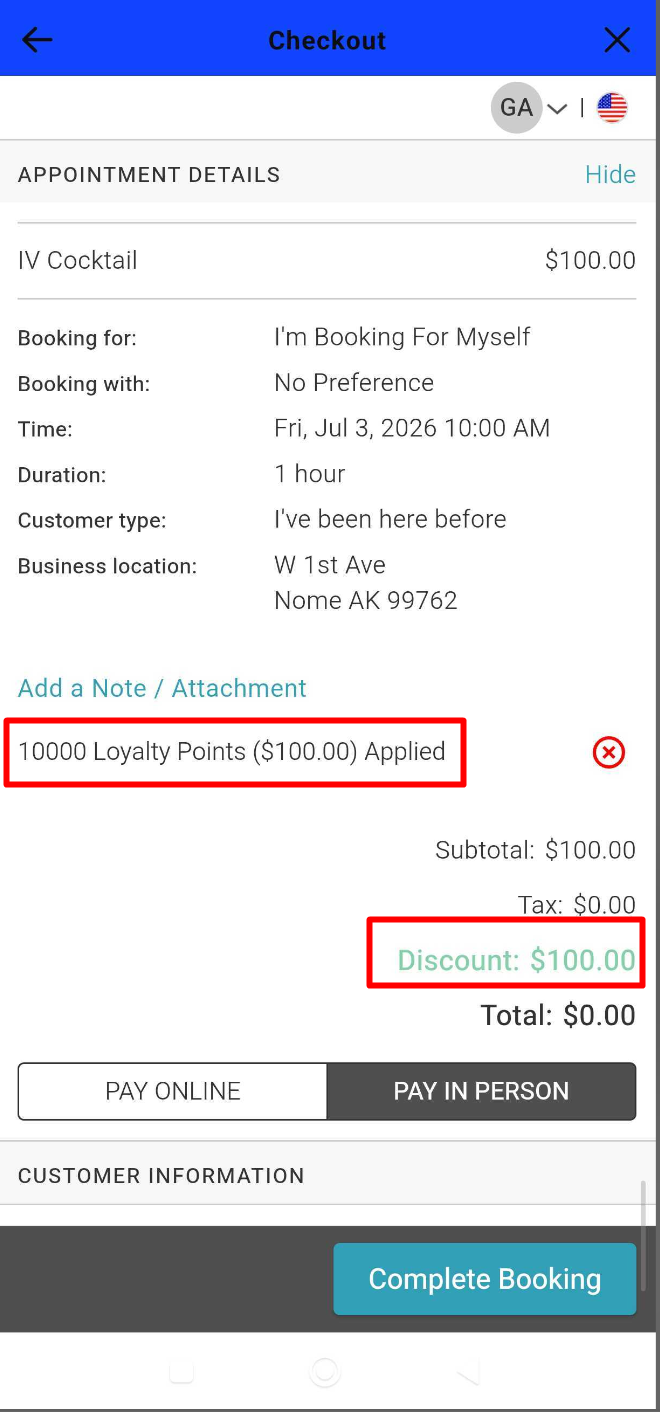
9. Tap the 'Complete Booking' button at the bottom of the screen to lock it in.
For more information, contact us at support@mytime.com.
Related Articles:
Was this article helpful?
That’s Great!
Thank you for your feedback
Sorry! We couldn't be helpful
Thank you for your feedback
Feedback sent
We appreciate your effort and will try to fix the article