A client profile contains information about the client. Each client profile will contain details about the client's preferences, appointments, purchases, membership, and much more. In this article, we will walk through what is included in each client's profile.
Things to know:
- The ability to view a client's history is governed by the "Accessing Client Records" access control setting.
- Client history will only be accessible to staff members who have permission to view clients
- The visibility of memberships, packages, gift cards, referral credits, and loyalty information depends on the following access control settings:
- Memberships – Accessing Memberships
- Packages – Accessing Packages
- Gift Cards – Accessing Gift Cards
- Referral Credits – Accessing Referral Credits
- Loyalty – Accessing Loyalty Points
- For franchise businesses with client sharing enabled: if a client is affiliated with multiple franchisees, ticket numbers from one franchise location will not be clickable when viewed from another location.
- When the access control setting is set to Block for accessing appointments (for their and/or all locations), service providers and staff with custom roles may still be able to view previous appointments on the client’s profile. This behavior is controlled by a hidden setting that can only be enabled by the MyTime team. To enable this setting, please contact support@mytime.com.
- In the Upcoming Appointments section, only the next upcoming appointment in a recurring series will be displayed until it is completed or canceled.
- Canceled Recurring Appointments:
- If all appointments in a recurring series are canceled, the section will display the canceled series as a single appointment with an indicator that it is recurring.
- If one appointment in the series is canceled, the section will display that canceled appointment along with the next scheduled appointment in the series.
- If two consecutive or non-consecutive appointments are canceled, the section will display the next canceled appointment in the series and the next scheduled (non-canceled) appointment, with an indicator that it is part of a series.
To view the client history simply:
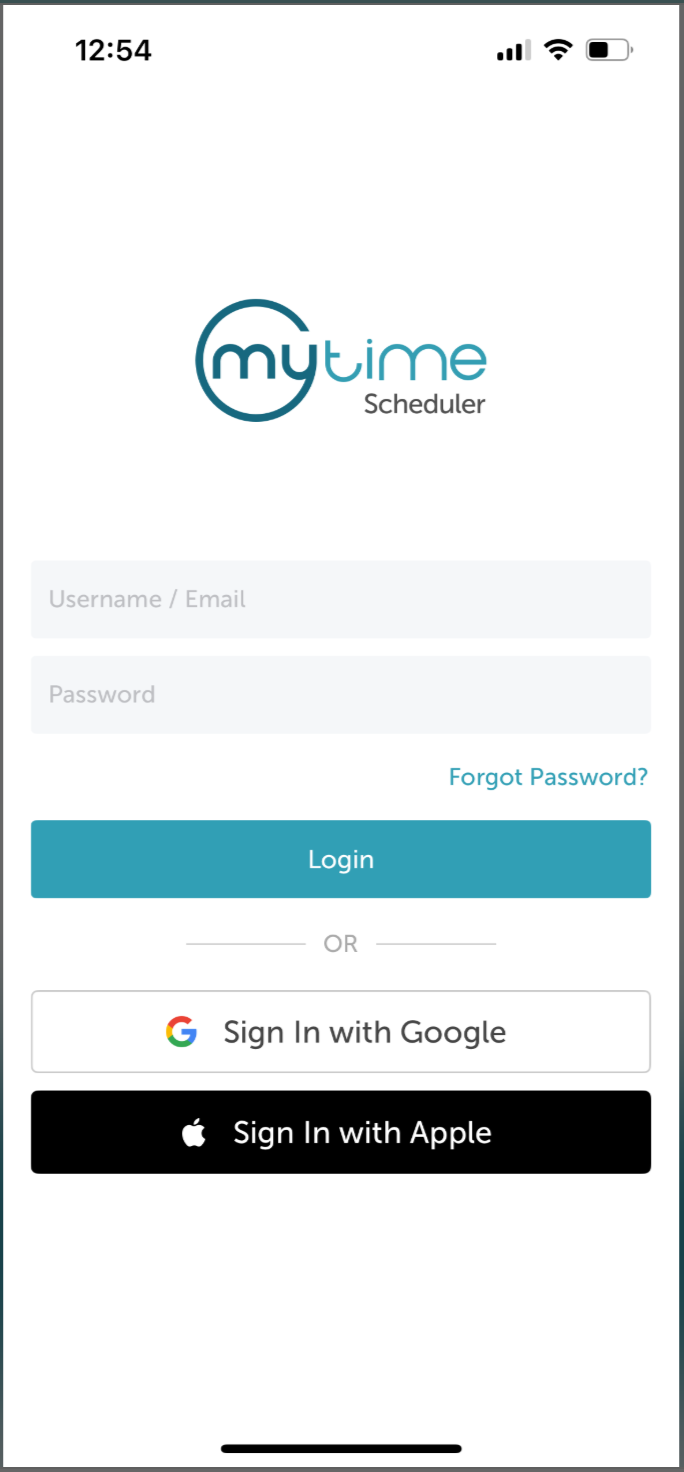
- Launch the MyTime Scheduler app on your device
- Choose your login method:
- Standard: Enter your registered email address and password, then tap 'Sign In'
- Social Login: Select 'Continue with Google' or 'Continue with Apple' to use your existing credentials for a faster login experience. For detailed instructions, learn more here
- After signing in, you will be directed to the Schedule by default
- Tap the Clients icon at the bottom of the screen
- Search for the client by entering their name in the search field, or select the client from the list.
Sections
- Notes About Client
- Upcoming Appointments
- Past Appointments
- Past Events
- Labels
- Client Details
- Payment Methods
- Custom Services
- Contact Permissions
- Associated Locations
Notes About Client
Displays all internal notes recorded by staff. Notes are sorted by creation date, with the option to pin important notes to the top or unpin them as needed. Learn more here.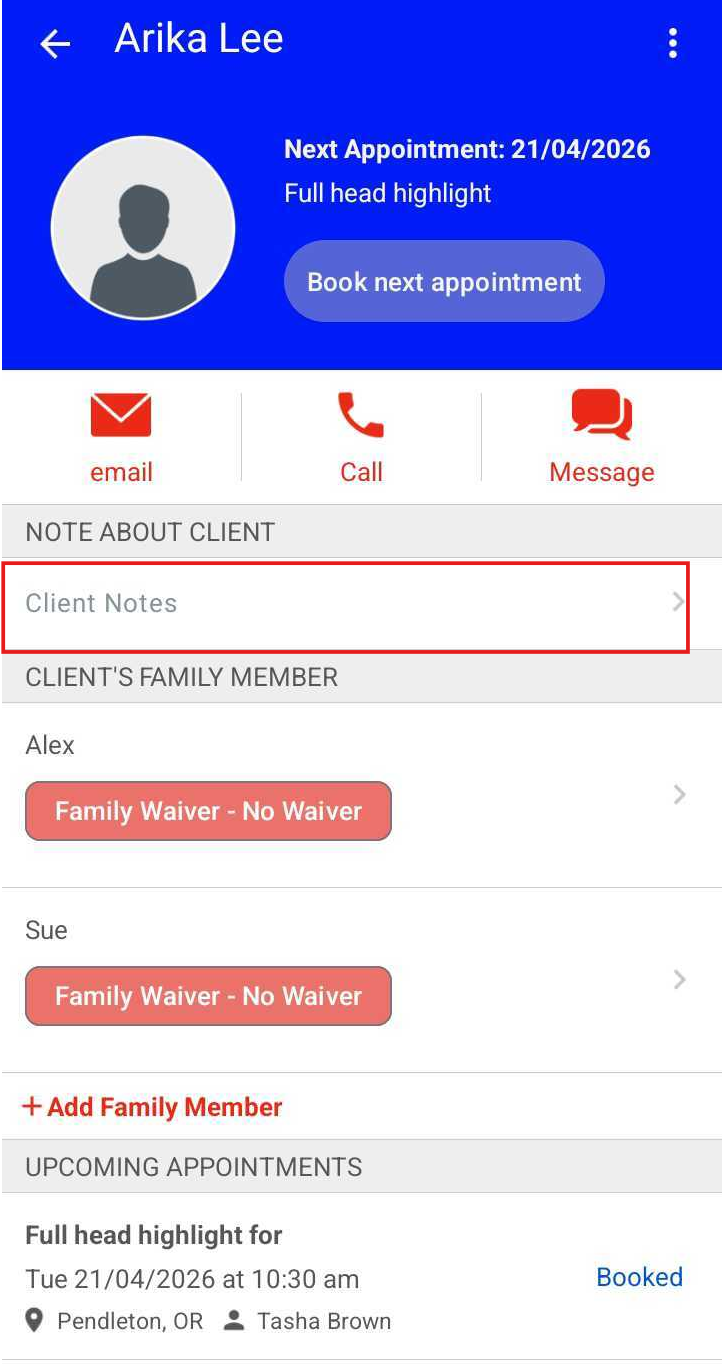
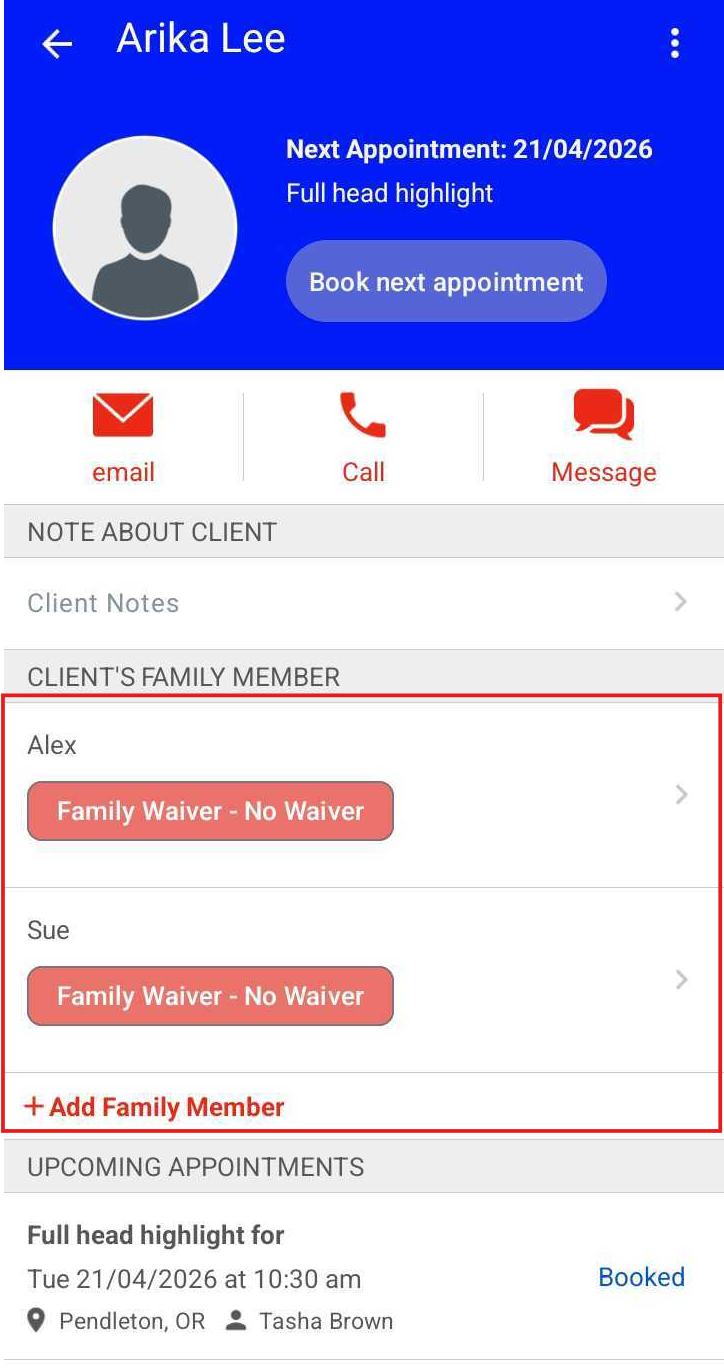
Client's Family Member
This section is available for accounts with the family member feature enabled. It displays all family members associated with the client’s profile. Learn more here.
Client's Pet
This section is only visible for pet businesses. It displays all pets associated with the client’s profile. Learn more here.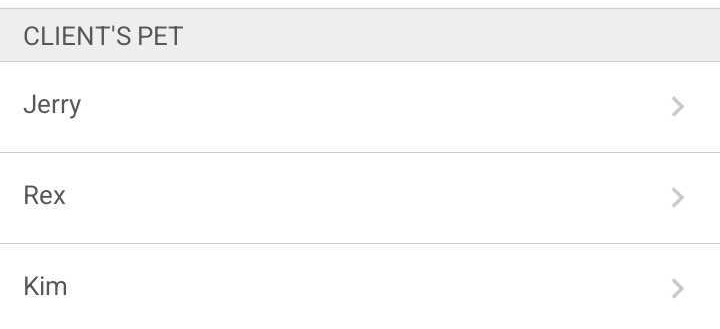
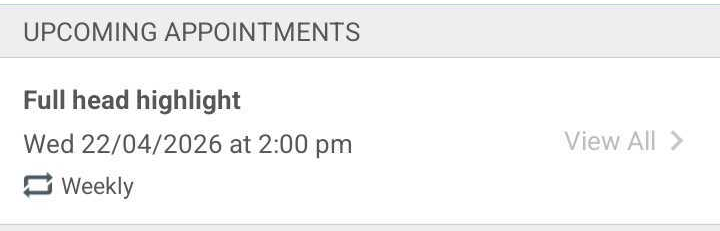
Upcoming Appointments
Displays all future appointments, including single, recurring, and canceled appointments.
Recurring Series: Only the next appointment in a series is shown until it is completed or canceled.
- Canceled Appointments:
- Full Series: If the entire series is canceled, it appears as a single entry with a recurring indicator.
- Single Occurrence: If one appointment in a series is canceled, the list shows that canceled appointment along with the next scheduled active appointment.
- Multiple Cancellations: If two or more appointments are canceled, the list shows the soonest canceled appointment and the next active scheduled appointment.
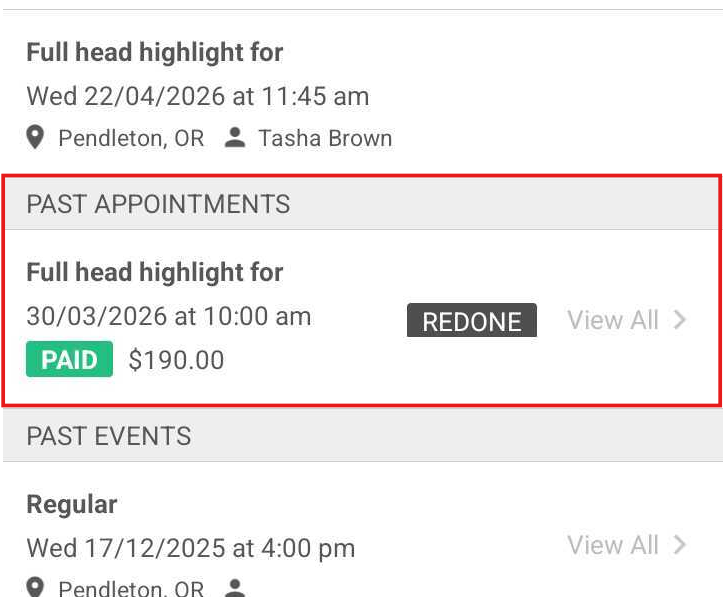
Past Appointments
Displays a history of all previous bookings along with their final statuses.
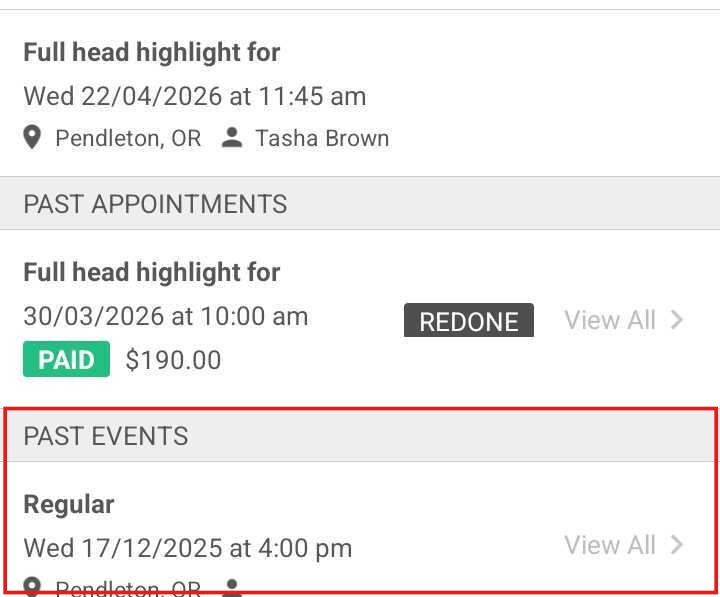
Past Events
Shows all past classes attended or booked by the client.
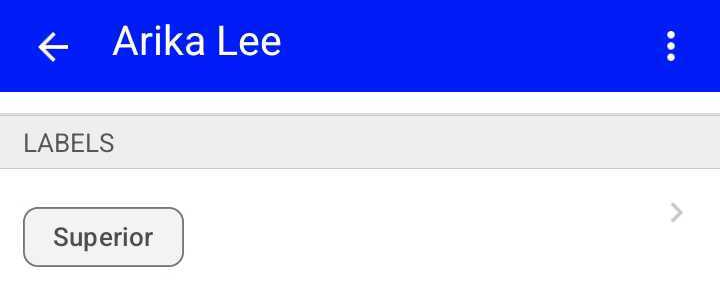
Labels
Displays all labels assigned to the client. You can add new labels or remove existing ones from this section. Learn more here.
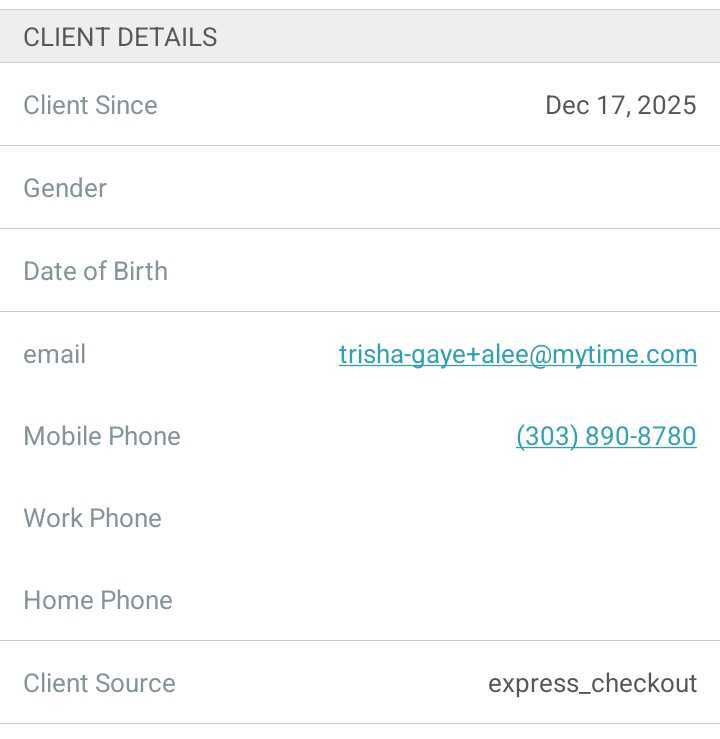
Client Details
Contains core personal information, including name, email, phone number, gender, and date of birth.
Product Purchased
Displays all products purchased by the clients. 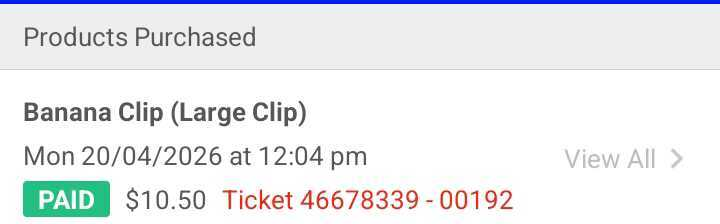
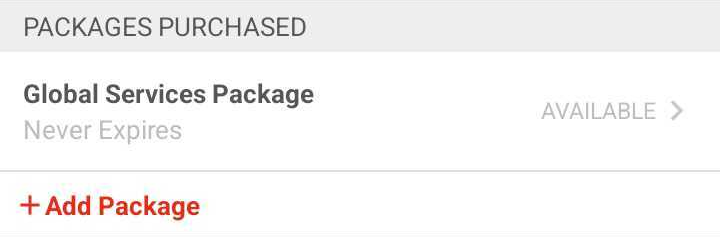
Packages Purchased
Displays all purchased packages. You can also edit or delete packages from this section.
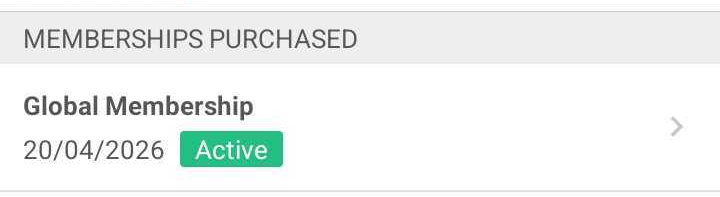
Memberships Purchased
Displays all active and past memberships. Options to edit, freeze, or cancel memberships are managed here.
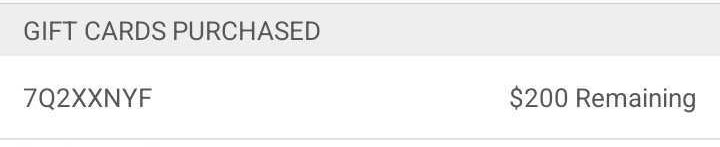
Gift Cards Purchased
Displays all gift cards purchased by the client.
Referral Credit
Tracks credits earned by the client for referring others or being referred.

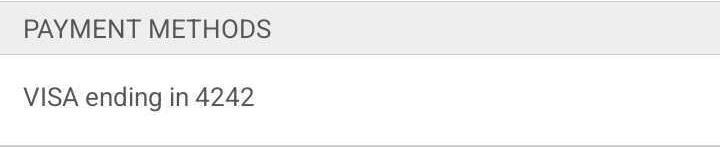
Payment Methods
Displays saved credit cards or payment accounts. From here, you can add, replace, or delete payment methods.
Custom Services
Allows you to configure custom pricing and durations for services specific to this client. Learn more here.

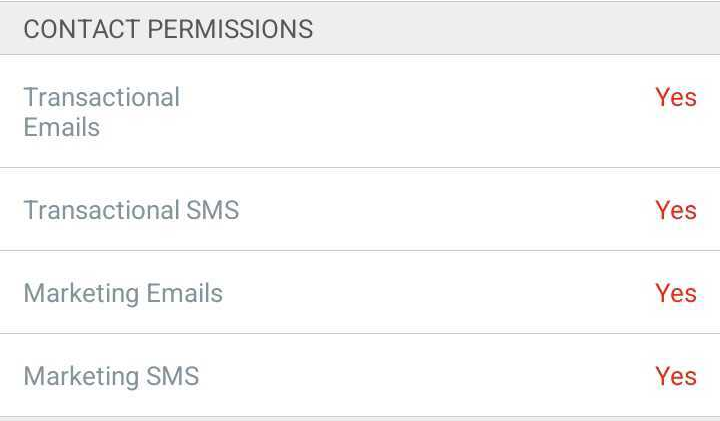
Contact Permissions
Displays the client’s opt-in status for transactional and marketing communications via SMS and email.
Associated Locations
Displays all business locations the client is affiliated with. A client may be associated with a location if:
- They have a past or upcoming appointment or class at that location.
- A product, membership, package, or gift card was purchased at that location.
- The location is marked as Preferred on their profile.
- The location was manually assigned during profile creation (or automatically assigned for single-location accounts).

For more information, contact us at support@mytime.com.
Related Articles:
Viewing Client History
Was this article helpful?
That’s Great!
Thank you for your feedback
Sorry! We couldn't be helpful
Thank you for your feedback
Feedback sent
We appreciate your effort and will try to fix the article