Star CloudPRNT is a technology that allows your POS system to communicate directly with your receipt printer via the cloud. Unlike traditional Bluetooth or USB connections, CloudPRNT allows the printer to pull jobs from MyTime servers, ensuring reliable printing even if your tablet or computer is moved around the shop.
Things to know:
- This feature is controlled by the "Enable Star CloudPRNT" hidden setting, which can only be enabled by the MyTime team. To enable it, please contact support@mytime.com
- Zero Network Troubleshooting: You do not need to find your printer's IP address or navigate complex network setups.
- No External Portals Required: Skip logging into Star web interfaces or managing separate Star Cloud portal accounts. Everything is handled within MyTime.
- Plug-and-Play Onboarding: Designed to mirror the seamless registration of Ingenico and Stripe terminals, getting your printer online is straightforward:
- Plug your Star CloudPRNT printer into your router via Ethernet.
Register the device directly in your MyTime dashboard.
Start printing receipts immediately.
- Primary Use Case: Paperless Cash Drawer Access: CloudPRNT sends a drawer-open command directly to the printer via HTTP, allowing the cash drawer to open immediately without printing a receipt — saving costs and reducing waste.
- Secondary Use Case: Driverless Cloud Printing: CloudPRNT enables seamless receipt printing (tickets, refunds, and returns) directly over the network via Wi-Fi or Ethernet. There is no need for local driver installations or browser print dialogs, and the experience is identical whether staff are using a desktop computer or a tablet POS.
- Once configured, you can set receipts to print automatically the moment a ticket is closed.
- Before using your Star printer, you will need to enable it online. View setup instructions here
- You will also need to paste the following URL in the server URL field: https://star-tsp650.mytime.com/printers
- For information on how to update your printer firmware, view instructions here
- The setup option displayed in the top-right user menu depends on how you access the account and your assigned role:
- When navigating from the Parent Account (Location Management tab):
- Admin: Displays Business Setup when viewing the location account.
- Login As: Displays Location Setup when viewing the location account.
- When logged in directly at the Location Level:
- Location Owners & Location Managers: Display Location Setup.
- Service Providers & All Other Roles: Display Profile Setup.
Contents:
Adding A Star CloudPRNT Device
Once the required setting is enabled by support, follow these steps to add your printer:
- Navigate to Business Setup / Location Setup > Settings
- Scroll to the POS section and locate the "Star Device Management" company setting
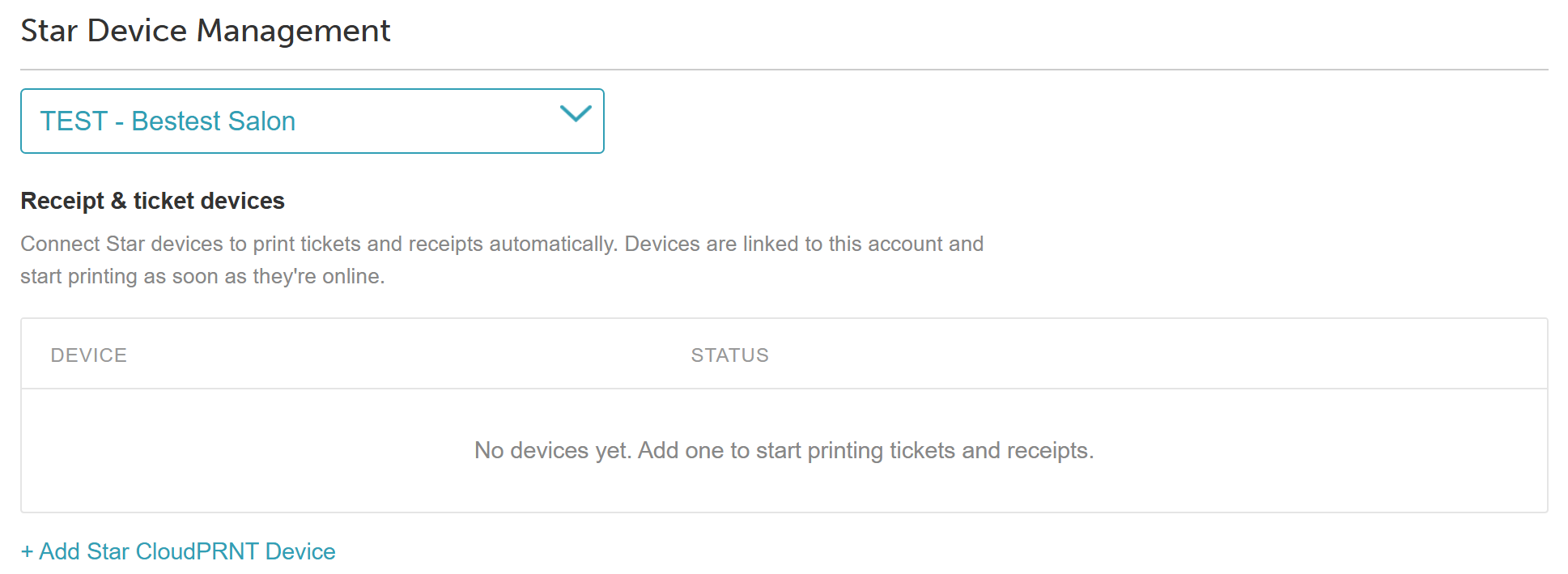
- Select your desired location from the location dropdown
- Click 'Add Star CloudPRNT Device'
- Complete the setup wizard modals:
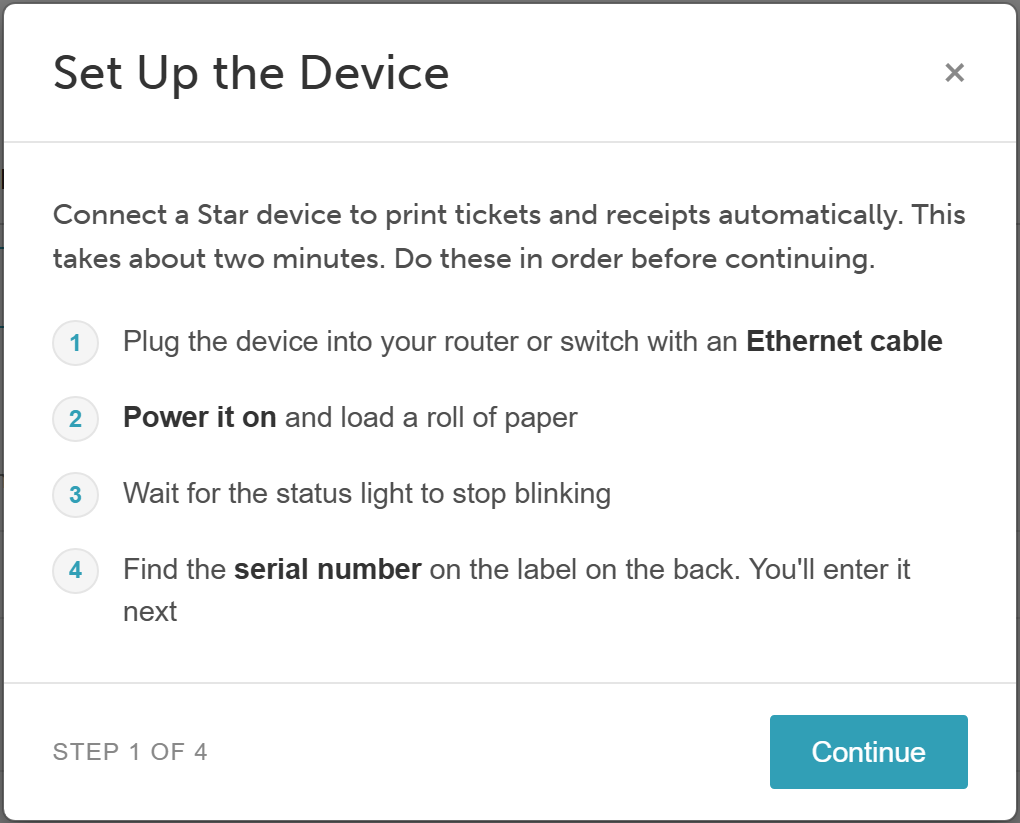
- Modal 1 (Set Up the Device): Review the instructions for setting up your physical printer hardware, then click Continue.
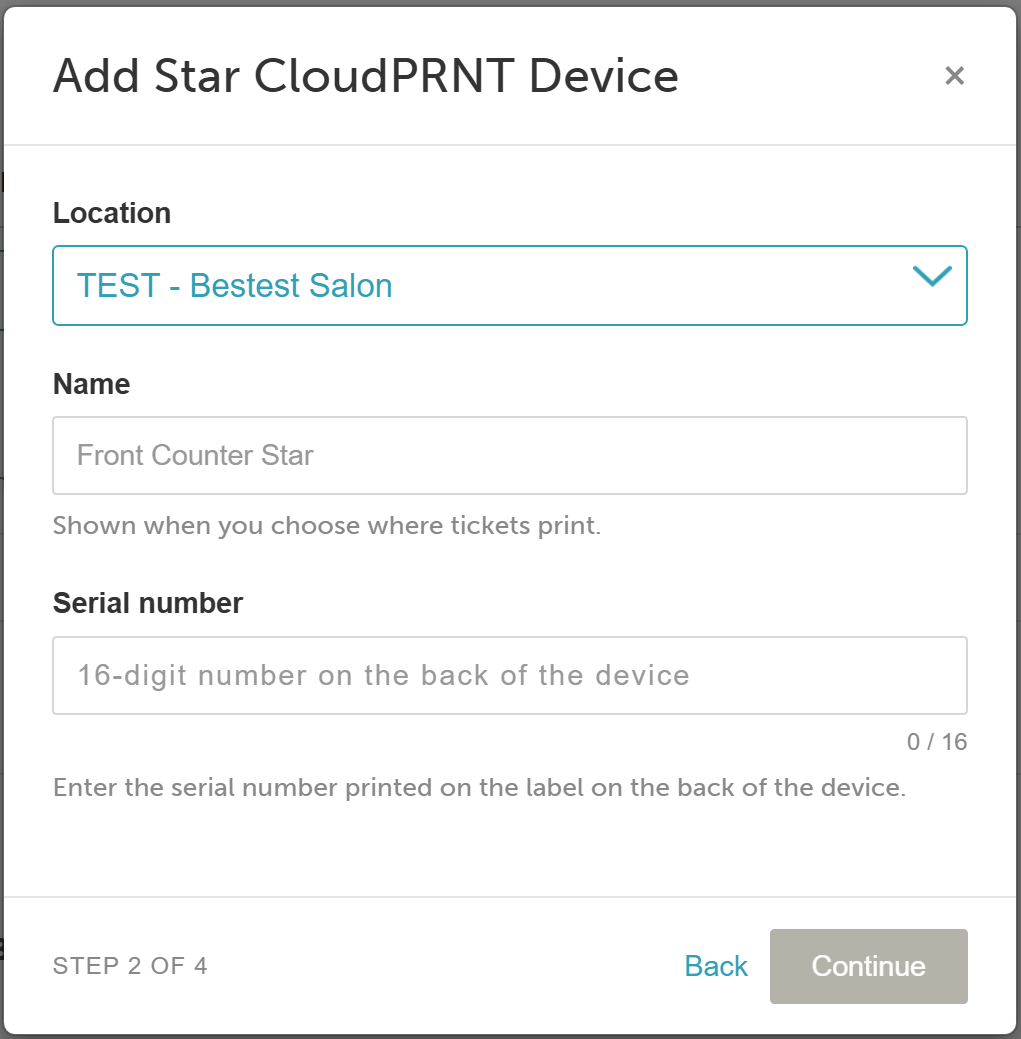
- Modal 2 (Add Star CloudPRNT Device): Enter the device name and serial number (located in Step 1), then click Continue.
- Modal 1 (Set Up the Device): Review the instructions for setting up your physical printer hardware, then click Continue.
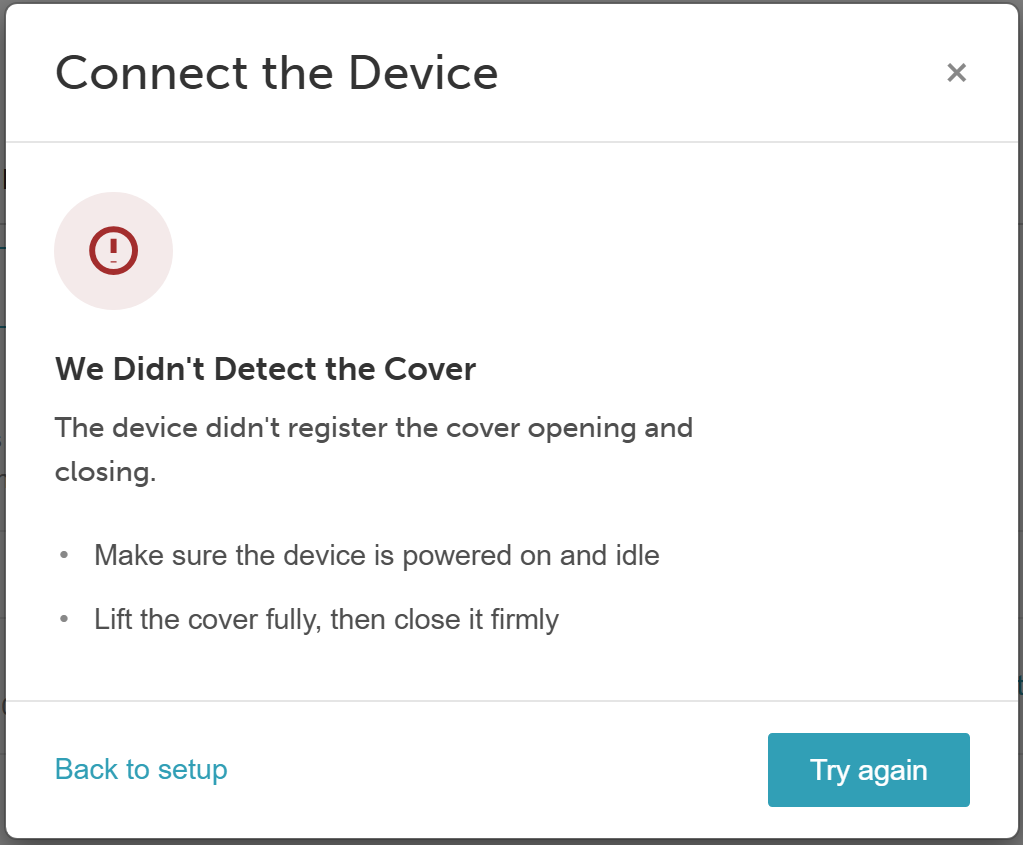
- Follow the Connect the Device pop-up prompt to open the cover on your physical printer
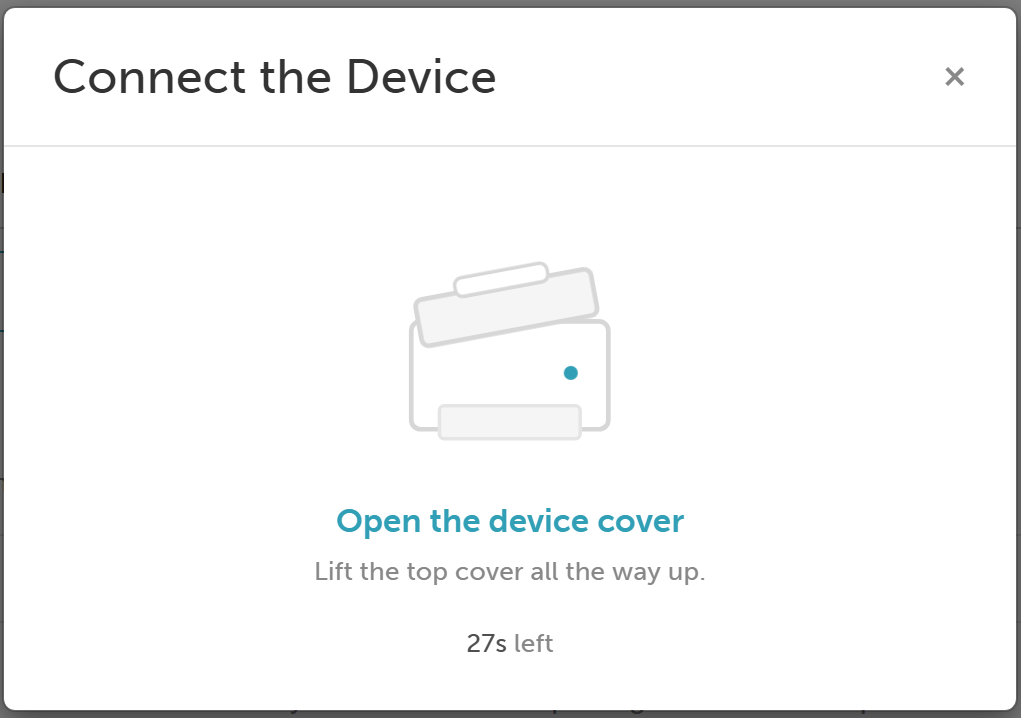
- If the system does not detect the open cover, follow the on-screen prompt to try again
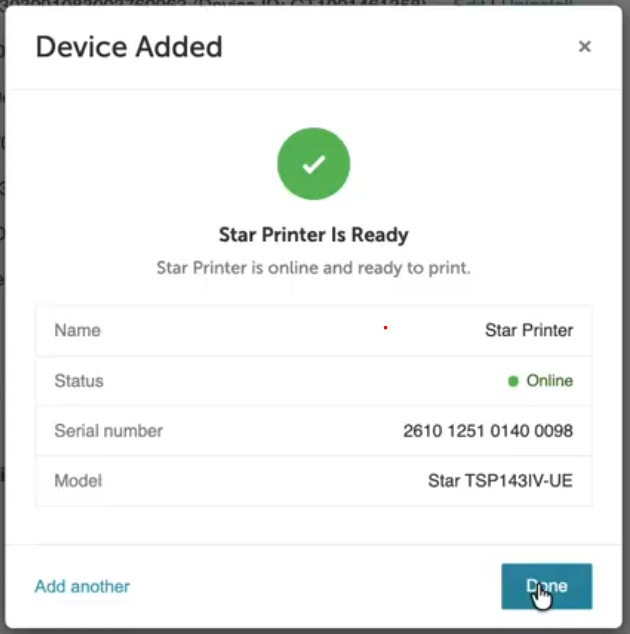
- Once connected, click Done on the 'Device Added' modal to finish
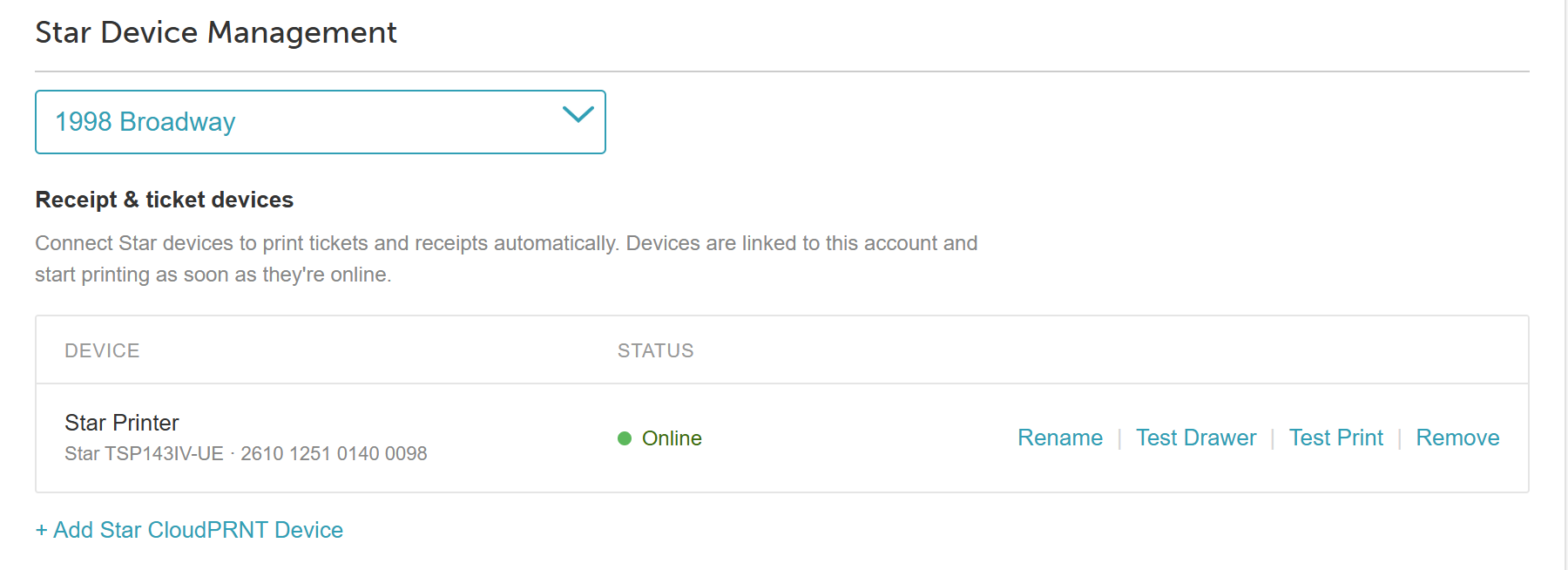
- Your new printer will now appear under the Star Device Management section on your settings page. Remember to click 'Save' at the bottom of the page to apply your changes
Printing Receipts with Star CloudPRNT in POS
Once the hidden setting is enabled and the printer is added:
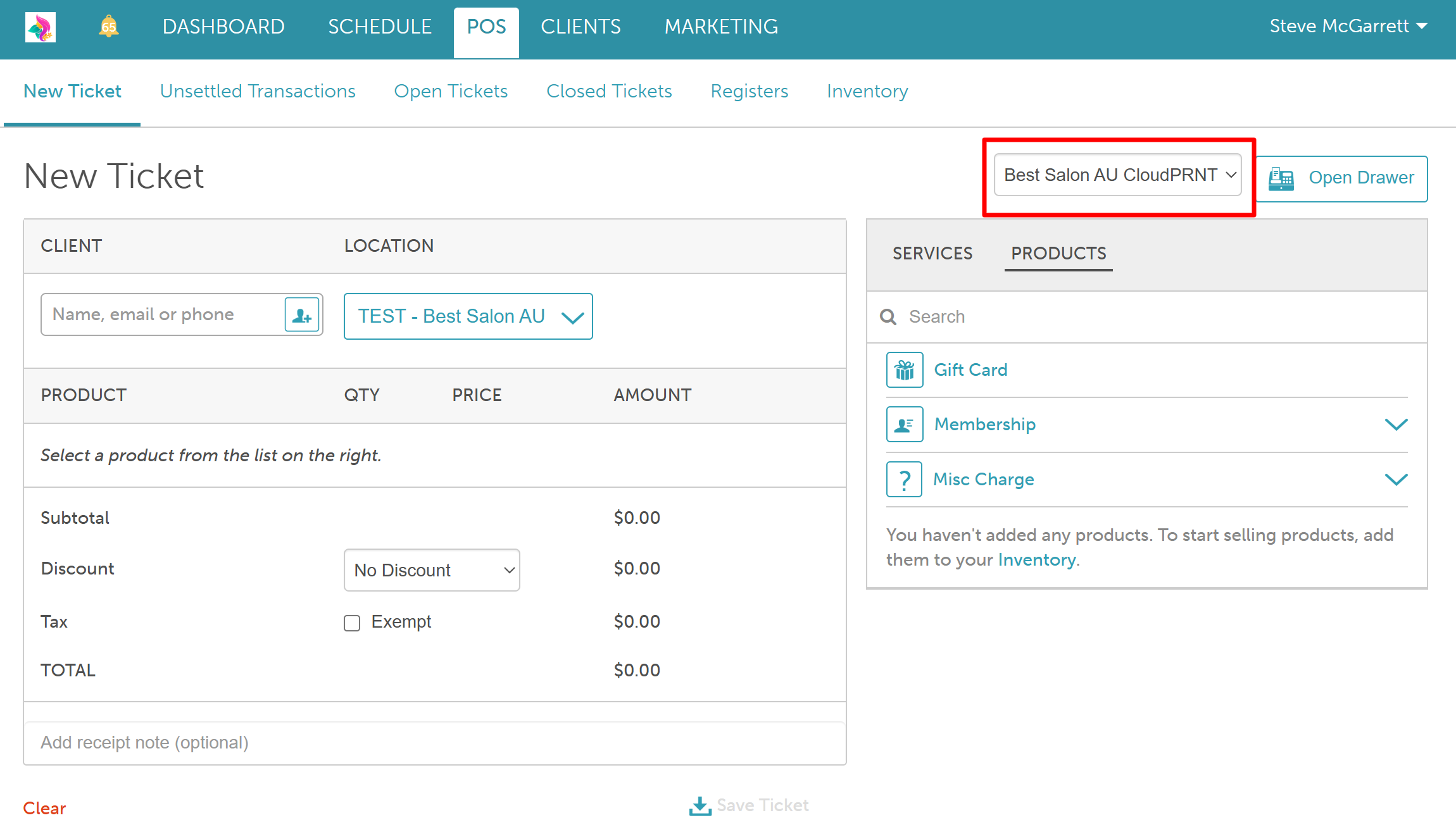
Navigate to POS > New Ticket
Choose your printer from the Star Printer dropdown. If only one printer is configured, it will be selected automatically
Add your appointment or items (products, membership, package or gift card) to the ticket
Click 'Take Payment'
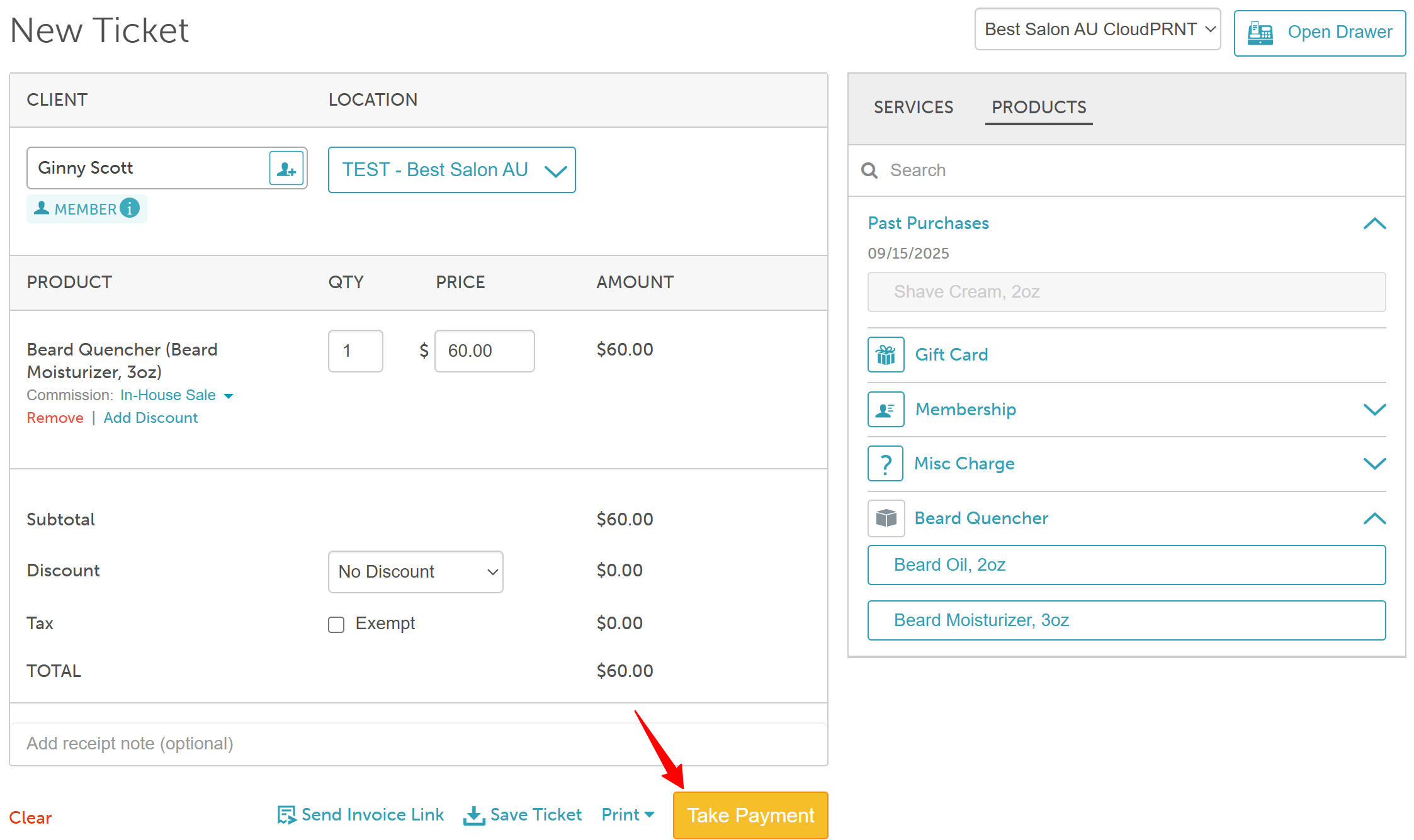
Select the payment method and complete the transaction to print the receipt.
For more information, contact us at support@mytime.com or (385) 233-6964.
Was this article helpful?
That’s Great!
Thank you for your feedback
Sorry! We couldn't be helpful
Thank you for your feedback
Feedback sent
We appreciate your effort and will try to fix the article