When setting up your Star TSP printer with a USB connection, the process is simple: install the printer driver, connect the printer to power, and plug the printer into your computer with the USB cable.
If you are setting up the printer over Wi-Fi or Ethernet, the setup is still straightforward, but it requires a few additional steps.
Watch the video below for help connecting your printer, then follow the step-by-step instructions in this guide to complete setup. Please read the guide carefully and do not skip any steps unless the guide specifically tells you to.
Step 1 - Download Driver (5-7 min):
- Download the TSP100 Printer Mac/Windows Drivers by clicking here: https://starmicronics.com/support/products/tsp100iv-support-page/
- You will need the model number of your Star printer, which can be found on the bottom of your printer: https://www.star-m.jp/products/s_print/oml/tsp100iv/manual/en/installing/confirmedModels.htm
- Once downloaded, see the images below on how to open the file and install the Star Micronics App
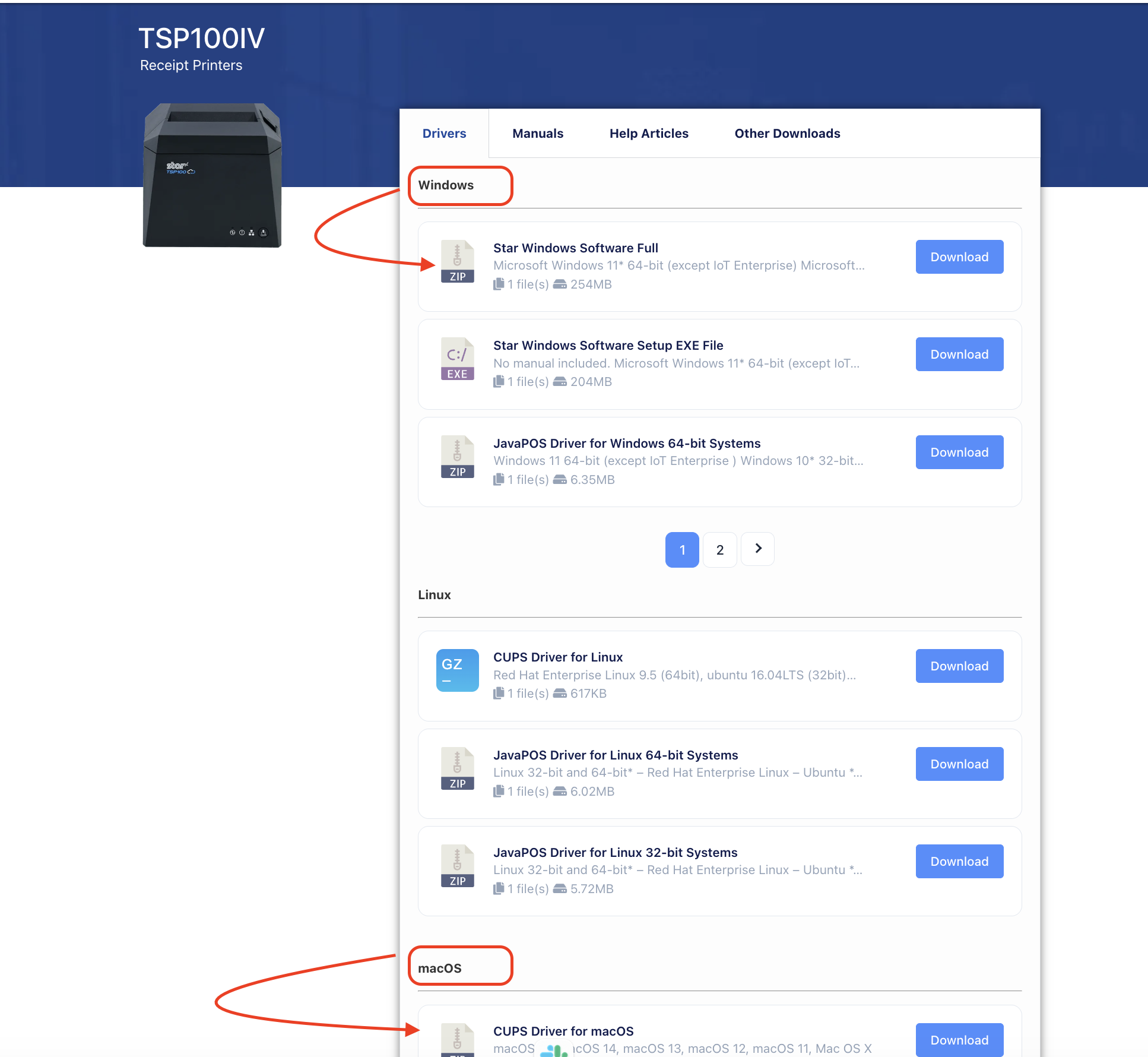
Windows


Mac OS X


Make sure you are using a supported Star TSP printer. There are several versions of the TSP100, including Wi-Fi, Ethernet/LAN, Bluetooth, and USB models.
You can find the exact model number on the label on the bottom of the printer. For example:
- TSP143IIIU = USB model (most common)
- TSP143IIIW = Wi-Fi model
- TSP143IIILAN = Ethernet/LAN model
The setup steps vary by model, so make sure you follow the Windows or Mac setup guide below that matches your printer model and connection type.
Step 2 - Connect USB Cable (most common)
- Follow the instructions here from Star to connect the USB-C cable: https://www.star-m.jp/products/s_print/oml/tsp100iv/manual/en/installing/connectingUSBCable.htm
Make sure to follow the steps in the section labeled “USB-C Port."
You can ignore the section labeled “USB-A Port,” as that section is only for connecting the printer to a smartphone or mobile device.
Step 3 - Ethernet, or WiFi Setup (Skip to Step 4 below to set the paper sizes for USB printer users)
LAN (Ethernet) Model Setup:
- Connect LAN Cable: https://www.star-m.jp/products/s_print/oml/tsp100iv/manual/en/installing/connectingLANCable.htm
- Follow Star’s guide below to connect your printer via Ethernet:
https://www.star-m.jp/products/s_print/oml/tsp100iv/manual/en/settings/settingsLAN.htm
In the guide:
- Scroll to the section “Check Printer IP Address.”
- Follow those steps
- Skip the section “Prepare to connect from an iOS device.”
WiFI Model Setup:
Follow the guide below to connect your printer via Wi-Fi:
https://www.star-m.jp/products/s_print/oml/tsp100iv/manual/en/settings/settingsWLAN.htm
In the guide:
- Scroll to the section labeled “Connect from a Windows device.”
- Follow the steps in that section
- You can skip the other sections unless you are specifically setting up from a different device
Step 4 - Mandatory Printer Settings (2-5 min):
If you do not use the blow settings, you may experience:
- Print preview will be unreadable
- The printer will print long receipts
- The printed information may bleed off the edges of the paper.
Please read the steps below and see screenshots of where to adjust these settings.
- See the screenshots below and set the paper size to 72*200 (80mm paper requires a 72mm print setting, so while the paper is 80mm, please use 72mm paper size).
- Set margins to NONE.
Windows
Click Start > Settings > Devices > Printers & Scanners > click the STAR printer > click Manage > see screenshots below


Mac OS X
You only need to set the paper size in your browser. See the screenshot below.
Depending on the browser you are using, the paper size may appear as 71.xx × 199.xx.
Simply select the size closest to 72 × 200.
Set:
- Margins: None
- Scale: Default or 100%

Step 5 - Cash Drawer Setup (optional)
Follow these steps if you want the cash drawer to open each time a receipt is printed.
On your computer, go to:
Start → Settings → Devices → Printers & Scanners → Select the Star printer → Manage → Printer Properties
Then follow the steps shown in the screenshots below.
Windows 

Mac OS X 
https://starmicronics.com/help-center/knowledge-base/how-to-open-a-cash-drawer-on-mac/
Troubleshooting:
The print preview is small and difficult to read
The printer is printing very long receipts
Information is bleeding off the edge of the receipt
- Please see "Mandatory Settings" above
- This generally happens in Windows 7 or Windows 10
- Click Start
- Click Devices and Printers
- Windows 7: Right Click on the TSP100. Printer Windows 10: Click on the printer and click Manage
- Click Printer Properties
- Click Device Settings
- Make sure the paper settings are 72*200 (see screenshot below OR see attachment for full-size image)
Was this article helpful?
That’s Great!
Thank you for your feedback
Sorry! We couldn't be helpful
Thank you for your feedback
Feedback sent
We appreciate your effort and will try to fix the article