This article will provide a step-by-step guide on how to open the virtual register.
Things to know:
- The ability to open registers is managed by the "Accessing Register" access control setting
- At the start of each day, the register is in an "initial/unopened" state. Once the register or registers are opened during transaction processing, you can specify which register the transaction should be recorded in.
- For businesses that do not offer services, logged-in staff can still open and use the Register, provided their assigned role includes the required permissions.
- Print Prompt Control
- By default, a print modal appears when the register is opened. However, the "Disable cash drawer print prompt when opening/closing the register" hidden setting can be enabled to prevent the prompt from appearing for businesses that use a physical key to open their cash drawer.
- Negative values are not allowed for any count when opening the register. If an attempt is made to input negative figures, a validation message will be displayed indicating "Invalid Quantity."
- Transactions will be reflected in the register only if it is open and selected during the ticket payment step.
- If the "Require Open Register to Take Payment" setting is enabled, payments can only be accepted when a register is currently open.
- Transactions are recorded on the date the payment is received rather than the date the ticket is closed. For instance, if a client had an appointment on June 21st but paid on June 15th, the transaction would be reflected in the register on June 15th.
- Prepaid transactions do not appear in the register
- Gift card, membership, and package purchases made online do not appear in the register
- Full Gift Card Redemptions:
- In-store: Reflected on the date the ticket is closed in the Register Closeout Report.
- Online: Does not appear in the Register Closeout Report but is displayed on the date it is redeemed in the Business Snapshot report (even if the ticket remains open).
- Example (Online Redemption): If a $200 gift card is redeemed online on September 18 to prepay for an appointment on September 23, the Register Closeout Report will not display the redemption since the payment occurred online and the ticket remains open until the appointment date. However, the Business Snapshot Report will record the $200 redemption on September 18, ensuring the payment is reflected on the actual date it was taken.
- Partial Gift Card Redemptions:
- In-store: Displayed on the date the gift card is redeemed in the Register Closeout Report.
- Online: Displayed on the date the gift card is redeemed in both the Register Closeout and Business Snapshot reports (even if the ticket remains open).
- Opening a register initiates the tracking of all transactions, and it pre-calculates the expected total at the end of the day.
- The Register Closeout Report generally reflects payments by date but will not display the following when they occur online or before a ticket is closed:
- Full gift card redemptions
- Prepaid appointments
- Membership or package redemptions
Contents:
Opening the Register at the Beginning of the Day
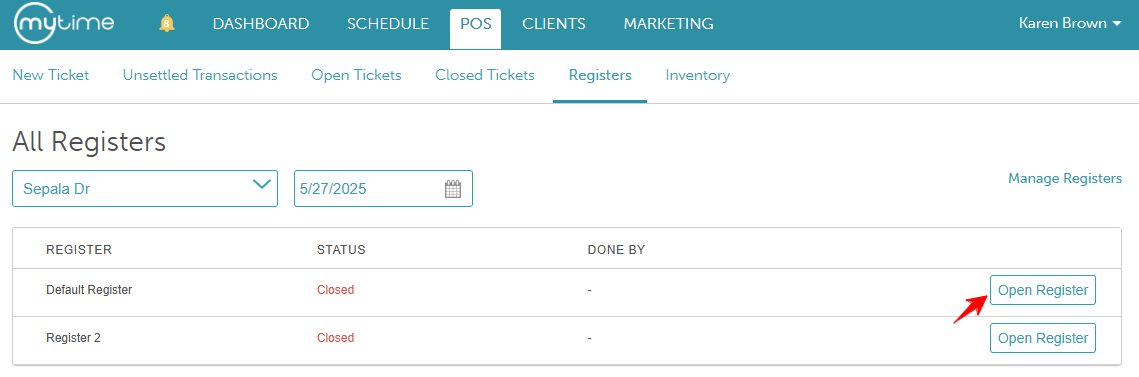
- Go to POS > Registers
- Select the Open Register button next to the desired register
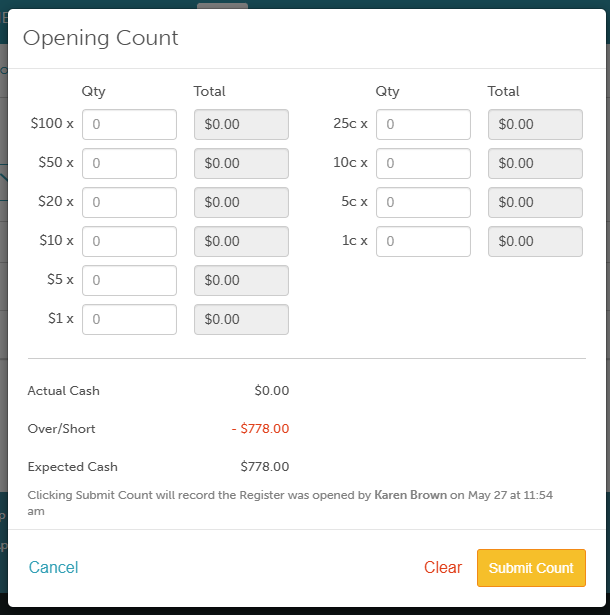
- A print modal will appear with an audit trail displaying the date, time, and name of the staff member who opened the register. On the Opening Count modal, enter the amount of money that you have in the physical register. If the expected count and the actual count entered do not match, the system will show an overage when the actual amount is higher and a shortage when it is lower.
- The opened register will display the beginning overage/shortage (float difference) for the current session
Opening the Register While Processing a Ticket
- Go to POS > New Ticket
- Add an item to the ticket
- Proceed to take payment
- At the top of the page, select the Open Register link
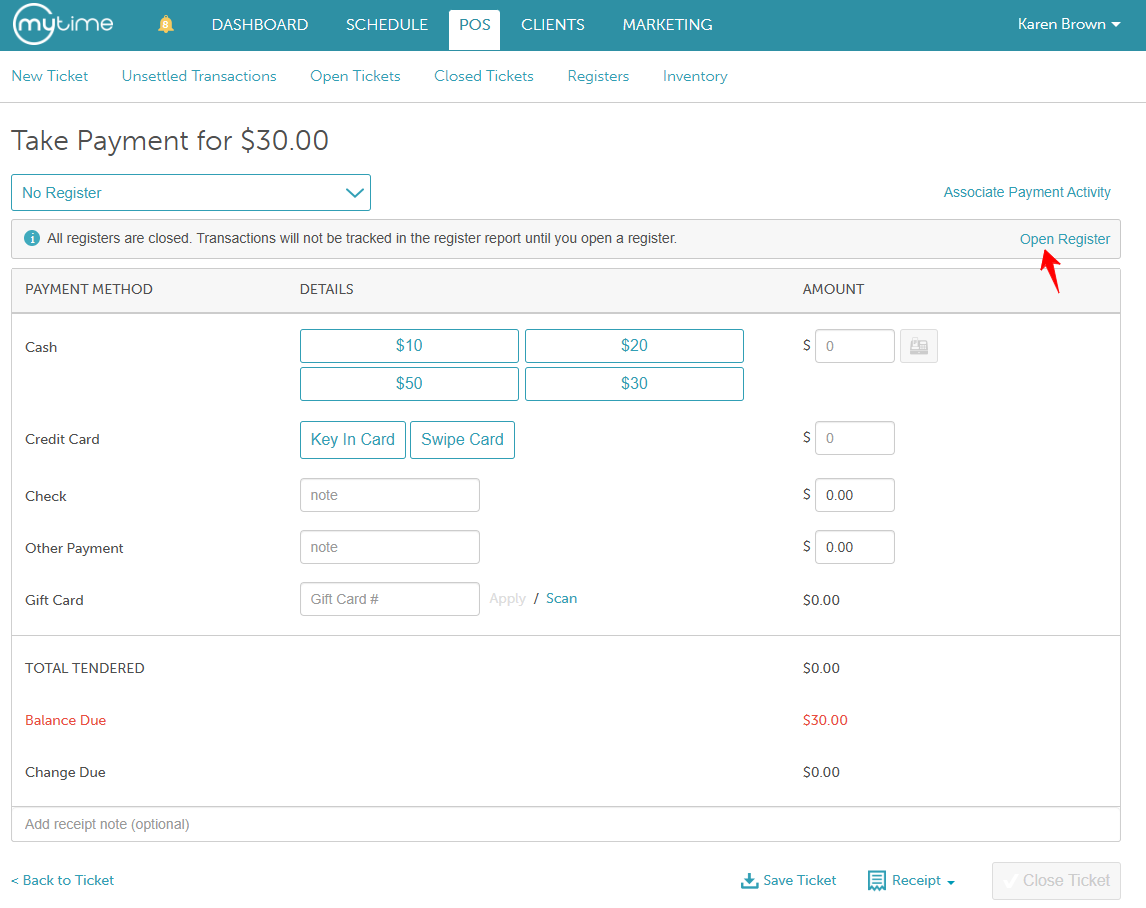
- You will be redirected to the Registers tab
- Select the Open Register button next to the desired register
- A print modal will appear with an audit trail displaying the date, time, and name of the staff member who opened the register. On the Opening Count modal, enter the amount of money that you have in the physical register
- Go back to the ticket to take payment
- Close ticket
For more information, contact our support team at support@mytime.com.
Related Articles:
Open Cash Drawer Button in POS
Depositing and Withdrawing Cash from the Register
Was this article helpful?
That’s Great!
Thank you for your feedback
Sorry! We couldn't be helpful
Thank you for your feedback
Feedback sent
We appreciate your effort and will try to fix the article