You can edit key membership details directly from a client’s profile, including value and item credits, pricing, billing dates, and custom charge dates. This guide explains how to manage these updates using the scheduler app.
Things to know:
- The ability to edit memberships on client profiles is governed by the "Accessing Memberships" access control setting.
- When searching for a client directly from the 'Clients' tab, you can only adjust the following features on their profile:
- Pricing & Fees: Membership price, freeze fee, and cancellation fee.
- Billing: Billing day, custom charge date, and purchase location
- Credits & Rules: Item credit balance, auto-renew, and 'rollover unused benefits' settings.
- For greater flexibility, access the client’s profile through a Membership Report. Clicking the client’s name from a report will redirect you to an enhanced profile view, similar to the web version, which allows for more advanced adjustments.
- $0 Memberships: By default, $0-priced memberships do not generate recurring benefits (such as credits and discounts) after their initial cycle. However, enabling the “Give benefits to $0 memberships after each payment” setting changes this behavior:
- Enabled: Members with $0 memberships receive new credits and discounts on their scheduled billing dates, even though no payment is collected
- Disabled (Default): The membership remains active, but no new credits or benefits are issued after the initial billing cycle since no payment is tied to the membership.
- Membership item credits and value credits can be adjusted directly from the Memberships section of the client’s profile.
- Any changes made to the membership will take effect after the next successful charge.
- You can set custom expiration dates for membership credits, but this is controlled by a hidden setting enabled by the MyTime team by default. To disable this setting, contact support@mytime.com.
- If disabling this setting, it must be disabled on both parent and child accounts.
- For franchise businesses, custom expiration dates for global memberships configured at the parent level are visible on child accounts but cannot be edited at the child level.
- You can set a custom expiration date either within the membership template or directly on the client’s profile.
- Enabling a custom expiration date will disable the rollover option. Conversely, if rollover credits are enabled, the option to set a custom expiration date will not be available (i.e., no hyperlink will appear).
- When a membership’s location is updated, revenue and royalties for that membership will be credited to the new location starting from the date of the change. Example:
- A client purchases a membership at Location A. All royalties are initially credited to Location A.
- The membership is later reassigned to Location B. From that point onward, royalties generated by the membership will be credited to Location B.
- Important: Revenue and royalties already credited to Location A will not be moved or reassigned. Only future royalties will go to Location B.
- Reports such as the Membership Roster and Reconciliation Report will reflect the updated location as the purchase location once the change is made.
Contents:
Editing Client's Membership
- Launch the MyTime Scheduler app on your device
- Choose your login method:
- Standard: Enter your registered email address and password, then tap 'Sign In'
- Social Login: Select 'Continue with Google' or 'Continue with Apple' to use your existing credentials for a faster login experience. For detailed instructions, learn more here
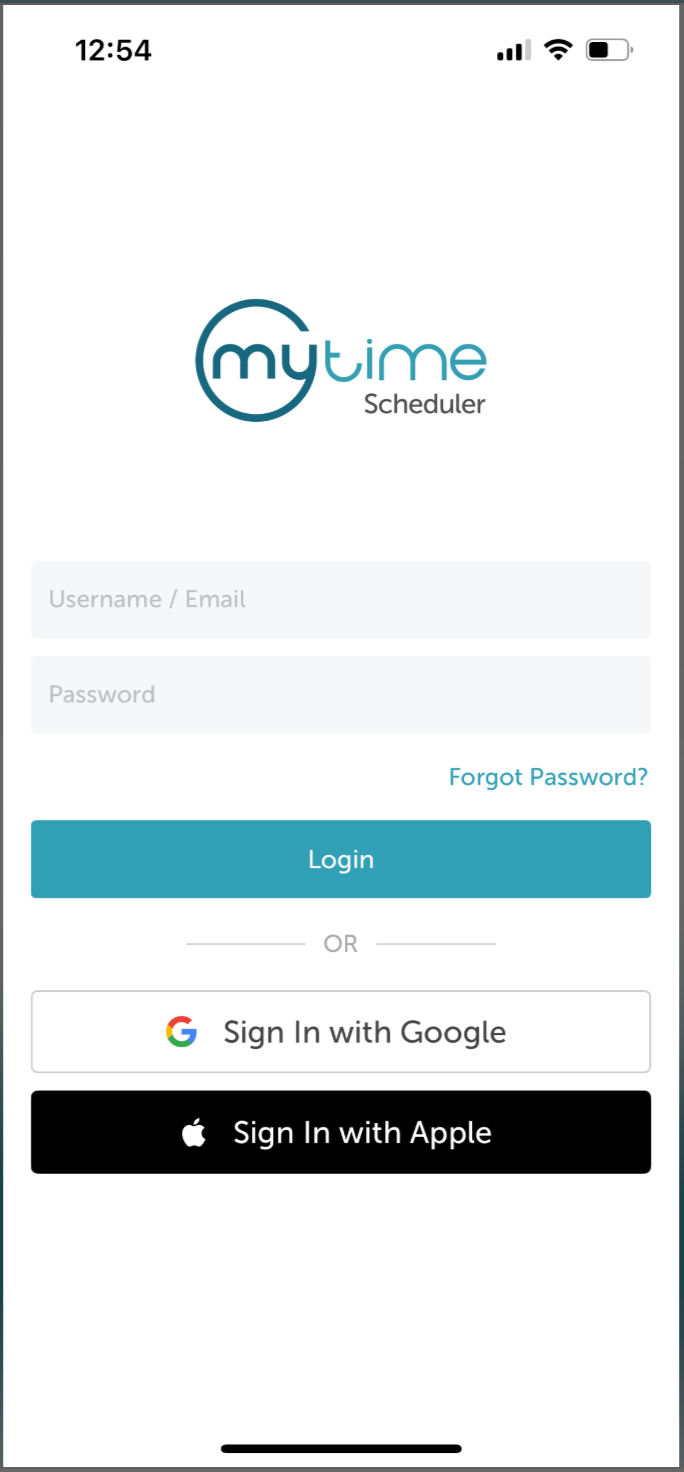
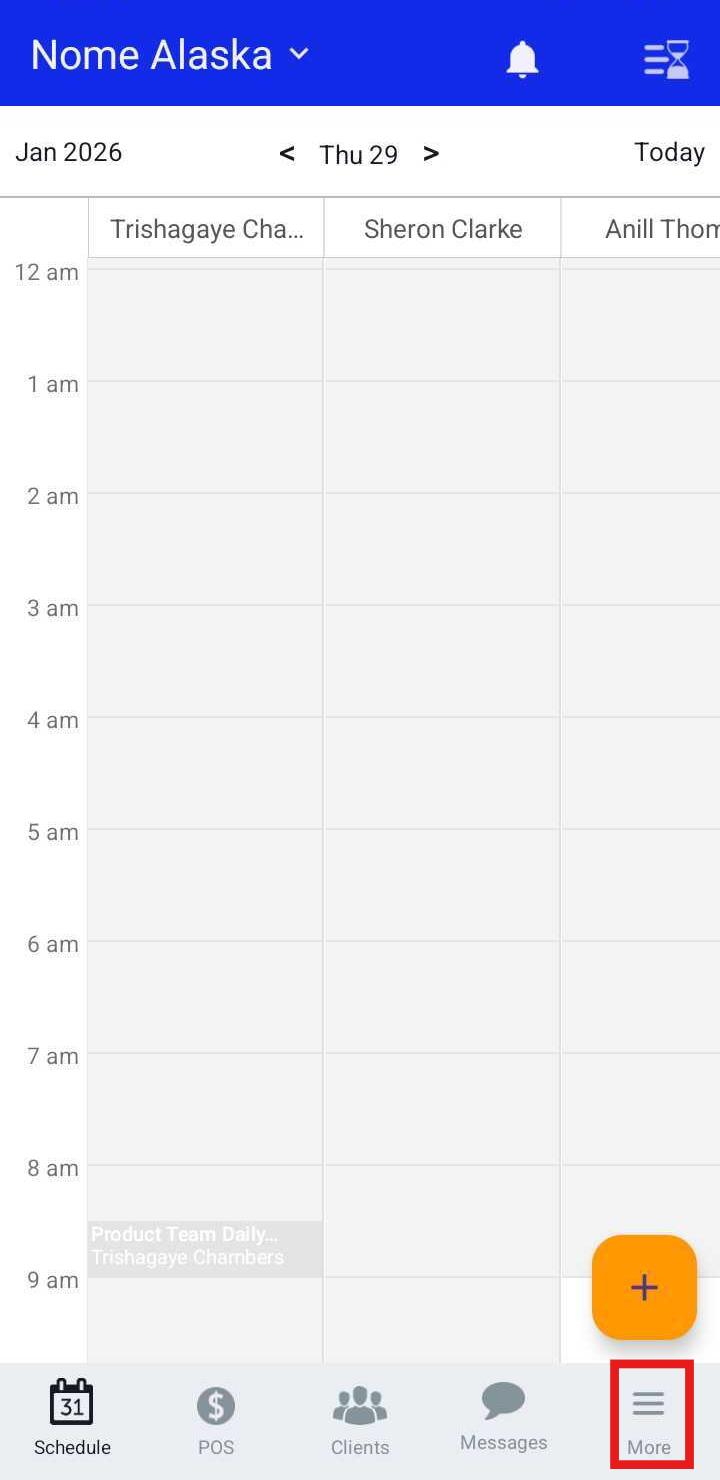
- Once signed in you will be directed to the schedule by default
- Tap "More" at the bottom of the screen
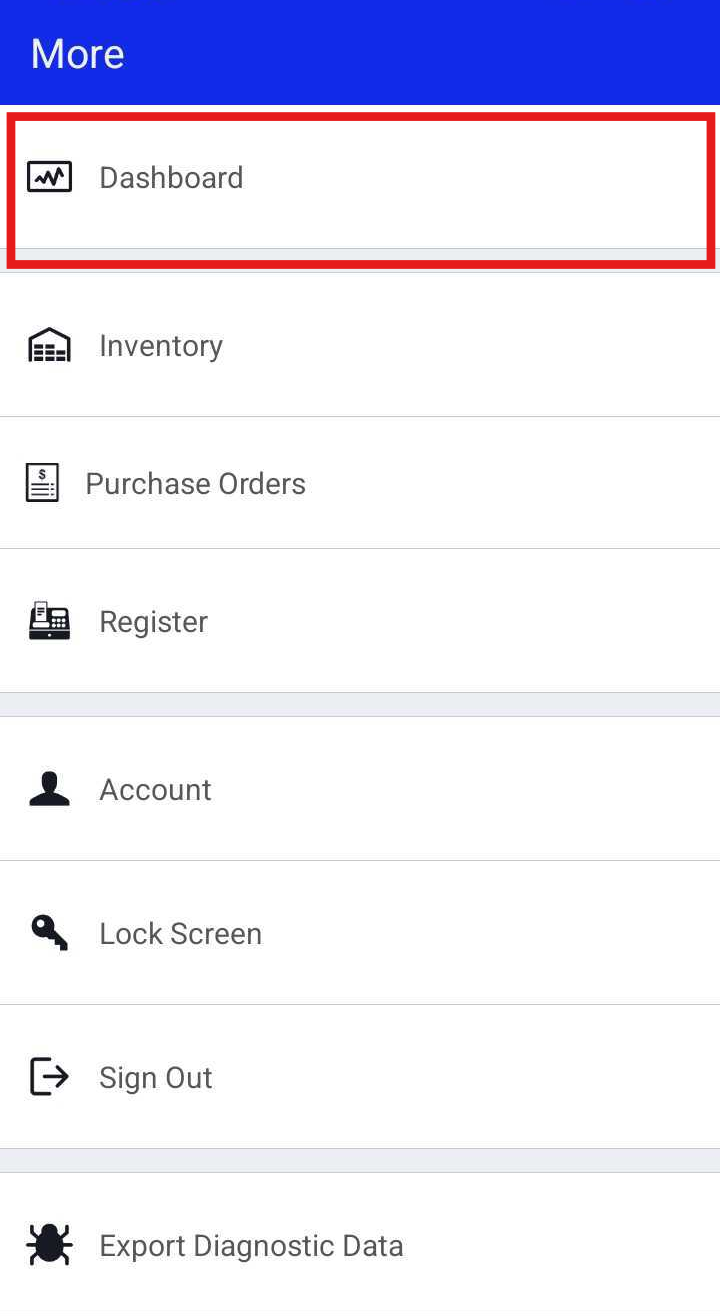
- Select "Dashboard"
- At the top of the screen, select the Reports tab (next to Overview)
- Scroll to the Clients Report section and select a membership report (e.g., Membership Item Credits)
- Apply the appropriate filters, click Update, and locate the desired client
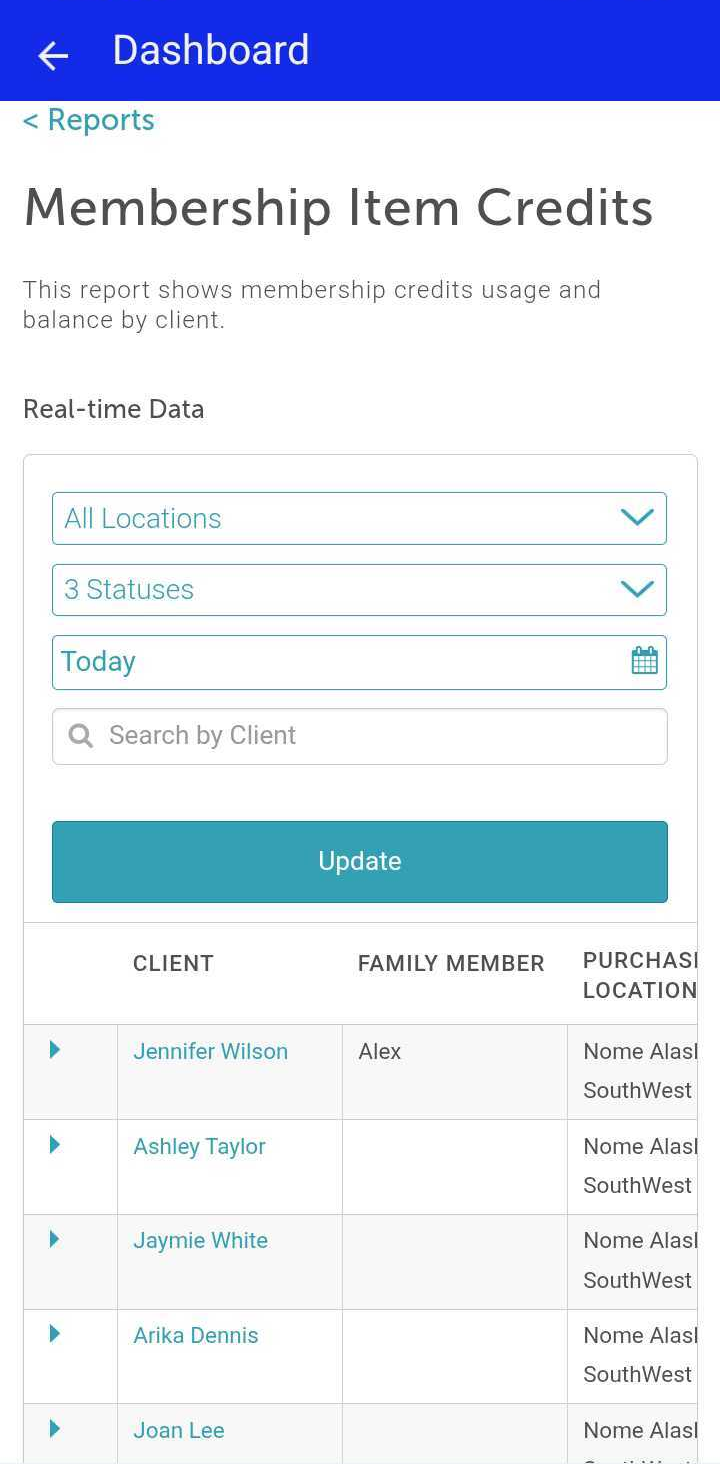
- Click the client’s name to be redirected to their profile
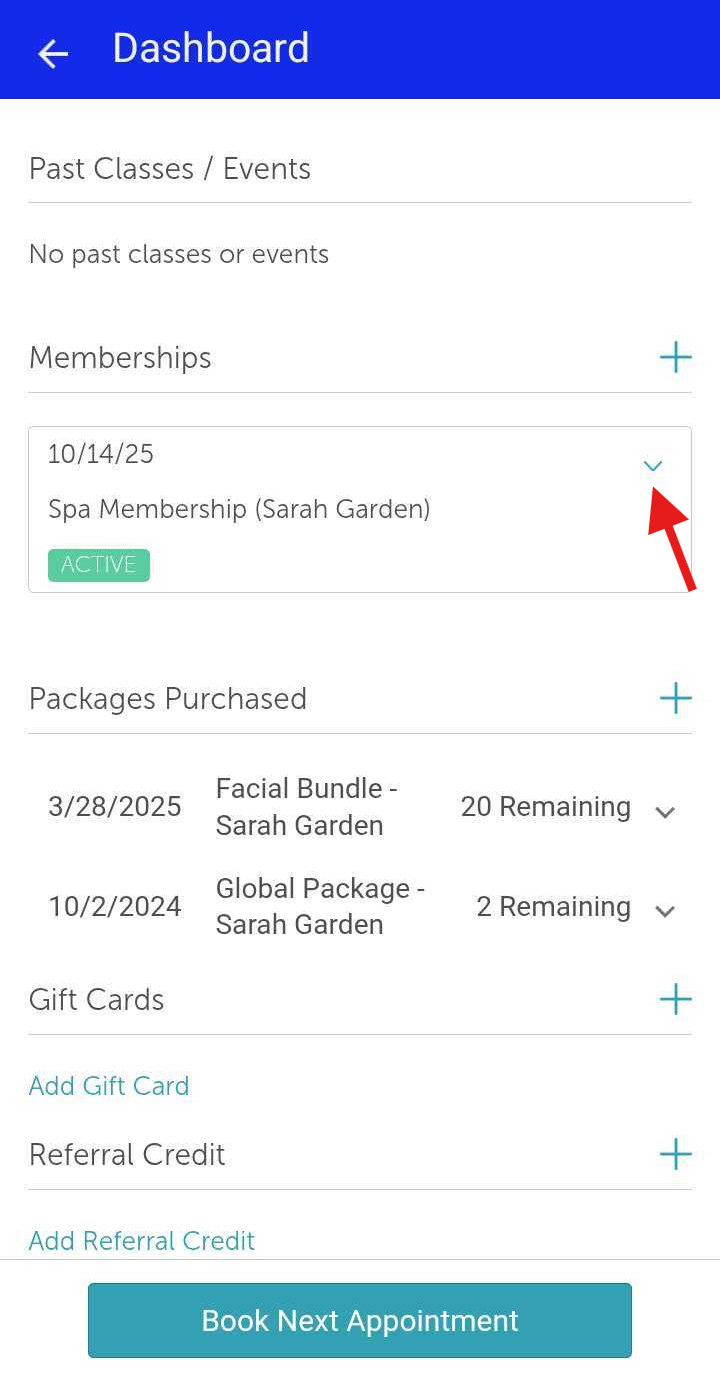
- Scroll down to the Memberships section and click the arrow on the right to expand the details
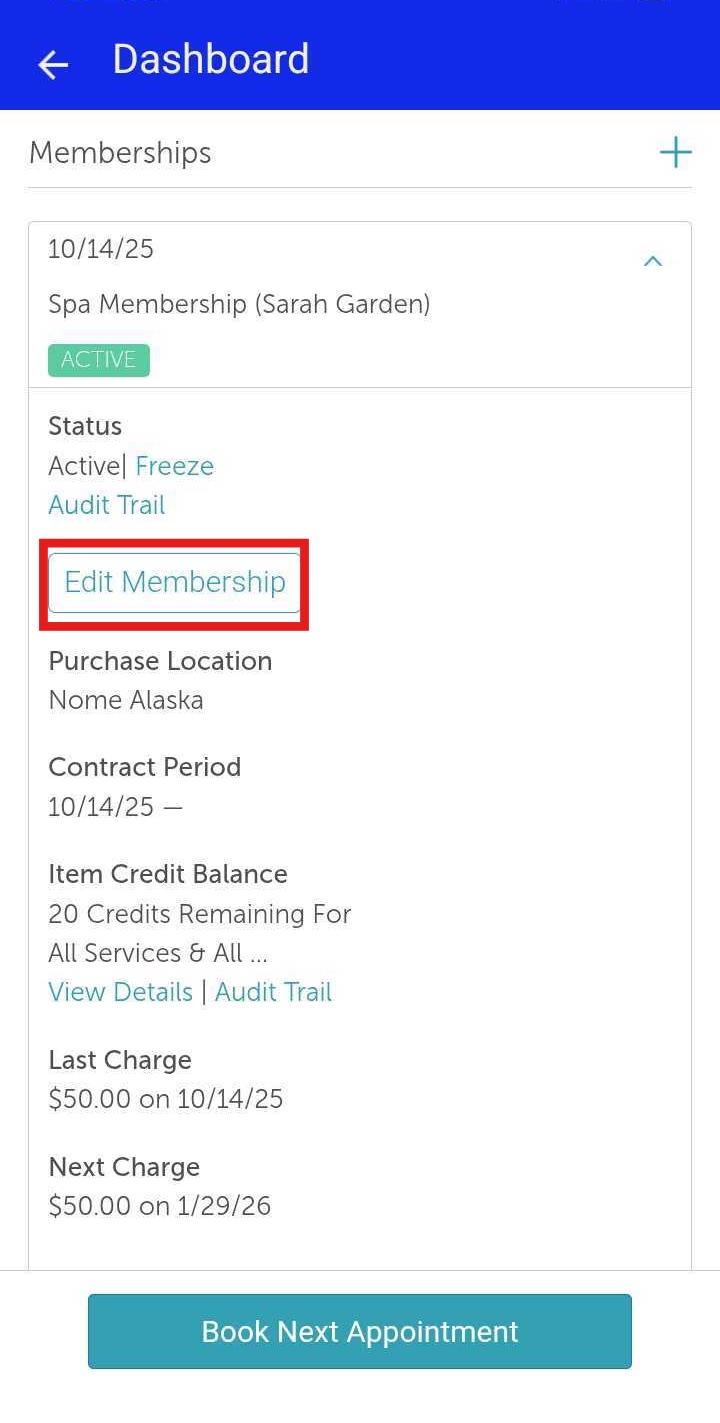
- Click the "Edit Membership" button
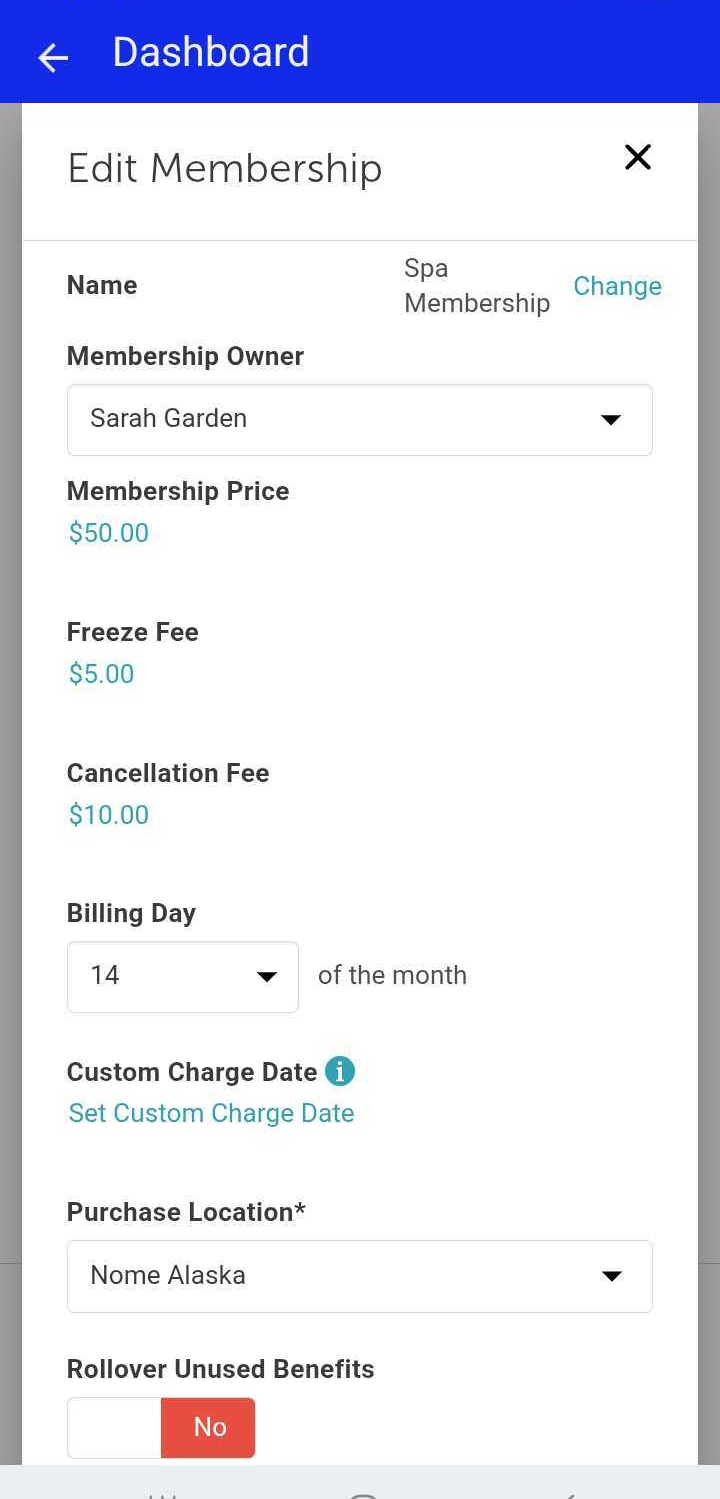
- When the edit membership modal appears, you will be able to edit the following:
- Name - The name of the membership. The 'Change' hyperlink will only be displayed if the upgrade/downgrade feature is enabled. Learn more here
- Membership Price - The price for the membership. Changing the price will also change the next charge amount
- Freeze Fee - This is a fee that is charged when the membership is frozen. Learn more here
- Cancellation Fee - This is a fee that is charged when the membership is canceled. Learn more here
- Billing Day - The day of the month the membership should be charged. For memberships with weekly or bi-weekly payments, this field will allow you to select the day of the week the membership should be charged.
- Custom Charge Date - You can set a custom charge date for membership to be charged on that date. After the custom charge is triggered, the regular billing cycle will resume. This field will be hidden for term memberships with the upfront payment type.
- Purchase Location - This refers to the location where the membership was originally purchased. For franchise businesses, the purchase location can be edited to any other location within the same child account. However, if you're viewing the membership from a different child account, the purchase location cannot be changed.
- Auto-Renew - If this is set to YES, the membership will renew automatically after the contract period has ended. However, the auto-renew field is only shown for termed memberships
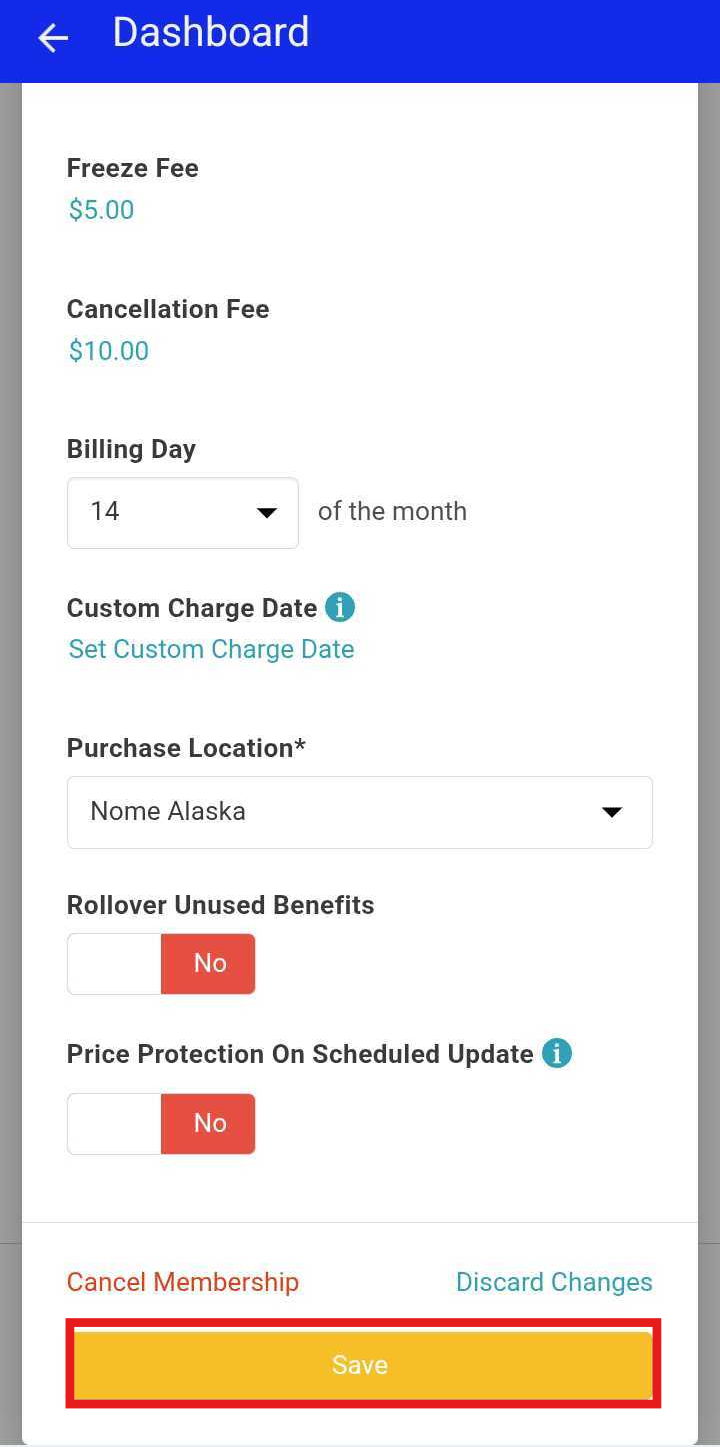
- Rollover Unused Benefits - This determines if unused membership dollar credits and item credits are rolled over to the next membership period or if they're lost forever.
- Price protection on scheduled updates - This prevents a scheduled membership price update from changing any custom membership price you've set for this existing member
- Save
Editing Item Credits
To edit the expiration date or the quantity of the item credit balance from client profiles:
- Click on the "View Details" hyperlink below the item credit balance
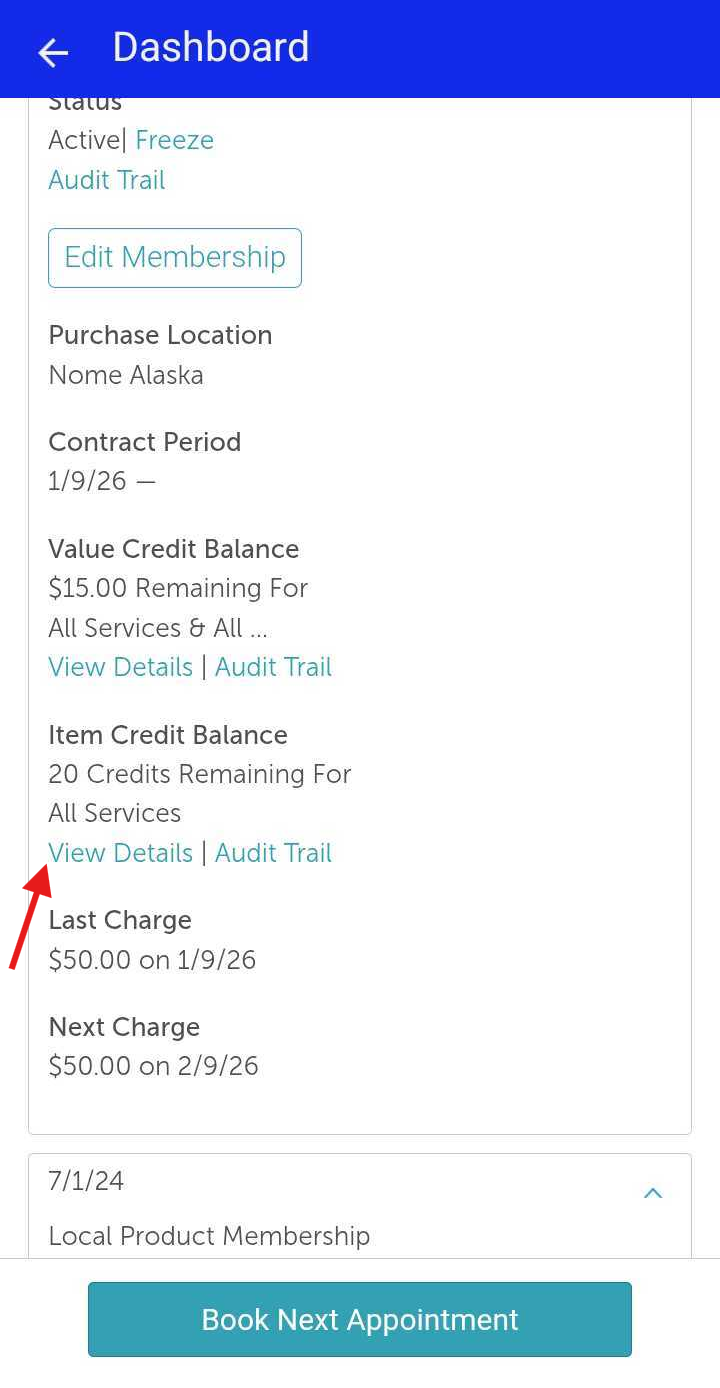
- Rotate your phone
- Click the "Expires On" date hyperlink
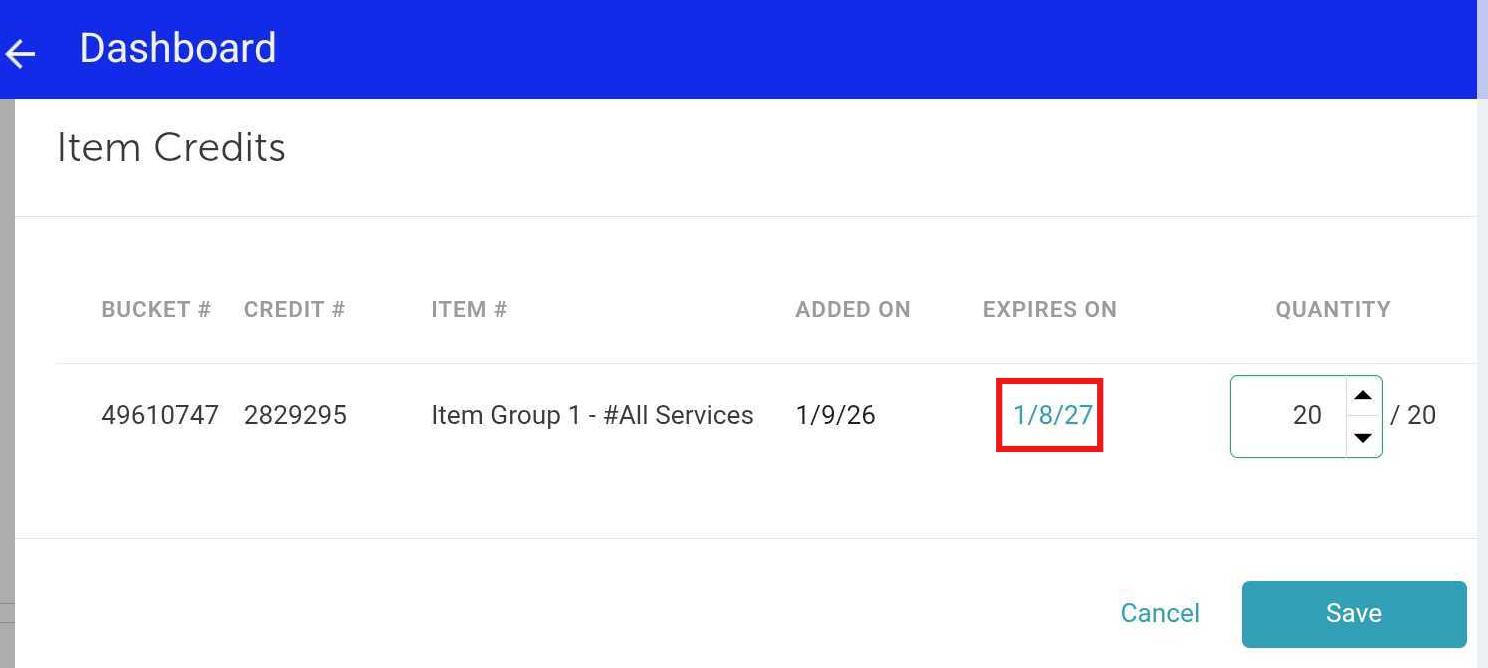
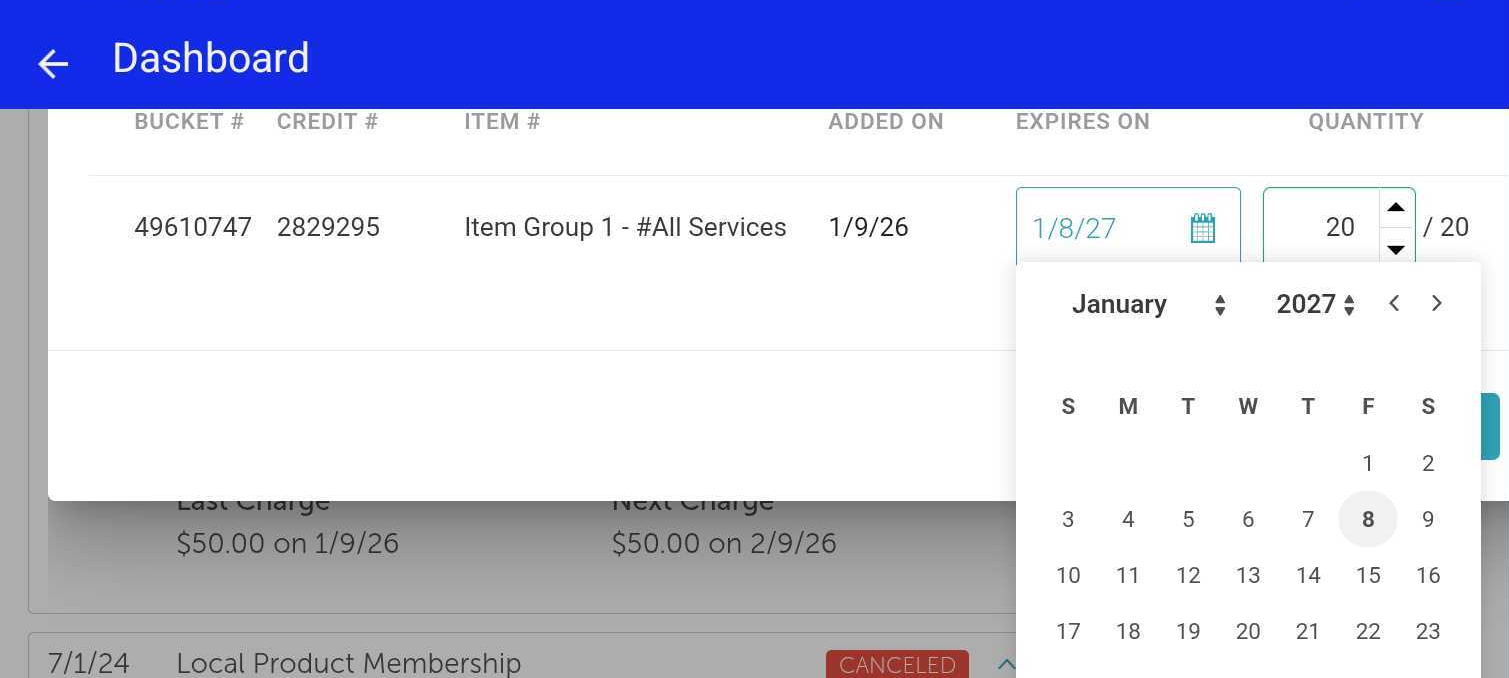
- Click on the calendar icon that appears
- Select the desired expiration date from the calendar
- You can update the item credit quantity by entering the desired amount directly or using the arrows to adjust the displayed value
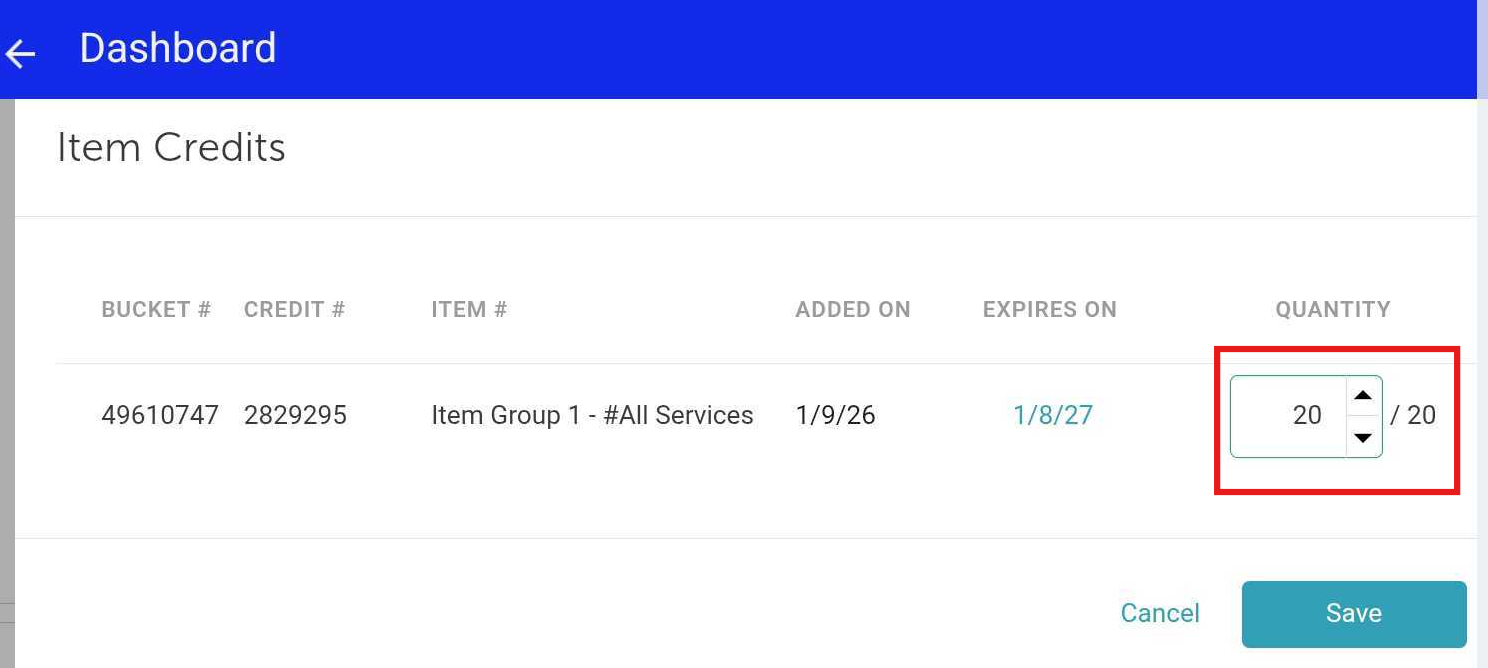
- Click "Save"
Editing Value Credits
To edit the expiration date or quantity of the value credits from client profiles:
- Click on the "View Details" hyperlink below the value credit balance
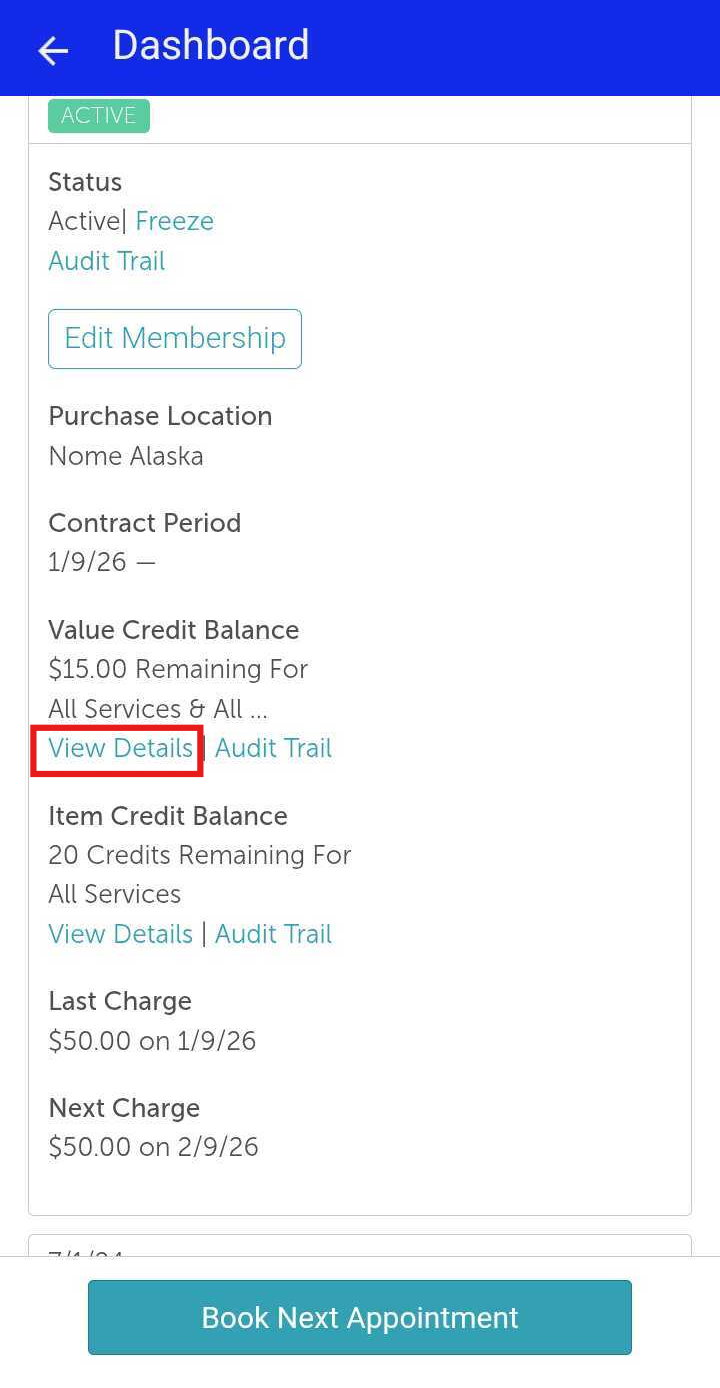
- Rotate your phone
- Click the "Expires On" date hyperlink
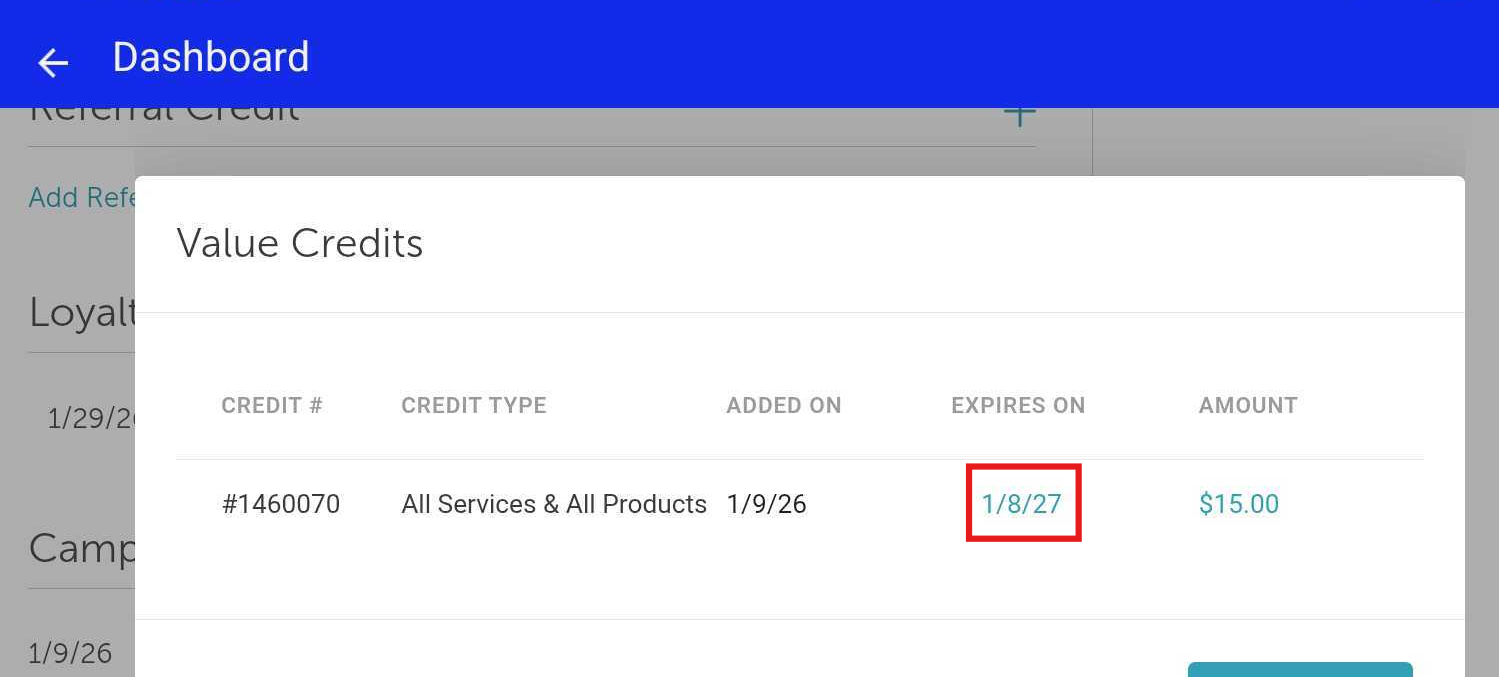
- Click on the calendar icon
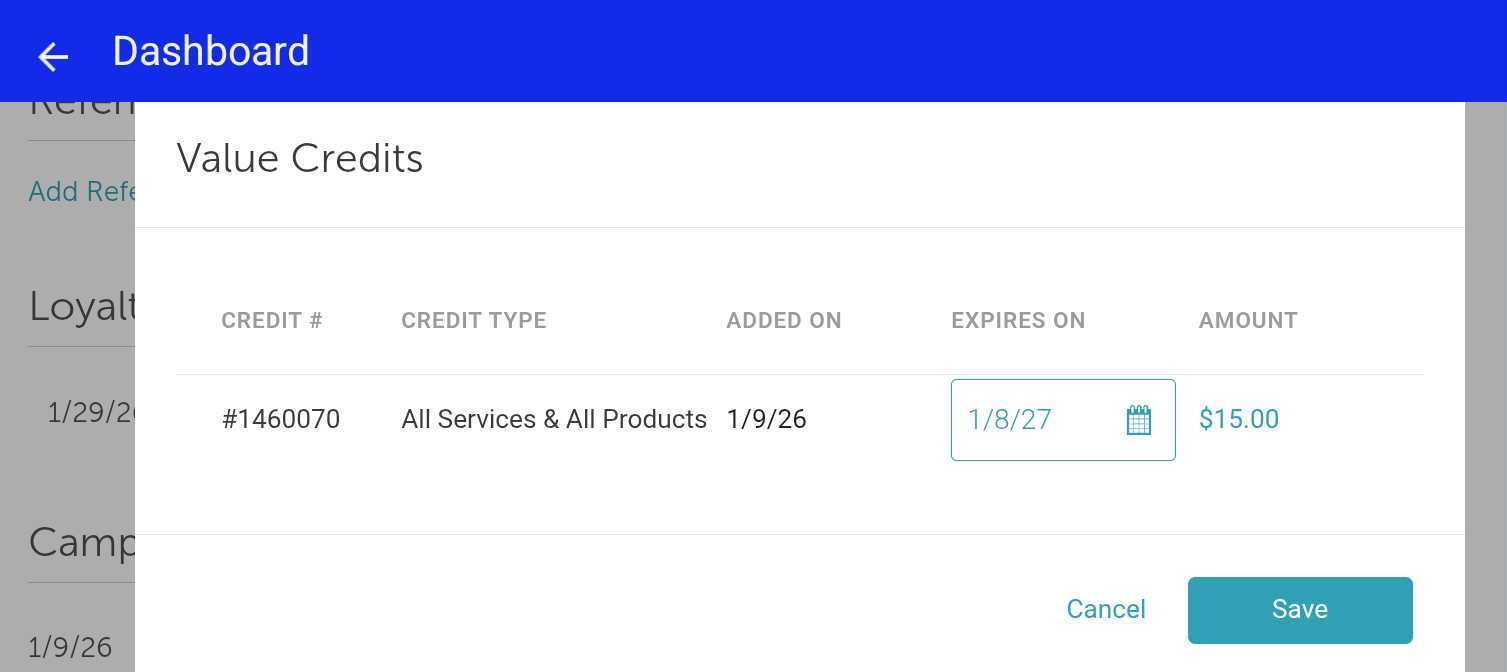
- Select the desired expiration date from the calendar
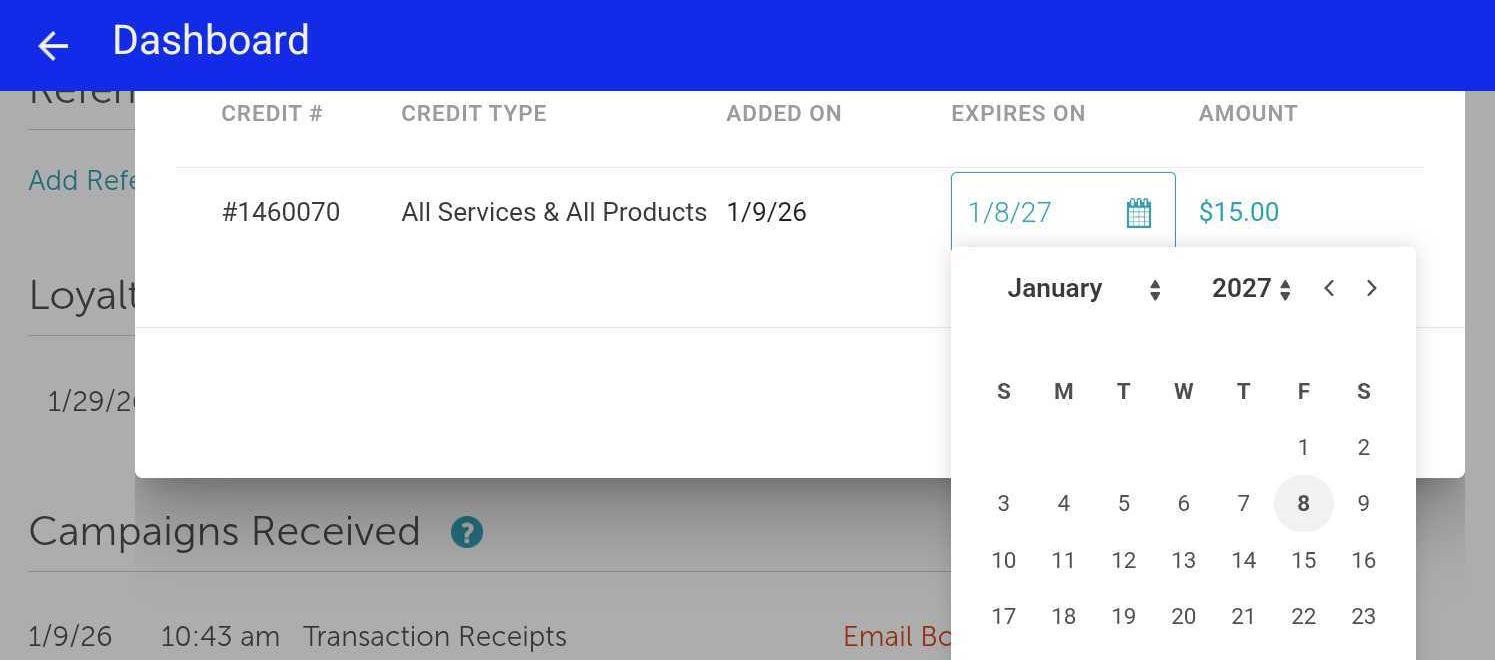
- Click on the displayed value credit amount and enter the desired amount for the client’s value credit
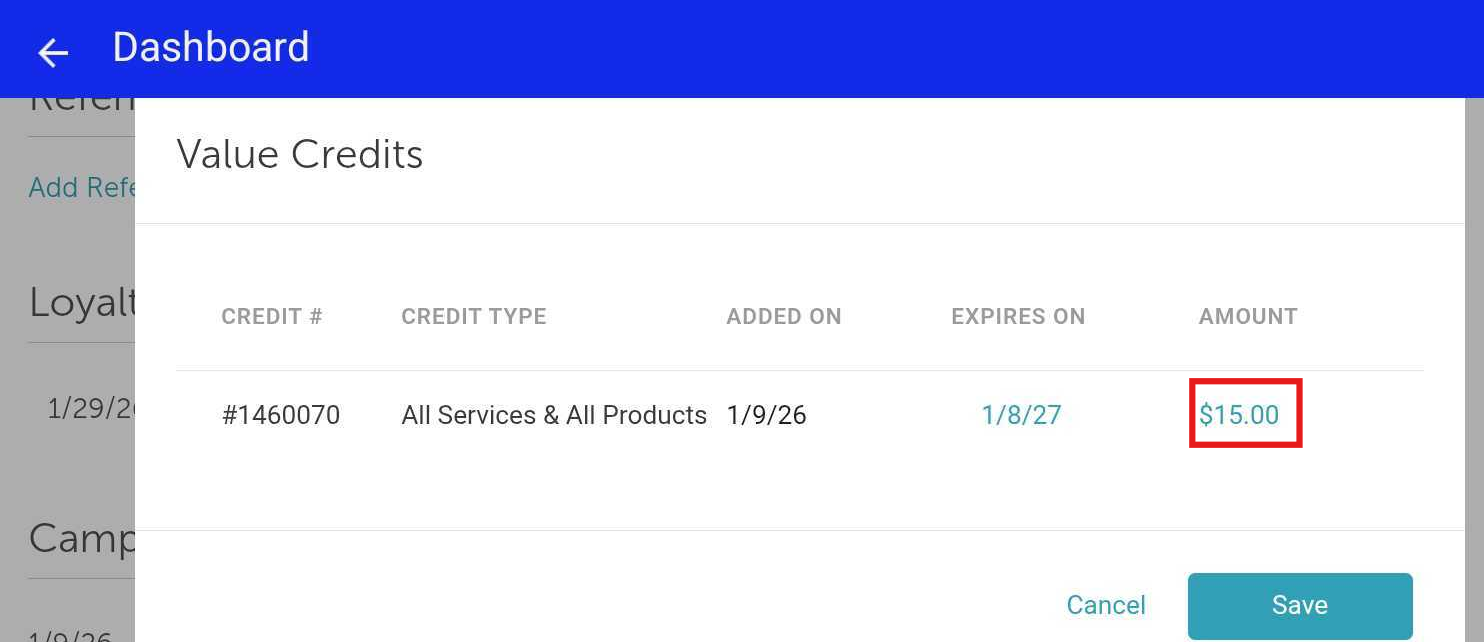
- Click "Save"
Once saved, the changes will be effective for that client after the next successful charge.
For more information, contact us at support@mytime.com or (385) 233-6964.
Related Articles:
- Installing MyTime on Scheduler App (Android and iOS)
- Signing into MyTime on Scheduler App (Android and iOS)
- Editing Memberships on Client Profiles
- Upgrading or Downgrading Memberships on Scheduler App
- Upgrading or Downgrading Memberships
- Freezing and Unfreezing Memberships
- Adding Memberships for Clients on Scheduler App
- Adding Memberships for Clients on Client Profile
Was this article helpful?
That’s Great!
Thank you for your feedback
Sorry! We couldn't be helpful
Thank you for your feedback
Feedback sent
We appreciate your effort and will try to fix the article