This article shows how to update product details in the scheduler app to keep inventory accurate and up to date.
Things to Know:
- The ability to update products in the inventory is governed by the "Accessing Inventory Details" access control setting.
- When SKUs are out of stock or have expired, an alert will appear on the notification bell. Clicking on any of these alerts will open a modal displaying the details of the SKU corresponding to the out-of-stock or expired item
- A product is eligible for sale to clients only if the "Sell to Clients (And Apply Taxes)" checkbox is selected in the edit product details interface in the inventory
- A staff member is eligible for commission on a product sale if the "Commission Eligible" checkbox is selected in the edit product details interface in the inventory
To update products in inventory:
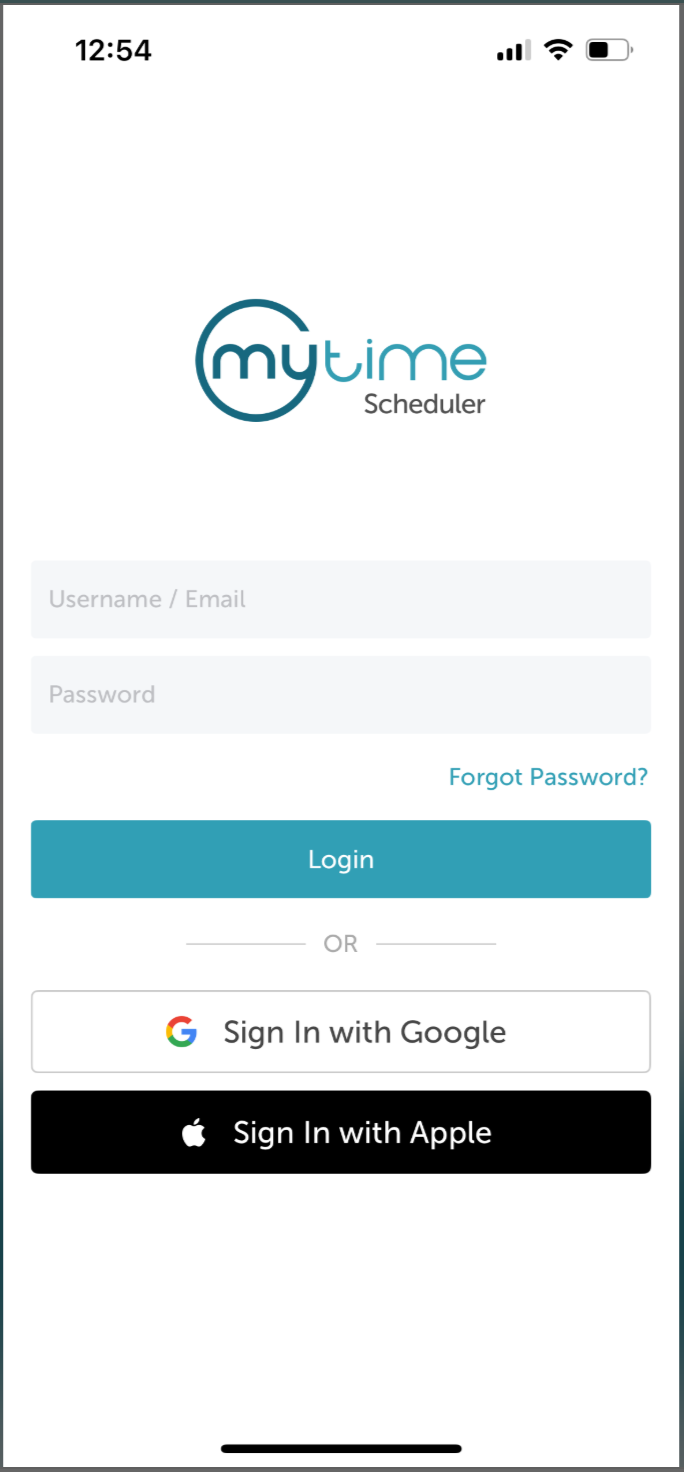
1. Launch the MyTime Scheduler app on your device
2. Choose your login method:
- Standard: Enter your registered email address and password, then tap 'Sign In'
- Social Login: Select 'Continue with Google' or 'Continue with Apple' to use your existing credentials for a faster login experience. For detailed instructions, learn more here
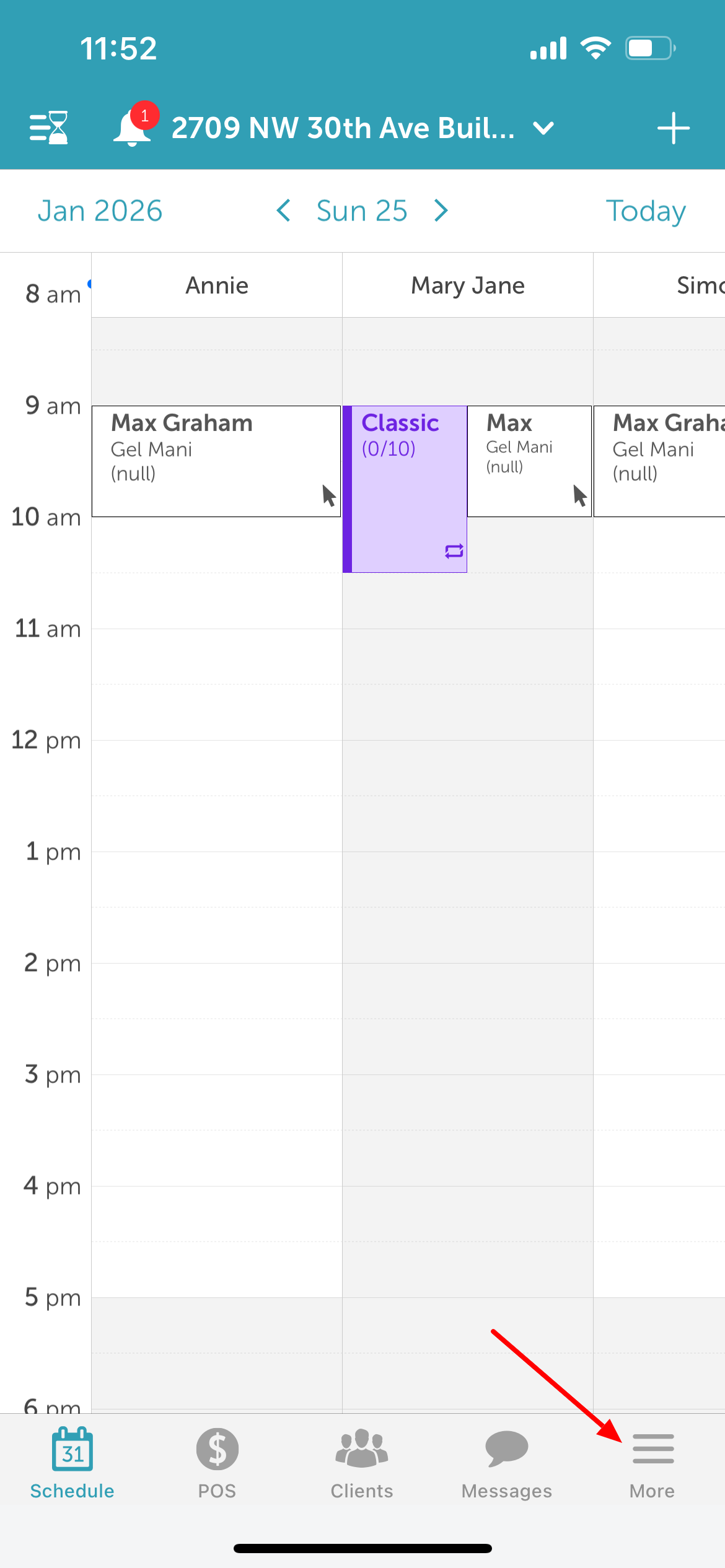
3. By default, you’ll land on the schedule screen
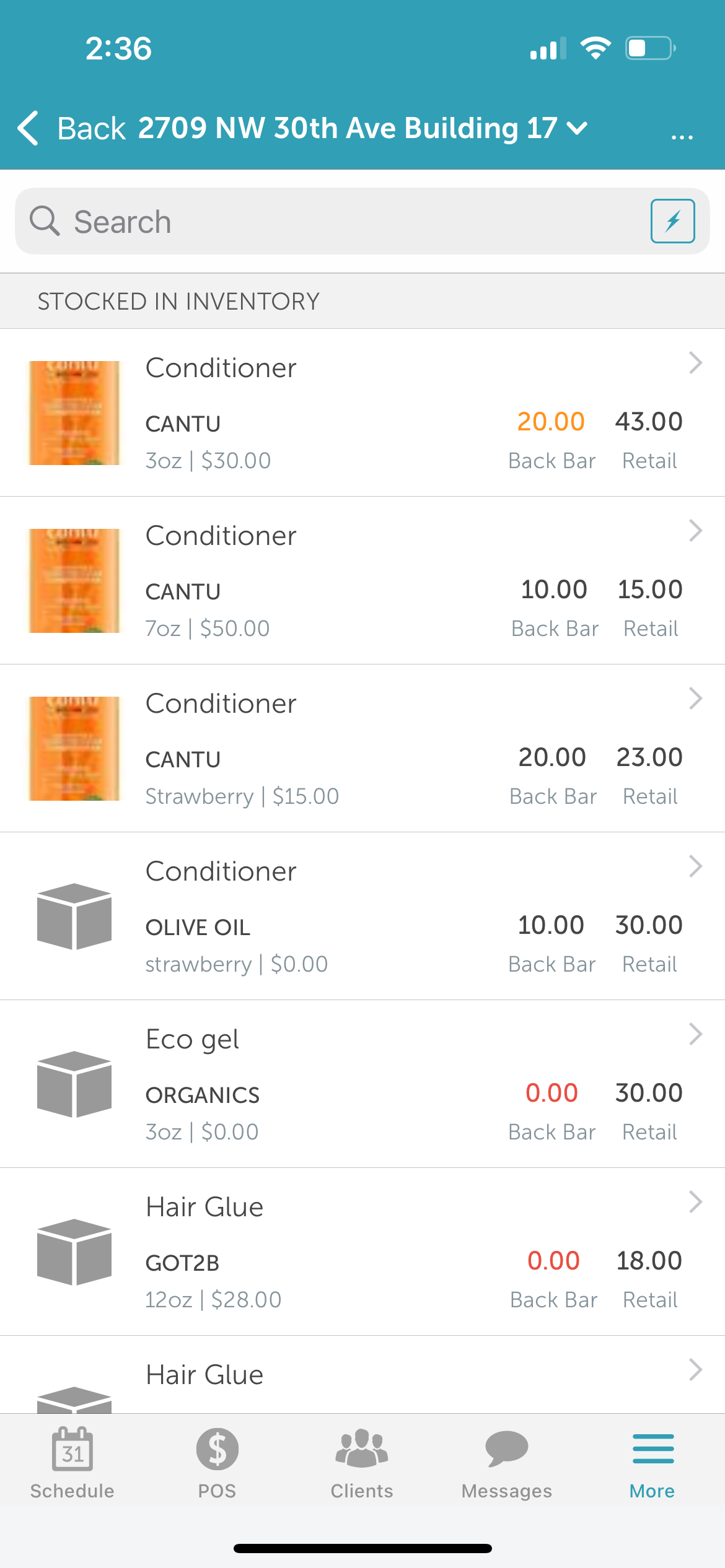
4. Tap 'More' at the bottom of the screen
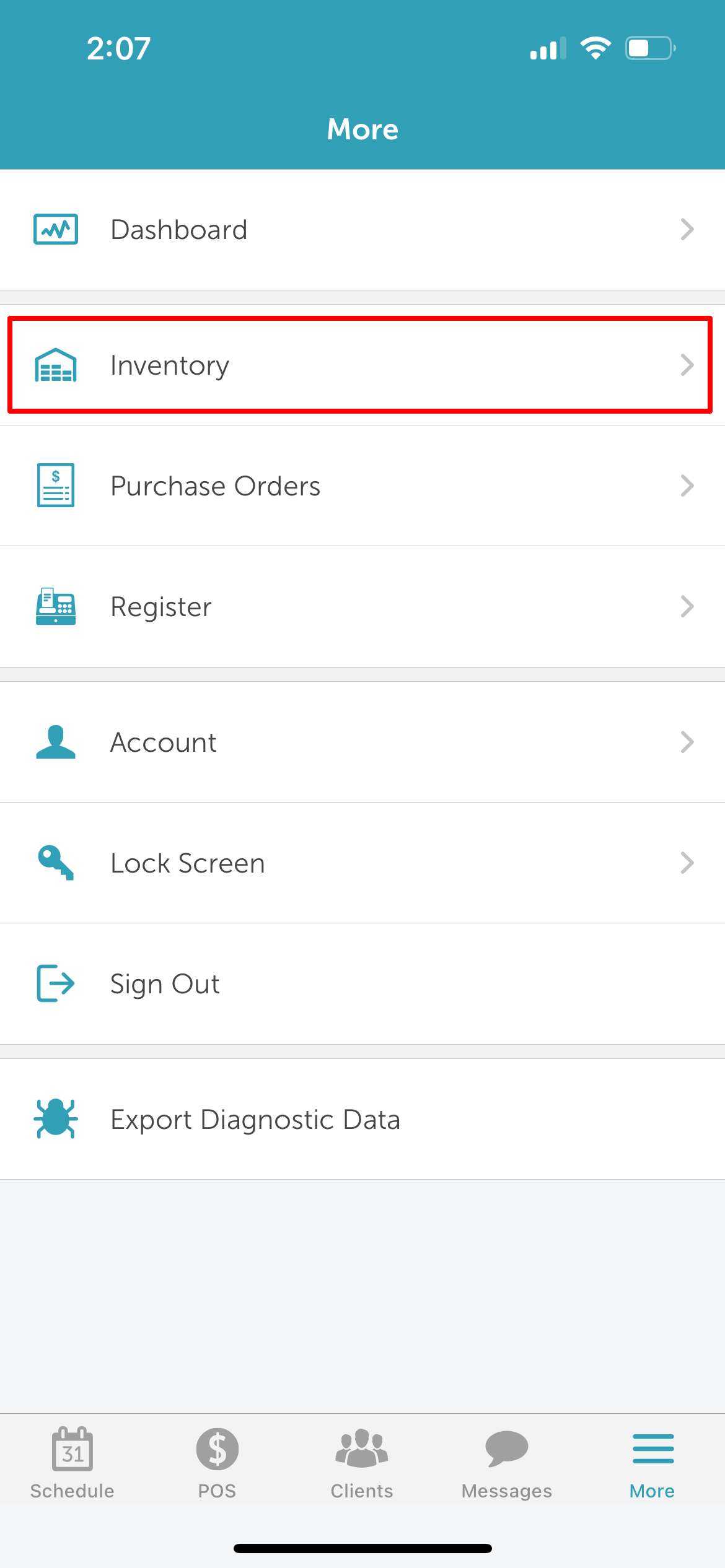
5. Select 'Inventory'
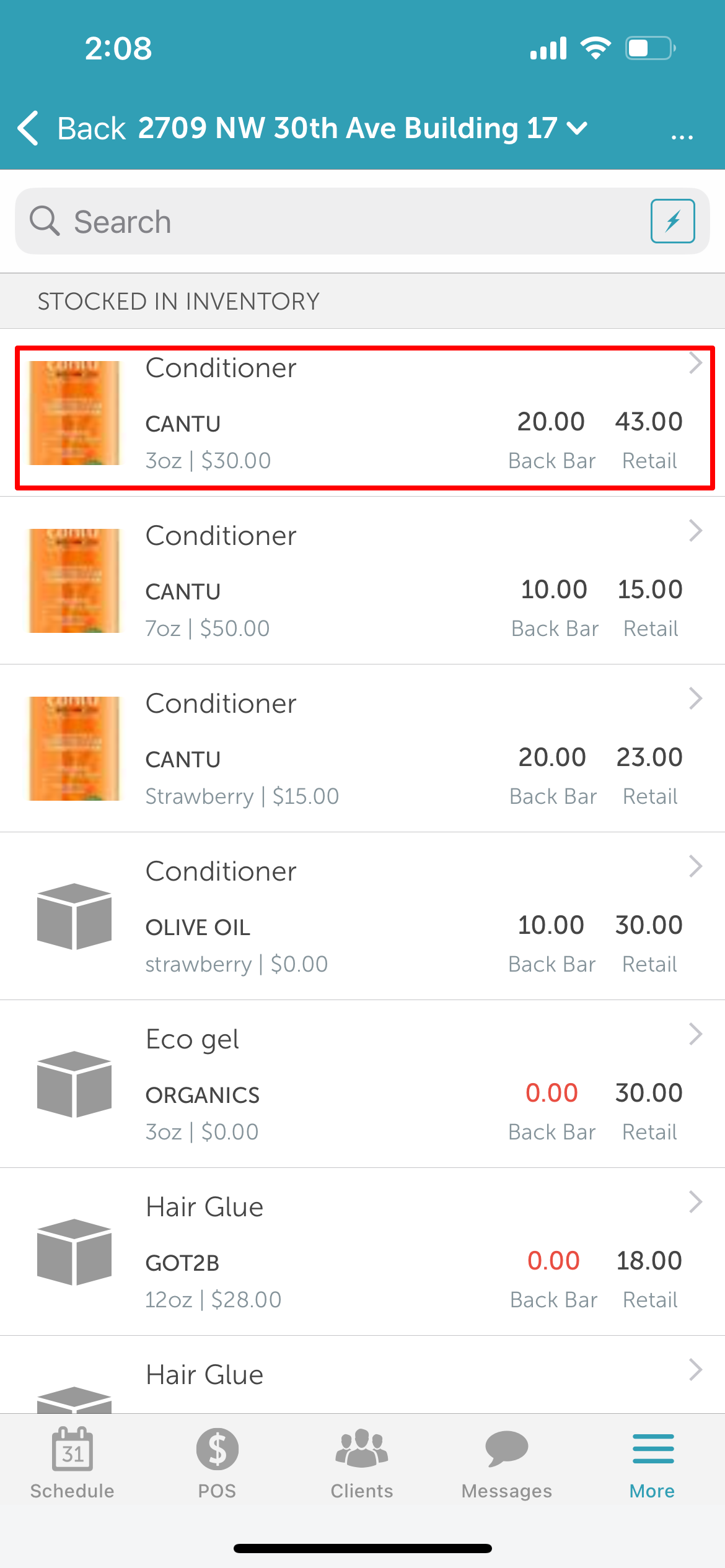
6. Choose the product you want to update
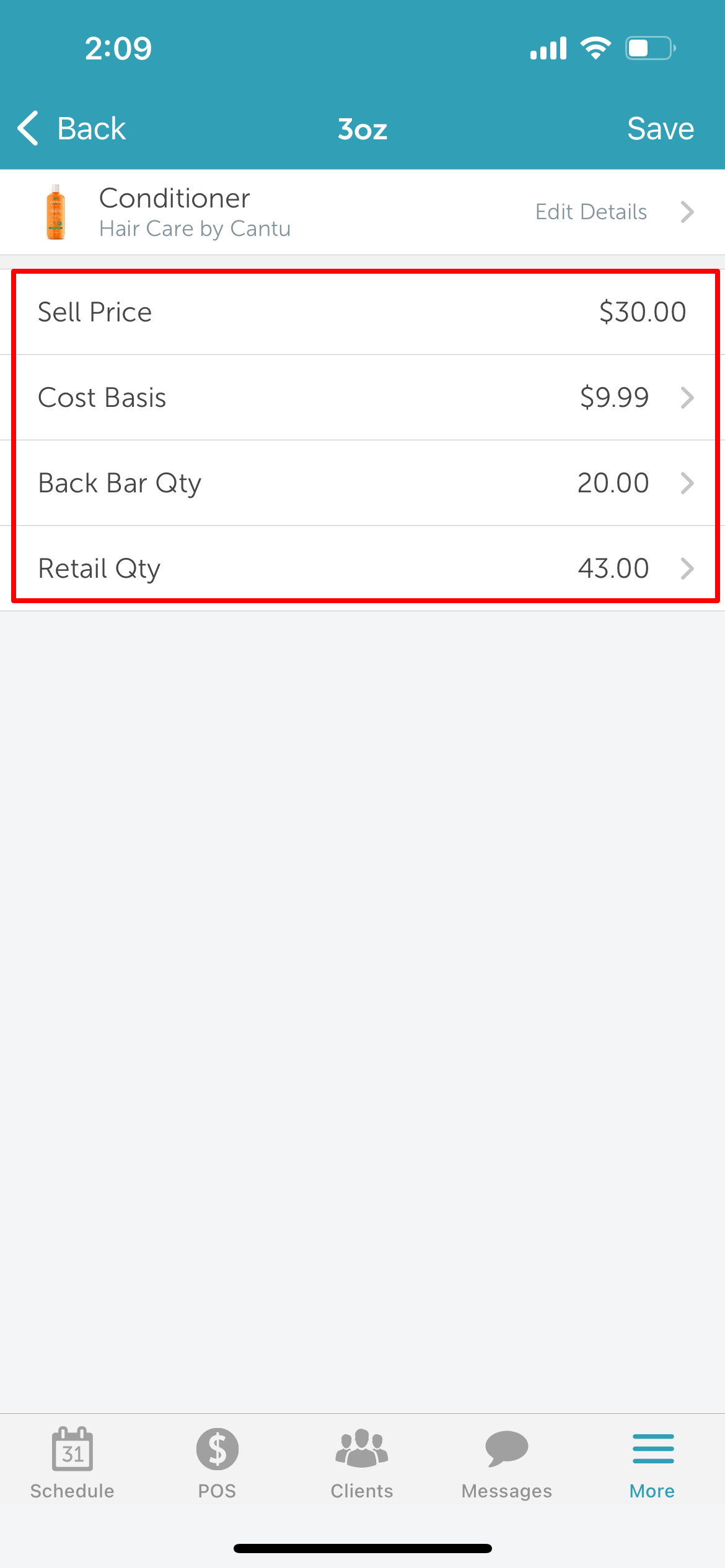
7. From the product details screen, you can:
- Update the selling price
- Edit the cost basis
- Adjust back bar quantity
- Adjust retail quantity
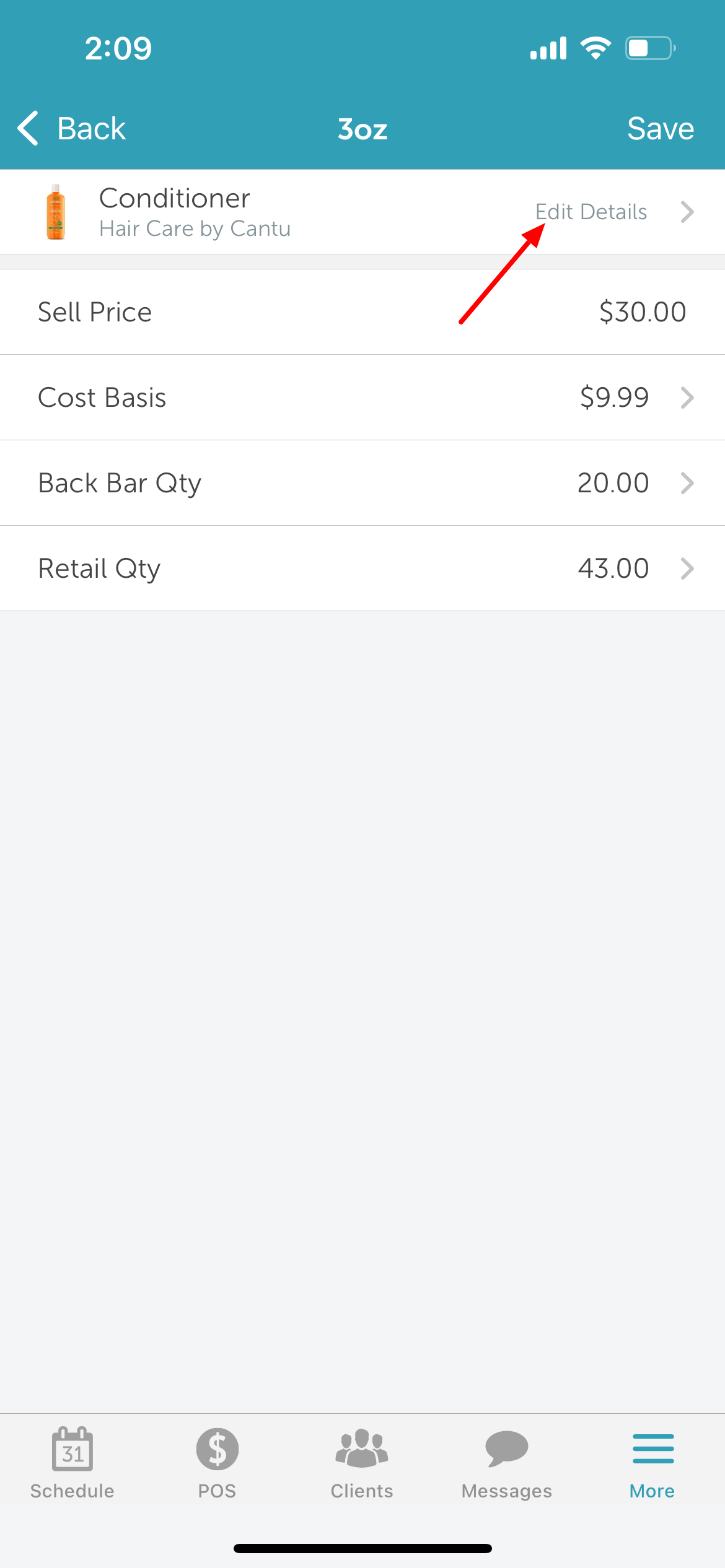
8. Tap 'Edit Details'
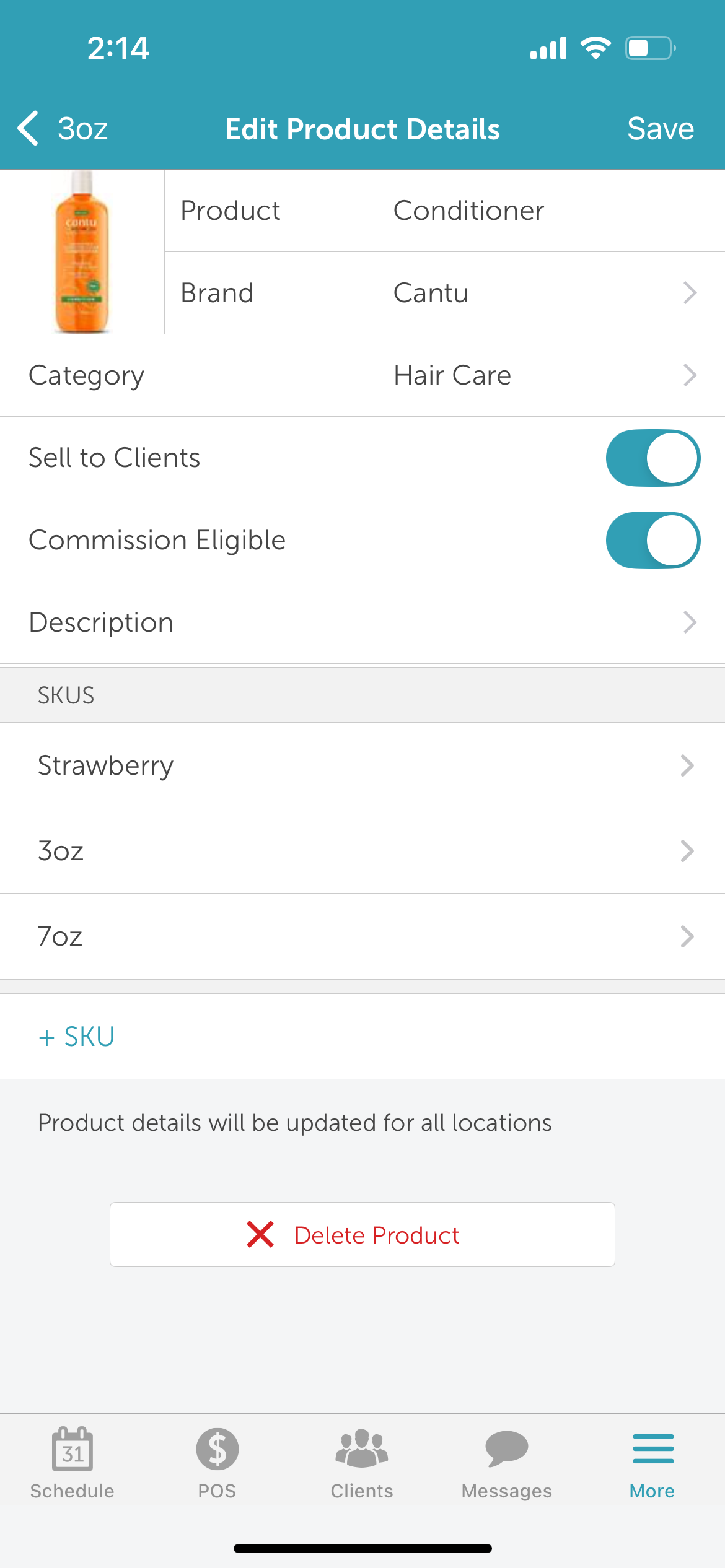
9. From the Edit Details screen, you can:
- Add or update product image
- Edit the product name
- Select or add a brand
- Select or add a product category
- Set whether the product is available for sale in POS
- Set whether employees earn commission for selling this product
- Add or edit a product description
- Add, update, or delete SKUs
- Delete the product
10. Tap 'Save' in the top-right corner
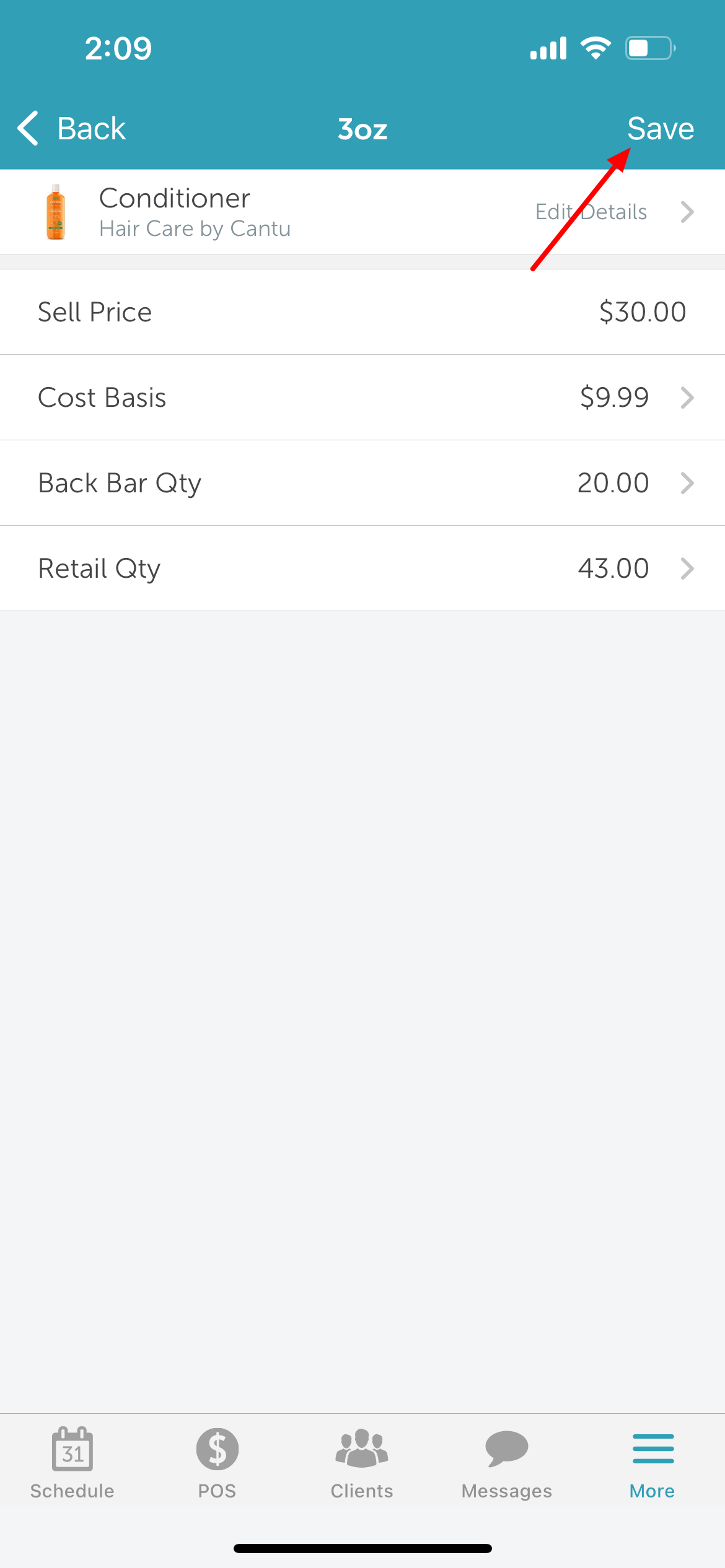
11. Once saved, you’ll be returned to the main Inventory page
For more information, contact us at support@mytime.com or (385) 233-6964
Related Articles:
Installing MyTime on Scheduler App (Android and iOS)
Signing into MyTime on Scheduler App (Android and iOS)
Adding Products to Inventory on Scheduler App
Was this article helpful?
That’s Great!
Thank you for your feedback
Sorry! We couldn't be helpful
Thank you for your feedback
Feedback sent
We appreciate your effort and will try to fix the article