You can update an appointment’s status at any time to reflect its current state. This article outlines the different appointment statuses and how they function on the scheduler app.
Things to know:
The ability to view or change appointment statuses is governed by the "Accessing Appointments" access control setting.
The status of a future appointment cannot be changed to Checked In, No-Show, or Complete.
Status updates may trigger automated notifications to clients and staff, depending on your MyTime settings. Notifications:
Staff Notifications: Assigned staff can receive email, text, or push notifications when an appointment is booked or canceled by either a client or staff member. Notifications are also triggered when an appointment is checked in via the guest app or the scheduler ppp. Notifications are not currently sent for other status updates, such as "Confirmed."
Client Notifications: Clients may receive notifications for status updates, including confirmations, reschedules, price changes, or cancellations, if the corresponding automated message templates are enabled
- When updating an appointment status for multi-pet/family appointments, you will be prompted to choose one of the following options:
- Current: Updates the status only for the currently selected appointment.
- All: Updates the status for all related appointments in the group.
- Close: Dismisses the prompt and leaves the appointment status unchanged.
Contents:
Appointment Statuses
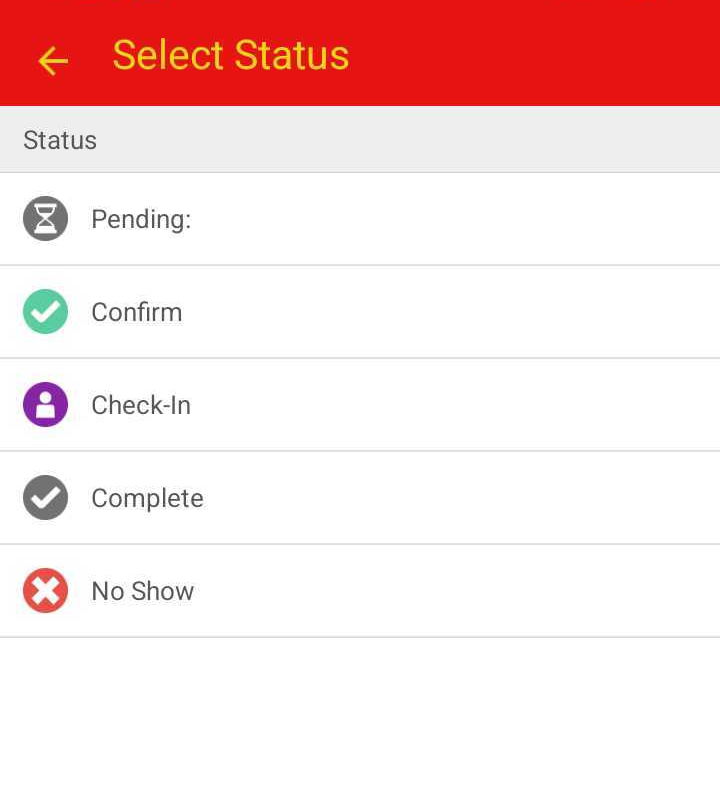
The various appointment statuses are:
- Pending: This indicates an appointment was requested online by a client and is awaiting your approval. This status occurs if the account is configured to "Keep online bookings in a 'pending state' until manually approved." It can also be applied manually by staff to any scheduled appointment.
- Booked - Appointment was booked online by client and automatically accepted, merchant accepted a pending appointment, or the appointment was booked by the staff directly in Scheduler.
- Confirmed - Client confirmed their own appointment via email or SMS or the staff manually changed the status of the appointment to confirmed.
- Check In - Checked In: This status indicates the client has arrived for their appointment. You can manually update the status to "Checked In" via the Scheduler, or the client can check themselves in online.
- Checked Out: Used to signal the end of a visit. This status allows you to monitor service duration by recording the time elapsed between check-in and check-out. Manually selecting "Checked Out" will revert the appointment status to "Booked." However, if the setting "Automatically Check-Out already Checked-In appointments when ticket is closed" is enabled, closing the ticket will automatically update the status to "Completed."
- Completed - The "Change Status to Completed" setting allows you to choose how appointment statuses are marked as Completed in your system. This setting determines when an appointment is considered finished in the schedule. Available Options:
- Automatically, based on service duration: The appointment status will automatically update to Completed once the scheduled service duration has elapsed.
- Automatically, when the ticket is closed: The appointment status will automatically update to Completed as soon as the associated ticket is closed.
- Manually, by updating the status: The appointment status will remain unchanged until you manually mark it as Completed.
- No-Show - Indicates that the client did not show up for their appointment.
- Return to Waiting - The client was moved from the waitlist to in service and you want to add them back to the waitlist
Changing an Appointment Status
To change an appointment status:
- Launch the MyTime Scheduler app on your device
- Choose your login method:
- Standard: Enter your registered email address and password, then tap 'Sign In'
- Social Login: Select 'Continue with Google' or 'Continue with Apple' to use your existing credentials for a faster login experience. For detailed instructions, learn more here
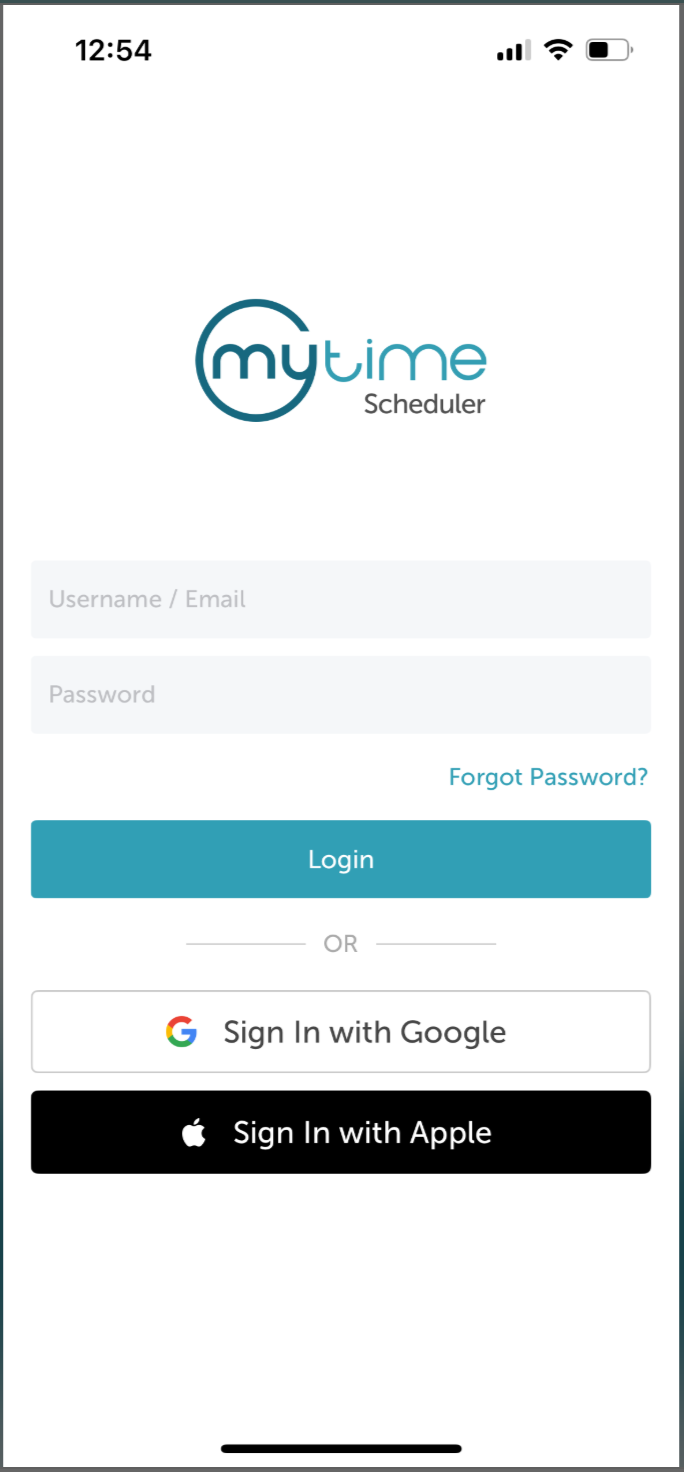
- Once signed in you will be directed to the schedule by default
- Locate the appointment you want to update
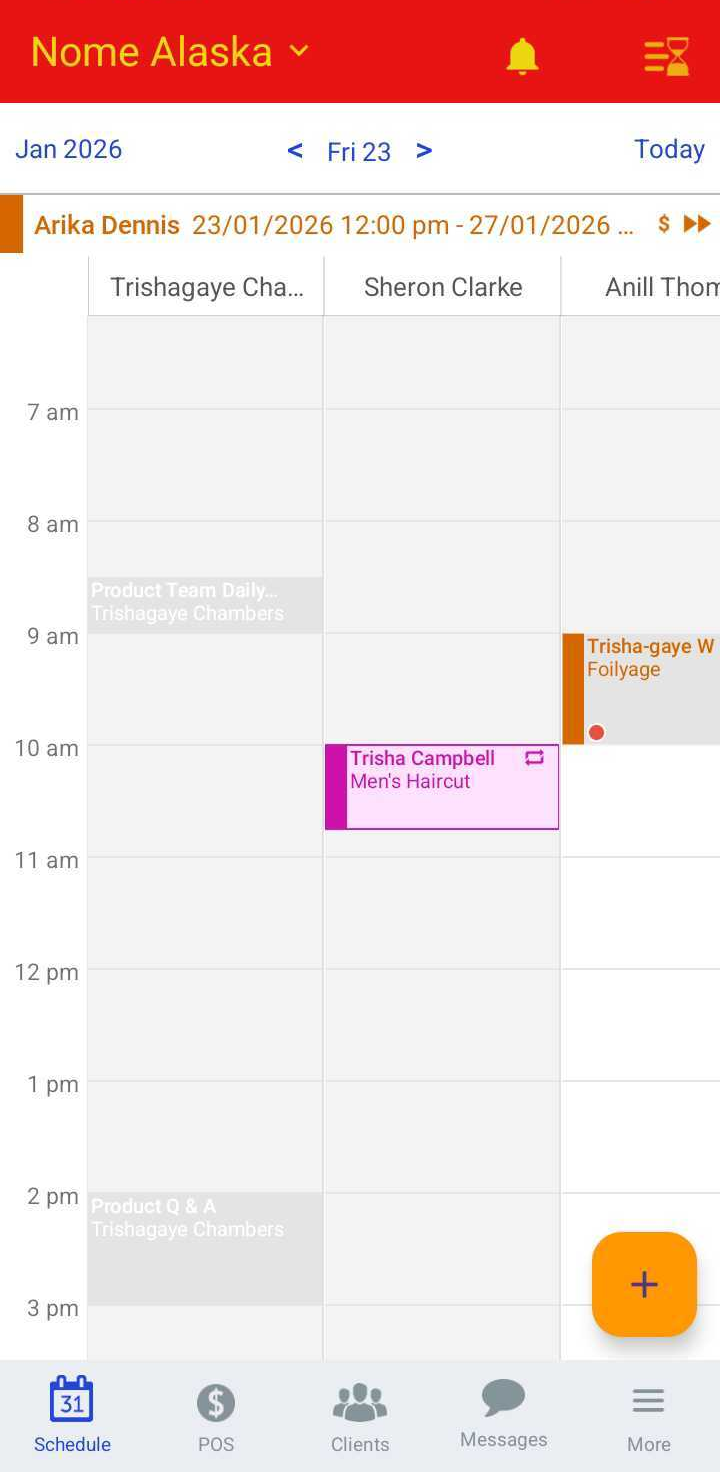
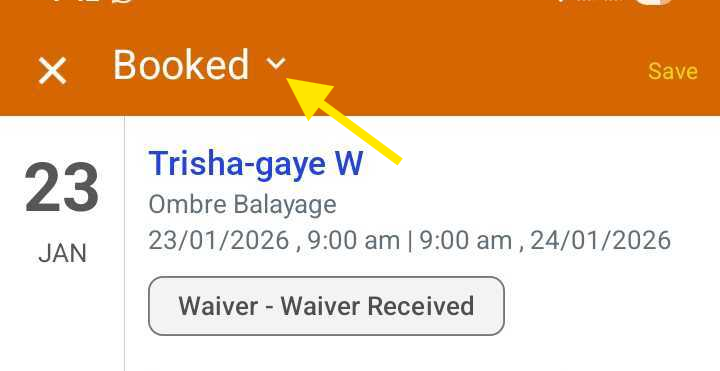
- Open the appointment modal and select the Status dropdown at the top
- Choose the desired status and save the appointment
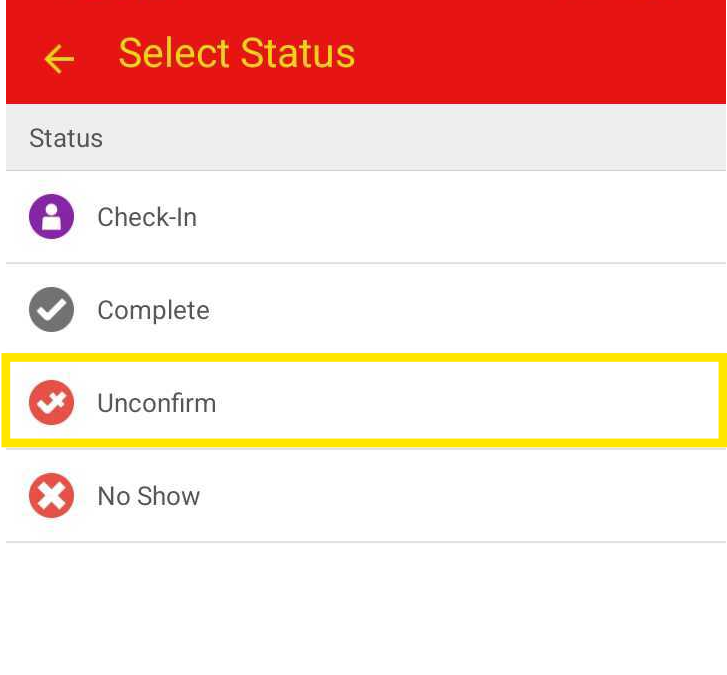
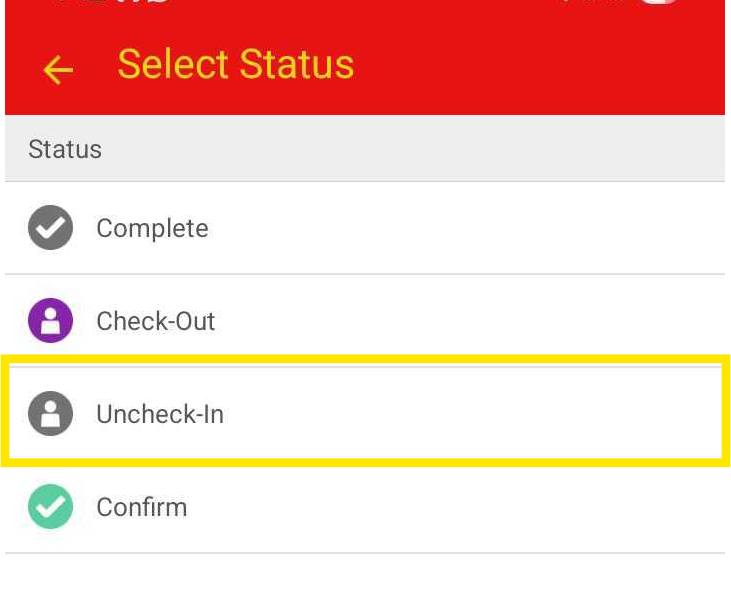
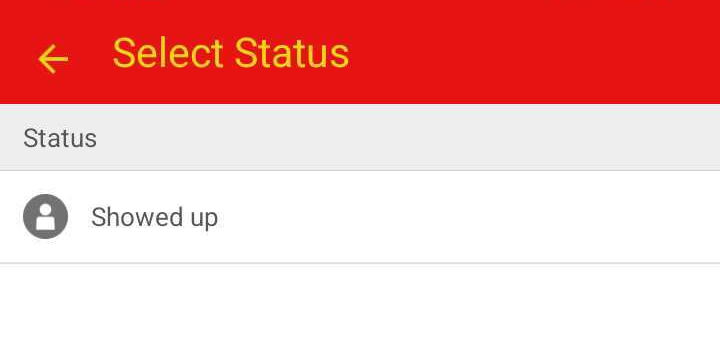
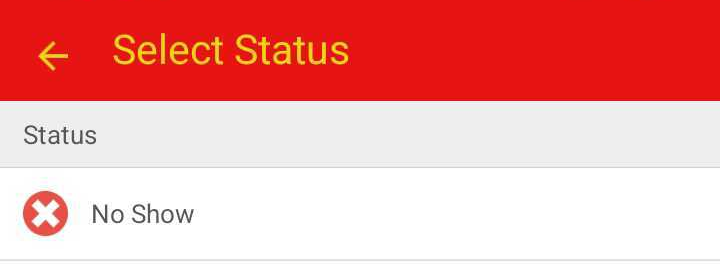
If you change the status of an appointment by accident, you can easily change the status back to the previous status. For example:
- Confirmed can be changed to Unconfirm
- Checked-in can be changed to Uncheck-In
- No-Show can be changed to Showed Up
- Completed can be changed to No-Show and then to Showed Up, which then places the appointment back in the "Booked" status
Related Articles:
- Installing MyTime on Scheduler App (Android and iOS)
- Signing into MyTime on Scheduler App (Android and iOS)
- Appointment Statuses
- Appointment Service Status
- Marking Appointments as No-Show on Scheduler App
- Marking Appointments as No-Show
- Checking In Appointments on Scheduler App
- Self-Check-In for Appointment on Guest App
- Appointment Check In via Kiosk
- Appointment Labels
- Appointment Icons & Buttons
Was this article helpful?
That’s Great!
Thank you for your feedback
Sorry! We couldn't be helpful
Thank you for your feedback
Feedback sent
We appreciate your effort and will try to fix the article