Items added to POS tickets can be shown to clients on the display screen of Ingenico credit card terminals. Some jurisdictions may even require this to be done by law. This will guarantee that each item's price, which the client must pay for, is clearly presented when the price is interpreted by the system. In this article, we will walk through how this can be accomplished.
Things to know:
- This feature is only available to merchants who have a Global Payments payment account and use Ingenico terminals. You can see the full list of supported hardware at https://mytime.com/hardware.
- When a ticket is adjusted, a display prompt showing the description, price, and quantity of each item will appear. Taxes, discounts, and the total will be displayed separately.
- When the ticket is closed or you navigate away from the point of sale, the terminal will automatically clear the display.
- Live Payment Terminal Status Indicators:
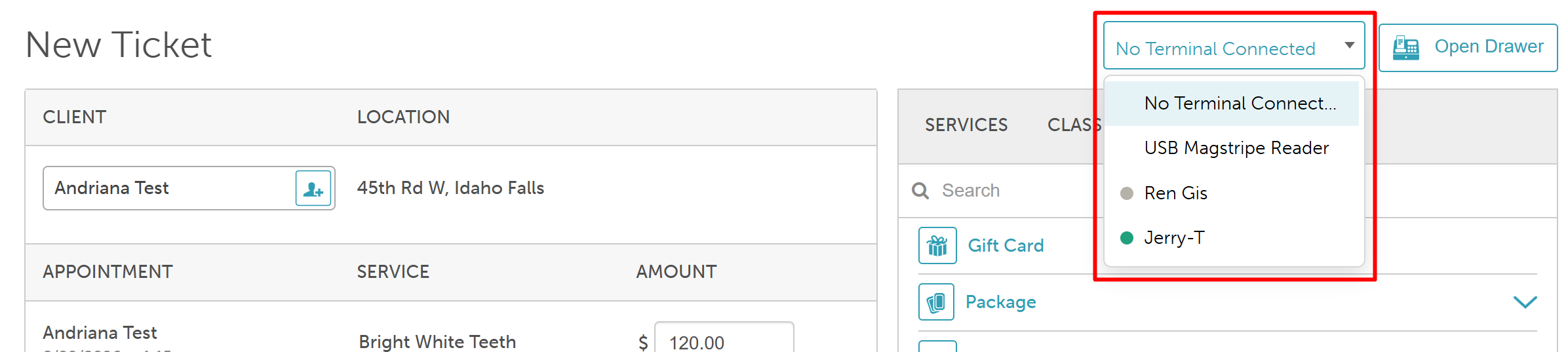
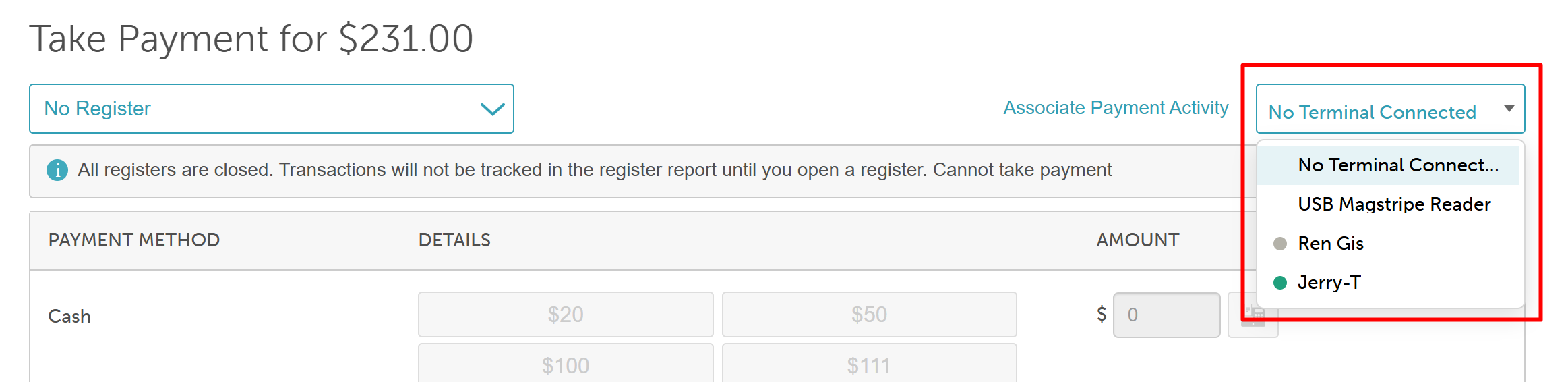
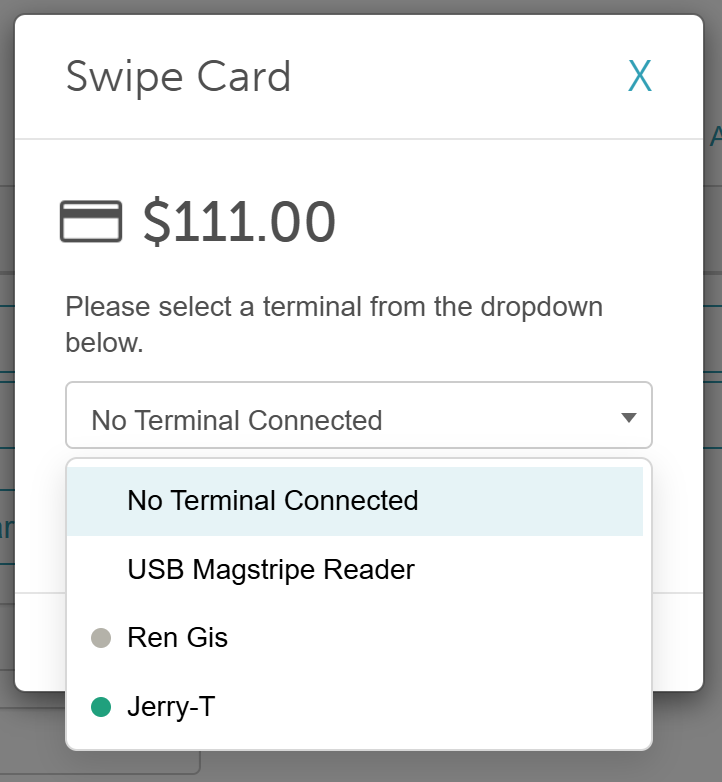
- When selecting a payment terminal in POS, a live status dot appears next to the selected terminal and within the terminal dropdown. Statuses refresh automatically every minute, giving staff immediate visibility into whether a device is reachable before initiating a charge.
- Green (Online): Terminal is connected and reachable.
- Grey (Unreachable): Terminal status is offline or unreachable.
- Note: The status indicators are informational only. Staff members can still select and attempt a charge on a terminal marked grey/unreachable if needed.
- When selecting a payment terminal in POS, a live status dot appears next to the selected terminal and within the terminal dropdown. Statuses refresh automatically every minute, giving staff immediate visibility into whether a device is reachable before initiating a charge.
Contents:
Enable Display Card Details on Ingenico Terminals Setting
- Navigate to Business Setup > Settings
- Locate the POS section
- Toggle the "Display Cart Details On Ingenico Terminals" setting
- Save

Display Card Details on Ingenico Terminals
- Navigate to POS > New Ticket
- Select your desired location
- Add items to the ticket
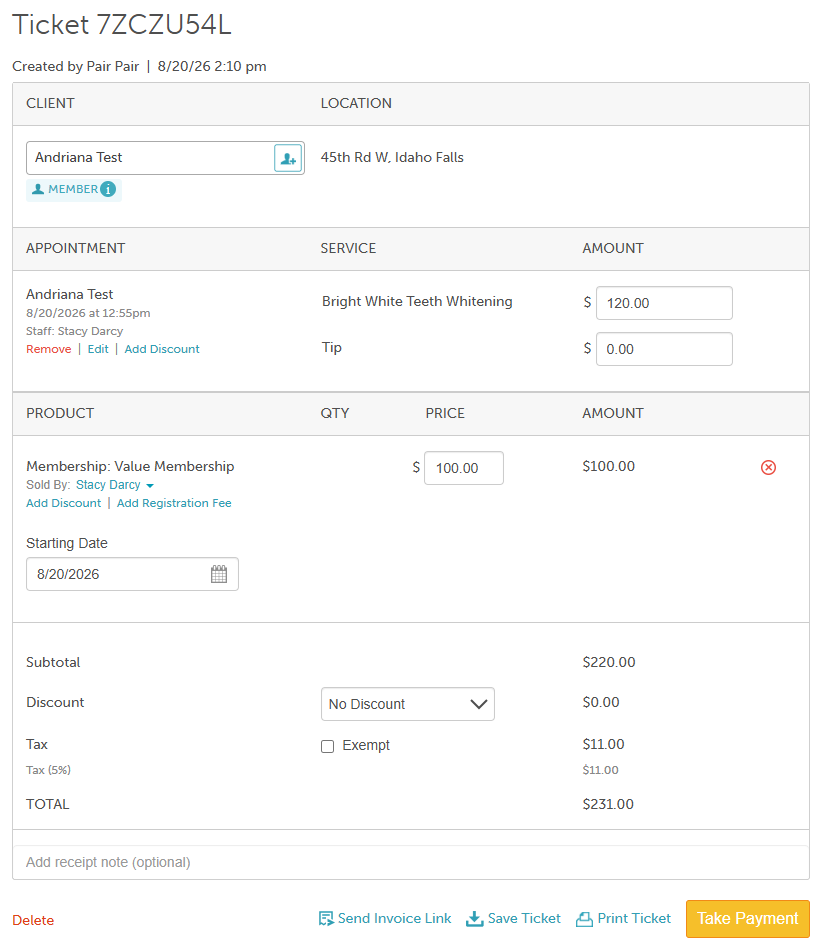
- Select your desired terminal using any of the three methods below. A status indicator appears next to each terminal name:
- On the new ticket page by expanding the terminal dropdown menu in the upper right-hand corner of the page
- On the 'Take Payment' page by expanding the terminal dropdown menu in the upper right-hand corner of the page
- Clicking the 'Swipe Card' button > On the 'Swipe Card" modal
- On the new ticket page by expanding the terminal dropdown menu in the upper right-hand corner of the page
- Select the Take Payment button
- A prompt on the terminal will display the description, price, and quantity of each item. Taxes, discounts, and the total will be shown separately
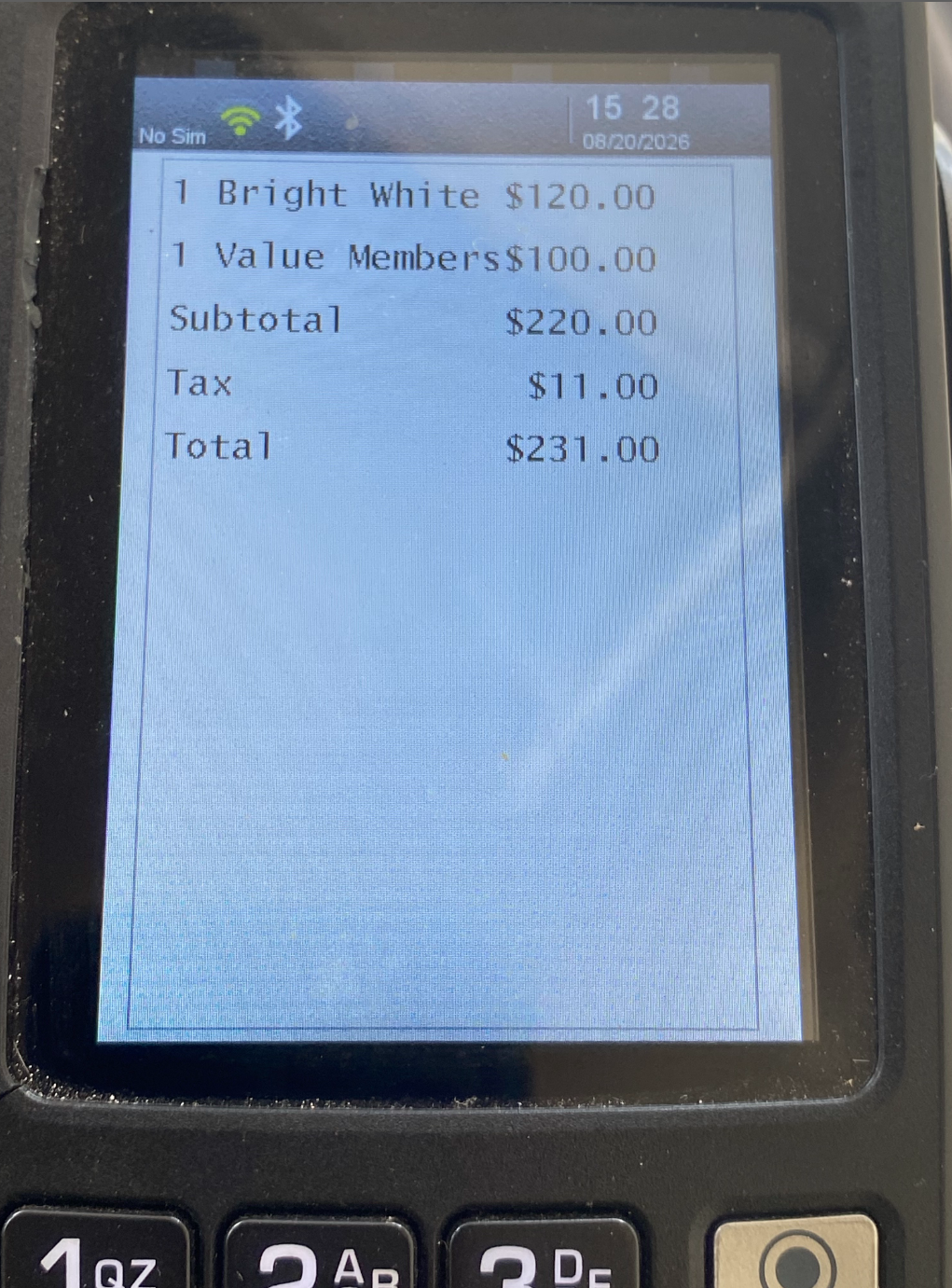
- Swipe or Key-In Card
- Close the ticket
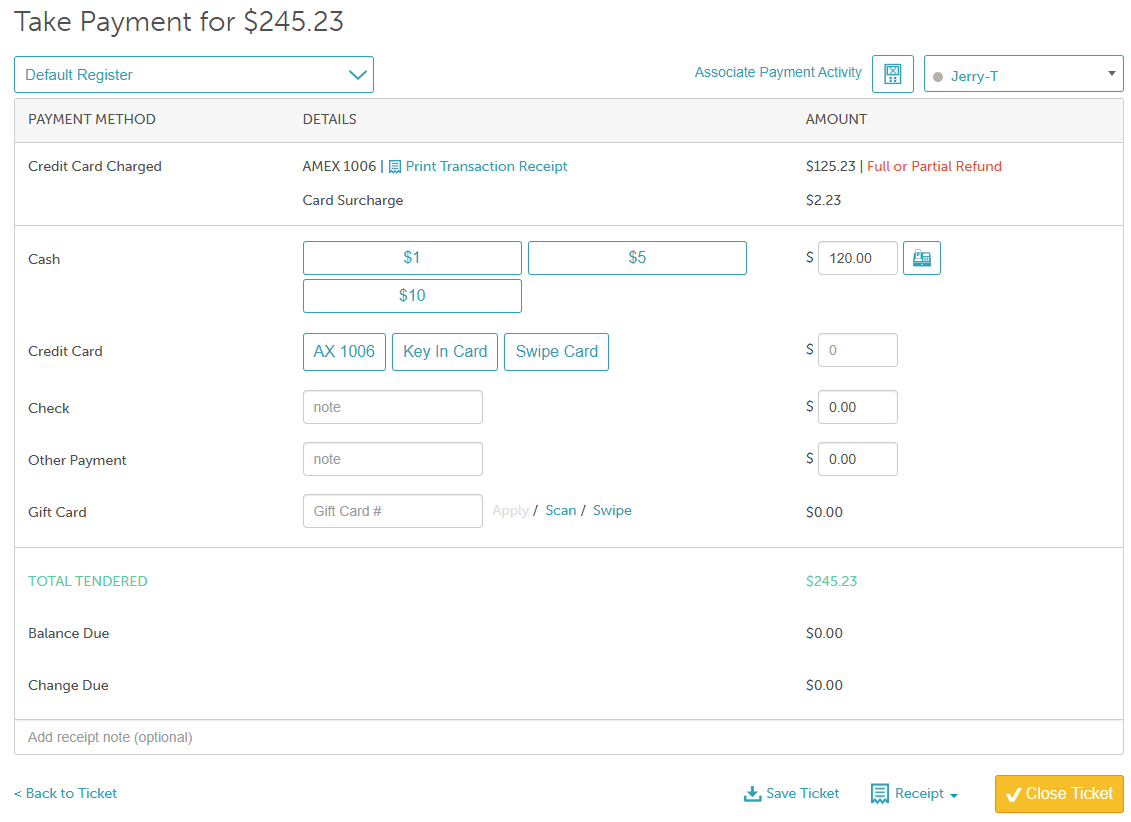
Whenever you navigate away from the POS or when the ticket is closed, the terminal will automatically clear. You can manually clear the terminal screen in all other circumstances by pressing the "Clear Terminal Screen" button in the upper right-hand corner of the page.

For more information, contact us at support@mytime.com.
Related Articles:
Was this article helpful?
That’s Great!
Thank you for your feedback
Sorry! We couldn't be helpful
Thank you for your feedback
Feedback sent
We appreciate your effort and will try to fix the article