When a client purchases a gift card online, the recipient receives an email containing the gift card details. The gift card can then be redeemed in-store through multiple methods. This article outlines how to redeem gift cards using POS.
Things to know:
The ability to redeem gift cards in-store through POS on the scheduler app is governed by the Creating Tickets access control setting.
Clients can redeem a gift card by presenting one of the following:
- The original email containing the gift card details, a printed copy of the gift card (if scanning the QR code), or the gift card code directly.
- Staff members can also look up the gift card code using the Gift Card Balance report.
A gift card can be applied to any client’s purchase as long as the gift card code is available.
The Gift Card section on the client’s profile displays each card’s remaining balance.
The Audit Trail shows detailed usage history and redemption activity for each gift card.
The Gift Card Balances report lists the current balance of all active gift cards.
The Gift Card Activity report provides a complete record of all gift card transactions and usage details.
By default, payment buttons may lack visual prominence, making it difficult for staff to quickly identify the primary payment method. This can lead to selecting incorrect options or improper transaction processing. You can request a layout change that reorders the buttons and highlights the primary action in blue for better visibility.- Default Display:
- No Card on File: [Key In Card] [Swipe Card]
- Card on File: [Visa ****1234] [Key In Card] [Swipe Card]
- Enhanced Display (High Visibility):
- No Card on File: [Swipe/Tap Card] (Highlighted) [Manual Entry]
- Card on File: [Visa ****1234] (Highlighted) [Swipe/Tap] [Manual Entry]
- Important: This is controlled by a hidden setting that must be enabled by the MyTime team. If you would like to switch to the high-visibility payment buttons, please contact us at support@mytime.com
On the Take Payment page, a "Max" button is available next to the Other Payment field. Clicking this button automatically fills the field with the remaining balance due. Example: If a client’s total is $100 and $60 has already been paid by credit card, clicking "Max" will automatically enter the remaining $40 in the Other Payment field.
To redeem a gift card in POS, simply:
1. Navigate to POS > New Ticket
2. Add a client
3. Select the location from the drop-down menu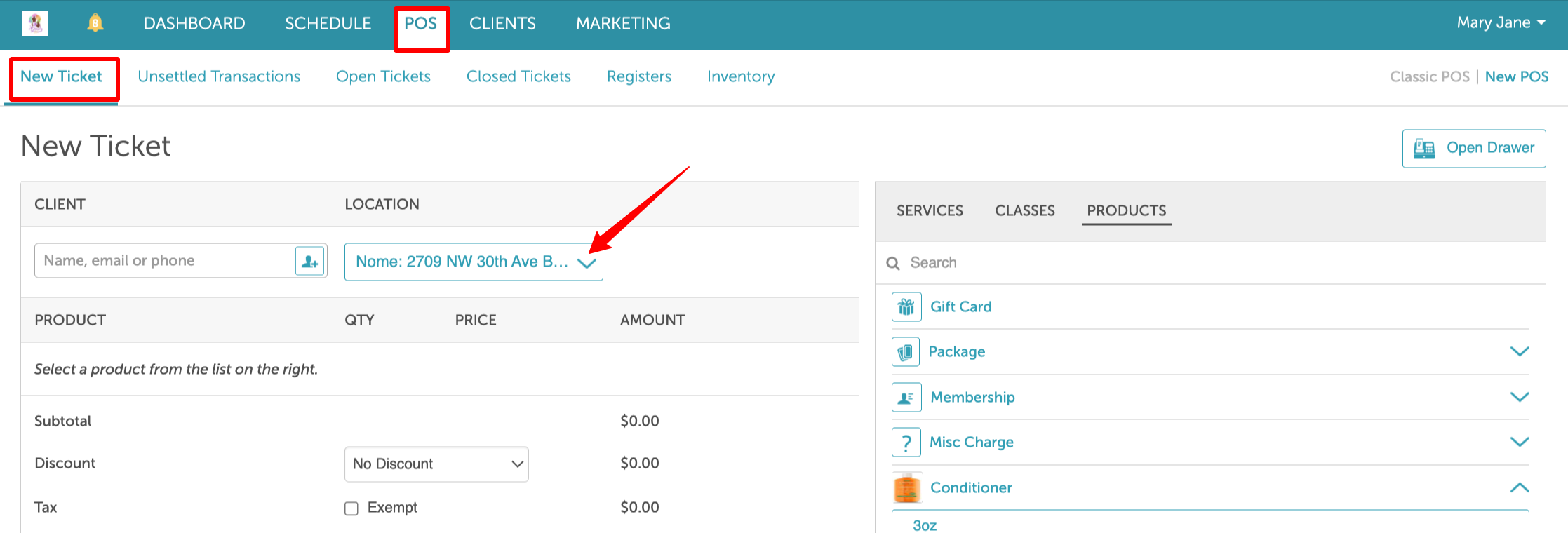
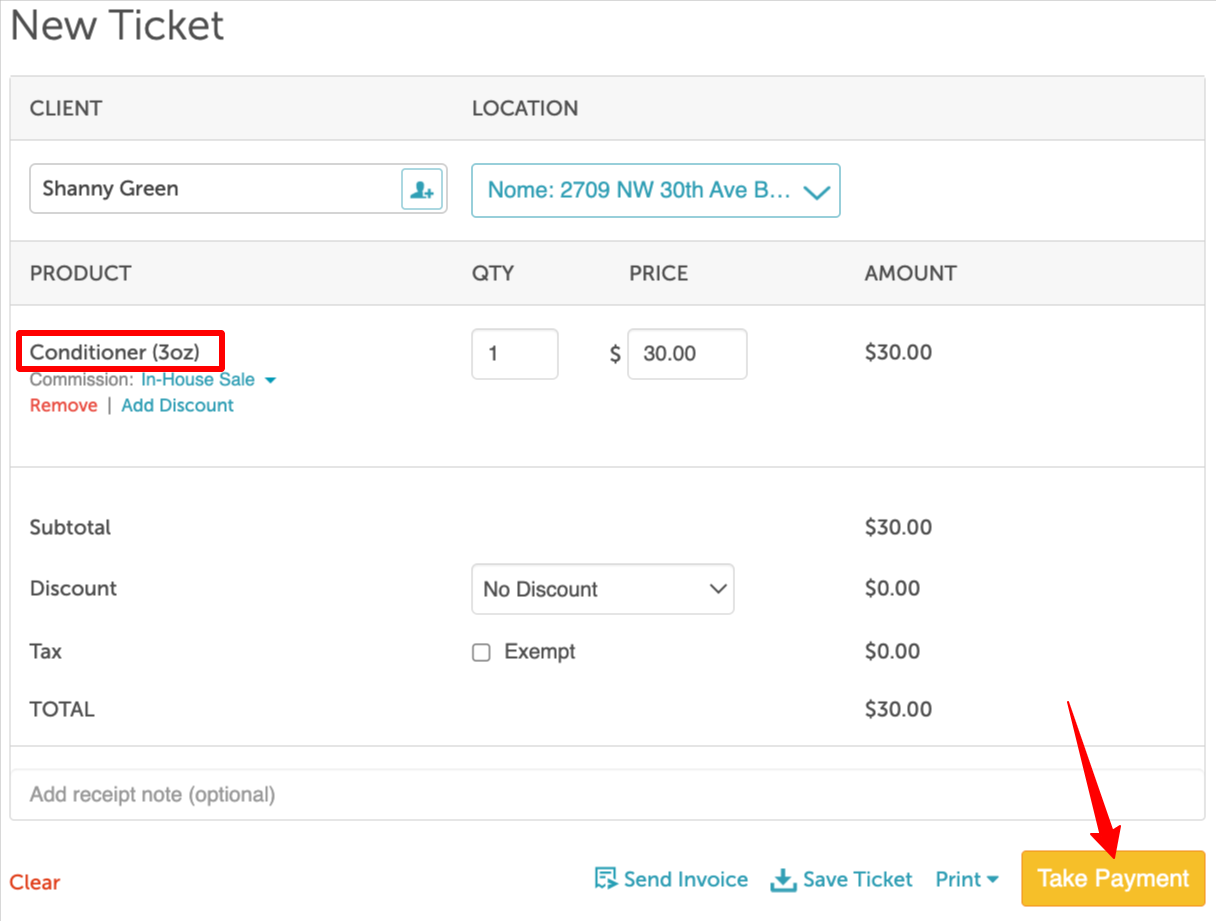
4. Add the item(s) to the ticket
5. Click Take Payment
 6. On the payment screen:
- Click Scan next to the Gift Card option to scan the QR code with a barcode scanner, or manually enter the gift card code
- Enter the amount to apply to the ticket, then click Apply
 7. Close the ticket

Once the ticket is closed, a confirmation will appear at the top of the screen.

If you have any questions, please contact our Support Team at support@mytime.com.
Related Articles: