MyTime allows you to print the agenda, displaying all appointments and classes scheduled for a specific day. This article will guide you through the process of printing the agenda.
Things to Know:
- The ability to print the agenda is controlled by the "Accessing Appointments" access control permission
- When the Print Agenda link is selected, the schedule will automatically switch to Agenda View for a more organized display.
- The agenda view presents a chronological list of all bookings and blockages scheduled for any given day. In the agenda view, appointments can be displayed in a sorted order. This is controlled by the "Show Appointments in Agenda View Sorted by Start Date/Time" setting.
- Appointments are primarily sorted by start time, then by end time, with earlier-ending appointments listed first. Learn more here
- For appointments with identical start and end times:
- Family member appointments are sorted by the family member's first name.
- Pet appointments are sorted by the pet's name.
- Other appointments are sorted by the client’s first name, then last name.
- Add-ons for multi-day services appear on the schedule at their scheduled date and time.
- In agenda view, add-ons are listed above completed appointments but below other appointments.
- Appointments with a "checked-out" or "completed" status appear at the very bottom of the list.
- If the agenda does not print correctly, try enabling background graphics in your browser's print dialog box. This option helps ensure the agenda's layout and style are properly rendered on paper.
- Visual Design & Brand Accents
- Appointments appear as clean, defined cards set against a simplified calendar grid.
- Action buttons, highlights, and the selected date inherit your business colors from Dashboard Color Settings (falling back to standard MyTime blue if no custom colors are set). Backgrounds and grid dividers remain neutral for clean contrast.
- Very light or pale custom brand colors are automatically deepened in tone to keep all on-screen text legible and accessible.
- Toolbar & Navigation
- The calendar date remains centered in the main view for quick orientation.
- Tap Today to return instantly to the current day, or click the adjacent arrow icon to jump forward anywhere from 1 to 8 weeks.
- Filters for location, staff members, and resources sit in a dedicated row directly beneath the primary toolbar.
- On smaller screens, filter controls tuck neatly into a collapsible sidebar menu while the date display remains centered.
- Squished View (Full-Day Single-Screen View): Adjacent to the Today button, two Squished View controls allow you to view an entire day without vertical or horizontal scrolling:
- Squish Columns: Compresses staff columns horizontally to fit your full roster on one screen.
- Squish Rows: Compresses hourly time slots vertically so the entire business day fits into the window without scrolling down.
- Appointment Cards & Hover Previews
- Each card highlights the client name (or pet name and breed), the assigned service, and the service provider using your designated service color.
- Hover your cursor over any card to view client notes, full booking details, and pet profile photos without clicking into the appointment.
- Hover cards automatically close whenever you scroll the underlying calendar grid.
- Keyboard & Accessibility Controls
- Use the Tab key to jump between appointment cards and press Enter to open any selected booking.
- The Today button and date navigation arrows can be activated using Enter or Spacebar.
- Date shifts, navigation triggers, and calendar status changes are fully voiced by assistive screen readers.
To print the agenda:
1. Go to the schedule
2. Filter by the desired date, location, and staff 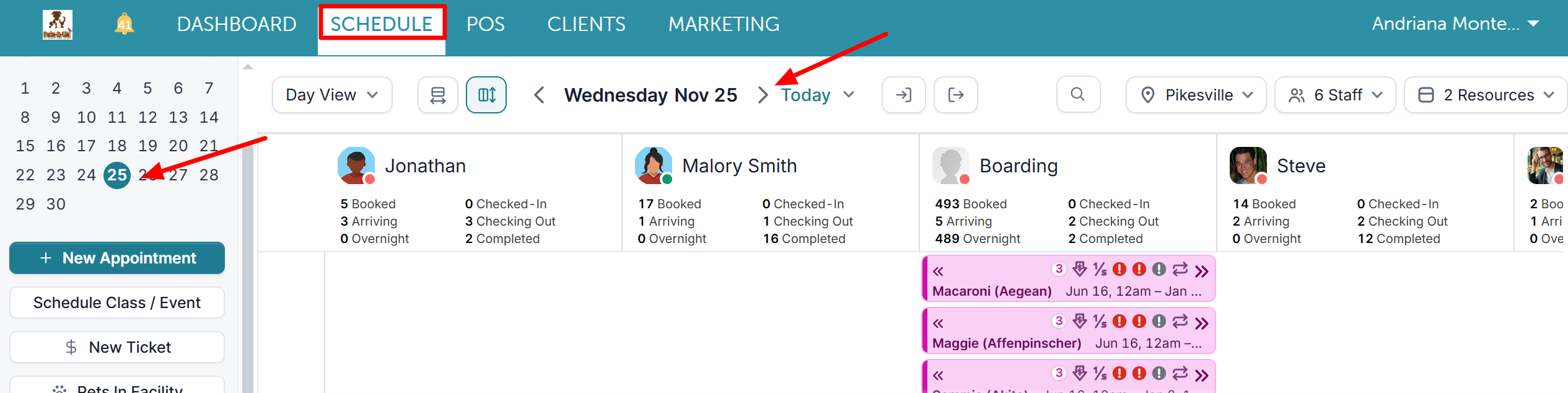
3. Click on the "Print Agenda" hyperlink located at the bottom of the screen, beneath the schedule buttons 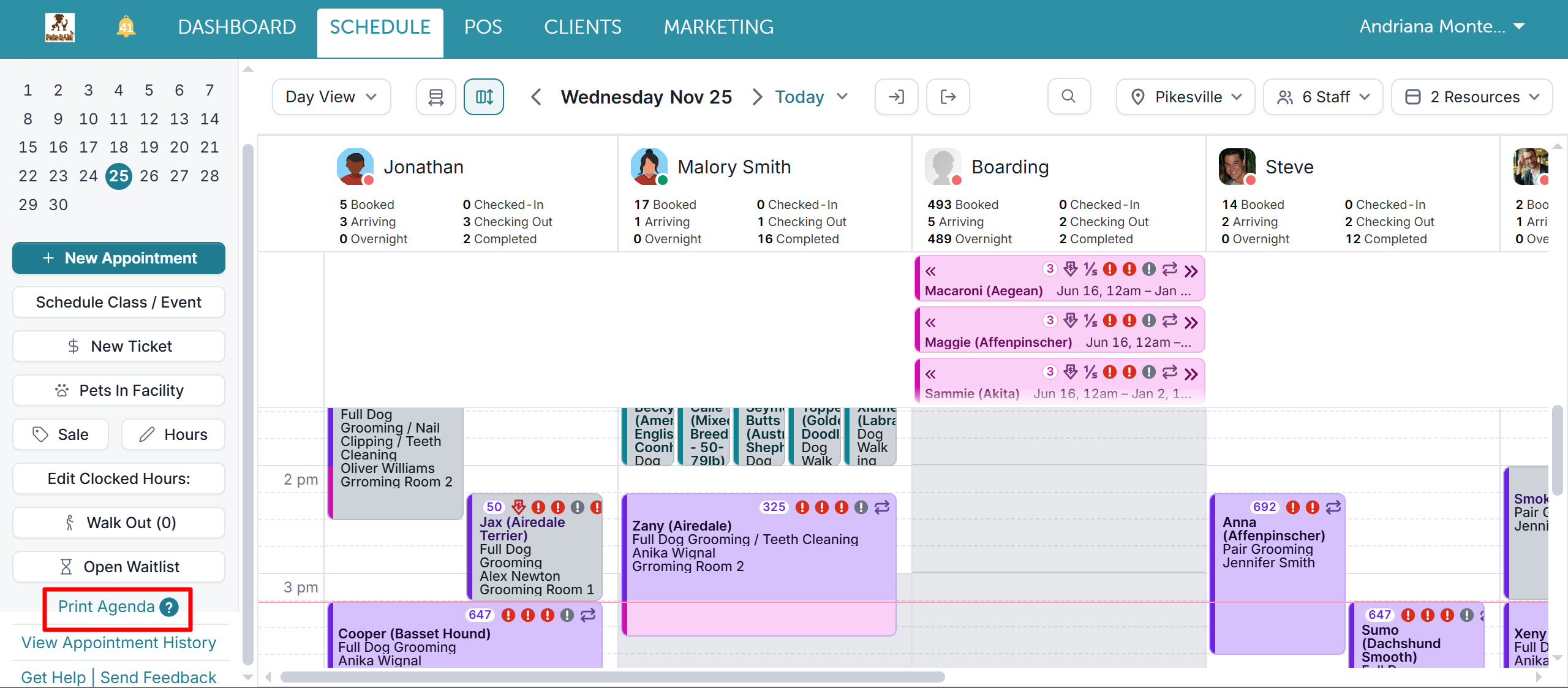
4. A print modal will appear. Set your printing preferences and select your preferred printer.
5. Click "Print"

For more information, contact support@mytime.com.
Related Articles:
Scheduling Appointments for Clients
Scheduling Appointments for Pets
Scheduling Appointments for Family Members
Filter Schedule By Day, Week, Month, Agenda, Split & Resource View
Was this article helpful?
That’s Great!
Thank you for your feedback
Sorry! We couldn't be helpful
Thank you for your feedback
Feedback sent
We appreciate your effort and will try to fix the article