MyTime allows you to filter appointments on the scheduler by client, family member, or pet, but only from events that are visible on the screen.
Things to know:
- The ability to search for appointments on the schedule is controlled by the "Accessing Appointments" access control permission.
- Only the Agenda and Day views display the search box. It does not appear in the Week, Month, or Split views.
- The search box is only visible on the desktop. It does not appear in mobile or tablet mode
- You can search by client information (email, phone, name) or the name of a family member, pet, or vehicle.
- The format of the results will be Client Name (Pet/family member/vehicle Name)
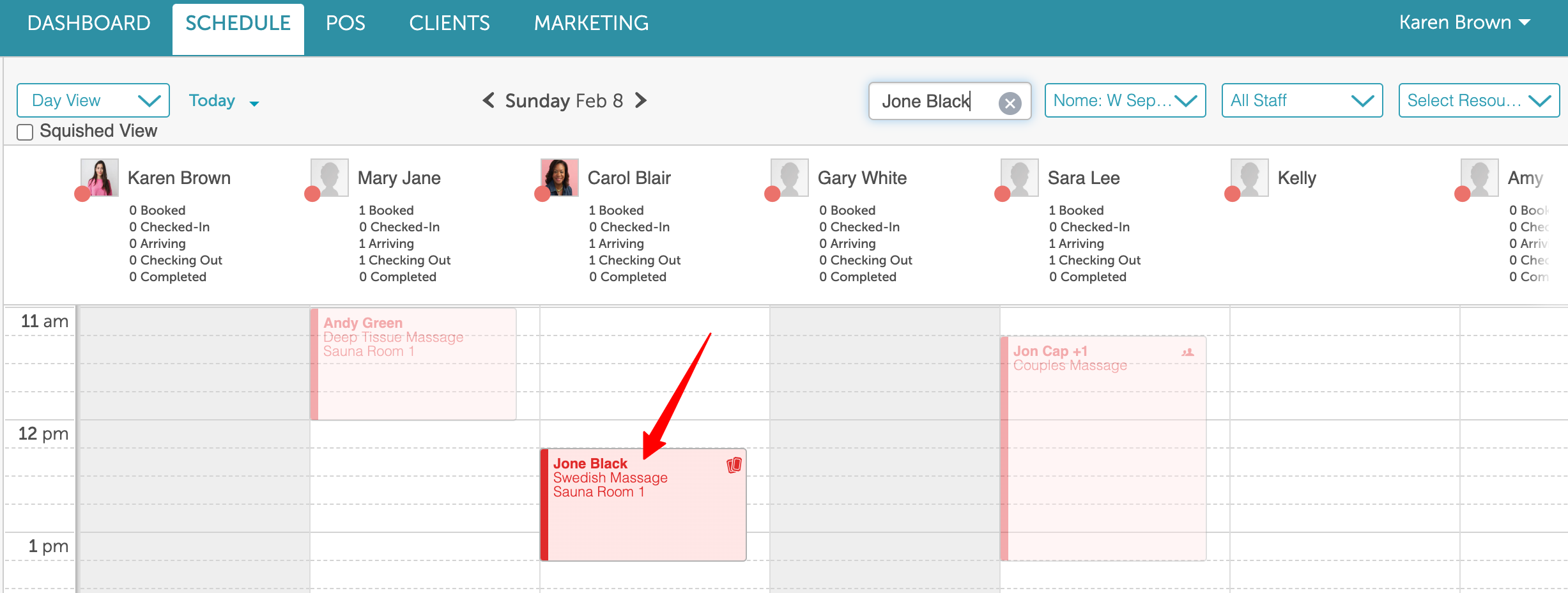
- Appointments that are not for the chosen client will be transparent
- Tooltips will not appear on appointment tiles in the week or month view if the schedule contains more than 100 appointments to improve loading time and performance.
- The option to view the schedule in a compact "squished" format is controlled by a hidden setting that can only be activated by the MyTime team. When enabled, a "Squished View" checkbox becomes available under the Scheduler View toggle. By default, this checkbox is unchecked. When selected, the horizontal scroll is removed, allowing all staff members to be displayed simultaneously. Month and week views are not affected by this setting.
- You can have the scheduler layout updated to provide a modern, streamlined calendar interface featuring card-style appointment blocks, updated typography, and customizable brand accents. It is designed to maximize screen real estate and reduce clutter while keeping existing bookings, staff hours, POS checkout flows, and print formats completely unchanged. This is controlled by a hidden setting; contact your account manager or MyTime Support to enable it for your business.
- Visual Design & Brand Accents
- Card-Style Bookings: Appointments appear as clean, defined cards set against a simplified calendar grid.
- Brand Styling: Action buttons, highlights, and the selected date inherit your business colors from Dashboard Color Settings (falling back to standard MyTime blue if no custom colors are set). Backgrounds and grid dividers remain neutral for clean contrast.
- Automatic Hue Adjustments: Very light or pale custom brand colors are automatically deepened in tone to keep all on-screen text legible and accessible.
- Toolbar & Navigation
- Centered Date Header: The calendar date remains centered in the main view for quick orientation.
- Jump Navigation: Tap Today to return instantly to the current day, or click the adjacent arrow icon to jump forward anywhere from 1 to 8 weeks.
- Dedicated Filter Row: Filters for location, staff members, and resources sit in a dedicated row directly beneath the primary toolbar.
- Responsive Layout: On smaller screens, filter controls tuck neatly into a collapsible sidebar menu while the date display remains centered.
- Squished View (Full-Day Single-Screen View)
- Adjacent to the Today button, two Squished View controls allow you to view an entire day without vertical or horizontal scrolling:
- Squish Columns: Compresses staff columns horizontally to fit your full roster on one screen.
- Squish Rows: Compresses hourly time slots vertically so the entire business day fits into the window without scrolling down.
- Adjacent to the Today button, two Squished View controls allow you to view an entire day without vertical or horizontal scrolling:
- Appointment Cards & Hover Previews
- At-a-Glance Information: Each card highlights the client name (or pet name and breed), the assigned service, and the service provider using your designated service color.
- Hover Card Previews: Hover your cursor over any card to view client notes, full booking details, and pet profile photos without clicking into the appointment.
- Dynamic Hover Dismissal: Hover cards automatically close whenever you scroll the underlying calendar grid.
- Keyboard & Accessibility Controls
- Keyboard Navigation: Use the Tab key to jump between appointment cards and press Enter to open any selected booking.
- Toolbar Actions: The Today button and date navigation arrows can be activated using Enter or Spacebar.
- Screen Reader Support: Date shifts, navigation triggers, and calendar status changes are fully voiced by assistive screen readers.
- Switching to the updated schedule interface does not alter core daily operations:
- Printed Schedules: The printed agenda view retains the classic print-ready format.
- Daily Workflows: The appointment creation modal, client profile records, POS checkout, and global navigation menu remain identical.
- Visual Design & Brand Accents
To quickly find appointments for a specific client, family member, or pet:
- Go to the Schedule
- Switch to Day or Agenda view
- Use the search bar at the top of the schedule to enter the name of the client, family member, or pet
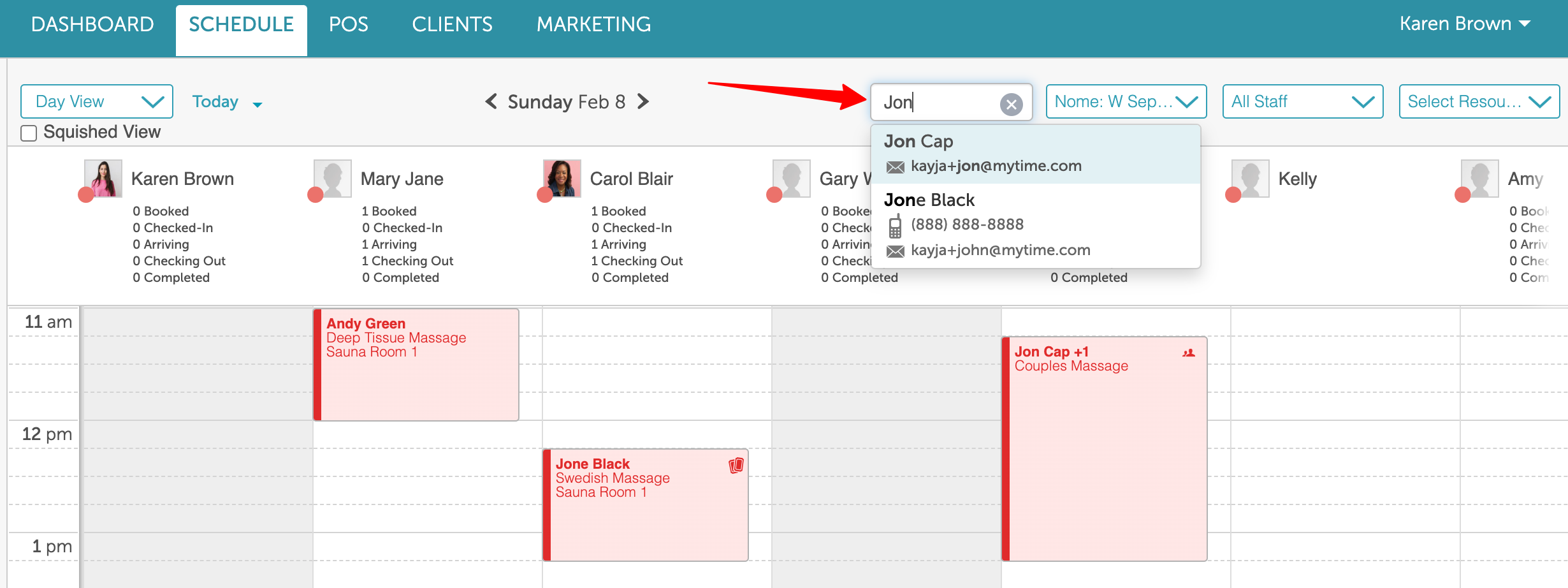
- Select the correct result from the dropdown
- Once selected:
- The matching appointments will be highlighted and brought into view
- All other appointments will appear grayed out, making it easier to focus on the selected client’s schedule
Related Articles
Scheduling Appointments for Clients
Scheduling Appointments for Family Members
Scheduling Appointments for Pets
Booking Appointments Online for Clients
Booking Appointments Online for a Single Family Member
Booking Appointments for Multiple Family Members Online
Booking Appointments Online for a Single Pet
Booking Appointments for Multiple Pets Online
Filter Schedule By Day, Week, Month, Agenda, Split & Resource View
Was this article helpful?
That’s Great!
Thank you for your feedback
Sorry! We couldn't be helpful
Thank you for your feedback
Feedback sent
We appreciate your effort and will try to fix the article