A resource is any item required to perform a service that must be booked along with that service. For example, a room is considered a resource if a service cannot be performed without it. Other examples include massage tables, grooming tubs, chairs, and specialized machines. With MyTime’s resource feature, you can manage and track resource availability to ensure the necessary equipment or space is always available when scheduling appointments.
Things to know:
- The ability to create resources is governed by the "Accessing Staff & Availability" access control setting.
- Once a resource is created, it can be viewed on the schedule, where you can filter by resources and clock in with the resource. Additionally, once a resource is configured within a service on the appointment modal, the resource field will appear with the name of the resource when that service is selected.
- On the service menu, resources can be allocated to both buffer and processing times. Once assigned, the buffer/processing time will be displayed under the resources for that specific appointment on the schedule.
- If an appointment is booked with a service that has assigned resources, and the resource is later deleted, the appointment will be automatically cancelled.
- If a resource is assigned to a service but is later deleted, the resource will be removed from the service modal.
- If an appointment is booked with a service that has an assigned resource, and the service is later deleted, the service name will display with "Deleted" in brackets, and the resource field will no longer be visible in the appointment modal.
- For businesses that offer around-the-clock services, you can designate specific days as “24 Hours.” This simplifies scheduling by removing the need to manually enter multiple time intervals.
24-Hour Availability: When you select the “24 Hours” option for a specific day:
All existing time intervals for that day are cleared
The day is displayed as “All day availability”
The resource becomes bookable for the full 24-hour period
Reverting Changes: If you uncheck the “24 Hours” option:
The day returns to a standard time format
The default time interval automatically opens in edit mode
You can immediately adjust and customise availability for that day
Managing Non-24-Hour Days: For days not set to 24-hour availability, you can manage scheduling as usual:
Use the “Add hours” link to add additional time intervals
Fine-tune availability based on your business needs
- You can customize the number of bookings per time slot for any resource throughout the day. This allows you to align availability with peak hours and varying demand, ensuring your facilities are used as efficiently as possible. Learn more here.
- The setup option displayed in the top-right user menu depends on how you access the account and your assigned role:
- When navigating from the Parent Account (Location Management tab):
- Admin: Displays Business Setup when viewing the location account.
- Login As: Displays Location Setup when viewing the location account.
- When logged in directly at the Location Level:
- Location Owners & Location Managers: Display Location Setup.
- Service Providers & All Other Roles: Display Profile Setup.
- The ability to create resources is not available on the Scheduler App.
Contents:
Creating Resources For Single-Day Services
- Navigate to Business Setup / Location Setup > Staff & Availability page
- Select the Manage Resources button
- Select the "+Add New Resource" link
- On the resource modal, you can add:
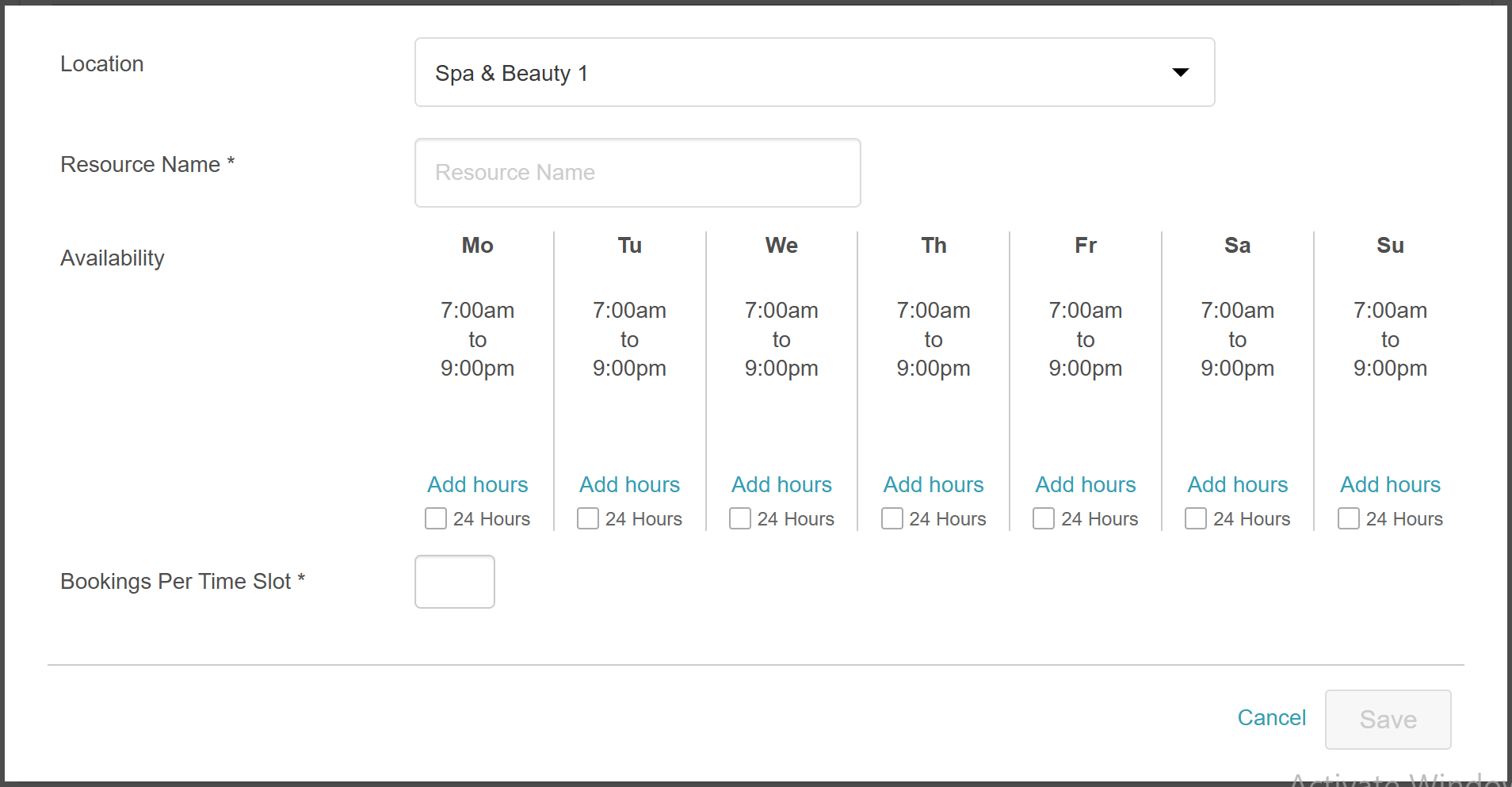
- Location: Select the location where this resource will be available
- Resource Name: Name the resource. This resource name will only be visible to you and your staff members, not to clients
- Availability: Click the "Add hours" link to specify the bookable hours for the resource. For single-day appointments, the selected hours should align with the availability of services associated with this resource
- Bookings Per Time Slot: This refers to the capacity of the resource, the number of appointments the resource can accommodate within a single time period. For example, if the resource is a room, and this room can accommodate three appointments at the same time, enter the value "3." If the room can only accommodate one appointment, enter "1."
- Save

Creating Resources For Multi-Day Services
- Navigate to Business Setup / Location Setup > Staff & Availability page
- Select the Manage Resources button
- Select the "+Add New Resource" link
- On the resource modal, you can add:
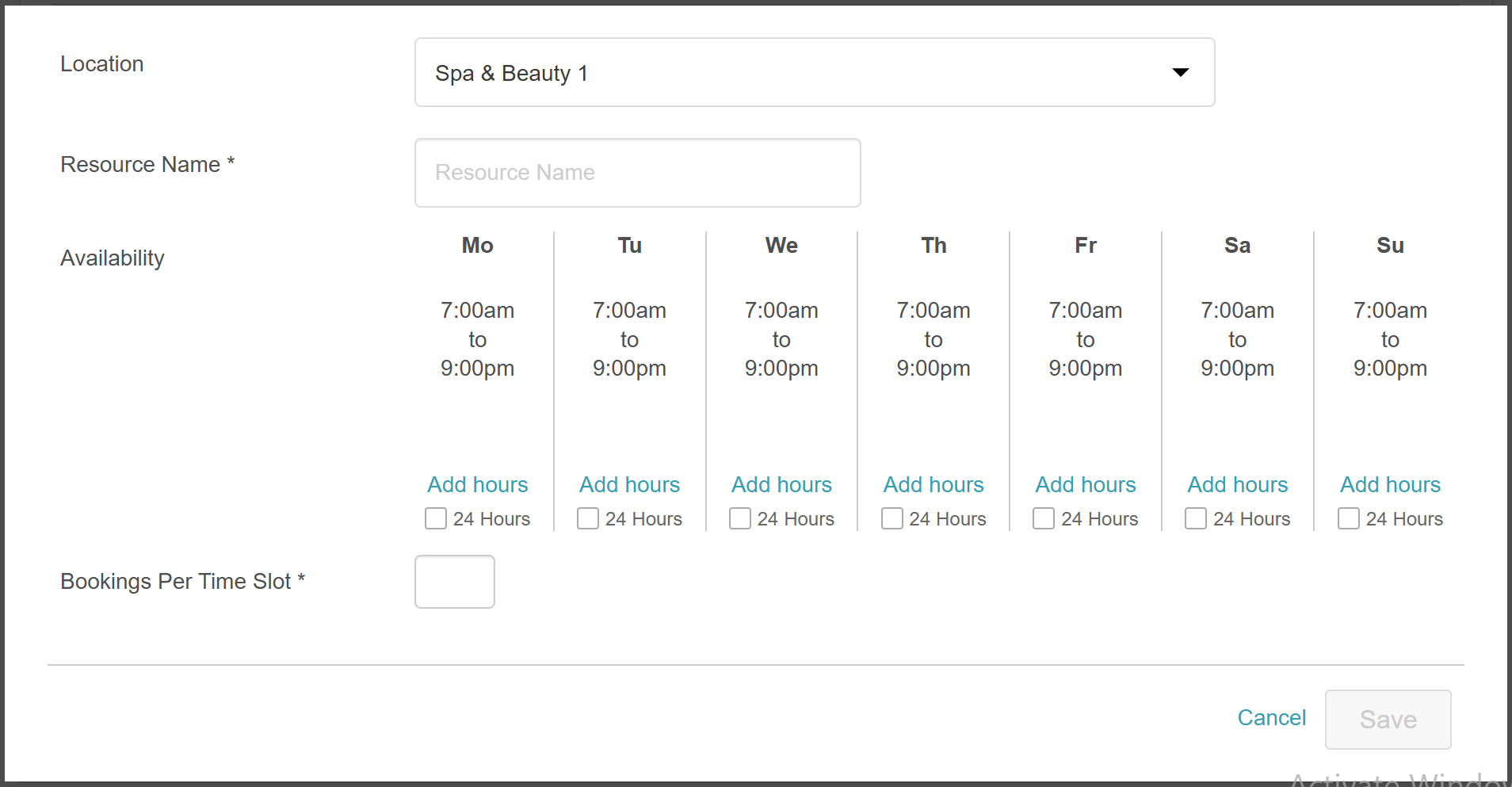
- Location: Select the location where this resource will be available
- Resource Name: Name the resource. This resource name will only be visible to you and your staff members, not to clients
- Availability: Click "Add Hours" to specify the bookable hours for the resource. For multi-day services such as overnight boarding, check the 24-hour checkbox to mark the resource as available around the clock.
- Bookings Per Time Slot: This refers to the capacity of the resource, the number of appointments the resource can accommodate within a single time period. For example, if the resource is a room, and this room can accommodate three appointments at the same time, enter the value "3." If the room can only accommodate one appointment, enter "1."
- Save
Your created resources will then be listed on your 'Manage Resources' page. You may return to this page at any time to add, edit, duplicate, or delete resources.

We hope this helped! If you have any additional questions, feel free to email us at support@mytime.com.
Related Articles:
Was this article helpful?
That’s Great!
Thank you for your feedback
Sorry! We couldn't be helpful
Thank you for your feedback
Feedback sent
We appreciate your effort and will try to fix the article