You can customize the number of bookings a staff member or resource can accept at different times throughout the day. This allows you to align availability with peak hours and varying demand, ensuring your team and facility are used as efficiently as possible.
Things to know:
- You can customize employee and resource booking capacity per interval by turning on the Enable Booking Capacity Per Interval company setting. This feature also requires permission from two access control settings: Accessing Staff & Availability and Bookings Per Time Slot.
- You can apply these rules to staff members or resources like rooms and equipment. For example, you can set a staff profile to allow two appointments at the same time.
- When a time slot's booking capacity is updated, the system automatically adjusts availability to match the new configuration.
- Overlapping time intervals are not allowed for the same staff member or resource at a given location.
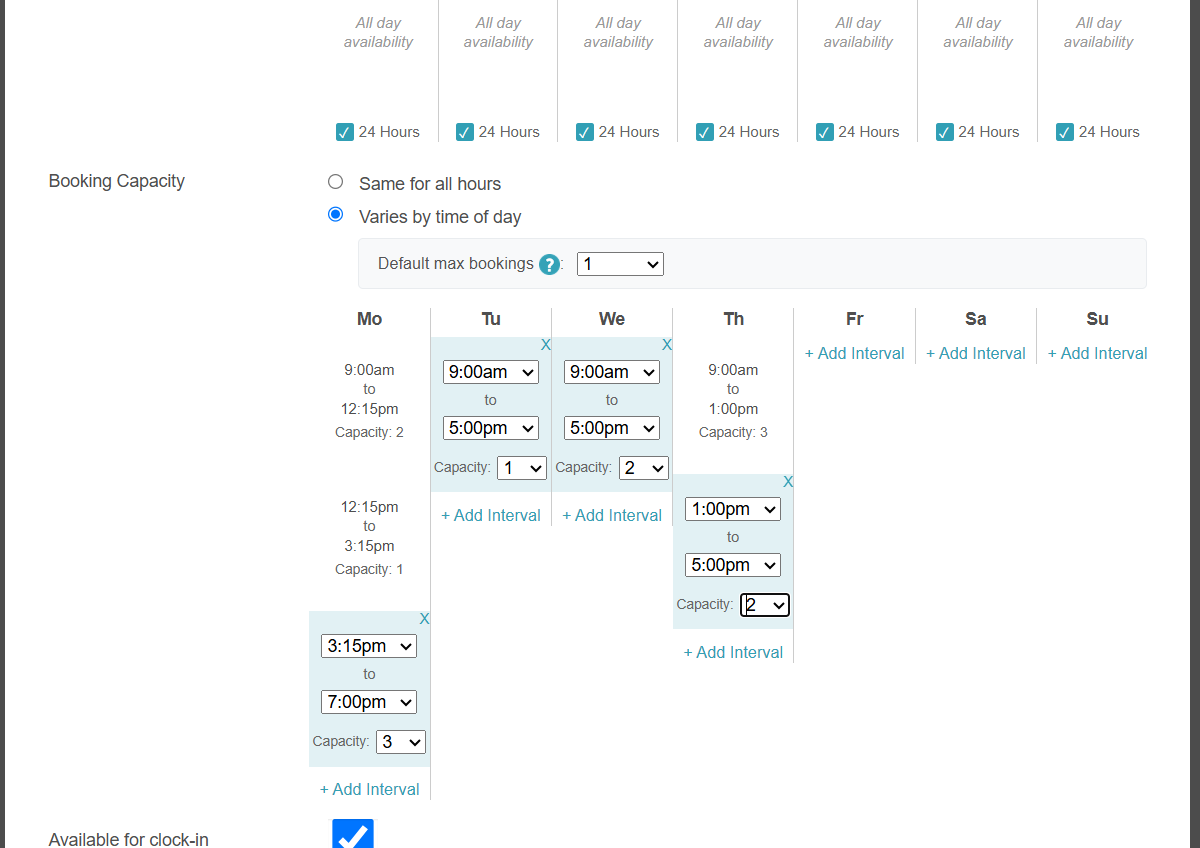
- You can set different booking limits per staff member or resource depending on the time of day. For example, you can configure a staff member's schedule to accept 3 concurrent appointments from 9:00 AM to 12:00 PM during your morning rush, and then drop down to a limit of 2 concurrent appointments from 12:00 PM to 5:00 PM.
- If a service requires two staff members (e.g., a Groomer and an Assistant) at 10:00 AM, the system will check both staff members’ booking intervals for that exact time. If one staff member has reached their limit, the appointment cannot be scheduled—even if the other is available.
- Switching from “Varies by time of day” to “Same for all hours” will permanently delete all custom intervals. A warning will be displayed before you confirm this action.
- If a client books multiple services (e.g., Massage + Facial), the system evaluates the combined duration to ensure capacity limits are not exceeded at any point during the appointment.
- When duplicating an existing staff profile, their booking capacity is copied. However, their specific booking intervals are not copied and will need to be configured manually.
- The setup option displayed in the top-right user menu depends on how you access the account and your assigned role:
- When navigating from the Parent Account (Location Management tab):
- Admin: Displays Business Setup when viewing the location account.
- Login As: Displays Location Setup when viewing the location account.
- When logged in directly at the Location Level:
- Location Owners & Location Managers: Display Location Setup.
- Service Providers & All Other Roles: Display Profile Setup.
Contents:
- Enabling Booking Capacity by Time Slot
- Setting Up Staff Booking Intervals
- Setting Up Resource Booking Intervals
Enabling Booking Capacity by Time Slot
- Navigate to Business Setup / Location Setup > Settings
- Scroll down to the Online Bookings section and locate the Enable Booking Capacity Per Interval setting
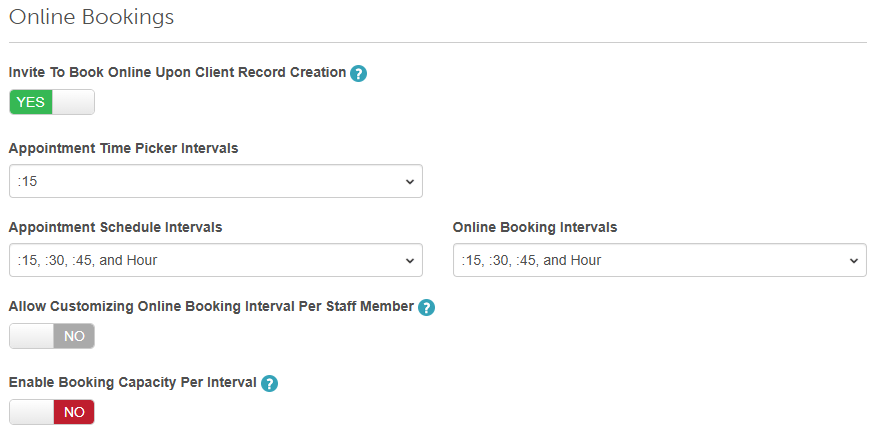
- Toggle the setting to Yes
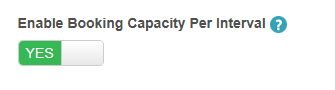
- Save your changes.
Setting Up Staff Booking Intervals
- Go to Business Setup / Location Setup > Staff & Availability
- Locate and select the desired staff member's profile
- Scroll down to the Booking Capacity section

- Select one of the following options:
- Same for all hours: Maintains a single, fixed booking limit for every time interval throughout the day
- Varies by time of day: Allows you to configure different booking intervals for specific hours of the day
- Use the Default max bookings dropdown to set a standard capacity for all time slots. Choosing this option applies the same booking capacity to each time interval by default, but you can still manually edit the capacity for individual time slots.
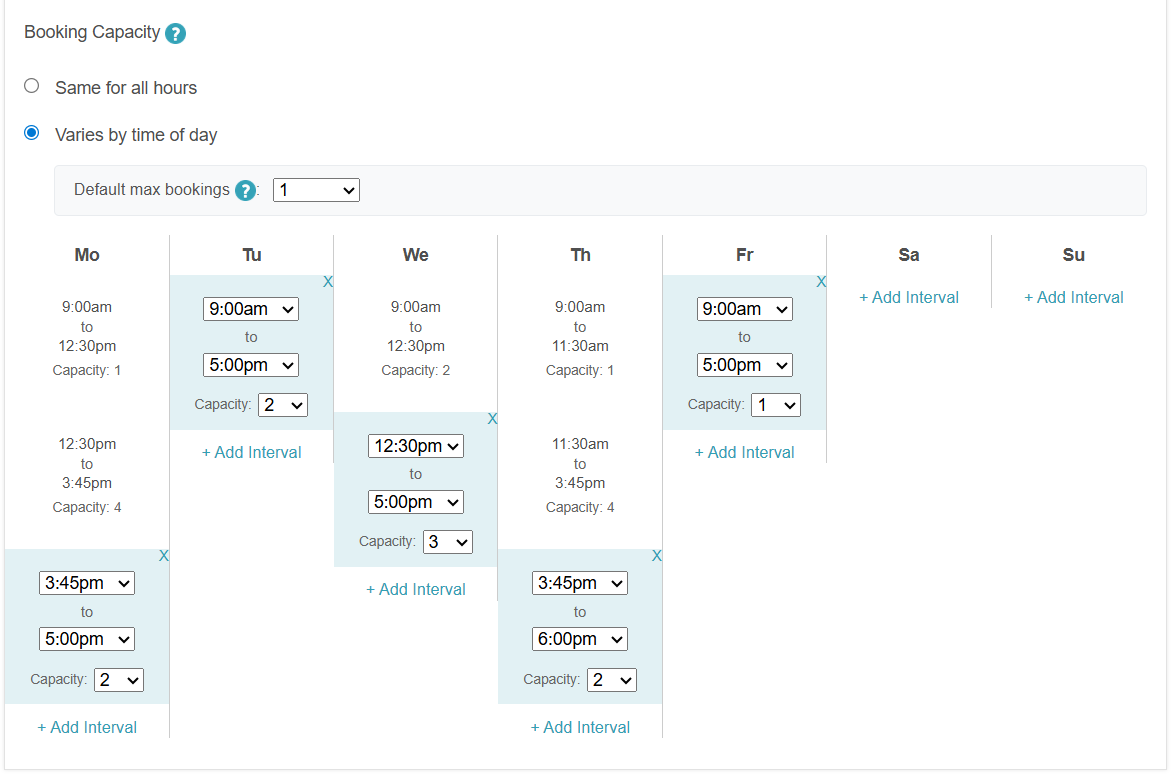
- Click Save to apply the new capacity rules
Setting Up Resource Booking Intervals
- Go to Business Setup / Location Setup > Staff & Availability
- Scroll to the bottom of the page and select the Manage Resources button
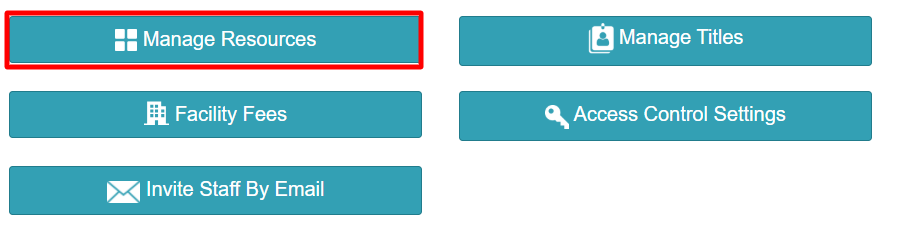
- Choose an existing resource or create a new one. (Learn more about resources here)
- In the Booking Capacity section, select one of the following:
- Same for all hours: Keeps a single, fixed booking limit for the entire day
- Varies by time of day: Enables you to set specific booking limits for different time slots throughout the day
- Use the Default max bookings dropdown to set a standard capacity for all time slots. Choosing this option applies the same booking capacity to each time interval by default, but you can still manually edit the capacity for individual time slots.
- Click Save to update your resource capacity
For more information, contact us at support@mytime.com or (385) 233-6964.
Related Articles:
Employee Bookings per Time Slot
Create a New Staff Profile by Cloning
Adding Work Hours and Assigning Locations
Was this article helpful?
That’s Great!
Thank you for your feedback
Sorry! We couldn't be helpful
Thank you for your feedback
Feedback sent
We appreciate your effort and will try to fix the article