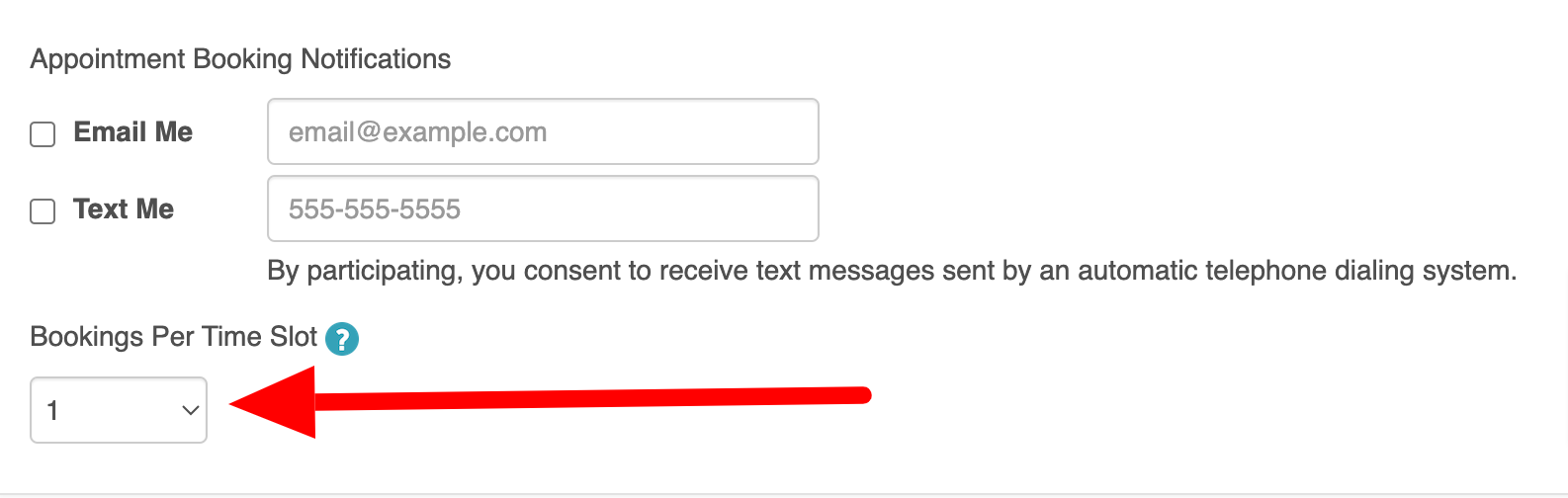
Bookings Per Time Slot refers to the capacity of a staff member, i.e. how many appointments can you accommodate at a time.
Things to know:
- The ability to set bookings per time slot for staff members is governed by the "Bookings Per Time Slot" access control.
- Bookings per time slot apply only to appointments.
- If there is a blockage on your schedule, that time slot will not be bookable regardless of the bookings per time slot settings.
- Bookings per time slot capacity rules apply strictly to appointments and do not impact classes or events.
- You can set different booking limits per staff member depending on the time of day. For example, you can configure a staff member's schedule to accept 3 concurrent appointments from 9:00 AM to 12:00 PM during your morning rush, and then drop down to a limit of 2 concurrent appointments from 12:00 PM to 5:00 PM.
- The setup option displayed in the top-right user menu depends on how you access the account and your assigned role:
- When navigating from the Parent Account (Location Management tab):
- Admin: Displays Business Setup when viewing the location account.
- Login As: Displays Location Setup when viewing the location account.
- When logged in directly at the Location Level:
- Location Owners & Location Managers: Display Location Setup.
- Service Providers & All Other Roles: Display Profile Setup.
To set bookings per time slot for a staff member:
- Navigating to Business Setup / Location Setup > Staff & Availability
- Select your staff profile
- Scroll down to the Bookings section, and you will see a field called Bookings Per Time Slot
- Click the drop-down arrow and select the maximum number of appointments you can take at a time
- Once you have made your changes, don’t forget to save

For more information, contact us at support@mytime.com or (385) 233-6964.
Related Articles:
Was this article helpful?
That’s Great!
Thank you for your feedback
Sorry! We couldn't be helpful
Thank you for your feedback
Feedback sent
We appreciate your effort and will try to fix the article