- The ability to transfer attendees between class sessions is controlled by the "Schedule Classes/Events" access control setting.
- Class sessions scheduled on different days will not appear in the dropdown list when transferring an enrollment.
- Enrollments cannot be transferred to a different class type, even if both classes belong to the same category. Example: An enrollment in a Beginner Yoga class cannot be transferred to a Full Body Stretch Yoga class, even though both classes fall under the Yoga category.
- Enrollments cannot be moved from one business location to another
- Attendees are not automatically notified when transferred to another class.
- Once moved, the attendee will no longer appear on the original class roster
1. Launch the MyTime Scheduler app on your device
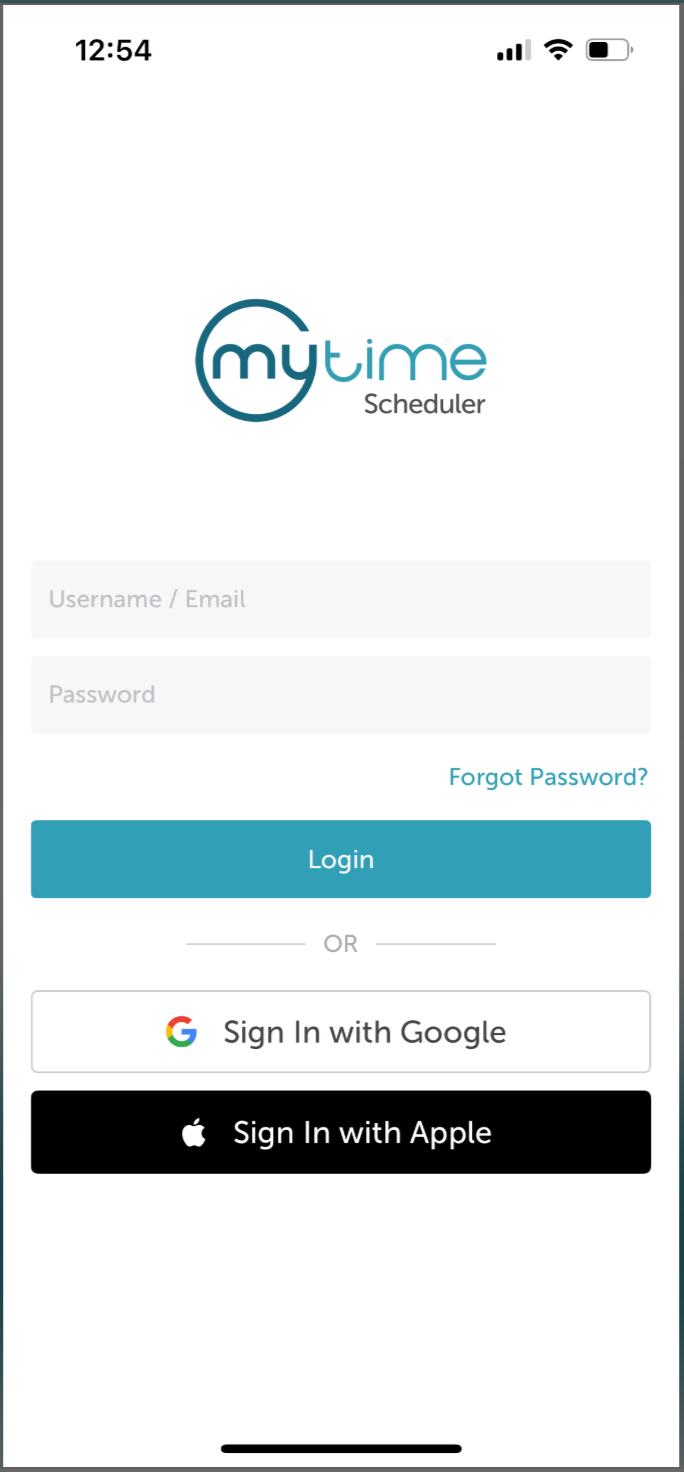
2. Choose your login method:
- Standard: Enter your registered email address and password, then tap 'Sign In'
- Social Login: Select 'Continue with Google' or 'Continue with Apple' to use your existing credentials for a faster login experience. For detailed instructions, learn more here
3. Once signed in, you’ll be taken to the Schedule view by default
4. Filter by the desired location and date
5. Locate and tap the class or event 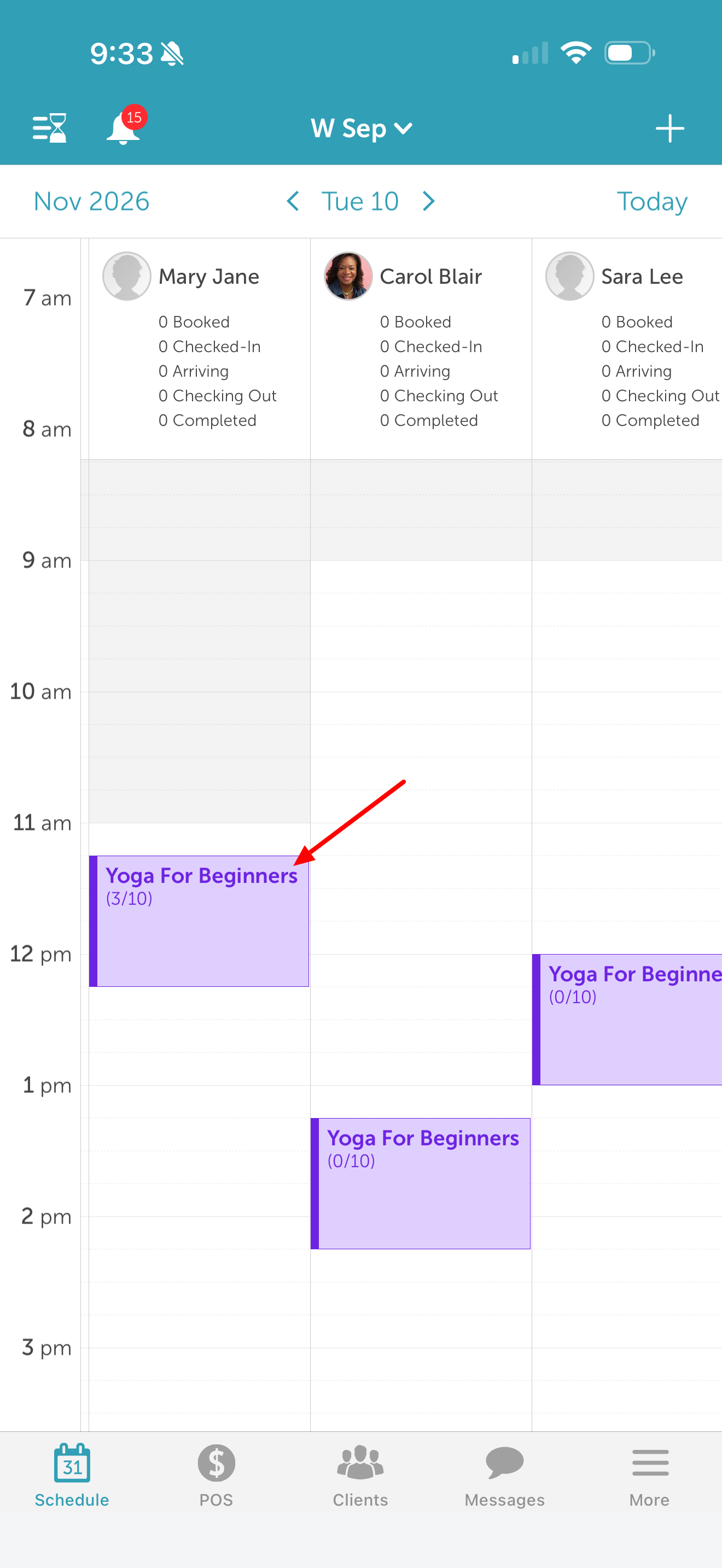
6. On the class details screen, tap "View Attendees" 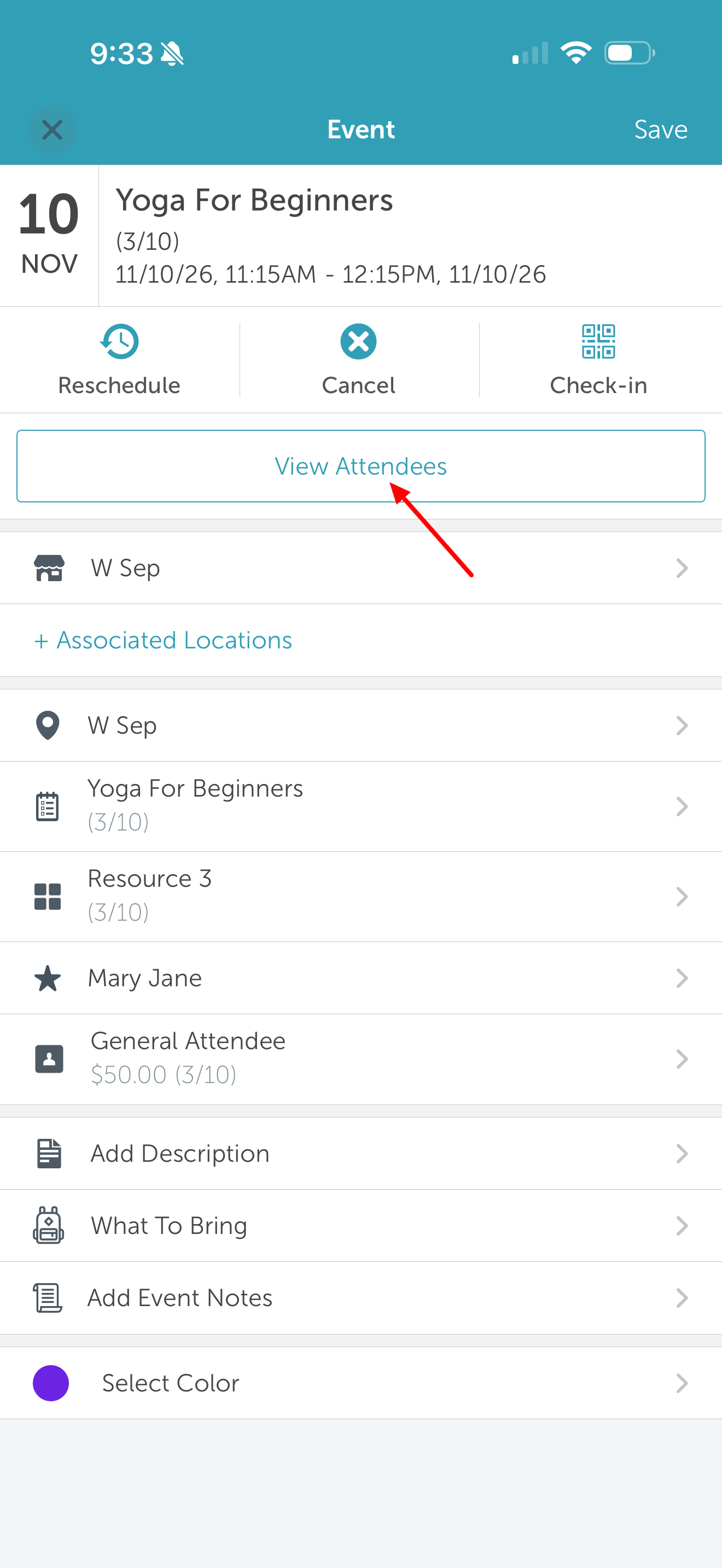
7. Find and select the client’s name from the list 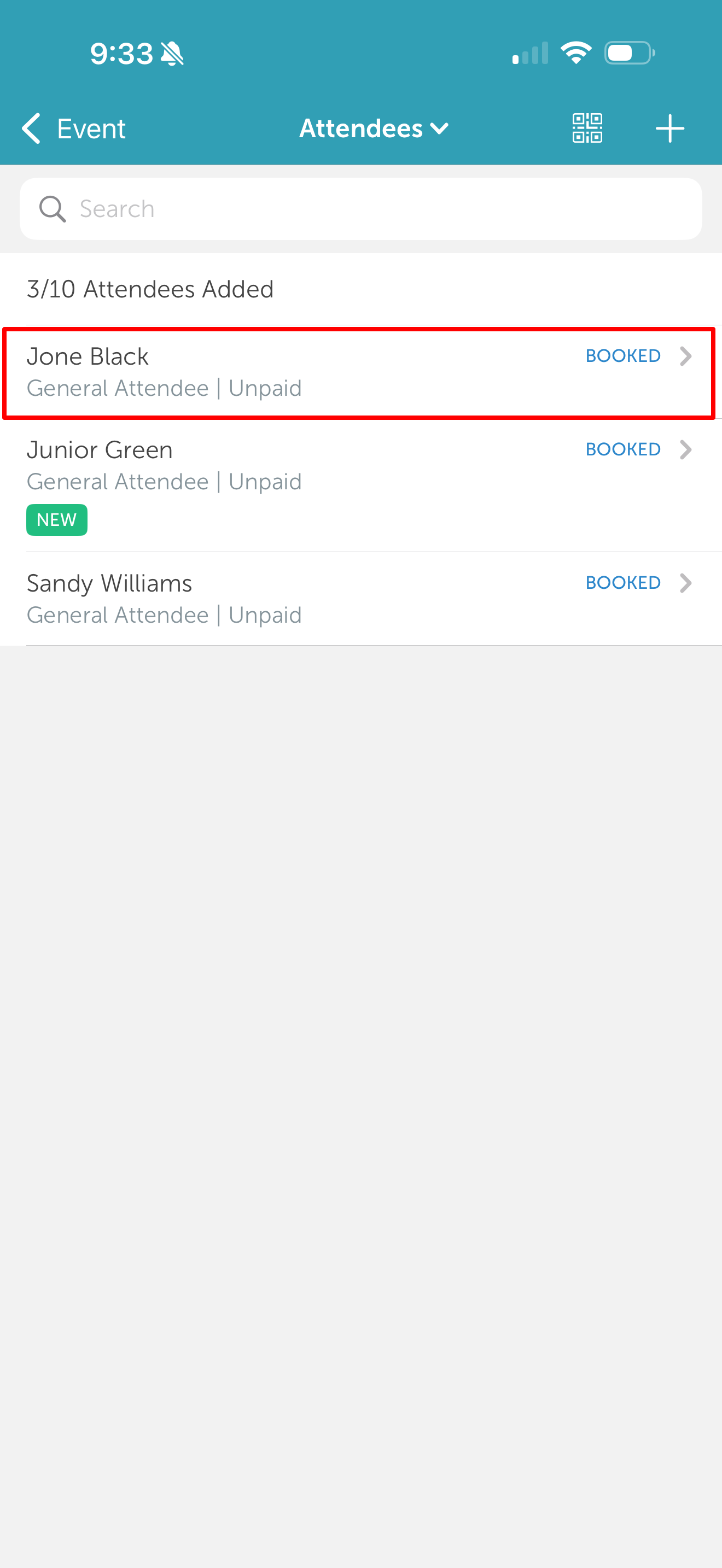
8. Tap "Change Class" 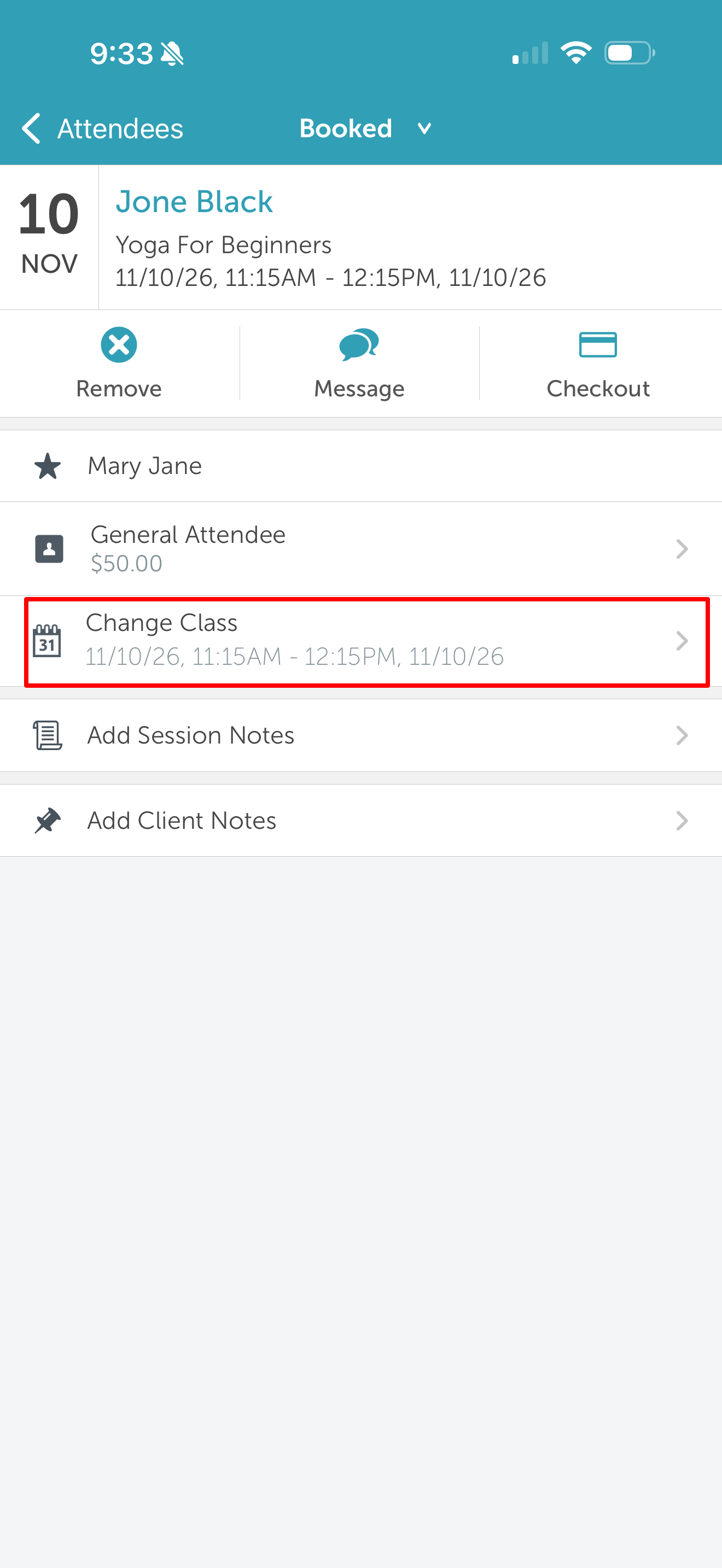
9. Select the new session from the "Available Times" list 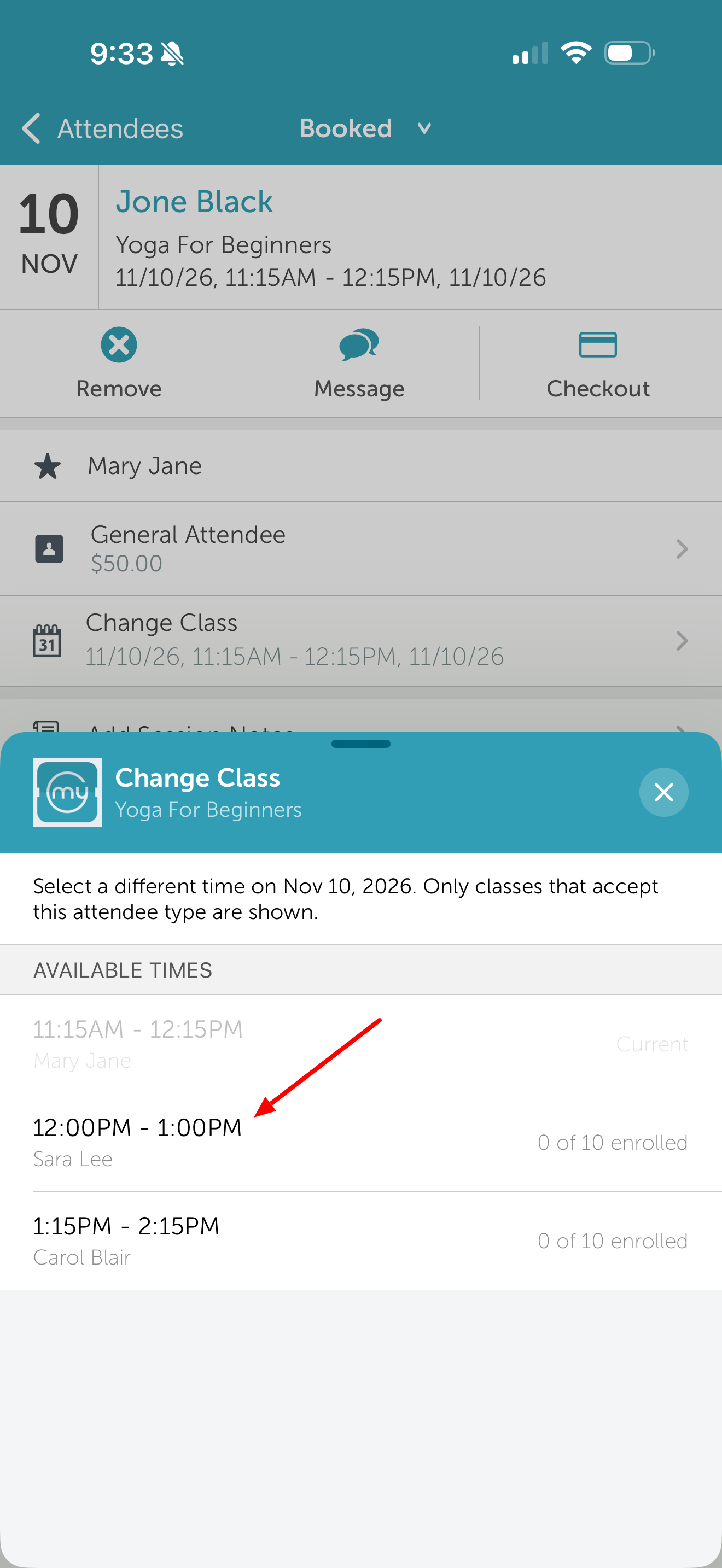
10. Tap "Move" to confirm the transfer 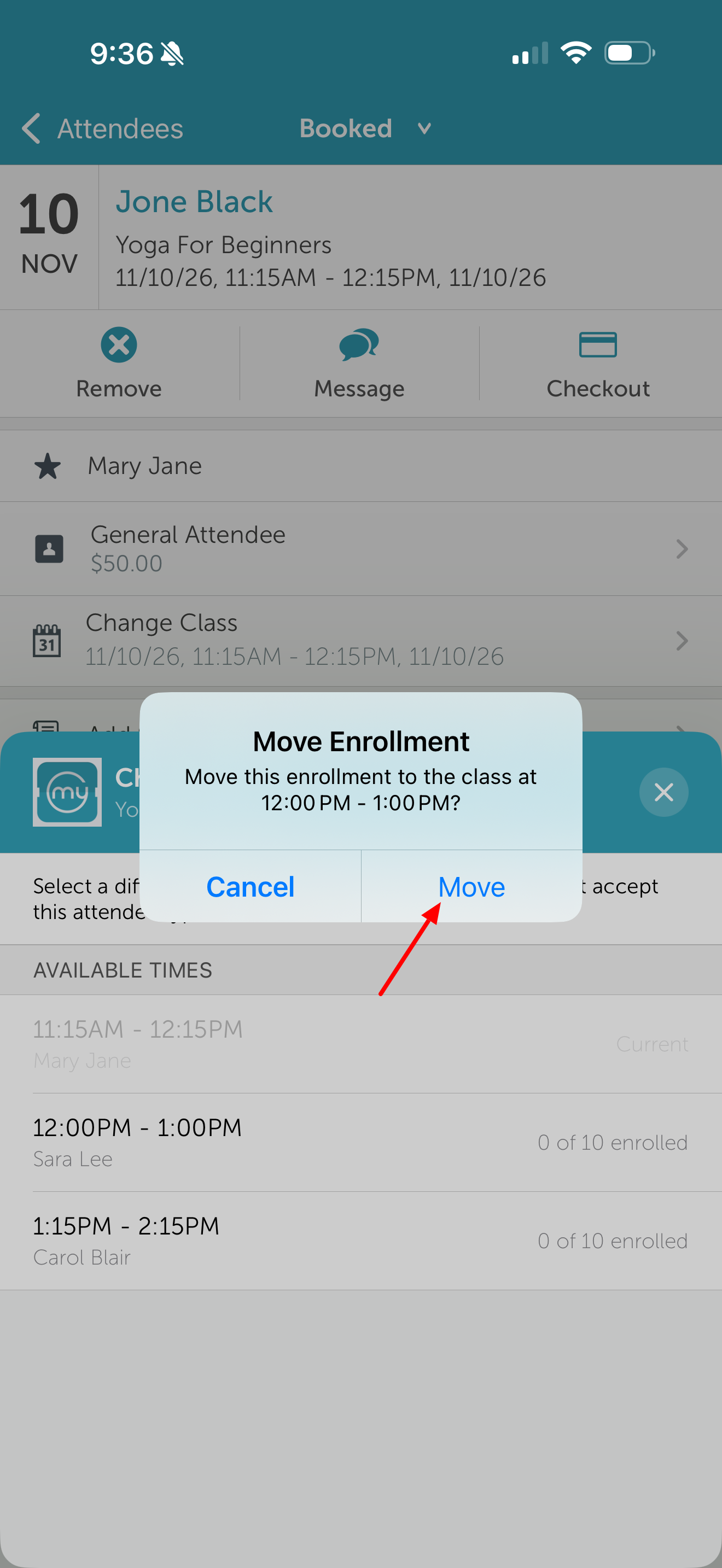
11. Once confirmed, the attendee is automatically removed from the original roster and added to the new session's roster.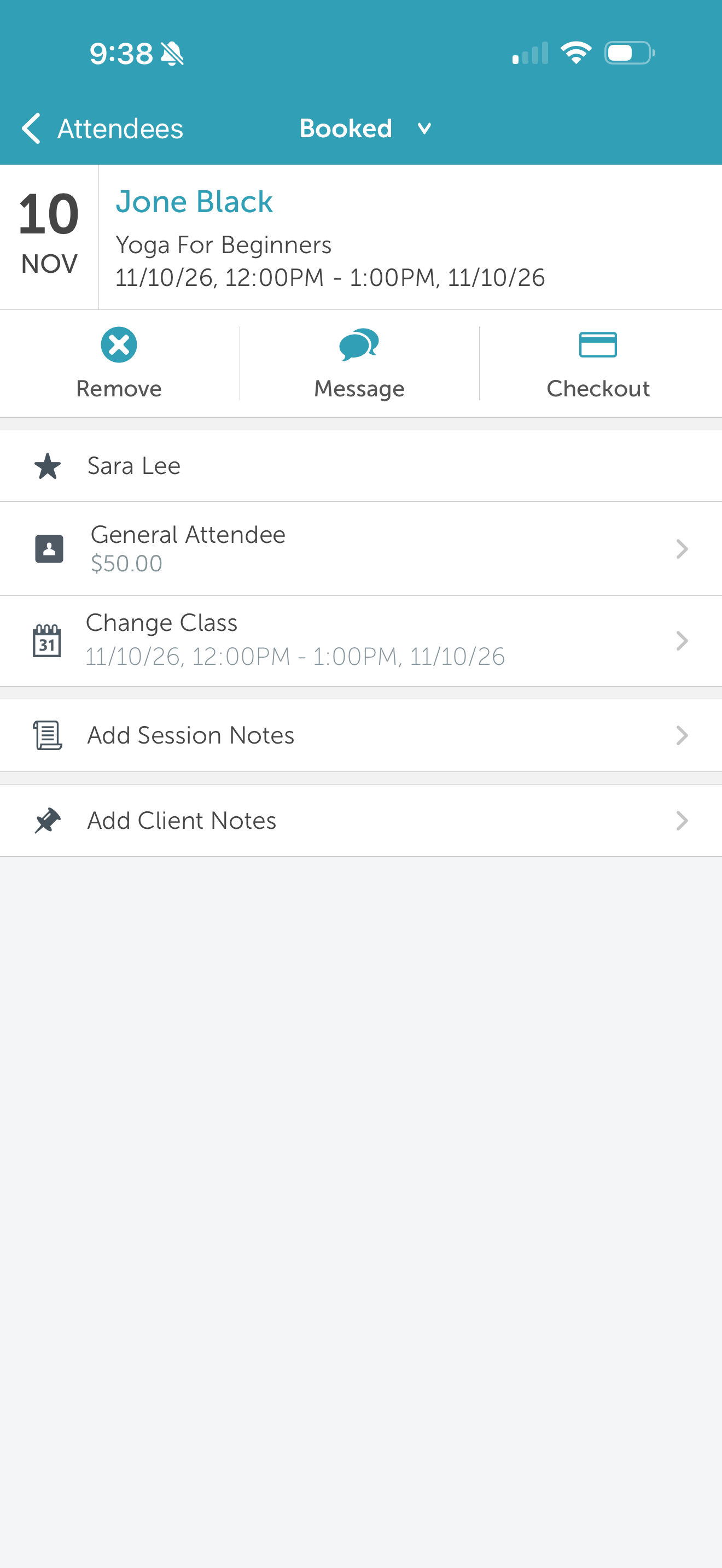
Related Articles:
Installing MyTime on Scheduler App (Android and iOS)
Signing into MyTime on Scheduler App (Android and iOS)
Was this article helpful?
That’s Great!
Thank you for your feedback
Sorry! We couldn't be helpful
Thank you for your feedback
Feedback sent
We appreciate your effort and will try to fix the article