At MyTime, you can configure your account to automatically deduct package or membership credits to cover late cancellation and no-show fees. When enabled, the system uses a client's available item credits first, ensuring your business is compensated for lost time.
Things to know:
- The ability to cancel an appointment or mark an appointment as a no-show is controlled by the “Accessing Appointments” access setting.
- This feature applies strictly to item credits (e.g., 1 Haircut Session). Value credits (monetary balances like a $50 store credit) are not supported and cannot be consumed for cancellation fees.
- This functionality is controlled by the "Consume package and membership credits for the cancellation/no show policy" hidden setting.
- If an appointment is already checked in, it must be checked out before it can be marked as a no-show.
- For accounts with an active deposit policy, services covered by a package or membership credit are exempt from deposits at booking. The system will only prompt for and collect deposits on services that are not covered by an active credit.
- If staff selects "No Thanks" when prompted to charge a fee, the cancellation fee is waived, consumed item credits are automatically refunded back to the client's balance, and no charge occurs.
- Expired or Deleted Memberships/Packages: If a package or membership expires or is deleted before the cancellation or no-show occurs, credit coverage no longer applies. Standard service / class prices are restored, and the full cancellation fee is charged.
- If an initial booking deposit is waived, the client remains responsible for any applicable cancellation fees. Fee calculations are based on the full retail price of the scheduled service/class session. For example, a 50% cancellation fee on a $180 service results in a $90 charge upon cancellation.
- When cancelling a group appointment where only some pets or family members hold an active membership or package:
- Eligible Services: Services included in an individual membership or package will use one available credit instead of triggering a cancellation fee.
- Standard Services: Services for pets or family members without a membership or package are charged standard cancellation fees (minus any deposit already paid).
Contents
- Paying No-Show Fees with Package or Membership Credits
- Paying Cancellation Fees with Package or Membership Credits In-Store
- Paying Cancellation Fees with Package or Membership Credits Online
- Example Scenario
Paying No-Show Fees with Package or Membership Credits
- Navigate to the Schedule
- Locate and open the appointment
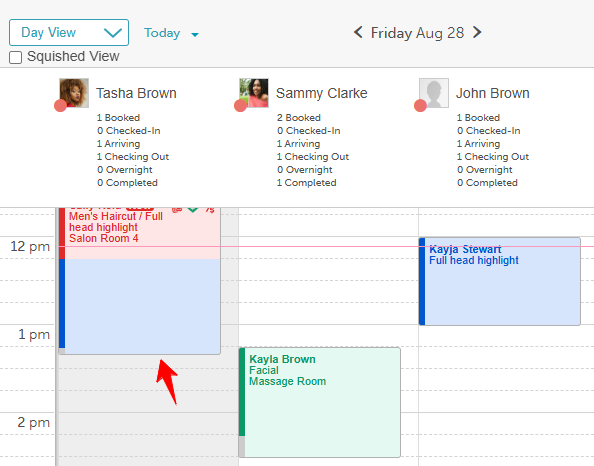
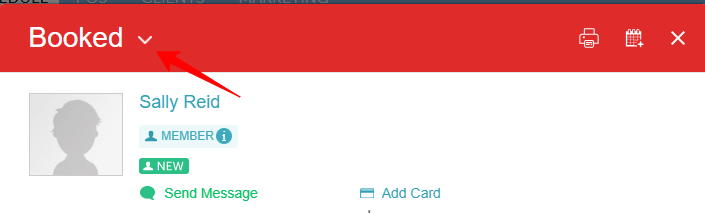
- Click the drop-down next to the Booked status
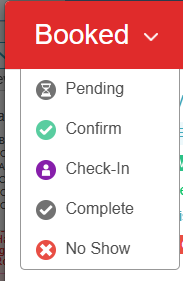
- Select No Show
- A modal will appear asking if you would like to charge a cancellation fee, displaying a clear breakdown:
- Cancellation Fee (Credits): The number of item credits consumed to cover eligible services.
- Cancellation Fee (Deposit): Any prepaid deposit applied toward the cancellation fee (only shown if a deposit was collected at booking).
- Cancellation Fee (Remaining): The remaining balance owed by the client for any services not covered by credits or deposits.
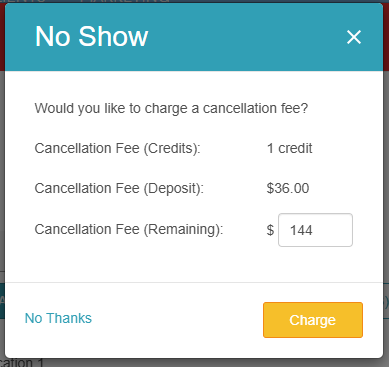
- Click Charge to consume the item credit(s) and process any remaining fee, or click No Thanks to waive the fee.
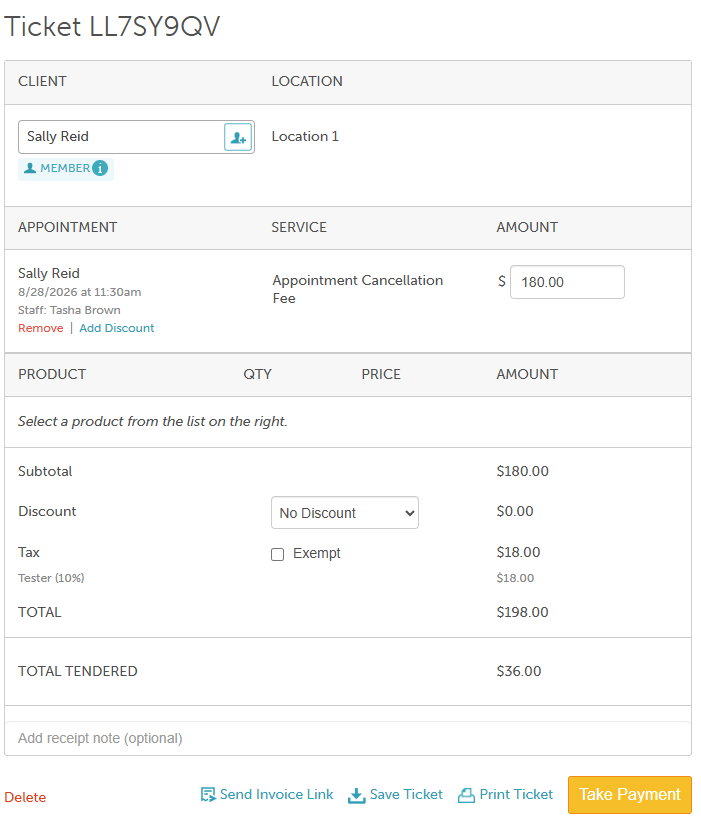
- Clicking Charge redirects you to POS, where the item credits are applied. If no remaining balance is due, the cancellation fee will show as $0, and you can proceed to close the ticket.
Paying Cancellation Fees with Package or Membership Credits In-Store
- Navigate to the Schedule
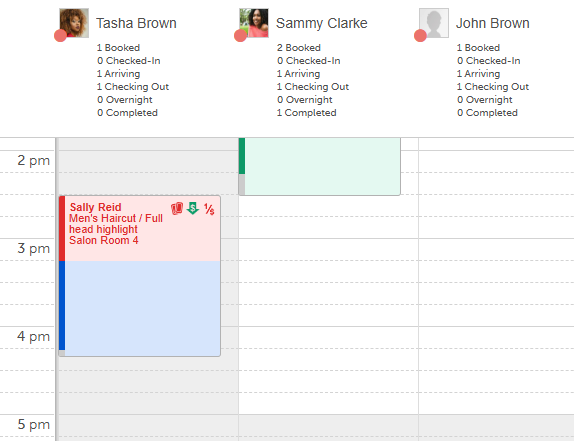
- Locate and open the appointment
- Click Cancel Appointment and confirm by selecting Yes on the pop-up
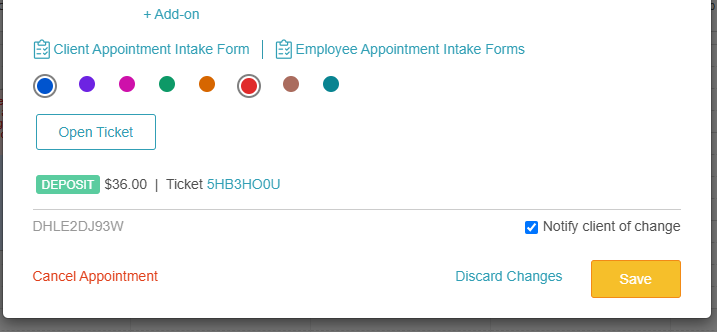
- Select a cancellation reason (if prompted).
- Review the fee breakdown modal (Credits, Deposit, and Remaining balances).
- Cancellation Fee (Credits): The number of item credits consumed to cover eligible services.
- Cancellation Fee (Deposit): Any prepaid deposit applied toward the cancellation fee (only shown if a deposit was collected at booking).
- Cancellation Fee (Remaining): The remaining balance owed by the client for any services not covered by credits or deposits.
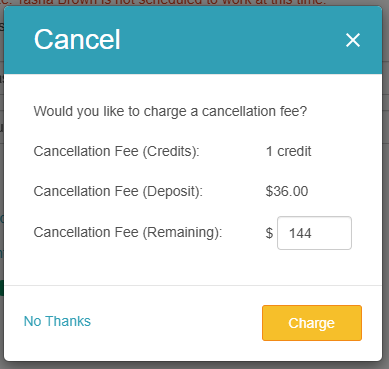
- Click Charge to consume credits and process remaining fees, or No Thanks to waive the fee.
- Complete the transaction in POS if redirected.
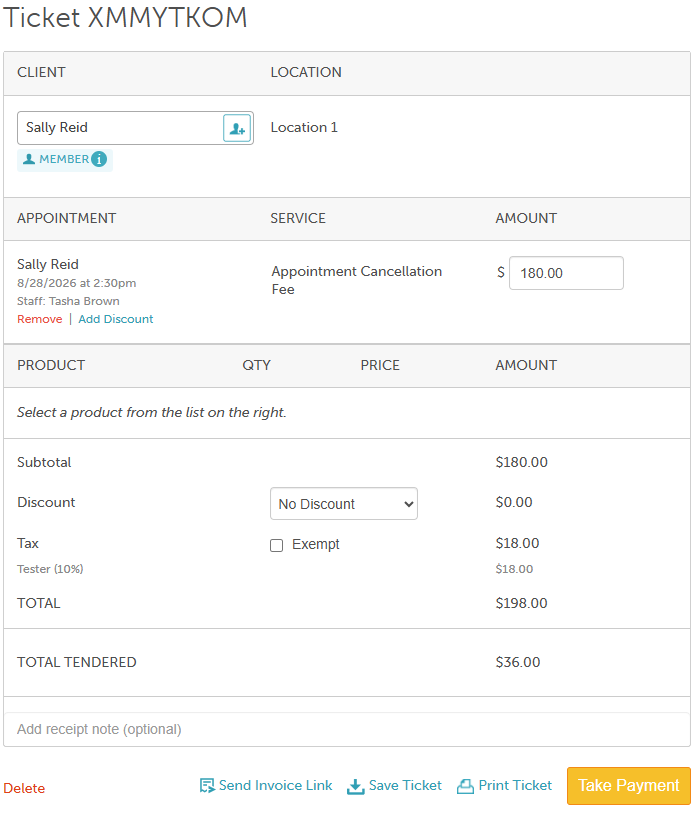
Paying Cancellation Fees with Package or Membership Credits Online
- Navigate to your business website or booking widget
- If your business has multiple sites, select their preferred location to ensure they are viewing the correct booking calendar
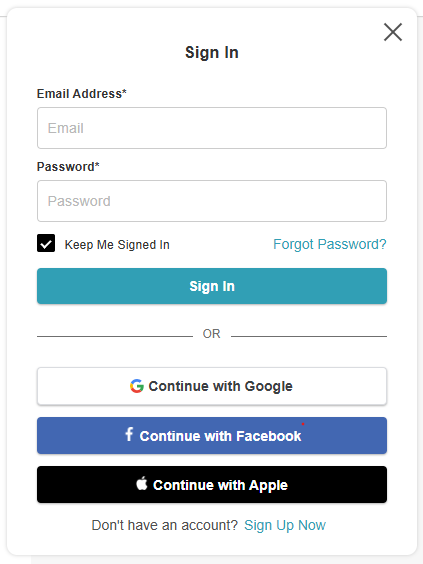
- Click the "Sign In" button at the top of the page
- Choose their login method:
- Standard: Enter their registered email address and password, then click 'Sign In'
- Social Login: Select 'Continue with Google,' 'Continue with Apple,' or 'Continue with Facebook' to use their existing social media credentials
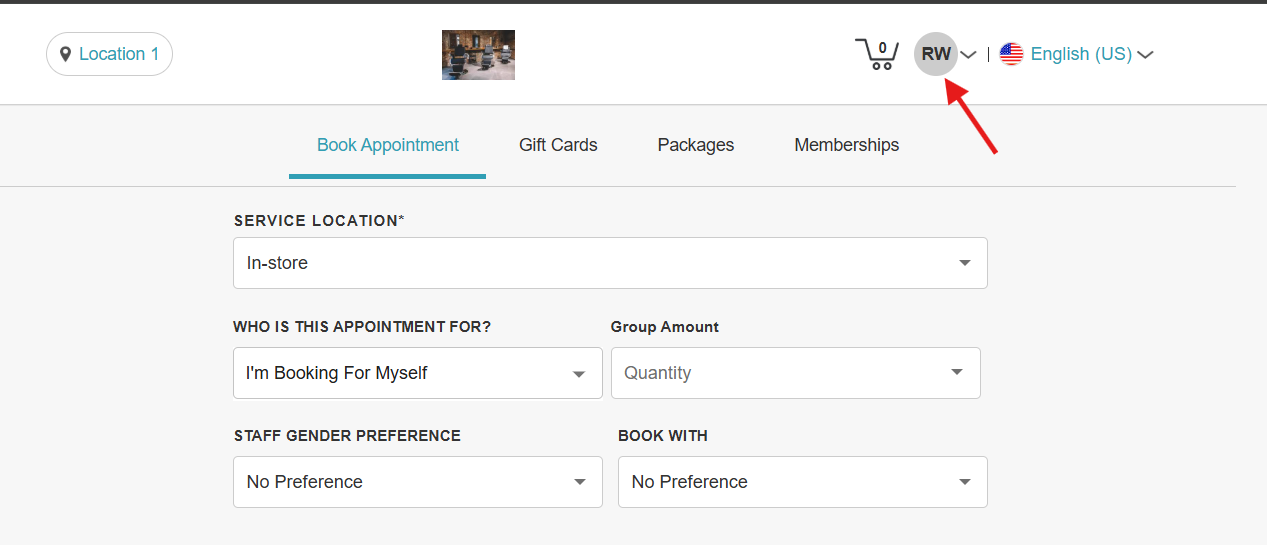
- Click the dropdown next to your initials and select Account
- In the left sidebar, click Bookings
- Click View Details next to the appointment you want to cancel
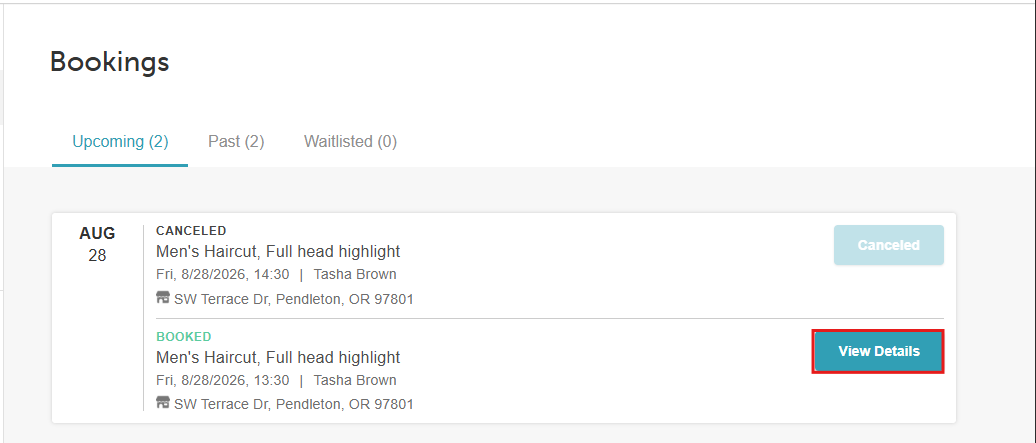
- Select Cancel Booking
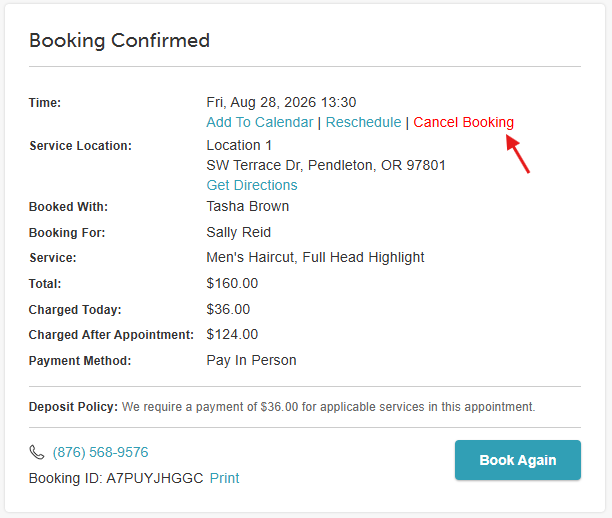
- Before you confirm the cancellation, the following details will be displayed:
- Cancellation Fee (Credits): The number of item credits consumed to cover eligible services.
- Cancellation Fee (Deposit): Any prepaid deposit applied toward the cancellation fee (only shown if a deposit was collected at booking).
- Cancellation Fee (Remaining): The remaining balance owed by the client for any services not covered by credits or deposits.
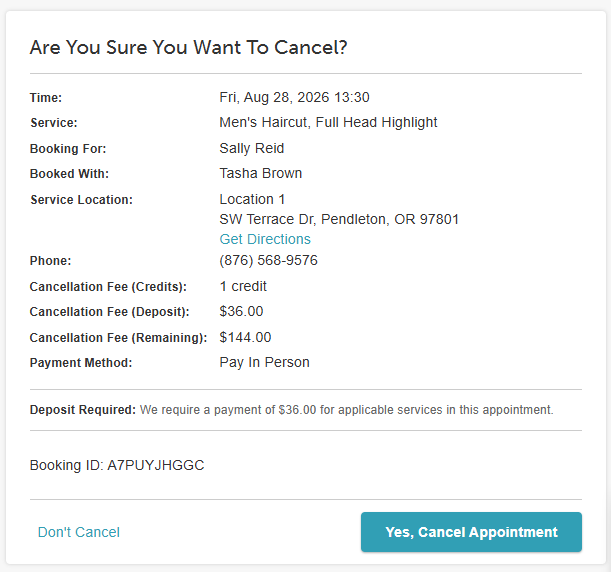
- Confirm by clicking Yes, Cancel Appointment
- After confirming, the client will be redirected to the Appointment Canceled page.
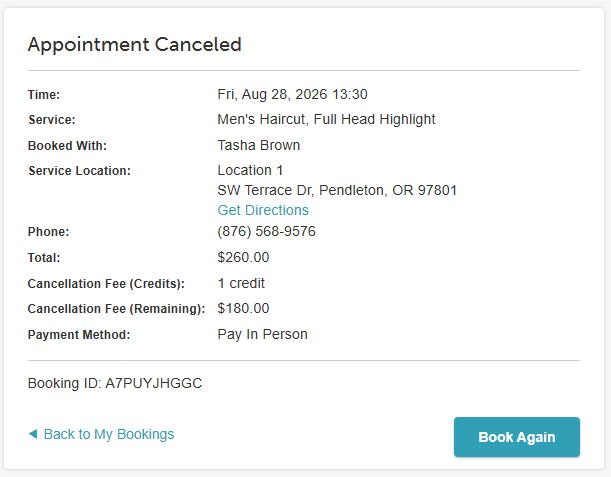
Example Scenario
A client books a single appointment with two services and pays a $10 deposit upon completing the booking.
- Swedish Massage ($100): Covered by 1 membership item credit.
- Men's Cut ($50): Uncovered ($10 deposit applied at booking).
Upon cancellation, 1 membership credit is redeemed to cover the Swedish Massage. The remaining cancellation charge for the $50 Men's Cut is processed based on your configured policy:
- Full Service Price Policy
- How it applies: Credits cover eligible services first. Uncovered services are charged at full price ($50), minus the deposit already paid ($10).
- Outcome: The client is charged the remaining $40
- Percentage Fee Policy (e.g., 50%)
- How it applies: Credits cover eligible services first. The 50% fee is calculated on the full price of uncovered services ($50 × 50% = $25), minus the deposit already paid ($10).
- Outcome: The client is charged the remaining $15.
- Flat Fee Policy (e.g., $25)
- How it applies: The flat fee is completely waived if all services are covered by credits. If any service remains uncovered, the $25 flat fee applies, minus the deposit already paid ($10).
- Outcome: Because the Men's Cut is uncovered, the $25 flat fee applies. The client’s card is charged the remaining $15.
For more information, contact us at support@mytime.com or (385) 233-6964.
Related Articles:
Marking Appointments as No-Show
Was this article helpful?
That’s Great!
Thank you for your feedback
Sorry! We couldn't be helpful
Thank you for your feedback
Feedback sent
We appreciate your effort and will try to fix the article