The MyTime integration with RUN Powered by ADP® is specifically engineered for franchises and multi-location service brands. It provides a seamless operations-to-payroll solution designed to maximize accuracy and operational efficiency. By linking the Time & Attendance, Salaried/Hourly Compensation, and Commission calculations managed in MyTime directly with the payroll processing and employee disbursements in ADP RUN, you eliminate manual data entry and reduce the risk of costly payroll errors.
Things to know:
- Key Integration Benefits
- Automated Payroll Processing: Streamline your workflow with automated payroll preparation and seamless data transfer between MyTime and ADP.
- Real-Time Staff Syncing: New hires and terminations stay updated in both systems automatically through a bi-directional sync, ensuring your staff list is always current.
- Precise Earning Mapping: Ensure pay accuracy by mapping specific MyTime roles and earning types—such as tips, commissions, and hourly pay—directly to the correct ADP earning codes.
- Scalable for Organizations: Maintain clean and precise payroll across multiple locations, making it easy to manage distributed teams or franchise networks.
- To use this integration, you must purchase the MyTime Connector through the ADP Marketplace. The connector is priced at $20 per location, per month, which covers the secure data link and real-time synchronization between the two platforms.
- Before purchasing the MyTime Connector, please contact your account manager or email support@mytime.com to have the necessary ADP RUN hidden settings enabled for your account.
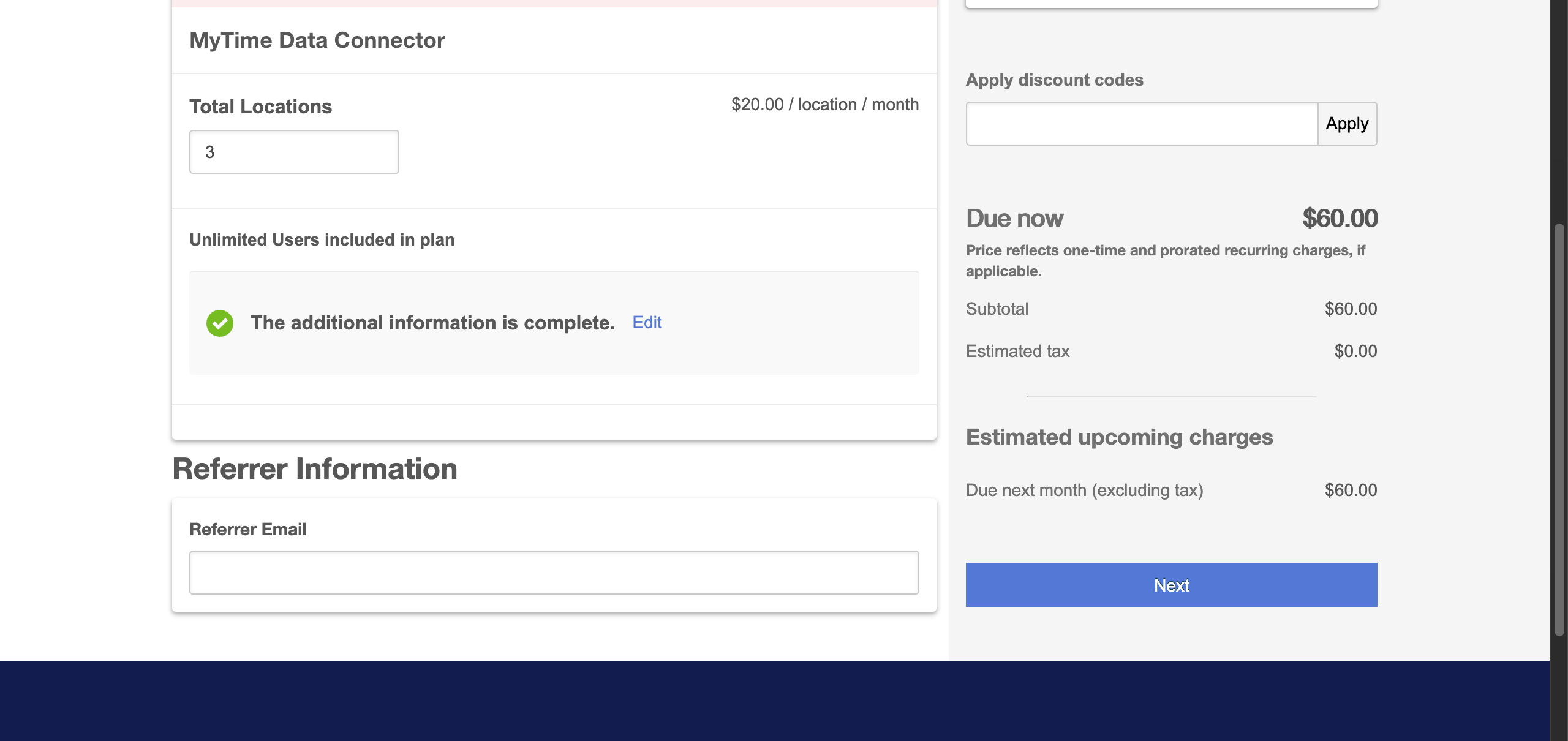
- For franchise businesses, the integration is managed at the location (child) level. When purchasing the connector, you will need to specify how many individual locations you want to sync with ADP. For example, if you manage three locations and want all of them integrated, simply enter 3 in the "Total Locations" field during checkout. For a step-by-step guide on the checkout process, see the Purchase the MyTime Connector in the ADP Marketplace section below.
- Data sent from MyTime to ADP:
- Hours
- Company code
- Employee ID
- Regular Hours
- Overtime Hours
- Data read by MyTime from ADP:
- First and Last Name
- Work Email Address and Phone Number
- Departments
- Earning Codes
- Rate Codes
- The email address for your MyTime account must be identical to your RUN Powered by ADP® account email. The system uses this match to sync records and authenticate your access.
- Your MyTime Pay Cycle (Weekly, Bi-Weekly, Semi-Monthly, or Monthly) must match your ADP Pay Schedule. Note: Quarterly cycles are not supported.
- When you create a staff member in MyTime, a partial profile is pushed to the onboarding section of ADP RUN. You must manually enter sensitive data (SSN, tax/W-4, and banking info) in ADP to finalize the profile. Data syncing will only begin once onboarding is complete.
- MyTime is the primary source of truth for hours worked, commissions, and earning types. Transferred payroll data will always match your MyTime Compensation Reports.
- Only services, products, tips, and clocked hours are imported. Memberships, packages, and gift card sales are not included in the data transfer.
- If your company currently has the ADP Wisely Integration active, MyTime will not send tip data to ADP RUN. This safeguard is in place to prevent tips from being double-reported or duplicated across your payroll.
- The integration only transfers data from closed tickets to ADP. To ensure your MyTime and ADP values match, always filter your MyTime Compensation Reports to "Closed Tickets Only" when comparing payroll data.
- MyTime pay rates override any existing values in ADP. Example: If an employee has two work types in MyTime at $50 and $75, these specific values are transferred regardless of the rates listed in ADP.
- Each worked hour category in MyTime maps to a single, specific ADP department to ensure accurate labor allocation.
- Terminating an employee within ADP will automatically delete their profile in MyTime. Conversely, rehiring an employee in ADP will restore their account in MyTime.
- The setup option displayed in the top-right user menu depends on how you access the account and your assigned role:
- When navigating from the Parent Account (Location Management tab):
- Admin: Displays Business Setup when viewing the location account.
- Login As: Displays Location Setup when viewing the location account.
- When logged in directly at the Location Level:
- Location Owners & Location Managers: Display Location Setup.
- Service Providers & All Other Roles: Display Profile Setup.
Contents
- Enable ADP Run Integration in MyTime
- Purchase the MyTime Connector in the ADP Marketplace
- Grant ADP Data Access to MyTime
- Map MyTime Hourly Work Types to ADP Department Codes
- Running Payroll in ADP
Enable ADP Run Integration in MyTime
Please contact your account manager or email support@mytime.com to have the necessary ADP RUN hidden settings enabled for your account. Once activated, follow these steps:
- Log in to your MyTime account
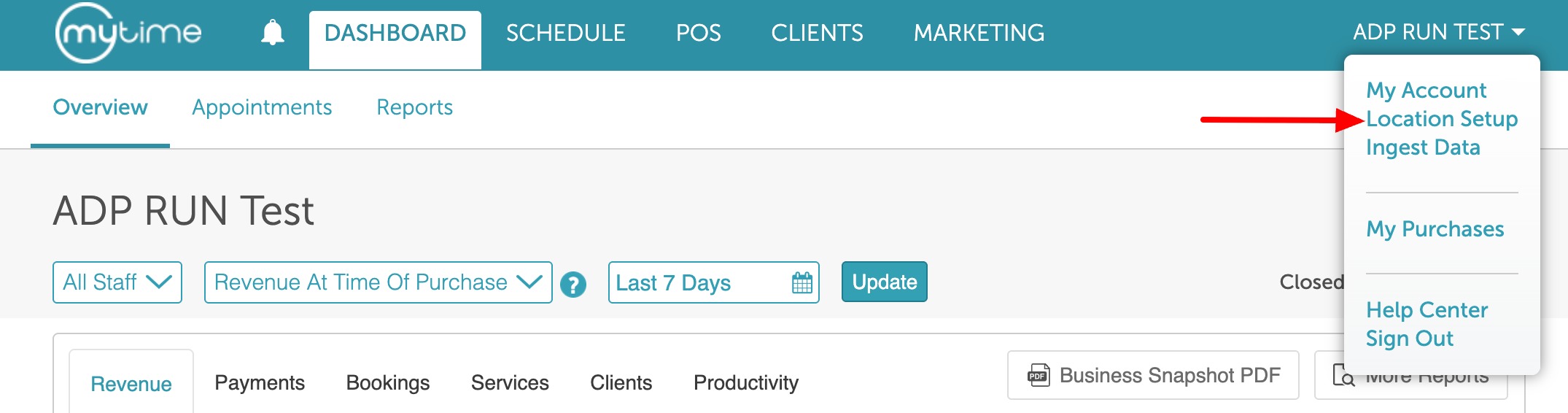
- Click the dropdown menu under your name in the top-right corner, then select Business Setup / Location Setup
- Navigate to Settings, then open the Partner Integration tab
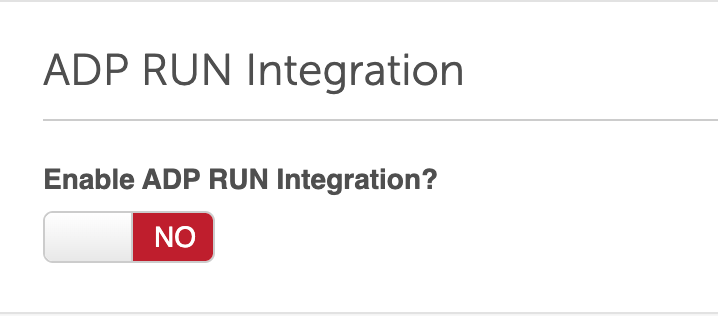
- Toggle "Enable ADP RUN integration?" to Yes
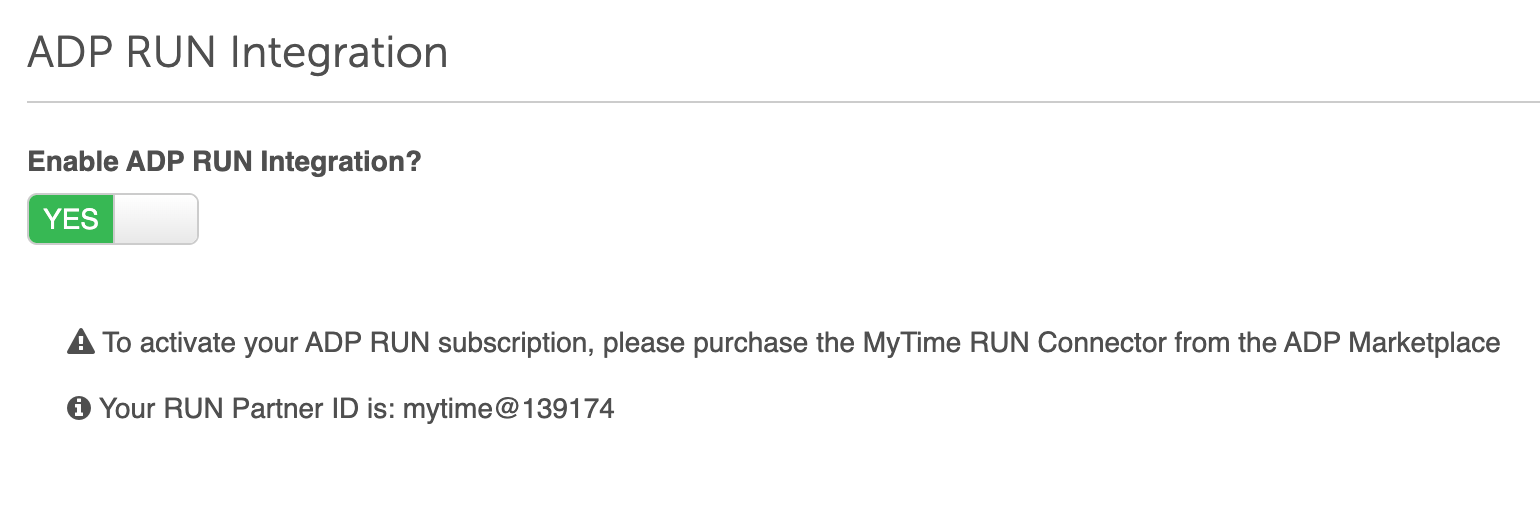
- Once the integration is enabled, your unique RUN Partner ID will automatically appear on the page. Be sure to copy or record this ID exactly as shown. It will be formatted as: @[MyTime Merchant ID Number]
- Click Save at the bottom of the page
Purchase the MyTime Connector in the ADP Marketplace
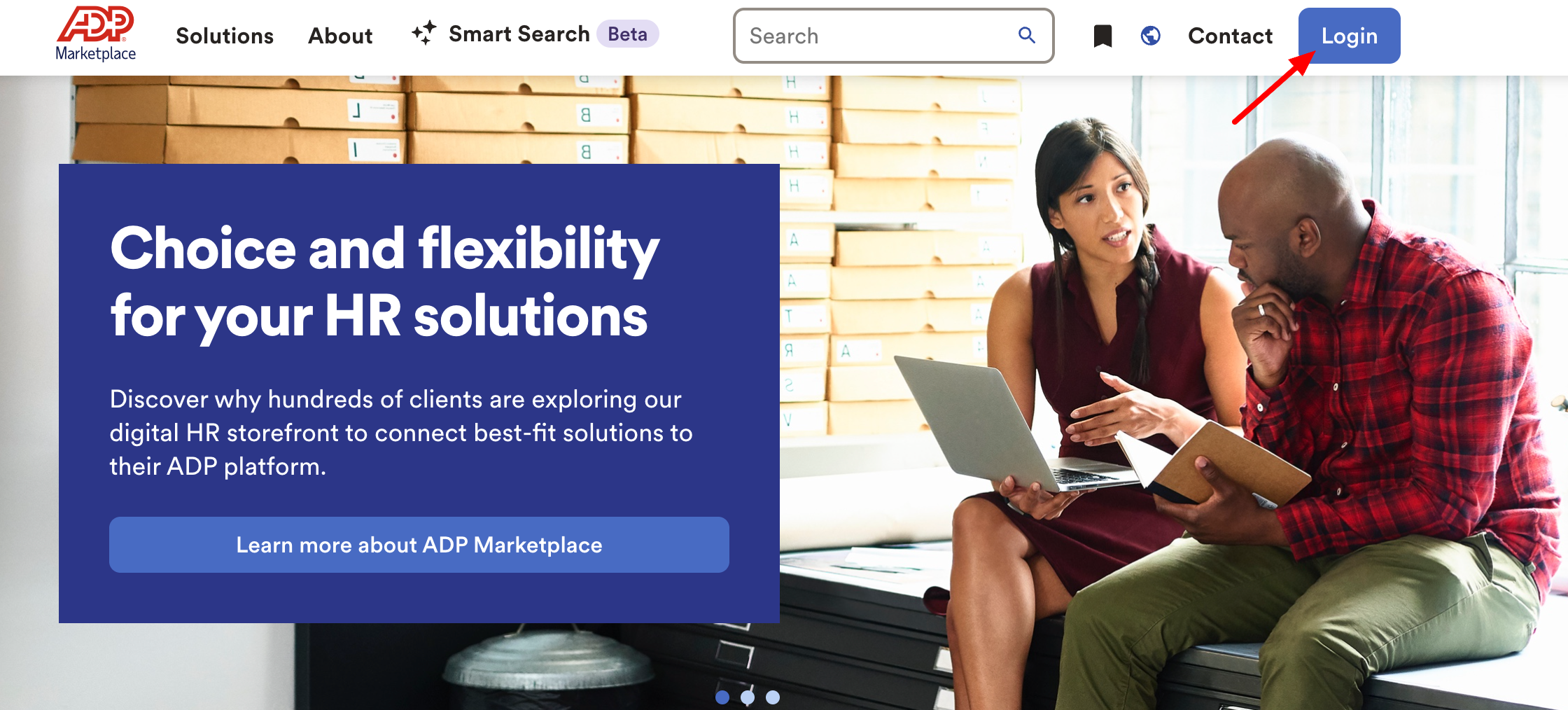
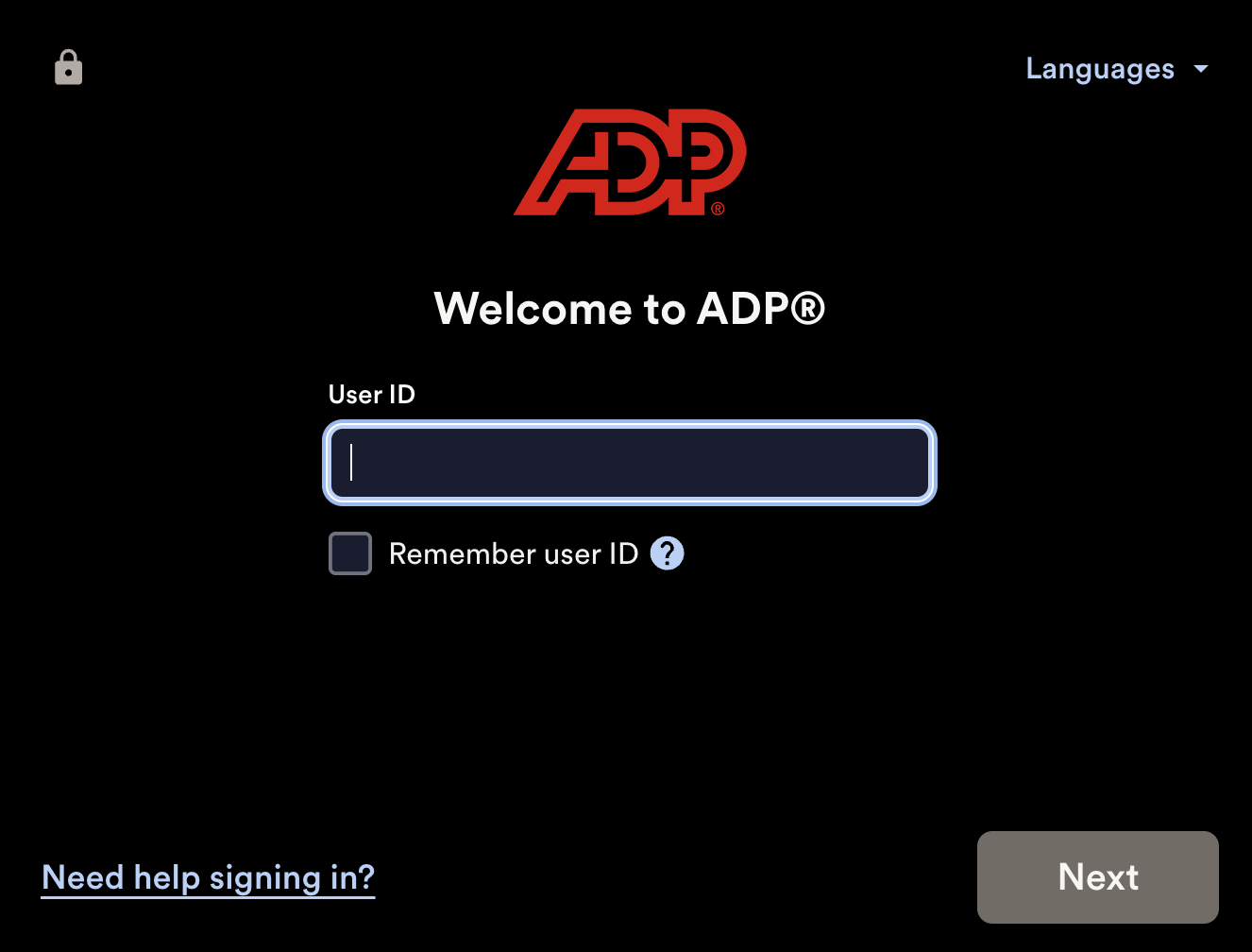
- Navigate to the ADP Marketplace, then select the Log In button in the top-right corner of the page
- Login with your ADP Run credentials
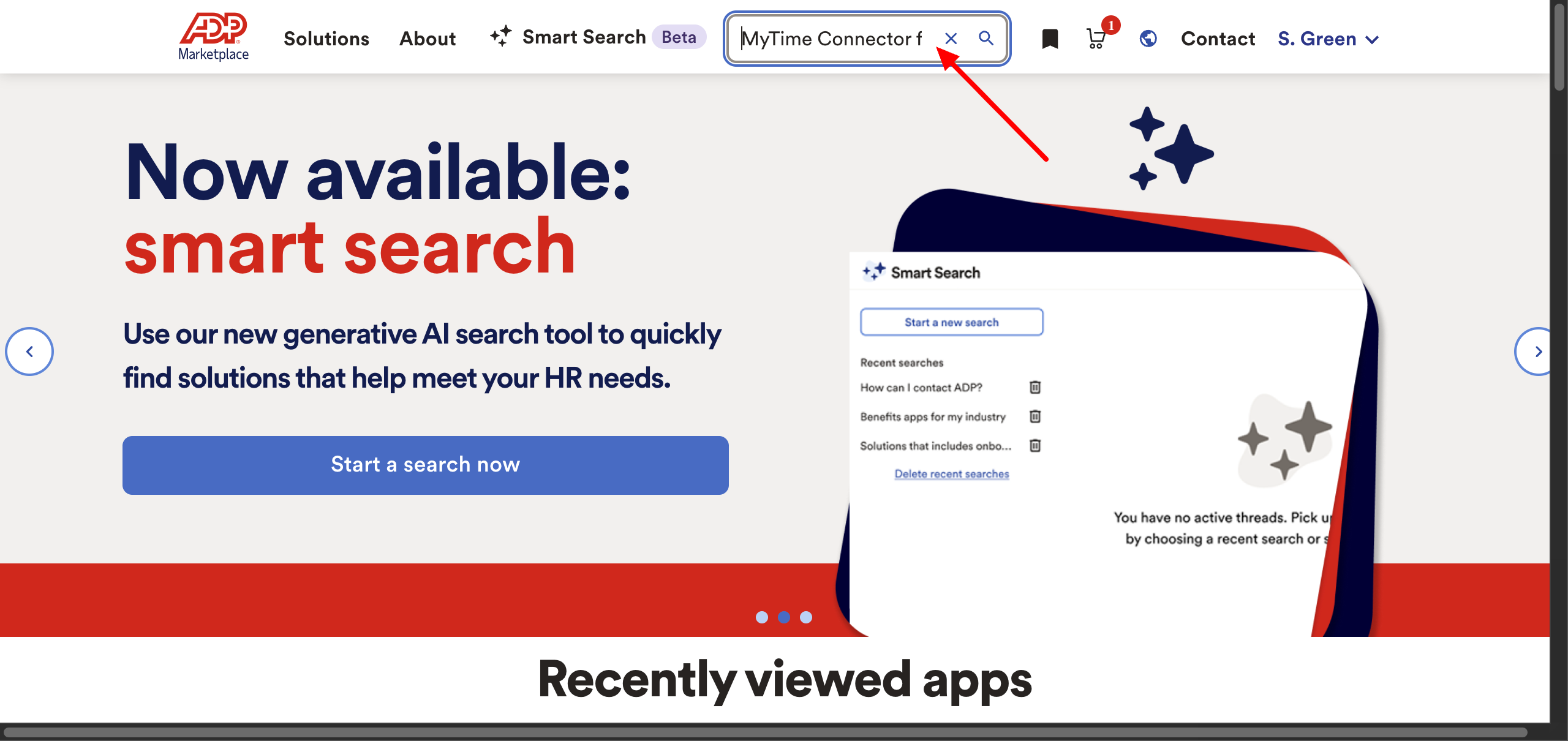
- Locate the search bar at the top of the page and enter “MyTime Connector for RUN Powered by ADP®”
- Select Buy Now in the top-right corner of the listing

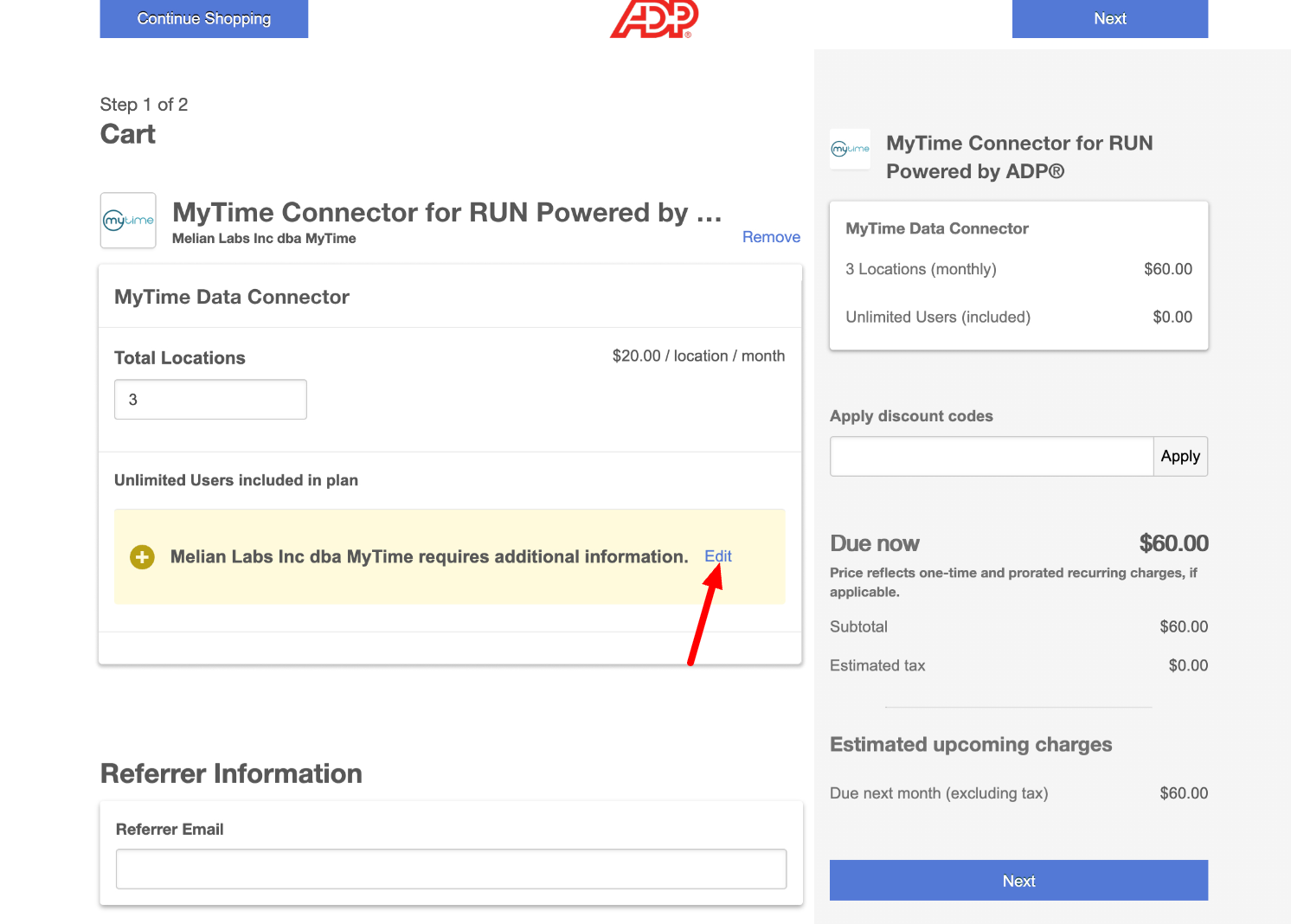
- Enter the number of locations you wish to sync under the Total Locations field during the checkout process to ensure all your locations are covered.
- Locate the highlighted text stating, “Melian Labs Inc dba MyTime requires additional information,” and click the Edit option next to it
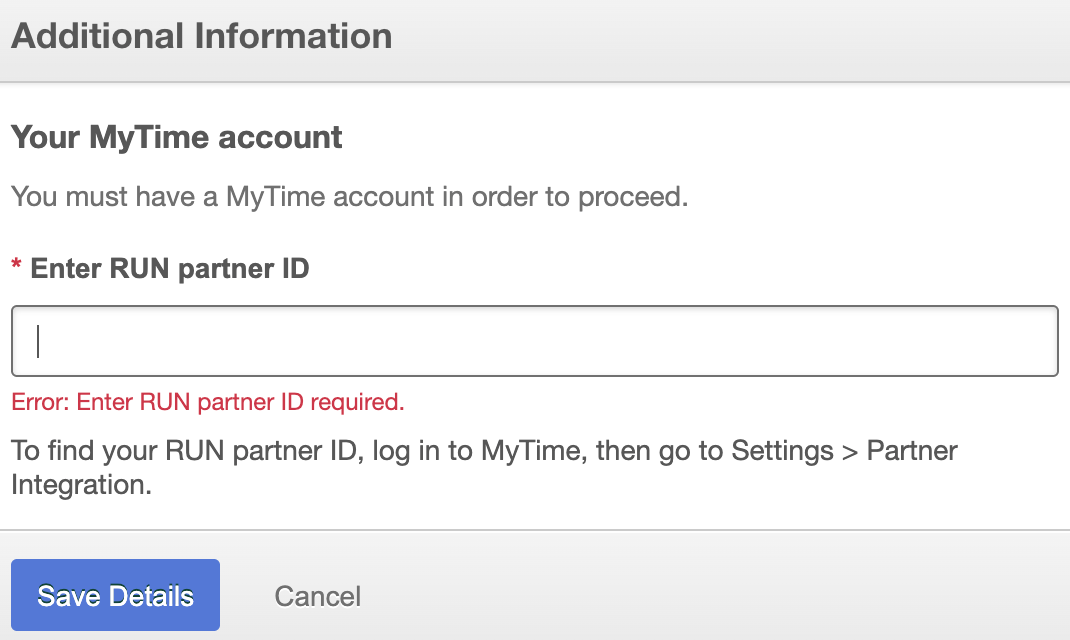
- Enter your RUN Partner ID (from Step 6 in the Enable the ADP RUN Integration section above), then select Save Details.
- Click Next to continue
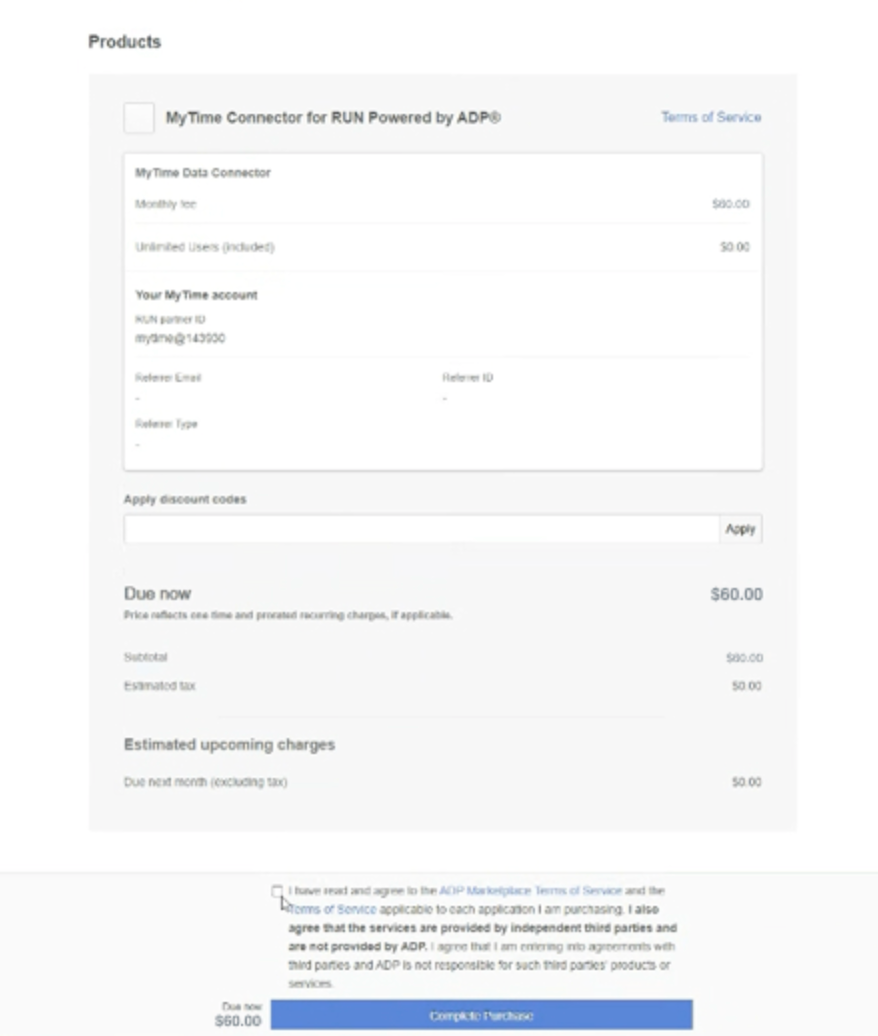
- Review the Terms of Service, then select Complete Purchase to activate your subscription.
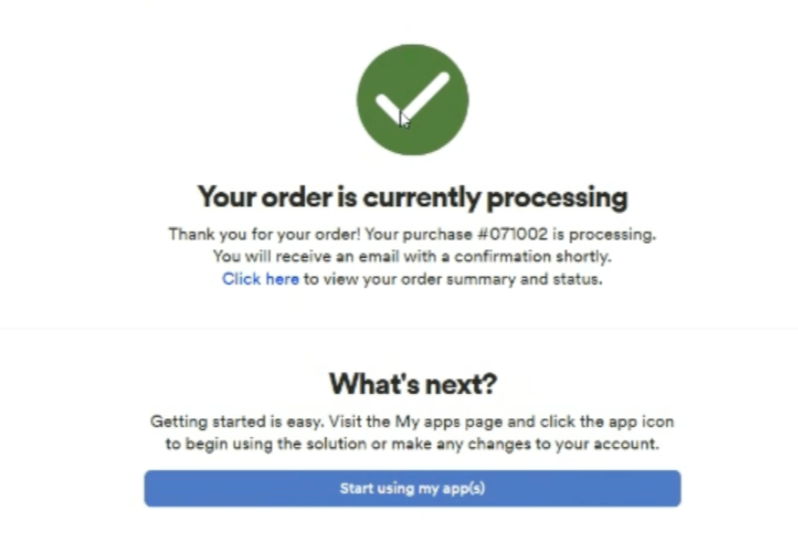
- Stay on the page and wait for the “Order is currently processing” confirmation to appear. This ensures your request has been successfully received and the connection is being established.
Grant ADP Data Access to MyTime
Once the MyTime Connector is purchased:
- In MyTime, navigate to Business Setup > Settings > Partner Integration
- Scroll to the ADP Run Integration section
- Click the Authorize Data Access hyperlink
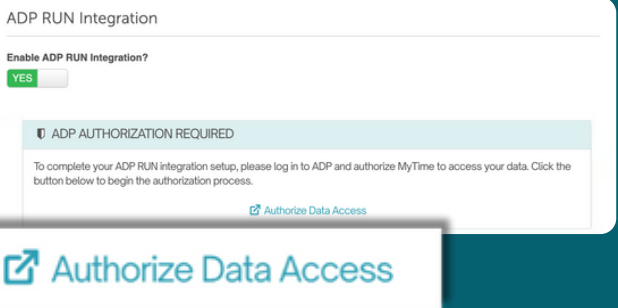
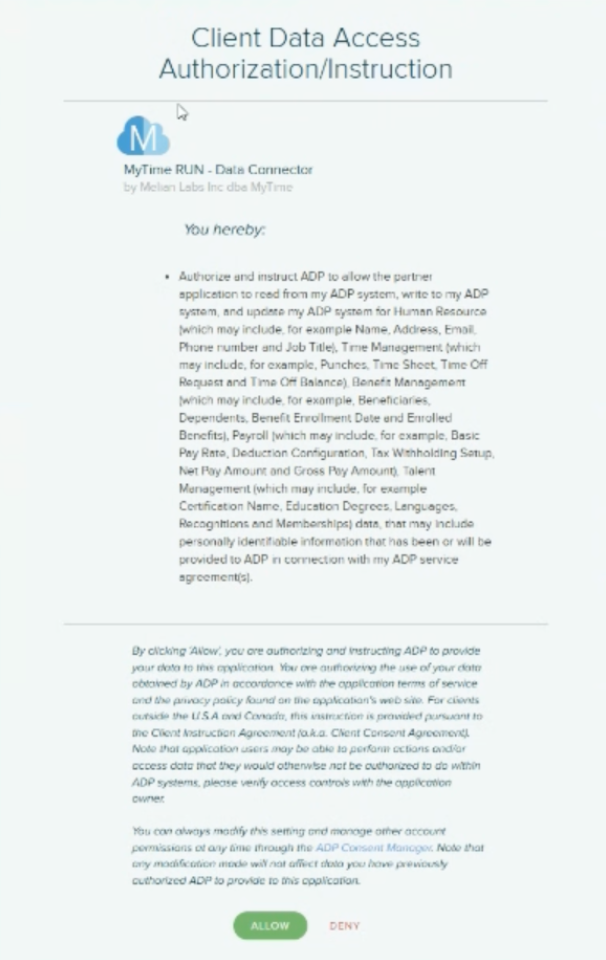
- You will be redirected to ADP. Select Allow to authorize the data connection
- When you see the message “Good job! This app is now connected.” Click Continue
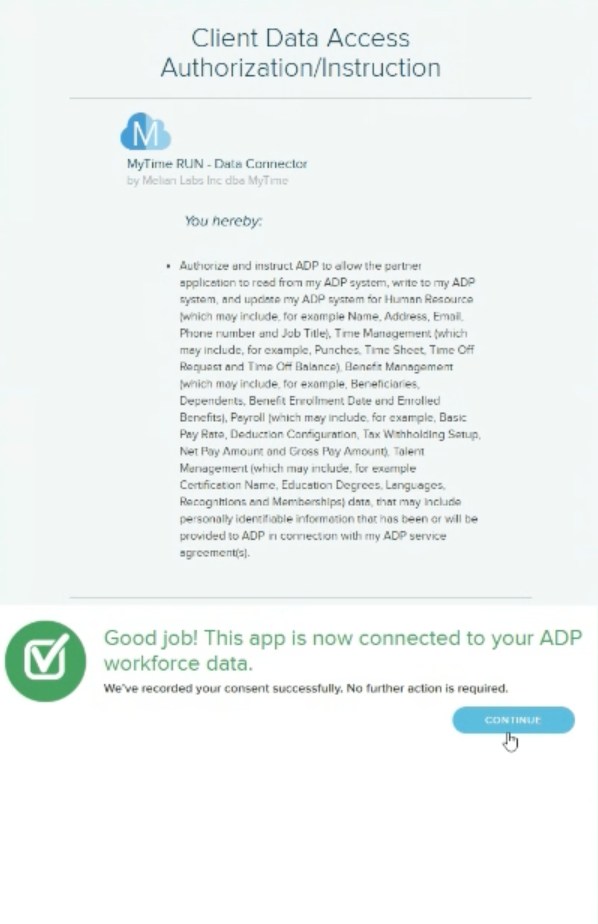
- You will be automatically redirected to MyTime to sign in and finalize the link between your accounts.
Map MyTime Hourly Work Types to ADP Department Codes
- Navigate to Business Setup > Settings > Partner Integration once you have signed into your MyTime account
- Scroll to the ADP Run Integration section
- Your hourly work types will appear in the list on the left side of the screen. Note: If the list is empty, it means hourly work types have not yet been configured on the Staff page in MyTime. Please refer to this help article to learn how to set them up before continuing.
- Select the appropriate ADP Department Code from the dropdown menus on the right for each work type. Tip: Refresh the page to reinitialize the connection if the dropdown menus appear empty.
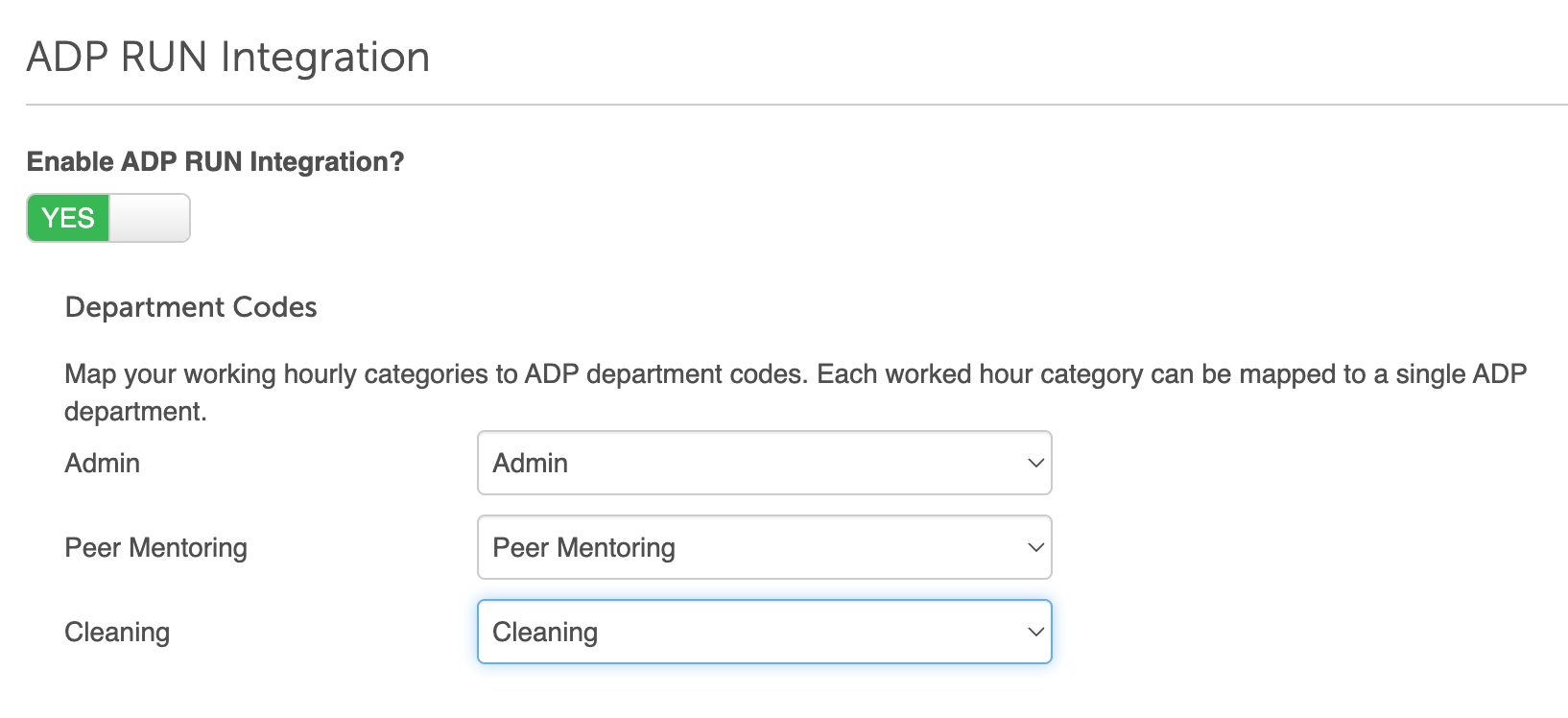
- Save
Running Payroll in ADP
At the end of each pay period, MyTime pushes all approved hours and commissions directly to ADP. Follow these steps to review and finalize your payroll:
- Log into your RUN account
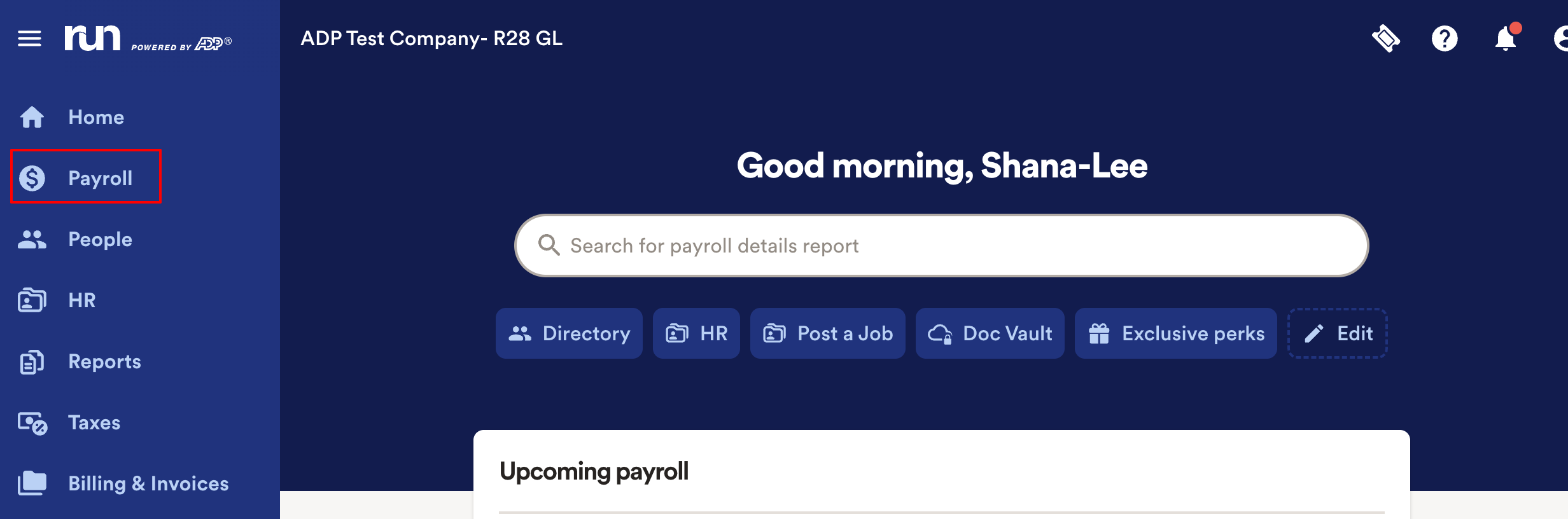
- Select Payroll from the left-hand panel
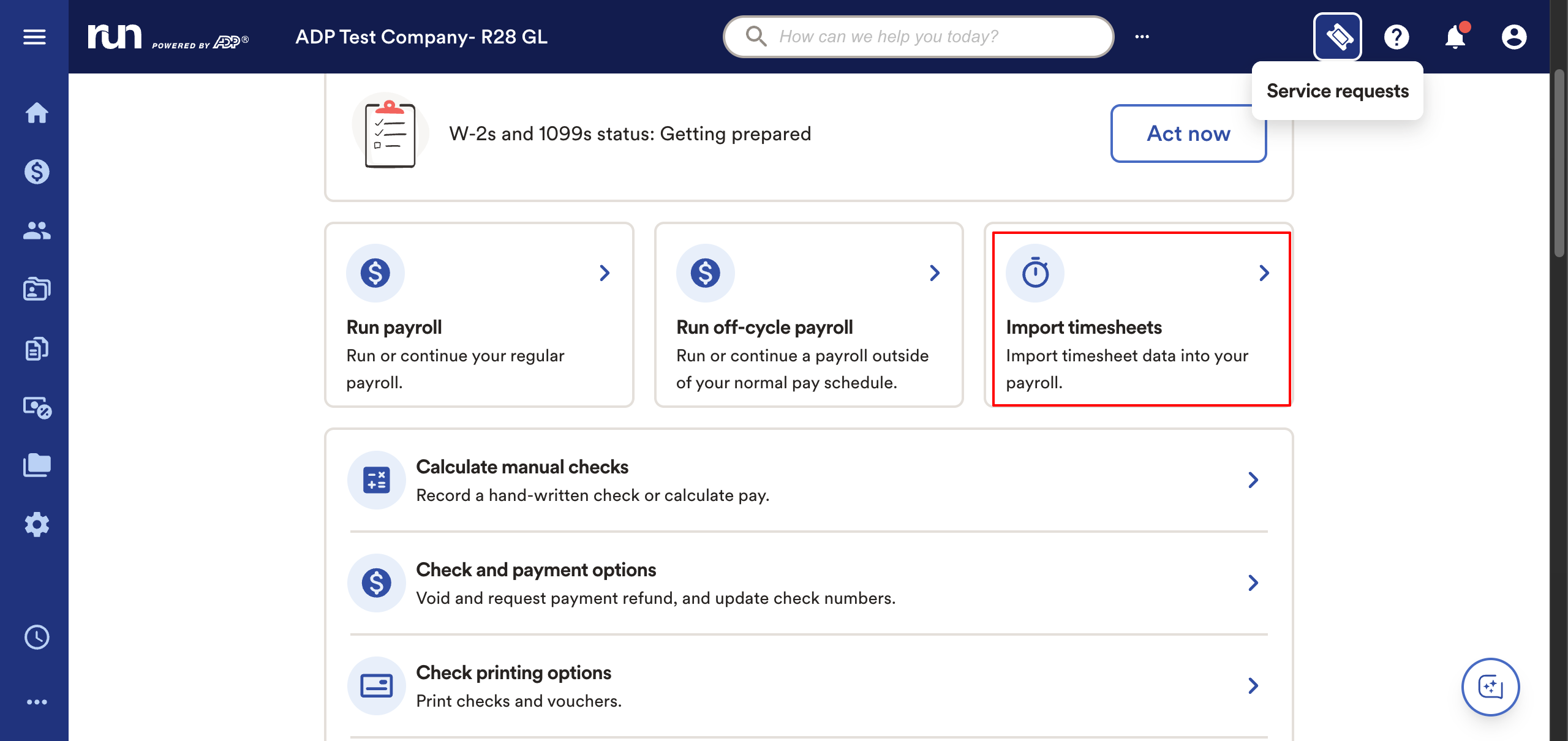
- Select Import Timesheets
- Choose the payroll frequency. Ensure this matches the frequency configured in your MyTime settings.
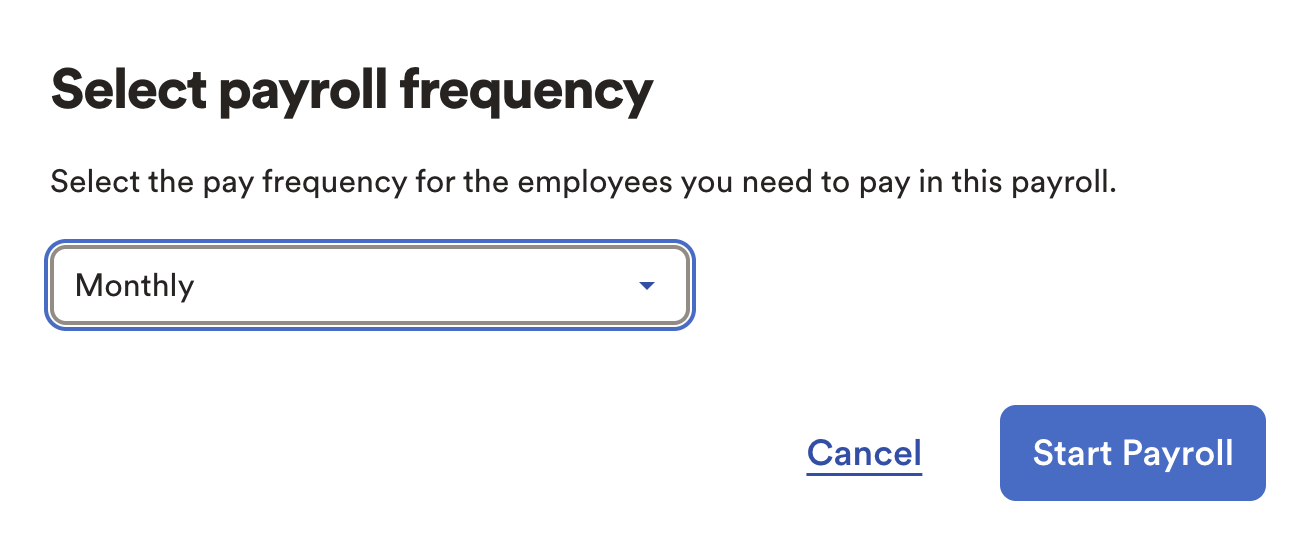
- Click the "Start Payroll" button
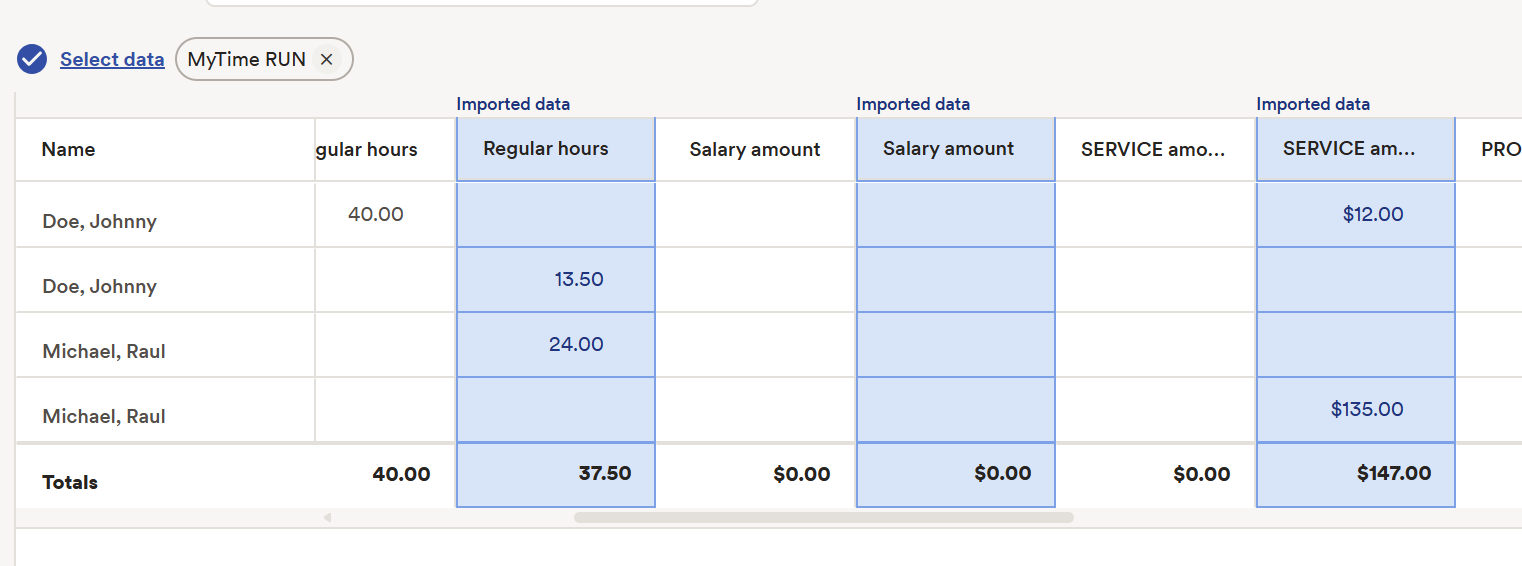
- Review the imported batch. Imported data is highlighted in blue. Final totals are calculated at the end of the review flow. For example, when reviewing clocked hours, you will see the hourly rate and total hours. The system calculates and displays the final earned amount (total hours × rate) at the final step, just before you approve the payroll.
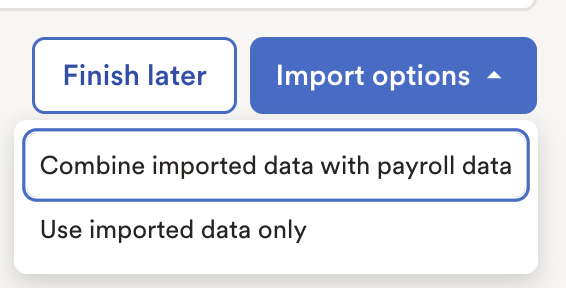
- Select Import Options at the bottom left of the screen. You can choose to:
- Combine import data with payroll data: Add the MyTime data to any existing entries in ADP
- Use only imported data: Replace existing ADP entries with the MyTime data
- Verify the data for accuracy and select Preview Payroll
- Click Approve Payroll to finalize the disbursements
Related Articles
Was this article helpful?
That’s Great!
Thank you for your feedback
Sorry! We couldn't be helpful
Thank you for your feedback
Feedback sent
We appreciate your effort and will try to fix the article