A pay cycle determines how often your staff members are paid. This article provides step-by-step instructions on how to configure your pay cycle in MyTime.
Things to know:
- The ability to access your business' pay cycle is controlled by the 'Accessing Account Settings' access control setting.
- The ability to set up a pay cycle is controlled by the "Track Compensation By Staff Member?" setting.
- For franchise businesses, this setting is controlled at the child level, not the parent account.
- You can configure the starting day of the pay cycle and specify how often staff members will be paid (e.g., weekly, biweekly, monthly, or split monthly).
- The pay cycle is set at the account level. Once configured, it will apply to all staff members and locations associated with the account.
- Once established, the configured pay cycle will be visible on staff profiles under the "Compensation Reporting" section, beneath the Payroll Type
- The pay cycle data is reflected in the compensation report
- Changing this setting only affects the compensation cycles in your Compensation report, it does not change the calendar layout on the schedule. For example, if you set your pay week to start on Tuesday, your schedule will still begin on Sunday, but your Compensation report will show pay cycles running Tuesday through Monday.
- The setup option displayed in the top-right user menu depends on how you access the account and your assigned role:
- When navigating from the Parent Account (Location Management tab):
- Admin: Displays Business Setup when viewing the location account.
- Login As: Displays Location Setup when viewing the location account.
- When logged in directly at the Location Level:
- Location Owners & Location Managers: Display Location Setup.
- Service Providers & All Other Roles: Display Profile Setup.
To configure your pay cycle:
- Navigate to Business Setup / Location Setup > Settings
- Scroll down to the staff section
- Toggle the "Track Compensation By Staff Member?" setting to YES
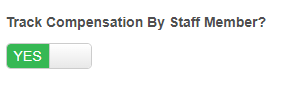
- Additional fields will appear, allowing you to:
- Specify the start date of the pay cycle
- Choose the day of the week the cycle should begin: This setting defines the first day of your weekly pay cycle. It is bypassed if Pay Cycle Frequency is set to "Month" or "1st to 15th and 16th to end of the month.
- Note: Visibility of this setting depends on the "Track compensation by staff member?" company setting.
- Set the frequency to weekly, bi-weekly, monthly, or 1st-15th and 16th-end of the month.
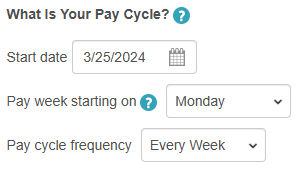
- After configuring your pay cycle, scroll to the bottom of the settings page and click on "Save"
For more information, contact us at support@mytime.com.
Related Articles:
- Daily Compensation Report
- Compensation (by Pay Cycle) Report
- Compensation Snapshot
- Set up Compensation for Staff Members
- Setting up Employee Compensation
- Compensation for Services
- Compensation for Redo Appointments
- Compensation for Classes/Events
- Compensation on Product Sales
- Compensation on Membership Sales
- Compensation on Package Sales
- Compensation on Gift Card Sales
- Revenue and Compensation for Multi-Client Services
- Revenue and Compensation for Multi-Staff Services
- Commission Calculation for Facility Fees vs Back Bar Fees
- Why Are Commissions Missing for Some Items in Compensation Report?
- Comparison of the Daily Revenue Report, Daily Payments Report, and Daily Compensation
Was this article helpful?
That’s Great!
Thank you for your feedback
Sorry! We couldn't be helpful
Thank you for your feedback
Feedback sent
We appreciate your effort and will try to fix the article