The Client Search feature allows you to quickly locate profiles using names or contact details, streamlining how you manage appointments and purchases. This guide covers how to efficiently search for clients directly within the Scheduler app.
Things to know:
- The ability to search via the Clients tab depends on the "Accessing Client Records" access control setting.
- You can search for clients by their name, email address, or phone number
- To save you time, search results in the appointment modal, POS, and Clients tab prioritize clients associated with your current location.
Contents:
- Searching For Clients From the Clients Page
- Searching for Clients from the Appointment Modal
- Searching for Clients in POS
Searching For Clients From the Clients Page
To search for clients from the clients page:
1. Launch the MyTime Scheduler app on your device
2. Choose your login method:
- Standard: Enter your registered email address and password, then tap 'Sign In'
- Social Login: Select 'Continue with Google' or 'Continue with Apple' to use your existing credentials for a faster login experience. For detailed instructions, learn here
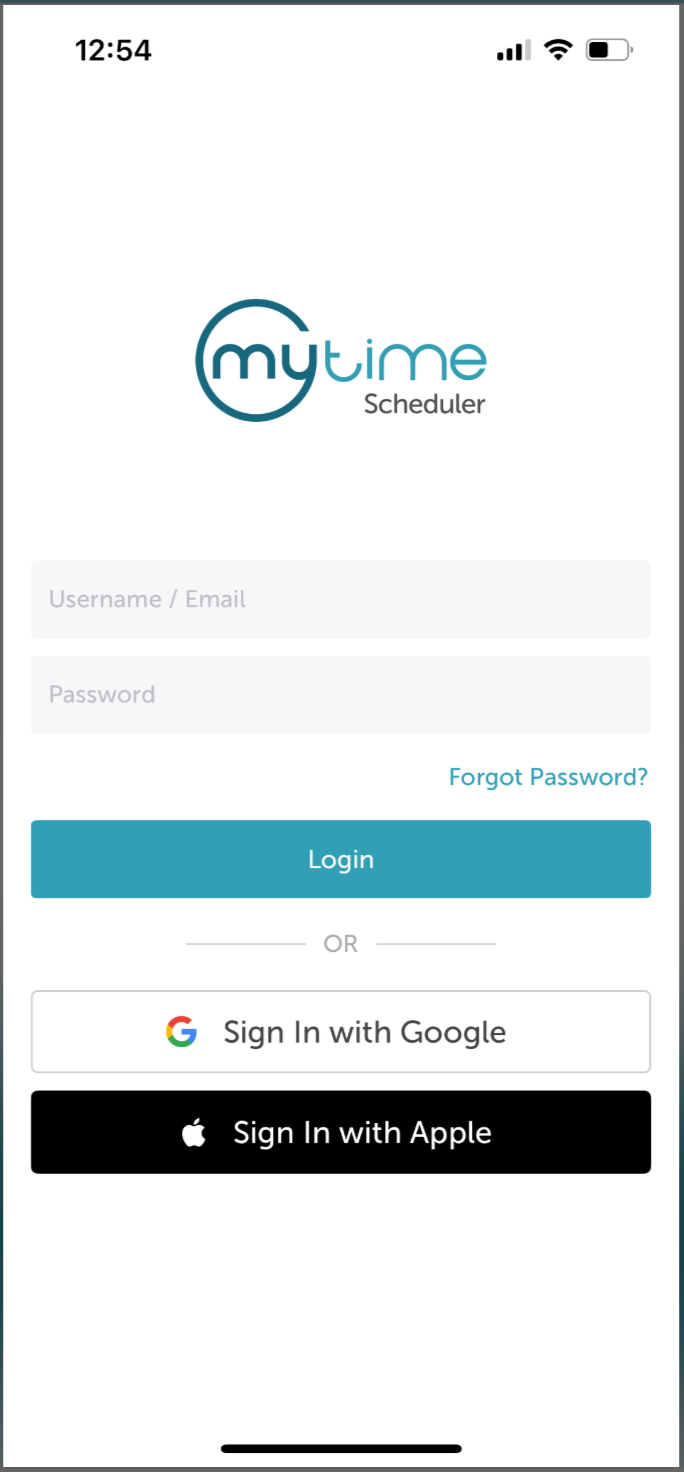
3. After signing in, you will be directed to the Schedule by default
4. Tap the Clients icon at the bottom of the screen 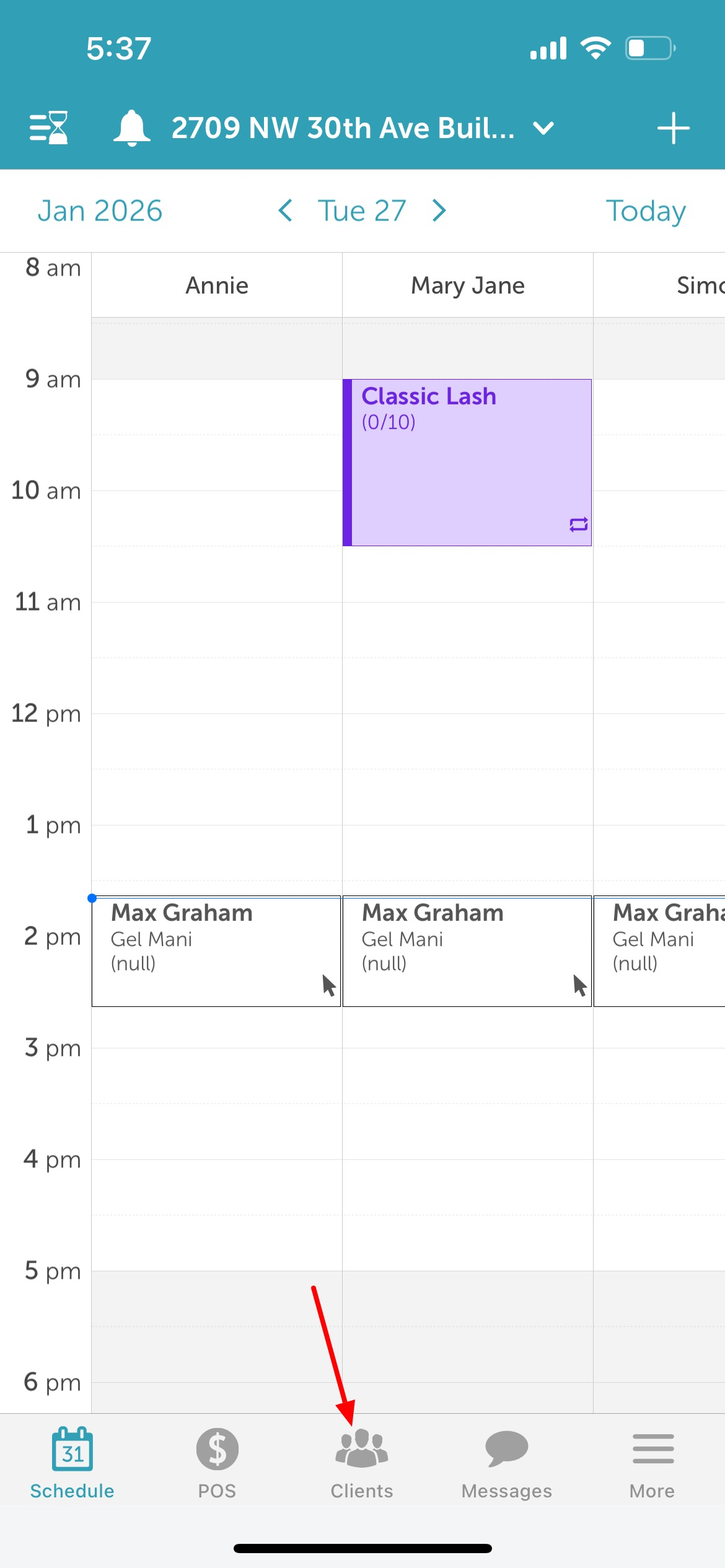
5. Select the search icon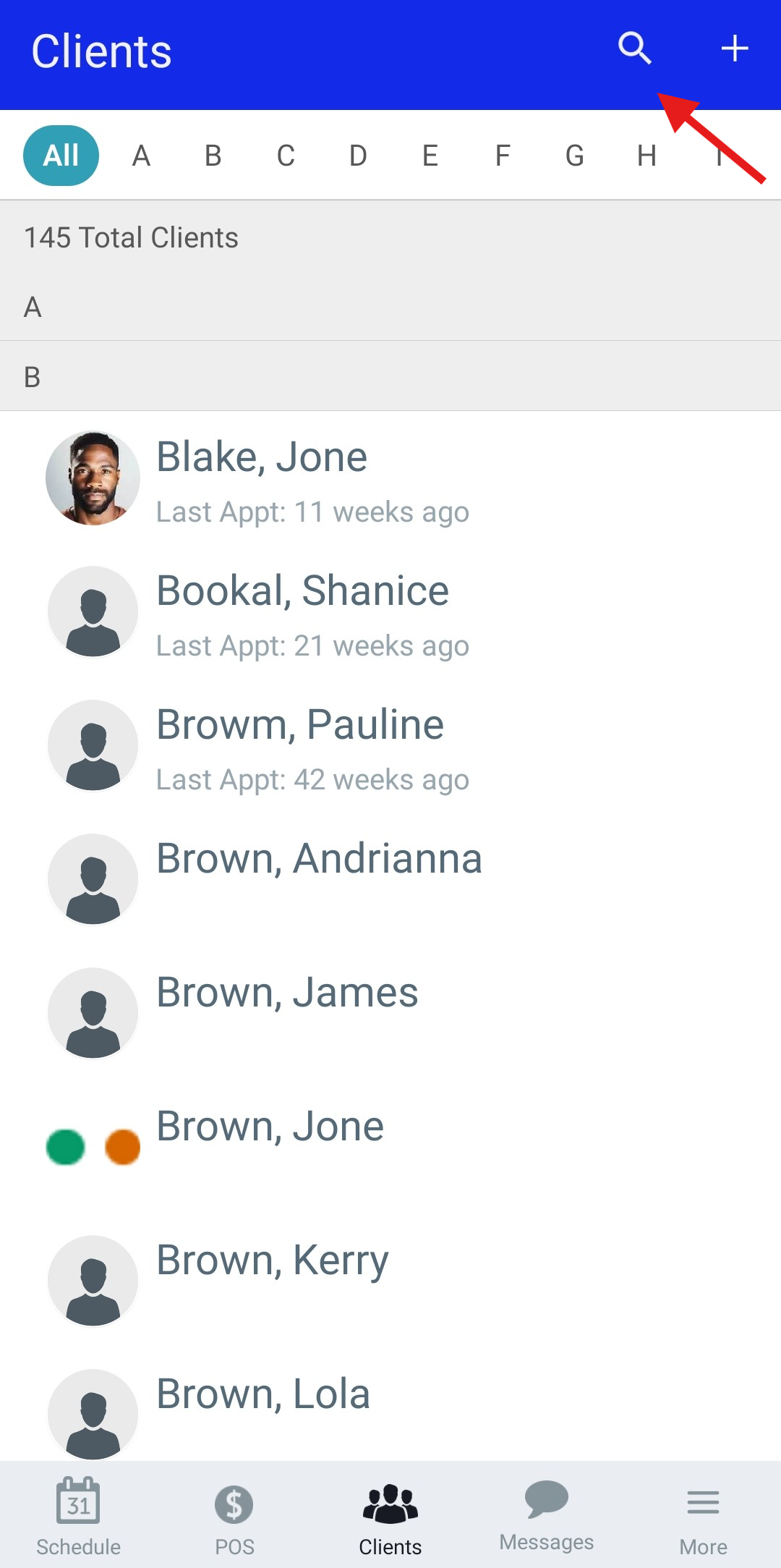
6. In the Search field, enter the client’s name, email address, or phone number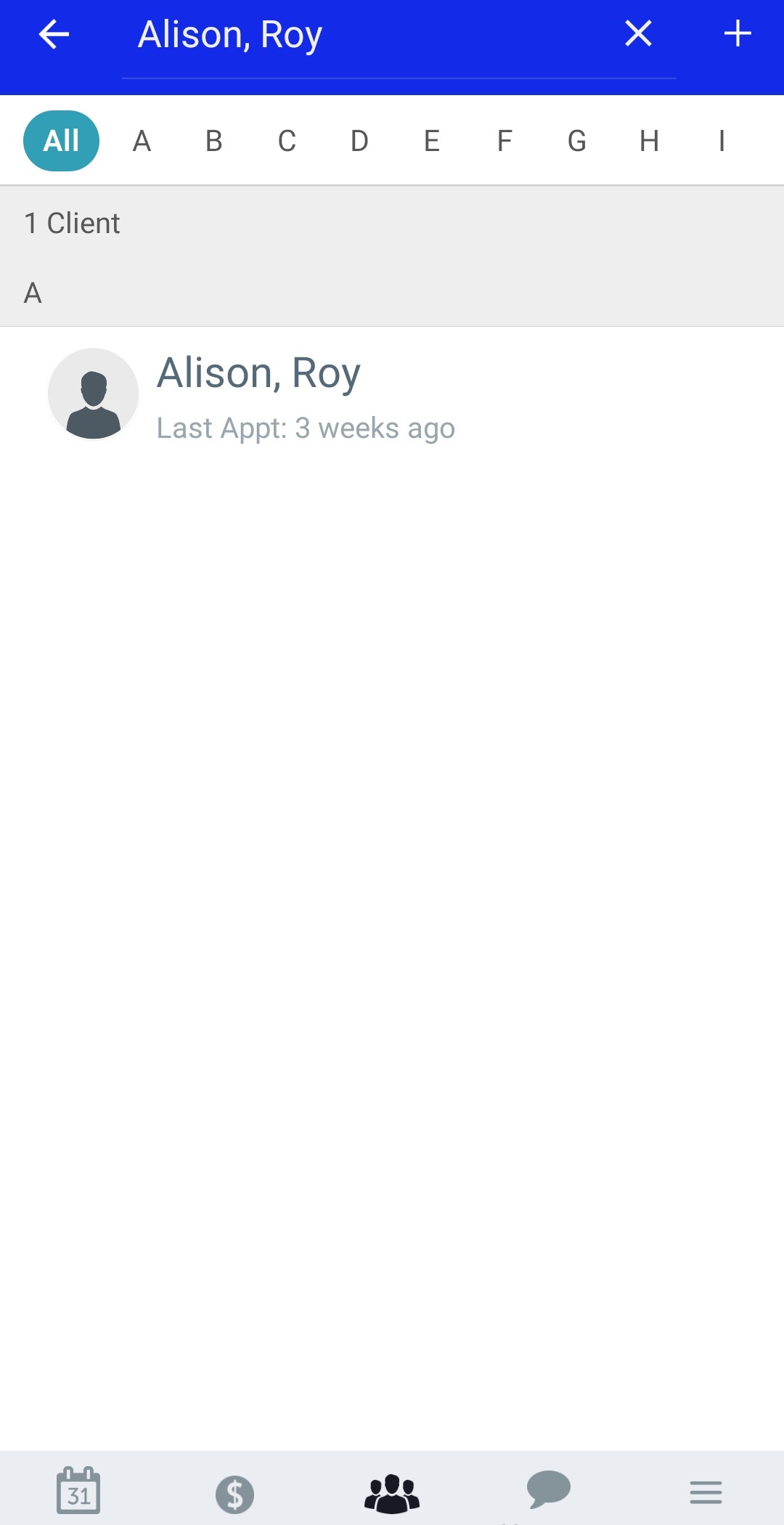
Searching for Clients from the Appointment Modal
To search for clients while creating or editing an appointment:
1. Navigate to the Schedule
2. Tap the '+' icon in the top-right corner or select a specific time slot on the schedule
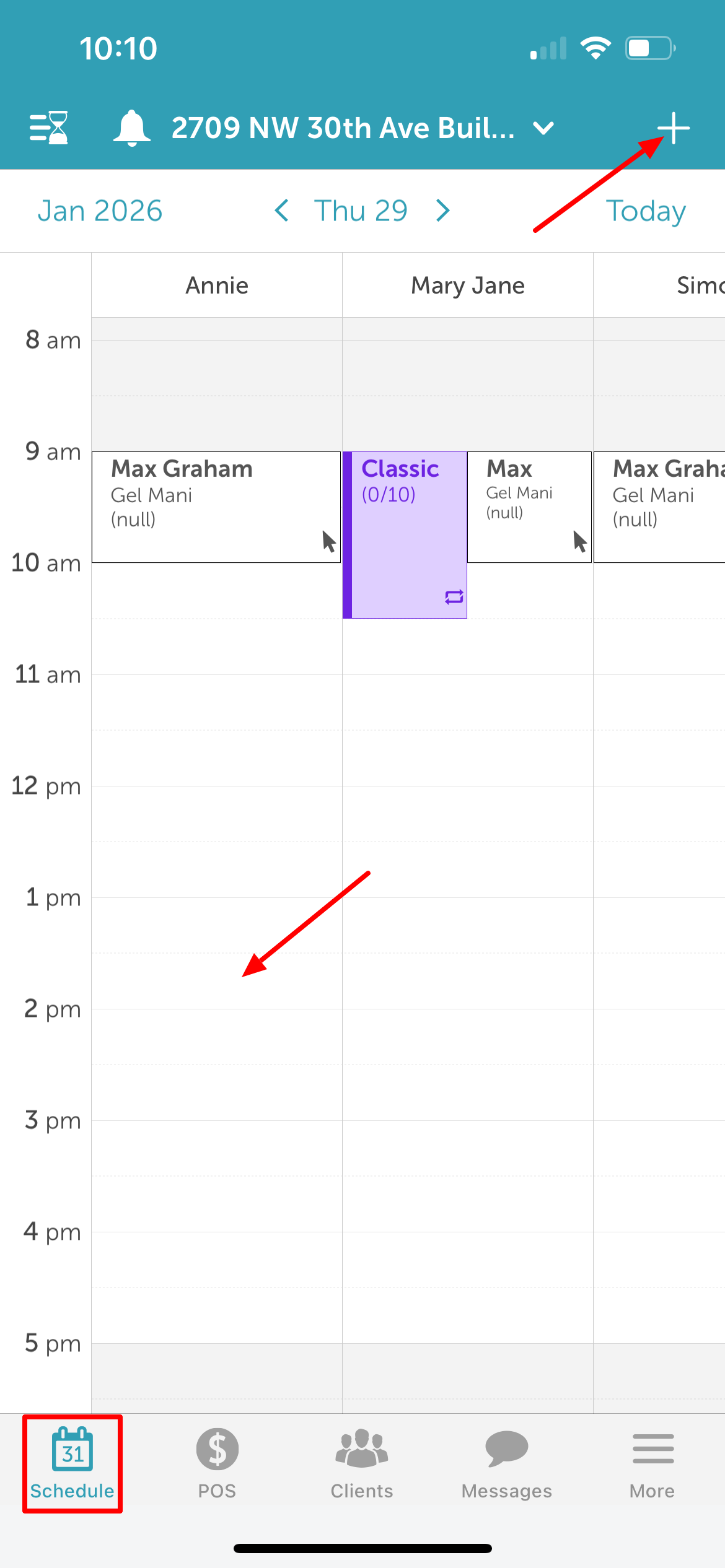
3. From the 'Add Service' screen, tap the Client field 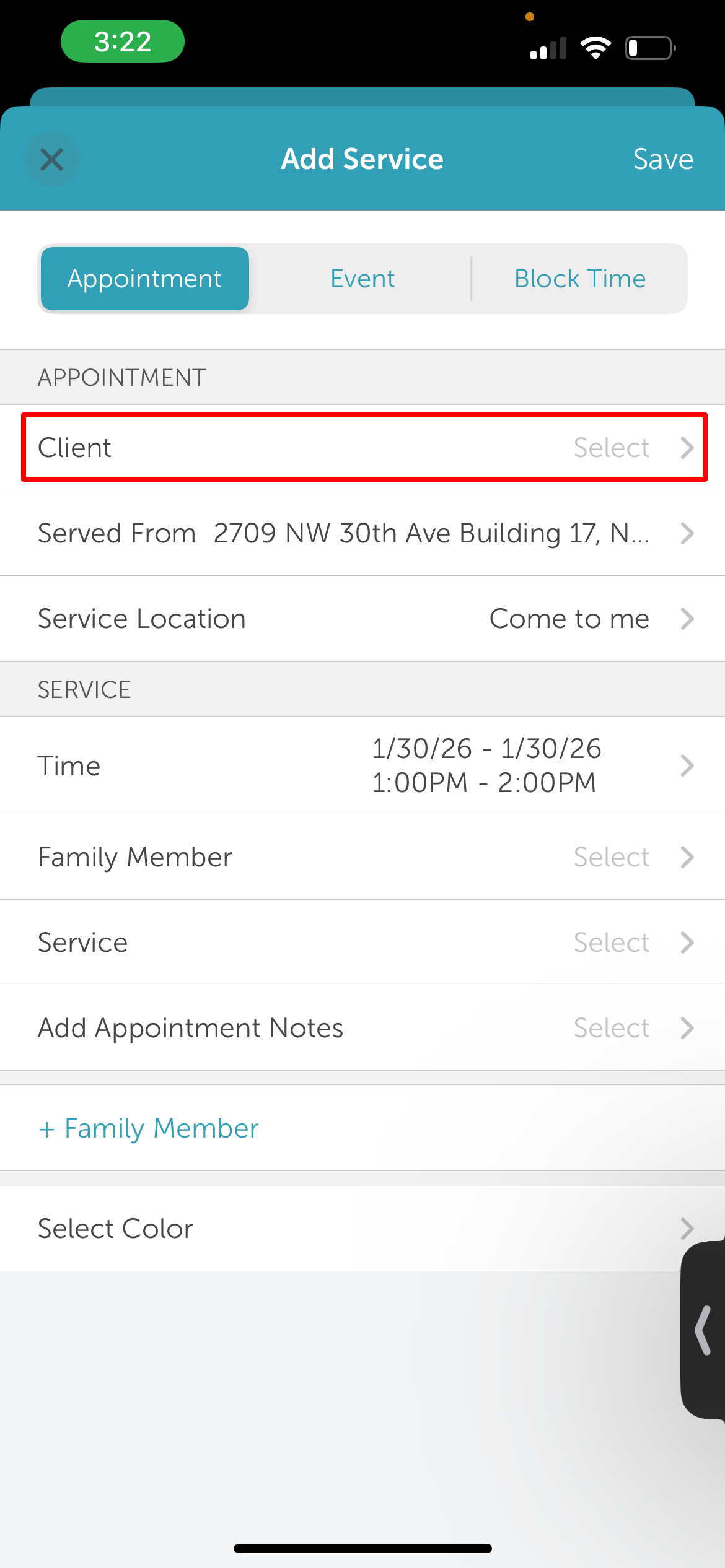
4. You will be taken to the 'Clients' page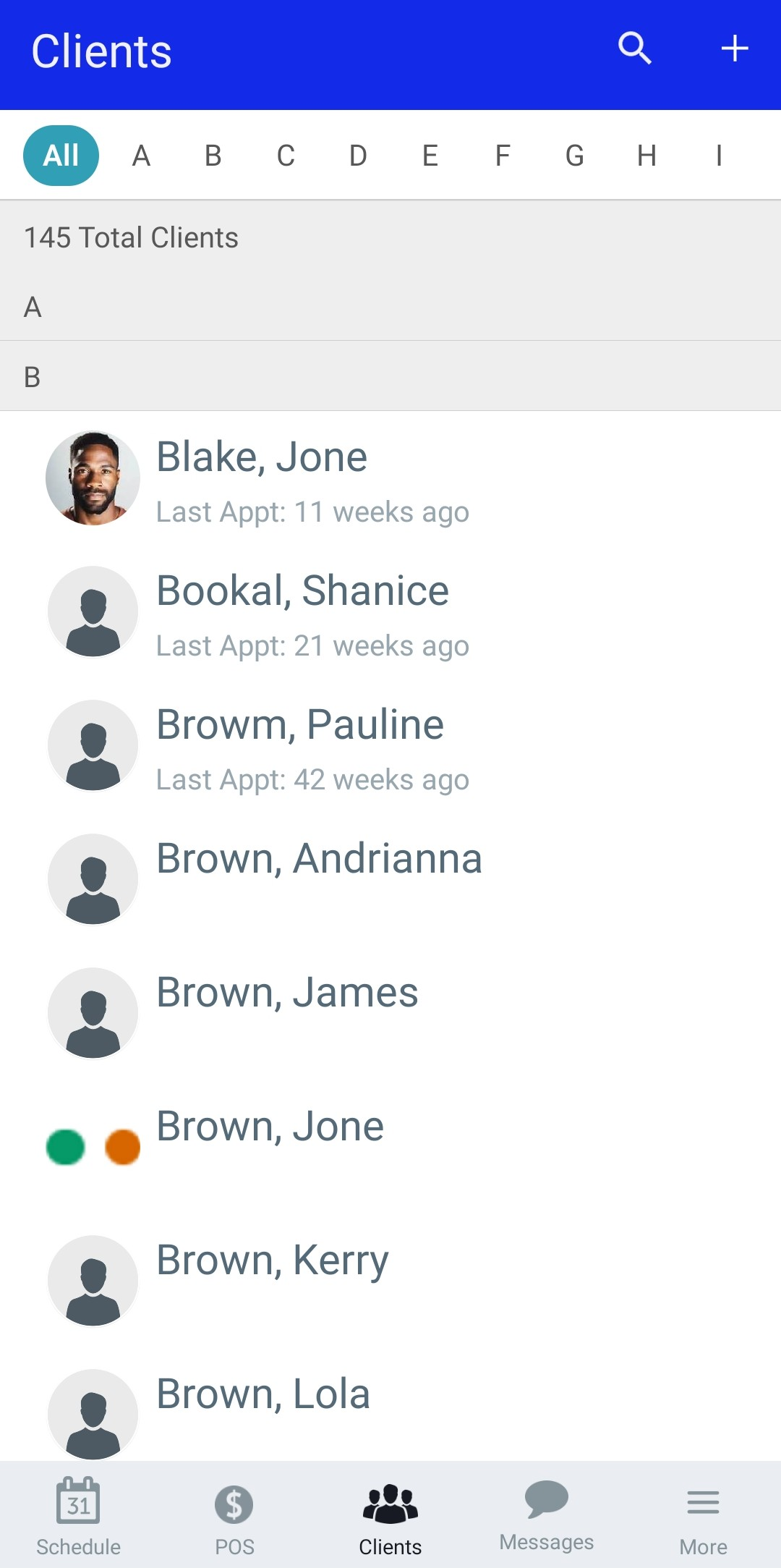
5. Select the scearch icon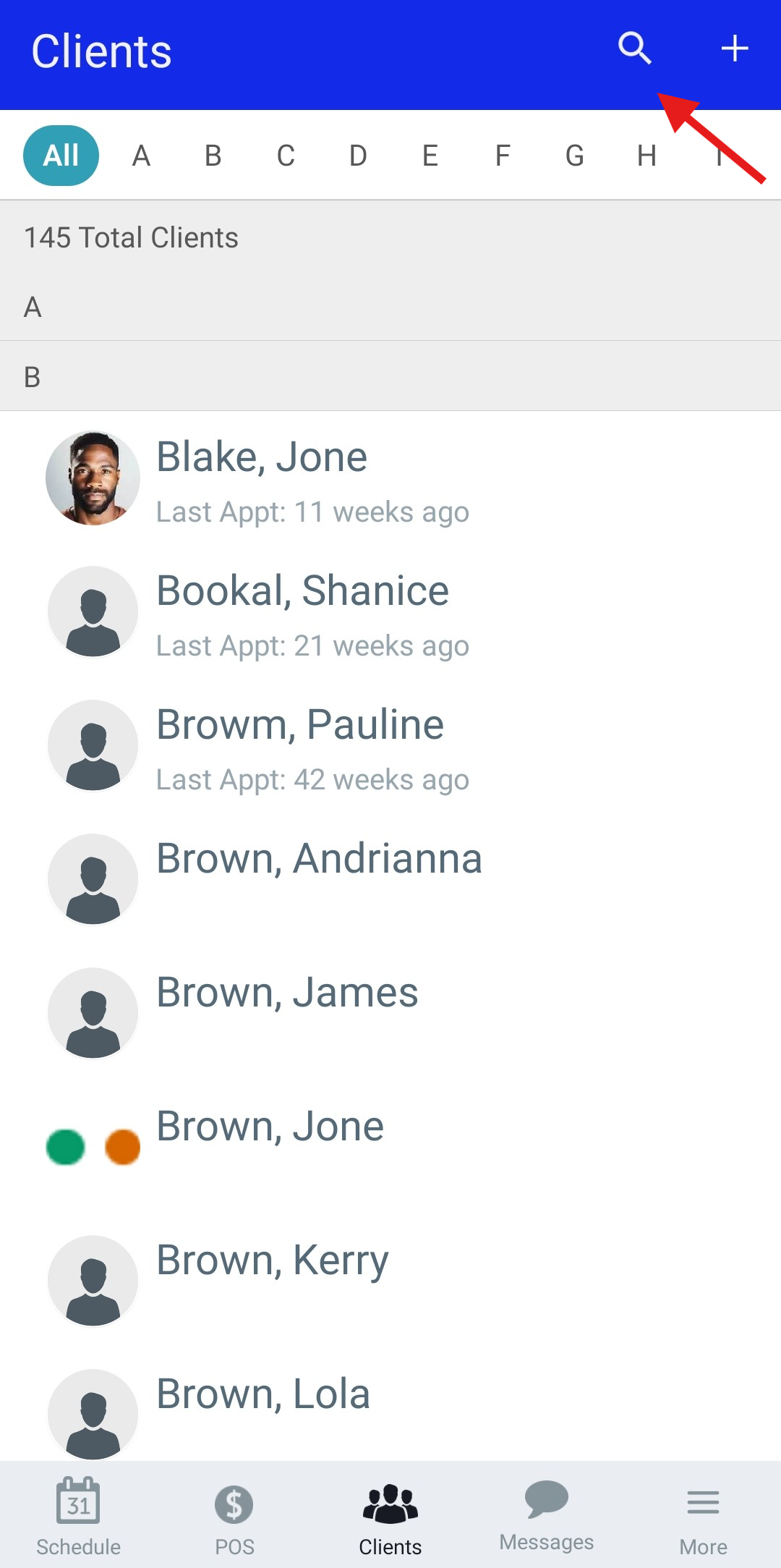
5. Enter the client’s name, email address, or phone number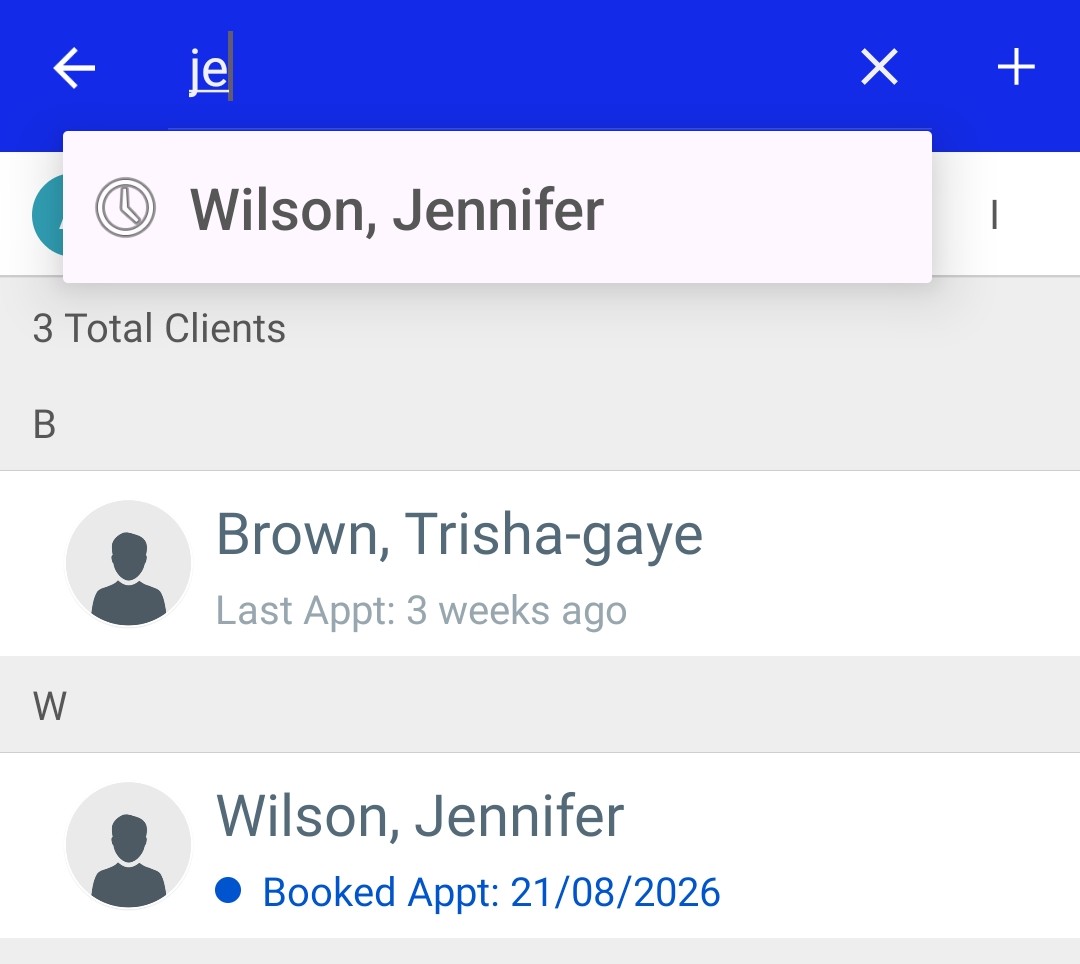
Searching for Clients in POS
To search for clients in POS:
1. From the Schedule, tap 'POS" at the bottom of the screen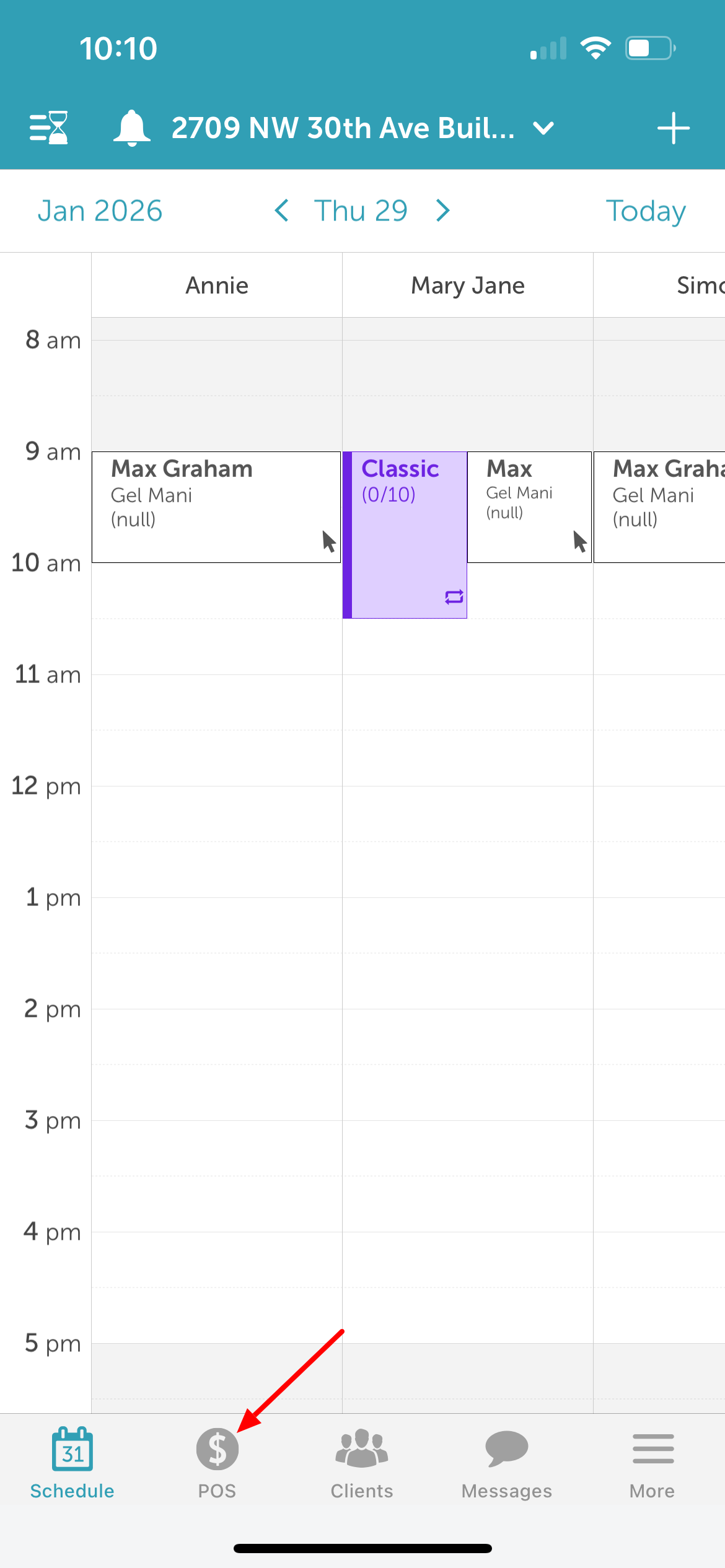
2. Tap the client field at the top of the screen 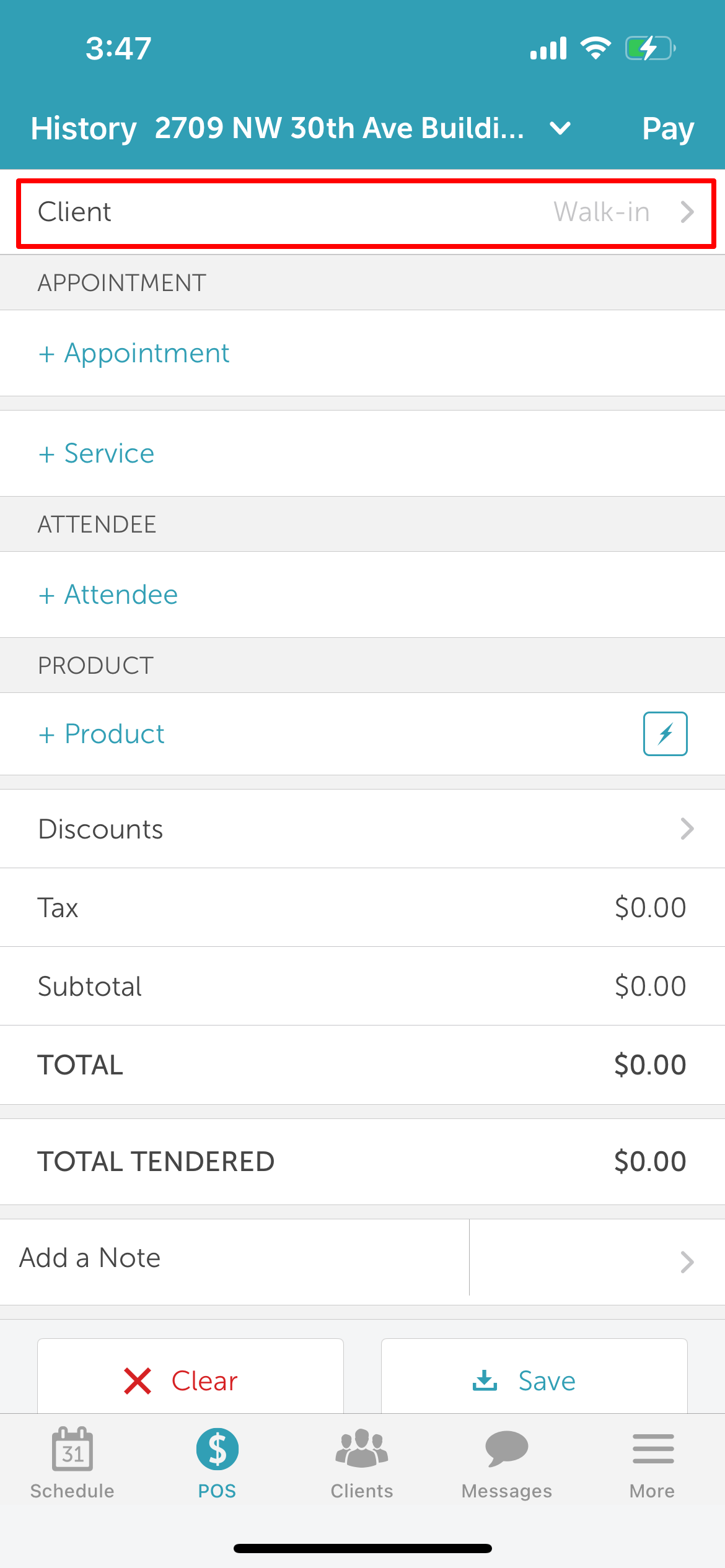
3. On the 'Clients' page, tap the search icon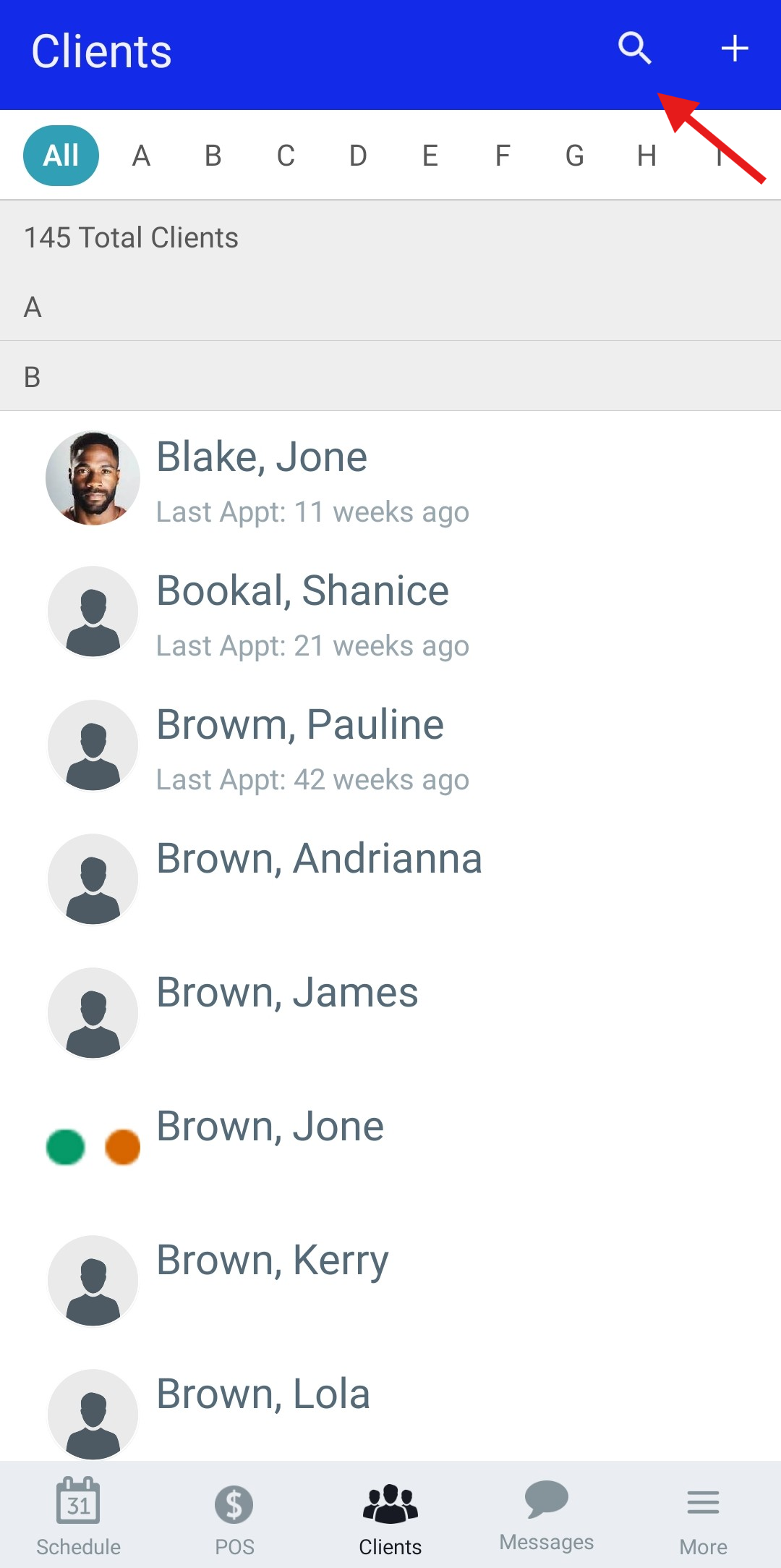
4. Enter the client’s name, email address, or phone number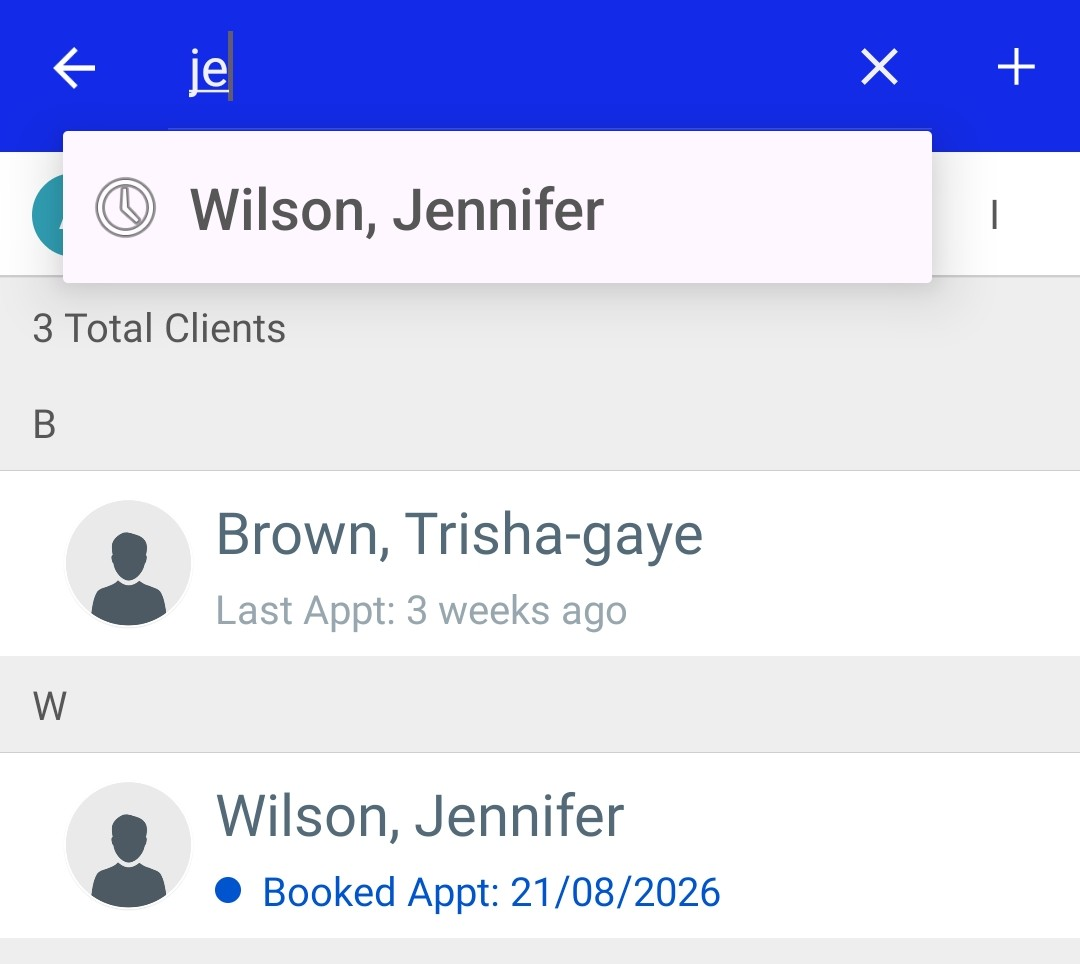
For more information, contact support@mytime.com.
Related Articles:
Installing MyTime on Scheduler App (Android and iOS)
Signing into MyTime on Scheduler App (Android and iOS)
Was this article helpful?
That’s Great!
Thank you for your feedback
Sorry! We couldn't be helpful
Thank you for your feedback
Feedback sent
We appreciate your effort and will try to fix the article