You can easily update the remaining credits or the validity period of a package directly from a client's profile. These adjustments can be applied to client, pet, or family member packages. This guide outlines the steps required to make these changes effectively.
Things to know:
- You can only edit the remaining credits and validity period of a package. The price and included item(s) cannot be modified from the client profile.
- Package validity is based on the local time zone of the purchase location. Packages remain active from the purchase time until 11:59 PM local time on the expiration date.
- If the validity is updated to a past date, past appointments (that are not linked to a closed ticket) will be covered once they fall within the new validity period.
- If you adjust the credit balance:
- Existing appointments (not tied to a closed ticket) that match the package criteria will automatically be covered.
- Future appointments will be covered as long as they fall within the updated validity period, and credits are available.
- Changes to the credit quantity will be reflected in the Package Balance report under the Remaining Quantity column.
- Once a package item credit has been used or manually removed, the option to delete the package will no longer be available on the client's profile.
To edit a client's package:
- Launch the MyTime Scheduler app on your device
- Choose your login method:
- Standard: Enter your registered email address and password, then tap 'Sign In'
- Social Login: Select 'Continue with Google' or 'Continue with Apple' to use your existing credentials for a faster login experience. For detailed instructions, learn more here
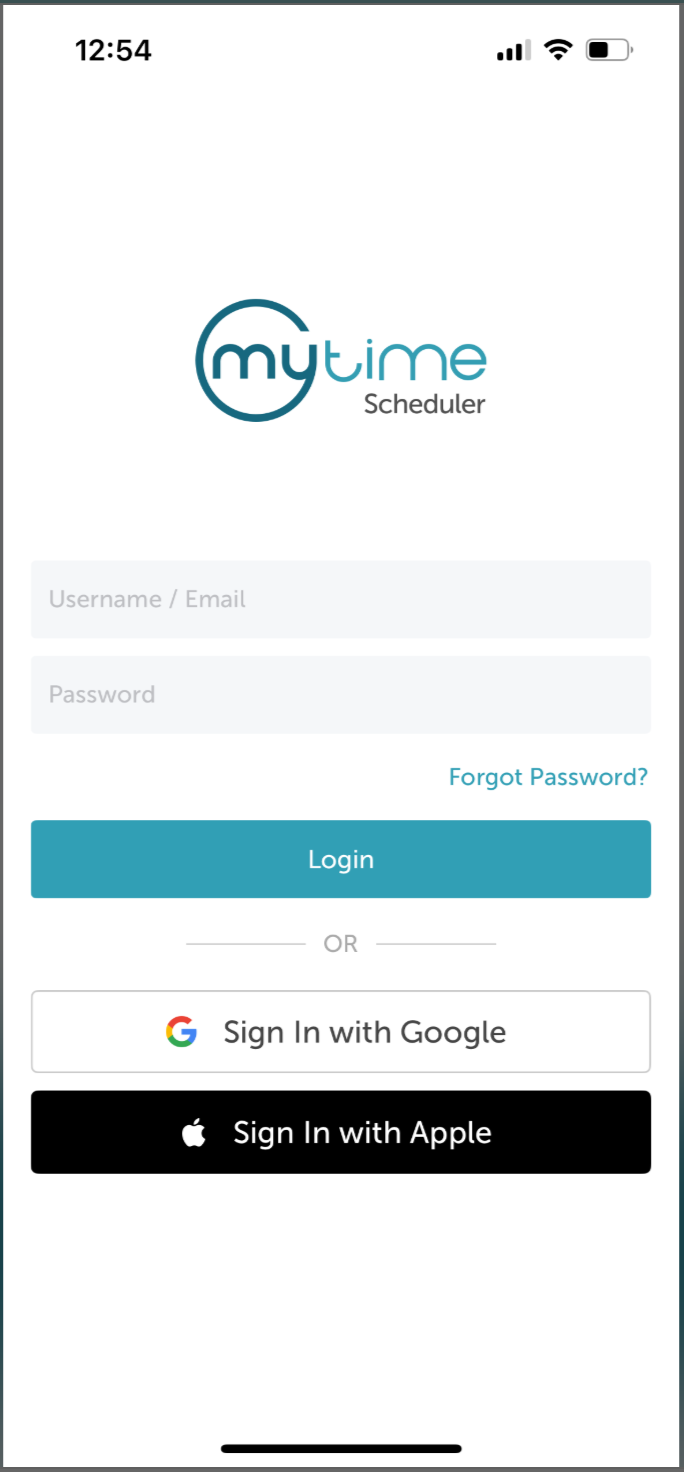
- After signing in, you will be directed to the Schedule by default
- Tap the Clients icon at the bottom of the screen
- Search for the client by typing their name in the Search field, or select the client from the client list
- On the client’s profile, scroll to the Packages Purchased section
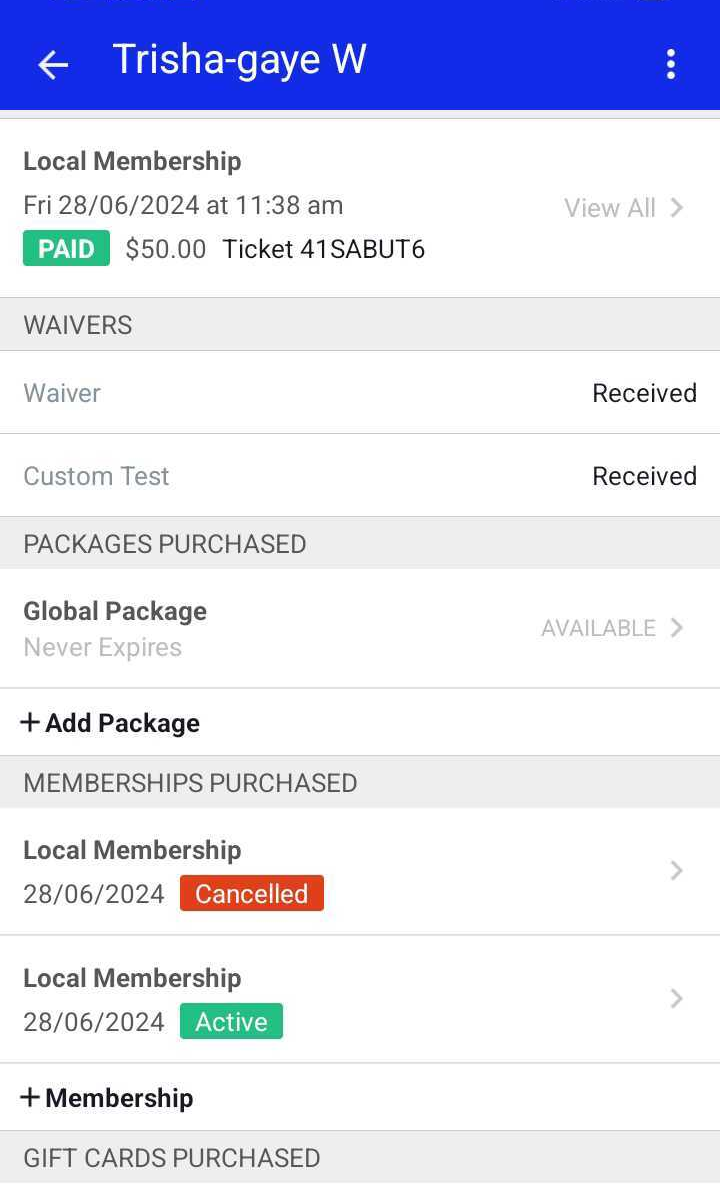
- Locate and tap the desired package
- You can edit the following:
- Purchase Location: Change where the package was bought
- Expiration Period: Uncheck 'Never Expire' to set a specific end date for indefinite packages
- Credit Quantity: Adjust the number of credits included
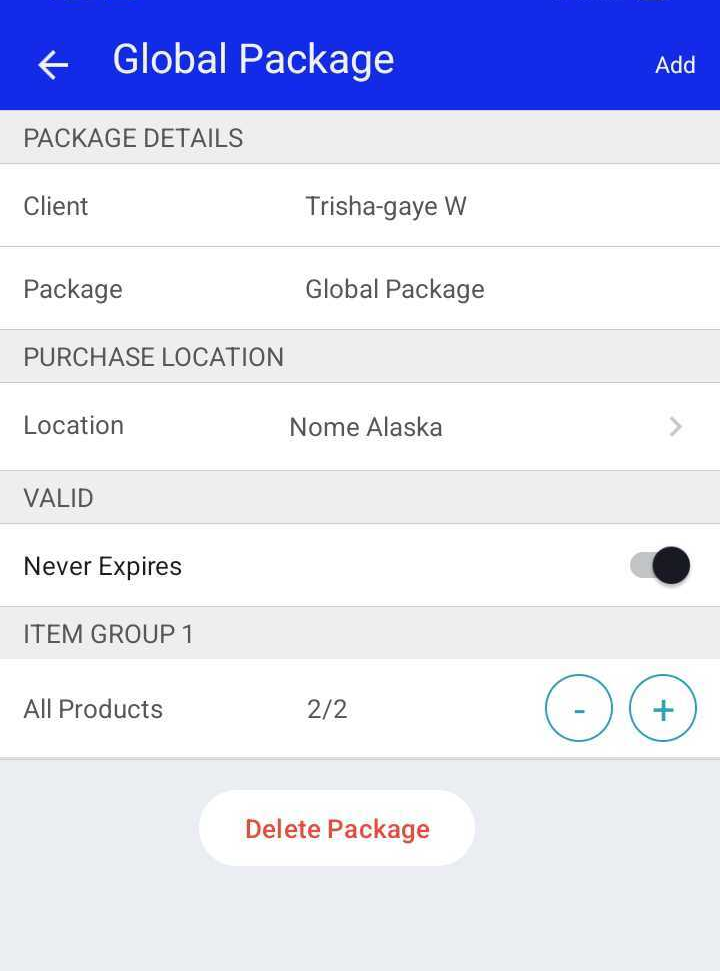
- Click "Add"
For more information, contact us at support@mytime.com or (385) 233-6964.
Related Articles:
Installing MyTime on Scheduler App (Android and iOS)
Signing into MyTime on Scheduler App (Android and iOS)
Editing Packages on Client Profiles
Configure Packages for Clients
Configure Packages For Family Members
Adding Packages for Clients on Scheduler App
Adding Packages for Pets on Scheduler App
Adding Packages for Pets on Client Profile
Adding Packages for Family Members on Scheduler App
Adding Packages for Family Members
Was this article helpful?
That’s Great!
Thank you for your feedback
Sorry! We couldn't be helpful
Thank you for your feedback
Feedback sent
We appreciate your effort and will try to fix the article