In MyTime, you can transfer products between locations within a child account. You have the flexibility to transfer a single product at the SKU level directly from the Inventory page or move multiple products in bulk using a transfer order. This article will walk you through the steps to transfer a single product between locations from the Inventory page on the scheduler app.
Things to Know:
- The ability to transfer products between locations at the SKU level is controlled by the “Accessing Inventory Quantity” access control setting.
- When transferring product quantities to another location:
- Entering a negative value (e.g., -5) will deduct that quantity from the current location’s inventory and add it to the destination location selected in the drop-down menu.
- Entering the transfer amount without a negative sign will add that quantity to the current location’s inventory and deduct it from the destination location.
- The transfer will fail if the product is not currently stocked at the destination location. In this case, the system will display the error message: “Other location is not stocked.”
- All transfers are tracked in the Inventory Adjustment Report.
To transfer inventory between locations:
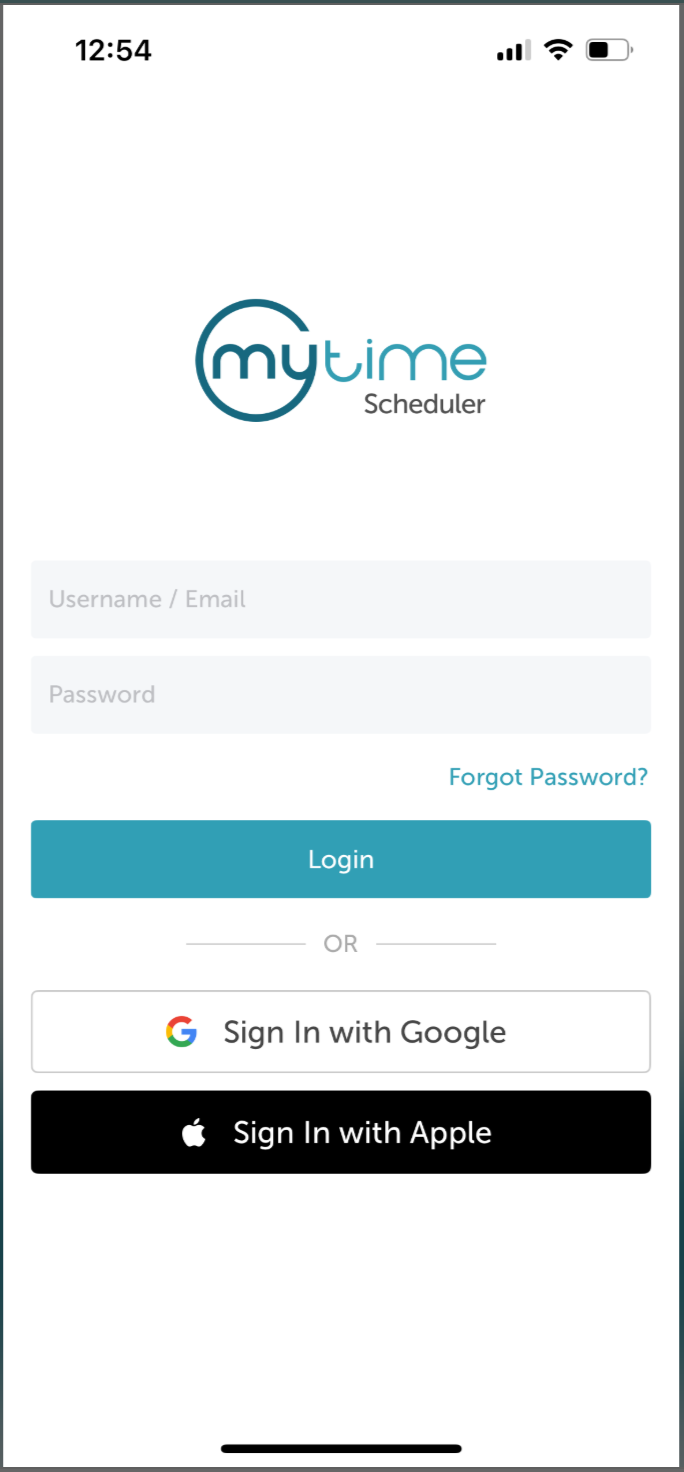
1. Launch the MyTime Scheduler app on your device
2. Choose your login method:
- Standard: Enter your registered email address and password, then tap 'Sign In'
- Social Login: Select 'Continue with Google' or 'Continue with Apple' to use your existing credentials for a faster login experience. For detailed instructions, learn more here
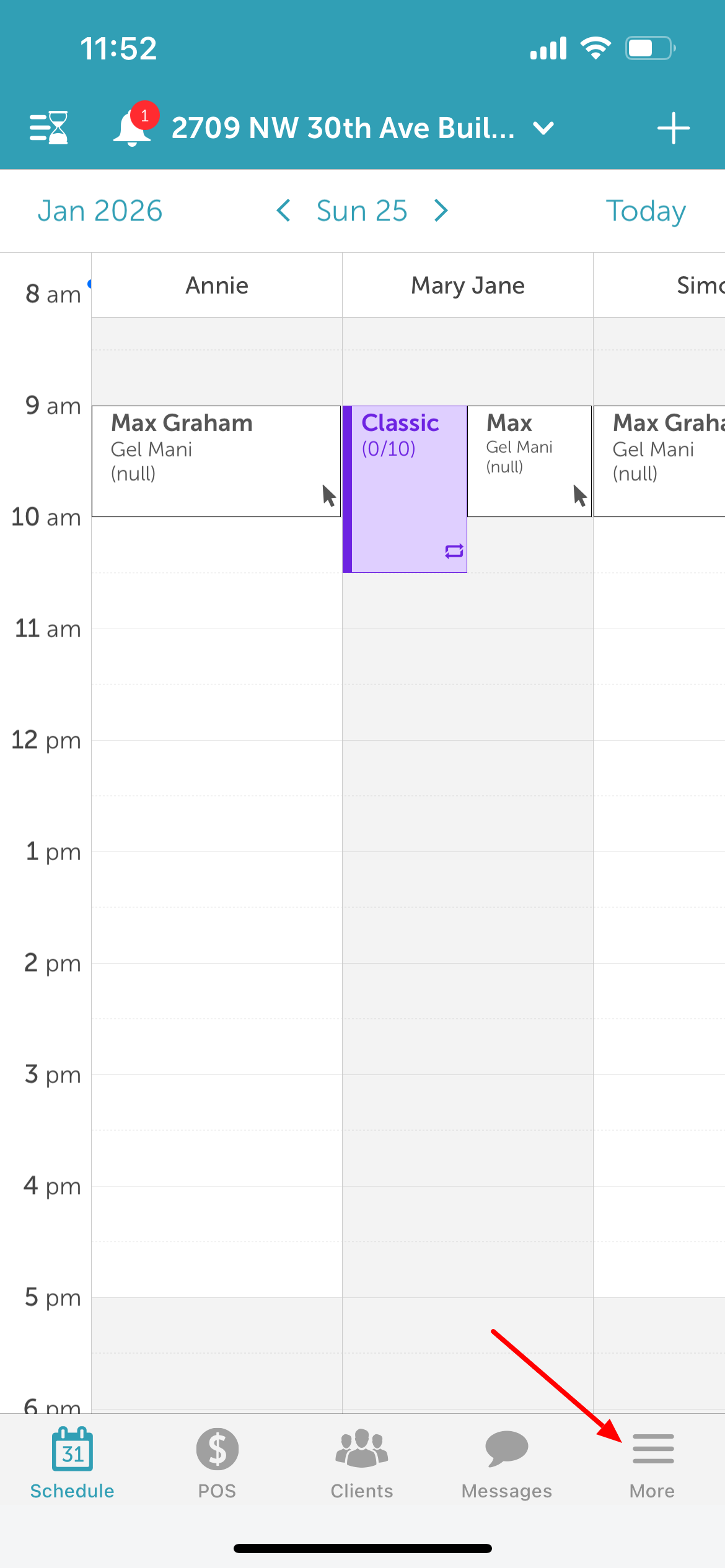
3. By default, you’ll land on the schedule screen
4. Tap 'More' at the bottom of the screen
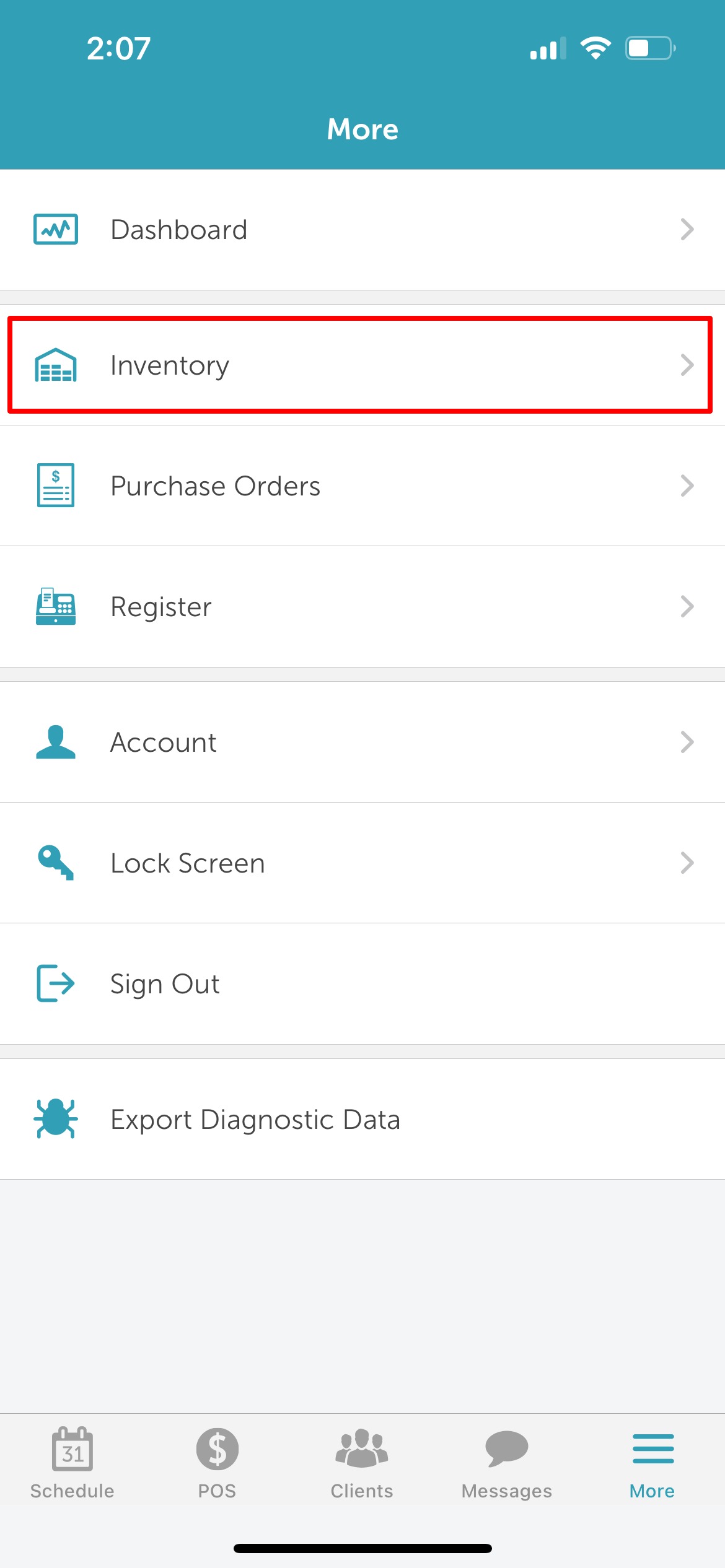
5. Select 'Inventory'
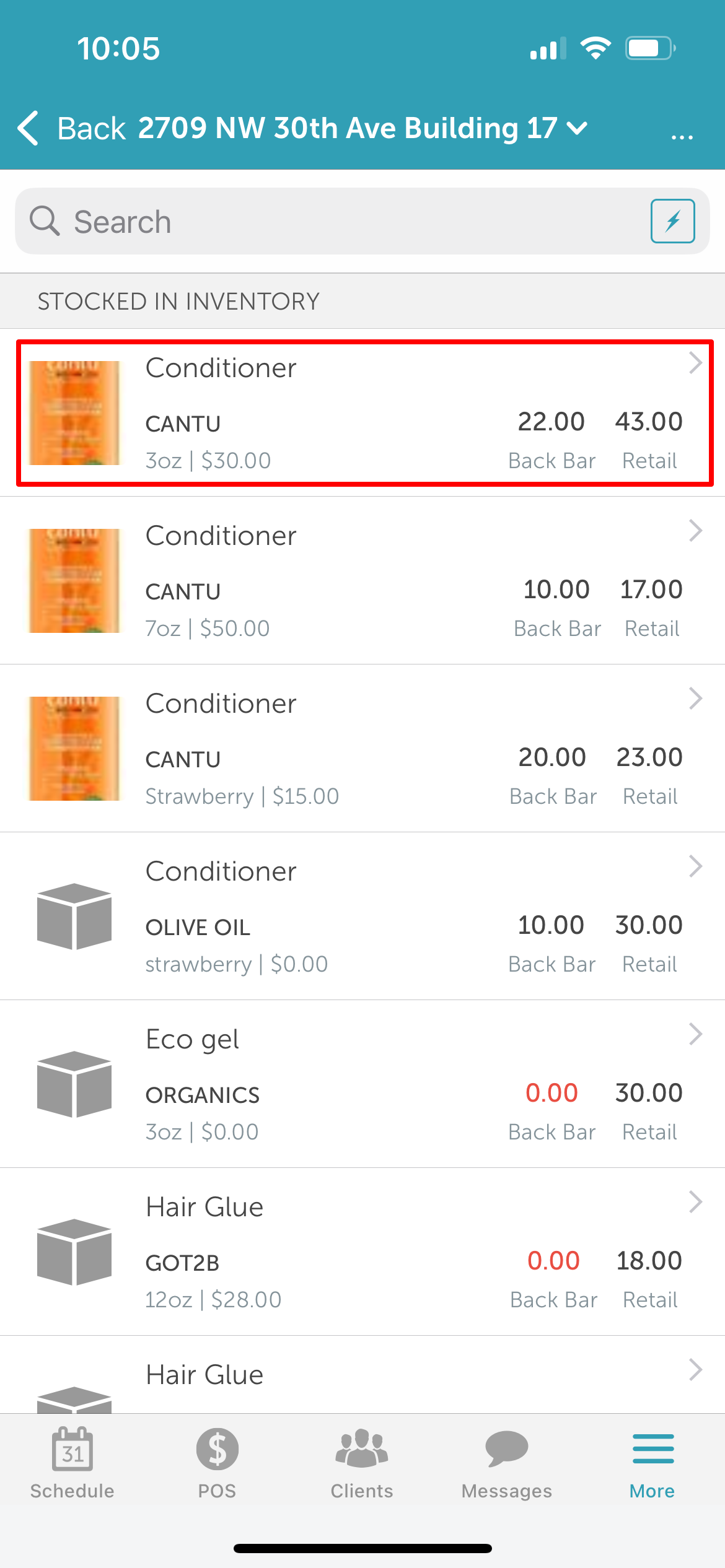
6. Choose the product you want to transfer
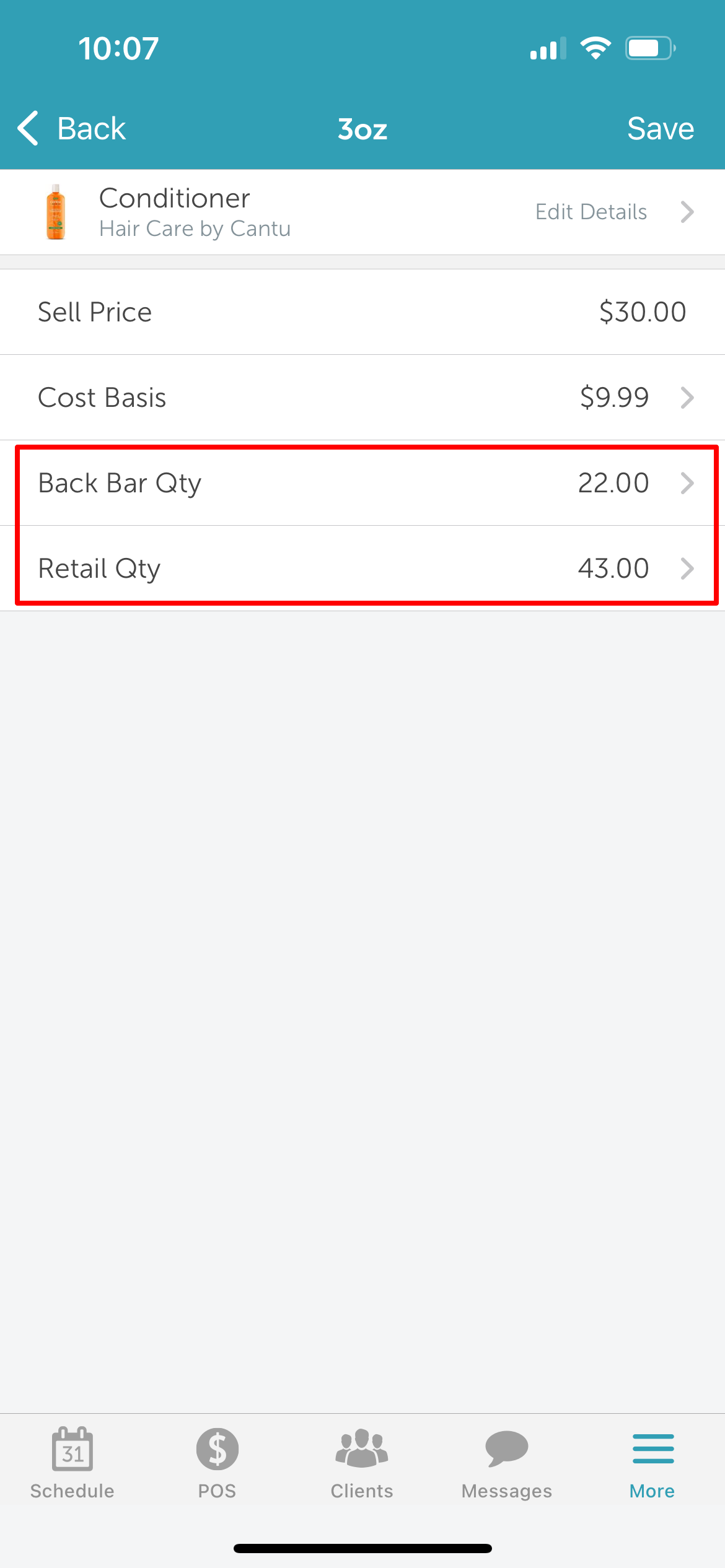
7. Select whether you want to adjust the Back Bar quantity or Retail quantity
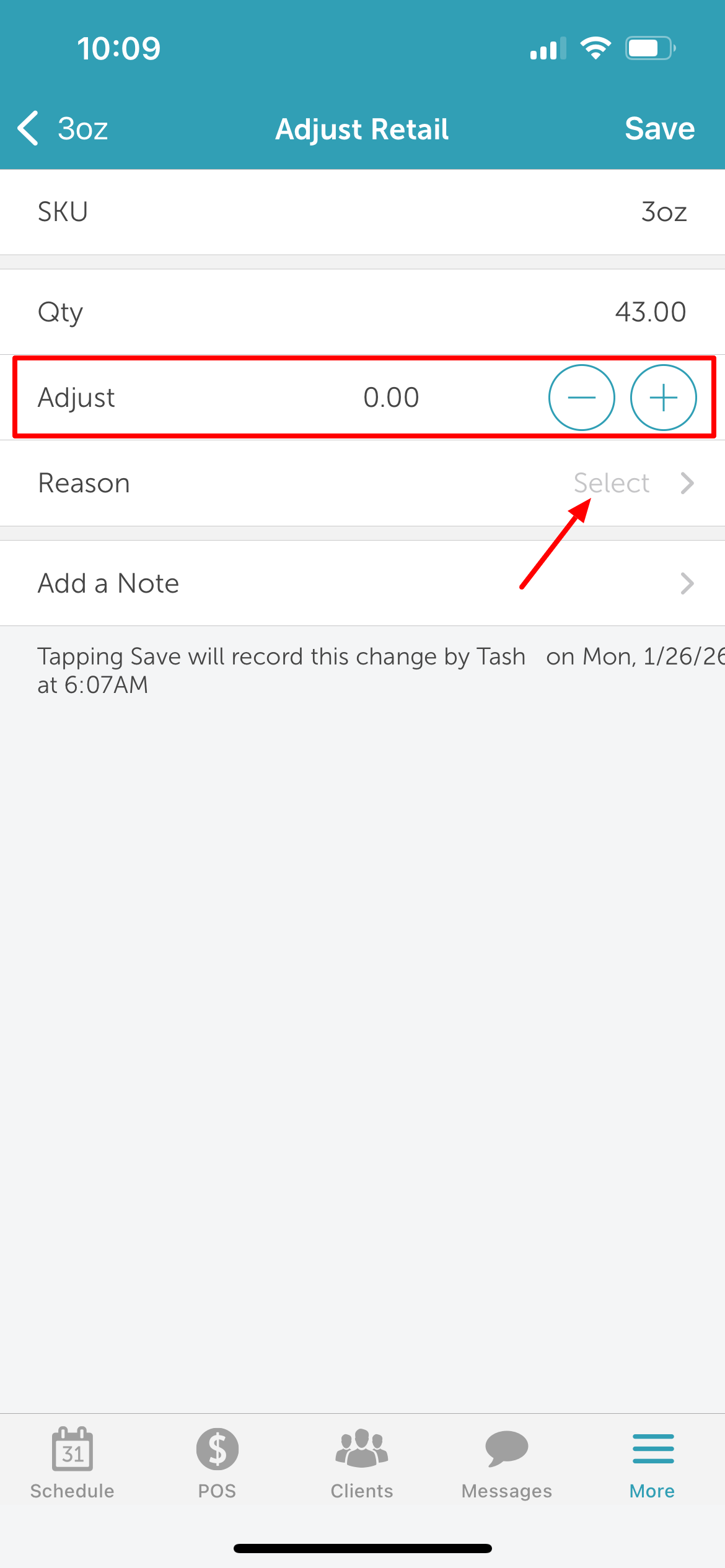
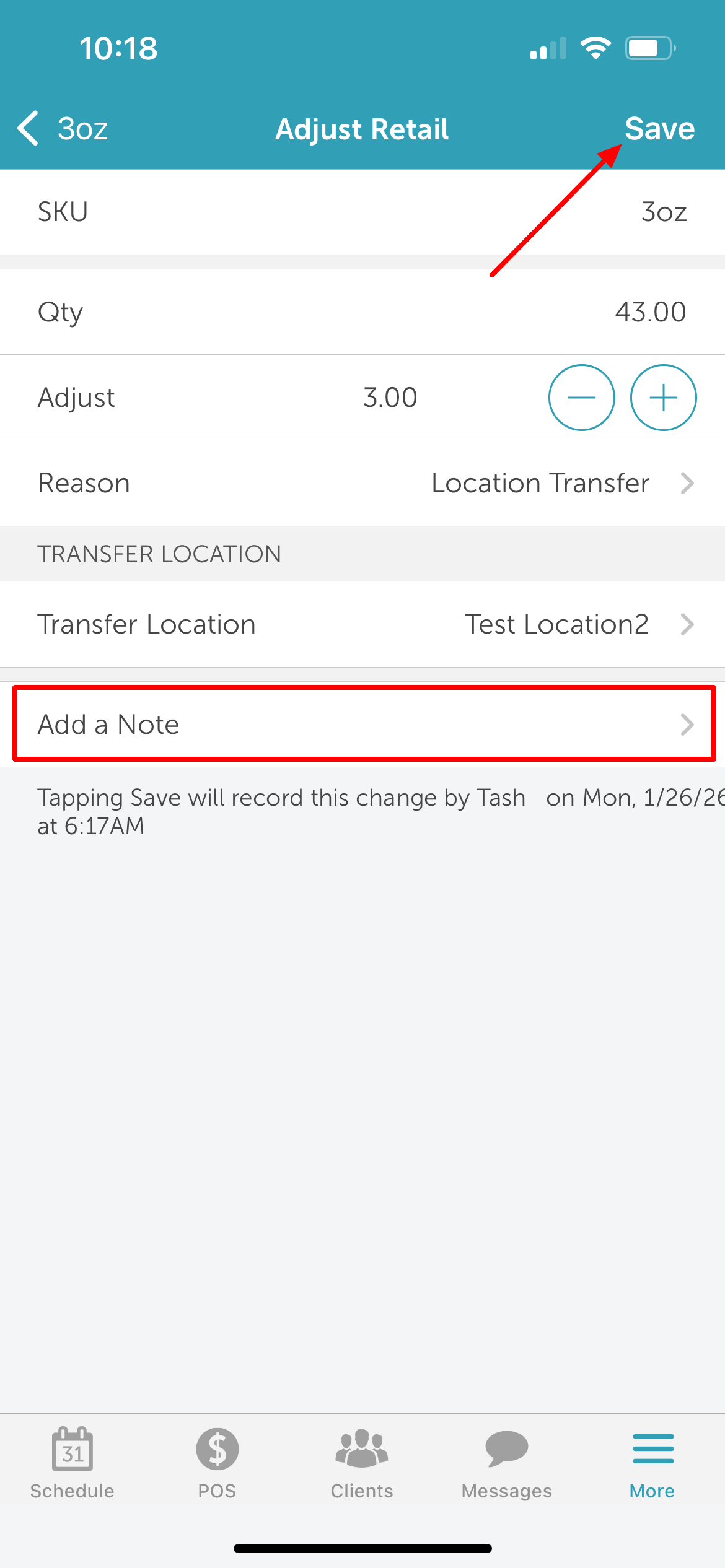
8. On the adjustment screen, enter the quantity to transfer or use the – or + buttons to increase or decrease the amount
9.Tap 'Reason' to select a reason for adjustment
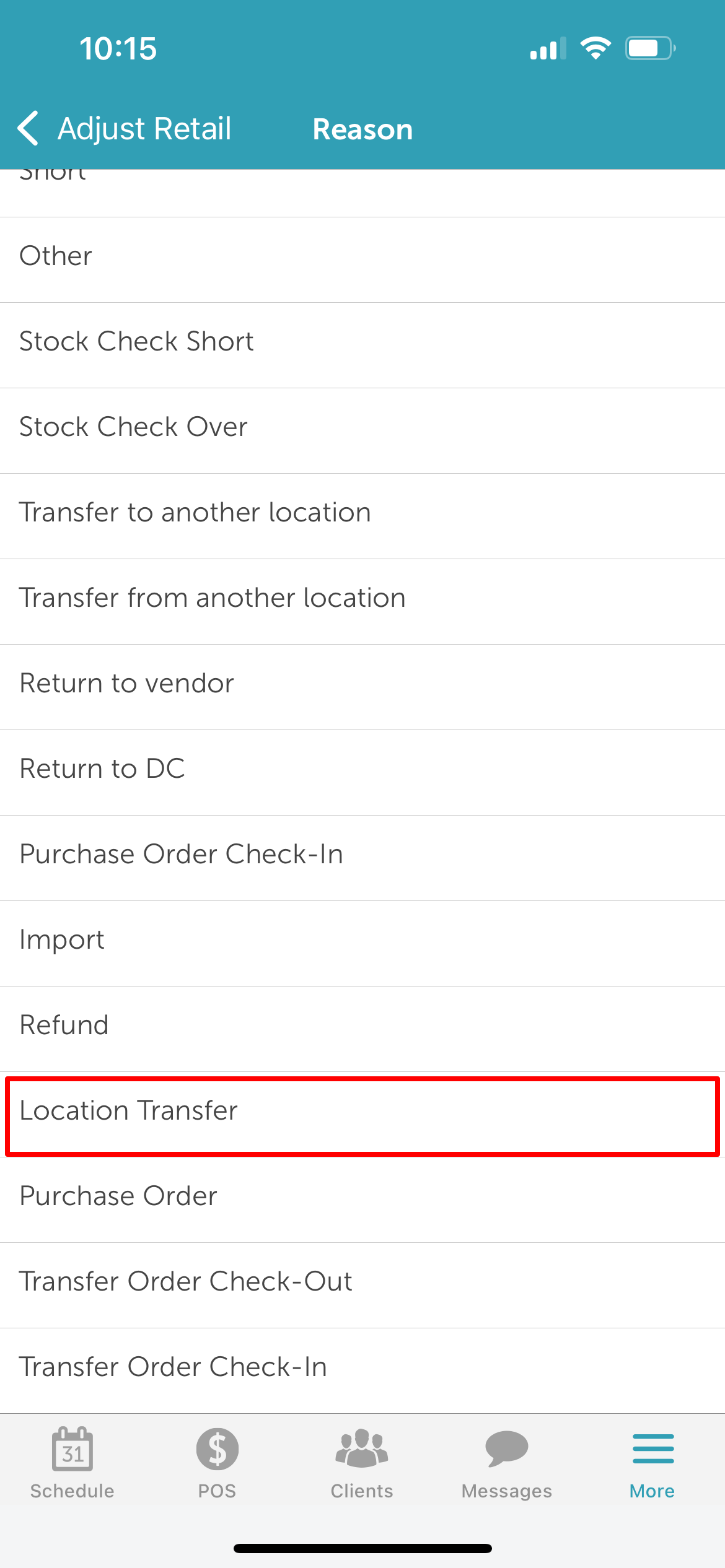
10. Choose 'Location Transfer' from the preset list of reasons
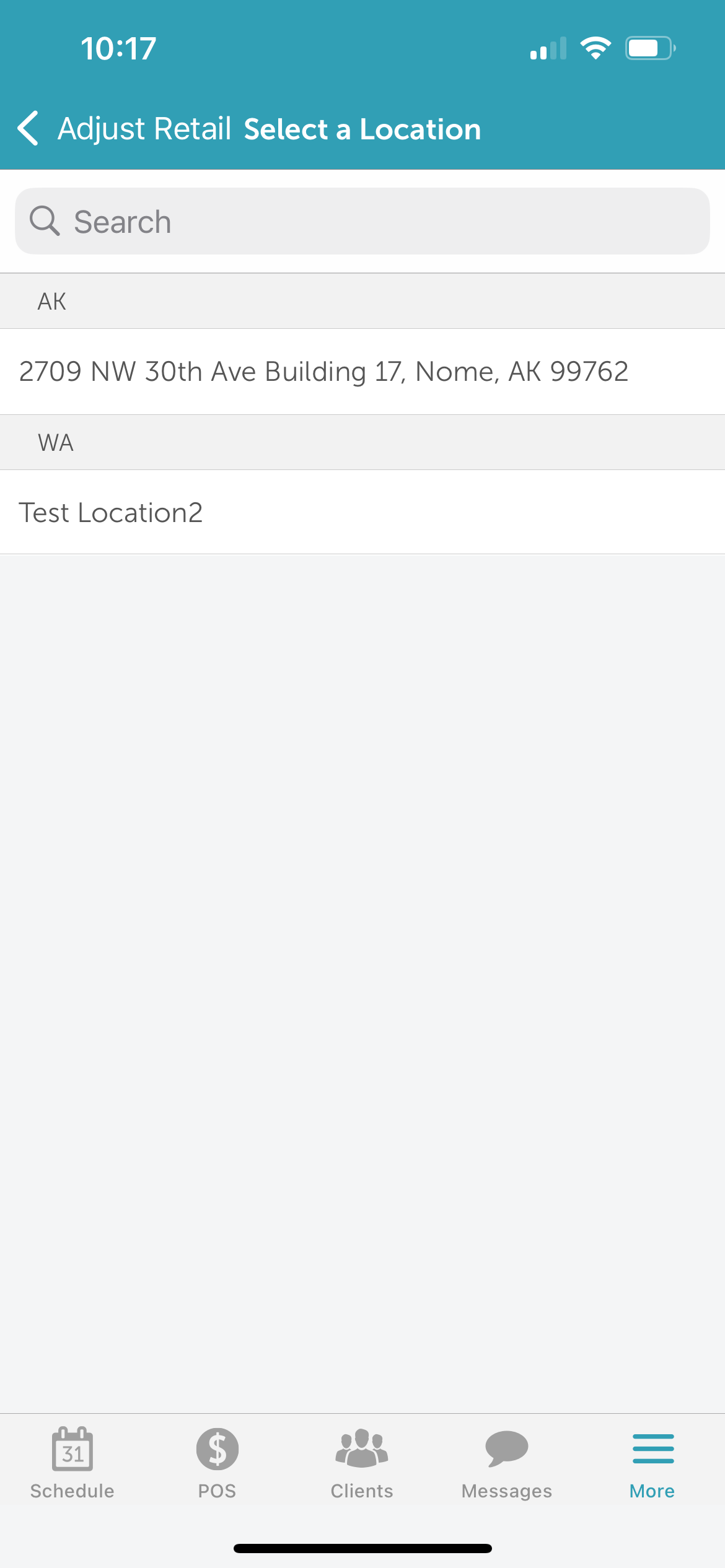
11. The Location Transfer section will appear, allowing you to select the location to transfer the product to or from
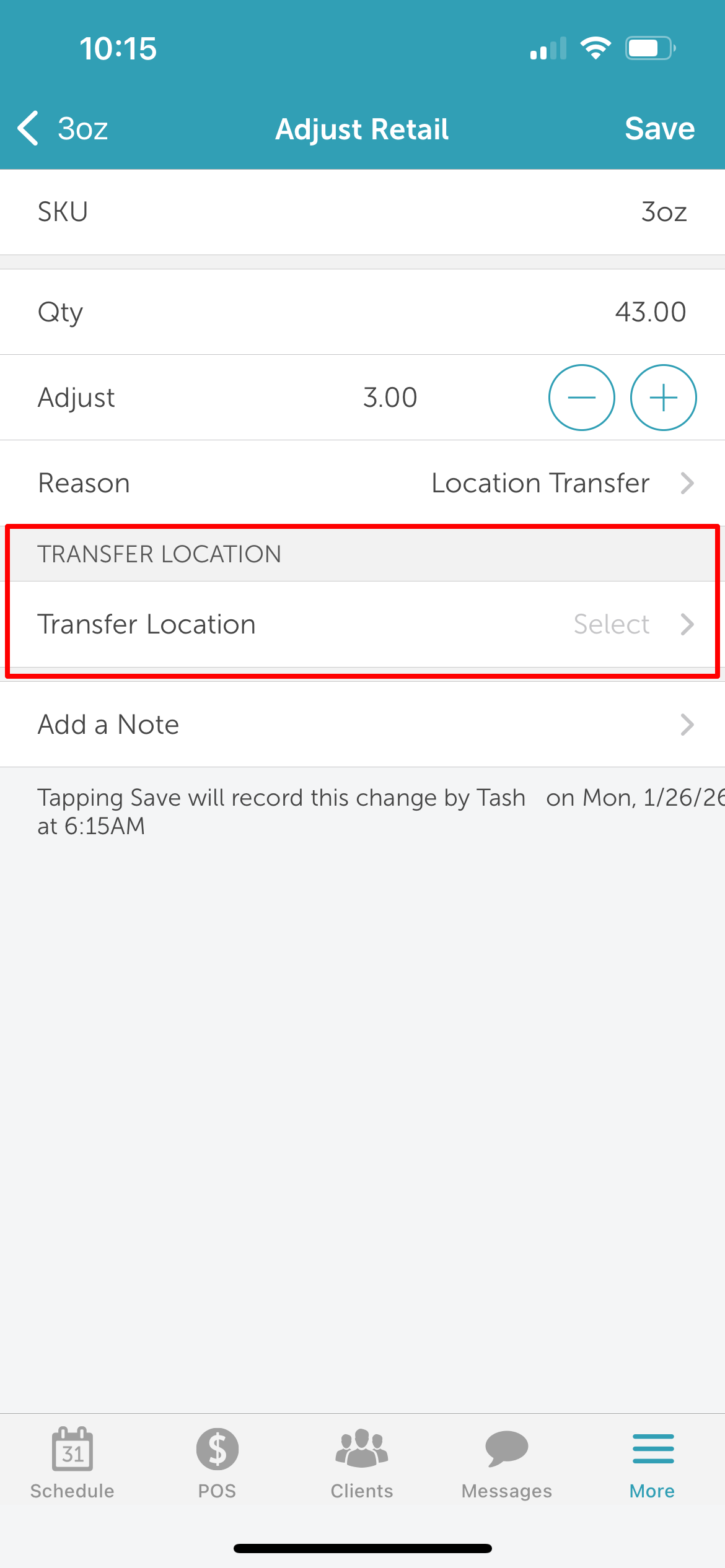
12. Select the desired transfer location from the list
13. (Optional) Add a note to provide additional details
14. Tap 'Save' in the top right corner
15. Save the product details
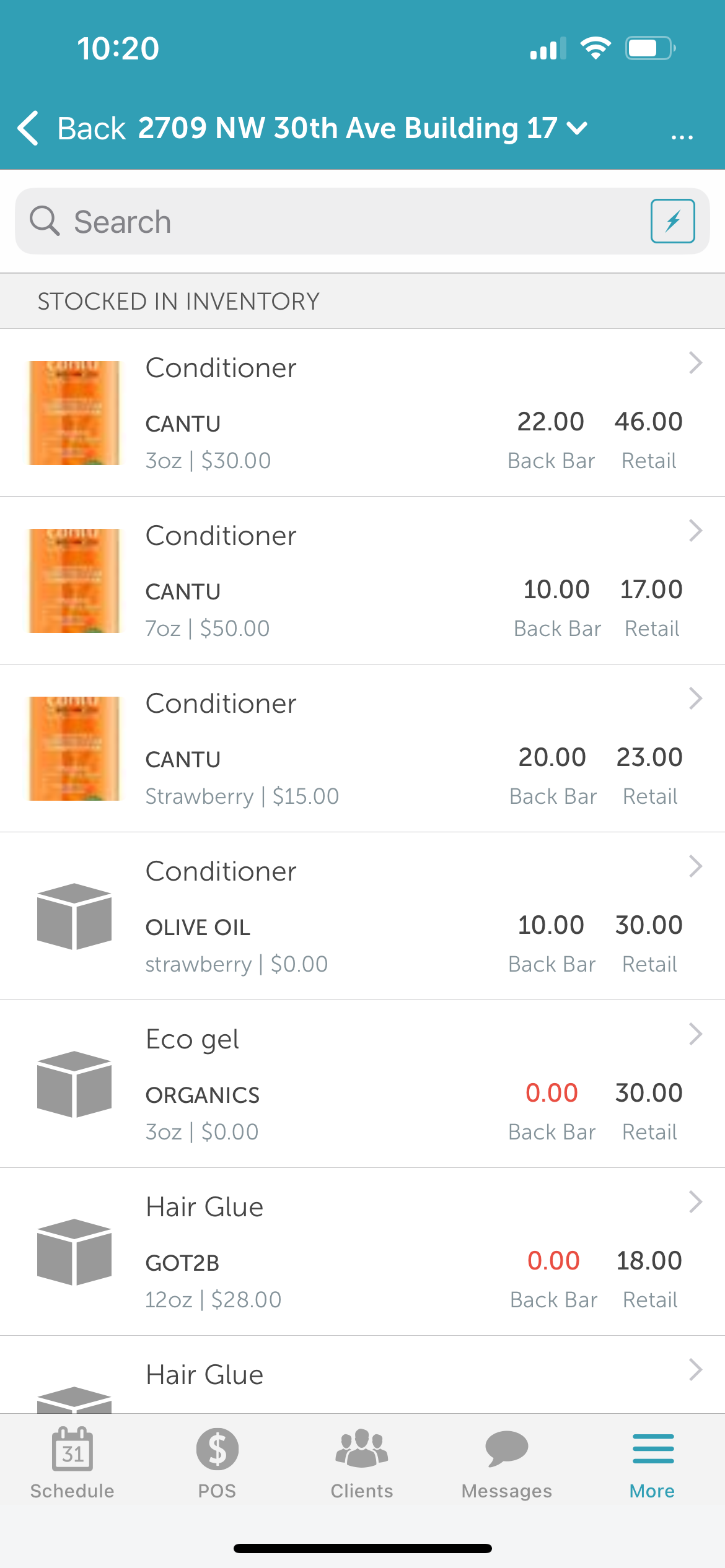
16. Once saved, you’ll be returned to the main Inventory page
For more information, contact us at support@mytime.com or (385) 233-6964
Related Articles:
Installing MyTime on Scheduler App (Android and iOS)
Signing into MyTime on Scheduler App (Android and iOS)
Adding Products to Inventory on Scheduler App
Was this article helpful?
That’s Great!
Thank you for your feedback
Sorry! We couldn't be helpful
Thank you for your feedback
Feedback sent
We appreciate your effort and will try to fix the article