Surcharging allows businesses to pass payment transaction fees to customers who pay with a credit or debit card. This feature helps offset processing costs while maintaining a smooth, customer-friendly checkout experience. This article explains how surcharging works and how to configure it.
Things to know:
- The ability to configure surcharges is controlled by the 'Accessing Account Settings' access control permission.
- This feature is controlled by the "Enable Credit Card Surcharging Feature" hidden setting, which can only be enabled by the MyTime team. To enable this setting, please contact support@mytime.com.
- Surcharging is available to businesses that have a Stripe or Global Payment (TSYS) account. Global Payments (TSYS) users must complete an enrollment form 30 days before enabling the surcharge feature. To access the enrollment form, click here.
- Surcharge Rules
- When enabling surcharging, the feature will automatically apply to both your online and POS transactions. Individual channel selection is not supported.
- Surcharge cannot exceed the cost of acceptance. The following maximum caps apply by card brand:
- Visa: 3%
- Mastercard: 4%
- Discover: 4%
- American Express OptBlue: 3.5%
- Parity Rule: All card brands must be charged the same surcharge rate. Because Visa's cap is the lowest at 3%, this rate governs all brands—meaning merchants must apply a maximum surcharge of 3% across Visa, Mastercard, and Discover.
- When configuring Card Surcharging Rules, the surcharge percentage value must be between 0.1% and 3%. If you enter a value outside this range, the following error will appear: “Surcharge percentage rate must be between 0.1% and 3%.
- Amount Structure:
- The surcharge amount can be either fixed or variable
- The same surcharge rate must be applied to all card brands and all payment channels, without exception.
- Surcharging is permitted in both face-to-face and non-face-to-face environments.
- A surcharge cannot be charged alongside a service fee or convenience fee, as these are separate programs governed by their own rules.
- Disclosure Requirements: You are legally required to clearly disclose your intent to surcharge and the surcharge amount. The following rules apply:
- Signage must be displayed at:
- The entrance to the location
- The point of purchase or checkout
- The transaction receipt
- Disclosure must state the exact dollar amount or percentage of the surcharge.
- Disclosure must clearly indicate that the surcharge is assessed by the merchant and applies to credit card transactions only.
- Signage must be displayed at:
- Cardholders must be permitted to cancel the transaction without penalty after the surcharge has been disclosed.
- Surcharging is currently prohibited in the following U.S. states (this list is subject to change):
- Massachusetts
- Connecticut
- Maine
- Oklahoma
- All merchants are required to strictly adhere to card brand rules to avoid costly non-compliance violations. See the Card Brand Rule Reminders and Violation Updates PDF attached at the end of this article for full compliance details.
- For franchise businesses, this feature is available only at the child level, not the parent.
- Location Management:
- When a location is created using the template copier, surcharges are automatically copied.
- If a location is deleted, the surcharge associated with it is also removed.
- If all locations assigned to a surcharge are deleted, the surcharge itself will be deleted.
- You have the option to configure different surcharges for different regions. This ability is controlled by the 'Separate Surcharges for EFTPOS and International Cards (AU Only)' hidden setting that can only be enabled by the MyTime team. To enable this setting, please contact support@mytime.com.
- Regional & Gateway Restrictions
- Australia (AU) Only Features: The EFTPOS, card type, and region filters are available only for AU locations.
- Non-AU Locations: For businesses outside of Australia (e.g., the USA), selections are limited. Only the credit card option is available, while debit, EFTPOS, and both options are disabled.
- Global Payment Integration: If your business uses the Global Payment gateway, the following options are not available: EFTPOS card type, bank transfer transaction type, and region filters.
- Surcharges in Royalty, Reconciliation, and POS Accounting:
- Royalty & Reconciliation: Surcharges are not included in royalty or reconciliation calculations.
- POS Accounting: Surcharges are fully accounted for in POS accounting. In POSA, surcharges are sent as a separate line item in the journal response. The journal response contains a list of all items on a ticket along with their amounts. Surcharges appear as a new item type labeled "surcharge_item," which can be mapped to the appropriate class in your accounting software through the POS Accounting system.
Contents:
Enable Card Surcharging
Once the hidden setting is enabled:
- Navigate to Business Setup > Settings
- Scroll to the POS section
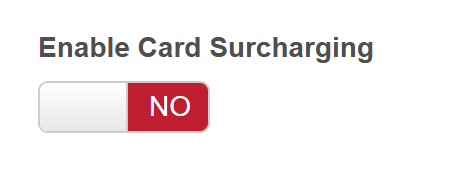
- Locate the 'Enable Card Surcharging' setting and toggle it to 'Yes'
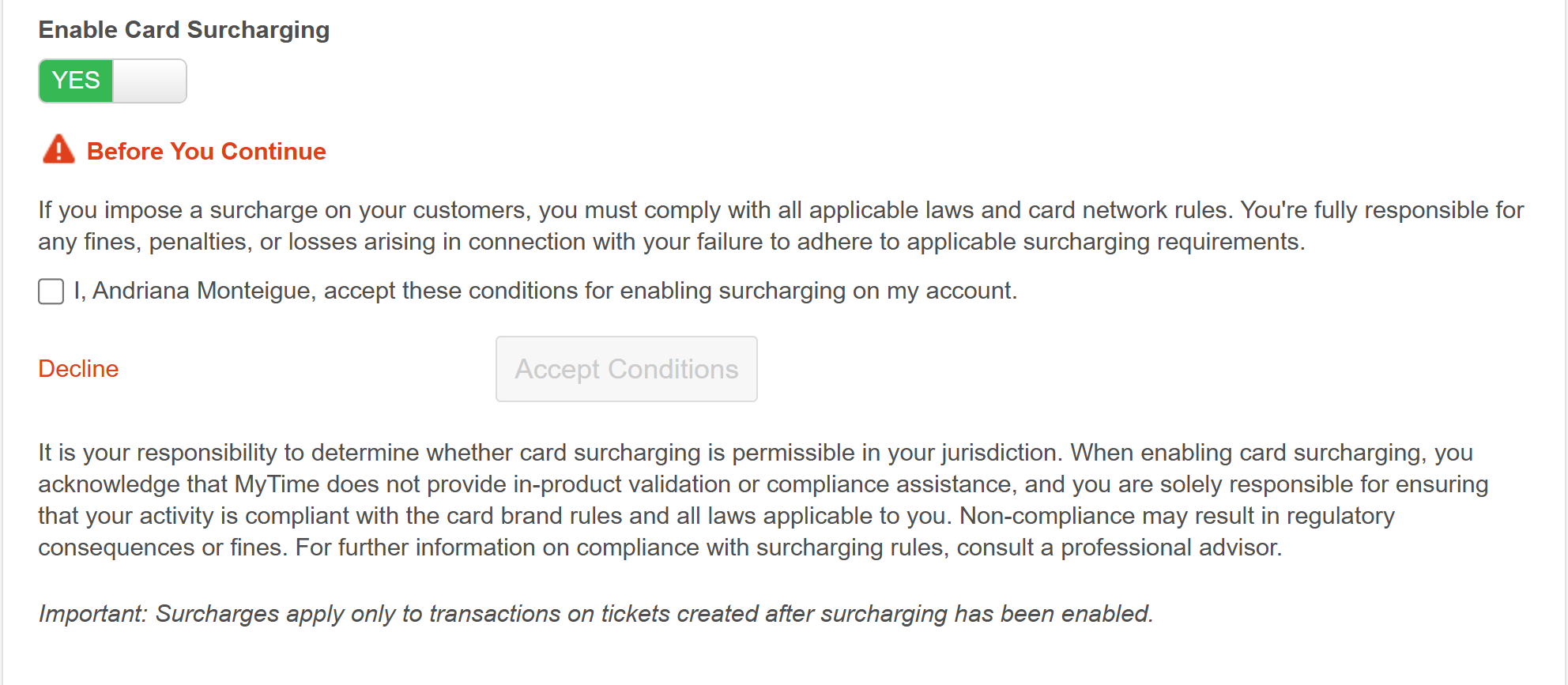
- Review the terms and conditions, check the box, and click 'Accept Conditions'
- Once accepted, the staff member's name and date of acceptance will be displayed on the screen
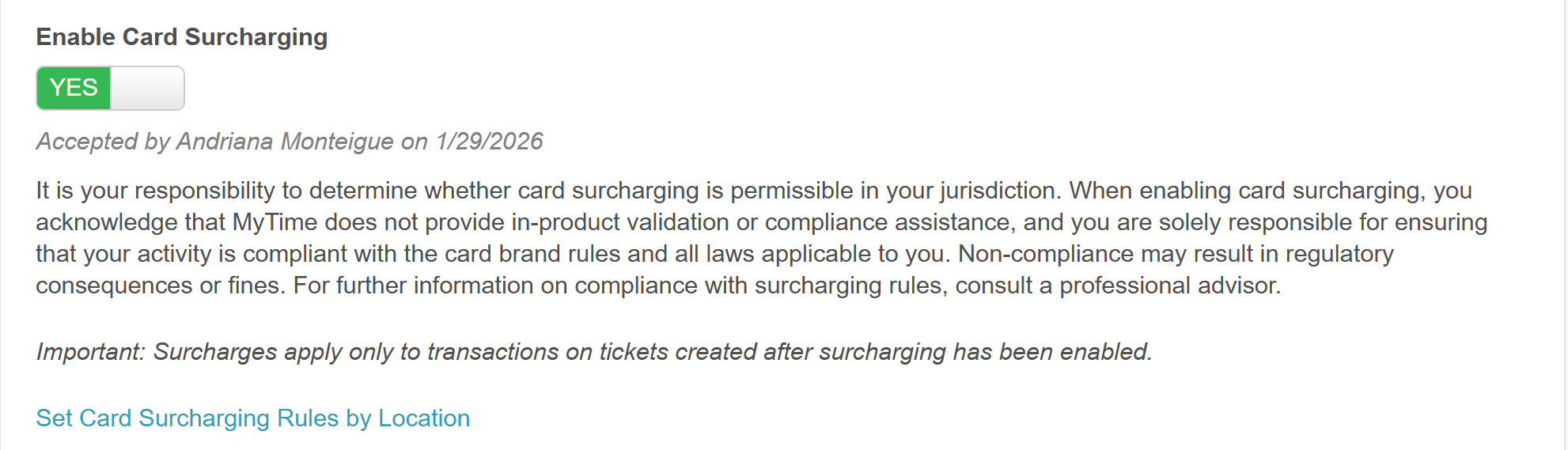
- Click Set Card Surcharging Rules by Location
- Set the surcharging rules for each location
Surcharges For All Regions
- Applicable Locations: Select the locations or location groups for the surcharge.
- Transaction Type: Choose one of the following options:
- Card Not Present: Applies the surcharge to cards entered using the Key In Card method in-store or for online payments.
- Card Present: Applies the surcharge to cards that are swiped or tapped.
- All Transactions: Applies the surcharge to both card-present and card-not-present transactions.
- Card Type: Select from "All Debit Cards," "All Credit Cards," or "All Cards."
- If only credit or debit is selected, an additional surcharge can be added for the opposite card type.
- If All Cards is selected, no additional surcharges can be added for the same location.
- For Global Payment accounts, only the "All Credit Cards" option is available.
- Surcharge Value: Configure the surcharge percentage (0–3%) and/or flat dollar amount (0–3%). Values above 3% display a warning.
- Include Surcharges in Refunds: When enabled, surcharges are refunded along with the original payment. Percentage-based surcharges are refunded on a prorated basis, while flat surcharges are refunded in full.
- Include Surcharge in Membership Recurring Payments: When enabled, surcharges are applied to membership recurring charges. Only one surcharge is applied per ticket, even if multiple memberships are billed on the same ticket.
- + Add Surcharge Rule: Add additional surcharging rules for unselected locations. If all locations are already selected, the applicable location field will display "No Locations."
Stripe Accounts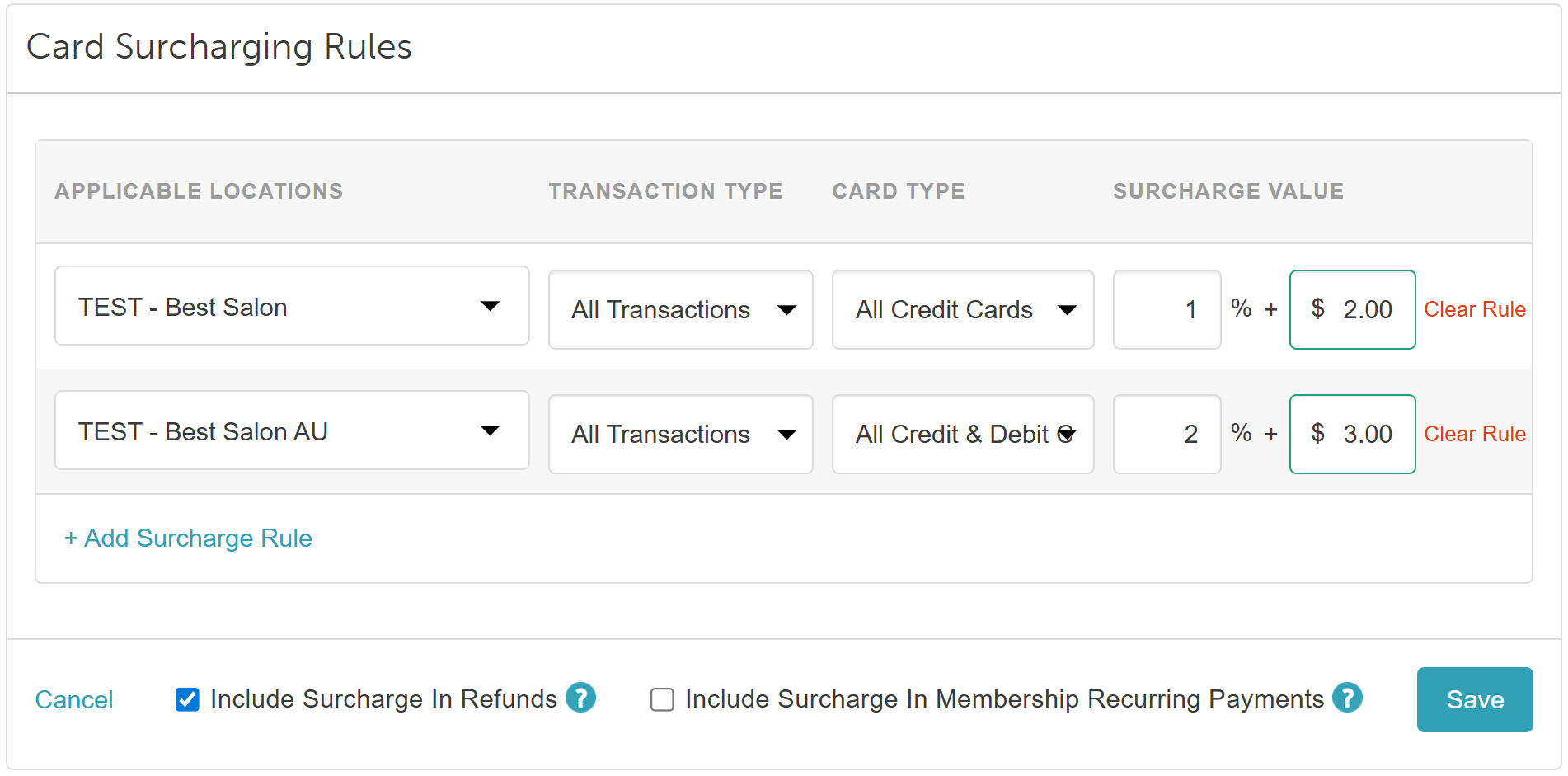
Global Payment Accounts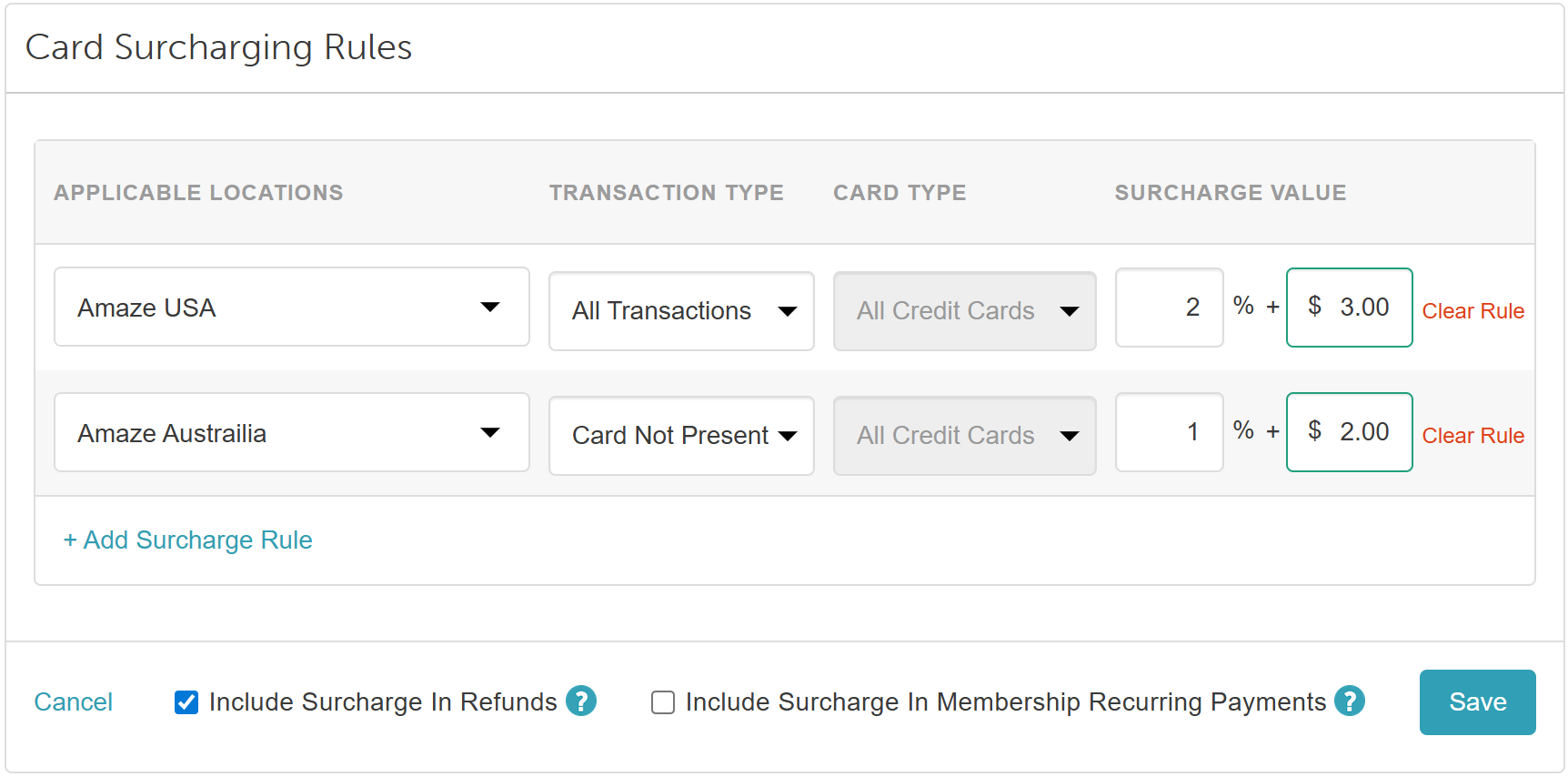
Surcharges for Different Regions
If the "Separate Surcharges for EFTPOS and International Cards (AU Only)" hidden setting is enabled, you will be able to configure surcharge(s) for different regions. Configure your surcharges using the option below:
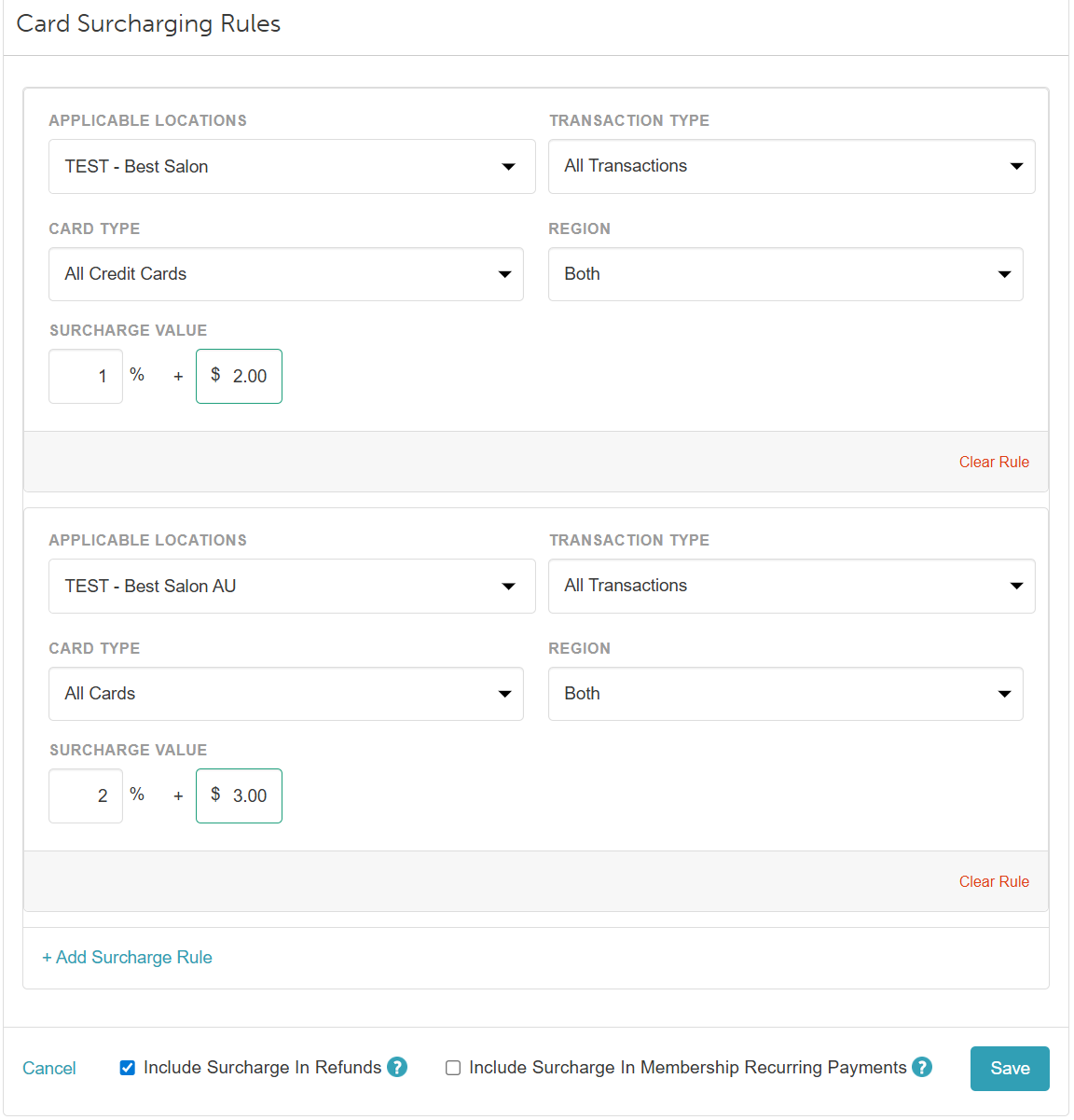
- Applicable Locations: Select the locations or location groups for the surcharge.
- Transaction Type: Choose one of the following options:
- Card Not Present: Applies the surcharge to cards entered using the Key In Card method in-store or for online payments.
- Card Present: Applies the surcharge to cards that are swiped or tapped.
- All Transactions: Applies the surcharge to both card-present and card-not-present transactions.
- Card Type: Select from "All Debit Cards," "All Credit Cards," or "All Cards."
- If only credit or debit is selected, an additional surcharge can be added for the opposite card type.
- If All Cards is selected, no additional surcharges can be added for the same location.
- Please Note: For non-Australian accounts, only the 'All Credit Card' option is selectable, while Australian accounts will have all options selectable.
- Region (Stripe payment accounts only): Select the applicable region:
- Domestic: Applies to cards issued in the same country as the business
Note: For AU locations, selecting EFTPOS will automatically lock the region to Domestic
International: Applies to cards issued outside the business’s country
Both: Applies to both domestic and international cards
- Domestic: Applies to cards issued in the same country as the business
- Surcharge Value: Configure the surcharge percentage (0–3%) and/or flat dollar amount (0–3%). Values above 3% display a warning.
- Include Surcharges in Refunds: When enabled, surcharges are refunded along with the original payment. Percentage-based surcharges are refunded on a prorated basis, while flat surcharges are refunded in full.
- Include Surcharge in Membership Recurring Payments: When enabled, surcharges are applied to membership recurring charges. Only one surcharge is applied per ticket, even if multiple memberships are billed on the same ticket.
- + Add Surcharge Rule: Add additional surcharging rules for unselected locations. If all locations are already selected, the applicable location field will display "No Locations."
Stripe Accounts
Global Payment Accounts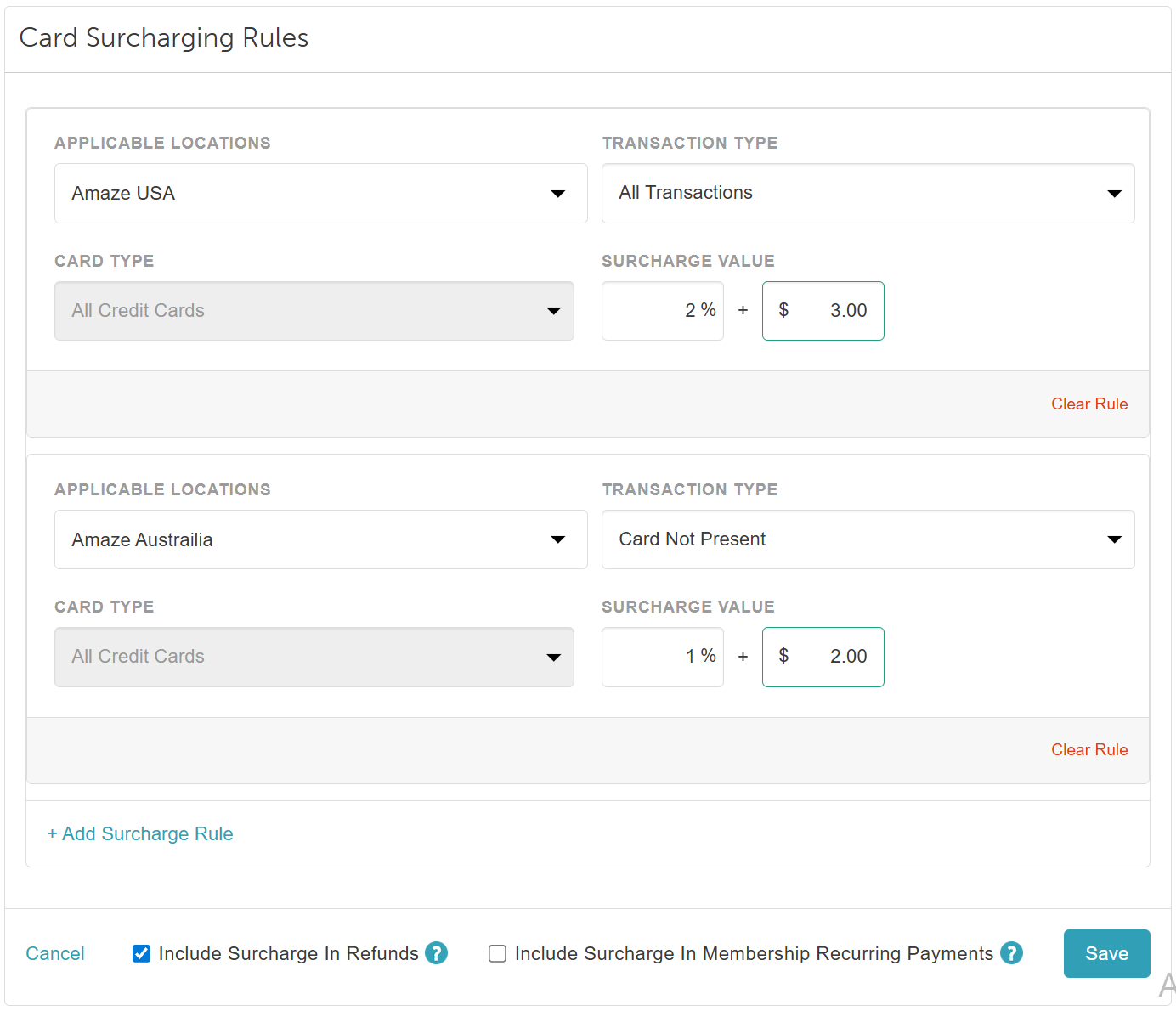
Once your surcharge(s) are configured, click 'Save' in the surcharge section, then scroll to the bottom of the settings page and click 'Save' once more.
For more information, contact us at support@mytime.com or (385) 233-6964.
Related Articles:
Processing and Refunding Surcharges in POS
Surcharge Display for Online Bookings and Purchases
Displaying Surcharges on Payment Terminals
Was this article helpful?
That’s Great!
Thank you for your feedback
Sorry! We couldn't be helpful
Thank you for your feedback
Feedback sent
We appreciate your effort and will try to fix the article