This article explains how surcharges are displayed when clients book services/classes or purchase memberships, packages, or gift cards online. To configure surcharges, learn more here.
Things to know:
- This feature is available to merchants who have a Stripe or Global payment account.
- Surcharge Display Flow: For both new and existing clients (with a saved card) and guest checkout:
- The surcharge is displayed on the checkout page, even if the client chooses to replace the saved card.
- After clicking Complete, the surcharge appears in the Confirm Payment modal.
- The surcharge message displayed to clients on the booking widget's checkout page will vary depending on how surcharge fees are configured for debit and credit card payments:
- Debit and credit surcharges are the same: "A surcharge of 1.10% + $0.20 applies to all card payments (including debit and credit). This surcharge reflects our actual cost of acceptance."
- Debit surcharge only: "A surcharge of 1.10% + $0.20 applies to debit card payments. This surcharge reflects our actual cost of acceptance."
- Credit surcharge only: "A surcharge of 1.10% + $0.20 applies to all credit card payments. This surcharge reflects our actual cost of acceptance."
- Debit and credit surcharges differ: "A surcharge of 1.10% + $0.20 applies to debit card payments, and a surcharge of 1.20% + $0.50 applies to all credit card payments. This surcharge reflects our actual cost of acceptance."
- For services requiring a partial deposit, the surcharge fee is applied only to the remaining balance—not the deposit itself. However, for services requiring a full deposit, the surcharge will be applied to the full deposit amount.
- Examples:
- Partial deposit required: A service costs $100, and the required deposit is $20. The surcharge applies only to the remaining $80 balance, not the $20 deposit.
- Full deposit required: A service costs $100, and the required deposit is the full $100. The surcharge is applied to the full $100 deposit amount.
- Examples:
Contents:
Booking Services/Classes With Surcharges
- Navigate to your booking page via the provided URL or the Book button on your website.
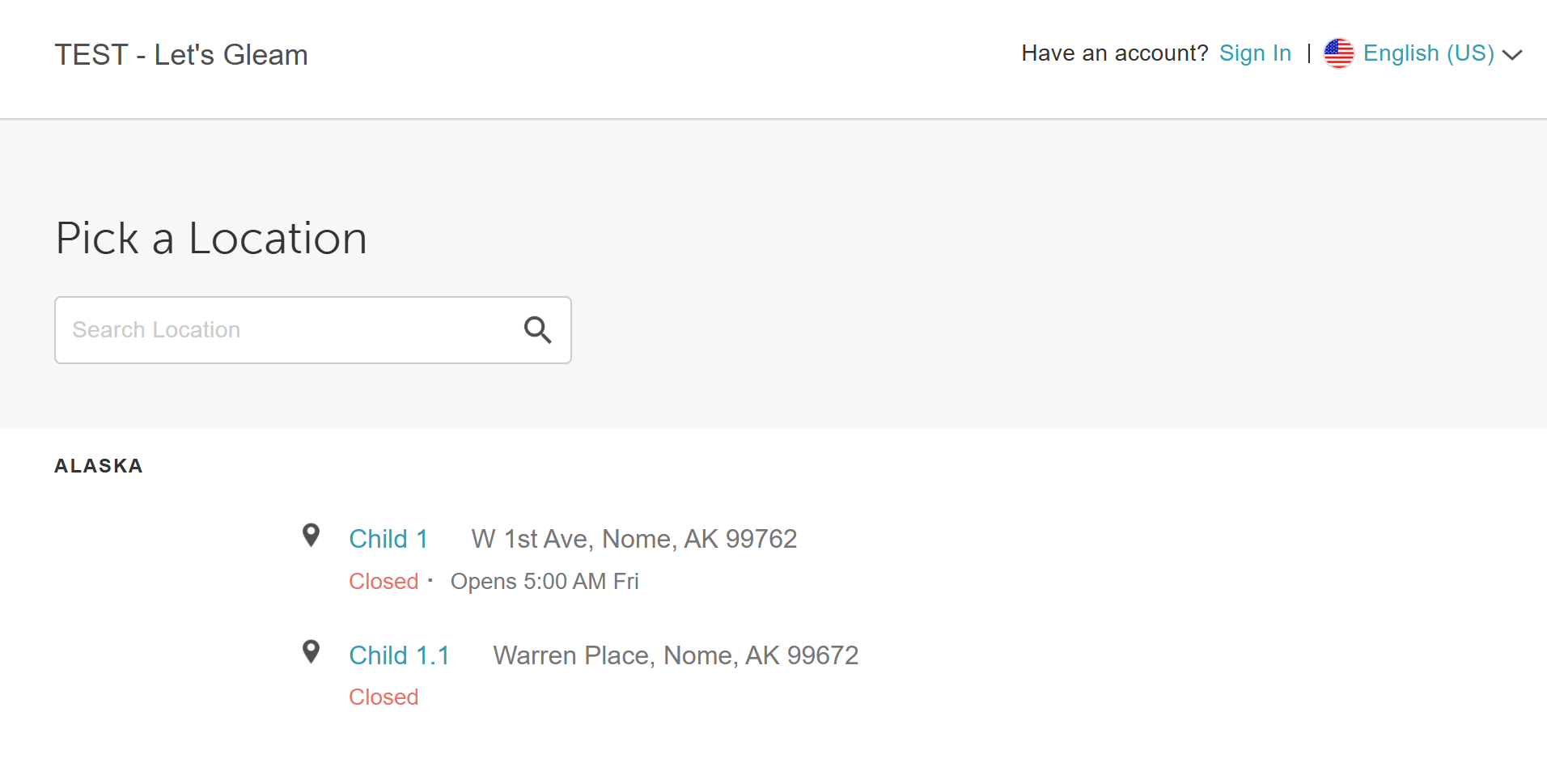
- Select a location (if multiple locations exist)
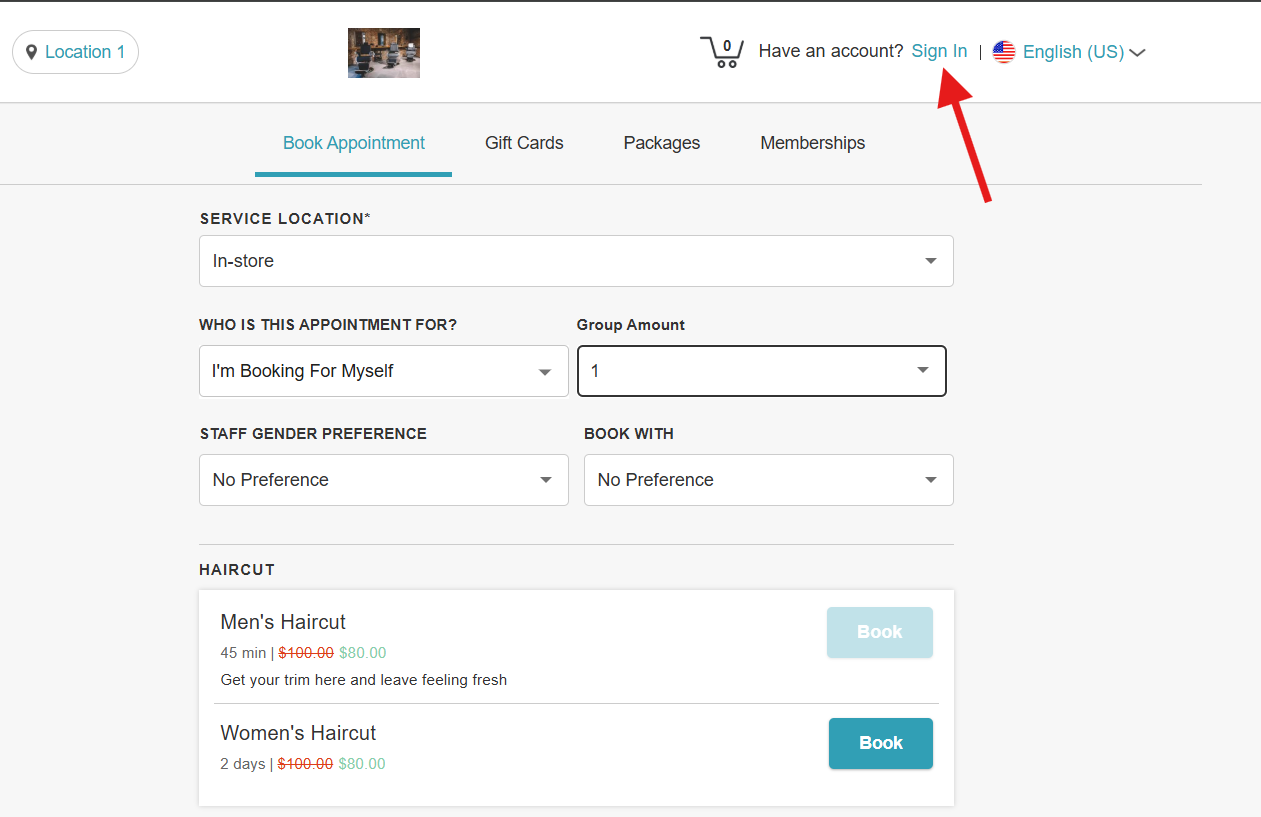
- Click the "Sign In" button at the top of the page
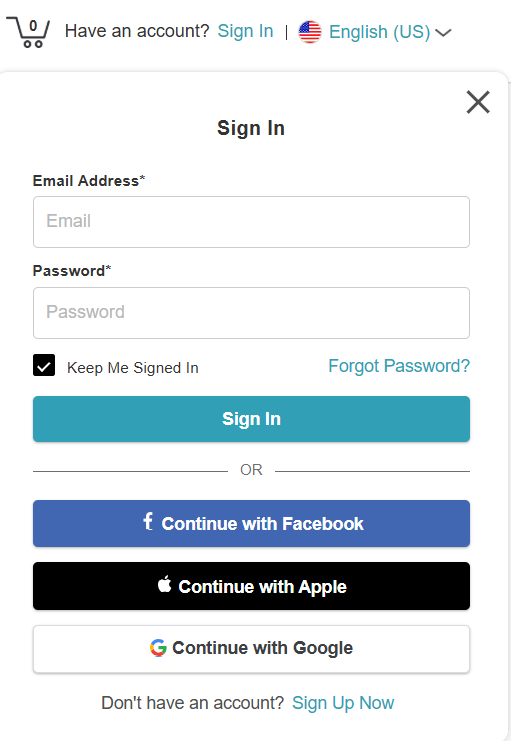
- Choose their login method:
- Standard: Enter their registered email address and password, then click 'Sign In'
- Social Login: Select 'Continue with Google,' 'Continue with Apple,' or 'Continue with Facebook' to use their existing social media credentials
- Once their credentials or social accounts are authenticated, they will be instantly logged into the booking widget and can proceed with booking
- Choose the desired service or class
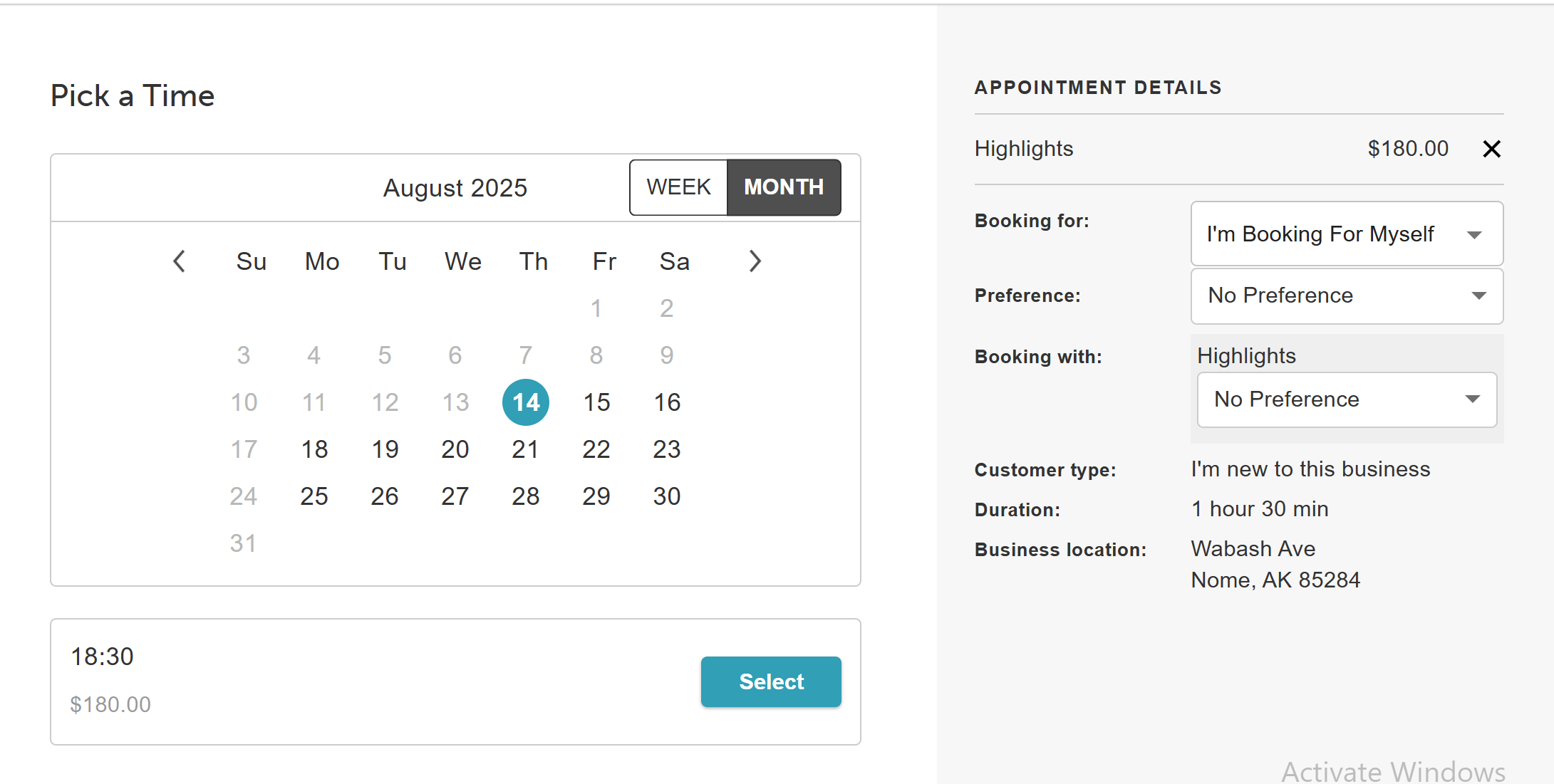
- Select a preferred date and time from the calendar
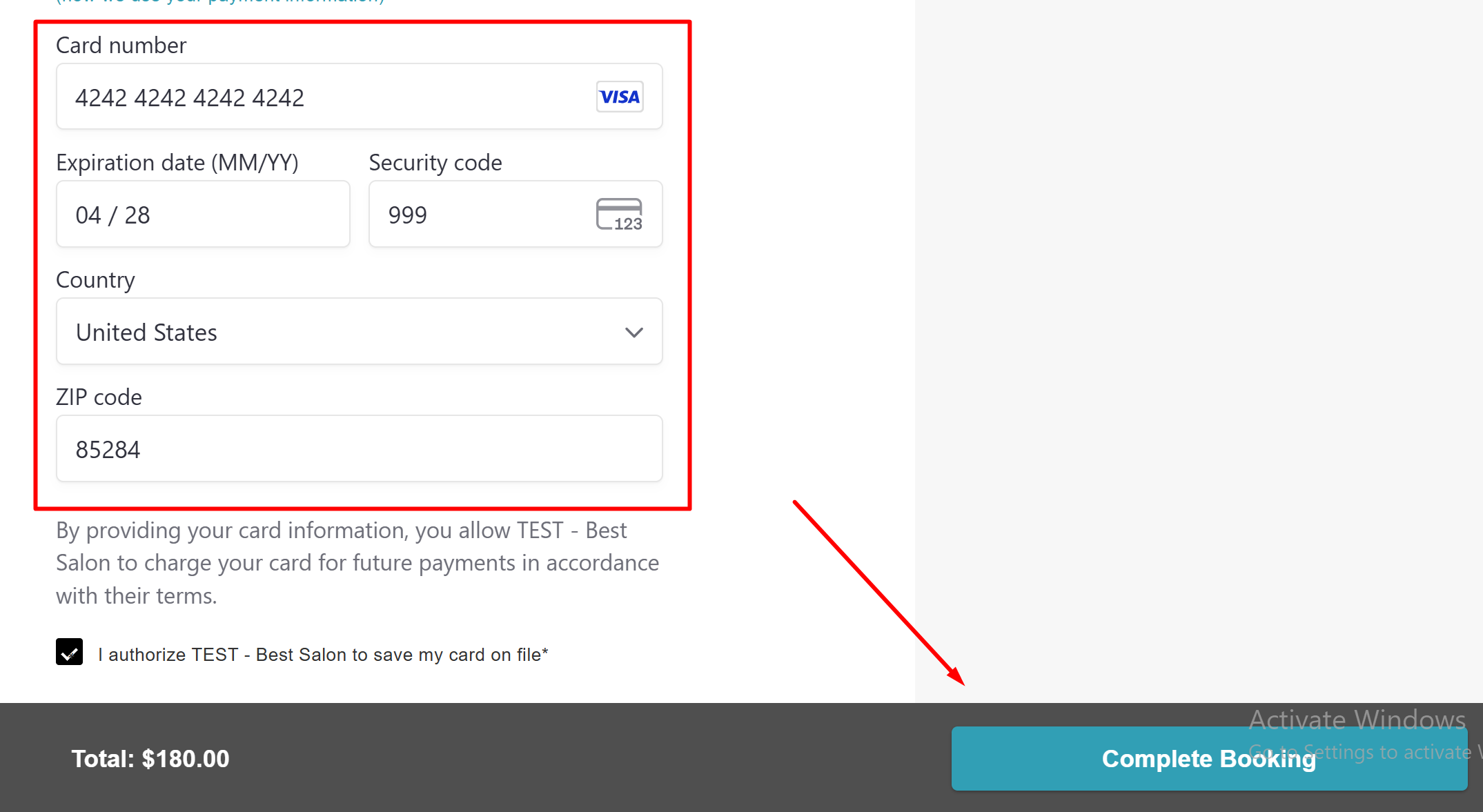
- Proceed to Checkout and provide payment details
- Click "Complete Booking"
- A Confirm Payment pop-up will appear, showing:
- Total amount
- Surcharge amount
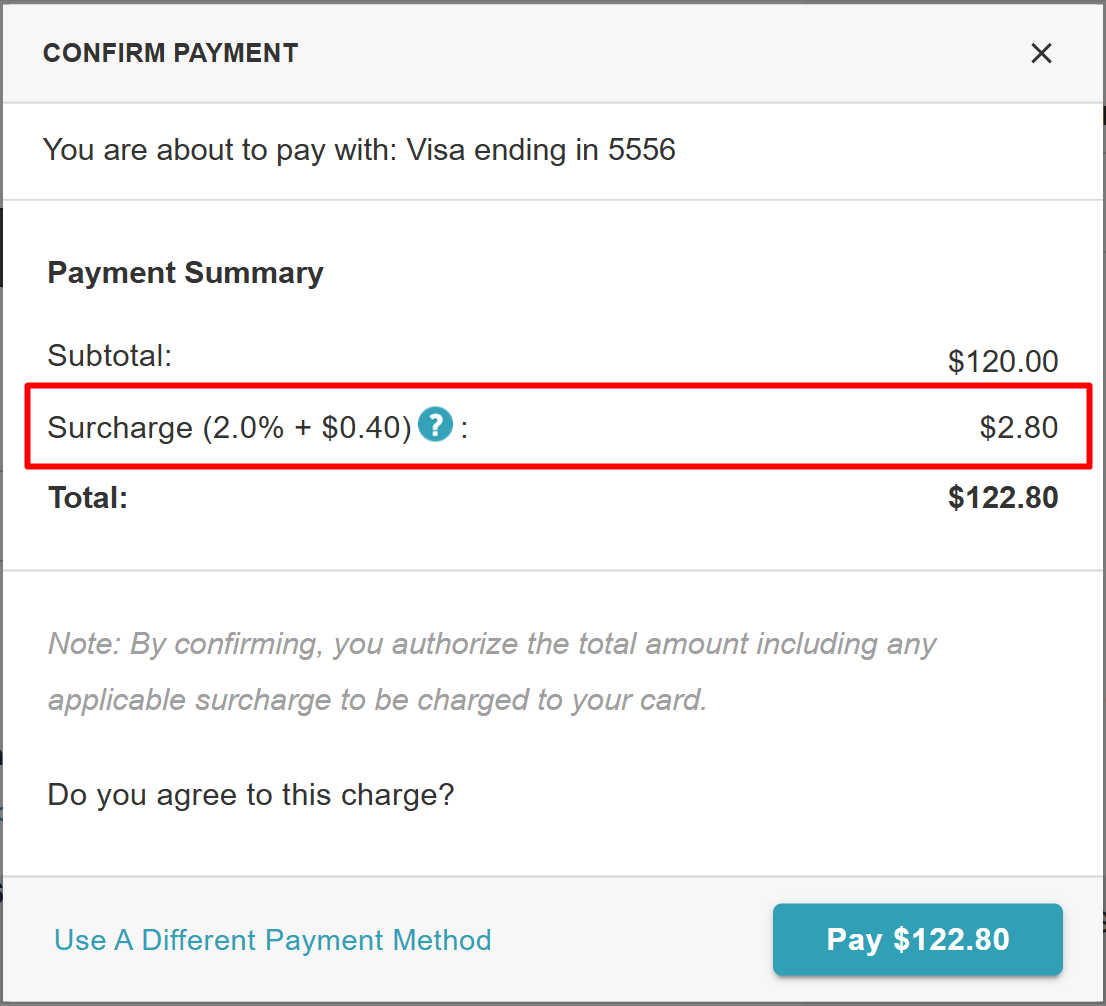
- Click "Pay $X"
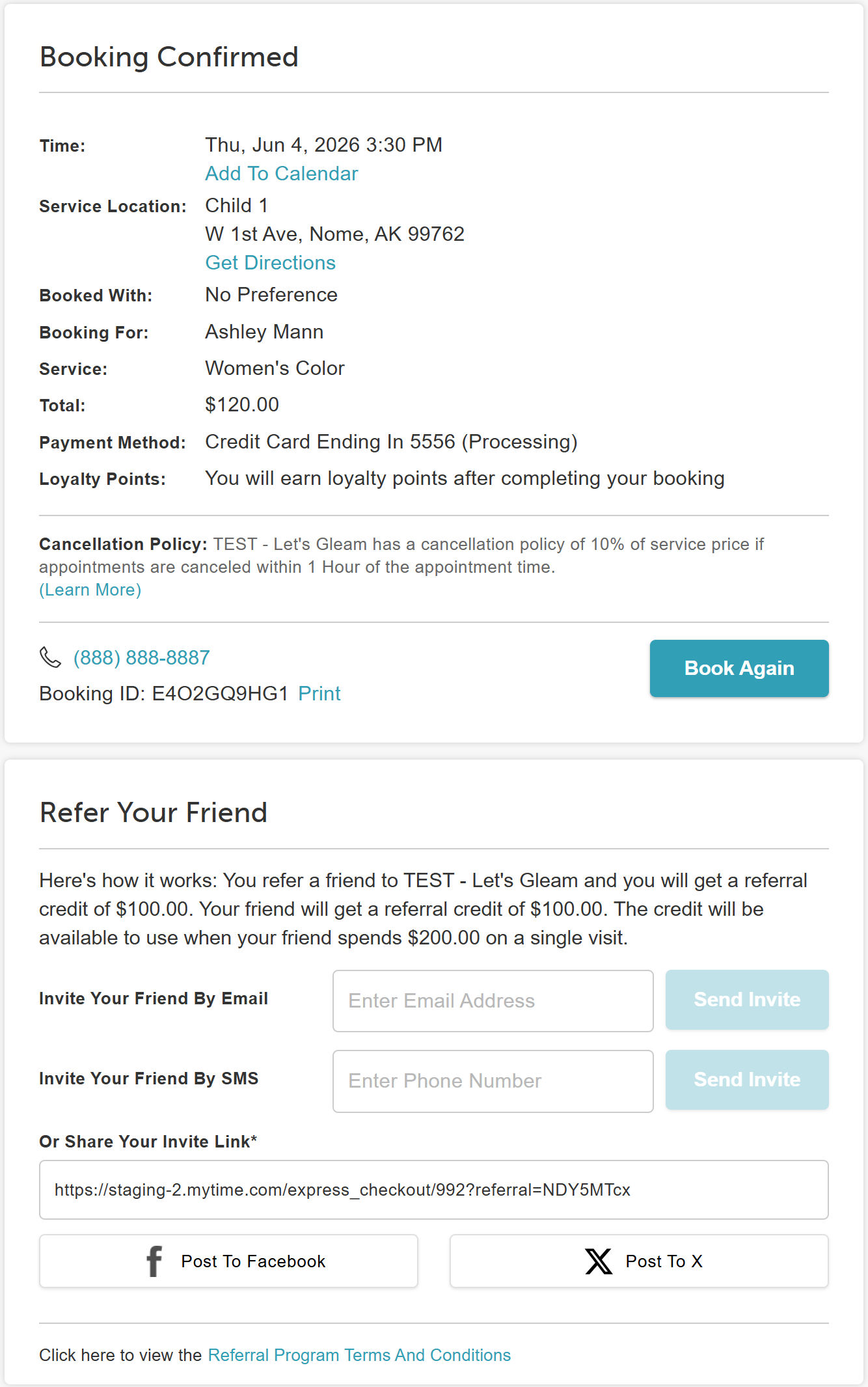
- The booking confirmation page will appear
Purchasing Memberships/Packages/Gift Cards With Surcharges
- Navigate to your booking page via the provided URL or the Book button on your website.
- Select a location (if multiple locations exist)
- Click the "Sign In" button at the top of the page
- Choose their login method:
- Standard: Enter their registered email address and password, then click 'Sign In'
- Social Login: Select 'Continue with Google,' 'Continue with Apple,' or 'Continue with Facebook' to use their existing social media credentials
- Once their credentials or social accounts are authenticated, they will be instantly logged into the booking widget and can proceed with purchasing
- Choose the desired package, membership, or gift card
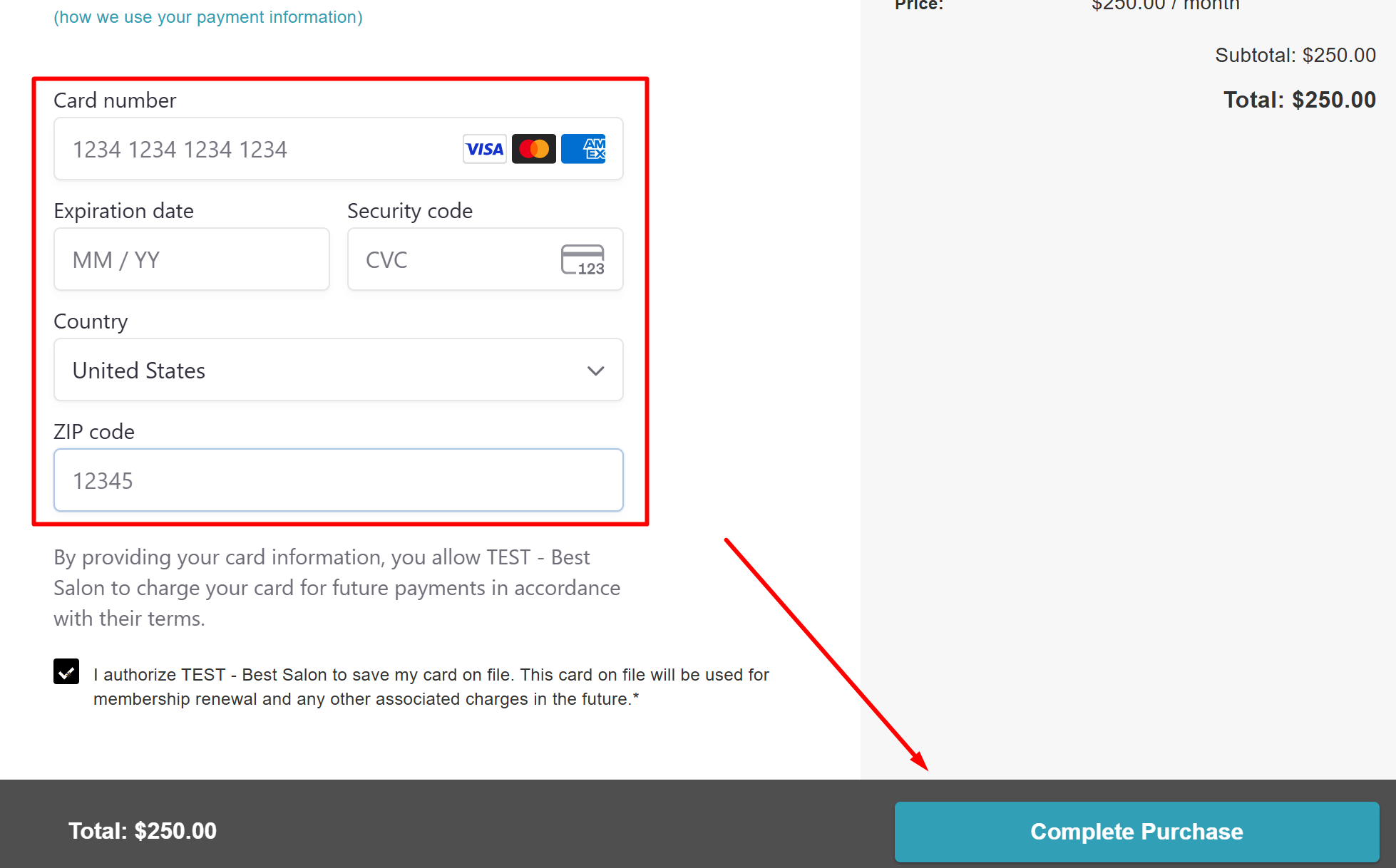
- Proceed to Checkout and provide payment details
- Click "Complete Purchase"
- A Confirm Payment popup will appear, showing:
- Total amount
- Surcharge amount
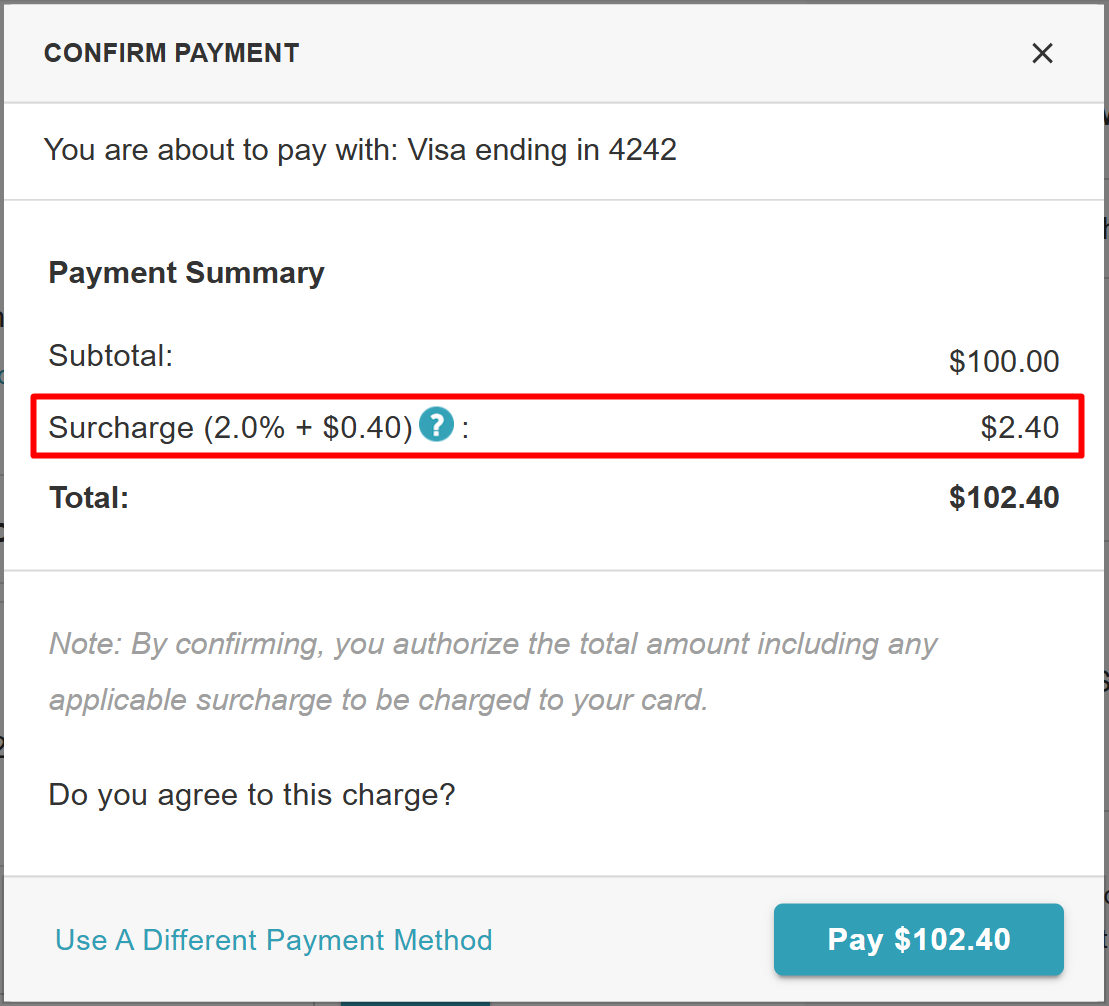
- Click "Pay $X"
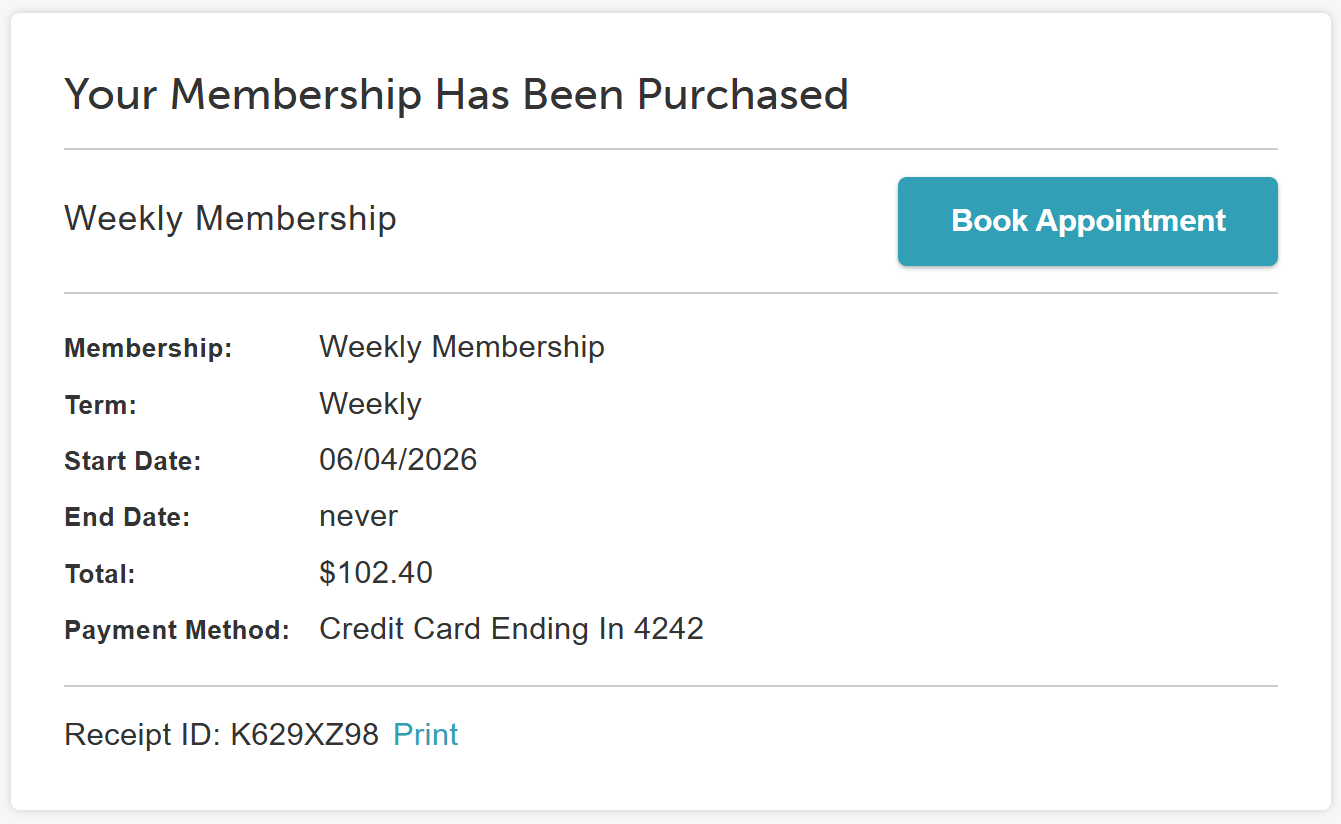
- The confirmation page will appear
For more information, contact us at support@mytime.com or (385) 233-6964.
Related Articles:
Was this article helpful?
That’s Great!
Thank you for your feedback
Sorry! We couldn't be helpful
Thank you for your feedback
Feedback sent
We appreciate your effort and will try to fix the article