Offering the right payment methods at checkout reduces friction and lets clients pay how they prefer. MyTime’s POS comes pre-configured with common options like Cash, Check, and Other Payment, but you can customize this list to add methods like Venmo or Apple Pay, hide options you don't accept, and control exactly what staff sees at checkout.
Things to know:
- Some payment options appear automatically based on your account configuration:
- Credit Card: Appears when a payment account is connected.
- Gift Card: Appears when gift card purchases are enabled.
- Referral Credit: Appears when a referral program is active.
- Loyalty: Appears when a loyalty program is enabled.
- At least one payment method must remain active at all times. A warning will appear if you attempt to deactivate all methods.
- Any payment method enabled in your settings will also display in the Daily Payments report.
- When a non-standard payment method is used for a transaction or a refund, it will be labeled clearly in your records:
- Payments: Displayed as "Other Payment Received" followed by the specific method in brackets—for example, (PayPal) or (Apple Pay).
- Refunds: Displayed as "Other Refunded" with the specific method noted in brackets.
- These detailed labels also extend to the Tickets and Journals API endpoints. Rather than returning a generic "Other Payment" label, the API provides the actual payment name (e.g., "PayPal") within the name field.
- The setup option displayed in the top-right user menu depends on how you access the account and your assigned role:
- When navigating from the Parent Account (Location Management tab):
- Admin: Displays Business Setup when viewing the location account.
- Login As: Displays Location Setup when viewing the location account.
- When logged in directly at the Location Level:
- Location Owners & Location Managers: Display Location Setup.
- Service Providers & All Other Roles: Display Profile Setup.
Contents
Add Additional Payment Methods in POS
To configure additional payment options on your checkout screen:
- Go to Business Setup / Location Setup → Settings
- Scroll to the POS section and locate Choose Payment Methods
- Toggle on Use Dropdown
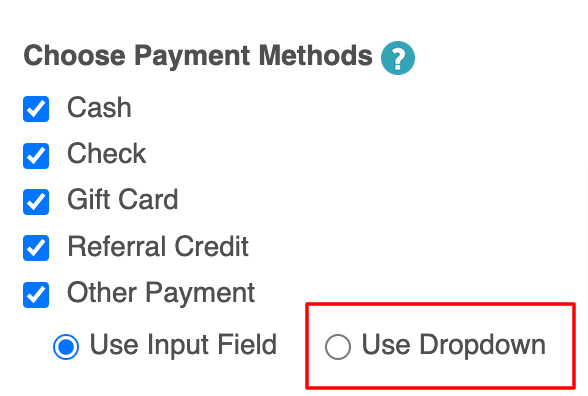
- This replaces individual payment buttons with a single dropdown selector to keep your checkout screen clean
- Enter your custom payment methods, separated by commas (e.g., Venmo, Apple Pay, Zelle)
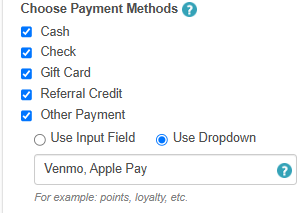
- Select Save
Hide Payment Methods in POS
Remove default options your business does not accept (for example, hiding Check for card-only locations):
- Go to Business Setup / Location Setup → Settings
- Scroll to the POS section and locate Choose Payment Methods
- Uncheck the box next to any payment method you want to remove
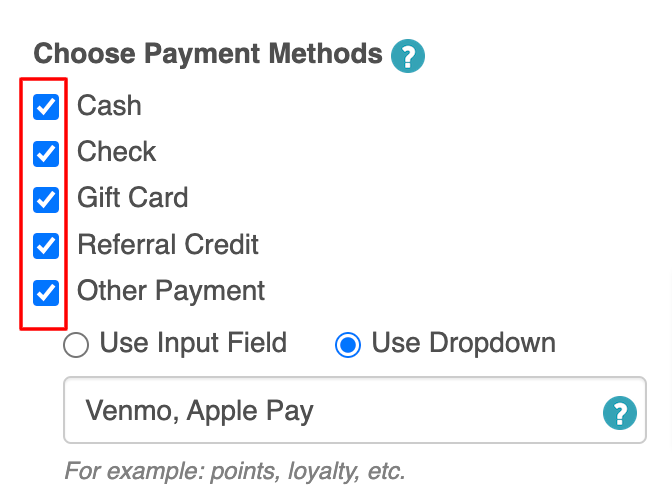
- Select Save
Note: At least one payment method must remain active at all times. You cannot uncheck all payment options.
View Payment Methods in POS
To verify which payment methods are active on your checkout screen:
- Go to POS → New Ticket
- Add any service or item to the ticket
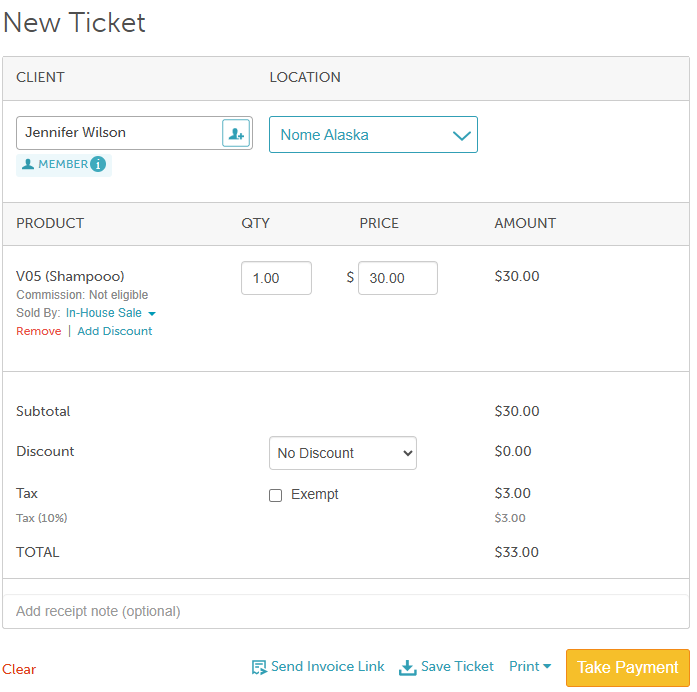
- Select Take Payment
Only your enabled payment methods will appear on the payment selection screen.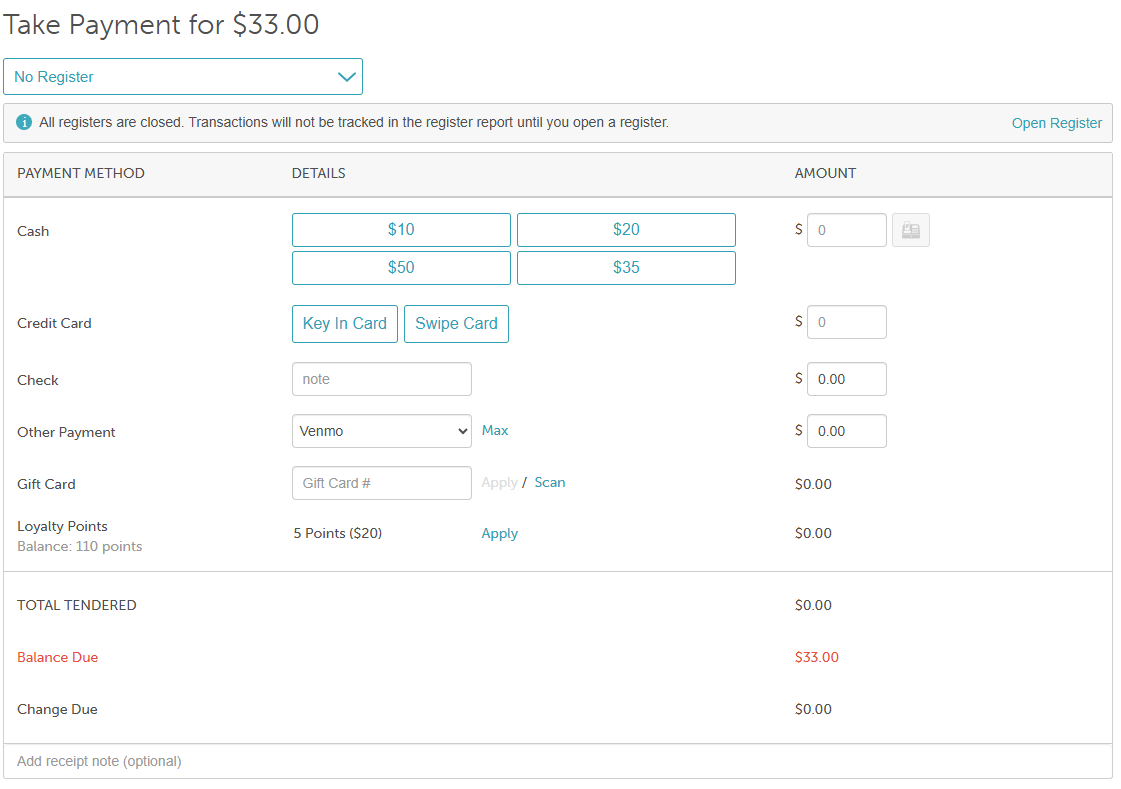
If you have any questions, feel free to contact our support team at support@mytime.com or (385) 233-6964.
Related Articles:
- Manual Card Entry via Stripe Hosted Form In-Store
- Manual Card Entry via Cloud9 Hosted Form In-Store
- Manual Card Entry via Stripe Hosted Forms Online
- Manual Card Entry via Cloud9 Hosted Form Online
- Referral Program Configuration
- Activate Referral Credit in POS
- Selling Physical Gift Cards in POS
- Selling Electronic Gift Cards in POS
- Purchasing Gift Cards Online
- Redeeming Gift Cards In-store in POS
- Adding Gift Cards Manually on Client Profile
- Tap To Pay on Android
- Tap To Pay on iPhone
Was this article helpful?
That’s Great!
Thank you for your feedback
Sorry! We couldn't be helpful
Thank you for your feedback
Feedback sent
We appreciate your effort and will try to fix the article