This report displays membership purchases and all failed and successful recurring membership payments.
Things to know:
- The ability to access this report is governed by the "Accessing Reports" access control settings
- Accounts without a membership subscription cannot view this report.
- Memberships can be purchased online or in-store.
- Recurring membership payments are triggered automatically by the system or manually by the user using the Reactivate link on the client's profile or the Retry link on the Membership Payments report.
- For pet businesses, the report will show the word “deceased” in parentheses next to the name of the pet that was marked as deceased.
- After updating the purchase location on a client’s membership, any future recurring charges will appear in the report under the new (current) location.
- This report is not visible to businesses that do not offer memberships.
- The report can only be exported in Summary View, which consolidates data by category such as location, staff member, or service type. This view is ideal for high-level analysis, allowing you to review total revenue and overall performance metrics without displaying individual transactions.
To access this report:
- Navigate to Dashboard
- Select the Reports tab
- Under the Clients section, select the Membership Payments report

When the report loads, you can filter by a specific location, status, and date. You have the option to export the report as a CSV, PDF, or print version.
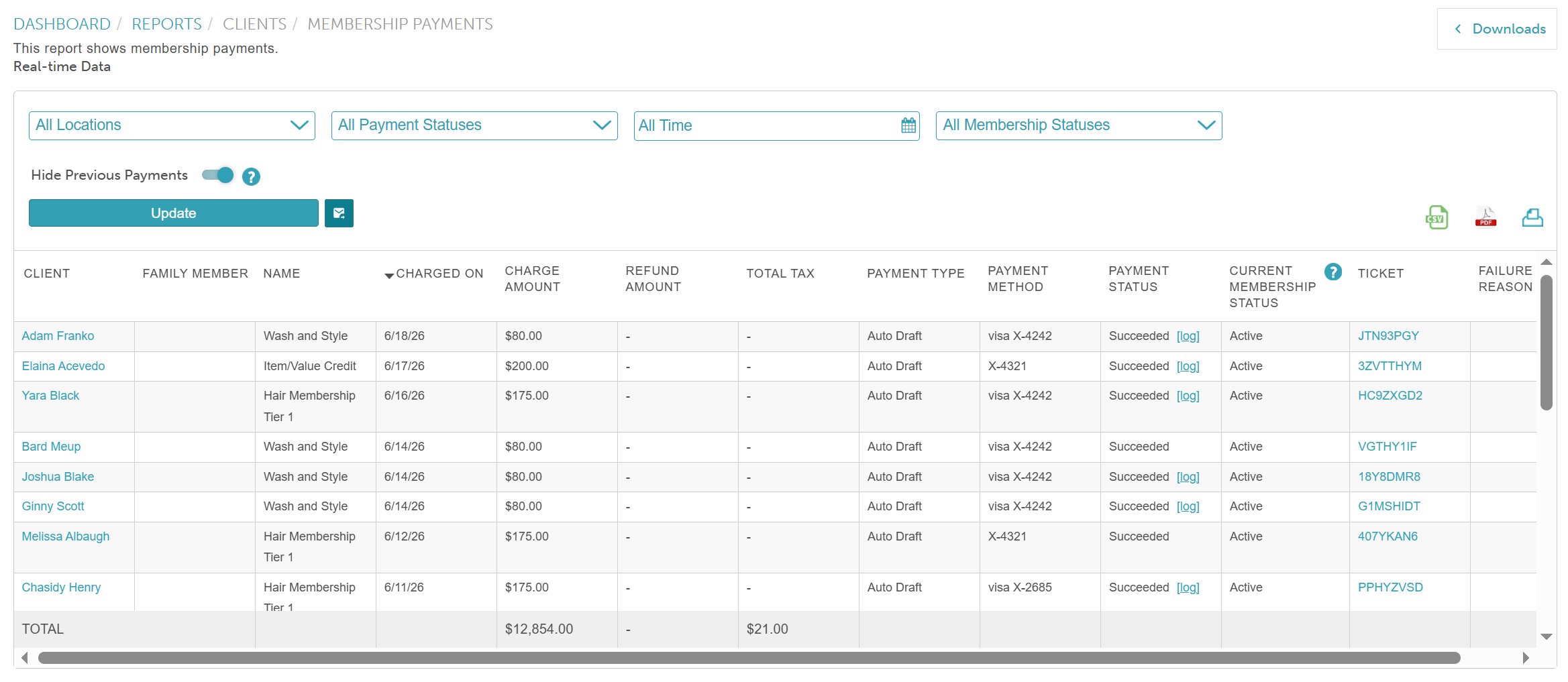
Report Filters
| Filter | Description |
| Location | The location where the membership was purchased.
|
| Payment Status | Indicates the status of the membership charge. You can choose to view all membership payments or filter by successful or failed payments only. |
| Date | Shows the date the membership was purchased or the date the membership fee was charged. |
| Membership Status | Indicates the status of the client's membership, such as active, expired, paused, pending, suspended, cancelled, or cancellation pending. |
| Hide Previous Payments | Disabled: The report displays all payment attempts made within the selected date range, providing a full history of transactions. Example: A membership charge is attempted on January 1st (failed due to insufficient funds) and retried on January 3rd (successful). Both entries will be shown:
Enabled: The report displays only the most recent payment attempt for each member, hiding any previous failed attempts to provide a simplified view of the final billing outcome. Example: Using the same scenario, only the final successful payment is shown:
|
Report Columns
| Column | Description |
| Client | The name of the client associated with the membership. |
| Family Member/ Pet | The name of the family member or pet that used the membership |
| Name | The name of the membership |
| Charged On | The date the membership was purchased or the recurring membership fee was charged |
| Charge Amount | The amount that was charged |
| Refund Amount | The amount that was refunded |
| Total Tax | The tax applied to the membership charge |
| Payment Type | Indicates whether the charge was triggered automatically by the MyTime system or manually by the merchant. Manual Draft - Triggered manually by the merchant using the Reactivate link on the client's profile or the Retry link on the report. Auto Draft - Triggered automatically by the MyTime system |
| Payment Method | Shows the payment method used, including the card type (Visa, American Express, etc.) or the last four digits of the ACH account. For transactions where no card was used, "See Ticket: {ticket number}" will be displayed. |
| Billing status | Indicates whether the membership charge was Successful, Failed, Partially Refunded, or Fully Refunded. 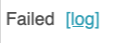 |
| Current Membership Status | The present state of a client’s membership, such as whether it is active, paused, expired, suspended or canceled |
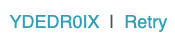
| Ticket | Displays the ticket number associated with the transaction as a clickable link. If the membership fails, there is a retry link next to the ticket where you can attempt to retry the payment.
|
| Failure Reason | The specific reason for the membership payment failure |
Charge History Modal
| Column | Description |
| Charged On | The date the membership was purchased or the recurring membership fee was charged |
| Charge Amount | The amount that was charged |
| Refund Amount | The amount that was refunded |
| Tax | The tax applied to the membership charge |
| Payment Type | Indicates whether the charge was triggered automatically by the MyTime system or manually by the business Manual Draft: Triggered manually by the merchant using the Reactivate link on the client’s profile or the Retry link on the report Auto Draft: Triggered automatically by the MyTime system |
| Payment Method | Shows the payment method used, including the card type (Visa, American Express, etc.) or the last four digits of the ACH account. For transactions where no card was used, "See Ticket: {ticket number}" will be displayed. |
| Status | Indicates whether the membership charge was Successful, Failed, Partially Refunded, or Fully Refunded. |
| Ticket | Displays the ticket number associated with the transaction as a clickable link |
| Failure Reason | The specific reason for the membership payment failure |
Related Articles:
- Global Memberships
- Indefinite Membership Configuration
- Term Membership Configuration
- Changing Associated Pet on Existing Memberships
- Changing Associated Family Member on Existing Memberships
- Upgrading or Downgrading Memberships
- Deleting Memberships
- Membership Roster Report
- Membership Conversion Report
- Membership Item Credits Report
- Membership Value Credits Report
Was this article helpful?
That’s Great!
Thank you for your feedback
Sorry! We couldn't be helpful
Thank you for your feedback
Feedback sent
We appreciate your effort and will try to fix the article