Whenever a membership payment fails, the membership is moved to a suspended/payment failed status. You can manually attempt to retry the charge from either the client profile or the Membership Payments report. In this article, we will explore both options.
Things to know:
- If a value is not specified for the "How Many Times In A Month Should We Retry A Failed Payment For Membership?" setting, the client's membership payment will be retried daily until the payment is successful.
- For monthly memberships, the failed payments will retry X times (based on the setting) once per day
- For annual memberships, the failed payments will retry X times (based on the setting), and then the membership will be canceled
- Only auto-draft payments are included in the membership payment failed retry attempts. Manually drafted payments do not count towards these retries and will interfere with the retry count. For instance, if the system is set to retry a payment 3 times and a client has two failed auto-draft payments followed by a manual payment attempt (triggered by a staff member, which also fails), the system will reset the retry count and attempt the charge 3 additional times.
- If the retry setting is modified, the retry cycles for all existing memberships will reset to the new retry value. For example, if the setting was initially configured for 2 retries and a client currently has 1 failed payment, and you change the retry amount to 0, the system will reset the retry cycle. Consequently, no further attempts will be made to charge that failed payment.
- For memberships with credit rollover enabled, any rolled-over credits from previous months will be added once past-due charges are successfully processed. If credit rollover is not enabled, only the current month's credits will be added, and the membership will be reactivated.
- If the "Initiate membership termination after X failed payments in a row" setting is configured, the client's membership will be terminated after that specified number of consecutive failed charges.
- If both the "Initiate membership termination after X failed payments in a row" and the "Auto-cancel memberships after months without successful payment" setting are enabled, the one matched first will take precedence and trigger the termination.
- Custom Charge Dates:
- If a custom charge date is set while the membership is in the automatic retry failed payments process, the custom charge date will become the next charge date, and the retry process will stop.
- If a membership with a custom charge date is canceled, the next charge date will be removed.
- If a membership is pending cancellation with a future cancellation date, and a custom charge date is set after that cancellation date, the next charge date will be cleared once the membership is canceled. For example, a membership is scheduled to cancel on August 31st. A custom charge date is manually set to September 5th. Once the membership is canceled on August 31st, the system will remove the September 5th charge date since the membership is no longer active.
- Membership billing follows a consistent schedule based on the client’s designated billing frequency—monthly (both termed and indefinite), weekly, or biweekly. This billing cadence is maintained regardless of whether a previous payment fails or is paid later. If a client makes a late payment, the next charge will still occur on the originally scheduled billing date, as late payments do not reset or shift the billing cycle. Examples:
- Late Payment Made Within the Same Billing Cycle:
Billing Date: 15th of each month
Missed Payment: August 15
Client Pays: August 22
- The payment made on August 22 is applied to the missed charge from August 15.
- The next charge will still occur on September 15, following the regular schedule.
Late Payment Made in the Next Billing Cycle:
Billing Date: 15th of each month
Missed Payment: August 15
Client Pays: September 2
- The payment made on September 2 is applied to the missed charge from August 15.
- The next scheduled charge will still run on September 15, maintaining the billing cadence.
Multiple Missed Payments, Paid in the Following Cycle:
Billing Date: 15th of each month
Missed Payments: August and September
Client Pays: October 2
- The payment made on October 2 is first applied to the August 15 charge.
- If the "Should failed payments from previous months be back charged?" setting is enabled and the "How many times in a month should we retry a failed payment for membership?" setting is set to 1, 2, or 3, then both the missed charges for August and September will be included in the October 2nd transaction, excluding any retry attempts.
- The next scheduled payment will still be processed on October 15, maintaining the original billing schedule.
- Late Payment Made Within the Same Billing Cycle:
- If a client's membership is set to bill on the 31st of each month, the payment will automatically process on the last day of the month for months with fewer than 31 days. For example, in February, the charge will occur on the 28th or 29th, and in April, on the 30th.
- Membership Payment Failure notifications are automatically triggered the moment a payment is declined. These alerts are sent to both the client and any staff member who has the "Receive operations alerts email" permission enabled. Because these are critical billing notifications, they are delivered regardless of the client’s general transactional email opt-in status.
- When a client’s payment method fails for a membership charge, they will receive a "Membership Payment Failed" notification. They can click the "update your payment method" hyperlink in the notification to be redirected online and update their payment information.
Contents
- Reactivating Memberships on the Client's Profile
- Manually Retrying Failed Payments from the Membership Payments Report
Reactivating Memberships on the Client's Profile
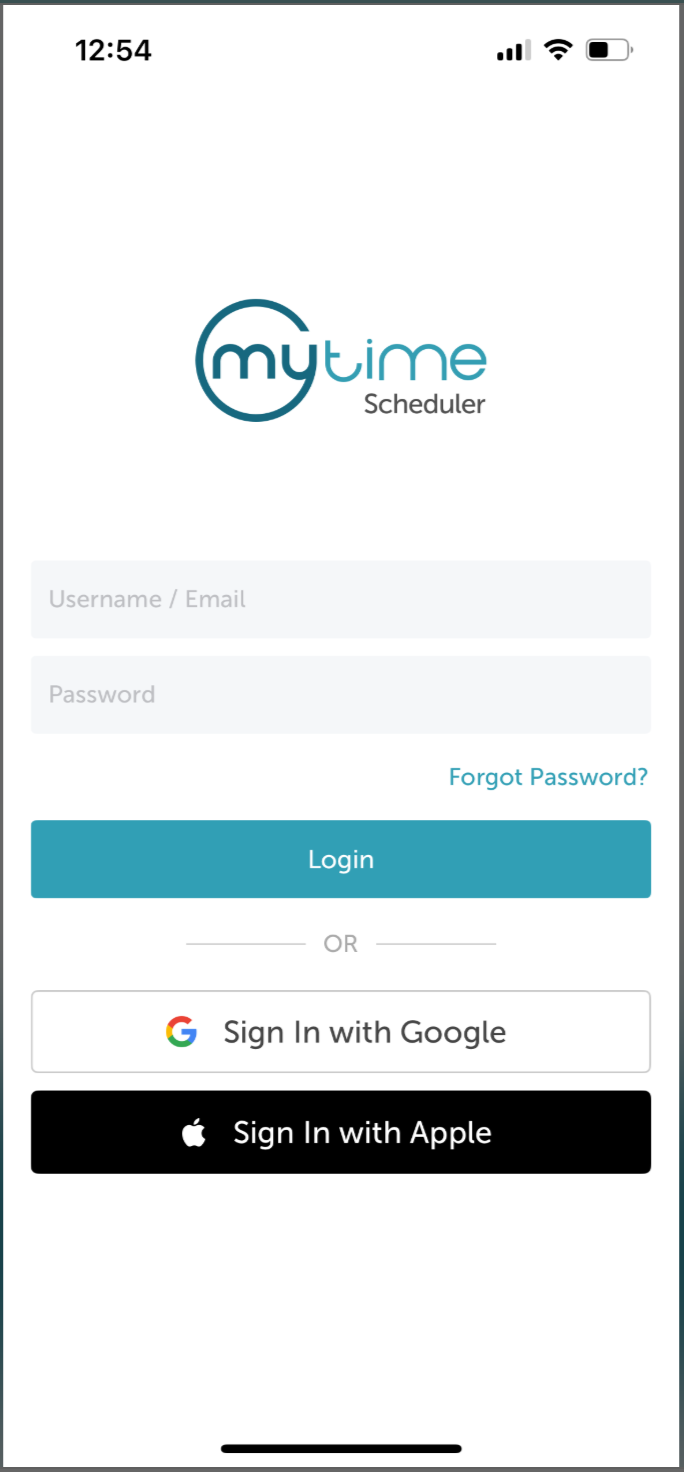
- Launch the MyTime Scheduler app on your device
- Choose your login method:
- Standard: Enter your registered email address and password, then tap 'Sign In'
- Social Login: Select 'Continue with Google' or 'Continue with Apple' to use your existing credentials for a faster login experience. For detailed instructions, learn more here
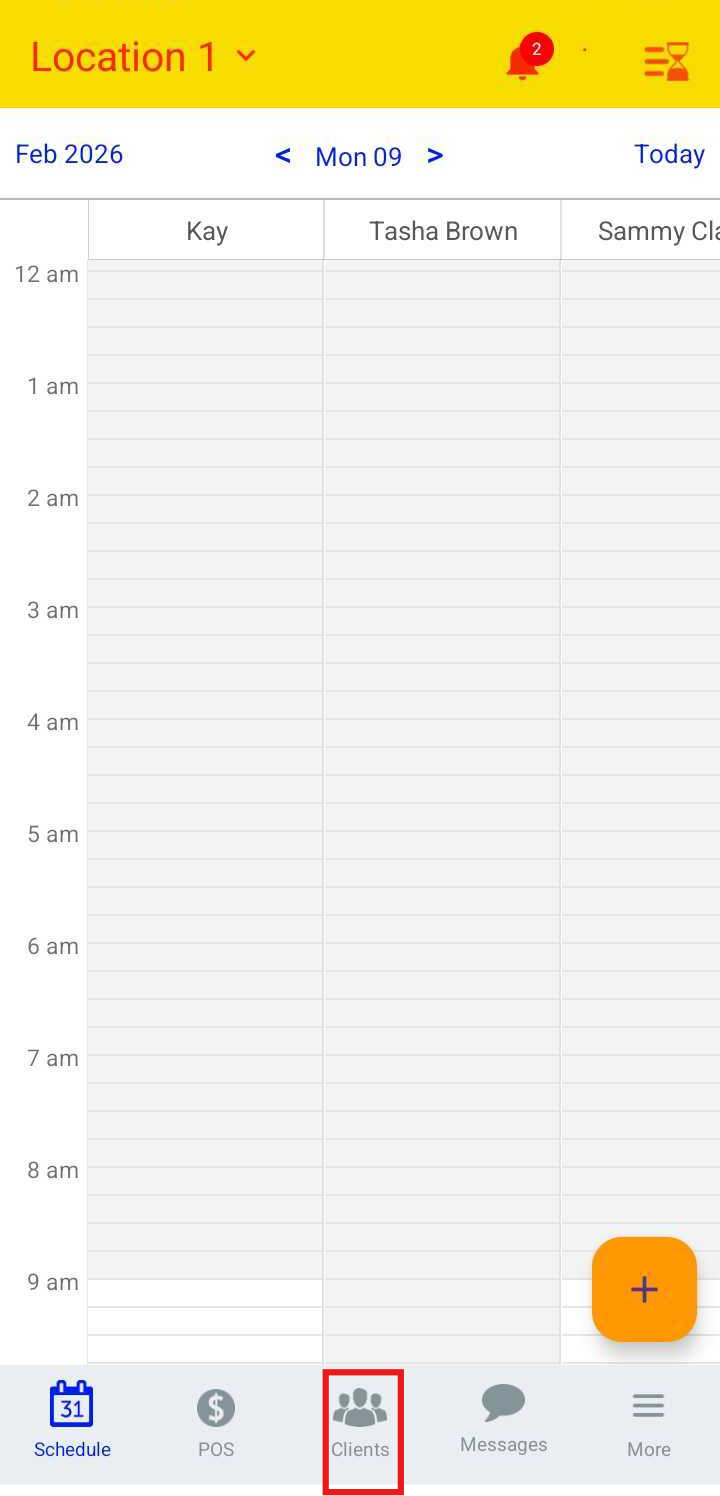
- By default, you will land on the Schedule screen
- Tap the Clients icon at the bottom of the screen
- Search for the client by typing their name in the Search field, or select the client from the list
- Scroll to the Payment Methods section and tap + Add Card
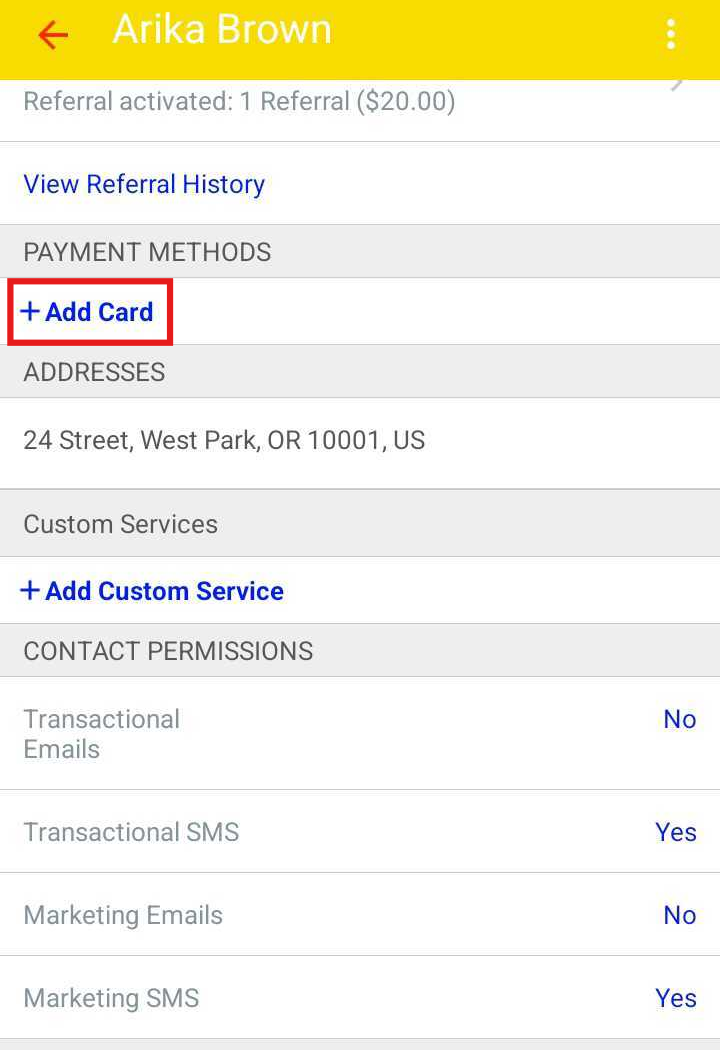
- Enter the card details and save
- Scroll to the Memberships Purchased section
- Locate the membership with a Payment Failed status and tap it
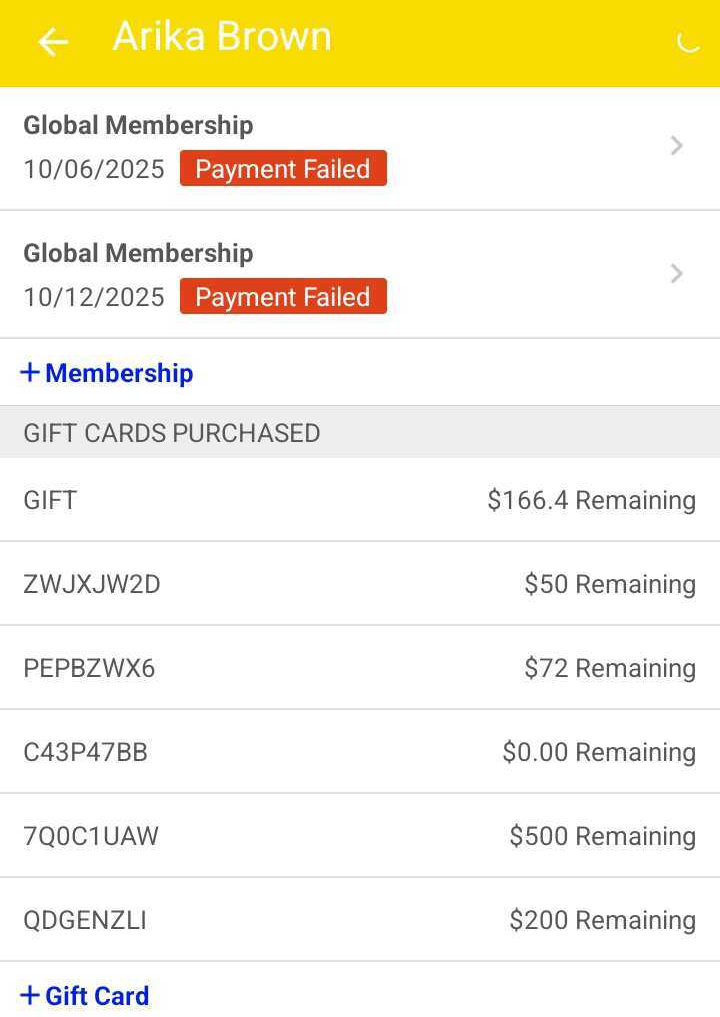
- Select Reactivate
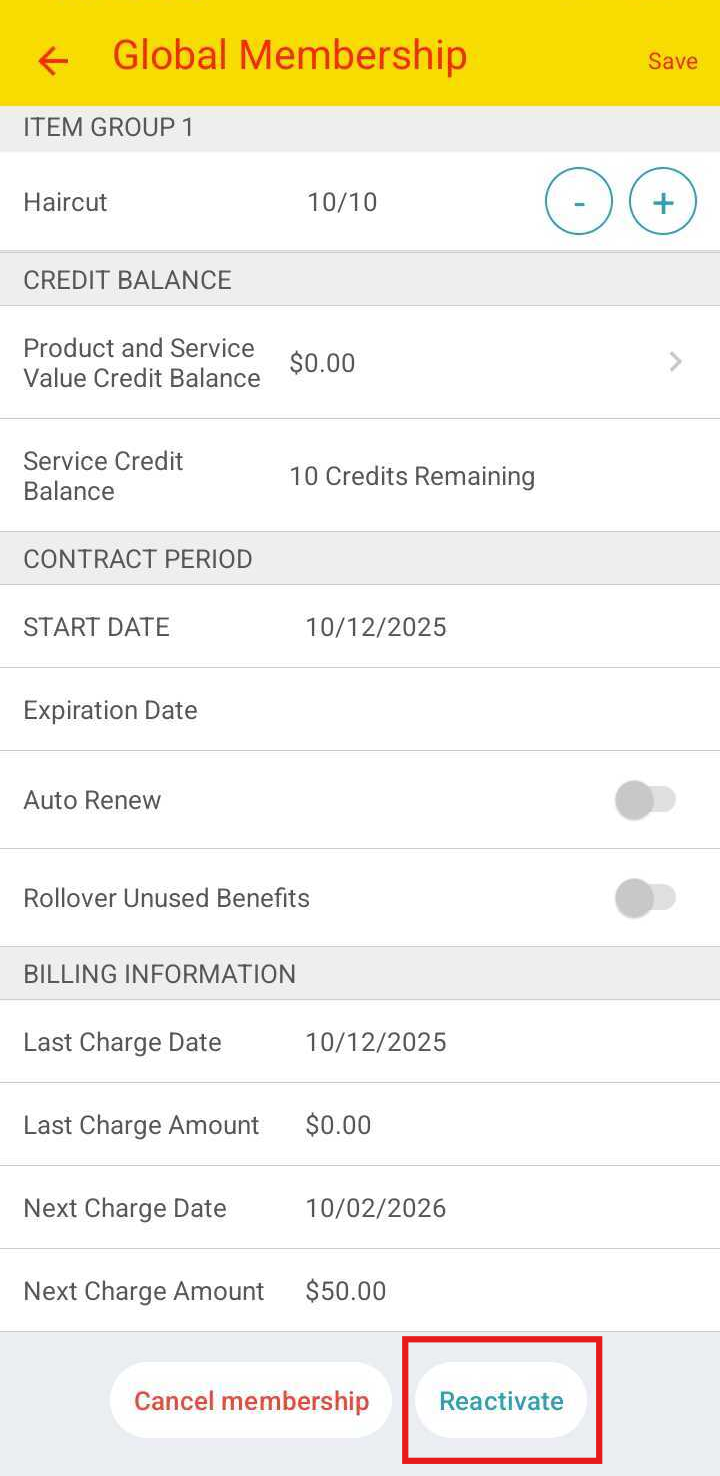
- Once the charge is successful, the membership will become active
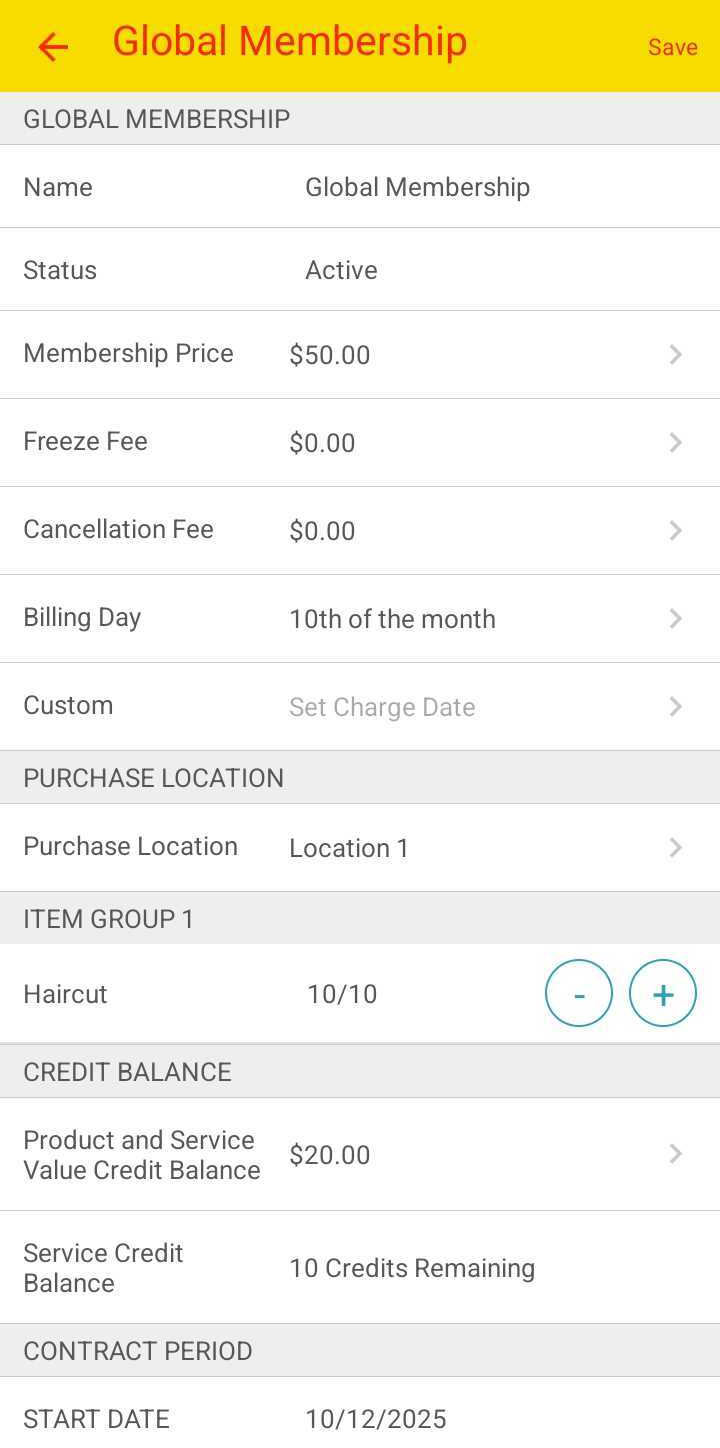
Manually Retrying Failed Payments from the Membership Payments Report
- Launch the MyTime Scheduler app on your device
- Choose your login method:
- Standard: Enter your registered email address and password, then tap 'Sign In'
- Social Login: Select 'Continue with Google' or 'Continue with Apple' to use your existing credentials for a faster login experience. For detailed instructions, learn more here
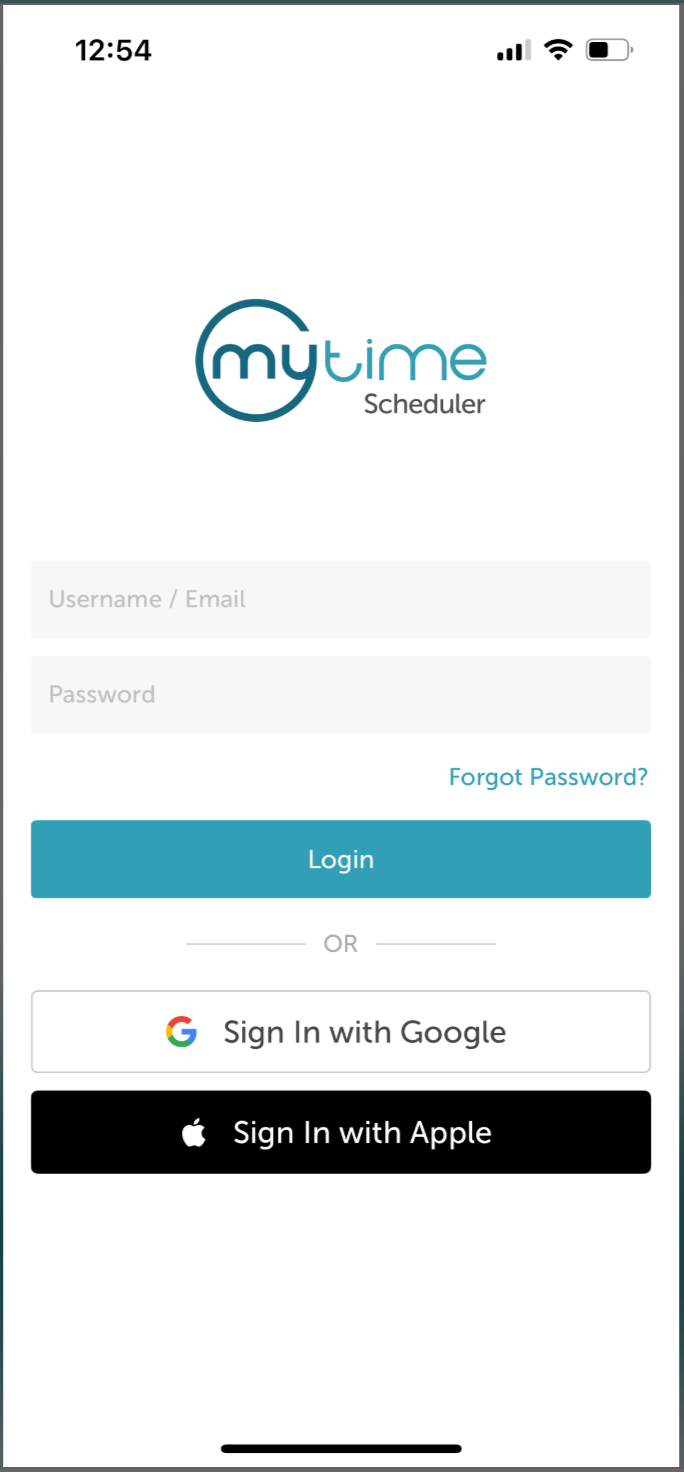
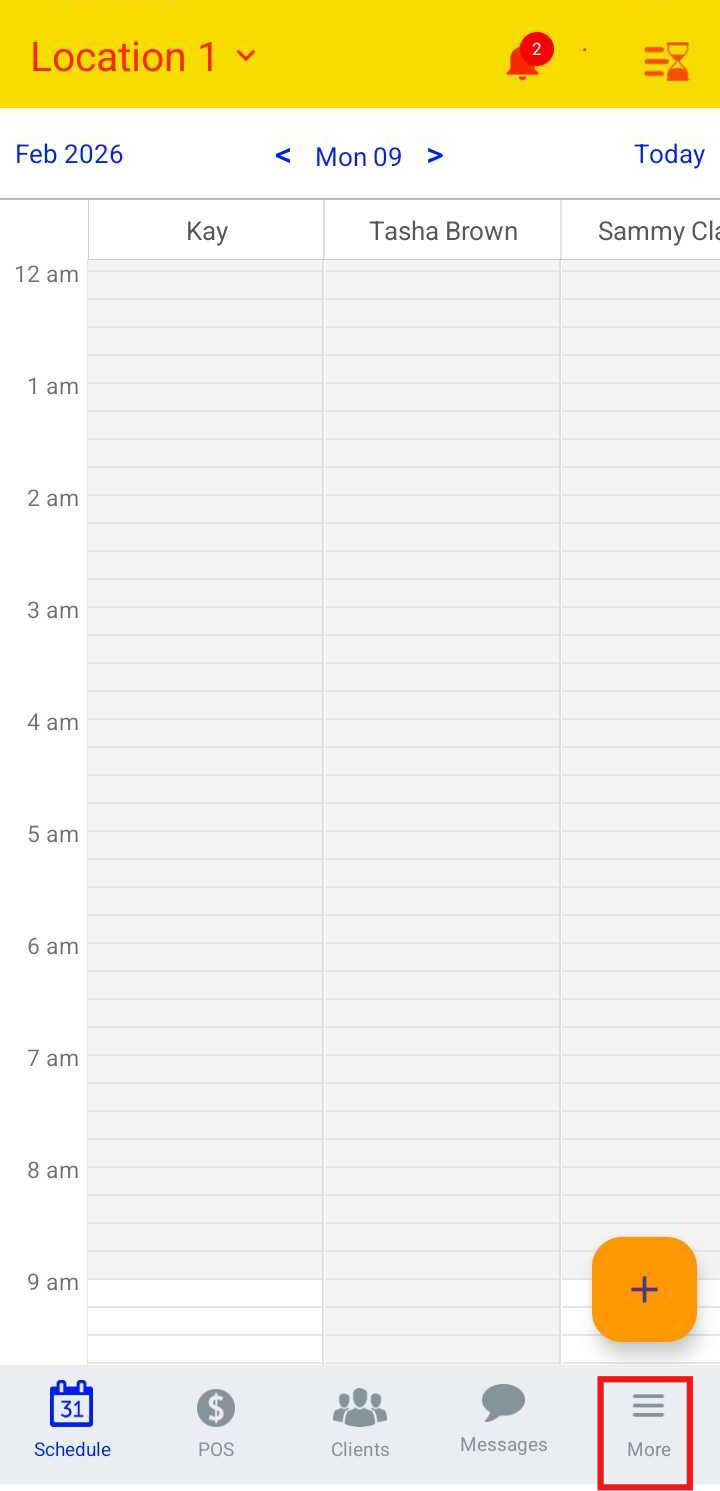
- By default, you will land on the Schedule screen
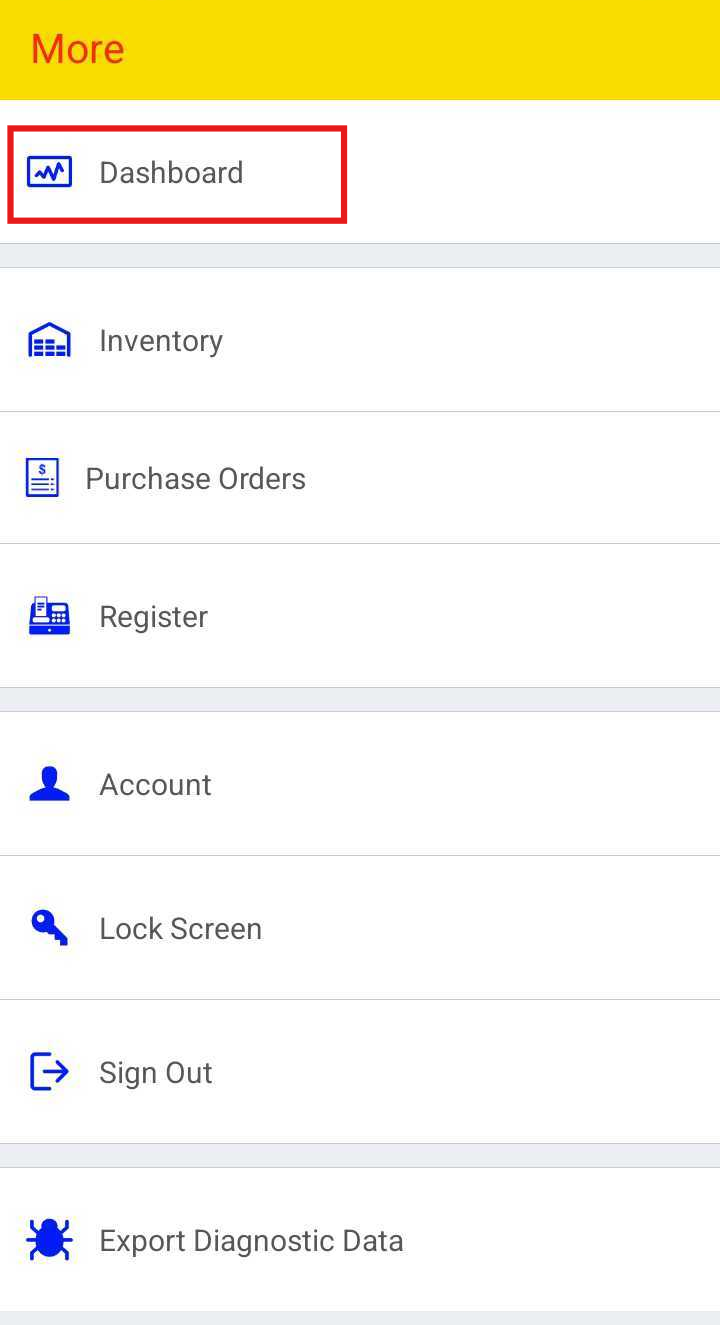
- Tap More at the bottom of the screen
- Select Dashboard
- Tap the Reports tab at the top of the screen
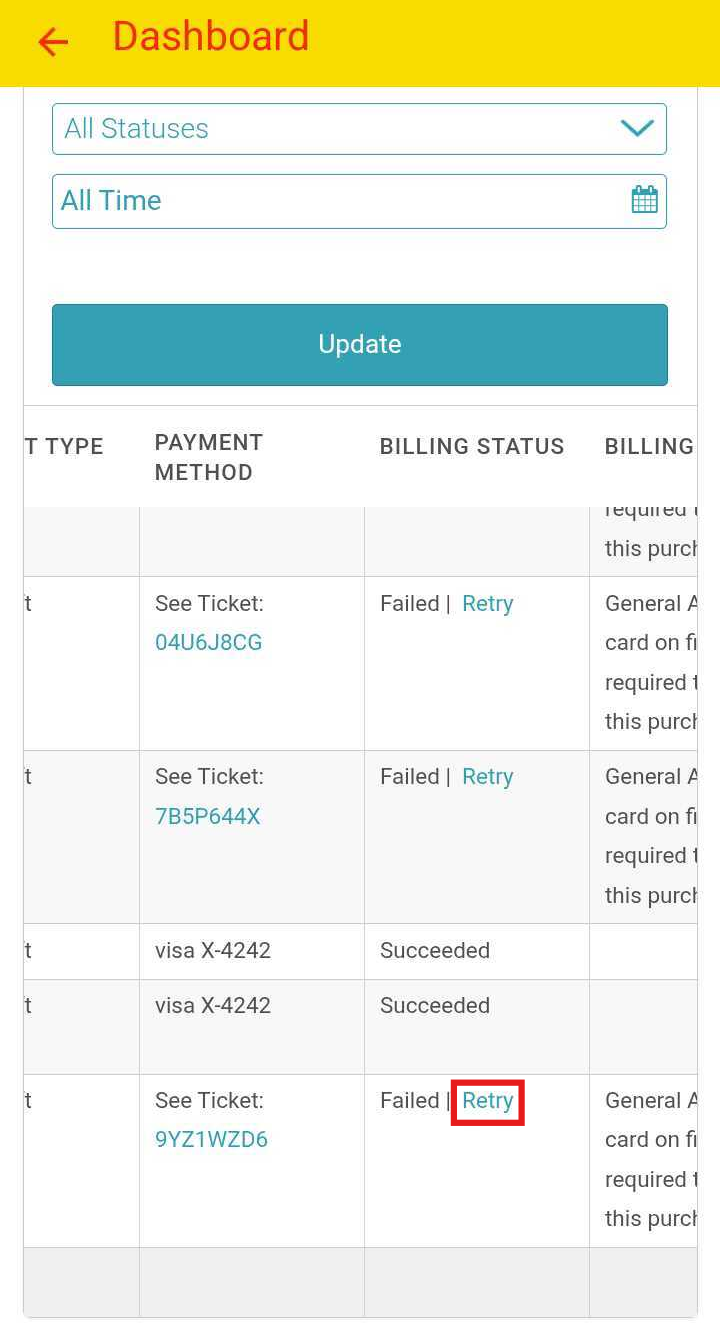
- Open the Membership Payments report
- Locate the failed payment for the desired client and tap Retry
- A confirmation message will appear when the charge is successful
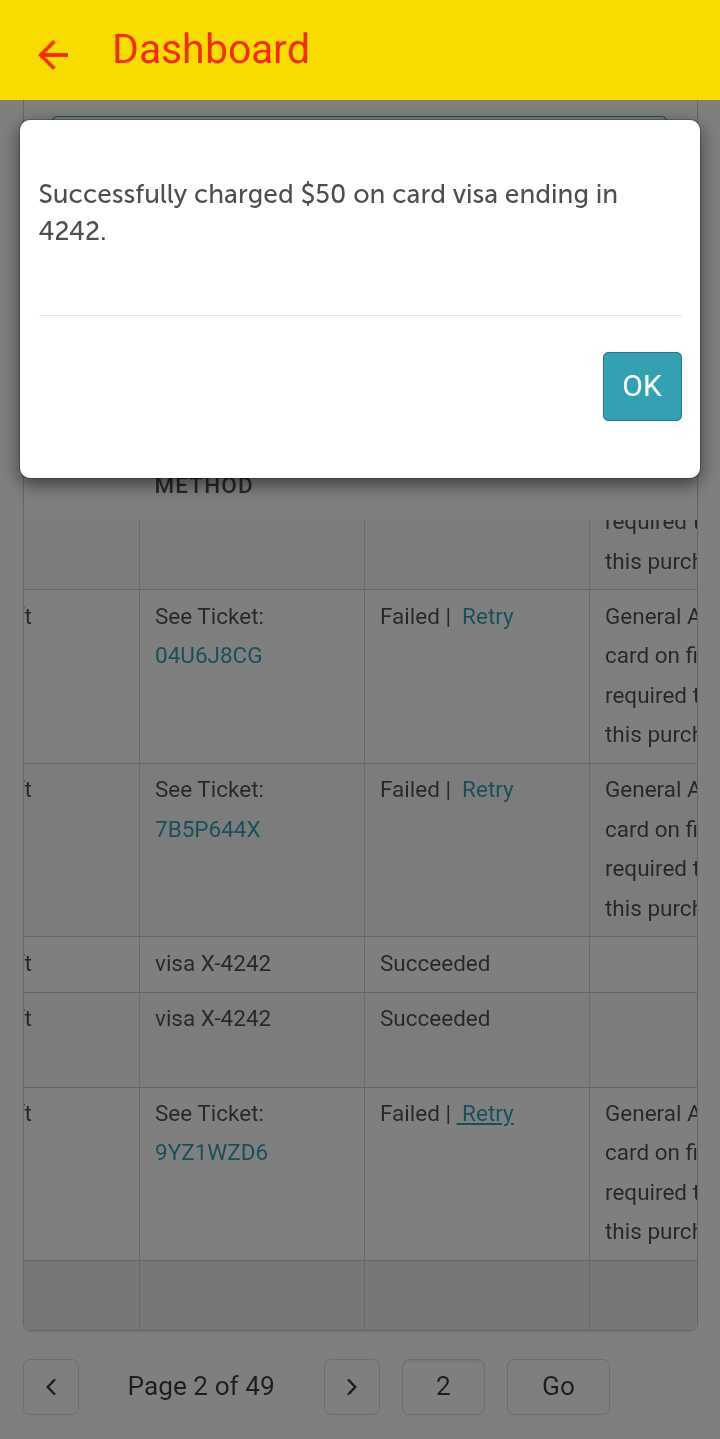
- The successful charge will be recorded in the Membership Payments report, and the client’s membership will become active
For more information, contact us at support@mytime.com or (385) 233-6964.
Related Articles:
Installing MyTime on Scheduler App (Android and iOS)
Signing into MyTime on Scheduler App (Android and iOS)
Retrying Failed Membership Charges
Cancelling Memberships on Scheduler App
Was this article helpful?
That’s Great!
Thank you for your feedback
Sorry! We couldn't be helpful
Thank you for your feedback
Feedback sent
We appreciate your effort and will try to fix the article