In this article, we will walk through the process of deleting clients from the Scheduler App.
Things to know:
- The ability to delete clients is controlled by the Deleting Clients access control setting
- When a client is deleted, past appointments are retained, but future appointments are automatically cancelled
- When a client profile is deleted, any pet/family member/vehicle profiles, membership, and packages are deleted as well
- Deleted client profiles can still be accessed through reports and past appointments. When you view their profile, the word Deleted will appear in parentheses beside their name.
To delete a client:
- Launch the MyTime Scheduler app on your device
- Choose your login method:
- Standard: Enter your registered email address and password, then tap 'Sign In'
- Social Login: Select 'Continue with Google' or 'Continue with Apple' to use your existing credentials for a faster login experience. For details on how to, learn here
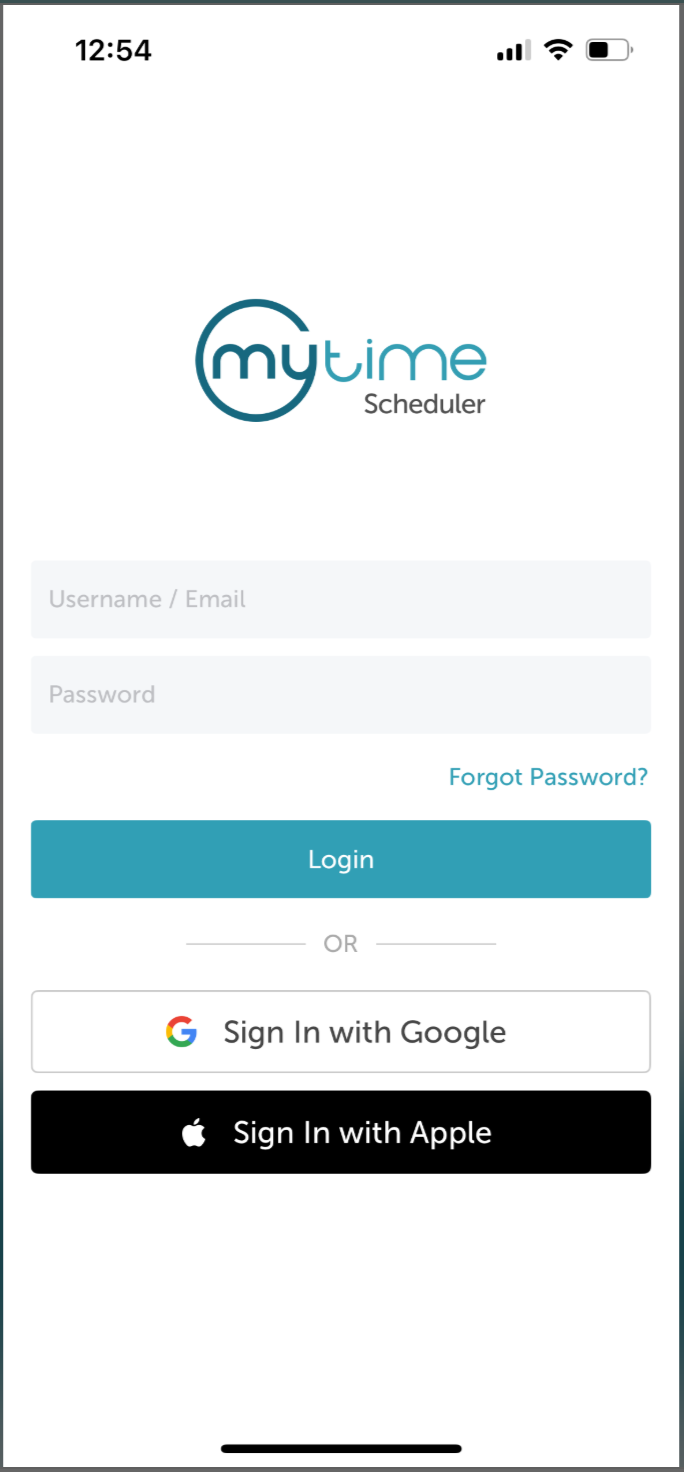
- Once signed in, you will be directed to the schedule by default
- Select "Clients" at the bottom of the screen
- Select the client you wish to delete
- Select the "Edit" option at the top of the screen
- Navigate to the bottom of the page
- Select "Delete Client"
- The "Delete Client" modal will pop up, select "Delete"


Once a client has been deleted, they will no longer be visible on the clients screen.
For more information contact us at support@mytime.com.
Related Articles:
Installing MyTime on Scheduler App (Android and iOS)
Signing into MyTime on Scheduler App (Android and iOS)
Sign into MyTime as a Staff Member
Scheduling Appointments on Scheduler App
Was this article helpful?
That’s Great!
Thank you for your feedback
Sorry! We couldn't be helpful
Thank you for your feedback
Feedback sent
We appreciate your effort and will try to fix the article