The order on the Staff and Availability page will be the same order that staff members will be shown on the schedule, on the services menu, and in the booking widget.
Things to know:
- The ability to reorder staff members on the Staff & Availability page is governed by the "Change Order of Staff on Schedule" access control setting.
- The setup option displayed in the top-right user menu depends on how you access the account and your assigned role:
- When navigating from the Parent Account (Location Management tab):
- Admin: Displays Business Setup when viewing the location account.
- Login As: Displays Location Setup when viewing the location account.
- When logged in directly at the Location Level:
- Location Owners & Location Managers: Display Location Setup.
- Service Providers & All Other Roles: Display Profile Setup.
You can reorder your staff list at any time from the Staff and Availability page by simply:
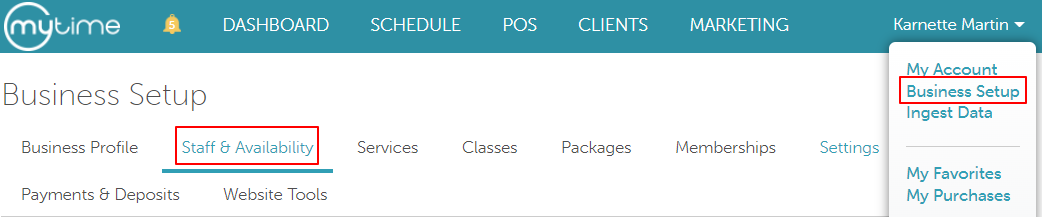
- Navigating to Business Setup / Location Setup > Staff and Availability
- Hover over the 3 vertical lines on the top right of the desired staff profile box
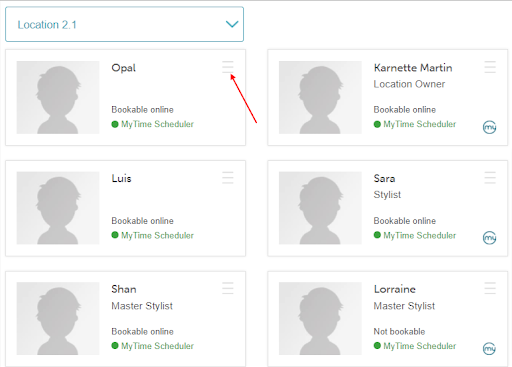
- Click and drag the box until you reach the desired booking order
For more information, contact us at support@mytime.com or (385) 233-6964.
Related Articles:
- Staff Settings
- Add/Invite Staff Members
- Staff Profile Overview
- Global Access Controls
- Managing Access Controls
- Global Employee Titles
- Managing Staff Titles
- Creating Staff Roles
- Assigning Staff Roles
- Setting and Resetting Passwords on Staff Profiles
- Sign into MyTime as a Staff Member
- Add Bio to Staff Profile
- Deleting Staff Members
Was this article helpful?
That’s Great!
Thank you for your feedback
Sorry! We couldn't be helpful
Thank you for your feedback
Feedback sent
We appreciate your effort and will try to fix the article