Family members linked to existing memberships can be switched to another family member. This article will provide step-by-step instructions on how to change the associated family member for an existing membership.
Things to Know:
- The ability to change the associated family member on a membership is governed by the "Accessing Membership" access control setting.
- Changing associated family member is only possible for memberships where the "Valid For" setting in the membership template is set to "Individual Family member"
- If a membership was purchased for Family Member A and a membership credit was used for an appointment for Family Member A:
- Changing the membership owner to Family Member B will not impact historical data
- Reports will continue to show that the membership credit was used
- The appointment for Family Member A will still display the 'Available in Membership' label
- By default, membership credits expire one year after issuance
- Indefinite memberships allow for custom credit expiration periods, which can be configured within the Membership Template or adjusted directly on a client’s profile. Please keep the following rules in mind:
- Rollover Compatibility: Custom expiration and the "Rollover" option are mutually exclusive. Enabling a custom expiration period will automatically disable the rollover option, and vice versa.
- Franchise Hierarchy: For franchise businesses with global memberships, expiration rules must be configured at the parent level within the membership template.
- Individual Adjustments: While the template is controlled at the parent level, staff at the Child Account level can still make individual adjustments for specific clients directly on their profiles.
To change the associated family member for an existing membership:
- Navigating to the Clients tab
- Open the client's profile
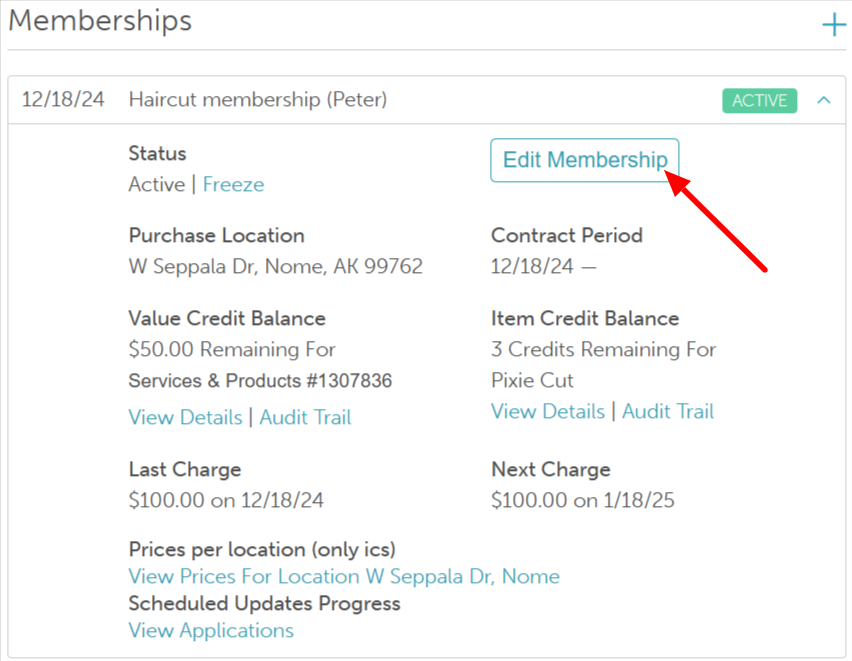
- Scroll down to the membership section
- Expand the membership
- Select the Edit Membership button
- Select the dropdown menu next to Membership Owner
- Select the associated family member from the list and save
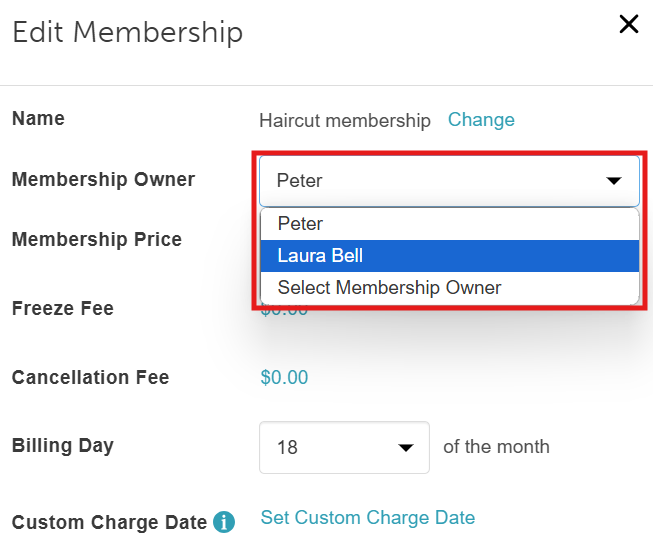
Once saved, the membership can only be used by the new family member selected.
For more information, contact support@mytime.com.
Related Articles
Configure Memberships for Family Members
Adding Memberships for Family Members on Client Profile
Selling Memberships for Family Members in POS
Selling Memberships for Family Members in POS on the Scheduler App
Was this article helpful?
That’s Great!
Thank you for your feedback
Sorry! We couldn't be helpful
Thank you for your feedback
Feedback sent
We appreciate your effort and will try to fix the article