This article will walk through the steps of canceling classes via the guest app.
Things to Know:
- Once a cancellation policy is established, it applies to both new and existing client bookings.
- The cancellation fee is only charged if the client cancels outside the specified cancellation window
- If a client decides to cancel their attendance, they will be responsible for the cancellation fee set by the business.
To cancel a class/event via guest app clients can:
1. Download the guest app from either the Google Play Store (for Android users) or the Apple Store (for iOS users)
2. Upon downloading, navigate to the home screen and tap on the account icon located in the top right corner, tap sign in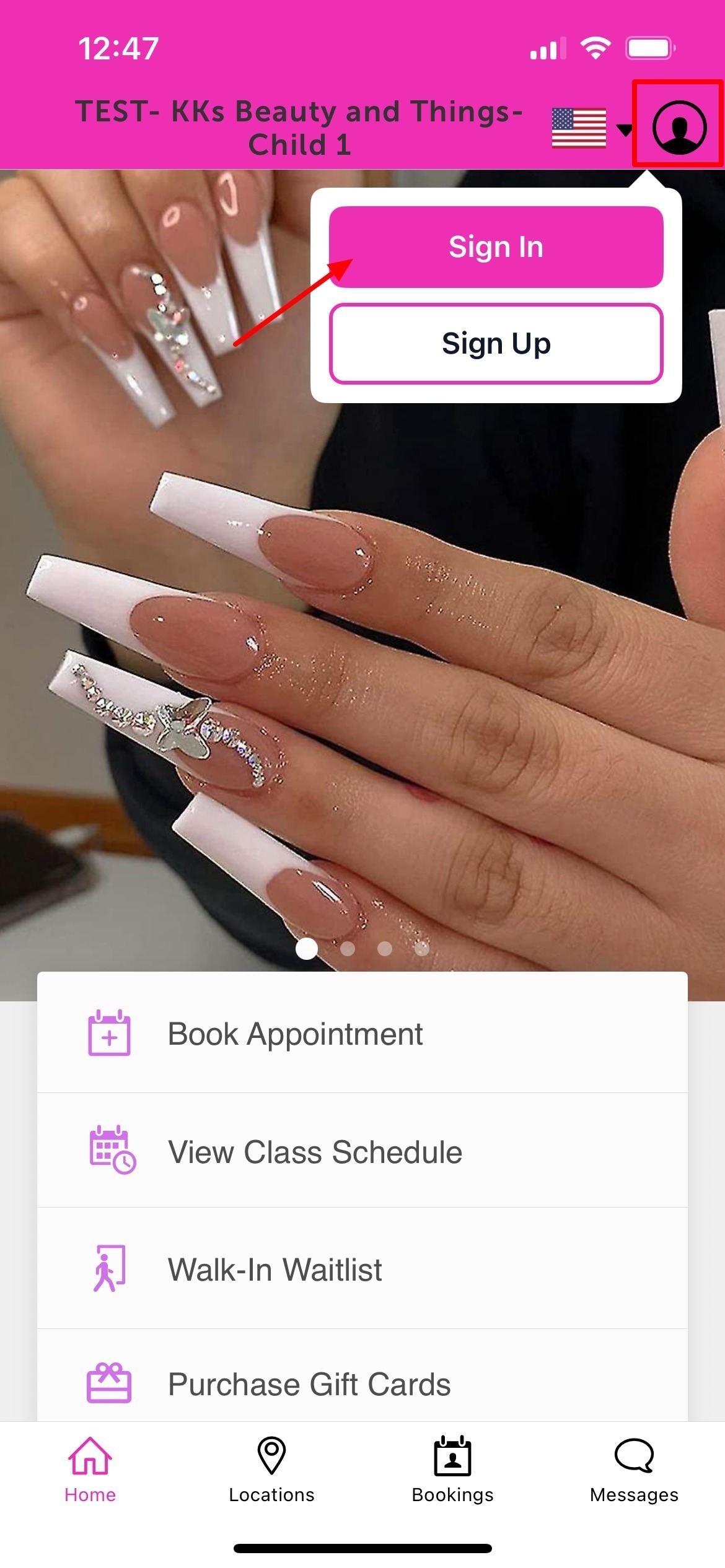 3. Choose their login method:
- Standard: Enter their registered email address and password, then click 'Sign In'.
- Social Login: Select 'Continue with Google,' 'Continue with Apple,' or 'Continue with Facebook' to use their existing social media credentials.
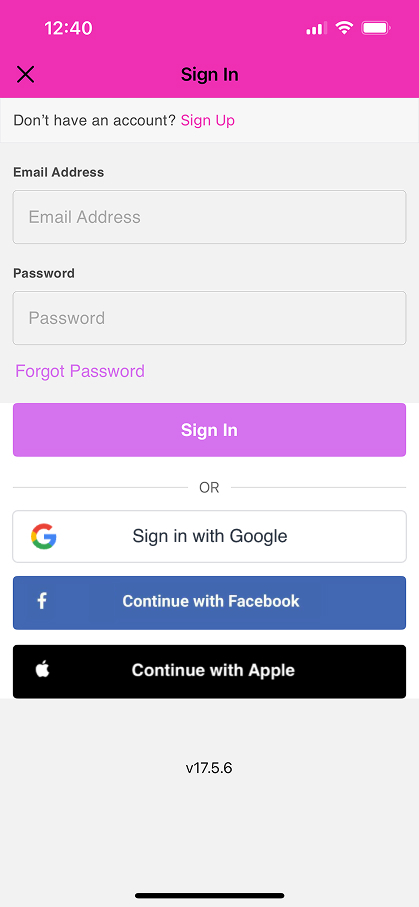
Upon signing in, clients will be directed to the My Account page, providing them access to view and manage their account details

4. Select "Bookings" located at the bottom of the screen 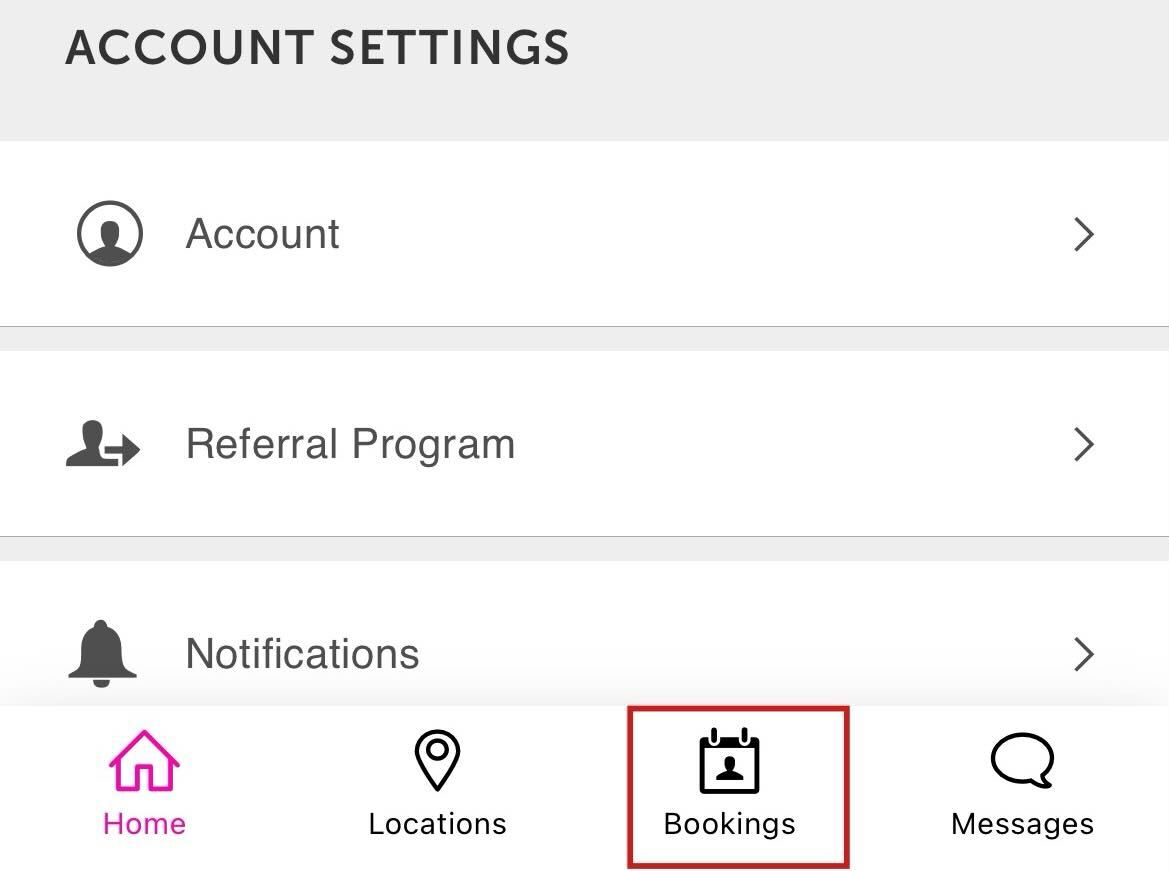
5. From the "Upcoming" tab on the "Bookings" page, locate and select the class they wish to cancel


The class confirmation page will appear
6. Select the "Cancel Booking" option

The following confirmation page will be displayed
7. Select "Yes, Cancel Booking"

Once class has been canceled, the confirmation will be displayed as shown below

The bookings page will reflect "(canceled)" next to the recently canceled class.

For more information contact us at support@mytime.com.
Related Articles:
Was this article helpful?
That’s Great!
Thank you for your feedback
Sorry! We couldn't be helpful
Thank you for your feedback
Feedback sent
We appreciate your effort and will try to fix the article