The MyTime Guest App allows clients to bypass the front desk and check themselves into their scheduled classes. This guide outlines how the self-check-in process works and the requirements for your clients.
Things to Know:
- To ensure accuracy, the app uses location services (GPS) to verify that a client is actually at your business before allowing them to check in.
- The check-in option only becomes available 30 minutes before the class start time.
- Clients must be within 20 kilometers of the class location.
- The client’s mobile device must have location services enabled for the Guest App.
- Check-In Scenarios: The app behaves differently based on the client's settings and physical location:
- Too Far Away: If a client is more than 20km away, the check-in button will not appear. If they attempt to force a check-in, they will see the message: "Too Far Away: You are too far away from the location to check in. Please get closer and try again."
- Location Services Disabled: The check-in button will appear, but clicking it will prompt the client to enable location services in their device settings.
- Location Enabled & Nearby: The Check-In button is fully active. The client simply taps the button to update their status to "Checked In" on your class roster.
Clients can quickly check in for their scheduled class session by:
- Download the guest app from either the Google Play Store (for Android users) or the Apple Store (for iOS users)
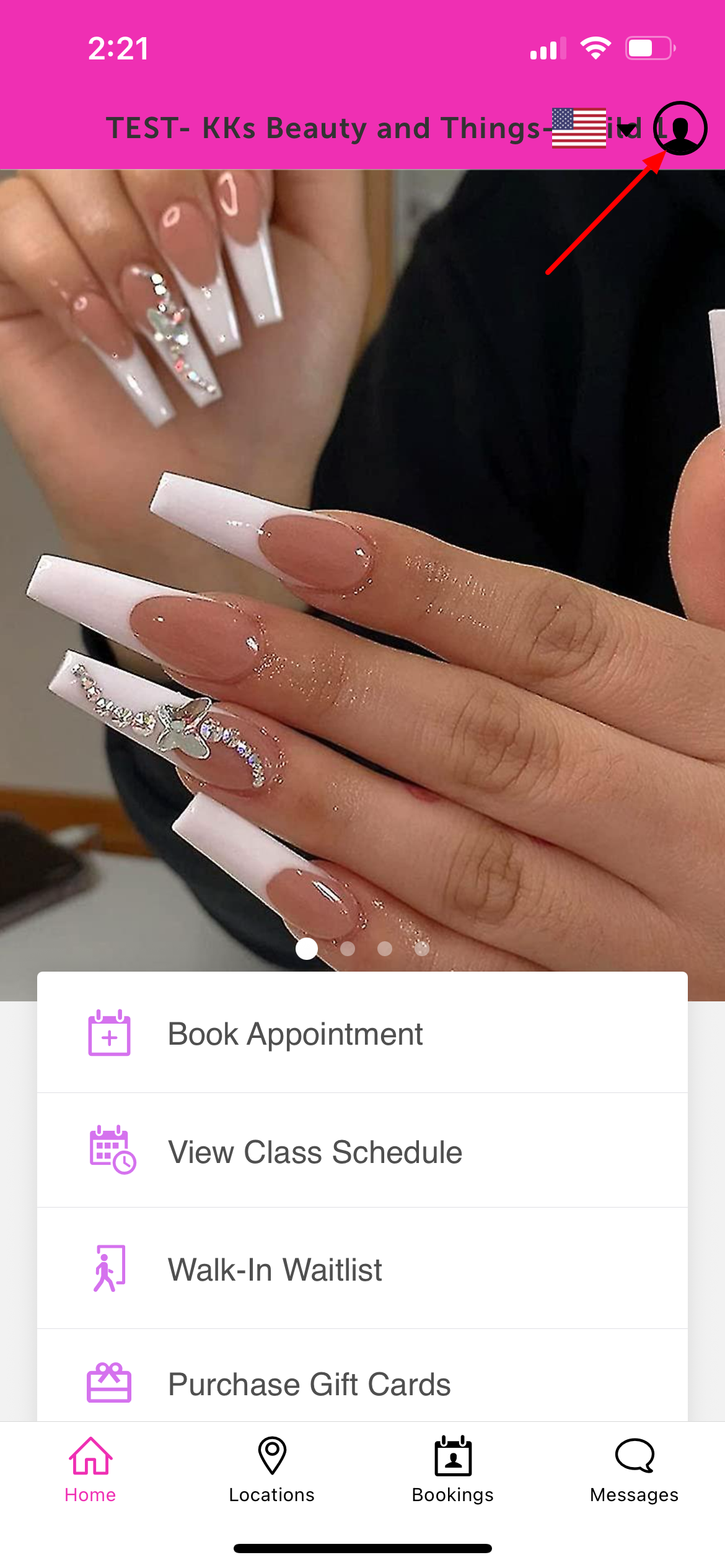
- Upon downloading, navigate to the home screen and tap on the account icon located in the top right corner
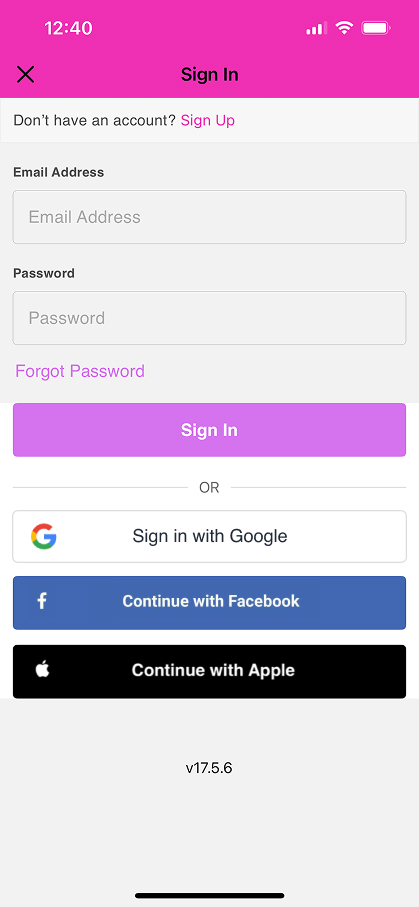
3. Choose their login method:
- Standard: Enter their registered email address and password, then click 'Sign In'.
- Social Login: Select 'Continue with Google,' 'Continue with Apple,' or 'Continue with Facebook' to use their existing social media credentials.
4. After signing in, return to the Home screen
5. If the class is within the 30-minute check-in window and the client is on-site, the Check-In option will be visible.
6. Tap the Check-In button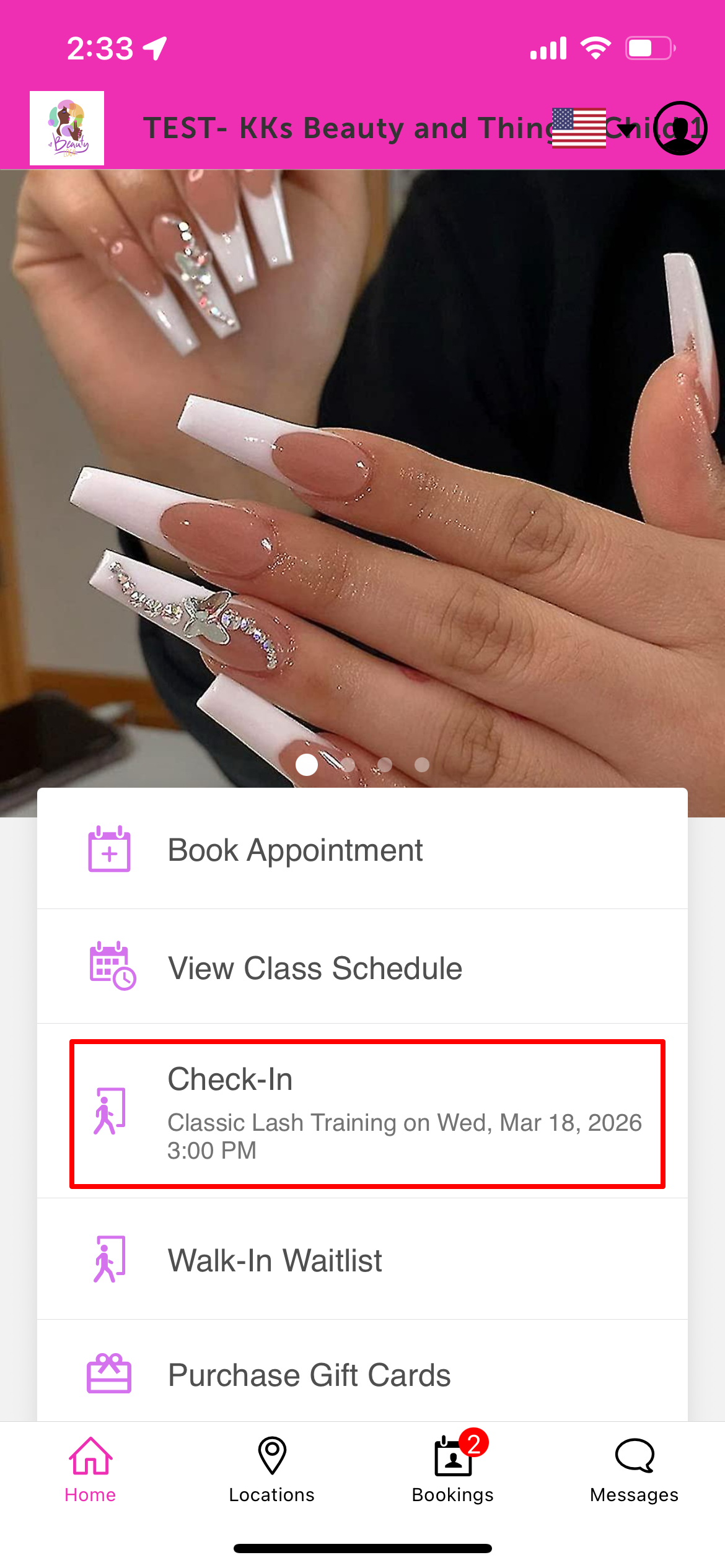
7. Tap Check-In once more to finalize the request. 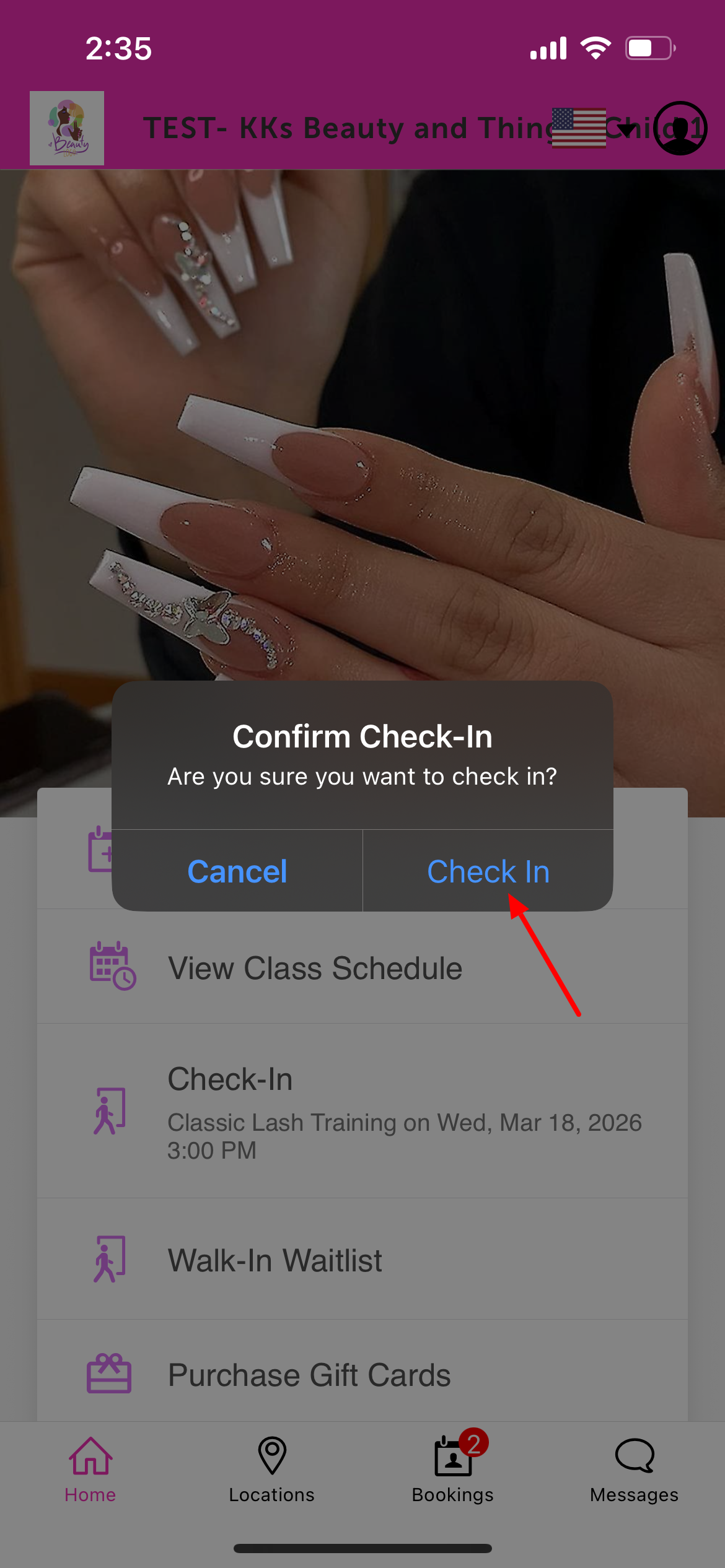
8. A confirmation message, "Welcome! You're now checked-in," will appear on the screen.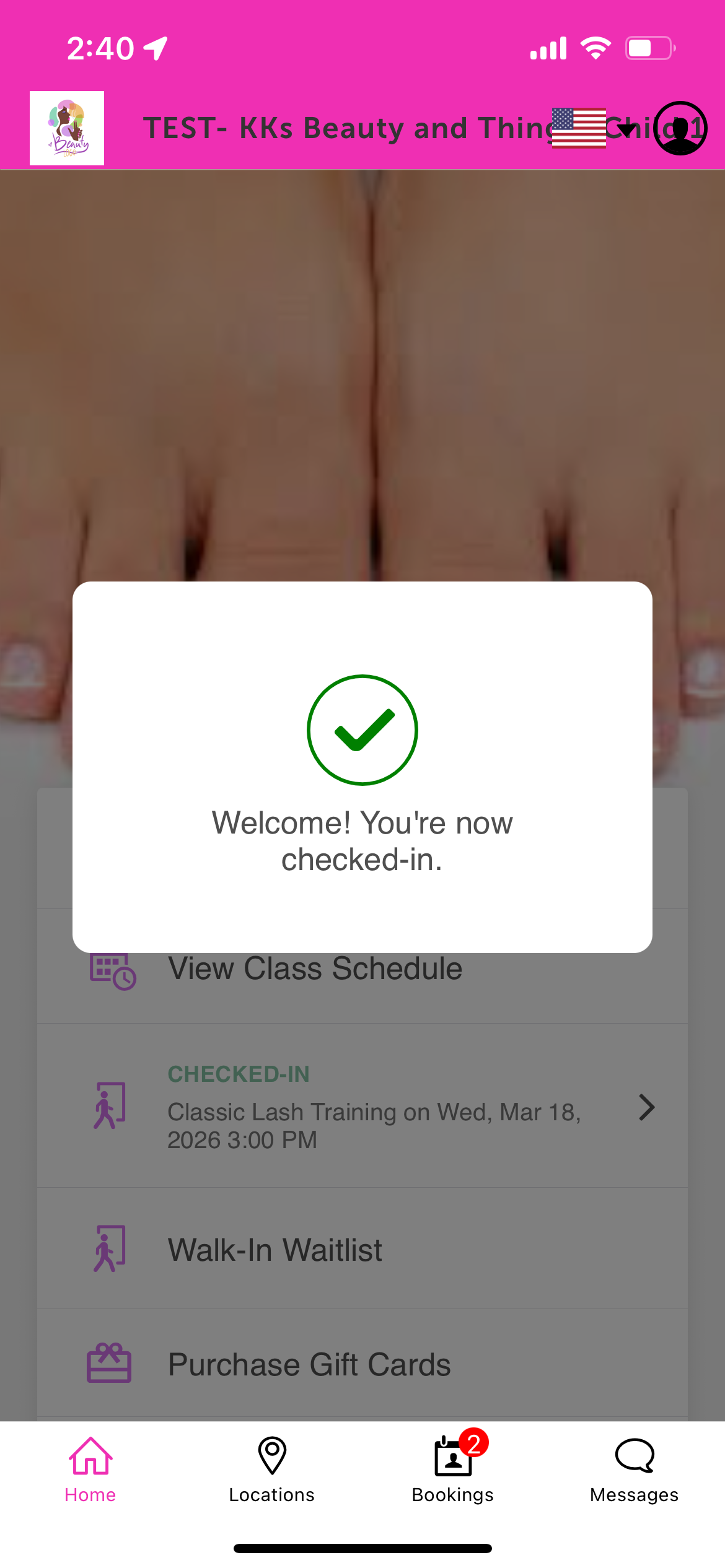
9. The class status will immediately update to Checked-In on both the guest app and the class roster in store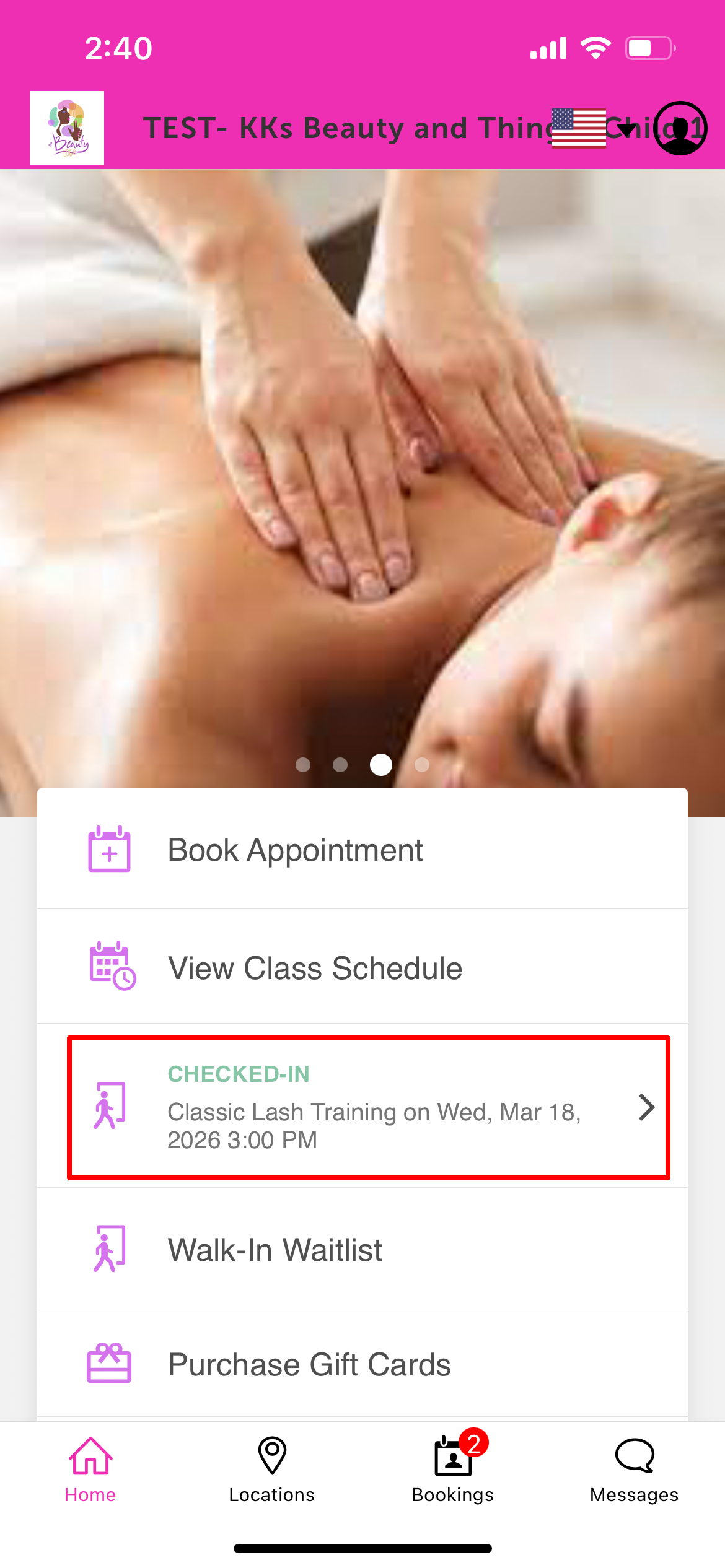
For more information, contact us at support@mytime.com.
Related Articles:
Account Management on Guest App
Booking Classes via the Guest App
Was this article helpful?
That’s Great!
Thank you for your feedback
Sorry! We couldn't be helpful
Thank you for your feedback
Feedback sent
We appreciate your effort and will try to fix the article