This article will walk through the steps of canceling classes via the guest app.
Things to Know:
- Once a cancellation policy is established, it applies to both new and existing client bookings.
- The cancellation fee is only charged if the client cancels outside the specified cancellation window
- If a client decides to cancel their attendance, they will be responsible for the cancellation fee set by the business.
- When a Class Session Booked Online Is Canceled Online:
- The system automatically voids the associated ticket
- If a cancellation fee is configured, the fee is automatically charged to the card on file.
- Two tickets will be created:
- One voided ticket for the original class session; this ticket can be viewed on the client profile.
- One closed ticket for the cancelation fee that was charged; this ticket can be viewed in the Close Ticket report.
- When a Class Session Booked In-Store Is Canceled Online:
- If a cancellation fee is configured, the card on file will be automatically charged.
- No ticket will be created for the canceled class session.
- A ticket for the cancelation fee will appear on the class session modal.
- When a client cancels a class session, their deposit automatically applies toward the cancellation fee. If the fee exceeds the deposit, the remaining balance is collected. If the deposit equals or exceeds the fee, no extra charge applies.
- Example:
- For a $100 session with a $15 deposit and a $50 cancellation fee (50%):
- Cancellation Fee: $50
- Deposit Applied: -$15
- Remaining Balance Due: $35 (plus tax & surcharges)
- The $35.00 balance is charged to the client's card on file or routed to the POS for staff collection
- Converted deposits appear as "Session Enrollment Cancellation Fee" on the client's ticket and is displayed under the Cancellation Fee column in reports
- Reports display the collected deposit under the Cancellation Fee column.
- Example:
- Class Cancellations Without an Upfront Deposit - If a staff member waives or skips collecting a deposit when enrolling a client in a class, cancellation fees are handled based on where the cancellation occurs:
- Online Cancellations (by Client): The client’s card on file is automatically charged the applicable cancellation fee.
- In-Store Cancellations (by Staff): The system prompts the staff member to collect the cancellation fee. However, staff members have the option to manually waive the fee.
To cancel a class/event via guest app clients can:
1. Download the guest app from either the Google Play Store (for Android users) or the Apple Store (for iOS users)
2. Upon downloading, navigate to the home screen and tap on the account icon located in the top right corner, tap sign in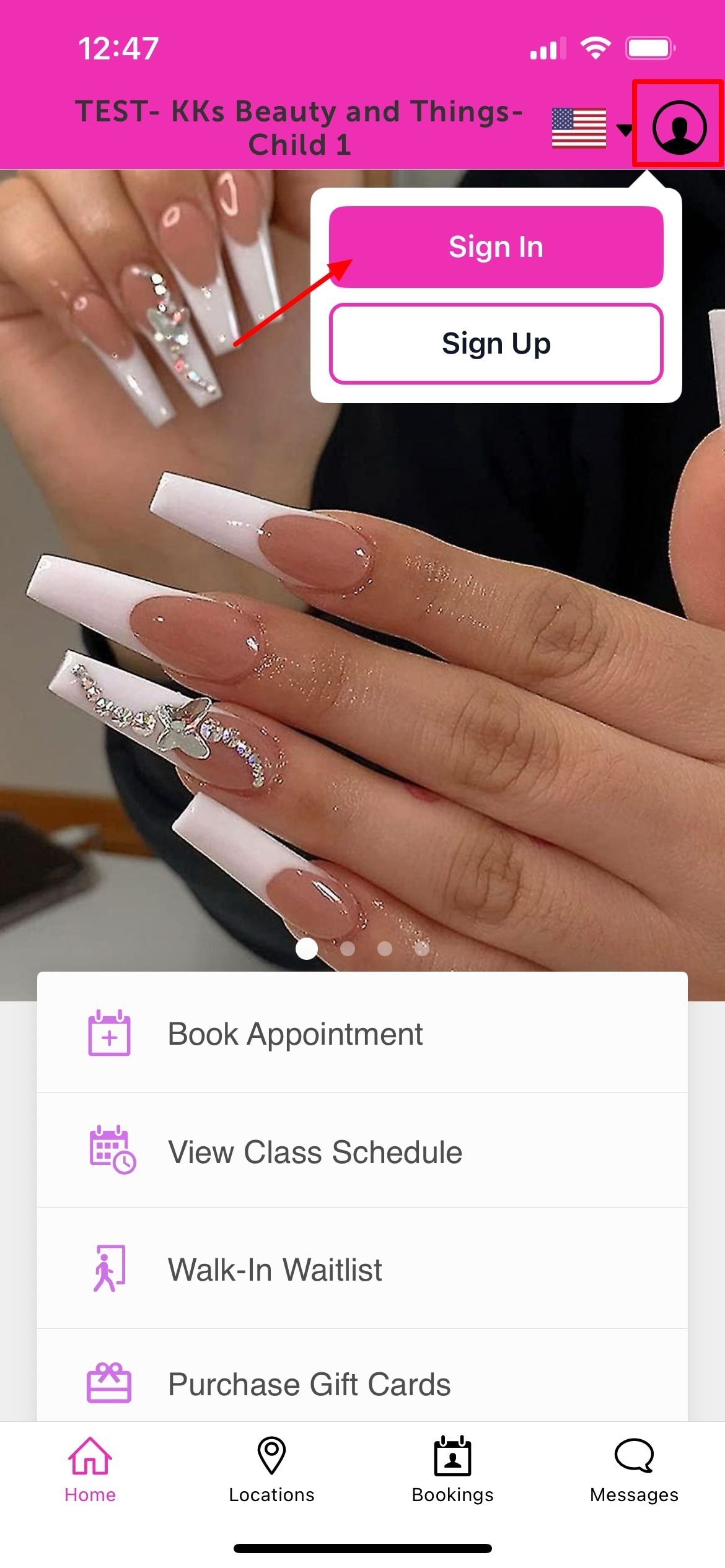 3. Choose their login method:
- Standard: Enter their registered email address and password, then click 'Sign In'.
- Social Login: Select 'Continue with Google,' 'Continue with Apple,' or 'Continue with Facebook' to use their existing social media credentials.
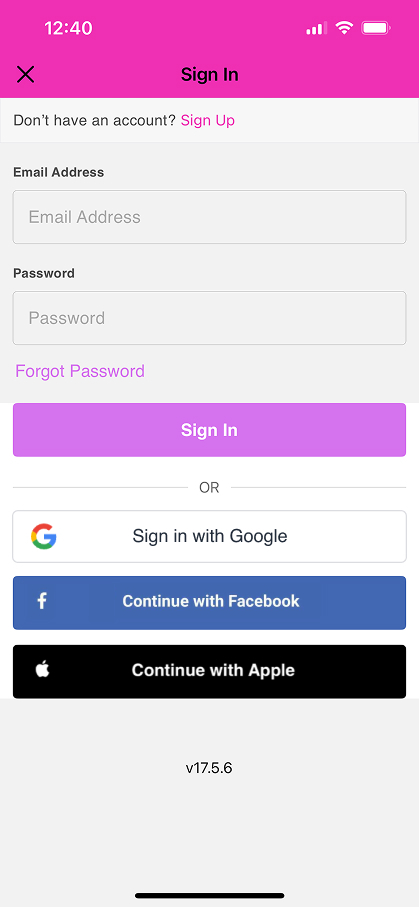
Upon signing in, clients will be directed to the My Account page, providing them access to view and manage their account details

4. Select "Bookings" located at the bottom of the screen 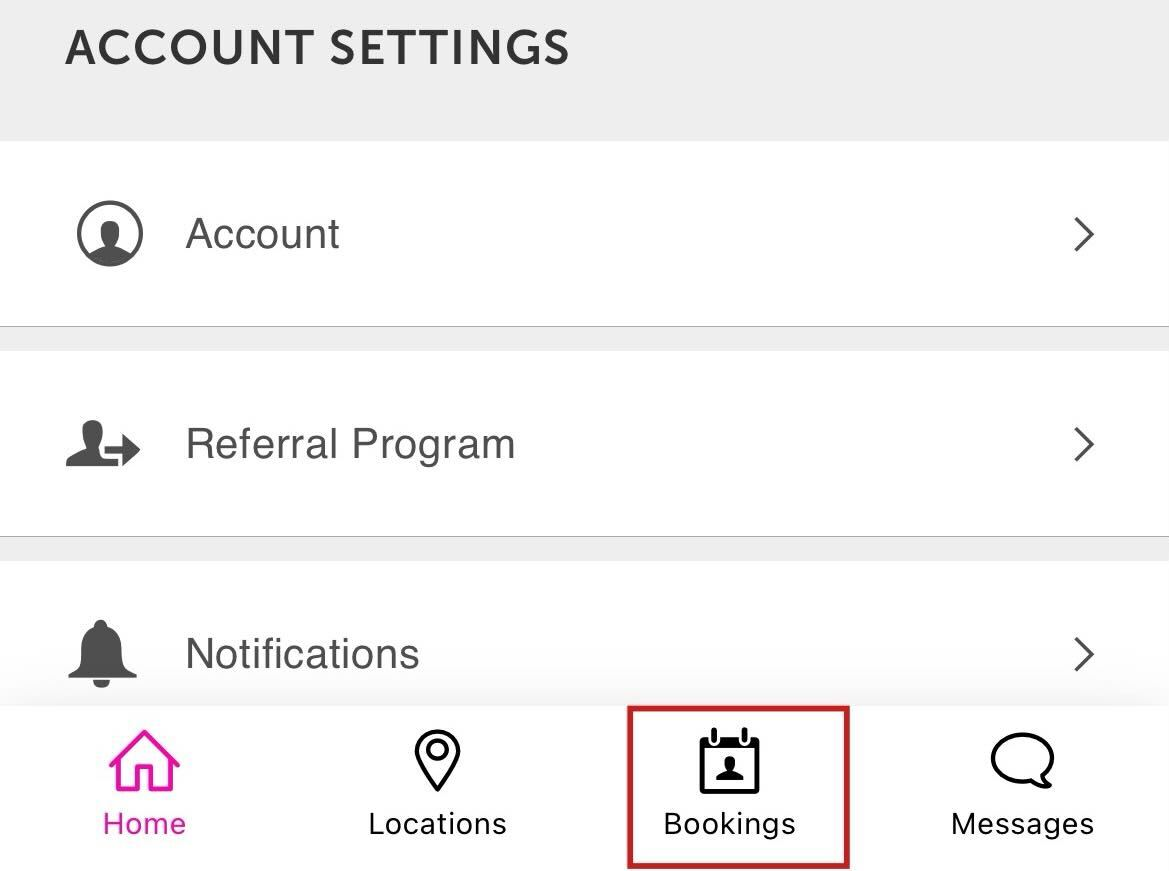
5. From the "Upcoming" tab on the "Bookings" page, locate and select the class they wish to cancel


The class confirmation page will appear
6. Select the "Cancel Booking" option

The following confirmation page will be displayed
7. Select "Yes, Cancel Booking"

Once class has been canceled, the confirmation will be displayed as shown below

The bookings page will reflect "(canceled)" next to the recently canceled class.

For more information contact us at support@mytime.com.
Related Articles:
Was this article helpful?
That’s Great!
Thank you for your feedback
Sorry! We couldn't be helpful
Thank you for your feedback
Feedback sent
We appreciate your effort and will try to fix the article