When service pricing and duration are the same for all locations and staff members, changing the price on one location will update it for all locations.
Things to know:
- The ability to set or edit service prices and durations is governed by the "Assigning Service Prices" and "Assigning Service Durations" access control settings.
- For franchise businesses, the "Do prices vary by staff member?" and "Do service durations vary by staff member?" settings on the Business Setup > Settings page are configured at the parent level and cannot be adjusted at the child level.
- When the "Do prices vary by staff member?" and "Do service durations vary by staff member?" settings are changed at the parent level, the price and duration for services will be retained only at the first location under each child account. However, for any additional locations, the service price and duration will be reset.
- If the "Prices are the same for all locations and staff members" setting is enabled, adjusting the price of global services on the parent account will automatically update the prices at all child locations that already have a price set for the selected service(s). However, changing the price from the child level will only affect the locations for that child account
- When setting service prices at the parent level, the configured price will be retained across all child company locations as you switch between them. However, if you're logged in directly to a child account, the price will only be visible if it was originally set from that specific child location. For example, a franchise business has 3 child company locations; Location A, B & C, with a price originally configured for location A & B. At the parent level, the price for the “Deep Tissue Massage” service is set to $120 for Location A:
- When viewing the service the parent level, switching between child accounts using the location filter will display the $120 price for all three locations.
- When viewing the service at the child level,
- If logged into Location A & B, the $120 price will be dislayed
- If logged into Location C, the $120 price will not be displayed because there was no price set for that child account.
- Staff titles are not applied when the pricing and duration settings are configured to be the same across all locations and staff members.
- For a service to be bookable online or in-store, it must meet the following three criteria:
- Staff Assignment: At least one staff member must be assigned to the service
- Duration: The duration must be set to 1 minute or more
- Price: The price must be $0 or greater
- Note on Add-ons: Unlike standard services, add-ons are more flexible and can have a duration of 0 minutes or more.
- Assigning services can be done in two ways:
- From the staff profile: Open the staff profile, go to the Services section, select the desired service(s), and set the prices and duration for each location. Learn more here.
- From the service menu: Select the location, open the service, go to the "Qualified Staff" section, add the staff member, and then set their price and duration. Learn more here.
- If a service does not have a price of $0 or more set in the service menu, you will be unable to assign it to a staff member. Attempting to do so will trigger the following error: “To select this service, please assign at least one staff member and set the price on the service setup page."
- If an employee works at multiple locations, a price and duration will need to be set for them at each location.
- The way a service price is displayed to clients depends on the Price Varies setting and the configured service price:
- Displaying “Price Varies”
- If the "Price Varies" checkbox is enabled and all staff/location prices are set to $0, the system hides the dollar amount and displays “Price Varies” instead.
- “Price Varies” is shown:
- On the Pick a Service page next to the service duration
- On the Pick a Time page within the appointment details section and below each available appointment time
- On the Checkout page within the appointment details section
- Displaying a Price with a Disclaimer
- When the “Price Varies” checkbox is enabled and a price greater than $0 is configured (for example, $50), the system displays the price along with the disclaimer: “Final price may vary after consultation.”
- In this scenario:
- An asterisk (*) appears next to the service duration on the Pick a Service page
- The disclaimer appears below the appointment details section on the Pick a Time page
- An asterisk (*) appears next to the price for each available appointment time and within the appointment details section on the Pick a Time page
- The disclaimer is displayed on the confirmation screen beneath the appointment details
- An asterisk appears next to the Total and Charged After Appointment amounts to reference the disclaimer
- The disclaimer is also displayed on the Account > Bookings > View Details screen beneath the appointment details
- Displaying a Free Service
- If the "Price Varies" checkbox is disabled and the price is set to $0, the service is displayed as a standard free service, with no “Price Varies” label or consultation disclaimer.
- Displaying “Price Varies”
- The setup option displayed in the top-right user menu depends on how you access the account and your assigned role:
- When navigating from the Parent Account (Location Management tab):
- Admin: Displays Business Setup when viewing the location account.
- Login As: Displays Location Setup when viewing the location account.
- When logged in directly at the Location Level:
- Location Owners & Location Managers: Display Location Setup.
- Service Providers & All Other Roles: Display Profile Setup.
Contents:
- Enable Service Pricing & Duration for all Locations and Staff Members
- Configuring Service Price and Duration for Services
Enable Service Pricing & Duration for all Locations and Staff Members
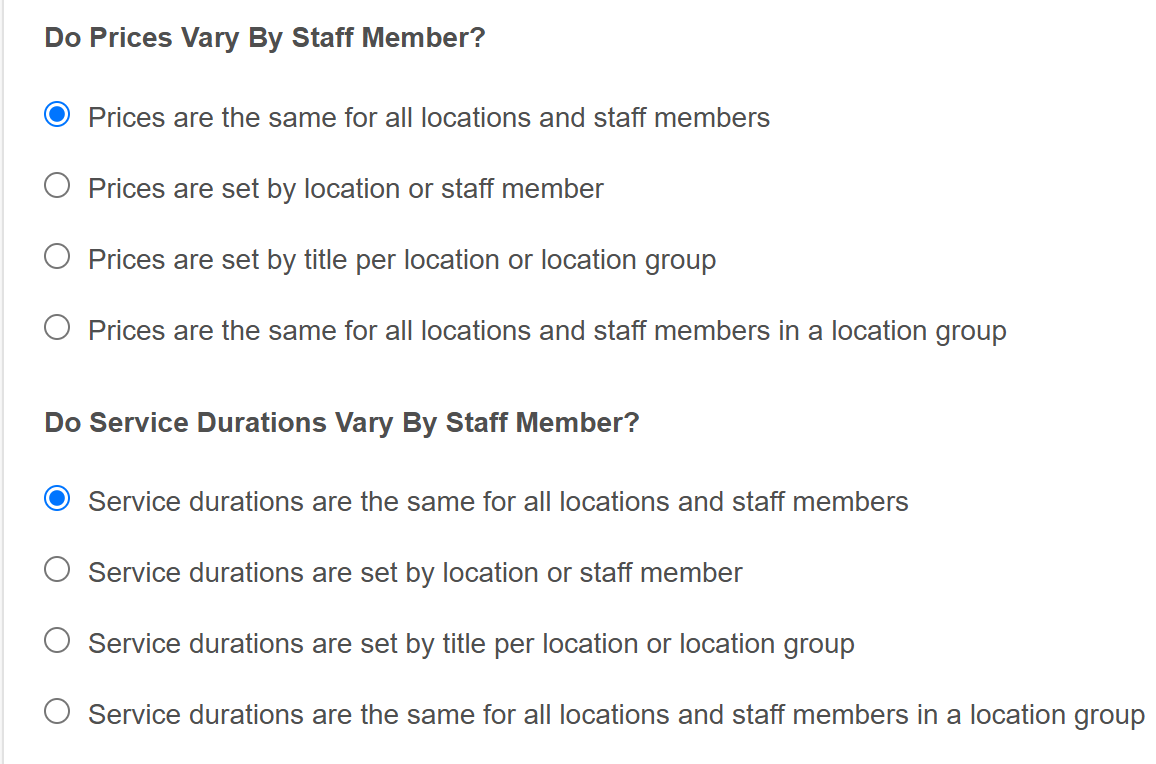
To configure service pricing & duration the same for all locations and staff members:
- Navigate to Business Setup / Location Setup > Settings page
- Under the Staff section, select the following:
- Do prices vary by staff member? Prices are the same for all locations and staff members
- Do service durations vary by staff member? Service durations are the same for all locations and staff members
- Save your changes
Configuring Service Price and Duration for Services
To configure service price and duration for services:
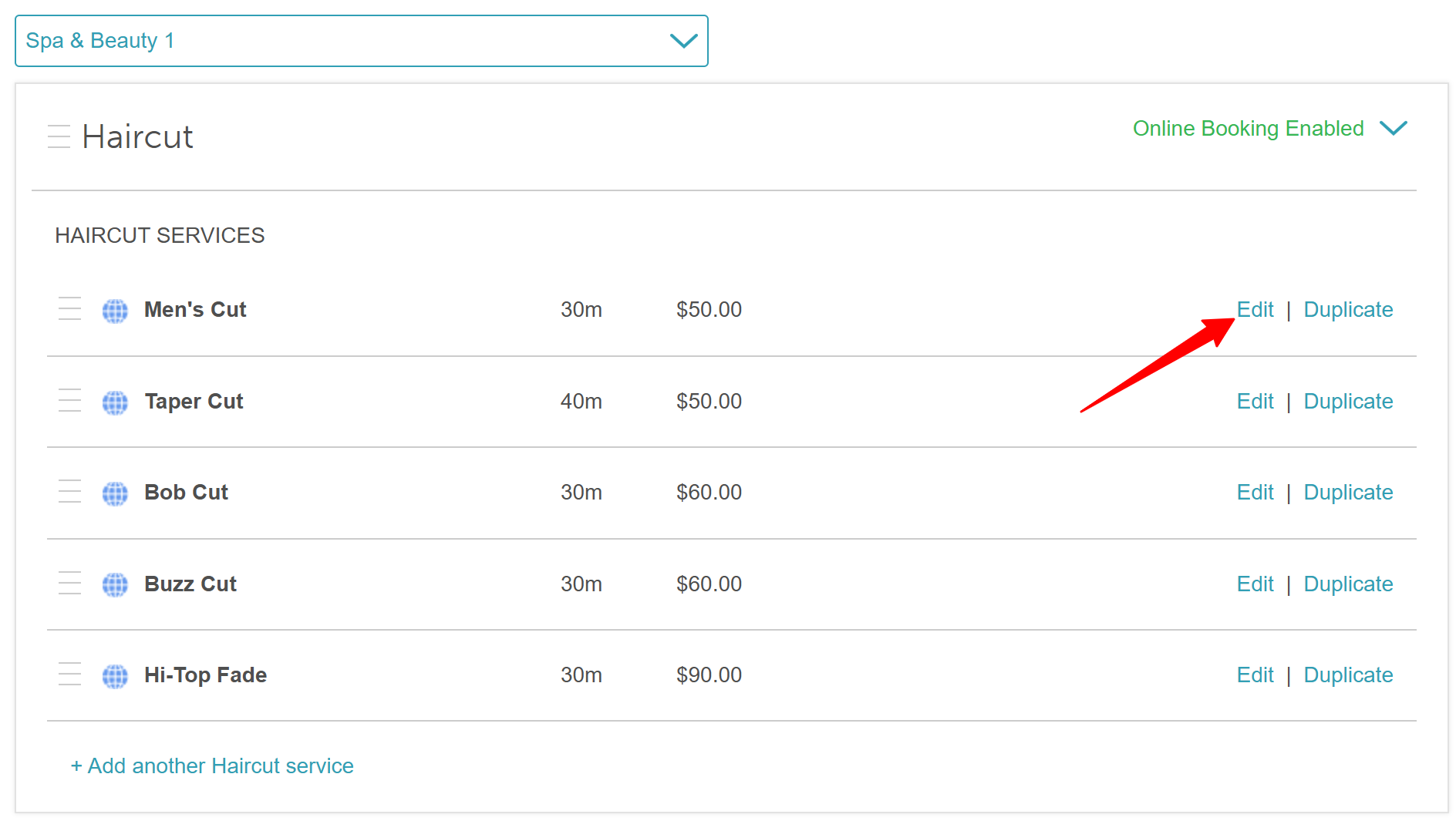
- Go to Business Setup / Location Setup > Services Menu
- Click on the Edit link next to the appropriate service
- When modal opens:
- Enter the Duration of the service
- Assign the staff members who can perform the service
- Set a price
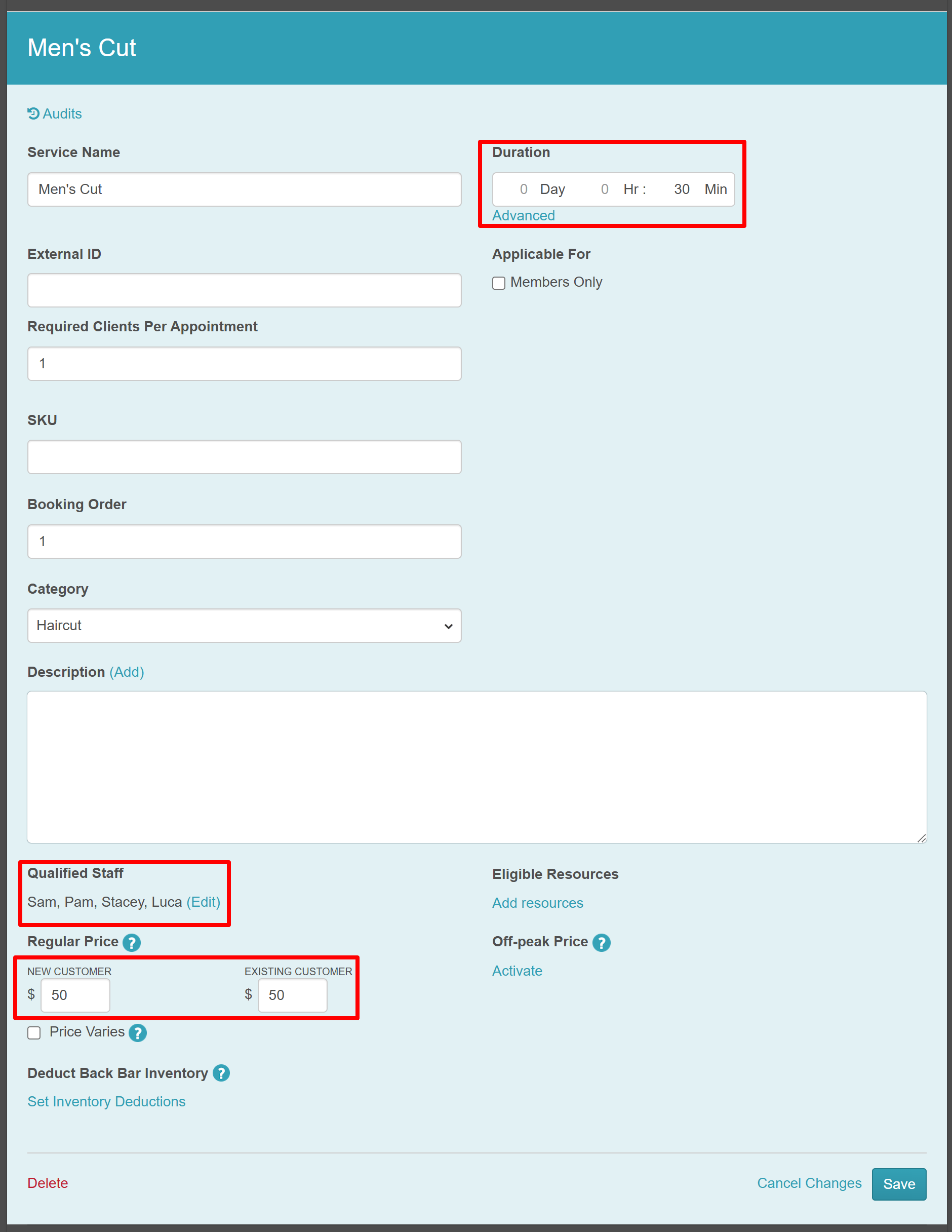
- Save your changes
Related Articles:
Was this article helpful?
That’s Great!
Thank you for your feedback
Sorry! We couldn't be helpful
Thank you for your feedback
Feedback sent
We appreciate your effort and will try to fix the article