Tracking how new clients find your business is essential for measuring your marketing success. In MyTime, you can easily link a referrer to a new client using two different methods: while booking an appointment or directly within their client profile. This article walks you through both workflows.
Things to know:
- The Referral Program is an add on subscription. To activate it for your account, please reach out to our support team at support@mytime.com.
- Once active, referral credits can only be applied to the specific item types (such as services, products, or gift cards) defined in your global program settings.
- Referral credits are strictly awarded for entirely new client profiles. Adding family members, children, pets, or vehicles to an existing client’s account will not qualify for a referral reward.
- Referral credits are not immediately usable upon adding the referrer. The referee (the new client) must first complete a visit and meet your program's minimum spend requirement on a single ticket—excluding taxes and tips—before the credits unlock for both parties.
- Once active, referral credits can only be applied to the specific item types (such as services, products, or gift cards) defined in your program settings.
Contents
Adding Referral via Client Profile
You can link a referral source to a client's profile either during its initial creation or at any point afterward.
Option A: During Profile Creation
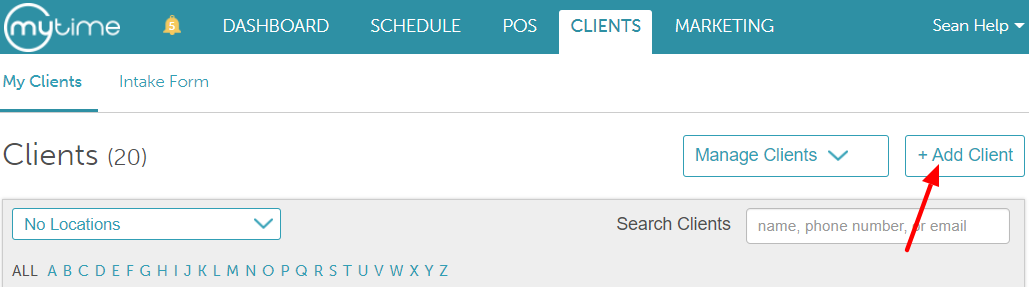
- Navigate to the Clients tab
- Click the + Add Client button
- Locate the Referred field and search for the existing client who made the referral
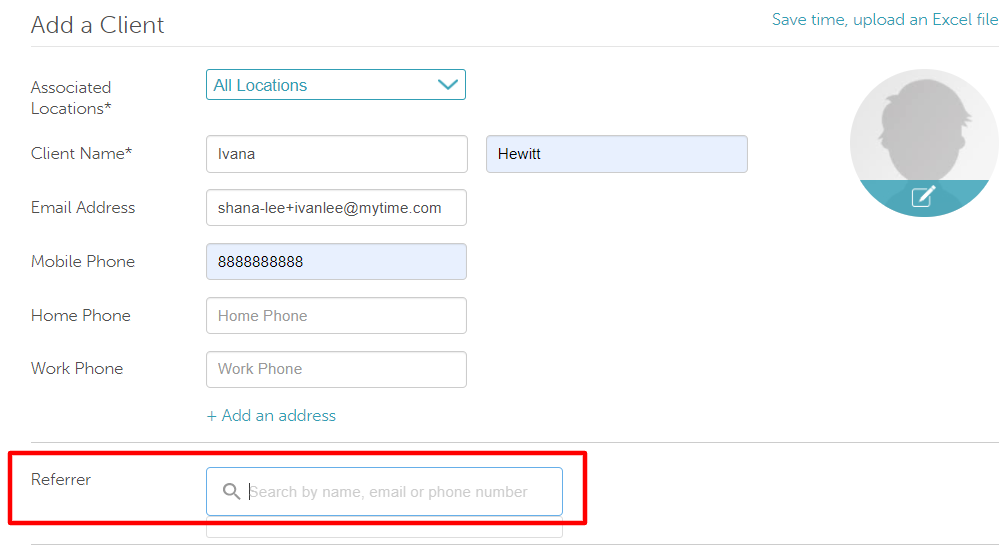
- Select their name from the drop-down list and press Enter
- Save the profile
Option B: After a Profile Has Been Created
- Open the existing client's profile page
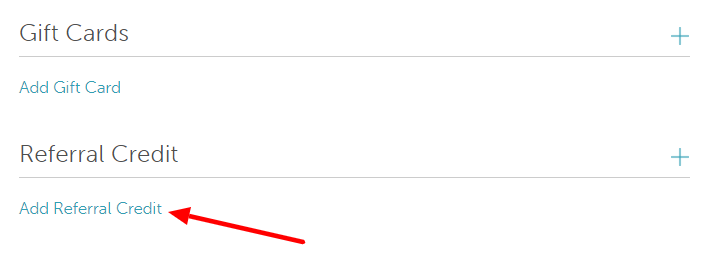
- Scroll down to the Referral Credit section
- Click the Add Referral Credit link
- Search for and select the existing client who made the referral
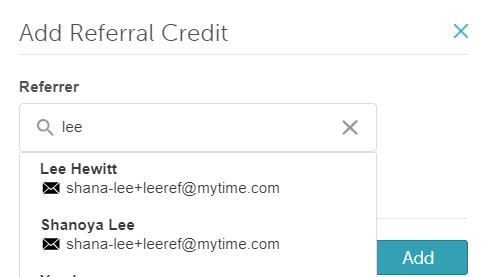
- Click Save
Note: Once saved, the referring client's name will display beneath the Referrer field in the Referral Credit section.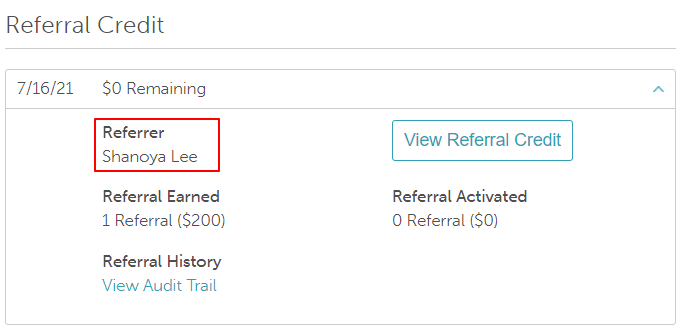
Adding a Referral via the Appointment Modal
You can quickly log a referral source while booking a new appointment on the Scheduler or when ringing up a new walk-in client directly through the Point of Sale (POS).
Option A: From the Scheduler
- Navigate to the Schedule tab
- Open the New Appointment modal
- Click the New Client icon
- Check the Referred by Existing Customer box
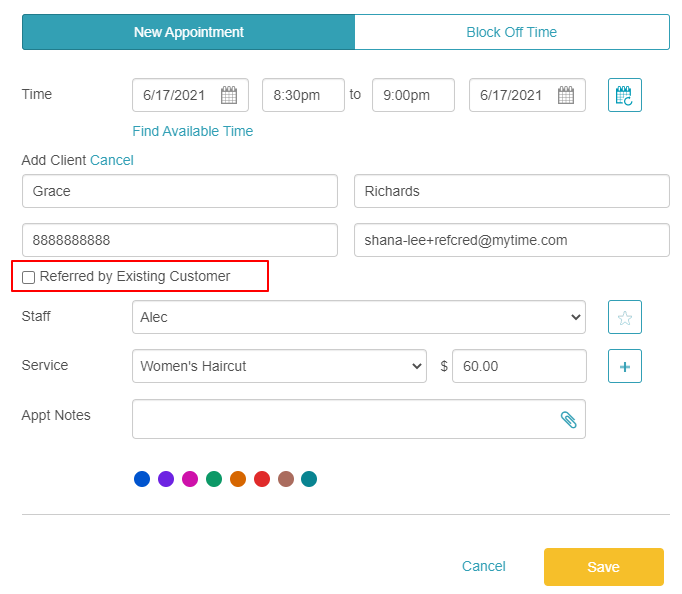
- Search for and select the client who made the referral in the search field that appears
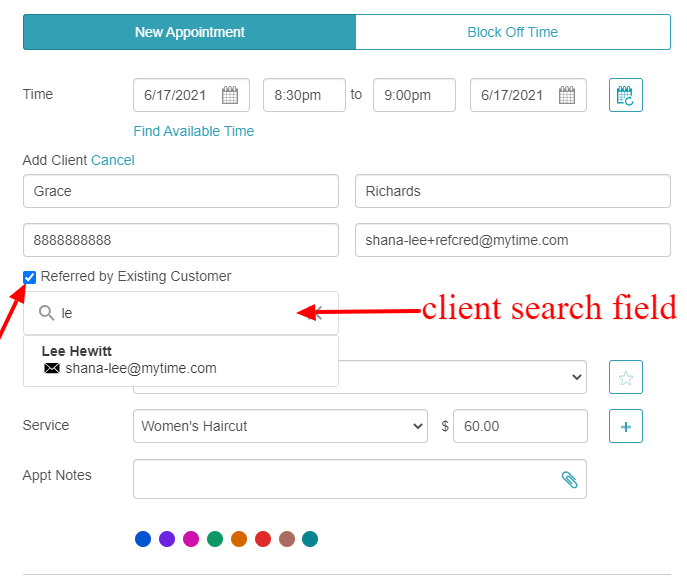
- Complete the appointment details and click Save
Option B: From the POS
- Navigate to POS > New Ticket
- Click the + Add Service link on the right-hand panel
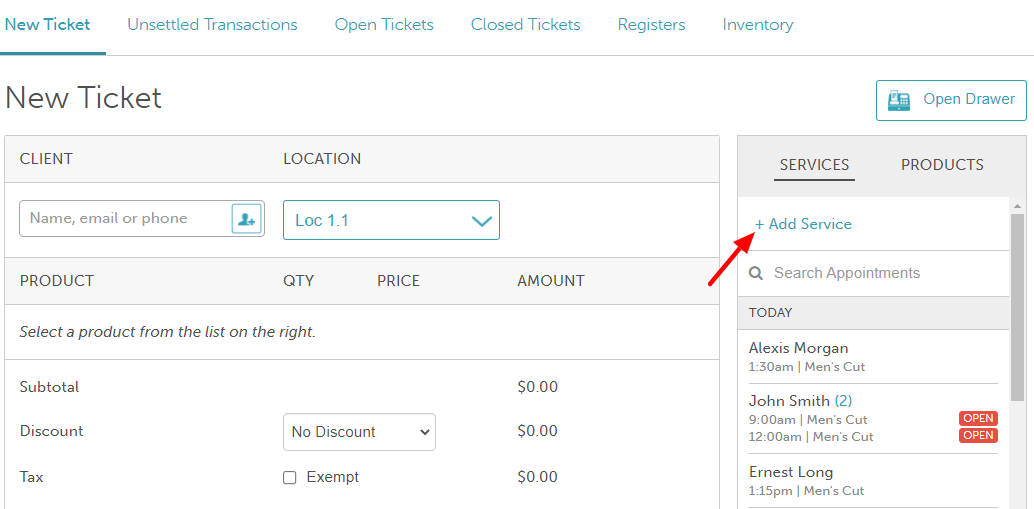
- Click the Add Client icon
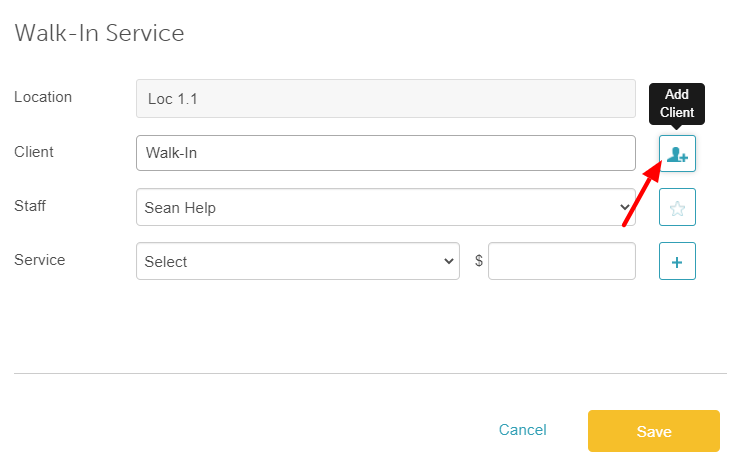
- Check the Referred by Existing Customer box
- Search for and select the client who made the referral in the search field that appears
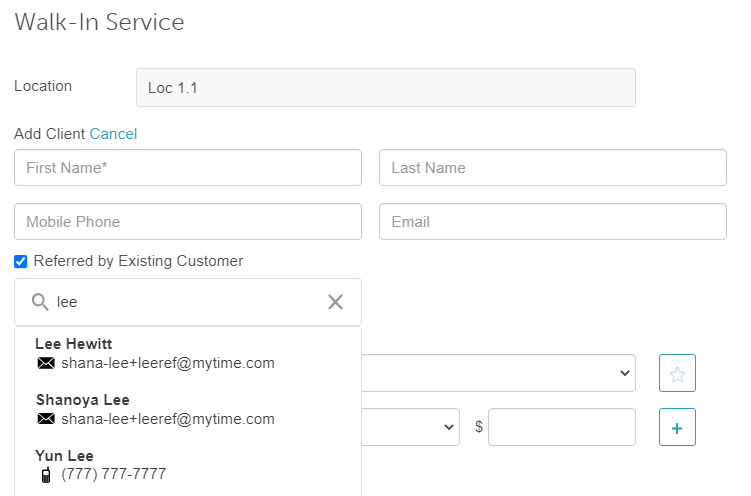
- Complete the ticket details and click Save
What Happens Next?
- Automated Notifications: If enabled in your settings, both the referrer and the referee will receive an automated "Thank You" notification via text or email.
- Pending Status: The earned referral credit will appear as pending on both profiles. These credits will remain locked until the referee completes their qualifying visit and meets the minimum spend requirement.
For information on the referral credit in the client profile, you can learn more here.
Related Articles:
Was this article helpful?
That’s Great!
Thank you for your feedback
Sorry! We couldn't be helpful
Thank you for your feedback
Feedback sent
We appreciate your effort and will try to fix the article