Tracking how new clients find your business is essential for measuring your marketing success. In MyTime, you can easily link a referrer to a new client using two different methods: while booking an appointment or directly within their client profile. This article walks you through both workflows.
Things to know:
- The Referral Program is an add-on subscription. To activate it for your account, please reach out to our support team at support@mytime.com.
- Once active, referral credits can only be applied to the specific item types (such as services, products, or gift cards) defined in your global program settings.
- Referral credits are strictly awarded for entirely new client profiles. Adding family members, children, pets, or vehicles to an existing client’s account will not qualify for a referral reward.
- Referral credits are not immediately usable upon adding the referrer. The referee (the new client) must first complete a visit and meet your program's minimum spend requirement on a single ticket—excluding taxes and tips—before the credits unlock for both parties.
- Once active, referral credits can only be applied to the specific item types (such as services, products, or gift cards) defined in your program settings.
Contents
Adding Referral via Client Profile
During Profile Creation
To add a referral during profile creation:
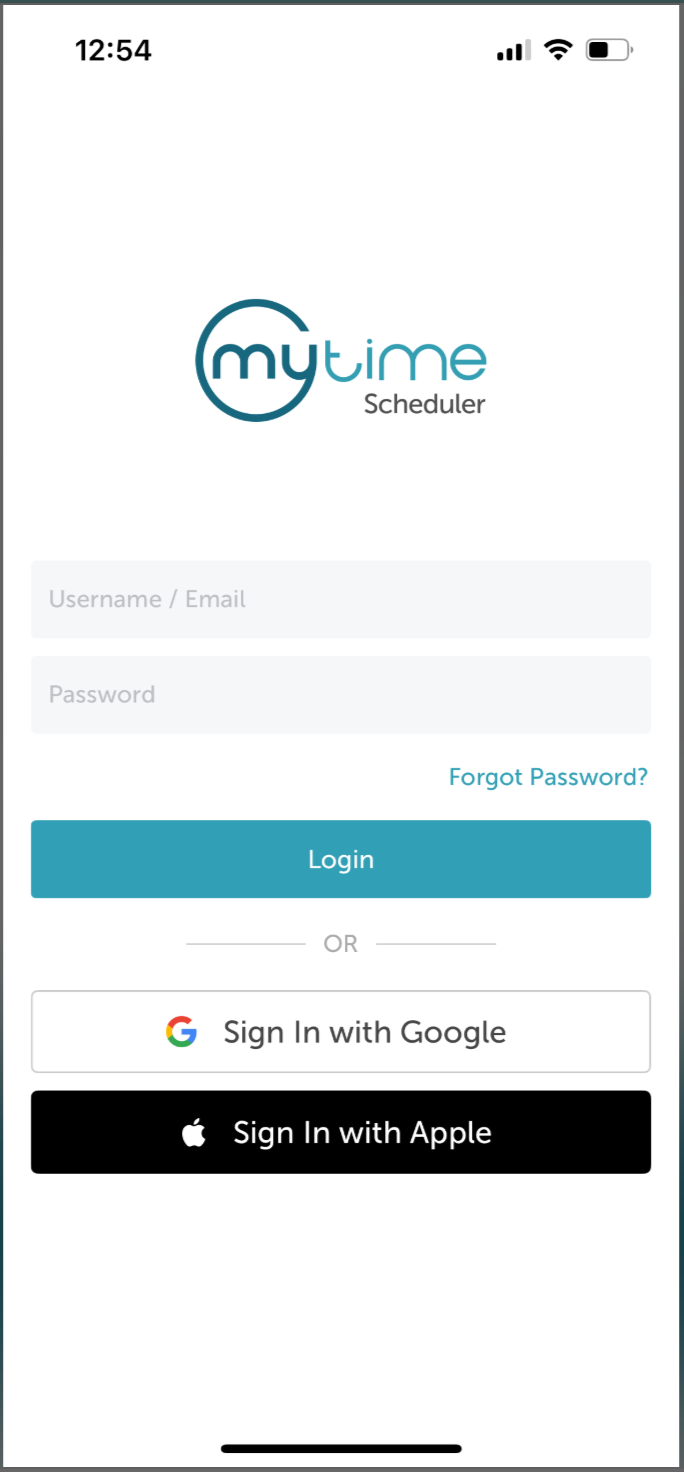
1. Launch the MyTime Scheduler app on your device
2. Choose your login method:
- Standard: Enter your registered email address and password, then tap 'Sign In'
- Social Login: Select 'Continue with Google' or 'Continue with Apple' to use your existing credentials for a faster login experience. For detailed instructions, learn here
3. After signing in, you will be directed to the Schedule by default
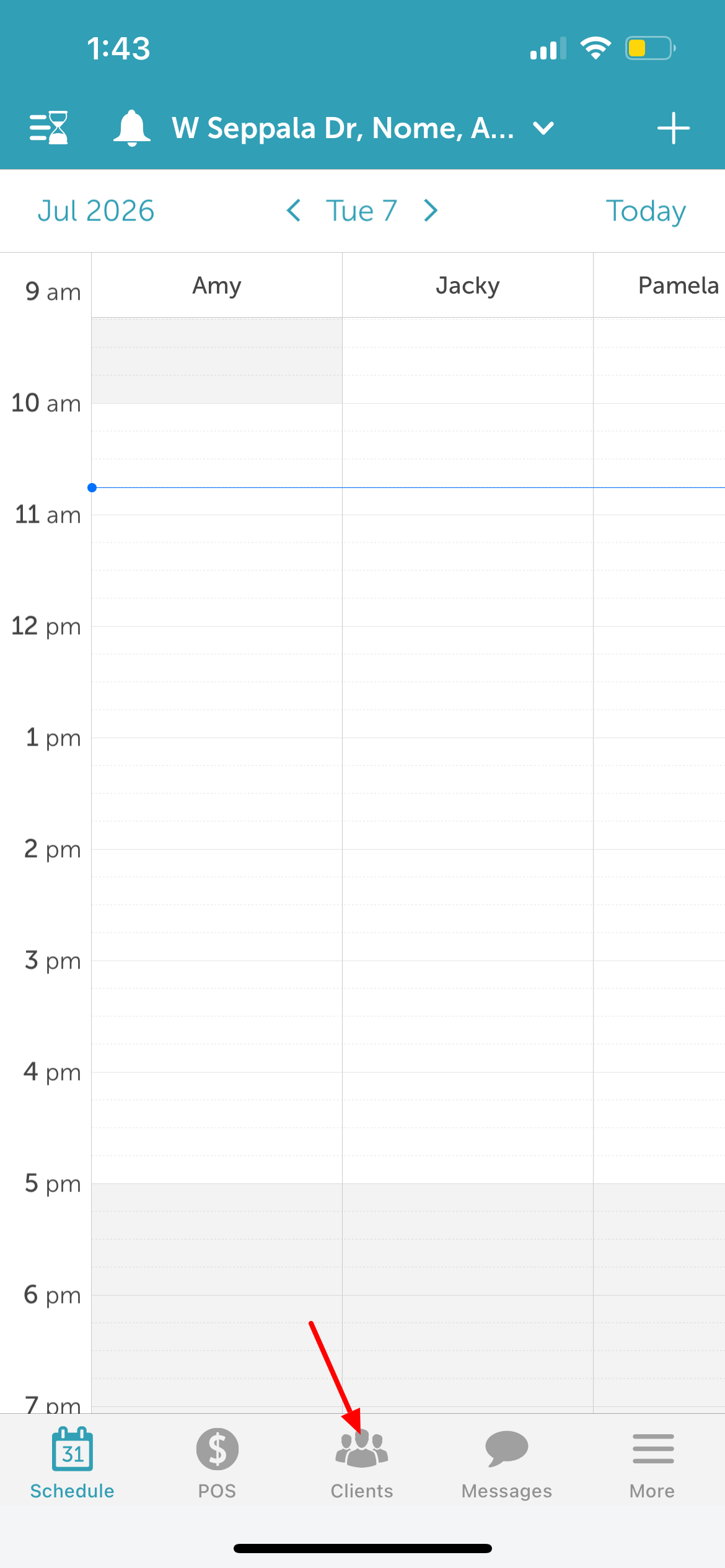
4. Tap the Clients icon located at the bottom of the screen
5. Tap the + Add Client button in the top right corner of the screen 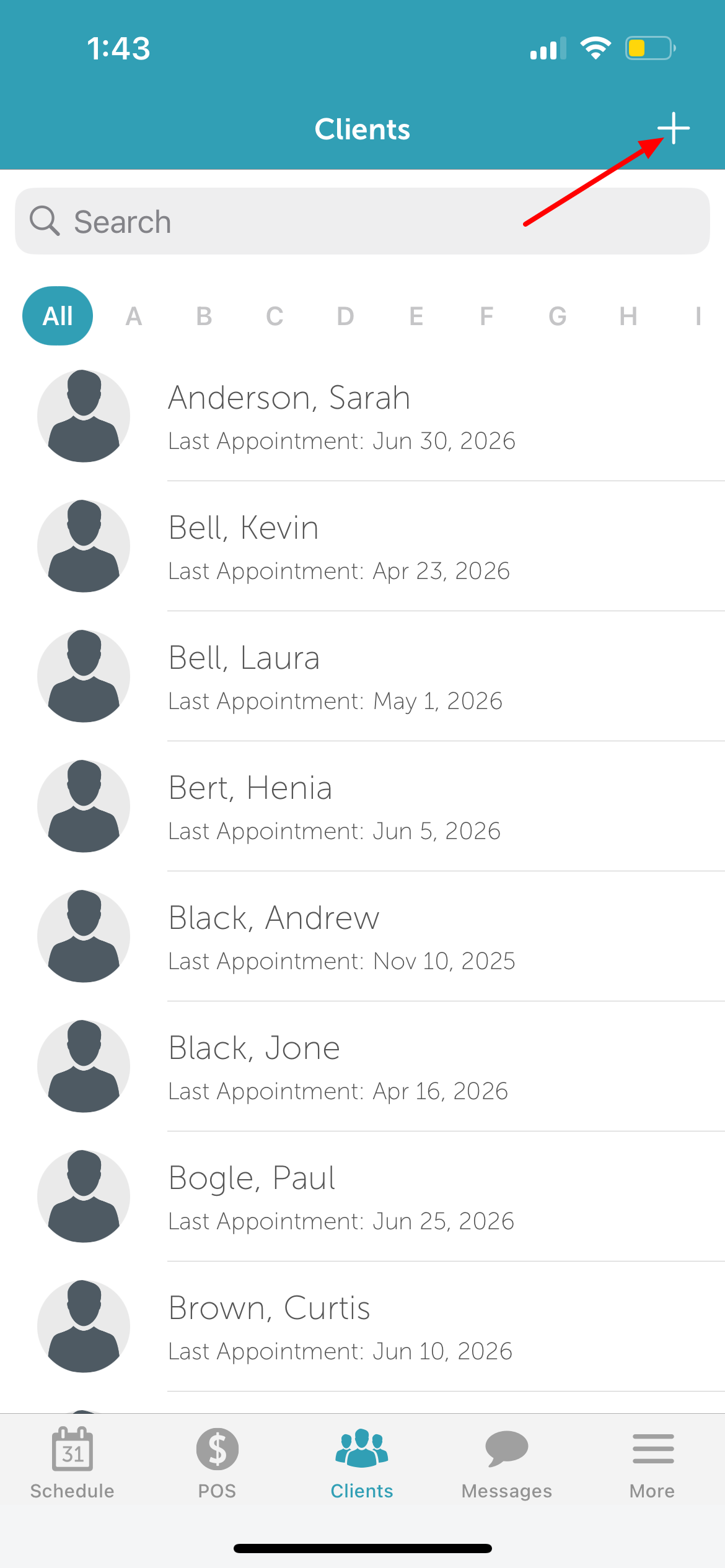
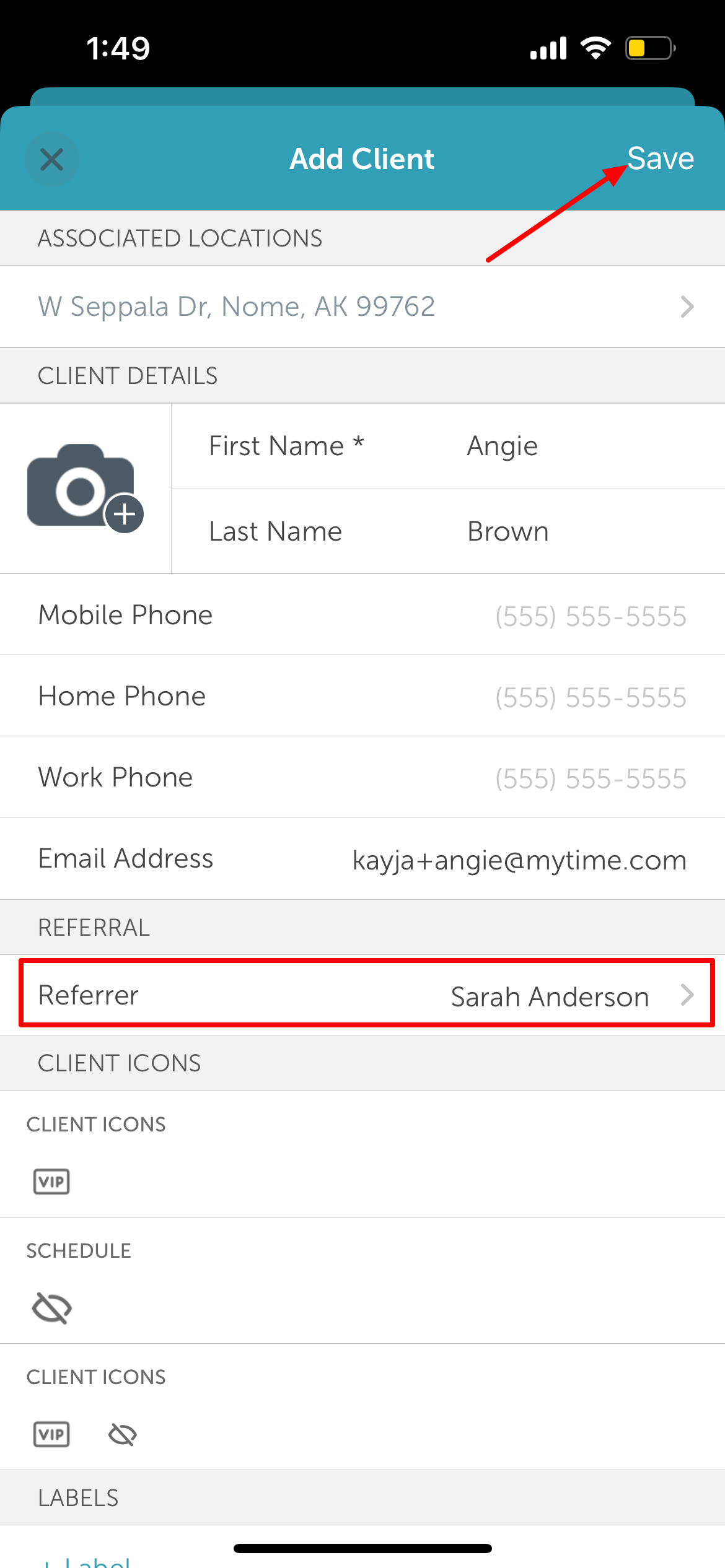
6. Fill in the new client's details
7. Locate the Referral section 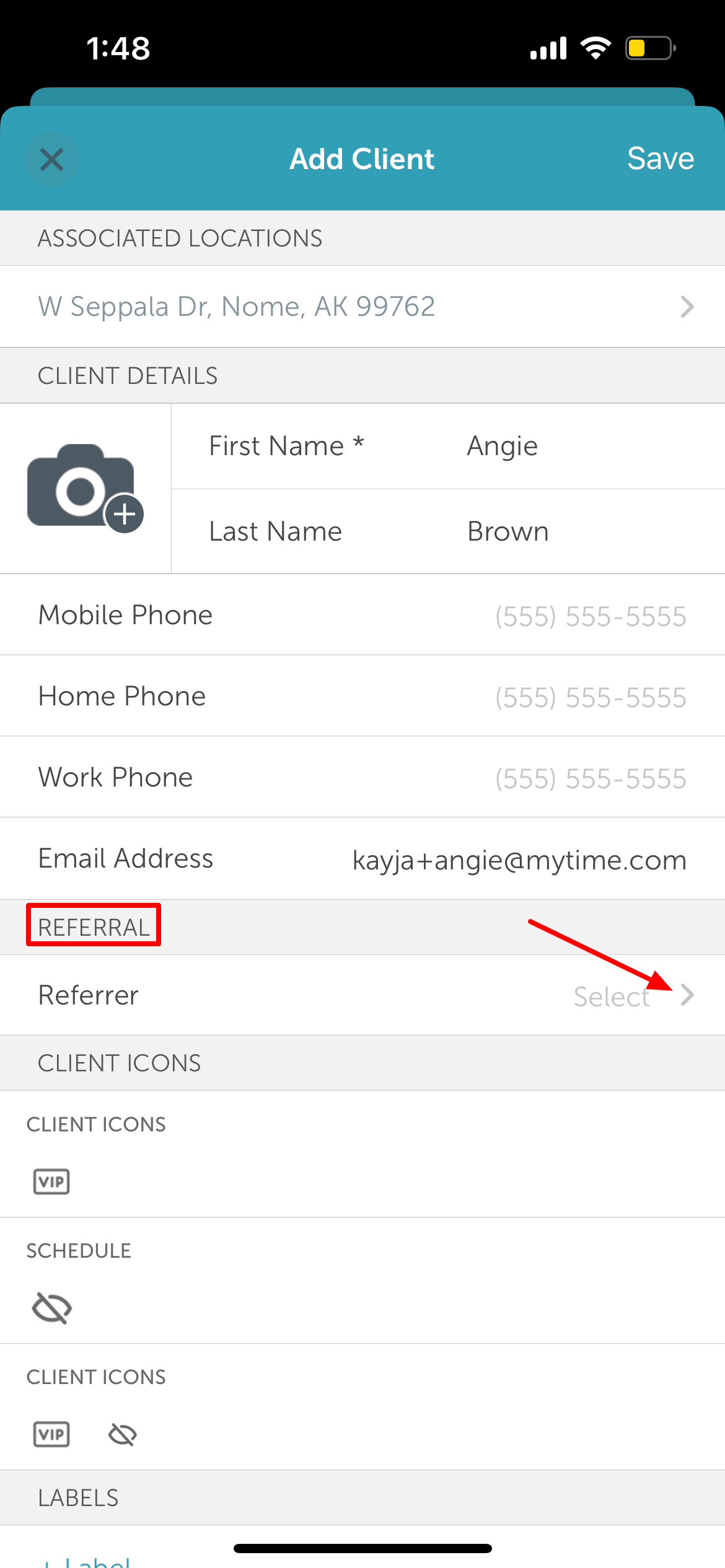
8. Search for the existing client who made the referral 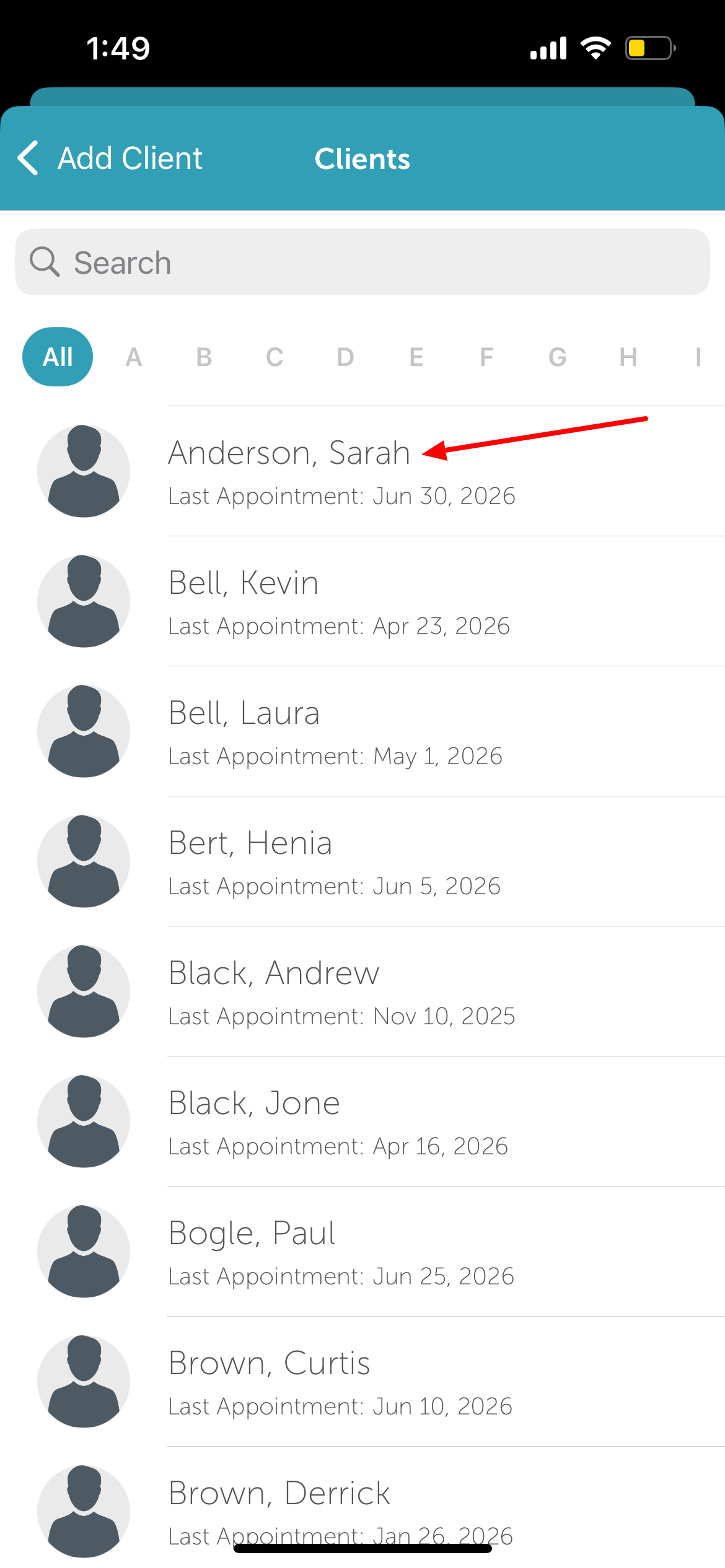
9. Tap 'Save' to create the profile with the referral attached
After Profile Creation
If a referral wasn't added during the initial profile setup, you can add it at any time afterward:
1. Tap the Clients icon located at the bottom of the screen
2. Search for the client by name or scroll to find them in the list 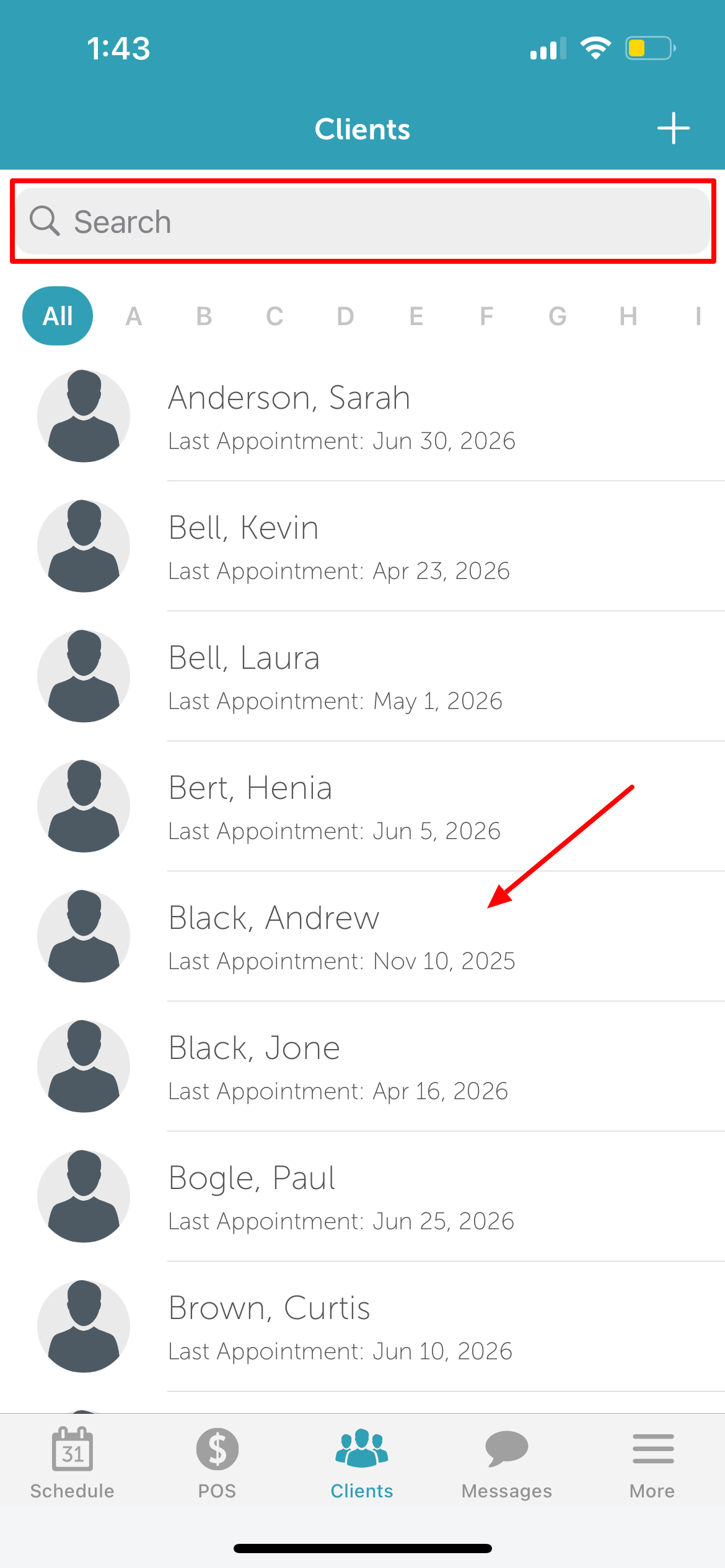
3. Open the client's profile
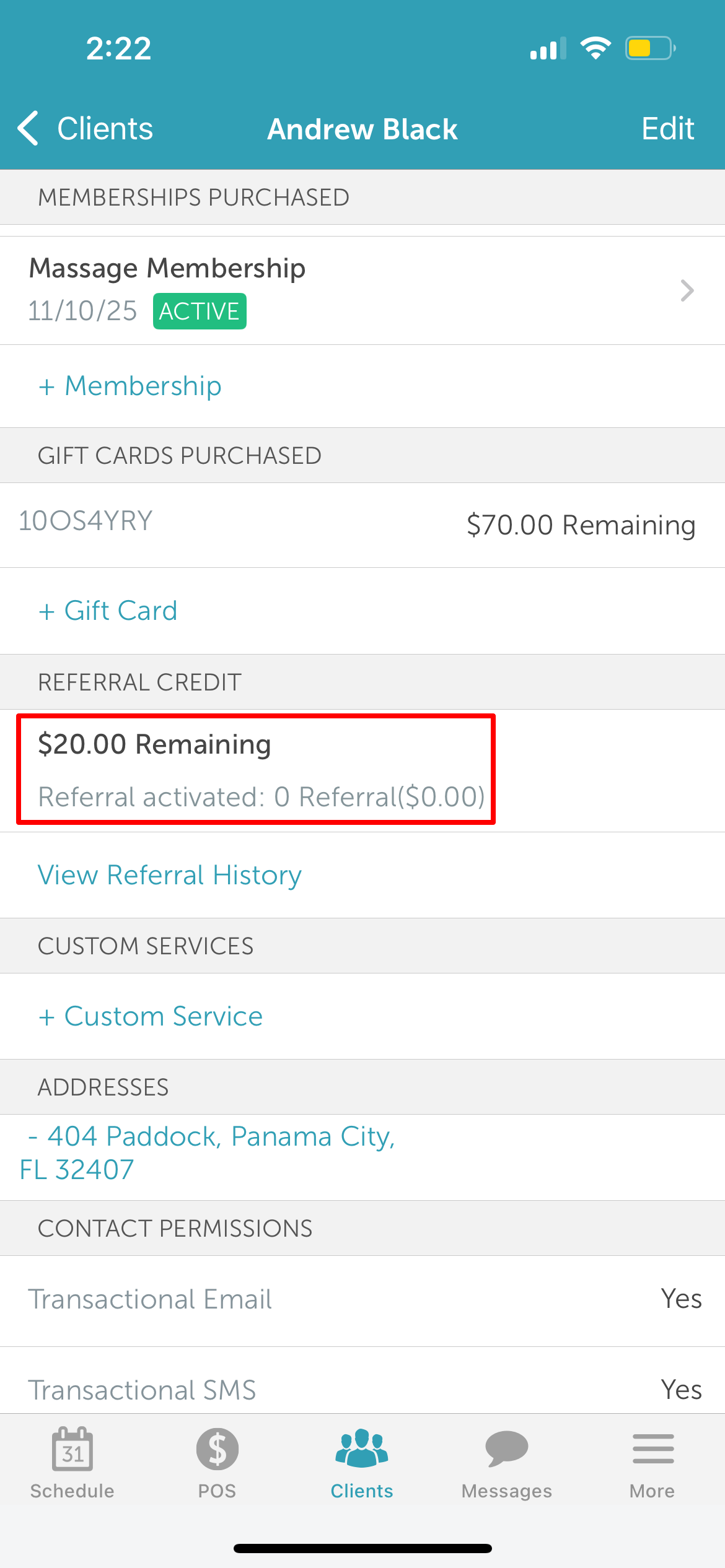
4. Scroll down to the Referral Credit section
5. Tap + Referral Credit 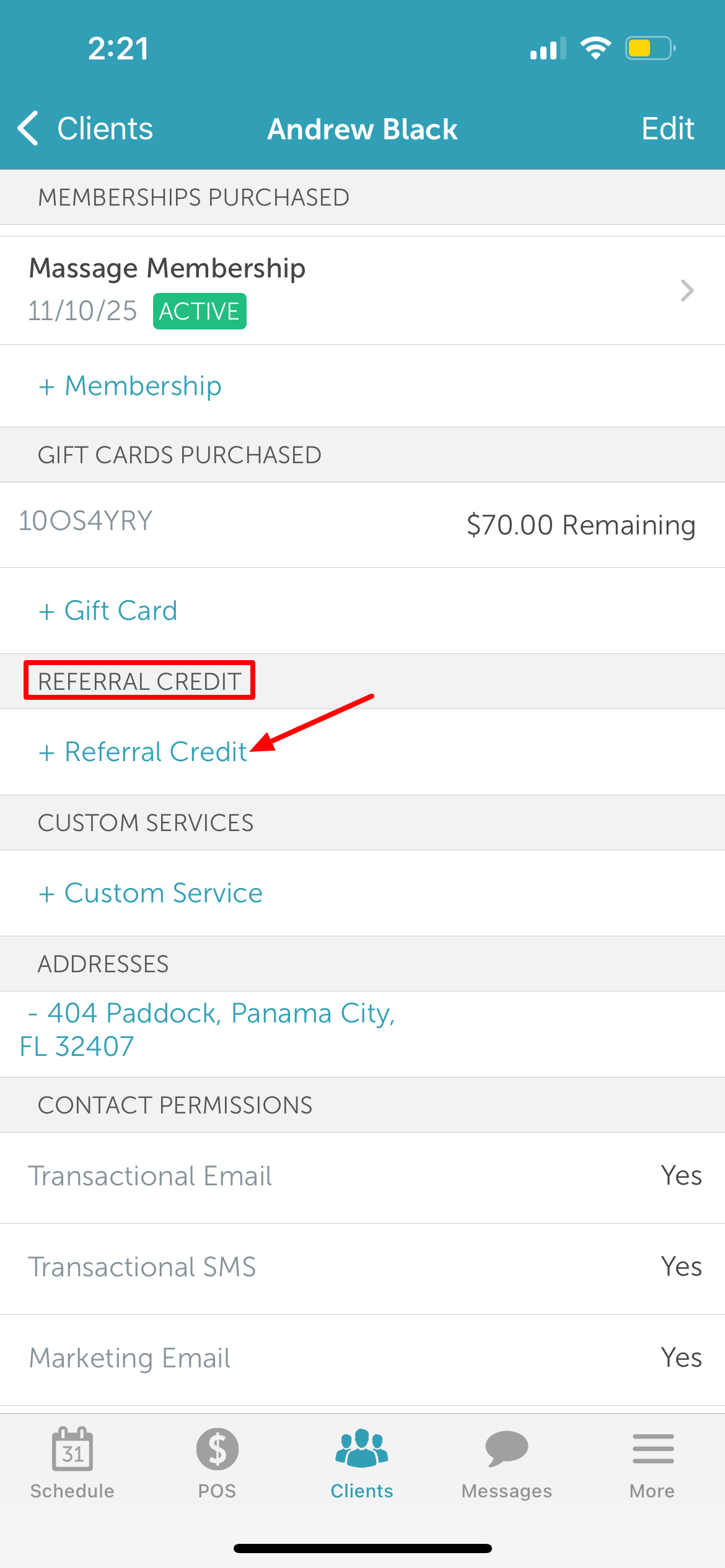
6. Search for and select the existing client who referred them 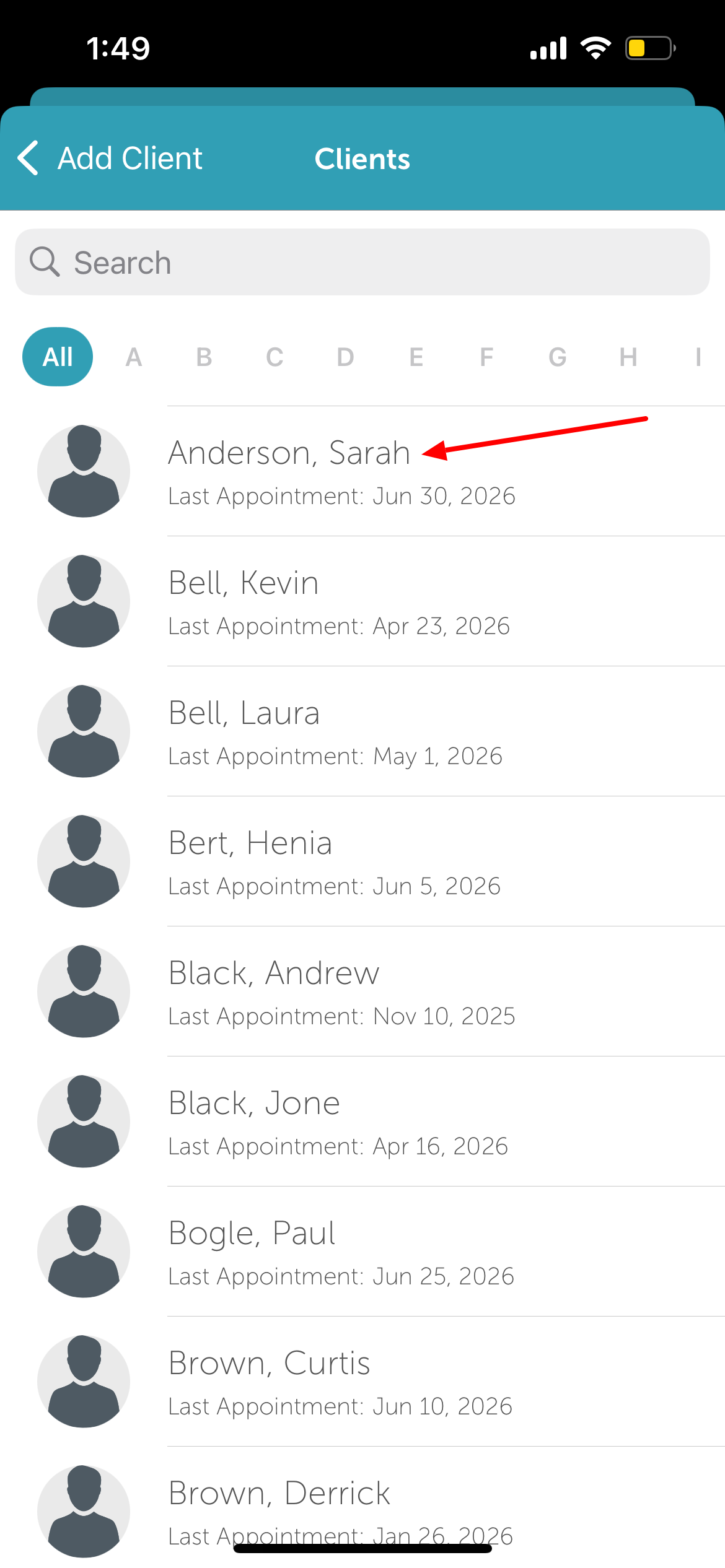
7. The referral immediately saves to the Referral Credit section of the client's profile
Adding Referral via Appointment Modal
To attach a referral while creating a new client profile directly from the appointment modal:
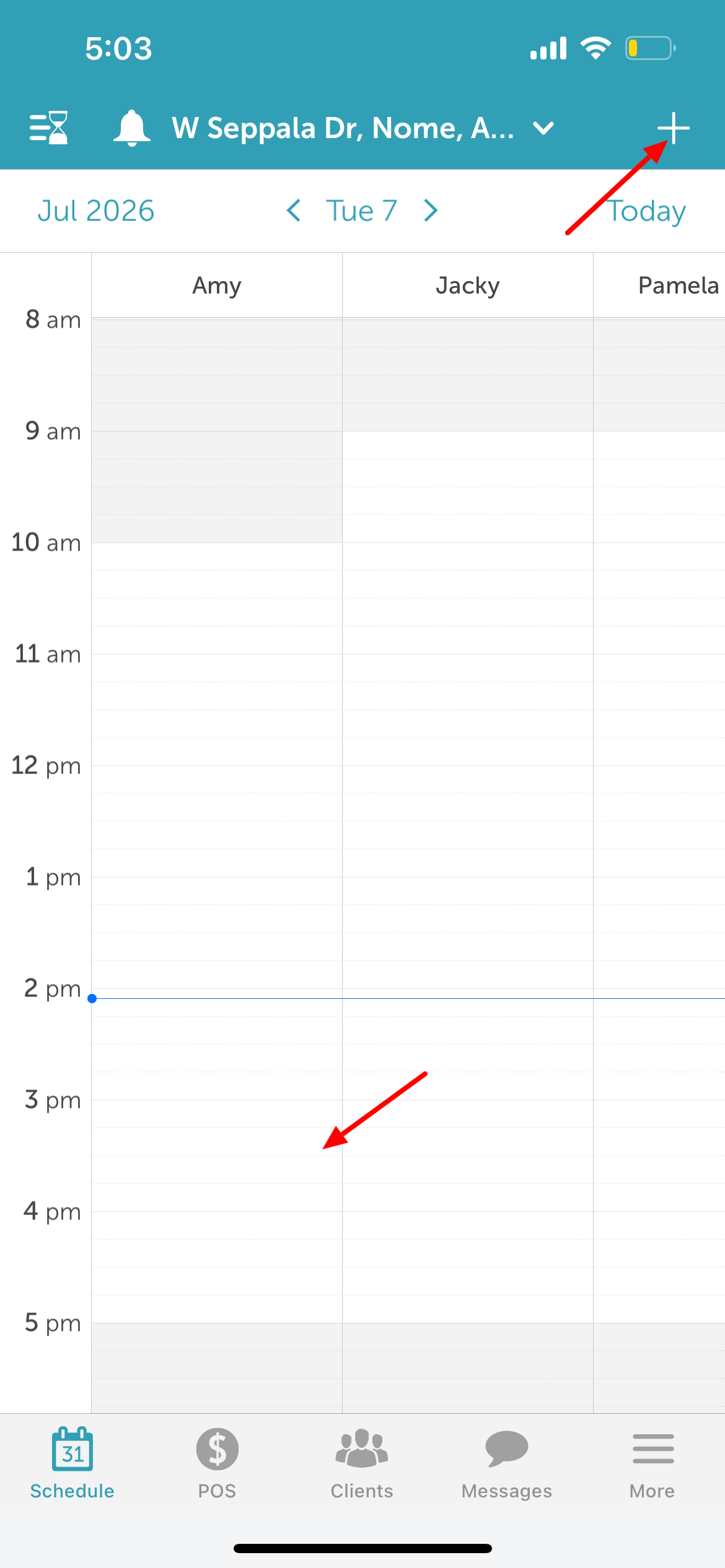
1. Choose the time slot where you want to add the appointment, or tap the "+" icon at the top right-hand corner of the screen to open the New Appointment modal
2. Tap the Client field 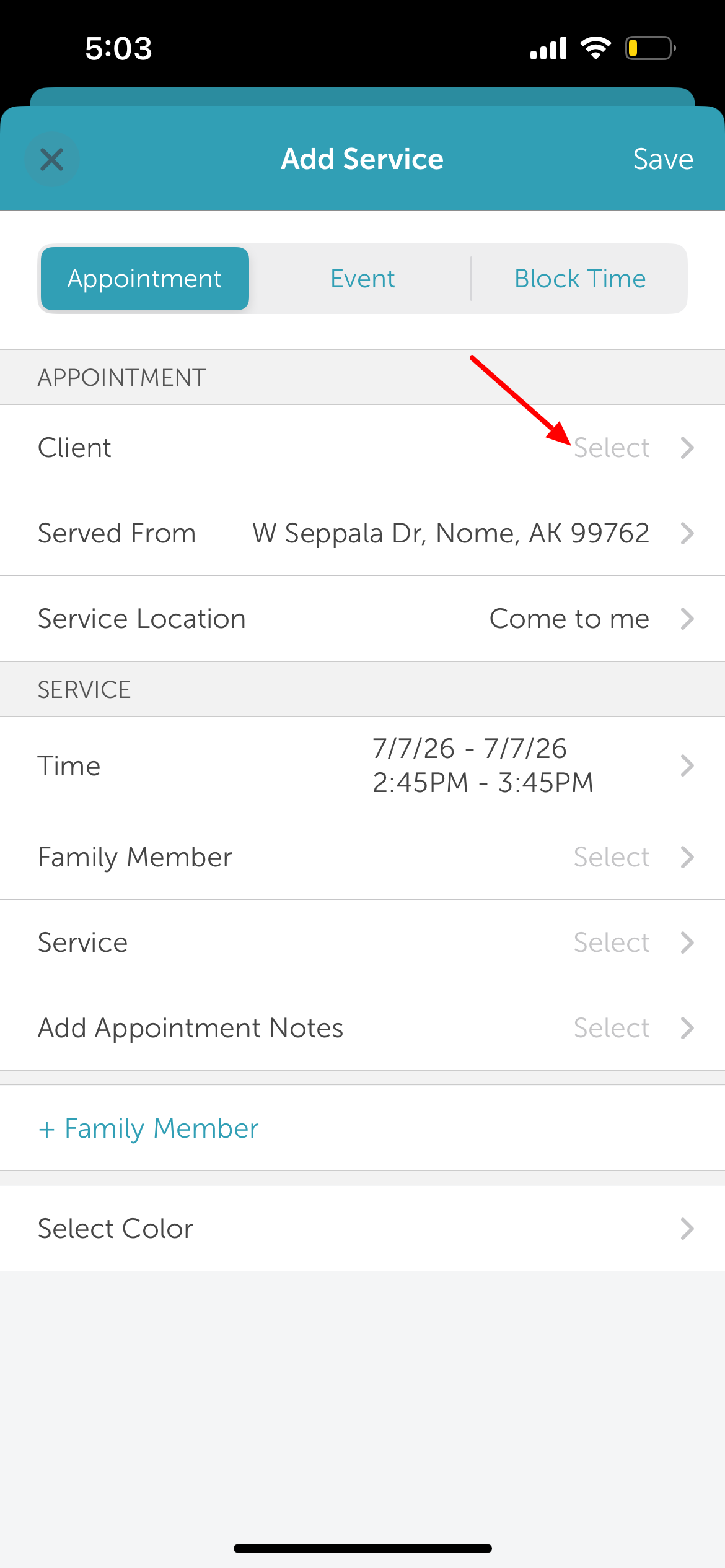
3. Tap the + icon in the top right of the screen to create a new profile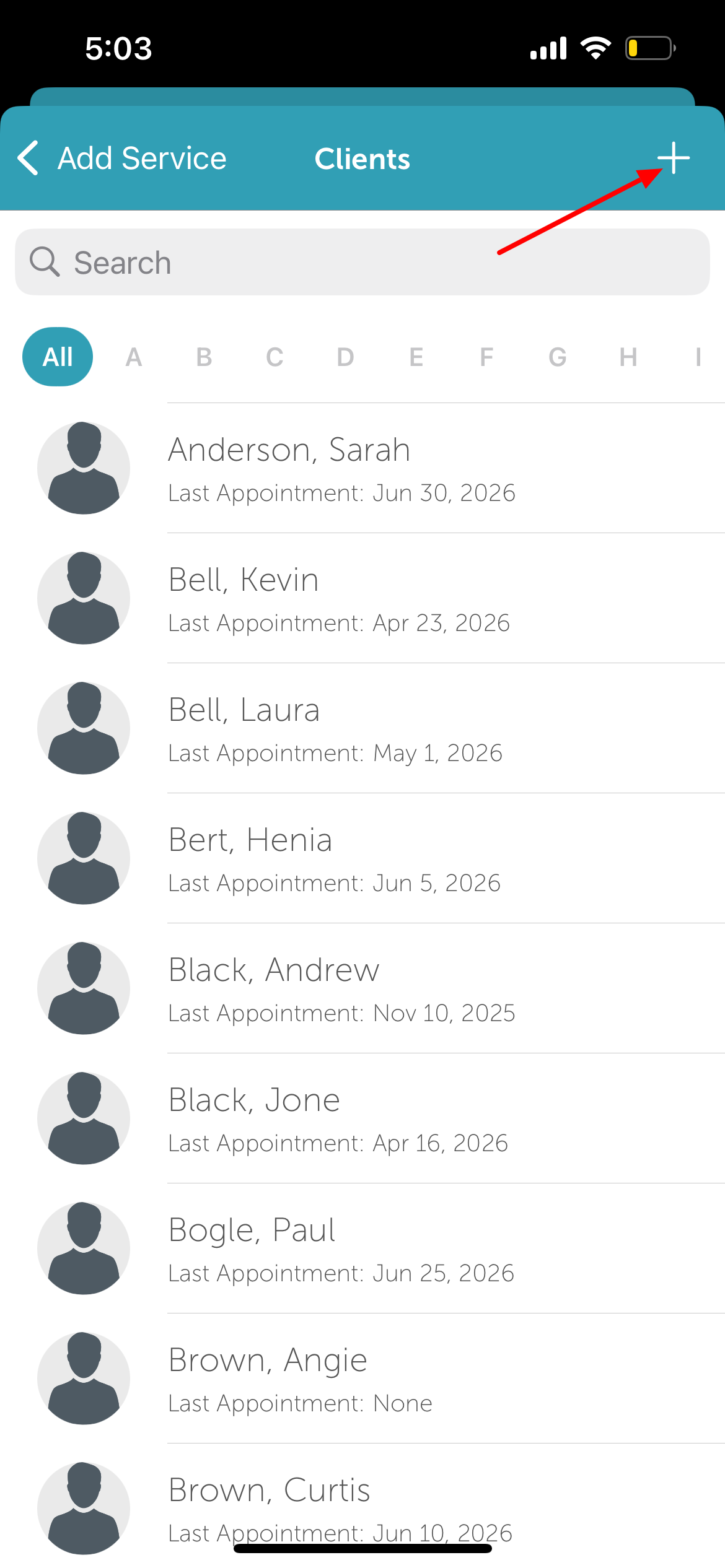
4. Fill in the new client's details
5. Locate and select the Referral section 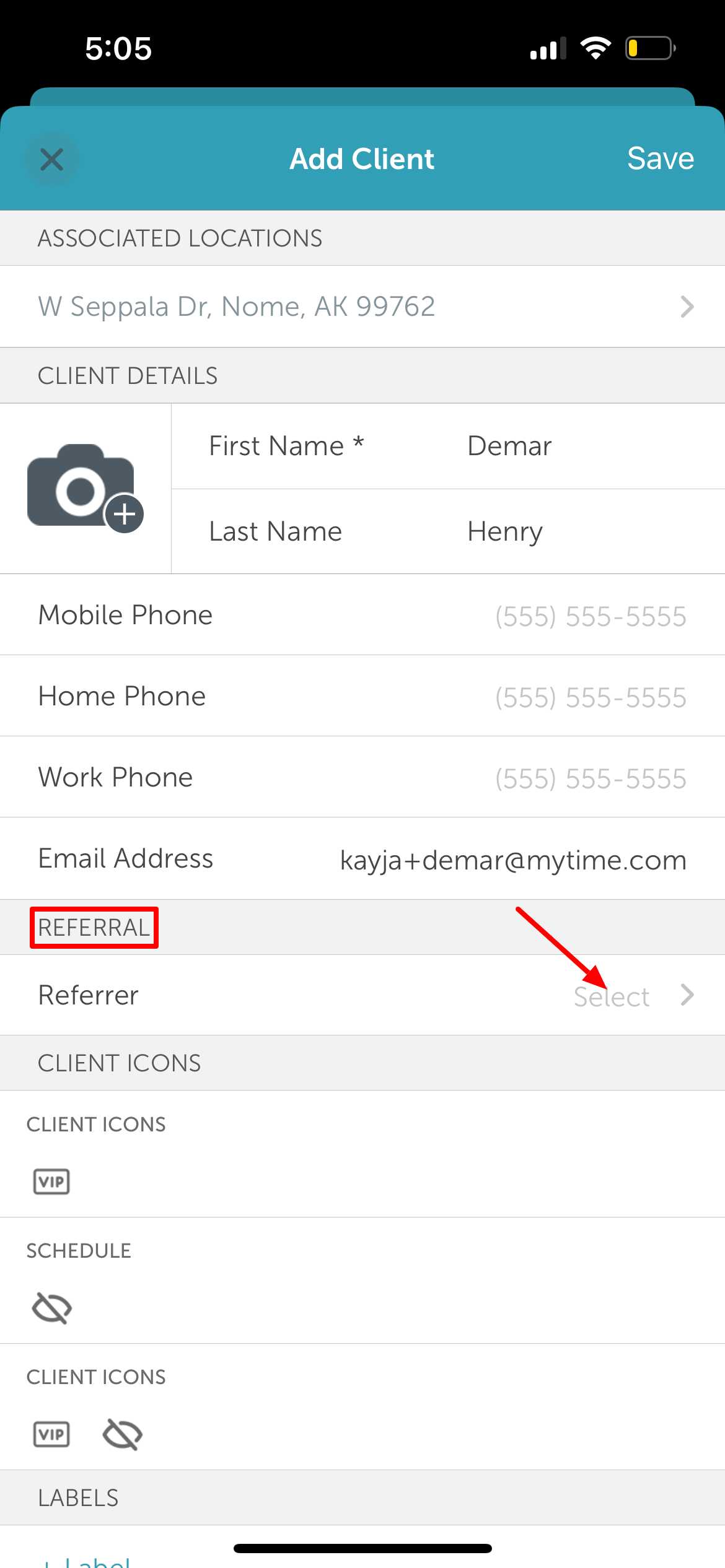
6. Search for the existing client who made the referral 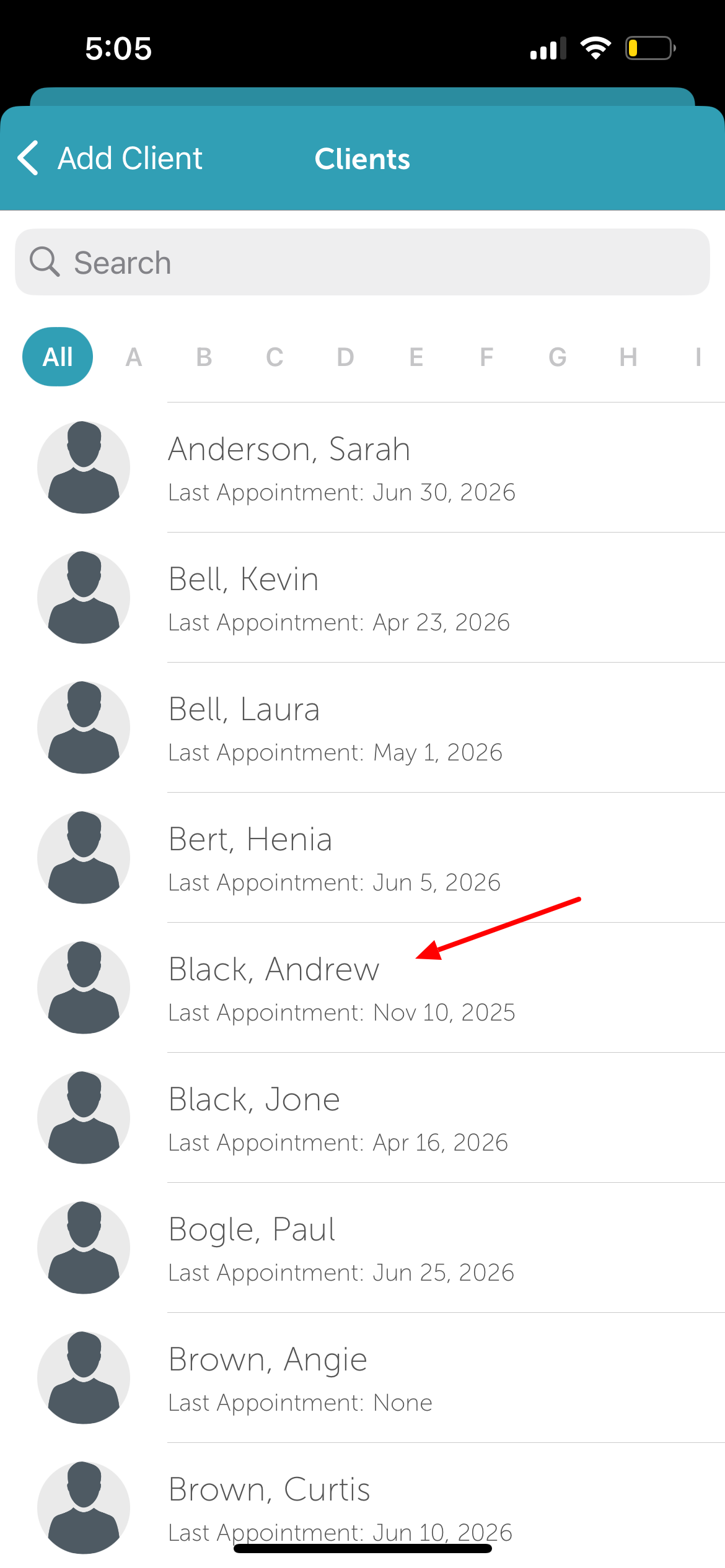
7. Tap Save in the top right of the screen
8. Once saved, the client will be automatically added to the appointment modal 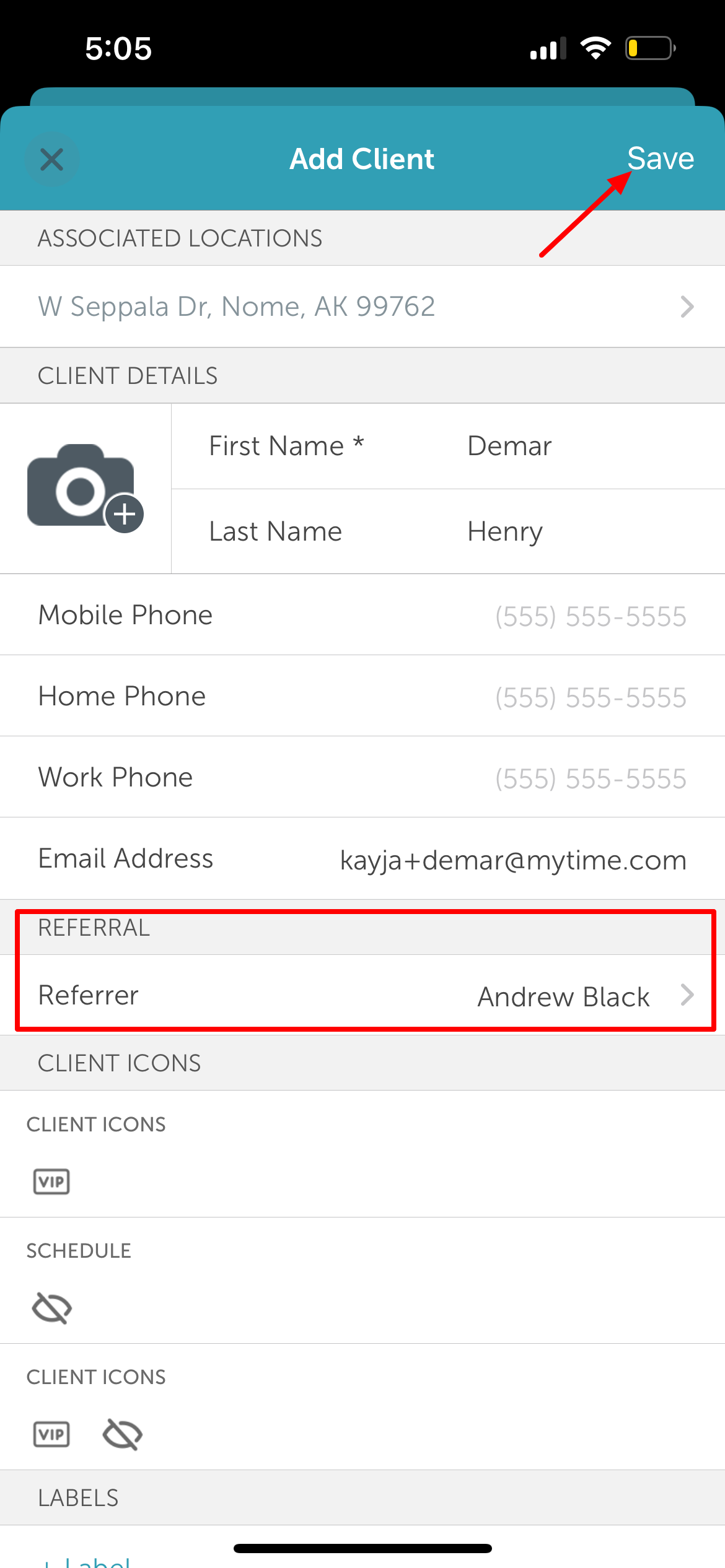
9. Proceed to add the appointment details and save the appointment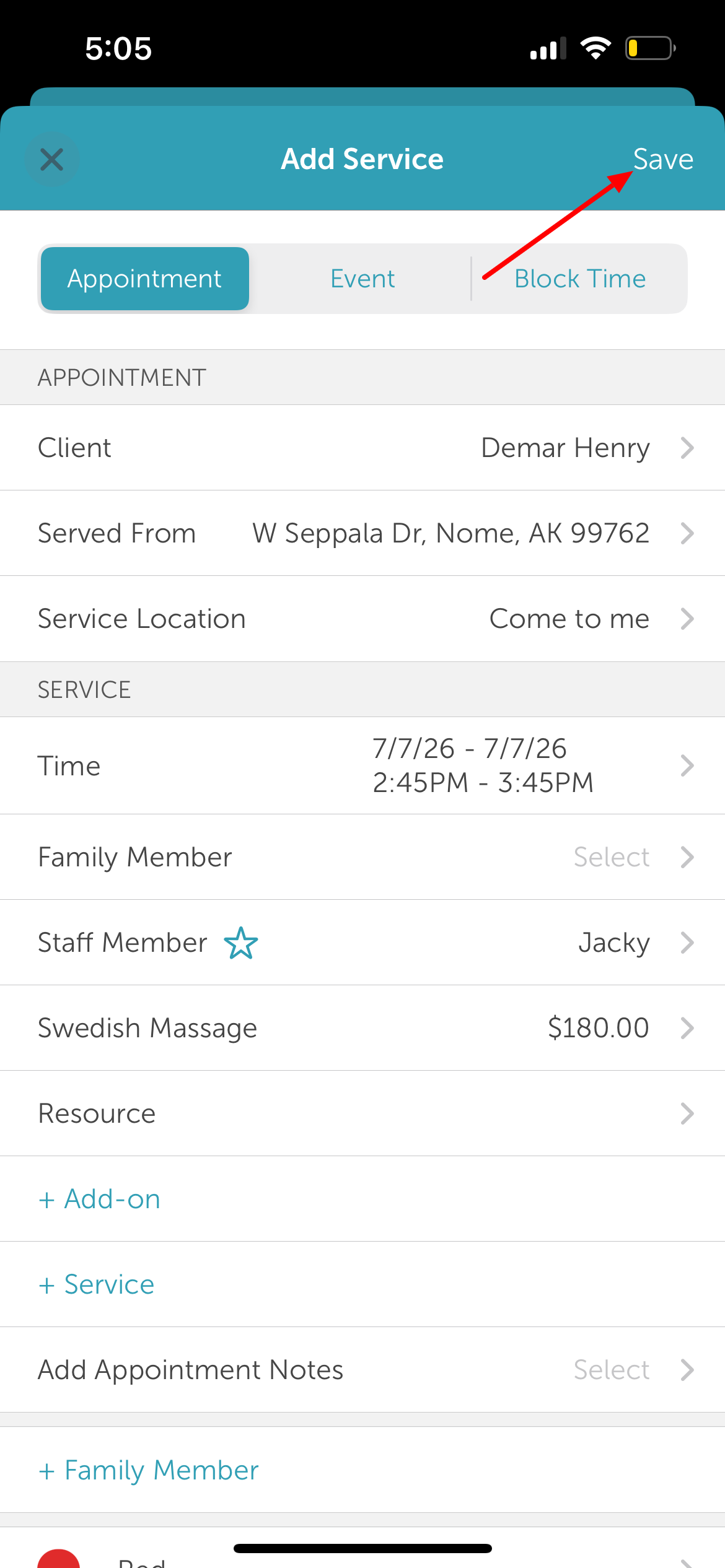
For more information, contact us at support@mytime.com.
Related Articles
Referral Program on Booking Widget
Referral Credit on Client Profile
Activate Referral Credit in POS
Was this article helpful?
That’s Great!
Thank you for your feedback
Sorry! We couldn't be helpful
Thank you for your feedback
Feedback sent
We appreciate your effort and will try to fix the article