MyTime enables you to establish a cancellation policy to regulate when clients can cancel their class bookings. Additionally, you have the option to implement a cancellation fee if clients fail to comply with your policy.
Things to know:
- The ability to configure the cancellation policy for classes is governed by the "Accessing Classes Menu" access control setting.
- Class cancellation policies configured at the parent level can only be edited at the parent level.
- Once payment has been collected for a class session, the "Cancel Booking" option is disabled for that enrollment. To cancel it, first refund the payment in POS. Once the refund is processed, "Cancel Booking" will become available so you can complete the cancellation.
- You can charge a cancellation fee for classes if the client has a card or bank account on file.
- Once configured, the cancellation policy applies to both new and existing client bookings.
- The cancellation window can be configured in hours or days.
- The cancellation fee only applies when a client cancels within the designated cancellation window. For example, if the cancellation window is set to 2 hours, a client who cancels 2 hours or less before the class starts will be charged a cancellation fee. A client who cancels 2 hours and 15 minutes before the class starts will not be charged.
- When a class session is canceled for a client in-store, staff have the option to waive the cancellation fee.
- Tax Configuration:
- Taxes can be applied to cancellation fees for canceled class enrollments by enabling the Cancellation Fees option under Settings > Company Settings > Tax Configuration & Management. This option is disabled by default.
- Clients marked as tax-exempt will not be charged tax on cancellation fees.
- If a ticket was closed before cancellation fee tax was configured and is later reopened, the configured tax will be applied automatically.
- If a ticket was created before cancellation fee tax was configured but closed after the tax was enabled, the applicable tax will be applied automatically upon closing.
- Class Cancellations with a Deposit:
- If a client cancels a class session after paying a deposit, the system automatically converts the prepaid deposit into a cancellation fee.
- If Cancellation Fees Tax is enabled, the configured tax rate is dynamically applied to the converted deposit amount.
- The total amount previously paid by the client remains unchanged. No additional charge or automatic refund is processed.
- The converted deposit appears as "Session Enrollment Cancellation Fee" on the ticket.
- Reports display the collected deposit under the Cancellation Fee column.
- Examples of Tax Allocation:
- Non-VAT (Exclusive Tax): If a 3% cancellation fee tax is configured and the client paid a $30.00 deposit:
- Class Cancellation Fee: $29.13
- Cancellation Tax (3%): $0.87
- Total: $30.00 (No additional charge is collected.)
- VAT-Inclusive Tax: If a 5% VAT-inclusive cancellation fee tax is configured and the client paid a $10.00 deposit:
- Class Cancellation Fee: $10.00
- Sales Tax (5% Incl.): $0.48
- Total: $10.00 (The tax is absorbed into the original deposit; no additional charge is collected.)
- Class Cancellations without a Deposit:
- If a staff member waives or skips collecting a deposit when enrolling a client in a class session, no cancellation fee will be charged if the enrollment is later canceled.
- Canceling In-Store:
- When a Class Session Booked Online is Canceled In-Store:
- The system automatically voids the associated ticket.
- If a cancellation fee is configured, the fee is automatically charged to the card on file.
- Two tickets are created:
- One voided ticket for the original class session, which can be viewed on the client profile.
- One closed ticket for the cancellation fee, which can be viewed in the Close Ticket report.
- When a Class Session Booked In-Store is Canceled In-Store:
- If a cancellation fee is configured, you are redirected to POS to manually process the payment.
- On the payment screen, you can choose to charge the card on file or select another payment method.
- No ticket is created for the canceled class session.
- The cancellation fee ticket can be viewed in the Close Ticket report.
- Canceling Online:
- When a Class Session Booked Online is Canceled Online:
- The system automatically voids the associated ticket.
- If a cancellation fee is configured, the fee is automatically charged to the card on file.
- Two tickets are created:
- One voided ticket for the original class session, which can be viewed on the client profile.
- One closed ticket for the cancellation fee, which can be viewed in the Close Ticket report.
- When a Class Session Booked In-Store is Canceled Online:
- If a cancellation fee is configured, the card on file is automatically charged.
- No ticket is created for the canceled class session.
- The cancellation fee ticket appears on the class session modal.
- The setup option displayed in the top-right user menu depends on how you access the account and your assigned role:
- When navigating from the Parent Account (Location Management tab):
- Admin: Displays Business Setup when viewing the location account.
- Login As: Displays Location Setup when viewing the location account.
- When logged in directly at the Location Level:
- Location Owners & Location Managers: Display Location Setup.
- Service Providers & All Other Roles: Display Profile Setup.
Configure Cancellation Policy
To configure a cancellation policy directly from the classes page:
- Navigate to Business Setup / Location Setup > Classes
- Select "Edit" next to the class you want to adjust the cancellation policy for
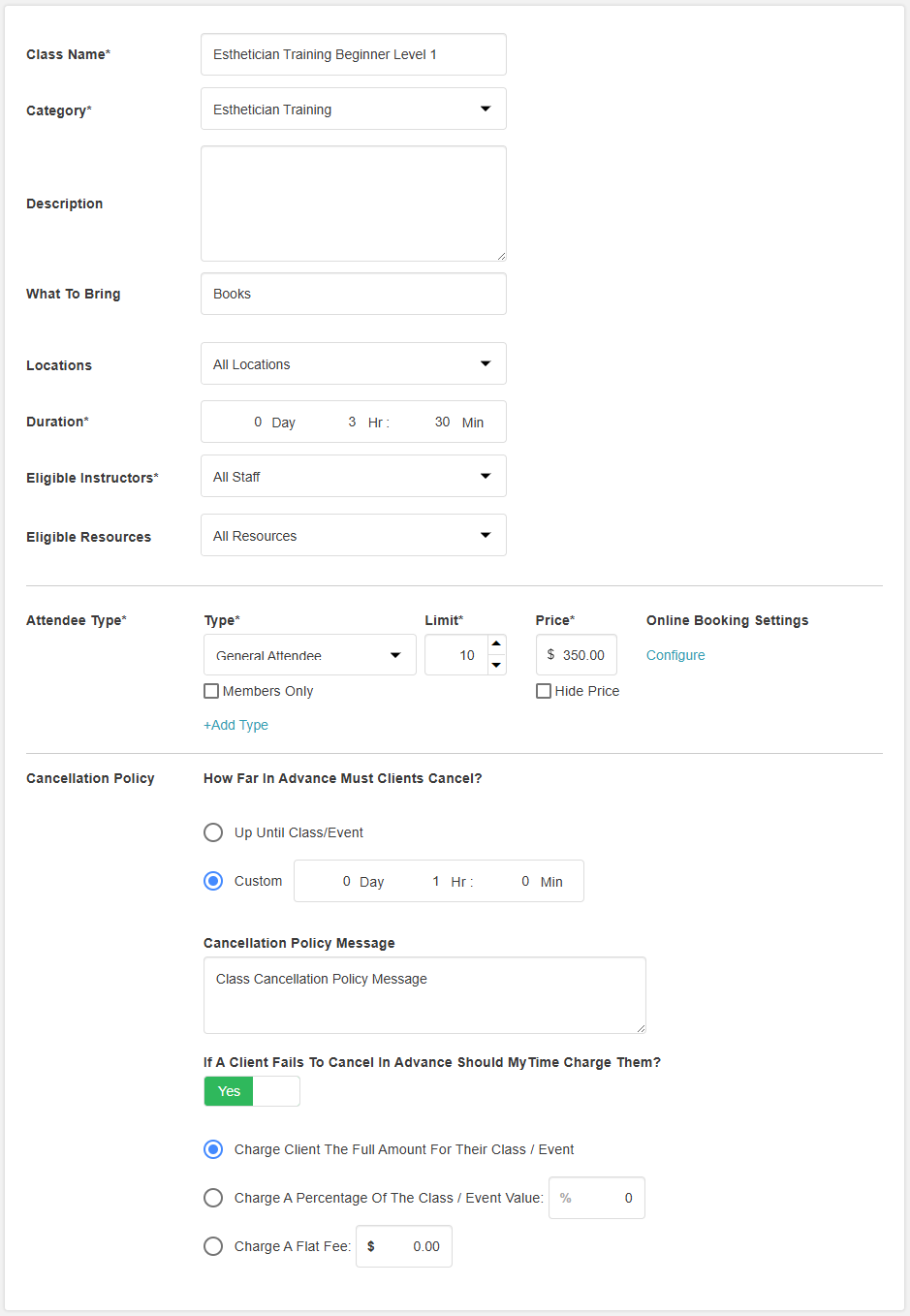
- Locate the cancellation policy at the bottom of the class modal. You can customize how far in advance clients can cancel classes and how late cancellations are handled. This includes setting timeframes, displaying messages during checkout online, and applying charges for late cancellations.
- Cancellation Window: Control how far in advance clients can cancel their class bookings, whether they can cancel up to the class scheduled start time or a custom cancellation timeframe (e.g., 1 hour, 12 hours, or 24 hours before start time)
- Display a Custom Cancellation Message: Allows you to create a custom message to inform clients of your cancellation policy. This message will appear online during the class checkout process.
- Enable Late Cancellation Charges: Once a custom cancellation window is configured, the “If a Client Fails to Cancel in Advance, Should MyTime Charge Them?” setting becomes available. If enabled, you can choose how to charge clients who fail to cancel in time:
- Full class/event price
- Percentage of the class/event price
- Flat fee
- Save


The cancellation policy will now be visible to your clients on the checkout page of your booking widget.

Charging Cancellation Fees Online and In-Store
To cancel a class booking online, your clients will:
- Navigate to your booking widget
- Click the drop-down arrow next to their initial at the top of the page
- Once on their account, click Bookings from the left panel
- Locate the class booking, then click "View Details."
- You will be directed to the confirmation page for the class. Click the "Cancel Booking" link
- Confirm the cancellation by clicking the "Yes, Cancel Booking" button
- Agree to the cancellation fee


The cancellation fee will be automatically charged to the client's card, and their class booking will be successfully canceled.
To charge a cancellation fee in-store, your staff members can:
- Locate the class on the Scheduler and click to open
- On the class modal, click the "View Attendees" button
- You will be directed to the class roster to view all clients booked for the class. Click the pencil icon next to the client who wishes to cancel
- Click "Cancel Booking"
- Confirm the cancellation on the pop-up
- Agree to the cancellation fee charge by clicking the "Charge fee" button
- If the client booked online, their card on file will be automatically charged. If the business booked the class, you will be redirected to POS to take payment.


If you have any questions, please contact our Support Team at support@mytime.com.
Related Articles
Canceling Class Sessions/Events
Was this article helpful?
That’s Great!
Thank you for your feedback
Sorry! We couldn't be helpful
Thank you for your feedback
Feedback sent
We appreciate your effort and will try to fix the article