In this guide, you will learn how to send, view, and respond to client messages using the Communicator. Depending on your account configuration, the Communicator features two distinct layout options:
- Default View: Our classic interface with individual chat pop-up windows.
- Inbox View: A unified messaging workspace that consolidates all client messages into a full-screen layout, giving your team a centralized place to review threads, manage responses, and track ongoing customer conversations.
Things to know:
- The ability to access and reply to messages via the Communicator is governed by the "Accessing Communicator" access control setting.
Benefits of the Communicator:
Real-Time Chat: Engage in live conversations with your clients, facilitating instant communication for quick and efficient interactions.
Photo Sharing: Seamlessly share photos with your clients directly through the MyTime Communicator, adding visual context to your conversations.
Automated Conversation Saving: Every conversation with your clients is automatically saved, ensuring a comprehensive record of interactions for future reference.
Multi-Platform Accessibility: Access the MyTime Communicator from your phone, web browser, or through the dedicated MyTime app available on both Android and iOS devices.
- Phone Numbers & SMS Usage:
- Inbound and outbound messages count toward SMS usage and are billed per carrier segment rather than per message. Carriers treat each segment as a separate message for delivery and billing, so every segment is counted and charged individually. This billing method is determined by carriers and is not specific to MyTime. Learn more about SMS segments & billing here.
- Default vs. Dedicated Numbers: Messages send from randomly assigned numbers by default. Dedicated local area code numbers are available as a paid add-on ($5/month per number).
- Multi-Location & Franchise Rules: Dedicated numbers can be assigned to individual locations. For franchises, numbers must be purchased at the child account level (the Communicator is unavailable at the parent level).
- Inbound and outbound messages count toward SMS usage and are billed per carrier segment rather than per message. Carriers treat each segment as a separate message for delivery and billing, so every segment is counted and charged individually. This billing method is determined by carriers and is not specific to MyTime. Learn more about SMS segments & billing here.
- Smart Channel Routing (Ghost Text):
- Push Notification: Displays "Messages will be sent via push notification" if the client has the custom guest app. (Child account names are included for global accounts).
- SMS: Displays "Messages will be sent via SMS" if the client has a valid phone number and is opted in to transactional SMS.
- Email: Displays "Messages will be sent via email" if the client lacks a valid phone number/SMS opt-in but has a valid email address opted in to transactional emails.
- When a client cannot be messaged across any channel, the reply box remains active, but safeguards indicate the client's status:
- Conversation View: Displays a warning banner stating: "This client cannot be messaged because they opted out of text message and email communications."
- Message Handling: Staff can still compose and send messages, but they are stored internally in the conversation history and are not delivered to the client.
- Color Coding:
- Light Grey Text: Automated SMS messages and marketing campaigns.
- Green Text: Manual messages sent by a staff member.
- Photo & Attachment Rules
- Supported Formats:
JPEG,JPG,PNG,GIF,PJPEG, andX-PNG. - Size Limit: Files must be under 5 MB (uploading larger or unsupported files triggers an error message).
- If a larger or unsupported image is added, you will receive an error message. Not a recognized image file" error plus "Supported image types are 'jpeg', 'jpg', 'png', 'gif', 'pjpeg', and 'x-png'"
- Supported Formats:
- Delivery Alerts & Unread Notifications:
- Failed Delivery Alerts: A "Message failed to deliver" notice appears in the chat alongside an audio cue if an SMS fails to send. Additionally, staff members will receive audio feedback, ensuring prompt awareness of the unsuccessful delivery.
- After-Hours / Closed App Email Alerts: If the app or browser is closed, or a message goes unread after business hours, email alerts are sent to staff members with "Receive operations alerts email" enabled (My Account > Communication Preferences). The system routes the alert in the following order:
- Push Notification: Sent to the owner and all staff members at that location who use the MyTime mobile app.
- SMS: Sent to the company's mobile number on file if push notifications are unavailable.
- Email: Sent to every staff member at that location with "Receive operations alerts email" enabled if no mobile number is on file. If no staff members are opted in, the email is sent to the company owner as a fallback.
- Fallback: Sent to the company owner if no staff members are opted in.
- Read Delay: No email is sent if the message is opened in the Communicator within ~10 seconds of receipt.
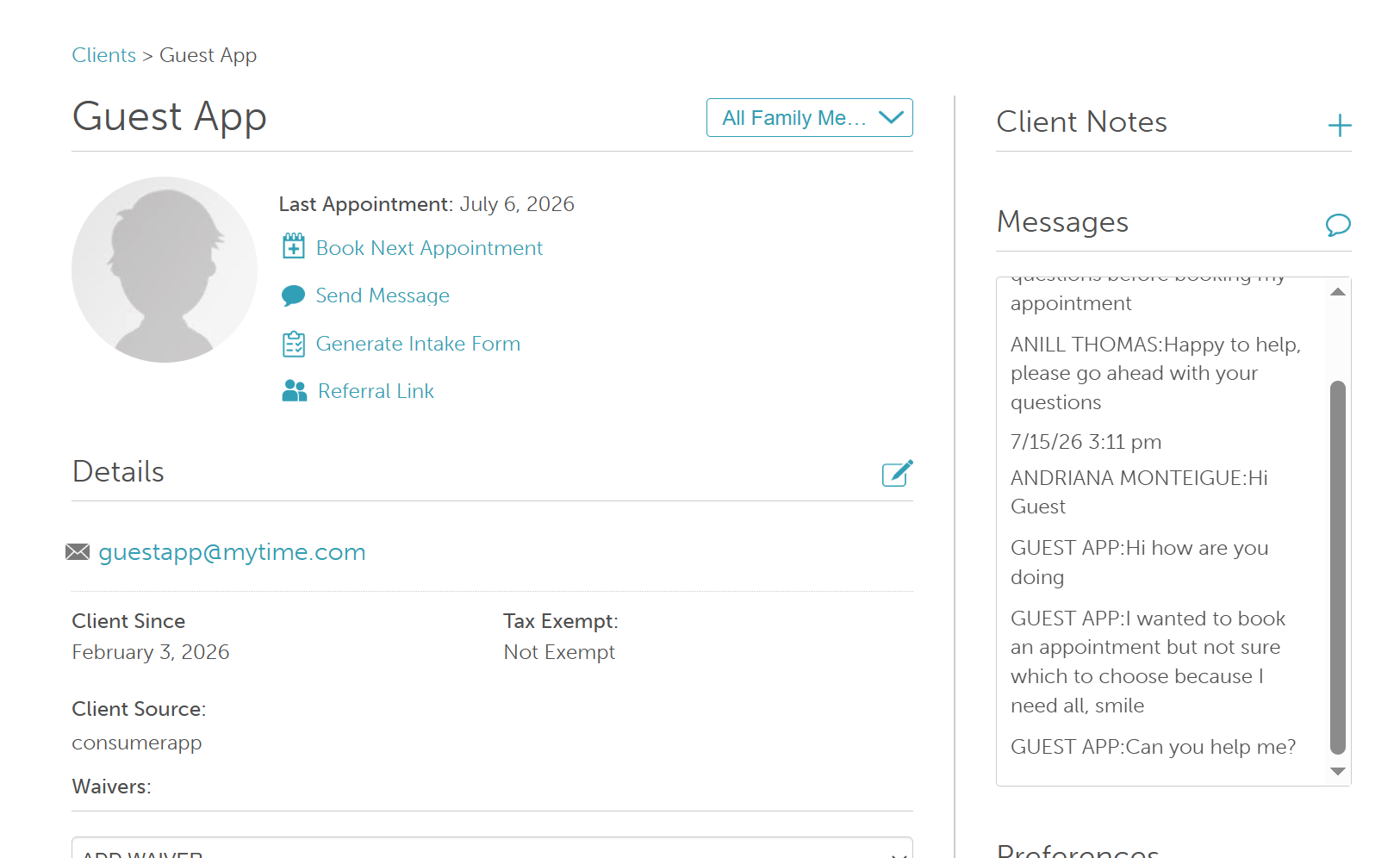
- All current and past conversations are automatically saved and remain accessible in both the communicator and the client's profile.
- Automated SMS messages and mass marketing campaigns sent to clients do not automatically open or uncollapse a chat thread in either the Default or Inbox view. The chat window remains closed until the client replies or staff manually opens the conversation.
- Default Communicator View:
- Clicking the 'X' icon on the top right of the chat window will remove that pop-up from the screen and pop up another one from the list.
- In-store, we display a maximum of 10 conversations at any given time. However, all conversations will be accessible from the conversation section of the Communicator.
- Communicator Notification Settings: Select the gear icon in the Communicator to customize your notification preferences. Check or uncheck the boxes to enable or disable your preferred settings:
- Mute Notifications: Silences sound alerts for incoming messages.
- Auto-popup Incoming Messages: This checkbox is checked by default and unchecking prevents new messages from automatically popping up on your screen.
- Communicator Inbox View:
- This feature requires the "Enable Communicator Inbox" hidden setting that must be enabled by the MyTime team. To request access, please contact support@mytime.com.
- Conversations are categorized as Open (awaiting response) or Closed (resolved).
- If a client replies to a closed conversation, the thread automatically moves back to Open.
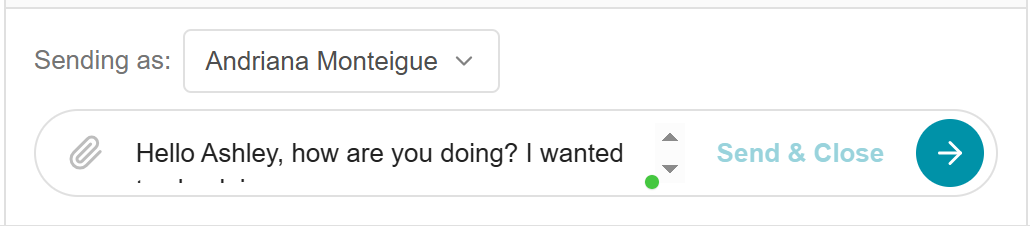
- 'Sending As' section:
- Outgoing messages are automatically attributed to the currently logged-in user by default.
- Staff sharing a single device can use the "Sending As" dropdown in the chat window to switch sender identity for accurate tracking.
- Staff can send on behalf of any team member they have permission to access or fall back to the front desk. For example, if a staff member is busy, another staff member can send a message to their client on their behalf as long as the staff member sending the message has permission to do so.
- Staff can send on behalf of any team member they have permission to access or fall back to Front Desk.
- The 'Sending As' dropdown only lists staff members who have the Service Provider and Support roles and active permissions to reply to messages.
- When the Communicator Inbox is enabled, incoming messages trigger discrete toast notifications and unread badges instead of pop-up chat windows.
- The right-side information panel displays the client's:
- Upcoming appointment
- Last appointment
- Client notes
- Client details
- You can click the "View full client profile" link to go to the client's profile.
- Closing the inbox returns the user exactly where they were, with any draft message and scroll position preserved.
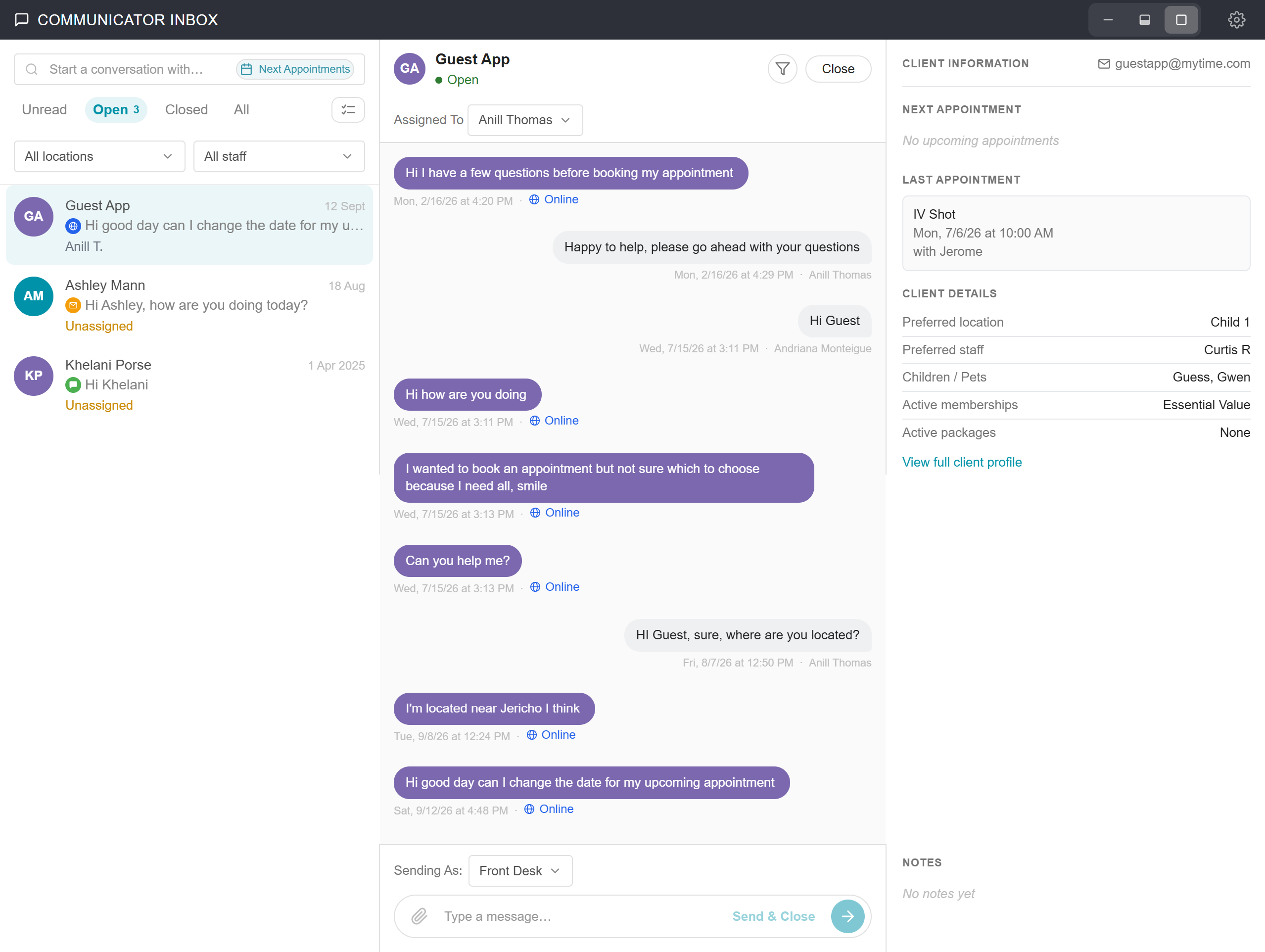
- Each conversation row displays key status indicators:
- Channel Badge: Shows the communication method (SMS, Email, Chat, etc.).
- Status Tags: Identifies unread messages (NEW) or resolved threads (CLOSED).
- Assignee: Displays the assigned staff member’s name or an UNASSIGNED tag.
- Dynamic Loading & Conversation Limits: Your inbox displays up to 200 conversations at a time for optimal performance. Older conversations load automatically as you scroll down the list. To view conversations beyond the 200-item limit, search for the client’s name or a keyword using the search bar at the top.
- Communicator Notification Settings: Select the gear icon in the Communicator to customize your notification preferences. Check or uncheck the boxes to enable or disable your preferred settings:
- Mute Notifications: Silences sound alerts for incoming messages.
- Hide Message Previews: Prevents incoming messages from automatically previewing on your screen.
- Half-Screen Working Mode: In half-screen mode, the inbox docks at the bottom half of the screen, keeping the main page above fully visible and scrollable. Window dimensions are saved automatically per user and browser.
- Interactive Pop-up Preview Cards: When the inbox is minimized, incoming messages show a pop-up card above the collapsed bar displaying the client’s avatar, name, first line of text, and timestamp. Clicking a preview card opens the conversation directly.
- Smart Auto-Dismiss & Pause: Preview cards automatically dismiss after a few seconds. The countdown pauses if you hover over the card or switch tabs, ensuring alerts stay visible when you return.
- Unread Counter Behavior: Dismissing a preview card does not mark the message as read; the unread counter updates only when the chat thread is opened
- Filter Controls: Filter controls on both open and closed chats allow you to customize which messages appear in your conversation thread. Click the Filter to select your preferred view:
- Hide Automated Messages: Hides system-generated automated messages. Client messages and manual staff replies will always remain visible.
- Hide AI Messages: Hides automated responses sent by the MyAI assistant. The client's original messages within the AI conversation remain visible.
- Key Behaviors & Filter Duration:
Active Indicator: When you enable a filter (Hide Automated Messages or Hide AI Messages), the Filter button highlights to show that content is currently being hidden.
Persistence: Your selected filters apply to all conversation threads on the current page. Filters are stored per-browser and will:
Persist if you minimize and re-open the inbox
Persist if you switch between Open/Closed/All tabs
Persist if you switch locations (if you have multi-location access)
Clear if you refresh your browser, log out, or switch devices
Empty State: If your active filters hide all messages in a conversation thread, the chat displays a notification stating "All messages are hidden by current filters" rather than appearing blank.
- The badge displays the total number of unread messages across all open conversations (for example, 5 unread messages across 2 active chats displays as a badge count of 5).
- Incoming Message Popup Behavior: When your inbox is closed, incoming client messages automatically open as a docked popup window at the bottom of the screen rather than showing a small preview card. The popup responds dynamically depending on its state:
- New Conversation: Opens a new docked popup window at the bottom of the page.
- Minimized Window: Automatically re-expands to full popup view when a new message arrives.
- Already Open Window: Updates instantly in real time to display the incoming message.
- Note: If your full inbox is already open on the screen, no popups appear; you will only hear the audio notification chime.
- Popup Display Settings ("Disable auto-open popups"): Under your inbox settings menu, the former "Hide message previews" toggle has been renamed to Disable auto-open popups. When enabled, incoming messages revert to displaying classic preview cards instead of automatically launching docked chat windows.
- Communicator Inbox Popout Chat Windows: Popout chats allow staff to multitask across MyTime by keeping active client conversations accessible in docked windows while the main Communicator inbox is closed or minimized.
- Inbox View Behavior (Half & Full Screen): Active popout windows automatically hide whenever the main inbox is expanded to half-screen or full-screen view. When the main inbox is minimized or closed again, the popouts automatically reappear in their previous positions.
- Opted-Out Clients: If a client has opted out of SMS or messaging, the popout window's reply box is disabled and displays the standard opt-out notice, preventing outbound messages just like the main inbox.
Contents:
- Utilizing the Default Communicator on Web
- Utilizing the Communicator Inbox on Web
- Version Comparison & Key Differences
- Scenarios
- Troubleshooting & Common Questions
Utilizing the Default Communicator on Web
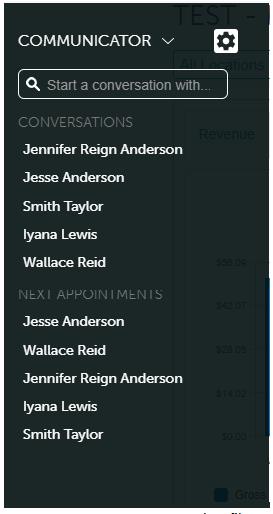
- Select the Communicator at the bottom left of the page
- Select a client from the list or search for a client
- Compose a message or attach a file and send
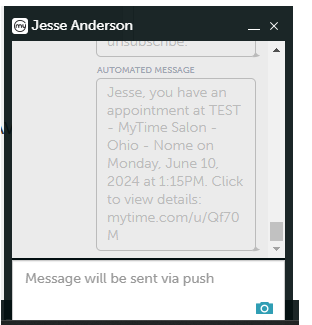
- To respond to a message via the Communicator on the web, simply:
- Select the desired chat
- Compose a message or attach a file and send
- Minimize the chat window or remove it by clicking the 'X' icon on the top right
- Incoming messages will display in a pop-up window along with an unread count badge (e.g., "2") next to the client's name in the bottom-left corner of the screen.
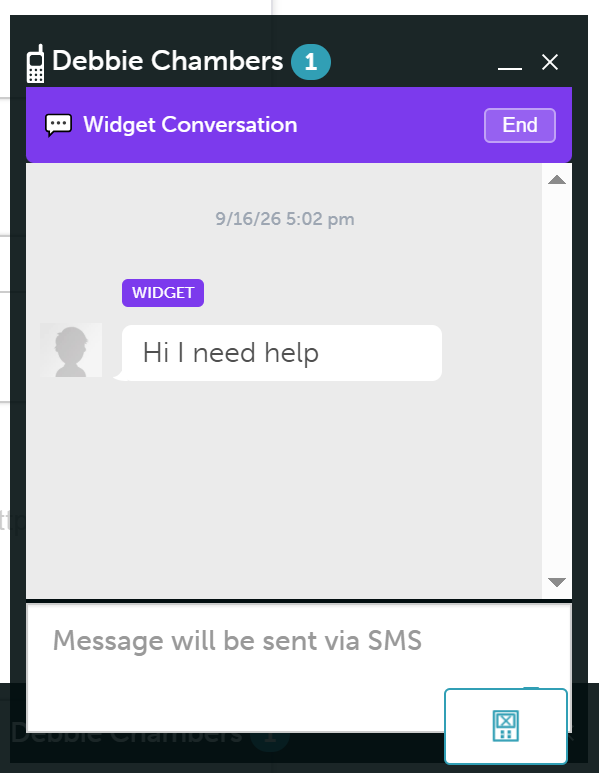

The conversation will be accessible from the Conversations section of the Communicator.

The conversation will also be visible under the Messages section on the client's profile.

Utilizing the Communicator Inbox on Web
The Communicator Inbox transforms your standard messaging interface into a centralized, full-page dashboard. This full-screen layout provides advanced filtering capabilities and gives your team instant access to detailed client profiles directly alongside active conversations.
Once the hidden setting is enabled:
- Click "Communicator Inbox" in the bottom-left corner of your screen
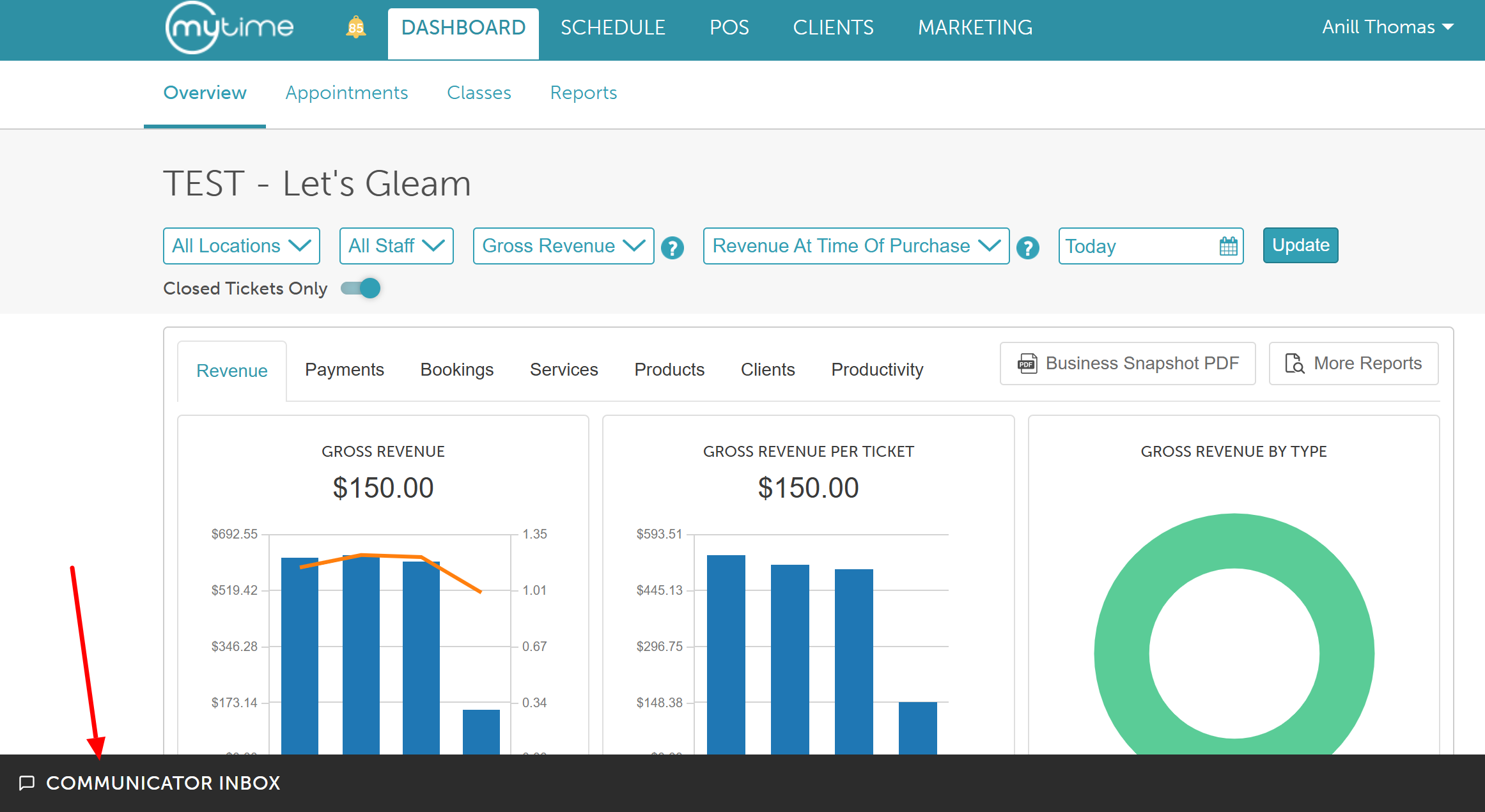
- Default Layout: Opening the Communicator inbox expands it to the full-screen layout by default.
- Customizing the View: You can adjust your view anytime using the action buttons in the inbox toolbar located at the top right-hand corner of the screen (Close - Half Screen - Full Screen)
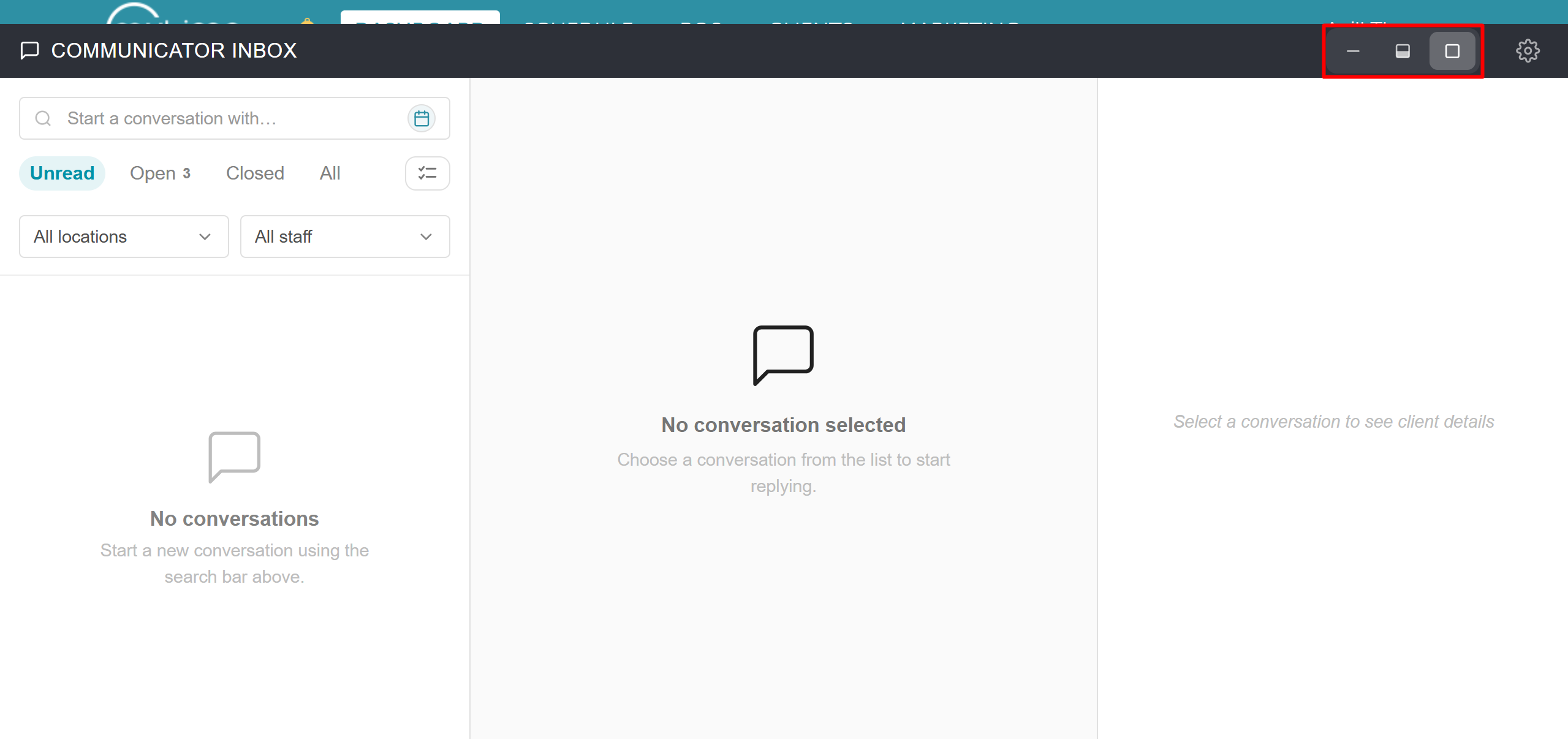
- Customizing the View: You can adjust your view anytime using the action buttons in the inbox toolbar located at the top right-hand corner of the screen (Close - Half Screen - Full Screen)
- You can use the top filter controls to refine your view:
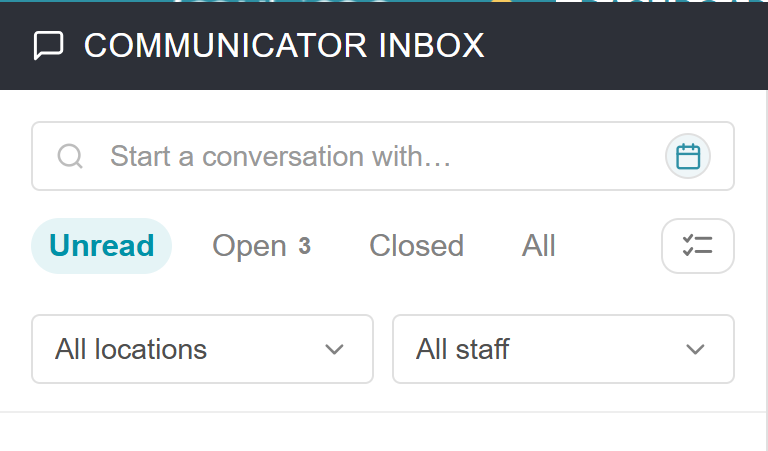
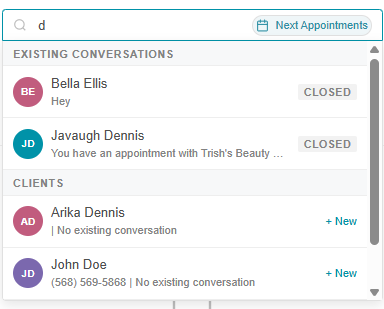
- Search Bar:Search for client conversations by name or phone number. The search looks across both open and closed conversations. If no matching conversation is found, the list will display "No conversations found." To start a new conversation with a client who hasn't messaged before, use the '+ New ' option.
- Click 'Next Appointments' in the search bar to view clients with upcoming appointments. The list will include clients with open, closed, or no conversation
- Status: Toggle between Unread, Open, Closed, or All conversations. Messages are sorted by most recent message.
- Chat Bulk Filter: Located to the right of the 'All' tab and available on all status pages, this filter enables bulk actions across multiple chats.
- Select Chats: Clicking the filter reveals checkboxes next to each chat row, allowing you to select one or more conversations.
- Bulk Actions: Once selected, you can mark chats as Read, Closed, or Open, or reassign them to another staff member.
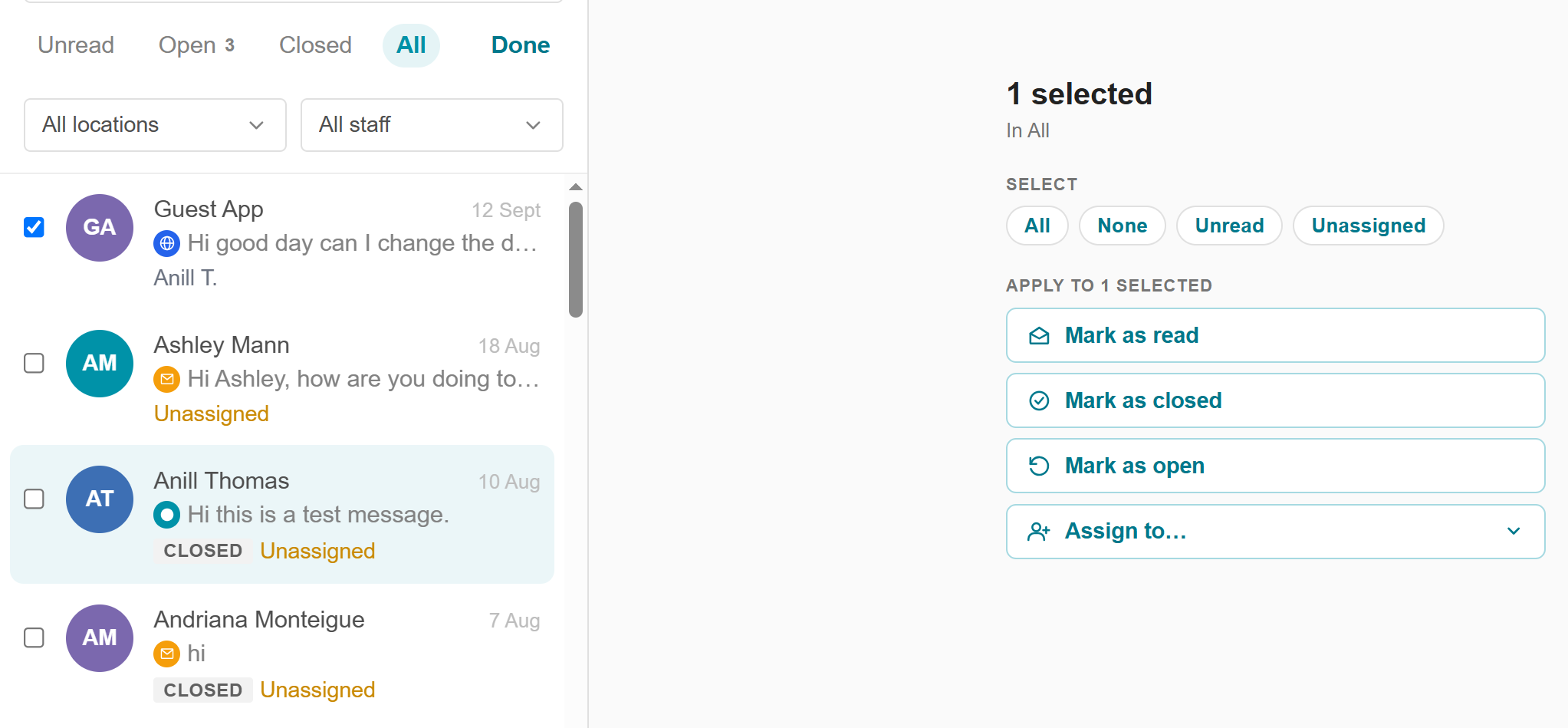
- Click 'Done' to remove the checkboxes
- Location: Filter by a single location, multiple locations, or all locations.
- Assignment: Isolate messages assigned to a specific staff member, view unassigned general messages, or view all.
- Once a conversation is open, the following will be displayed:
- Chat history:
At the top of the chat history are the chat filter, pop-out, and status icon:
Chat Filter: Used to filter out
Pop-Out: Click the Pop Out icon to automatically minimize the full inbox and open the chat as a floating pop-up window.
Header Controls:
Open in Inbox: Restores the full conversation view in the main inbox (shrinking the popup into a tab on the bar).
Minimize: Collapses the popup into a small tab on the bar. Unsent drafts are retained when minimized.
Close: Removes the popup from the bar. (Note: Closing a popup does not delete or remove the conversation from the inbox).
Status Icon: Use this icon to change the status of the chat. For open chats, the status icon will display close and for closed chats, it will display reopen
- Client Summary: A real-time summary panel will appear on the right side of your screen showing:
- Contact details (phone number and email)
- Upcoming appointment details
- Last appointment history
- Account details (preferred location, preferred staff, family members/pets, and active memberships/packages)
- Profile notes (with an option to click "View full client profile")
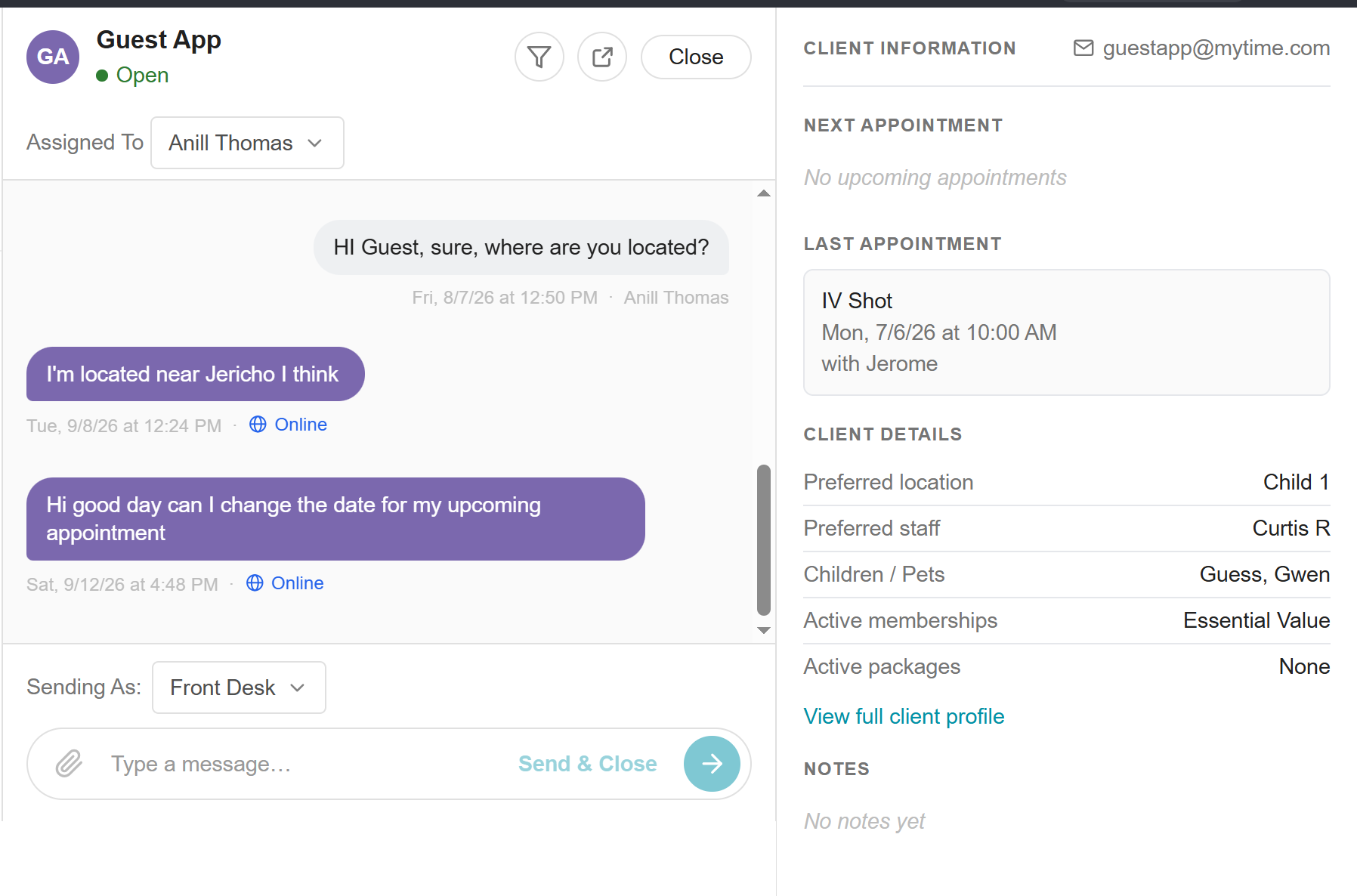
- Chat history:
- Type your message in the text box or click the paperclip icon to attach a file
- Choose your delivery method:
- Send & Leave Open (Arrow Icon): Sends the message and keeps the conversation active in your Open queue.
- Send & Close: Sends the message and immediately archives the thread to your Closed view.
Handling Incoming Messages
When a new message arrives while using the Communicator Inbox:
- An unread count badge (e.g., "2 Unread") appears next to the Communicator Inbox icon in the bottom-left corner of the screen. A brief preview of incoming messages pops up in the bottom-right corner for quick viewing.

- Click the Communicator Inbox icon to open your dashboard. New threads will appear directly at the top of your Open tab
- Select the conversation to review the chat history, draft your response, and send
Note: All current and archived historical threads remain securely accessible within the Conversations section of the interface.
Version Comparison & Key Differences
The core differences between the two versions lie in user interface (UI), workspace navigation, message attribution, and thread management:
| Feature / Capability | Default Communicator | Communicator Inbox (Advanced) |
| Activation & Requirements | Standard feature. | Requires the hidden setting "Enable Communicator Inbox" to be enabled by Support (support@mytime.com). |
| Incoming Message Alerts | Launches a pop-up chat window directly on screen along with a notification sound. | Triggers discrete toast notifications and unread badges instead of screen pop-ups. |
| Conversation Limits & Queue | Displays up to 10 active pop-up chat windows on screen at once. Closing one ('X') opens the next in line. | Displays up to 200 conversation at a time for optimal performance. Older conversations load automatically as you scroll down the list. |
| Conversation Status Tracking | Basic unread / read thread tracking. | Explicit Open (awaiting response) and Closed (resolved) statuses. Threads automatically reopen if a client replies. |
| Sender Attribution ("Sending As") | Attributes messages directly to the logged-in user. | Includes a 'Sending As' selector allowing staff to send on behalf of other permitted staff members or as Front Desk. |
| Sidebar Client Details | Access client info by opening the main client profile separately. | Features a right-side info panel displaying upcoming/past appointments, notes, and direct profile links. |
| Row Badges & Tags | Communicator Badges at the top of the communicator window (SMS, Email, Chat) | Displays explicit row indicators: Channel Badges (SMS, Email, Chat), Status Tags (NEW / CLOSED), and Assignee Tags (Staff Name / UNASSIGNED). |
| Workspace State | Closing a pop-up window clears it from the screen. | Closing the inbox preserves draft messages and your exact scroll position when you return. |
Scenarios
| Scenarios | Results |
If a client is associated with location A, the staff is associated with locations A and B, and the client initiated the message (they responded to a confirmation from location A, etc) | Whether the staff member is logged in at location A or B, they will receive the message from the client (access control permitting). However, if the staff is not logged in, the client's message will be sent to location A |
If the client is associated with location A, the staff is associated with locations A and B and the staff initiated the message | If the staff member is logged in at location A or B, they will receive the message from the client (access control permitting). However, if the staff is not logged in, the client's response will be sent to location A |
If a client is associated with location B, the staff is associated with location A, and the client initiated the message (they responded to a confirmation from location B, etc) | The client's message will be sent to location B and received by any staff logged in at location B (access control permitting). |
If the client is associated with location A, the staff is associated with location B, and the staff from location B initiated the message | The client’s response will show up at location B |
If the client is associated with locations A & B, the staff is associated with location B and the client initiated the message (they responded to a confirmation, etc from location A) | The client’s response will show up at location A |
If the client is associated with locations A & B, the staff is associated with location B and the staff initiated the message | The client's response will show up at location A & B |
| If the client is associated with locations A & B, their last appointment was at location A, the staff is associated with location B and the client initiated the message (they responded to a confirmation from location A, etc) | The client’s message will show up at location A |
If the client is associated with locations A & B, their last appointment was at location A, the staff is associated with location B. If the staff initiated the message | The client's response will show up at location B |
| If the client is associated with locations A & B, their last appointment was at location B and the client responded to a campaign they received from location A | The client's response will show up at location B since that is the location associated with their last appointment |
Troubleshooting & Common Questions
- My draft message disappeared when I closed the browser. Where did it go?
- Drafts are stored in your browser's memory during your session only. Closing your browser, logging out, or clearing your browser cache will permanently delete unsent messages. To prevent losing work, copy long messages before navigating away. Your message will be saved only after you click Send.
- Drafts are stored in your browser's memory during your session only. Closing your browser, logging out, or clearing your browser cache will permanently delete unsent messages. To prevent losing work, copy long messages before navigating away. Your message will be saved only after you click Send.
- If I reassign a conversation, does the client know?
- No. Reassigning a conversation does not trigger a client notification.
- No. Reassigning a conversation does not trigger a client notification.
- Why are my messages showing as SMS instead of Push Notification?
- MyTime automatically routes messages to the best available channel based on the client's contact preferences. Ensure the client has:
- The MyTime Guest App installed (for push notifications)
- A valid phone number on file and SMS opt-in enabled (for SMS)
- A valid email address and email opt-in enabled (for email)
- Check the client's Contact Permissions in their profile to update their preferences.
- MyTime automatically routes messages to the best available channel based on the client's contact preferences. Ensure the client has:
- Can I delete a message after I send it?
- No — messages sent through the Communicator cannot be deleted. All messages are permanently stored. If you need to correct a message, send a follow-up clarification.
- No — messages sent through the Communicator cannot be deleted. All messages are permanently stored. If you need to correct a message, send a follow-up clarification.
- How many conversations can I have open at once?
- In Default view, you can display a maximum of 10 chat pop-up windows at once. In Inbox view, you can view up to 200 conversations, and pop-out windows have no enforced limit. However, opening many windows may impact browser performance.
Related Articles:
Utilize the Communicator on Scheduler App
Was this article helpful?
That’s Great!
Thank you for your feedback
Sorry! We couldn't be helpful
Thank you for your feedback
Feedback sent
We appreciate your effort and will try to fix the article